


If you’re running a community library, school, or book club, then you’ve probably encountered the same problem: commercial library management software is powerful, but the licensing costs put it out of reach for smaller projects.
The good news is that you don’t need expensive software to run a modern library. With the right free plugin, WordPress can handle your entire catalog, patron accounts, borrow and return workflows, late fines, and even display a public-facing book listing.
In this guide, we’ll show you exactly how to build a complete library collection and circulation system using WordPress.

Quick Summary: The easiest way to build a library collection and circulation system in WordPress is to install the free Library Management System plugin.
It lets you organize your catalog into bookcases, sections, and categories, track individual copies with accession numbers, register library users, and process borrow and return transactions, all from your WordPress dashboard.
Why Build a Library Collection and Circulation System in WordPress?
WordPress doesn’t have library features built in. However, with the right plugin you can turn your WordPress dashboard into a dedicated library admin panel, complete with a catalog, patron database, transaction history, and reporting.
Here’s why we recommend WordPress for small-to-mid-size libraries:
- It’s dramatically cheaper than traditional library software. Commercial systems like Koha (hosted), Destiny, or Follett can cost thousands of dollars a year once you factor in licensing, hosting, and training. By contrast, a WordPress setup costs roughly the price of your hosting plus a domain.
- It’s easy for volunteers and non-technical staff to use. If someone can update a WordPress blog post, then they can add a book or check out a title to a patron. That matters when you’re training student workers, rotating volunteers, or creating a library management system for a client.
- It integrates with the rest of your site. Your library catalog lives on the same domain as your homepage, contact form, donation form, events calendar, and any other pages you might be using. This means you won’t have to redirect patrons to a separate platform just to see what books are in stock.
- It handles the fundamentals properly. You can track every title, author, ISBN, publication year, and cover image. You can register borrowers, set up multiple branches, log checkouts, process returns, and calculate late fines. You can also back up your library data along with the rest of your website.
Now, let’s see how you can build a library collection and circulation system in WordPress. Simply use the quick links below to jump straight to the section you want to read first:
- Install and Configure the Library Management System Plugin
- Create Bookcases and Sections in WordPress
- Add Categories to Your Library Collection
- Add Books to Your Library Collection
- Add Branches and Register Library Users
- Give Patrons Their Own Login With the Library User LMS Role
- Manage Book Borrowing and Returning in WordPress
- Publish Your Library in WordPress
- Frequently Asked Questions About Building a Library System in WordPress
Install and Configure the Library Management System Plugin
The easiest way to create a system for managing library books and circulation is by using the Library Management System plugin. It is a free tool that streamlines the process of managing libraries, organizing books, adding users, sorting bookcases, tracking transactions, and more.
Note: For this tutorial, we’re going to assume you already have a WordPress website set up. If you don’t, check out our guide on how to make a WordPress website.
The first thing you need to do is install and activate the Library Management System plugin. For more details, see our step-by-step guide on how to install a WordPress plugin.
Before you add any books, it’s worth configuring the plugin’s global settings first. To start, go to Library Management » All Settings.
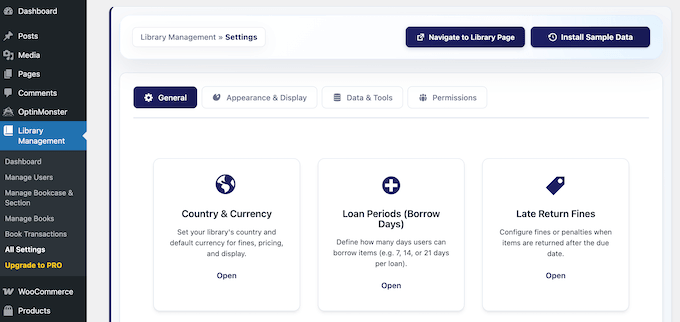
You’ll see a settings grid with cards for things like borrow days, late fines, country and currency, labels and texts, and public page display.
We recommend working through each card, because a few of these settings influence how the plugin formats data behind the scenes.
For example, ‘Country & Currency’ determines how fines and fees appear. Simply click the card to open the settings popup.
You can now select Country and Currency from the dropdowns. For libraries that charge late fees in a local currency other than US dollars, this is the setting that makes sure your receipts and reports look correct.
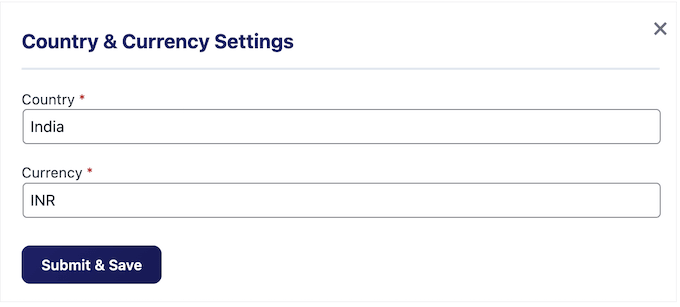
Once that’s done, simply click the ‘Submit & Save’ button.
Next, open the ‘Late Return Fines’ card and specify how much you’ll charge per late day.
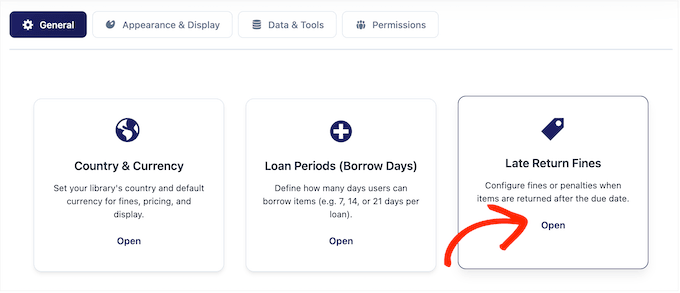
For community libraries, we recommend starting with a small daily fine (say $0.10 per day).
High fines discourage returns, so this can actually hurt your bottom line.
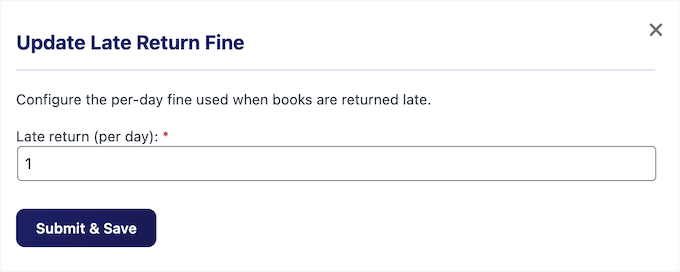
Once you’ve saved both settings cards, your plugin has everything it needs to run your library’s workflows. From here, we’ll set up the catalog structure, add books and users, and start processing transactions.
Create Bookcases and Sections in WordPress
Before you start adding books, you need a place to put them. With the Library Management System plugin, this means creating bookcases and sections.
Bookcases mirror physical bookshelves in your library. Meanwhile, sections are like subject-area groupings inside each bookcase, similar to how you might use categories to organize blog content.
For example, you might have a ‘Sports’ bookcase with sections for Tennis, Soccer, and Football. Or a Children’s bookcase with sections for Picture Books, Early Readers, and Middle Grade.
The point is that your digital structure should match what’s on your actual shelves, so staff and volunteers can reshelve books without guessing.
That said, it’s important to plan your bookcase and section structure on paper before you start creating records. Walk your physical library and list what’s on each shelf, then mirror that in the plugin. It’s much faster to rename a piece of paper than to reorganize 200 books after you’ve already categorized them.
⚠️ The free version allows up to 30 bookcases, 30 sections, 30 categories, 30 branches, 30 books, and 30 library users. That’s plenty for most small libraries, but if you’re planning a larger catalog, keep that limit in mind when designing your structure.
You can always consolidate (for example, ‘Young Adult Fiction’ and ‘Young Adult Non-Fiction’ sections rather than ‘YA Fiction by Genre’).
Also note that the free version uses a fixed 30-day loan period — if you need shorter or longer loans (a 1-week school library loan, for example), per-borrow configurable loan periods are a Pro feature.
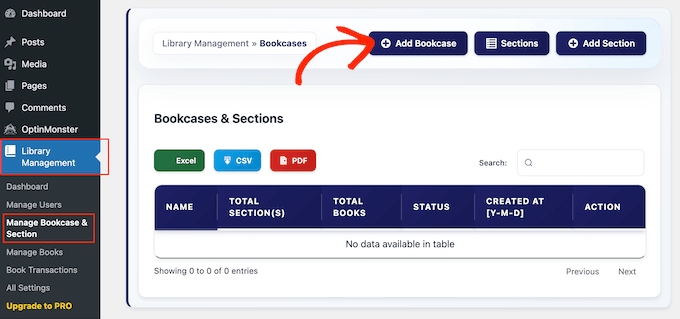
When you’re ready, head to Library Management » Manage Bookcase & Section and click the ‘Add Bookcase’ button.
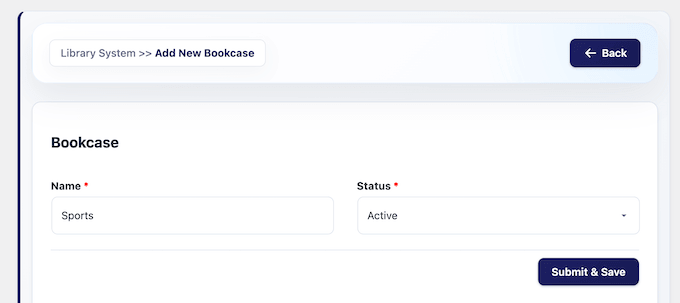
Next, give your bookcase a clear name and select its status from the dropdown menu.
The ‘Status’ field controls whether a bookcase shows up in your workflows.
You should choose ‘Active’ for anything currently in use. The ‘Inactive’ status is useful for retiring a bookcase (for example, if you move those books to a new location) without deleting the record and losing your history.
When you’re done, go ahead and click the ‘Submit & Save’ button.
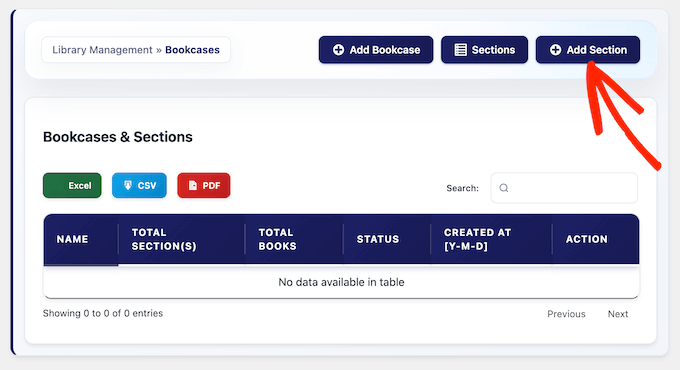
To add more bookcases, simply repeat this step. When you’re done, click the ‘List Bookcase’ button to see all the bookcases you just added.
From here, you can also create different sections by clicking the ‘Add Section’ button.
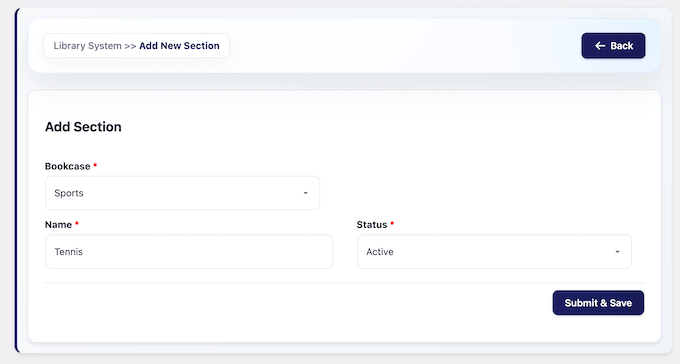
On the ‘Add Section’ screen, pick the parent bookcase from the dropdown menu. This tells the plugin which shelf the section belongs to.
Then, give the section a name, set its status, and click ‘Submit & Save’.
If you want to add more sections to each bookcase, simply repeat this process.
Add Categories to Your Library Collection
Now, it’s time to add one more classification layer: categories.
Think of categories as subject tags that apply across bookcases. For example, a novel by Hemingway belongs in your ‘Fiction’ bookcase under a ‘Literary Fiction’ section, but it also belongs to the ‘American Literature’ category.
In this way, categories let you group and filter books by topic regardless of where they live on the shelf.
To create a category, head over to Library Management » Manage Books.
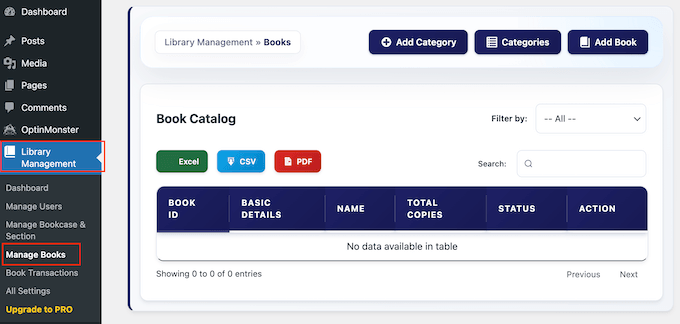
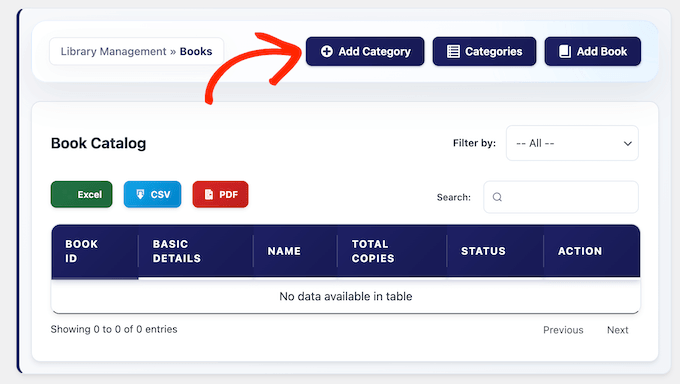
Here, go ahead and click the ‘Add Category’ button at the top.
On the next screen, give the category a name. Good starting categories for a general library include History, Biography, Fiction, Science, Religion, Arts, Politics, Reference, and Children’s.
After entering a name, you’ll also need to click the ‘Status’ dropdown and select whether the category is ‘Active’ or ‘Inactive.’
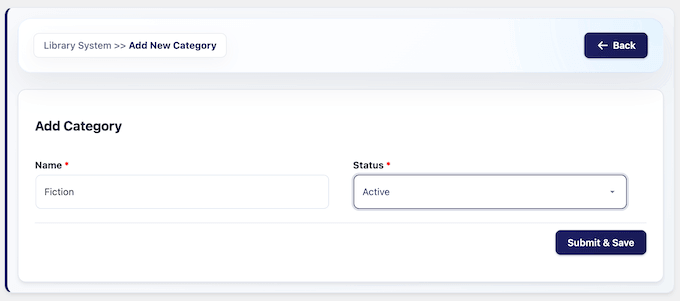
Once you’re done, simply click the ‘Submit & Save’ button.
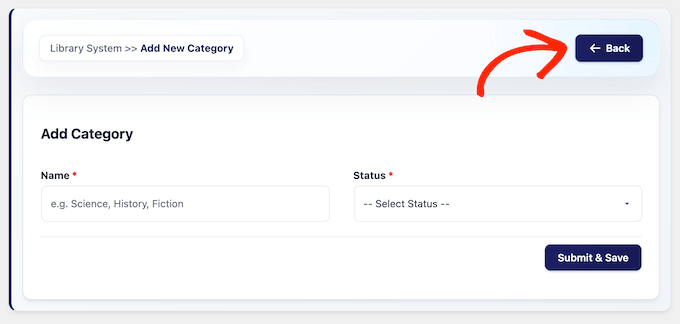
You can now repeat this step to add as many categories as you want. With that done, click the ‘Back’ button to return to the ‘Manage Books’ section.
Add Books to Your Library Collection
Now for the fun part: adding books to your library.
⚠️ Already have a book list in a spreadsheet? The free version of Library Management System doesn’t include a CSV importer, so you’ll need to add books one at a time here.
If you have a large existing list, then you have two options: upgrade to the plugin’s Basic Premium tier, which adds CSV import, or use a general-purpose importer like WP All Import to push your spreadsheet into the plugin’s book records.
To do this, click the ‘Add New Book’ button.
After that, you will need to enter the details of the book and select a category.
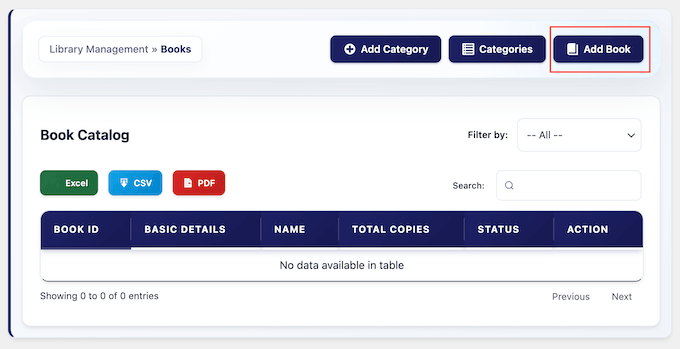
The required fields are Book ID, category, bookcase, section, name, and status. Everything else (publisher, publication year, location, ISBN, author, cover image) is optional but worth filling in to make it easier to search.
Note that the Book ID field is the unique identifier you’ll use to reference the book internally. We recommend a consistent numbering scheme like a three-letter bookcase prefix plus a four-digit number (for example, ‘FIC-0001’ for the first book in Fiction).
Library Management System also supports tracking multiple physical copies per book using accession numbers. That means if you have three copies of The Great Gatsby, each copy gets its own accession number, but they all share the same catalog record.
This makes circulation much cleaner when you have duplicates, since each copy has its own tracked status instead of sharing one.
Besides that, there are other optional fields like publication name, year, and location. If you scroll down, then you’ll also see an option to upload a cover image for the book.
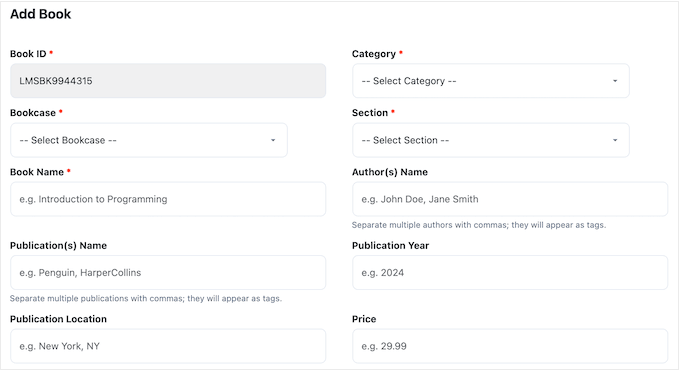
You can typically grab official cover art from Open Library, Google Books, or the publisher’s own site.
It’s also important to keep your cover images under around 500KB so your book listing loads quickly for patrons on slow connections. You can easily do this by resizing your images before uploading, or by using an image compression tool.
When you’re done, just click the ‘Submit & Save’ button.
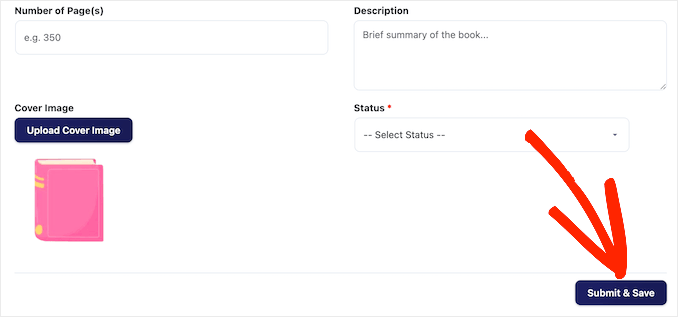
You can now repeat this step to add other books to your library collection.
Add Branches and Register Library Users
Next up: the people side of your library. ‘Branches’ are the physical locations your library operates from, and ‘Borrowers’ are the patrons who check out books.
Even if you only have one location, set up at least one branch. Every borrower record is tied to a branch, and that relationship powers the plugin’s reporting and filtering. If you operate from multiple buildings (say a main library plus a satellite community center), you’ll want to create a branch for each.
To start, go to Library Management » Manage Users and click the ‘Add Branch’ button.
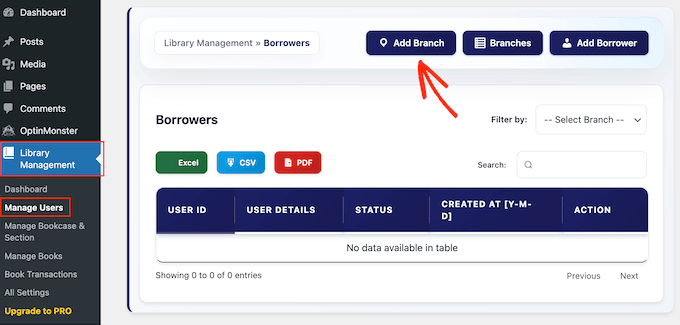
After that, enter a branch name (something short like ‘Main’ or ‘Downtown’ is fine) and pick a status.
With that done, click ‘Submit & Save.’
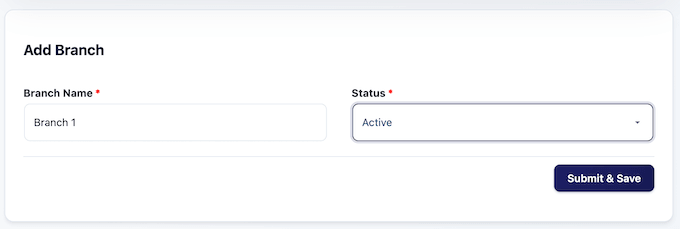
To add extra branches, simply repeat these steps.
When you’re done, click ‘Back’ to return to the previous page.
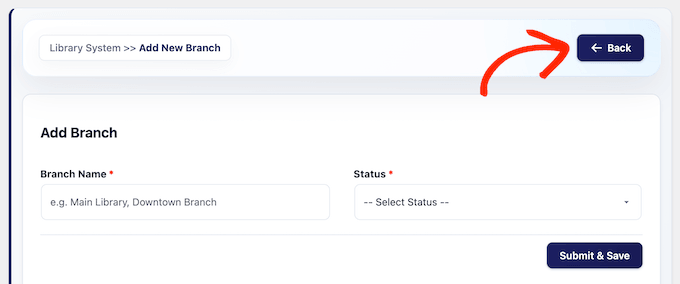
You can now head back to the ‘List Branch’ page and see the newly added branch.
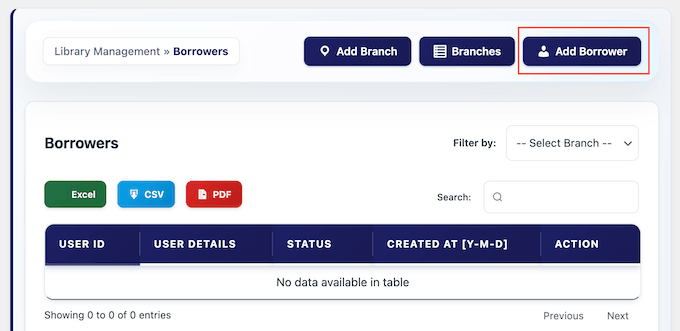
Now let’s add a borrower by clicking the ‘Add Borrower’ button.
You’ll see a form asking for User ID, branch, name, email, address, phone number, status, and an optional profile picture.
The User ID is the patron-facing library card number, so pick a format you’re happy printing on a card (for example, ‘LIB-2026-0001’).
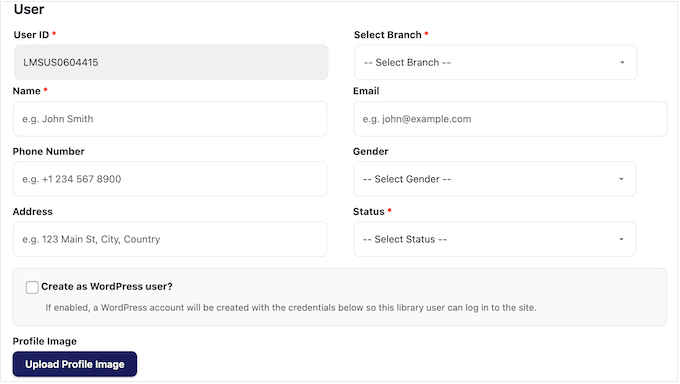
After entering these details, scroll down and click the ‘Submit & Save’ button.
Give Patrons Their Own Login With the Library User LMS Role
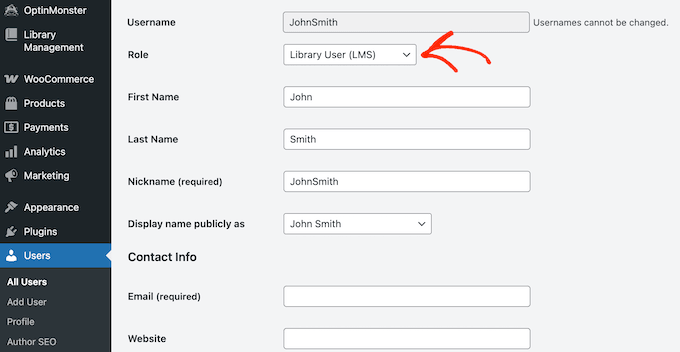
The free plugin automatically adds a new ‘Library User LMS’ role to your site. You can assign this role to patrons so they have a login of their own, separate from your librarian account.
It’s worth being honest about what this role gives them in the free version. Patrons get a stripped-down WordPress dashboard that keeps them out of your site’s admin areas, but the personalized patron portal that lists their currently borrowed books and full borrowing history is a Pro-only add-on.
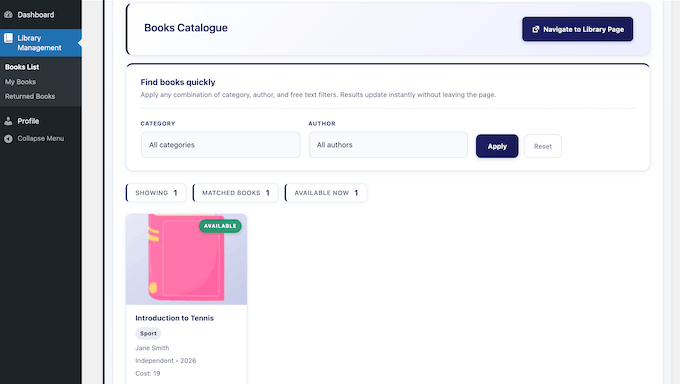
On the free tier, the way patrons find out what they have checked out is to ask you. You can look up any patron’s current loans and past returns from the Borrowers and Issued Books screens in your own admin dashboard, then reply by email or in person.
If true patron self-service matters to your library, then the Pro add-ons add a Library User portal with Books List, My Books, and Returned Books views, plus one-click syncing of WordPress users into the borrower list so each login is tied to a real patron record.
To set up a patron login on the free tier, create a standard WordPress user for the patron under Users » Add New, then set their role to ‘Library User LMS.’
For more on this topic, please see our detailed guide to WordPress user roles and permissions.
Manage Book Borrowing and Returning in WordPress
Now that your catalog and your patrons are set up, you’re ready to start lending books and managing your library.
You can do all this by going to Library Management » Book Transactions.
When someone borrows a book, you can add it to your database by clicking the ‘Check Out Book’ button.
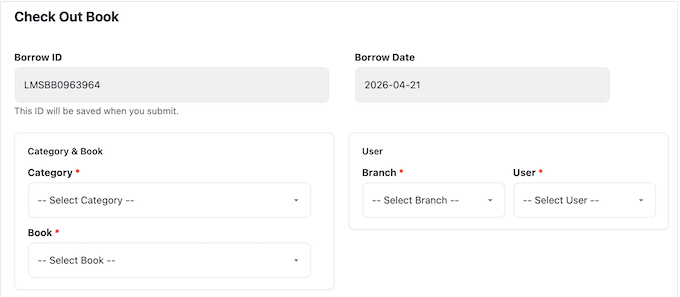
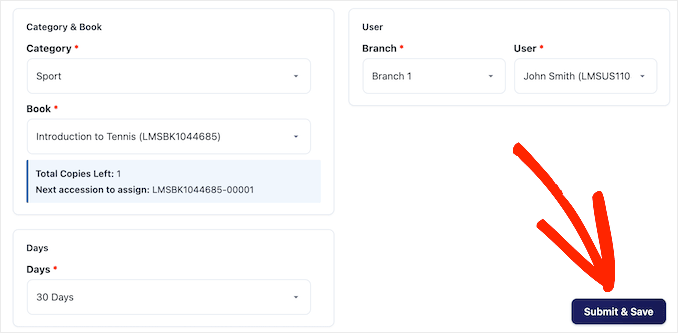
On the next screen, you’ll need to enter details like the branch, category, book, and user.
Note that the free version limits each transaction to one book per patron, so if a reader is borrowing three books, you’ll need to record three separate checkouts. Multi-book checkout in a single transaction is a Pro feature.
When you’re done, simply click the ‘Submit & Save’ button.
After that, you can see the history of all your borrowed books by going to Library Management » Book Transactions.
Here, you’ll see the details of the borrowed books, and the ‘Status’ will show ‘Return Pending.’
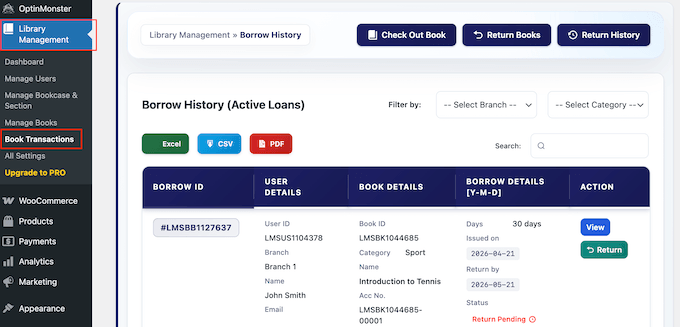
This page is perfect for glancing at active loans before closing the library for the day, or pulling a list of patrons with overdue books. You can sort and filter right on this screen.
When the user returns an item, find the book in the list and click its ‘Return’ button.
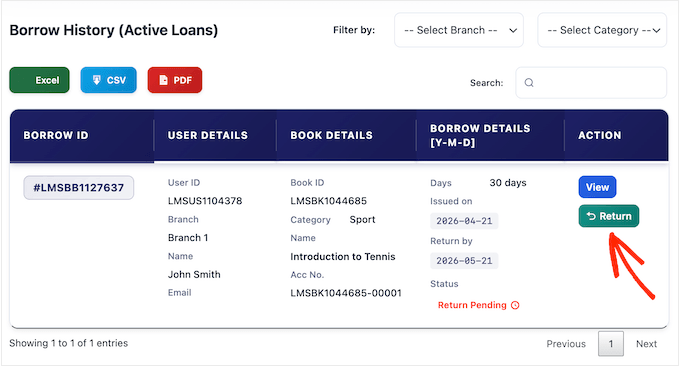
You’ll now see all the information about the borrowed item.
By default, the ‘Return Status’ dropdown is set to ‘Normal Return.’ However, you can open this dropdown and select ‘Lost Book’ or ‘Late Return’ where appropriate.
If you mark a return as ‘Late’, then the plugin calculates the fine using your global late-fee setting.
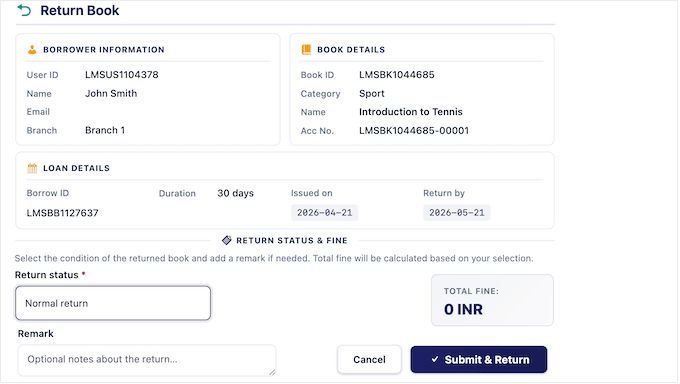
After making your selection, click the ‘Submit & Save’ button.
Now, when you click the ‘Return History’ button, you’ll see the status has changed to ‘Returned.’
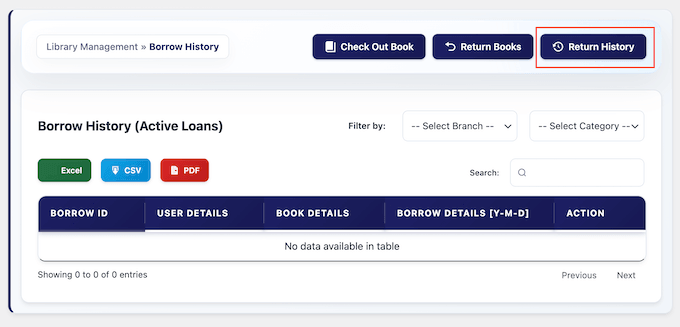
You can follow this step to manage all the books that users borrow and return from your library collection.
Publish Your Library in WordPress
Everything we’ve done so far lives inside your WordPress dashboard. However, you’ll typically want to allow patrons to browse your catalog, so let’s display the library on your actual WordPress website.
This is easy, since Library Management System provides a shortcode you can add to any page or post:
[owt7_library_books]
Simply place this shortcode, and Library Management System will display your book listing with pagination, status indicators (available or checked out), and cover images.
Visitors can browse books, and logged-in patrons get a single-book detail view.
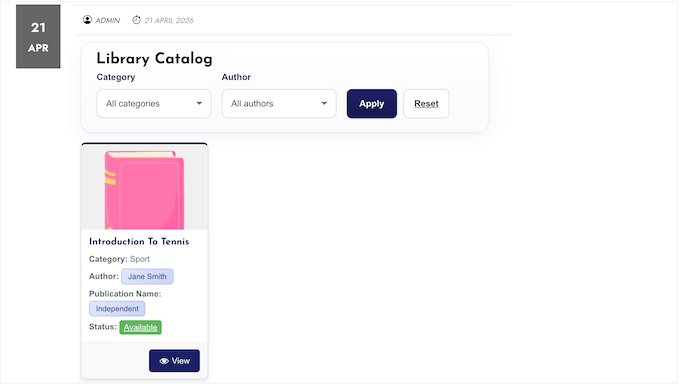
🎨 If you’re not happy with the default layout, then you can change how your book listing looks by going to Library Management » All Settings, and then selecting the ‘Appearance & Display’ tab.
Frequently Asked Questions About Building a Library System in WordPress
We often hear from readers who are setting up their very first library system, so we’ve put together this FAQ to help you get started.
Can I use the Library Management System plugin for a school library?
Absolutely! Library Management System is a fantastic, user-friendly choice for classroom libraries, teacher collections, and small private school libraries.
However, if you’re managing a large K-12 district system or a university library, you’ll need a more powerful solution designed for institutional scale, such as Koha or Follett Destiny.
Can I import my existing book list from a spreadsheet?
Not in the free version. The free tier supports a basic test-data import but not full CSV import of your own book list. CSV import is a Basic Premium feature.
If you already have your books in a spreadsheet, then you can either upgrade to Basic Premium to bring the whole collection across in one go, or use a general-purpose importer like WP All Import to push your CSV into the plugin’s book records.
How do I handle a lost book?
You have two options, depending on the situation. If a patron reports a book lost during an active checkout, then find the transaction under Library Management » Book Transactions, click ‘Return’, and set the Return Status to ‘Lost Book.’ This closes out the loan and applies any fine you’ve configured.
If a copy is permanently missing from your shelves (theft, water damage, never returned by a long-gone patron), then update the book’s catalog status to ‘Inactive’ so it no longer shows as available. If the book is eventually found, you can reactivate the record.
If you buy a replacement copy later, we recommend adding it as a brand-new book with a new Book ID, rather than reusing the old one. This keeps your past transaction history accurate.
Can patrons borrow more than one book at a time?
Not in the free version. The free tier limits each transaction to one book per patron, so if a reader wants three books on the same visit, then you’ll need to record three separate checkouts.
For a busy community or school library, this gets tedious fast. Multi-book checkout in a single transaction is a Basic Premium feature, and it’s the upgrade we’d point most active libraries to first.
How do I back up my library data?
Because your library records are stored directly in your WordPress database, any standard WordPress backup plugin will automatically include your library data in your site backups. We recommend Duplicator because it can run scheduled backups to remote storage like Google Drive or Dropbox, so a single hardware failure won’t wipe out months of patron records and transaction history.
Do I need a specific theme for this to work?
Nope! This plugin is designed to work with any standard WordPress theme.
The admin screens live inside your WordPress dashboard (so they look the same regardless of your theme), and the front-end library display uses clean HTML that automatically inherits your theme’s styling, so everything looks professional.
We hope this tutorial helped you learn how to build a library collection and circulation system in WordPress. You may also want to see our article on how much it really costs to build a WordPress website and our complete tutorial on how to install WordPress.
If you liked this article, then please subscribe to our YouTube Channel for WordPress video tutorials. You can also find us on Twitter and Facebook.




Jaqueline
Just wish it would integrate and import the books from Librarything!! Would be so perfect!
WPBeginner Support
If you haven’t done so already, you may want to let the plugin author know about this request and they may be able to look to add it in the future
Admin
Begs
may I know which amazon plug-in you are referring to in your video?
keitai
Hello,
Would you recommend this plugin for a simple rental business of different product (approx 1000 items)? Or would you recommend another plugin?
I am able to produces my own custom functions / logic but I like to have a good plugin as a starting point.
Any tips, suggestions,
regards,
Barry
WPBeginner Support
It actually depends on the items you will be renting and how you want to manage your website. You can try the plugin to see if it matches your needs.
Admin
Olawale Daniel
Having a Library in my membership site has always been my headache. The task ahead is bigger than what I can face. But I think this plugin should help me out.
JOHN
i can find the short code for the plugin. please help me
Basanta Thapa
Thanks for the insight! I would love if you could post a few more screenshots of the actual interface, so we can get a grip on the look and feel of the plugin.
Jesinth
It was really Helpful. Thank you for the information. But how will the information of the book be produced when typed in the search box? Can you help me out?
anil
Hi, nice article. I installed this plugin and followed the steps explained above. But when I type something in the search box, nothing is coming up in the results. Can you help me out in this regard?
Editorial Staff
Use the support forum for the plugin.
Admin