


Managing GDPR requests or account closures shouldn’t take up your entire afternoon. If users feel trapped or can’t easily remove their data, then they may stop trusting your site altogether.
I’ve managed membership sites where processing these requests manually became a massive drain on my time. When you automate the process, you respect user privacy and keep your admin team focused on growing the site.
In this article, I will show you how to allow users to permanently delete their WordPress accounts from their user profile area.
Quick Summary: To allow users to delete their WordPress accounts, install the free WP Frontend Delete Account plugin. It automatically adds a ‘Delete Account’ tab to WooCommerce or allows you to add a deletion form to any page using a simple block or shortcode.
Why Allow Users to Delete Their Own Accounts in WordPress?
Many WordPress websites allow users to register. You might run a membership site, a WooCommerce store, or an online course.
Once a user registers, their account remains on your website unless you manually remove it. While you may want to keep them as a subscriber, some users might want to close their accounts for privacy reasons.
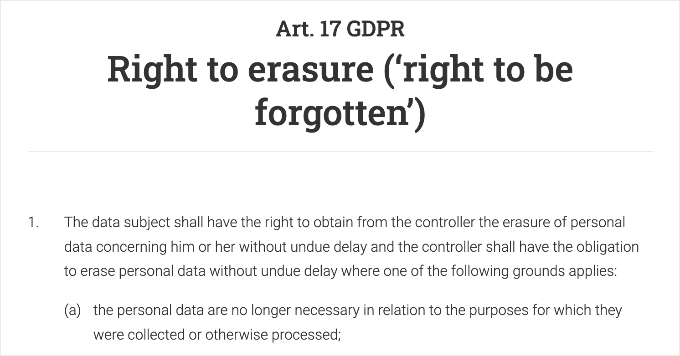
In fact, under privacy laws like the GDPR (General Data Protection Regulation), users typically have the ‘Right to be Forgotten,’ meaning they can request that you erase their personal data.
When you automate this process, you improve the user experience and make sure you are respecting user privacy without adding extra work for your admin team.
Now, let’s look at how to easily add a ‘Delete Account’ button to your WordPress site. Here are the topics I will cover in this article:
How to Allow Users to Delete Their WordPress Accounts
For this tutorial, we’ll use WP Frontend Delete Account. This is a free plugin that works for both standard WordPress sites and WooCommerce stores.
It allows users to delete their profiles safely without accessing the WordPress admin dashboard.
Step 1: Install and Configure WP Frontend Delete Account
The first thing you need to do is install and activate the WP Frontend Delete Account plugin. For more details, see our step-by-step guide on how to install a WordPress plugin.
Upon activation, you need to visit Settings » WP Frontend Delete Account to configure the plugin.
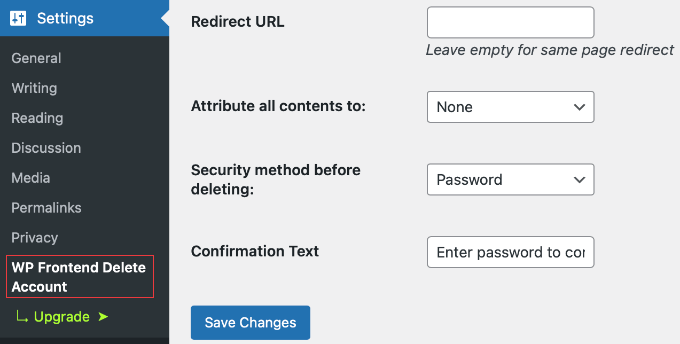
Here, you will see a simple settings form. The most important option is labeled ‘Attribute all contents to’.
This setting controls what happens to the posts and pages a user has created after they delete their account:
- None: Be careful with this setting. If selected, then all content (posts and pages) created by that user will be permanently deleted from your database. This action bypasses the WordPress Trash, meaning you cannot easily recover these posts later.
- [User Name]: You can select an Administrator or Editor from the dropdown menu. This will reassign the user’s content to that person, keeping the posts live on your site.
Note: If you run a site with guest contributors, I strongly recommend selecting a user here (like the Admin) so you don’t accidentally lose blog posts when a user leaves.
You can choose a security method, such as requiring them to enter their password or complete a custom Captcha, to prevent accidental deletions.
There are also some optional settings at the top of the page. You will see a ‘Delete Comments’ option. I generally recommend leaving this unchecked.
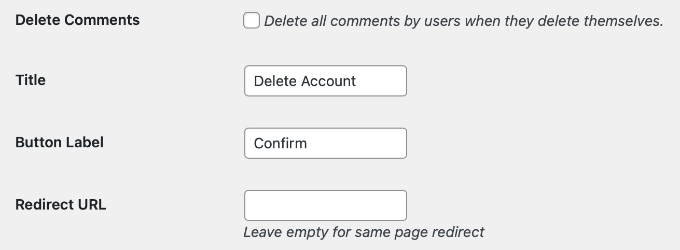
If you check this box, then all comments made by that user will be permanently erased. This can disrupt conversations on your blog posts and remove valuable user-generated content.
By leaving it unchecked, the text of the comments will remain visible on your site to keep the discussion context, but the author name will simply show as ‘Anonymous’.
You can also set a Redirect URL. While this is optional, I recommend entering your website’s homepage URL here.
If you leave this blank, then users might remain on their ‘My Account’ page after deletion, which could show an ‘Access Denied’ error since they no longer have an account.
Once you are happy with the settings, click the ‘Save Changes’ button.
Step 2: Add the Delete Account Form to Your Site
Now that the plugin is configured, you need to display the deletion form to your users. The method depends on what type of site you are running.
For WooCommerce Stores
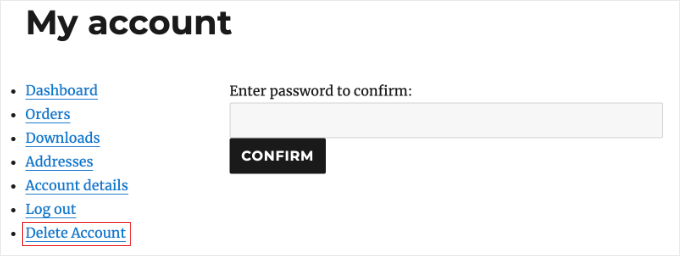
If you are using WooCommerce, then the plugin makes it very easy. It automatically adds a new ‘Delete Account’ tab to the ‘My Account’ page.
However, please keep in mind that deleting a user account will also remove their order history from their profile, which may make it harder for them to track past purchases.
Expert Tip: If you use WooCommerce or MemberPress, then note that deleting a WordPress account doesn’t always cancel an active subscription in your payment gateway. You should check your Stripe or PayPal dashboard to make sure recurring payments are stopped to avoid refund requests.
You don’t need to do anything else. When your customers log in to their account dashboard, they will see the option to delete their profile right in the menu.
For Standard WordPress Sites
If you are running a membership site or online community, you can add the deletion form to any page using a shortcode or a block.
Simply edit an existing page, such as your custom user profile page, or create a new page titled ‘Delete Account’.
In the WordPress content editor, click the ‘+’ button to add a new block and search for ‘WP Frontend Delete Account’.
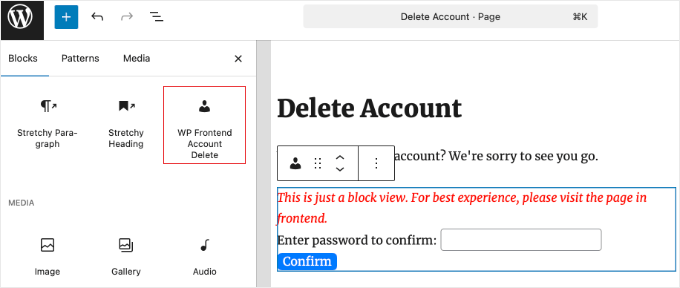
Alternatively, you can use the following shortcode inside a Shortcode block:
[wp_frontend_delete_account]
Once you have added the block or shortcode, click the ‘Update’ or ‘Publish’ button to save your changes.
How Users Delete Their Accounts
Now, let’s see how this looks for your visitors.
When a user visits the page you created or clicks the tab in their WooCommerce account, they will see a simple form asking them to confirm their password.
Depending on the security settings you chose earlier, they will need to enter their password or complete a Captcha to confirm the deletion. This step prevents users from accidentally deleting their accounts.
Once they click the ‘Confirm’ button, their profile will be immediately removed from your WordPress database, and they will be logged out of the site.
Note: If you would like to test this, then do not use your main Administrator account. The plugin prevents Administrators from deleting themselves to avoid site lockouts. Go to Users » Add New to create a dummy ‘Test User’ account first, then log in with that account in an Incognito browser window.
FAQs About Deleting WordPress User Accounts
Here are some of the most common questions we receive from our readers about allowing users to delete their own WordPress accounts.
1. What happens to a user’s content when they delete their WordPress account?
When a user deletes their profile using the WP Frontend Delete Account plugin, the outcome depends on your settings. You can choose to delete all posts and pages created by that user, or you can automatically reassign their content so the content remains visible on your website.
2. Can I restore a WordPress user account after it has been deleted?
No, account deletion in WordPress is permanent. Once a user removes their account using the WP Frontend Delete Account plugin, their personal data is erased from the database.
The only way to restore the account is if you have previously saved a full website backup using a tool like Duplicator. However, keep in mind that if the user requested deletion for GDPR privacy reasons, then restoring their personal data from a backup might violate data privacy laws.
3. Does the WP Frontend Delete Account plugin work with WooCommerce?
Yes, the WP Frontend Delete Account plugin is fully compatible with WooCommerce. It automatically adds a ‘Delete Account’ tab to the standard WooCommerce ‘My Account’ page, allowing customers to easily remove their profiles without needing to contact support.
4. Is it safe to let users delete their own accounts?
Yes, allowing users to delete their own accounts is safe as long as you configure the WP Frontend Delete Account plugin correctly.
The plugin includes safety measures, such as requiring users to enter their password or complete a Captcha to confirm. This prevents users from accidentally deleting their profiles.
Additional Resources for WordPress Security
I hope this article helped you learn how to allow users to delete their WordPress accounts.
You may also want to see these other guides on managing users and improving site security:
- How to Add New Users and Authors to Your WordPress Blog
- The Ultimate Guide to WordPress and GDPR Compliance
- How to Force Users to Change Passwords in WordPress
- Ultimate Guide to Creating a WordPress Membership Site
- How to Track User Engagement in WordPress
If you liked this article, then please subscribe to our YouTube Channel for WordPress video tutorials. You can also find us on Twitter and Facebook.



Olaf
GDPR is indeed quite complex for many people to understand, but it’s great in terms of ensuring some level of data storage security. And yes, one of the requirements of GDPR is that users must have the ability to delete all information about themselves from a website. This is almost impossible to do easily and quickly with WordPress by default. It’s fantastic that along with GDPR, some very smart people have turned these requirements into reality, and that there are excellent websites that provide really detailed guides on how to implement this.
Stacey Beckles
I am not tech-savvy and currently trying to build a website. This blog has been very helpful. Any question I may have I am sure to find something here. Thank you for all your hard work and keep up the good job.
WPBeginner Support
You’re welcome, glad you’ve found our content helpful
Admin
Swayam
It does not delets the custom post type using in box directory theme