


When you’re selling digital products, your customers often need invoices for their business records, tax purposes, or expense tracking.
Easy Digital Downloads has a built-in invoice feature that many store owners overlook. Our partner brands like WPForms and Duplicator have been using it successfully for years.
These invoices help your business look more professional. They also make it easier for customers to manage their purchases.
What we like about EDD’s invoice system is how simple it is to set up. It handles all your invoicing needs properly without complex configurations.
In this guide, we will show you how to add customer invoices for Easy Digital Downloads in WordPress.
💡Quick Answer: How to Add Invoices in 3 Steps
In a hurry? Here is a quick guide to add customer invoices in Easy Digital Downloads:
- Install the Extension: Purchase and install the Invoices extension (available in EDD Professional Pass or higher).
- Configure Settings: Go to Downloads » Settings » Extensions to add your company logo, address, and tax/VAT details.
- Display Invoices: Customers can automatically find invoices in their purchase history. Optionally, create a dedicated invoice page using the
[edd_invoices]shortcode.
Why Add Customer Invoices for Easy Digital Downloads?
Easy Digital Downloads is the best eCommerce WordPress plugin. It makes it easy to sell digital products online, such as plugins, software, eBooks, and PDFs.
We’ve covered it in detail in our Easy Digital Downloads review, highlighting why it’s a top choice for selling digital goods.
When customers purchase a product from your online store, they may want an invoice for their purchase.
It could be for value-added tax (VAT) compliance or accounting purposes. Sometimes they just need additional details they couldn’t get at checkout.
However, many business owners manually send purchase receipts to their customers. This takes time. Plus, it could lead to errors if you have several customers requesting invoices.
This is where the Easy Digital Downloads Invoices extension comes in handy. It automates the process and allows customers to generate invoices, which they can download and print.
Let’s take a look at how you can add invoices to Easy Digital Downloads in WordPress.
Adding Invoices for Easy Digital Downloads Store
You can start by downloading the free Easy Digital Downloads plugin on your WordPress website. For more details, you can follow our guide on how to install a WordPress plugin.
Note: While the Easy Digital Downloads plugin is free to use, the Invoices extension is not. You can access the extension by purchasing an Easy Digital Downloads license pass, such as the Professional pass or higher.
After downloading the Invoices extension, you’ll need to install and activate it on your WordPress site, just like adding a new WordPress plugin.
Easy Digital Downloads automatically allows customers to view invoices from their standard purchase history page.
However, if you want to create a separate, dedicated page just for invoices, you can do so using a shortcode. To create a dedicated invoice page, simply go to Pages » Add New from the admin panel.
Once you’re in the WordPress editor, enter an appropriate title and then click the ‘+’ button to add a shortcode block.
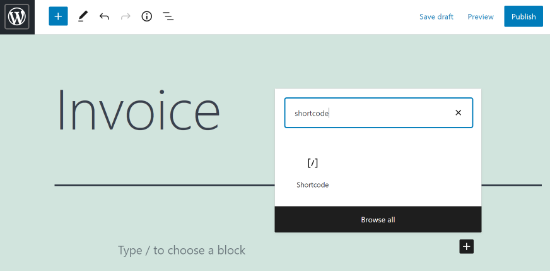
Next, you can enter the following code in the shortcode block.
[edd_invoices]
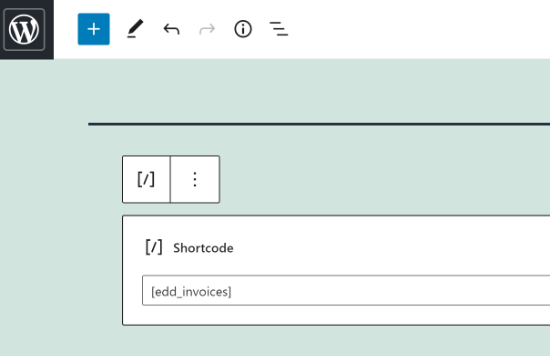
After entering the shortcode, go ahead and publish your page.
Configuring Easy Digital Downloads Invoice Settings
Now, it’s time to configure the invoice settings.
To start, head over to Downloads » Settings » Payments from your WordPress dashboard and click on the ‘Invoices’ tab.
Here, you can modify the permission settings. For example, you can toggle the ‘Disable Address Editing’ switch if you want to prevent users from changing their billing address.
You can also toggle the ‘Disable Invoices for Free Purchases’ option if you don’t want to send invoices for free items.
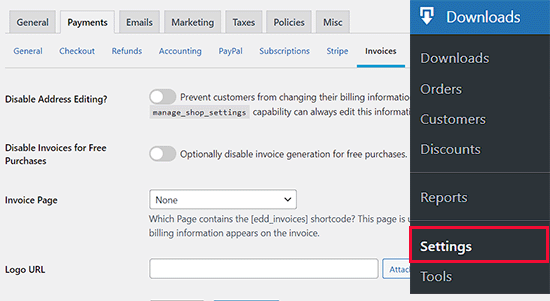
The plugin also offers multiple options for displaying invoices to your customers on your WordPress website.
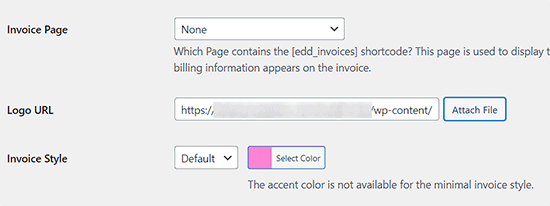
You can select the dedicated page you created earlier from the dropdown menu. Alternatively, you can rely on the default settings to show invoices in the purchase history.
After that, you can upload an image from the media library for your logo and also select a theme color for your invoice.
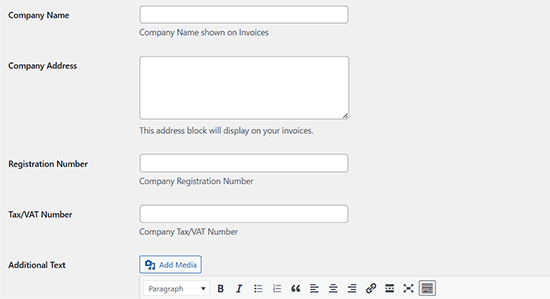
Next, you’ll need to fill out your company details. This includes your company name, address, registration number, and VAT number.
You can also add additional text if you like.
Once you are done, just click the ‘Save Changes’ button to store your settings.
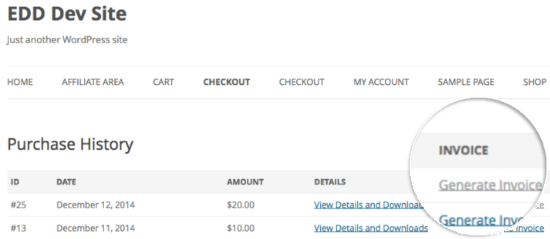
Your customers will now be able to see a ‘Generate Invoice’ link on the purchase history page.
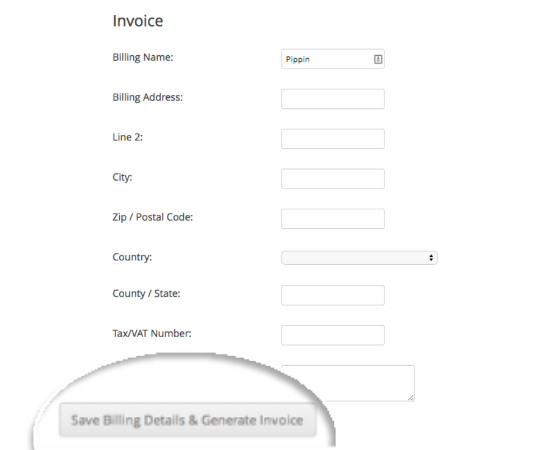
When a customer clicks on the link, they’ll see an invoice form and will need to fill out their purchase details, such as name, address, city, and tax/VAT number.
After entering these details, users can click the ‘Save Billing Details & Generate Invoice’ button.
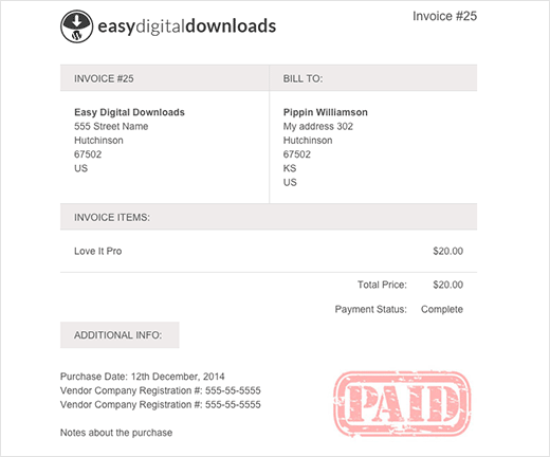
They can then view the purchase invoice in WordPress and save the invoice.
Bonus: Properly Set Up eCommerce Tracking In WordPress
After setting up customer invoices with Easy Digital Downloads, it’s essential to track your store’s performance for continued growth. That’s where eCommerce tracking in WordPress can make a big difference.
With eCommerce tracking, you gain insights into customer behavior and store performance. This data-driven approach helps you optimize your sales strategies and boost revenue.
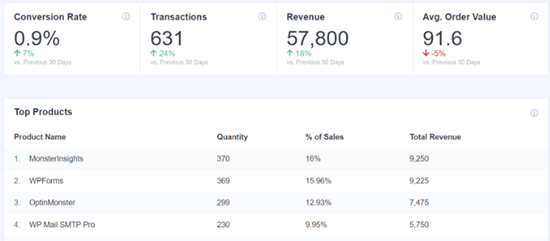
We recommend using MonsterInsights, the leading analytics plugin for WordPress. It simplifies the process of connecting your online store to Google Analytics, without the need to code.
MonsterInsights provides you with valuable reports directly in your WordPress dashboard, including metrics like conversion rates and top-performing products.

At WPBeginner, we’ve extensively tested it and find it incredibly useful for understanding customer interactions and improving sales outcomes.
To get started, read our guide on how to properly set up eCommerce tracking in WordPress.
We hope this article helped you add invoices to Easy Digital Downloads in WordPress. You may also want to check out our tutorial on how to add rotating testimonials in WordPress and our top picks for the best homemade things to make and sell online.
If you liked this article, then please subscribe to our YouTube Channel for WordPress video tutorials. You can also find us on Twitter and Facebook.




Have a question or suggestion? Please leave a comment to start the discussion.