


One of the first things I do when setting up any WordPress site is change the database prefix from the default wp_ to something unique. It’s a simple security step that many website owners overlook, but it can make a real difference in protecting your site.
Most WordPress sites use the same default database structure, which makes them easy targets for hackers. Customizing your database prefix makes it much harder for automated attacks to succeed and adds an important layer of security to your site.
Whether you’re securing an existing WordPress site or want to learn this best practice for future projects, I’ll show you multiple ways to safely change your database prefix.
This guide covers how to do it using a user-friendly plugin as well as a manual method, so you can choose the approach that works best for your situation.

TL;DR: Changing your WordPress database prefix is a simple but effective security step that can protect your site from many automated attacks. It won’t make your site completely hack-proof, but it does add an important layer of security that costs nothing to implement.
The Solid Security plugin method is the safest approach for beginners, while the manual phpMyAdmin method gives you more control if you’re comfortable working with databases. Create a backup and take your time to make sure everything works correctly.
You can use the quick links below to navigate through the article:
- Why Change the WordPress Database Prefix?
- Method 1: Using Solid Security Plugin (Easier for Beginners)
- Method 2: Manual Method via phpMyAdmin
- Troubleshooting Issues With Changing the Database Prefix
- FAQs About Changing the WordPress Database Prefix
- Additional Resources for Improving WordPress Security
Why Change the WordPress Database Prefix?
The WordPress database prefix might seem like a small technical detail, but it plays an important role in your website’s security setup. Every WordPress installation uses this prefix to organize your site’s data in the database.
By default, WordPress uses wp_ as the prefix for all database tables. This means your posts are stored in a table called wp_posts, your users in wp_users and so on.
The problem is that hackers know this default structure.
Security reports from top security companies show that a huge number of automated attacks are designed to specifically target the default wp_ prefix. When hackers can easily guess your database table names, it makes their attacks much more likely to succeed.
Here are the key benefits of changing your database prefix:
- Adds security through obscurity: While not a complete security solution on its own, a custom prefix is an important part of a layered security strategy. It makes your site a much harder target for low-effort, automated attacks that rely on default settings.
- Protects against SQL injection attempts: Many automated SQL injection attacks are programmed to target the default
wp_prefix. By changing it, you make your site invisible to these common, automated bots, forcing them to move on to an easier target. - Reduces targeted scanning: Bots that scan for vulnerable WordPress sites often look for default database patterns that won’t match your customized setup.
- Provides peace of mind: Knowing your database structure is unique gives you an extra layer of confidence in your site’s security.
I always change the database prefix on new WordPress installations because it’s such a simple step that can prevent so many common attack methods.
Important: Changing your database prefix is an advanced operation. Before you do anything suggested in this tutorial, it is absolutely essential that you back up your WordPress database.
One mistake can make your site inaccessible, and a backup is your only safety net. I recommend using a plugin like Duplicator to keep daily backups.
Method 1: Using Solid Security Plugin (Easier for Beginners)
The easiest way to change your WordPress database prefix is by using the free Solid Security plugin, which is a security plugin that protects your website from various threats.
I recommend this approach for beginners because the plugin automatically updates all the necessary database tables and configuration files. You don’t need to touch any code or work directly with your database.
To learn more about this popular security plugin, see our detailed Solid Security review.
Step 1: Install and Configure the Solid Security Plugin
First, you need to install and activate the free Solid Security plugin. For more details, you can see our step-by-step guide on how to install a WordPress plugin.
Upon activation, you will need to configure the plugin using a setup wizard. Go to Security » Setup in your WordPress dashboard to begin.
The wizard will walk you through the basic configuration for your website.
You’ll be prompted to choose the type of website you have, run a scan on your site, and more.
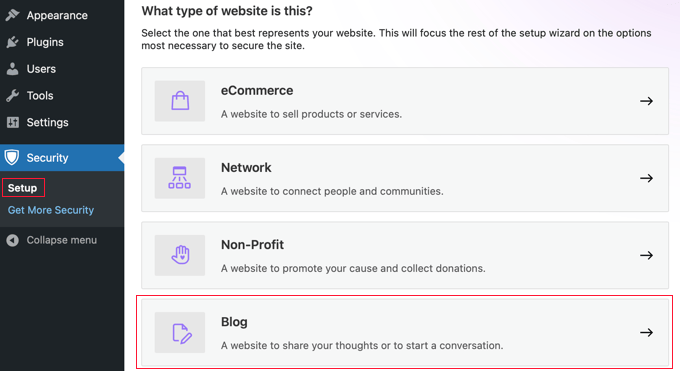
Make sure to read each page of the wizard carefully. The default settings will work for most websites.
In my experience, the onboarding wizard should take less than 10 minutes. Once you finish the wizard, the basic security features will be active.
Step 2: Change the Database Prefix
Now that the plugin is configured, you can change your database prefix. From your WordPress dashboard, navigate to Security » Tools.
On this screen, you will see a tool labeled ‘Change Database Table Prefix’.

Simply click the ‘Run’ button to proceed.
The plugin will automatically choose a random prefix. Next, it will automatically put your site into maintenance mode, change the prefix for all your WordPress tables, update your wp-config.php file, and then take the site out of maintenance mode.
This all happens very quickly, and you can watch the process as each table is renamed.
Step 3: Verify Your Site is Working
That’s it. The plugin has done all the hard work for you. As a final check, it’s always a good idea to make sure everything is running smoothly.
Visit your website’s homepage to ensure it loads correctly. After that, try logging out and logging back into your WordPress admin area. If both of those actions work, then your new database prefix is functional. 🎉
Method 2: Manual Method via phpMyAdmin
If you prefer to change the database prefix manually or don’t want to use a plugin, you can do it yourself through phpMyAdmin. This method gives you complete control but requires more technical steps and carries a higher risk of error.
Before you get started, it’s a good idea to put your WordPress site in maintenance mode (the plugin in Method 1 does this automatically). Otherwise, you could cause a bad user experience for visitors to your website.
For most users, especially beginners, I strongly recommend using the plugin method.
Note for Advanced Users: Some plugins store settings in a special format (called serialized data). Running a direct SQL query can sometimes break this data. This is another key reason we strongly recommend the plugin method, as it contains safeguards to prevent these types of errors.
Step 1: Change the Table Prefix in wp-config.php
First, you will need to connect to your website using FTP or the File Manager app in your WordPress hosting account.
You then need to open your wp-config.php file, which is located in your WordPress root directory. Here, you can change the table prefix line from wp_ to something else, like this wp_a123456_
So the line would look like this:
$table_prefix = 'wp_a123456_';
Note: You can only change the table prefix using numbers, letters, and underscores.
Step 2: Change All Database Table Names
Next, you need to connect to your database using the phpMyAdmin tool.
If your host uses the cPanel dashboard, then you can easily find phpMyAdmin there.
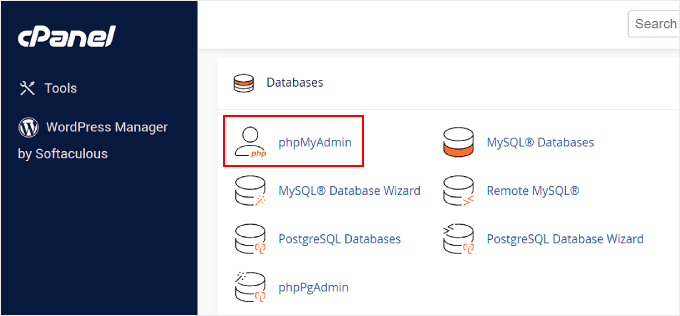
There are 12 default WordPress tables, so changing them manually would be a pain.
Instead, you should click on the ‘SQL’ tab at the top.
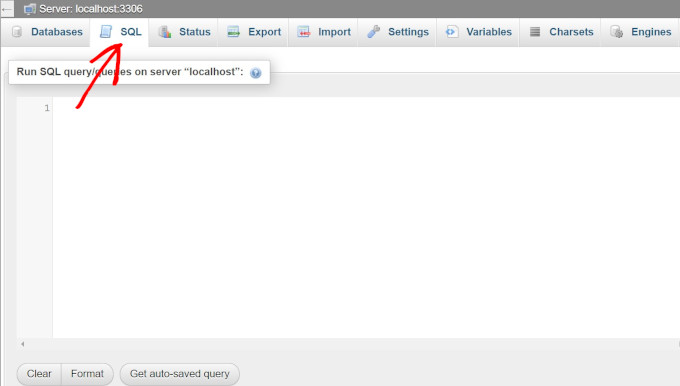
Then, you can enter the following SQL query:
RENAME table `wp_commentmeta` TO `wp_a123456_commentmeta`;
RENAME table `wp_comments` TO `wp_a123456_comments`;
RENAME table `wp_links` TO `wp_a123456_links`;
RENAME table `wp_options` TO `wp_a123456_options`;
RENAME table `wp_postmeta` TO `wp_a123456_postmeta`;
RENAME table `wp_posts` TO `wp_a123456_posts`;
RENAME table `wp_terms` TO `wp_a123456_terms`;
RENAME table `wp_termmeta` TO `wp_a123456_termmeta`;
RENAME table `wp_term_relationships` TO `wp_a123456_term_relationships`;
RENAME table `wp_term_taxonomy` TO `wp_a123456_term_taxonomy`;
RENAME table `wp_usermeta` TO `wp_a123456_usermeta`;
RENAME table `wp_users` TO `wp_a123456_users`;
Remember to change the database prefix to the one that you picked when editing the wp-config.php file.
Important: This query only renames the 12 core WordPress tables. Many plugins create their own database tables that also use the default wp_ prefix.
You will need to identify these tables (they often contain the plugin’s name in the table name) and add a RENAME line for each one to the SQL query above.
Forgetting this step will break your plugins.
For example, if you see a table named wp_yoast_indexable, you would need to add this line to your SQL query:
RENAME table `wp_yoast_indexable TO wp_a123456_yoast_indexable`;
Step 3: Update the Options Table
Next, you need to search the options table for any fields that still use the old wp_ prefix. The most critical entry is wp_user_roles, which controls user permissions. If this isn’t updated, users won’t be able to log in correctly.
To update all relevant entries automatically, you can use the following SQL query. Remember to replace wp_a123456_ with your new prefix:
UPDATE `wp_a123456_options` SET `option_name` = REPLACE(`option_name`, 'wp_', 'wp_a123456_') WHERE `option_name` LIKE 'wp_%';
This query finds all entries in the option_name column that start with wp_ and replaces that part with your new prefix.
Step 4: Update the UserMeta Table
Similarly, you need to update the usermeta table, which stores user capabilities and settings. Keys like wp_capabilities and wp_user_level must be updated.
Run the following query to find and replace all old prefixes in the meta_key column. Make sure you use your new prefix in the query:
UPDATE `wp_a123456_usermeta` SET `meta_key` = REPLACE(`meta_key`, 'wp_', 'wp_a123456_') WHERE `meta_key` LIKE 'wp_%';
This makes sure that all users retain their correct permissions and settings.
You are now ready to test your site. If you followed the steps above, everything should be working fine. But if you need help with troubleshooting, please read on.
Troubleshooting Issues With Changing the Database Prefix
Even when you follow the steps carefully, sometimes issues can occur after changing your WordPress database prefix. Here are the most common problems and how to fix them.
Login Problems
If you can’t log in to your WordPress admin after changing the prefix, it’s usually because some database entries weren’t updated correctly. This most commonly happens with the manual method when you miss updating entries in the options or usermeta tables.
To fix this, go back to phpMyAdmin.
Specifically, check the options table for an entry named wp_user_roles (using your old prefix) and make sure it has been renamed to your new prefix (e.g., wp_a123456_user_roles).
Also, search the usermeta table for meta_key entries like wp_capabilities and ensure they have been properly updated.
Database Connection Errors
Sometimes you might see an ‘Error establishing a database connection’ message. This typically means there’s a mismatch between your wp-config.php file and your database table names.
Check that the prefix in your wp-config.php file exactly matches the prefixes of your database tables, including any underscores.
Seeing the WordPress Installation Screen
This is a scary but fixable problem. It almost always means that your wp-config.php file was updated with the new prefix, but your database tables were not successfully renamed.
When WordPress can’t find tables matching the prefix in your config file, it thinks it needs to be installed.
To fix it, you need to manually edit your wp-config.php file and change the prefix back to the original one:
- Connect to your website using an FTP client or your hosting provider’s File Manager.
- Locate the
wp-config.phpfile in the main folder of your site. - Find the line that specifies the table prefix. It will have your new (and incorrect) prefix:
$table_prefix = 'wp_a1b2c3_'. - Change it back to your original prefix (which is usually
wp_):$table_prefix = 'wp_'. - Save the file and upload it back to your server.
Your website should now load correctly. This issue can sometimes happen on hosting environments with strict file permissions that prevent a plugin from renaming database tables.
Solutions and Support Resources
If you’re still experiencing issues, here are some steps that can help.
First, restore your backup and try the process again more carefully. This is why creating a backup before starting is so important.
Second, if you used the manual method, consider switching to the Solid Security plugin method instead. It handles many edge cases automatically that are easy to miss when doing it manually.
Finally, if problems persist, contact your web hosting support team. They can often help identify database-related issues and may be able to assist with the prefix change process.
FAQs About Changing the WordPress Database Prefix
I know that changing your database prefix can feel scary, especially if you’re new to WordPress.
These are the questions I get asked most often about the process, along with clear answers to help you feel more confident.
What is the default WordPress database prefix?
The default WordPress database prefix is wp_ and it’s used for all database tables like wp_posts, wp_users, and wp_options. This prefix is the same on every WordPress installation unless it’s been manually changed.
Can changing the WordPress database prefix break my website?
Yes, changing the WordPress database prefix can break your website if not done correctly. That’s why it’s essential to create a complete backup before starting and follow the steps carefully to ensure all database references are updated properly.
What should I do if I can’t log in after changing the database prefix?
If you can’t log in after changing the prefix, it usually means some database entries weren’t updated correctly. Restore your backup and try the process again, or use the Solid Security plugin method, which handles these updates automatically.
Additional Resources for Improving WordPress Security
I hope this article helped you learn how to change the WordPress database prefix. This is just one part of securing your WordPress website. There are many other steps you can take to make your site even more secure and better protected against various types of attacks.
Here are some additional security measures I recommend setting up:
- Set up more hardening techniques, such as using strong passwords and two-factor authentication. See our guide on improving WordPress security.
- Enable security plugins or settings. Refer to our best WordPress security plugins article.
- Regular updates and monitoring. See our step-by-step guide on how to safely update WordPress.
If you liked this article, then please subscribe to our YouTube Channel for WordPress video tutorials. You can also find us on Twitter and Facebook.




Dave van Hoorn
Update the SQL for renaming the prefixes please. WordPress adds the ‘wp_termmeta’ table now. It’s included in the SQL below.
RENAME table `wp_commentmeta` TO `wp_yoursitename_commentmeta`;
RENAME table `wp_comments` TO `wp_yoursitename_comments`;
RENAME table `wp_links` TO `wp_yoursitename_links`;
RENAME table `wp_options` TO `wp_yoursitename_options`;
RENAME table `wp_postmeta` TO `wp_yoursitename_postmeta`;
RENAME table `wp_posts` TO `wp_yoursitename_posts`;
RENAME table `wp_termmeta` TO `wp_yoursitename_termmeta`;
RENAME table `wp_terms` TO `wp_yoursitename_terms`;
RENAME table `wp_term_relationships` TO `wp_yoursitename_term_relationships`;
RENAME table `wp_term_taxonomy` TO `wp_yoursitename_term_taxonomy`;
RENAME table `wp_usermeta` TO `wp_yoursitename_usermeta`;
RENAME table `wp_users` TO `wp_yoursitename_users`;
Prabhudatta Sahoo
When I am renaming my tables in the database all the images in the gallery are going away, I do not understand the reason. Could anyone please help me fixing this issue?
Terry Thorson
This issue will occur if you do not update the serialized data strings (used for your gallery images) correctly in the database. A good way to do this is to use the plugin WP Migrate DB. There is an excellent tutorial for this on Lynda.com (although be sure to use the same prefix for your target database as your source database).
I learned this the hard way. Trying to start afresh, I discovered my backup was faulty as well. Luckily my webhost had an older backup I could use to restart my migration. WP Migrate DB did the trick.
Cameron Jones
I can’t find any fields in the _usermeta or _options tables that would require updating. Unless they are specifically referencing a table, they shouldn’t need to be updated. It’s a table prefix, not a variable prefix.
Cameron Jones
Actually, I stand corrected. There are a couple that will be part of a default WordPress install:
In prefix_options
prefix_user_roles
In prefix_usermeta
prefix_capabilities
prefix_user_level
prefix_dashboard_quick_press_last_post_id
prefix_user-settings
prefix_user-settings-time
You should be careful regarding updating any other fields. Plugins may either use the defined prefix or `wp_` as a prefix. Always make a backup and test on a dev or staging environment.
kapil
hi,
i have a query. assume that i have changed all my prefix from wp_something to some other name. these changes will be done to the existing fields in the database only. but wont the codes in my wordpress .php files remain the same??? so next time for any new user registration or some other registration, the entities will again be saved as wp_something as the main code in the .php files remains unchanged… ???
thanks….
tech
UPDATE `wp_a123456_options` SET `option_name`=REPLACE(`option_name`,’wp_’,’wp_a123456_’) WHERE `option_name` LIKE ‘%wp_%’;
UPDATE `wp_a123456_usermeta` SET `meta_key`=REPLACE(`meta_key`,’wp_’,’wp_a123456_’) WHERE `meta_key` LIKE ‘%wp_%’;
I do changes but after doing this i again run following query it shows prefix not changed
SELECT * FROM `wp_a123456_options` WHERE `option_name` LIKE ‘%wp_%’
Wiem
Thank you for the queries
Nathan WHite
This post and the responses to the comments leaves out a very important component. Does the table need to begin with wp_ ?
Coming upon another discussion in wordpress.org indicated that it indeed did not need to. It would have helped me if this question was answered by the moderator.
Also, dismissed_wp_pointers questions were not clearly answered. I changed mine.
Clare Wood
Hi guys,
I followed these steps, now when I try to see the back-end or front-end of my site I get this:
ERROR: $table_prefix in wp-config.php can only contain numbers, letters, and underscores.
I’m positive I only have lowercase letters and an underscore as my table prefix.
Any ideas? The site is on localhost.
Cheers.
Paul
Fantastic and logically prepared article on Wp security.
Thomas
Thanx a bunch! I tried to restore my old database, but to no avail. Then I figured out that my new database prefix was different from old. Made all that you recommended and vuala!
Divyesh
Thanks a Lot!!!
It worked like a charm
Nikhil
I am getting this error…….”You do not have sufficient permissions to access this page” after implementing above procedure…..how to solve it?????
Saz
These instructions have been followed but now role assignment for new users has disappeared…
Tom
Thanks for a great tips .
I have a question.
Do I need to change “wp_ ….” used in post_meta table as well?
johnny
or this plugin http://wordpress.org/plugins/db-prefix-change/
savagemike
For the wp_options and wp_usermeta tables, why not dump the database and use sed to replace “wp_” with the new prefix? Example:
sed -i ‘s/wp_/wp_1234/g’ > filename.sql
Then, simply import the modified dump. Easier and faster than changing cells one-by-one.
gcreator
Attacker can simple use ‘%wp_%’
I mean that is not fully secure at all…
because he knows the table names that wordpress generates he can simply use ‘_%users’ for wp_anything_users OR ‘_%posts’ for ‘wp_anything_posts’ ..etc…
Jim
gcreator…
For 99% of the attacks against WP databases, the skiddies are using pre-built tools and default settings. This gets you out of their crosshairs.
if you are under focused attack then yeah, simple obfuscation will only slow them down, not completely protect you.
javed
thanks a lot
gabe
I got syntax error when following this (my version of SQL is 5.5.x).
I had success after referring to the SQL manual. Needed to leave the quotes out of the query:
[WRONG] RENAME table ‘wp_links’ TO ‘wp_xx_links’;
[RIGHT] RENAME TABLE wp_links TO wp_xx_links;
RosellaBird
Thanks! That saved me a lot of time I had the same error too
Sepster
You were using “standard” quotes ‘. The correct syntax to identify object names in mySql is to use “backquotes” ` (ie the key in the top left of a standard-US keyboard, left of the number 1)
Marcello Nuccio
The problem is that you are using the wrong quotes. You must use the backtick character around table names, not the apostrophe. In SQL, the apostrophe is used to delimit strings.
Karen
I have changed the prefixes of a new install and then built a whole new site! I suddenly realised that I might not be able to update wordpress as normal from the admin panel..
Does changing the prefixes affect being able to update wordpress as normal???
Pablo
Nice.
You can use this as well:
UPDATE `wp_a123456_options` SET `option_name`=REPLACE(`option_name`,’wp_’,’wp_a123456_’) WHERE `option_name` LIKE ‘%wp_%’;
UPDATE `wp_a123456_usermeta` SET `meta_key`=REPLACE(`meta_key`,’wp_’,’wp_a123456_’) WHERE `meta_key` LIKE ‘%wp_%’;
Haary
Please answer ” How to create a plugin for take a backup of speific table in wordpress database?” in the stackoverflow
Haary
It is a nice tutorial. Please see the link http://stackoverflow.com/questions/21546786/how-to-create-a-plugin-for-take-a-backup-of-speific-table-in-wordpress-database
David Appleby
Very nice guide thanks.
Andrew Rickards
Thanks for the useful info. I just tried changing my DB prefix and everything seems to have worked perfectly.
John
Thank you for doing the work to inform us on this topic. I have zero experience with WordPress, mySQL and PHP, so your help is greatly appreciated. A couple of questions:
You have a graphic right below the words “There are a total of 11…”, with SQL circled. Am I supposed to check all the checkboxes?
In the section titled “The Options Table”, which I’m getting to next, you say “This will return a lot of results, and you need to go one by one to change these lines.” How is this done (or will it be perfectly obvious)?
WPBeginner Support
John, you need to click on the SQL which will open a Text Area, copy and paste the query given below the circled screenshot into SQL textarea and click Go button.
When updating options table you will run another SQL query to search for fields which have wp_ in them and replace those fields with your new database prefix. The query will return a number of rows you need to click on the Edit button next to each row to edit it and manually replace wp_ with your new database prefix.
Admin
Iftekhar
Dear writer, I have tested this in my local server. I am having problem to get access in my admin panel after changing table prefix. I have found “dismissed_wp_pointers” this in my database. Do I need to change it also?
Thanks in advance
WPBeginner Support
No we don’t think you need to change that.
Admin
Iftekhar
Problem solved :). Actually I forgot to change option table. Thanks for reply.
AMSGATOR
`dismissed_wp_pointers` shows up when querying SELECT * FROM `wp_a123456_usermeta` WHERE `meta_key` LIKE ‘%wp_%’
So I changed it since this says to change all the wp_ to the new prefix. I hope it doesn’t break anything.
Kobbe
Is this tutorial for an already installed blog…? Please kindly brief me on how to do this on a FRESH installations.
AMSGATOR
If you have already installed WordPress (regardless of how much you published) and you want to change the prefix then follow this tutorial.
blurped
Great guide, works like a charm. One question- why did you leave ‘wp_’ in the new prefix? Seems like a whole lot of effort to change your table prefixes but still leave that fragment in there. Just remove it completely or replace it with something else more random (like ‘eh_’ or whatever)
yerom
Well, everything is just fine… But when i’m go back to my site, it makes me the 5 minutes install again…
I think i missed something.
Anyone had the same issue ?
Tks !
WPBeginner Support
Check your wp-config.php file, it seems like you forgot to update
$table_prefixvalue.Admin
ideal ismail
hi Admin,
Regarding the naming convention for the table prefix, “Note: You can only change it to numbers, letters, and underscores. Feel free to mix uppercase and lowercase.”
this is not true. You CAN’T use uppercase as it will wreak havoc with your database entries. i personally encountered this and the solution is to restrict to using numbers, underscores and lowercase letters.
many other people have encountered this. a quick google search gave me the following:
http://wordpress.org/support/topic/case-sensitive-wp_table_prefix?replies=1
http://stackoverflow.com/questions/9827164/wordpress-keeps-redirecting-to-install-php-after-migration
http://esdev.net/wordpress-error-you-do-not-have-sufficient-permissions-to-access-this-page/#.Ui_pHtJkMwB
hope that helps.
Editorial Staff
Updated the article.
Admin
Steve
Couldn’t you just back everything up,
export the DB to a DBbackup.sql file
open it with a text editor.
do a global search and replace and replace wp_ with mynewprefix_
Save the file,
drop all the tables in the DB
and import the new DBbackup.sql?
Editorial Staff
You could do that
Admin
Steve
Update – The global search and replace works. However, it might work too good. One of the side effects is that it returns all of your widgets to the default (fresh install) state.
Luckily – it returns them to the “inactive section” so you don’t have to completely re-do them. My lesson learned was to take a screen shot of the dashboard (before) so it’s easier to remember where you had them all.
Ahsan
Hey after changing table prefix and table name from mysql when i refresh the website it says website has a redirect loop, what should i do?
Andrew
leave the database changes to the professionals…………..
GReg
Update the prefix definition in config.php
Katie
Tried to do this on a multisite database install… totally failed. I seemed to put all the queries in correctly, but I got errors and at the end of all the steps my site was just redirecting itself indefinitely…
Mike
I did these changes as instructed but now I can’t get to my admin page.
Mark Pescatrice
Well after about 30 minutes of sweating bullets, I was able to do this. I made one tiny typo on wp-config.php. but otherwise it went smoothly. I did use Duplicator to create a backup before starting all of this.
I recommend users to do the following additional steps:
Before starting, put a dummy index.html in the root folder of your WP install, and renaming index.php to index.php.tmp (or something similar). After making a tiny typo in the wp-config.php file, I found myself at the WP install page.
After you are done, rename index.php.tmp to index.php and remove or rename the index.html page.
Thanks for the great article. I’m curious to see how the changes will affect the spam count.
Mark Pescatrice
Al Lemieux
In terms of process, do I make these security changes locally first? Or do I make them on Wordpress?
Editorial Staff
You make them on WordPress.
Admin
Dana Nourie
After changing the table prefixes, I can log in and all the content is there, but I’m not getting the admin interface. Any idea what I should check?
Thank you!
Dana
Dana Nourie
Nevermind, I had to change entries in the options table.
Corey
What about things like this? Do we need to change the wp in this, or only when it starts with wp?
dismissed_wp_pointers
Editorial Staff
You should be able to change it to whatever you like.
Admin
ana
I am confussed about ‘ _site_transient_timeout_wporg_theme_feature_list ‘ these, do I have to change wp here as well? and if yes then plz give an example.
AMSGATOR
You should only have to change it if wp is followed by an underscore (i.e., wp_)
Eric
Awesome information security for wp anti thief..But is there any free plugin or software to automate these processes?
Editorial Staff
Don’t think there is.
Admin
Yann
Thanks for the tutorial.
Here a plugin to automate these processes : http://wordpress.org/extend/plugins/wp-security-scan/
Daniel Garneau
All In One WP Security plugin has a Database Security option for editing the prefix of an existing WordPress database. I have been using the plugin for several months now, but I have not used this feature yet.
Orion
just tried this out, everything changed according to your instructions, hopefully this keeps the russians out….for a while at least.. Thank you for posting.
Benno
Thanks, worked great on my new blog!
Debra
I must be a total idiot because I sure can sort this out. Can’t even find the wp database. Geez this is frustrating
Editorial Staff
Which web hosting service are you using?
Admin
Scott Semple
Successfully changed the database prefixes, but now I can’t sign in?
My ##_capabilities in ##_usermeta is for an admin: a:1:{s:13:”administrator”;s:1:”1″;}
Thoughts on why I still can’t sign in? Thanks!
Editorial Staff
It loads the website properly, but you can’t sign in? What error does it say… Incorrect password? or incorrect username?
Admin
mckenzie
thanks so much! i searched all over the internet and you are the only blog entry to get this right on the spot!!
rawalbaig
Please Help me I’m not able to process the last two steps For “The Option Table” I’m Here http://imageshack.us/photo/my-images/819/img00.png
& ‘”UserMeta Table” Here http://imageshack.us/photo/my-images/84/img002o.png
What to do next I’m not able to login my wordpress account
TrentJessee
Excellent security post, and well written. What would you charge to do this service for people? Thanks!
http://trentjessee.com
WesHopper
@wpbeginner @WesHopper
wpbeginner
@WesHopper You just manually change it. Because the number vary based on the plugins you have.
Keith Davis
Hi Admin
Good clear instructions but I’ve never had the confidence to attempt a database prefix change – just in case!
You boys provide some great stuff – much appreciated.
Leonco
Very interesting security steps…
But surely there has to be a security plugin that addresses
the issue of preventing hacking.
João
There are several plugins that do this, but the truth is that it’s always good to know how to do this yourself.
For example I had an (apparently) buggy plugin change my WordPress database prefix just now, and i was locked out of my own WP installation.
This simple guide showed me how to undo the damage.
Vivek Parmar
Thanks a lot for sharing this. it is essential to secure WordPress first before posting any content your blog.