


If customers have trouble paying at checkout, then that is a huge problem for your online store. It can damage your reputation and cause shoppers to abandon their carts, leading to lost sales.
That’s why testing Stripe payments before you launch your store is so important. This simple step makes sure you’re able to process payments and grow your online business.
We always make sure to do this after setting up an online store with WordPress. And in this article, we will take you through the entire process, step by step.
Keep reading to learn how to easily test Stripe payments on your WordPress site.

💡Quick Answer: 3 Ways to Test Stripe Payments
If you are looking for the right method for your specific website, then here is a quick breakdown of the options we will cover:
- Method 1: WooCommerce. We recommend using the FunnelKit Stripe plugin, which adds the gateway to your store and lets you run test payments with a single click.
- Method 2: Easy Digital Downloads. Best for selling digital files like eBooks, software, or music. It has a built-in test mode.
- Method 3: WP Simple Pay. Best for accepting Stripe payments via simple forms (services, donations, or single products). Built-in test mode.
Why Test Stripe Payments?
You should test Stripe payments because it is the best way to make sure your checkout process works correctly before you start accepting real money.
It allows you to catch and fix setup errors early so you don’t lose sales or damage your reputation with a broken online store. We always recommend running a few test transactions to verify that everything is connected properly.
By doing this, you can:
- Check the connection (integration): Confirm that your WordPress site is communicating with Stripe successfully.
- Improve the user experience: See exactly what your customers see when they check out, making sure the process is easy and error-free.
- Test different scenarios: You can simulate successful payments, declined cards, and invalid inputs to see how your site handles errors.
- Check automated emails: Make sure that purchase receipts and order confirmation emails are being sent to the customer immediately.
Now, let’s take a look at how to test Stripe payments in WordPress. In this tutorial, we will be discussing multiple methods. You can use the links below to jump to the method of your choice:
Important Notes: Before you follow this tutorial, keep the following in mind:
- If you don’t already have a Stripe account, then we recommend creating one first.
- While Stripe is the payment processor, the plugins we’ll use in each method are complete eCommerce tools that you’ll use on your live store.
- Each method offers a ‘test mode’, but it does not hide your payment option from visitors. Make sure you run these tests before your entire site goes live. Or, if your site is already public, you can test Stripe on a staging site first.
Method 1: Test Stripe Payments in WooCommerce
Stripe is one of the most popular payment gateways for accepting credit card payments in online stores built with WooCommerce. If you’re running a WooCommerce store, then this method is for you.
Expert Tip: If you haven’t set up your store yet, see our complete WooCommerce tutorial.
When your WooCommerce store is set up and ready, you’ll need to install and activate the free Stripe Payment Gateway for WooCommerce plugin. For details, see our tutorial on how to install a WordPress plugin.
The FunnelKit Stripe Gateway provides a simple and secure way to accept credit cards in your store without needing to enter manual API keys. It comes from the team behind FunnelKit, which is the best WooCommerce checkout and marketing automation plugin.
We have thoroughly tested FunnelKit to see how it performs. To read more about our experience, see our complete FunnelKit review.
After you activate the plugin, simply click the ‘Start Onboarding Wizard’ button on the Plugins page.
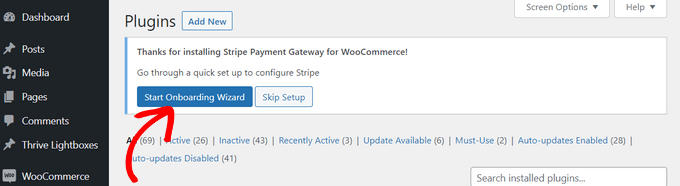
This will launch the FunnelKit setup wizard on your screen.
Now, go ahead and click the ‘Connect with Stripe’ button to integrate your existing Stripe account with WooCommerce.

Next, enter the email address and password associated with your Stripe account.
Then, click on the ‘Log in’ button to continue.
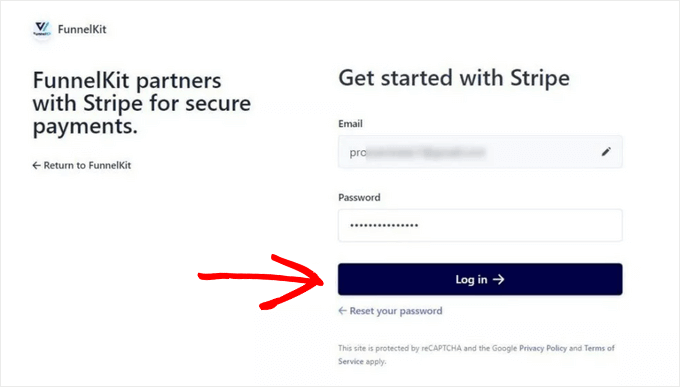
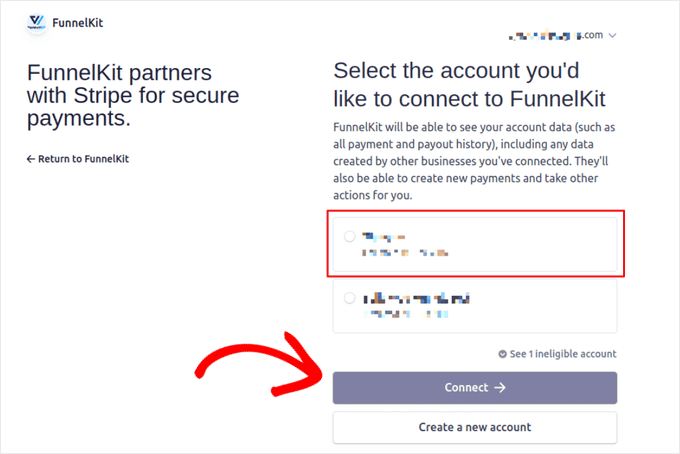
Next, if you have created multiple Stripe accounts with the same email address, then choose the one that you want to connect with the plugin.
Once you do that, just click the ‘Connect’ button.
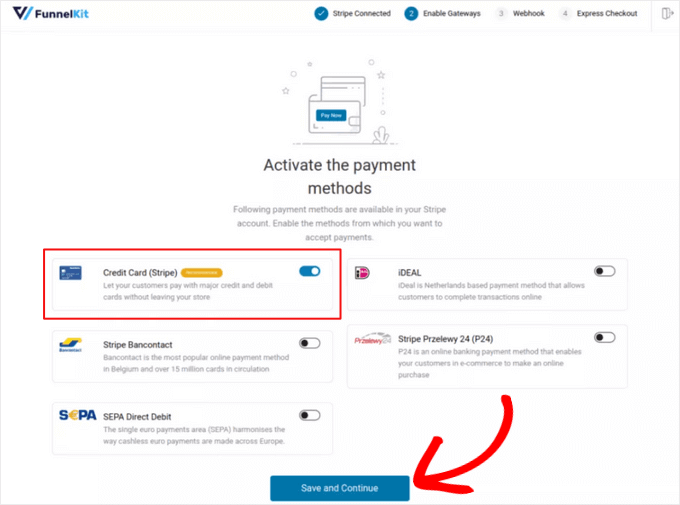
On the following screen, you will see a list of payment methods that you can activate on your store using Stripe. These will include Card, SEPA Direct Debit, iDEAL, and more.
Simply make your choices and click the ‘Save and Continue’ button.
Once that’s done, you’ll need to set up webhooks for your store.
Webhooks are automated messages that Stripe sends to your store to confirm things like successful payments, which helps keep your order statuses accurate.
For detailed instructions, see our tutorial on how to accept Stripe payments in WordPress.
The plugin will then ask you whether you want to run Stripe on ‘Test’ mode or ‘Live’ mode.
From here, just choose the ‘Test’ option and click the ‘Save and Review Settings’ button.
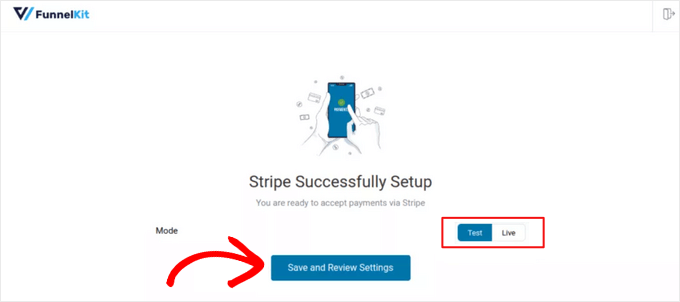
You will now be redirected to the ‘Stripe Settings’ page in WooCommerce.
Here, you’ll want to check the ‘Enable Stripe Gateway’ option and add a title and description for the payment system.
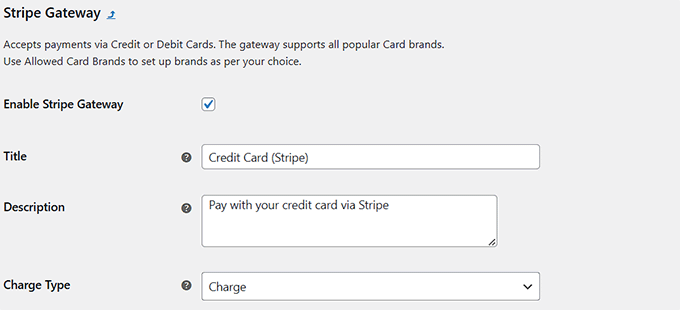
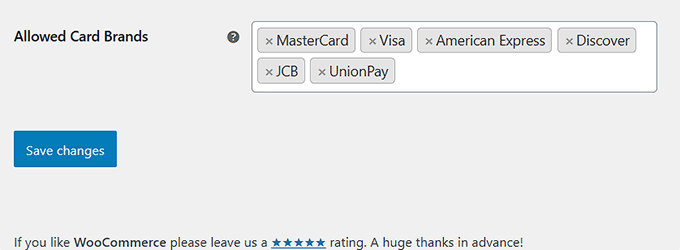
Then, scroll down and type the bank cards that you plan to accept in your store.
Finally, you can click the ‘Save changes’ button to store your settings.
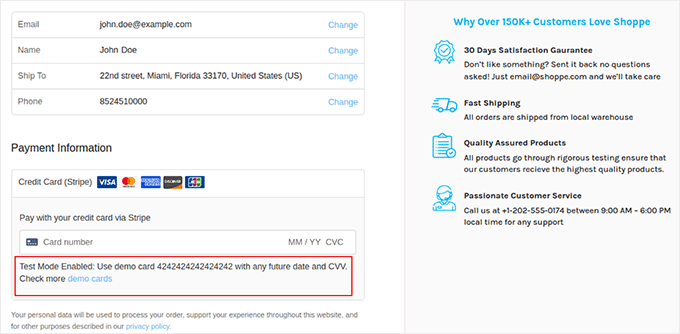
Now, visit your WooCommerce store and open the checkout page. Here, you will notice that Stripe has been added as a payment option.
You will also see a message letting you know that test mode is currently enabled on your site. To test the payment, use the following demo card details:
- CVC: Any 3 digits
- Card Number: 4242 4242 4242 4242
- Expiration: Any future date
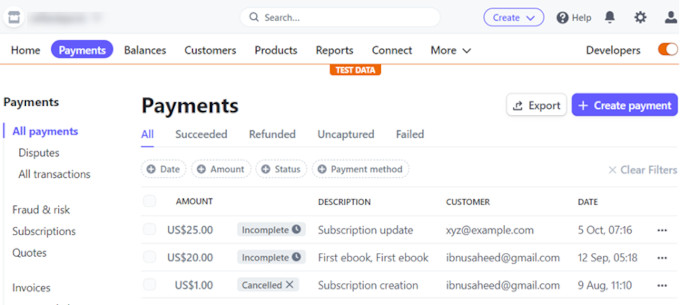
After you have completed some dummy purchases, you can easily check if Stripe has collected the payments by heading over to your Stripe dashboard and clicking on the ‘Payments’ tab.
Here, you can find all the payment details processed through test mode.
💡Expert Tip: Don’t just test the purchase. Try refunding the test order from your Stripe dashboard to make sure the full order lifecycle works correctly.
Now, if all your test payments have been processed without issue, head back to the ‘Stripe Settings’ page in your WordPress dashboard.
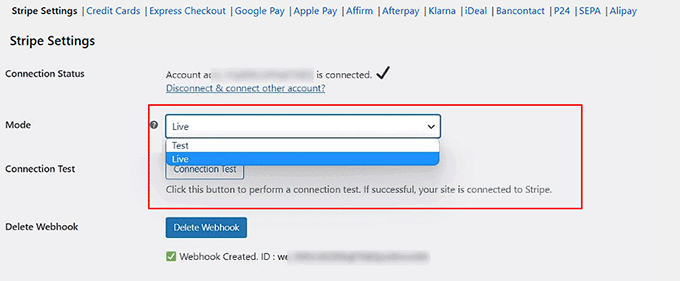
Here, choose the ‘Live’ option from the ‘Mode’ dropdown menu to start accepting real Stripe payments in WordPress.
Method 2: Test Stripe Payments for Digital Products
If you sell digital products online and want to accept Stripe payments, then we recommend using Easy Digital Downloads. It is the best digital eCommerce plugin for WordPress and offers a dedicated test mode.
We have thoroughly tested Easy Digital Downloads to see how it compares to other solutions. To read more about our experience, see our complete Easy Digital Downloads review.
First, you need to install and activate the Easy Digital Downloads plugin. For details, see our tutorial on how to install a WordPress plugin.
☝ Note: Easy Digital Downloads has a free plan that you can use. However, upgrading to the pro version gives you access to features like advanced reporting, download restrictions, recurring payments, and more.
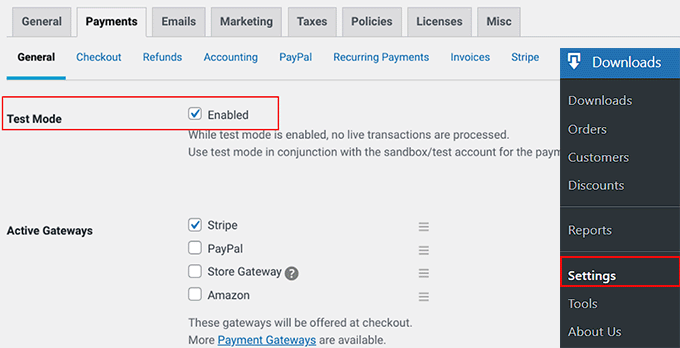
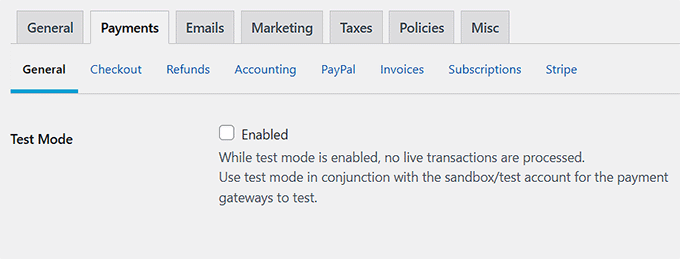
Once you’ve activated the plugin, head over to the Downloads » Settings » Payments page from the WordPress dashboard and check the ‘Test Mode’ box.
After that, choose Stripe as your payment option from the ‘Active Gateways’ section.
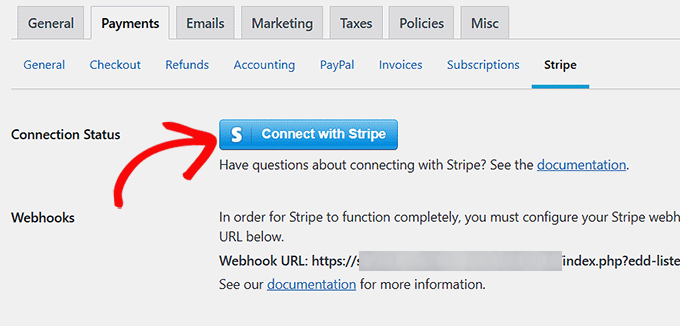
Then, switch to the ‘Stripe’ tab from the top and click the ‘Connect with Stripe’ button.
This will open a setup wizard where you’ll need to connect your existing Stripe account with EDD. Once you have successfully done that, just click the ‘Save Changes’ button to store your settings.
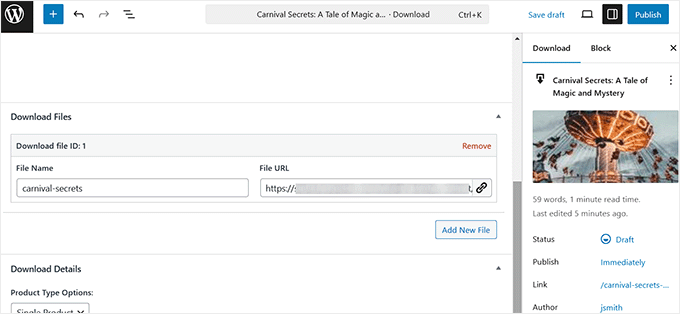
Now, visit the ‘Downloads’ page and click the ‘Add New’ button.
Once the block editor opens, you can add a digital product to your store.
For step-by-step instructions, see our beginner’s guide on selling digital downloads on WordPress.
Finally, click the ‘Publish’ button to make your product live.
Now, you need to visit your online store and head over to the checkout page.
Stripe will already be set up as a payment gateway in test mode.
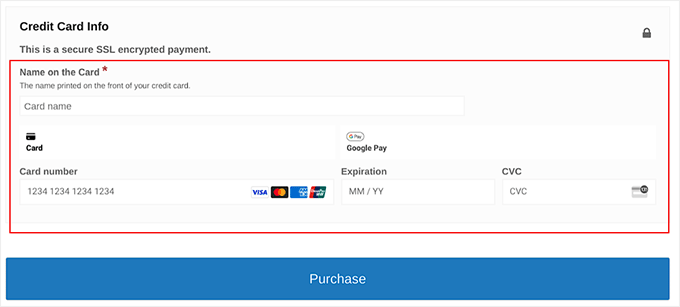
Unlike the WooCommerce method, where a notice appears on the checkout page, you’ll need to use the universal Stripe test card numbers listed below for Easy Digital Downloads.
You can just add the demo card details and click the ‘Purchase’ button to test the payment process:
- CVC: Any three-digit number
- Card number: 4242 4242 4242 4242
- Expiration date: Any future date
Stripe provides these test card numbers so you can safely check your payment process without using real money. For more advanced testing, you can also use specific cards from Stripe’s documentation to simulate failures.
For example, use 4000 0000 0000 0002 to test a declined card scenario.
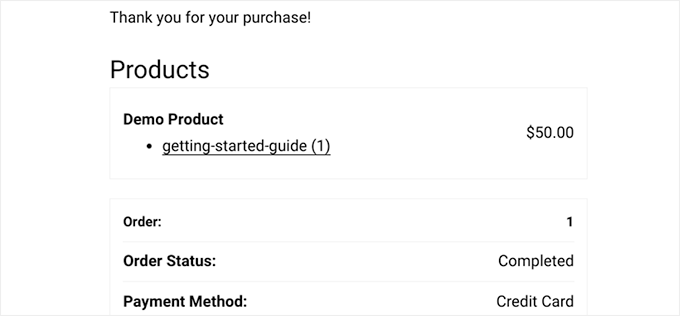
Finally, you will be taken to the purchase confirmation page if the transaction is successful.
Here, you’ll see details about your purchase, such as the ‘Order Status’ and the ‘Payment Method.’
However, you can also check the test payments directly from your Stripe account.
To do this, just visit the ‘Payments’ page in your Stripe dashboard.
Now that you have successfully tested your payments, head back to the Downloads » Settings » Payments page.
Go ahead and uncheck the ‘Test Mode’ box to make your Stripe payment system live. Finally, make sure to click the ‘Save Changes’ button to store your settings.
Method 3: Test Stripe Payments on WordPress Payment Forms
WP Simple Pay is the best Stripe payments plugin for WordPress. It lets you accept payments for services or single products through simple forms without needing a full shopping cart.
We have thoroughly tested WP Simple Pay to see how it performs compared to other options. To read more about our experience, see our complete WP Simple Pay review.
The added bonus is that it lets you test Stripe payments before you go live.
First, you must install and activate the WP Simple Pay plugin. For details, see our guide on how to install a WordPress plugin.
☝ Note: WP Simple Pay has a free version that you can use. However, upgrading to the pro plan can unlock more payment options and templates.
After you activate the plugin, a setup wizard will open up on your screen. Here, click the ‘Let’s Get Started’ button.

Now, you will be taken to the next step, where you can enter your plugin’s license key.
You can get this information from your account on the WP Simple Pay website.

Next, you’ll have to connect your existing Stripe account with the plugin to accept online payments.
To get started, click the ‘Connect with Stripe’ button. For details, check our tutorial on how to accept Stripe payments in WordPress.
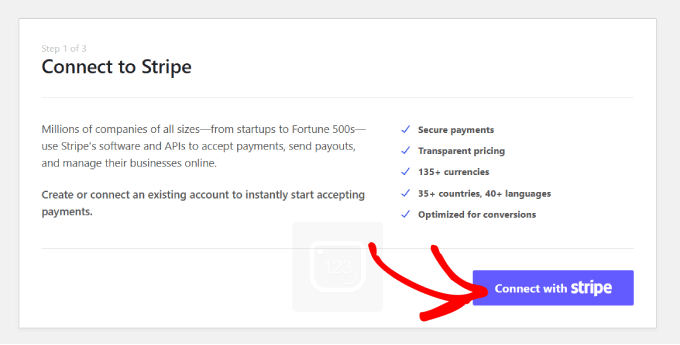
Once you have successfully connected Stripe and WP Simple Pay, the setup wizard will ask you to configure your emails.
From here, you can enable options to receive email notifications for payment receipts, upcoming invoices, and payment notifications.
Make sure to also enter the email address where you want the plugin to send these messages. Then, click the ‘Save and Continue’ button.

Next, you need to complete the rest of the setup wizard steps according to your preferences.
Once you are done, head over to the WP Simple Pay » Payment Forms page in the WordPress dashboard and click the ‘Create Your Payment Form’ button.
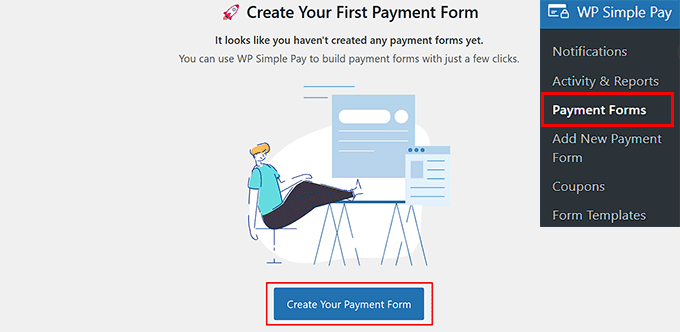
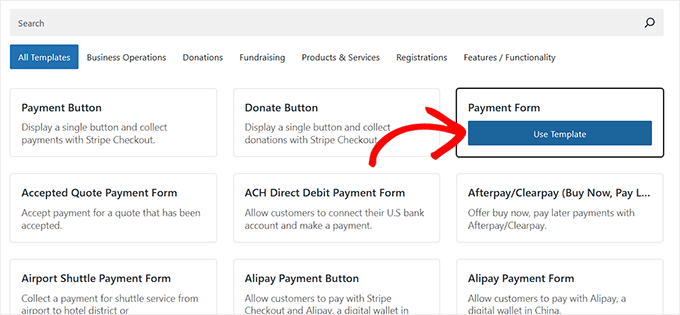
This will take you to the ‘Select a template’ page, where you will see a list of premade templates offered by WP Simple Pay.
There are options to sell subscriptions, services, a single product, and more. Just click the ‘Use Template’ button when you find one you like.
For this tutorial, we will be choosing a simple payment form template.
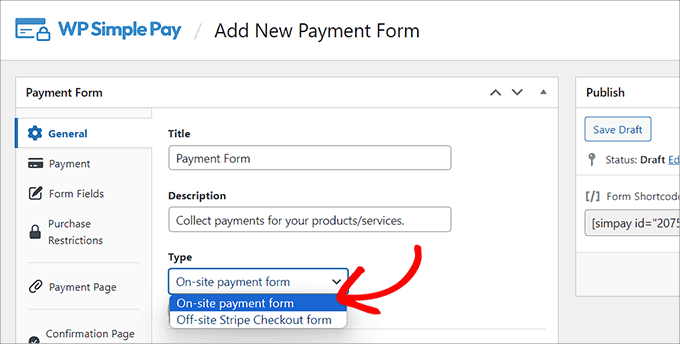
This will take you to the ‘Add New Payment Form’ page, where you can add a title and description for your form.
Then, you can select your form type as ‘On-site payment form.’
Next, switch to the ‘Payments’ tab from the left column.
You can now choose ‘Test Mode’ as the ‘Payment Mode’ for your form. This will allow you to test Stripe payments on your WordPress site.
You can also choose your preferred tax collection rates from the dropdown menu under the ‘Tax Collection’ option.
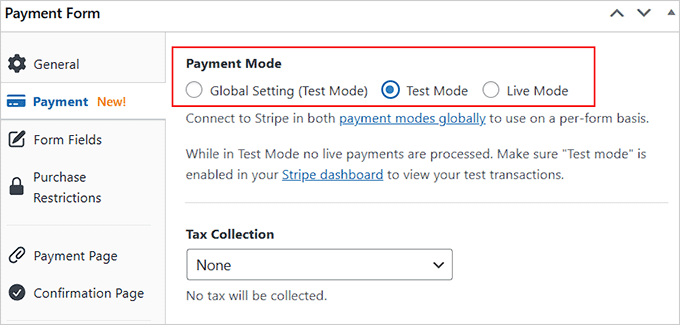
At this point, you can refer to our guide on how to create a WordPress form with payment options for more details on customizing and publishing.
Once you publish your form on the front end of your site, you will notice that ‘test mode’ will be displayed at the bottom.
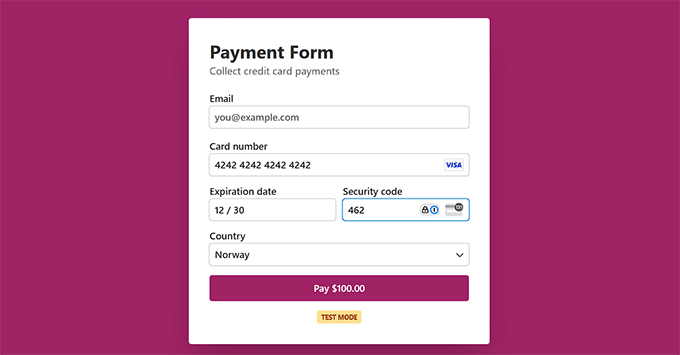
This means you can test Stripe payments. To do so, you’ll need to add the demo card details and click the ‘Pay’ button.
We found these demo details in Stripe’s official documentation:
- Card number: 4242 4242 4242 4242
- Expiration date: Any future date
- CVC: Any three-digit number
Stripe provides these test card numbers so you can safely check your payment process without using real money.
To verify if you have received the payment after clicking ‘Pay,’ head over to your Stripe dashboard.
Once there, switch to the ‘Payments’ tab, where you will see the successful transaction.
Now that you have tested your Stripe payments, just go to the WP Simple Pay » Payment Forms page.
Here, you need to click the ‘Edit’ link under the form you just published.
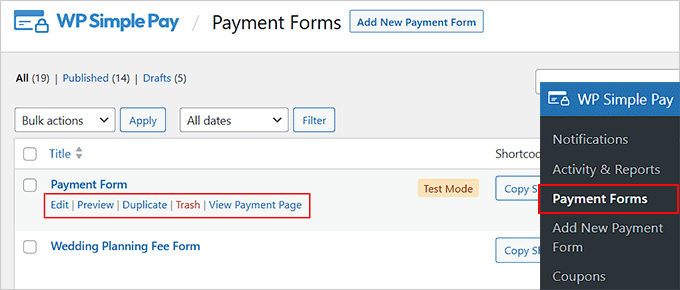
This will open the form builder, where you’ll need to switch to the ‘Payments’ tab.
Here, select ‘Live Mode’ as the payment mode for your form and click the ‘Update’ button to store your changes.
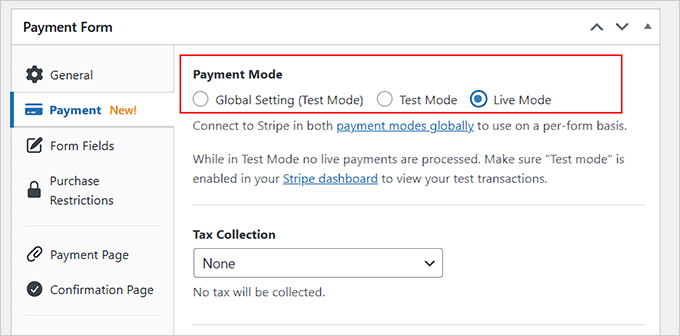
Your form will now start accepting real Stripe payments from customers.
Bonus: Tips & Resources for Using Stripe in WordPress
Now that you’re ready to accept Stripe payments in WordPress, you may be interested in these additional resources:
- How to Reduce Stripe Transaction Fees in WordPress (Expert Tips)
- How to Add Stripe QR Code Payment in WordPress
- How to Pass Payment Processing Fees to Customers in WordPress
- How to Collect Taxes for Stripe Payments in WordPress
- Best Stripe Payment Plugins for WordPress
- Stripe vs. PayPal: Which Is Better for Your WordPress Site?
- 75+ Important Online Payment Statistics, Data, and Trends
Frequently Asked Questions About Testing Stripe Payments
Here are some questions that our readers frequently ask about testing Stripe payments in WordPress:
How frequently should I test Stripe payments?
You should test Stripe payments whenever you make significant changes to your site, such as updating plugins, switching themes, or adding new payment methods. It is also a good idea to test periodically, for example, every few months or before major sales events, to make sure the checkout process remains secure and functional.
What should I do if a test transaction fails?
If a test transaction fails, then first make sure your Stripe integration is in test mode and verify the demo card details. Check for specific error messages from Stripe to identify the issue. If problems persist, investigate any setting conflicts or plugin issues, and make sure everything is updated. You can also contact the Stripe support team for assistance.
Can I use real credit card details to test Stripe payments?
No, you should not use real credit card details to test Stripe payments. Stripe provides demo card details specifically for testing, which simulate real transactions without using actual money. This lets you test your system safely without any risk of charges.
Can I test payments on my live site without affecting real transactions?
Yes, you can test payments on your live site without affecting real transactions by using Stripe’s test mode. When this mode is enabled, all payments are simulated and will not charge real money or affect your customers.
Can I test subscriptions and recurring payments with Stripe?
Yes, you can test subscriptions and recurring payments with Stripe. In test mode, you can set up subscription plans and simulate recurring payments to make sure everything works correctly before you launch.
We hope this article helped you learn how to test Stripe payments on your WordPress site. You may also want to see our tutorial on accepting ACH payments or our guide to accepting iDEAL payments in WordPress.
If you liked this article, then please subscribe to our YouTube Channel for WordPress video tutorials. You can also find us on Twitter and Facebook.




Have a question or suggestion? Please leave a comment to start the discussion.