


You can’t improve your WordPress website if you don’t know what’s happening on it.
Google Analytics gives you those insights for free. Although it may sound technical, you don’t need to be a developer to add it to WordPress.
In this guide, we’ll show you how to install Google Analytics in WordPress step by step.
Before you can connect your site, you need a Google Analytics account and a Measurement ID. If you already have both, you can skip ahead to the installation methods below.
How to Sign Up With Google Analytics
To start tracking your site visitors with Google Analytics, sign up for it with your Google account.
First, visit the Google Analytics website and click the ‘Get started today’ button. Then sign in with your Google account, or create one if you don’t have it yet.
Once you are signed in, click the ‘Start measuring’ button on the welcome screen. Google will then ask for an ‘Account name’, which only appears in your own account, so enter your business name here.
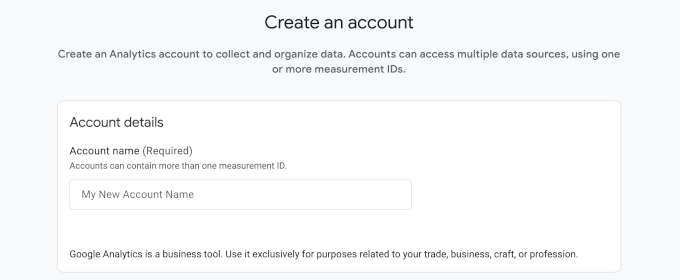
You can leave the data-sharing settings at their defaults and click ‘Next’.
Once your account exists, Google asks you to create a property. A property is simply the container that holds the data for one website. Enter a property name for your website, select your reporting time zone and currency, and then click the ‘Next’ button.
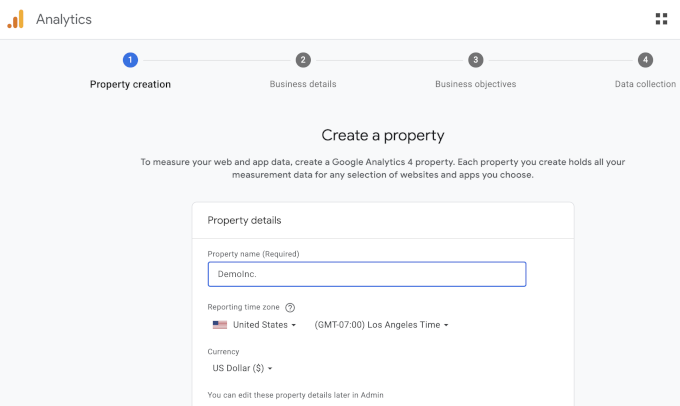
Google will then ask about your business industry, size, and goals. Answer these to match your business, click ‘Next’.
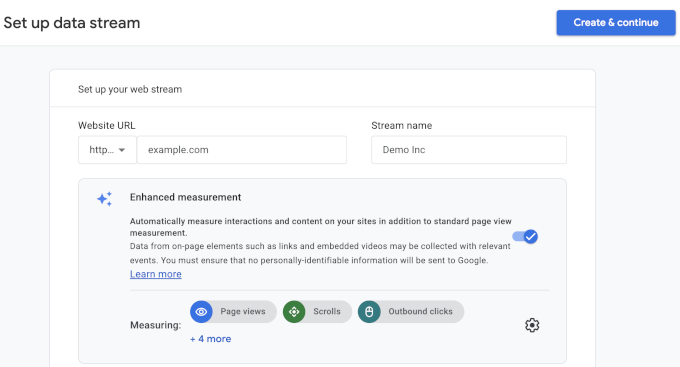
Now that your property is ready, Google needs to know where its data will come from. This is called a data stream. Since we are tracking a WordPress site, select ‘Web’ as the platform.
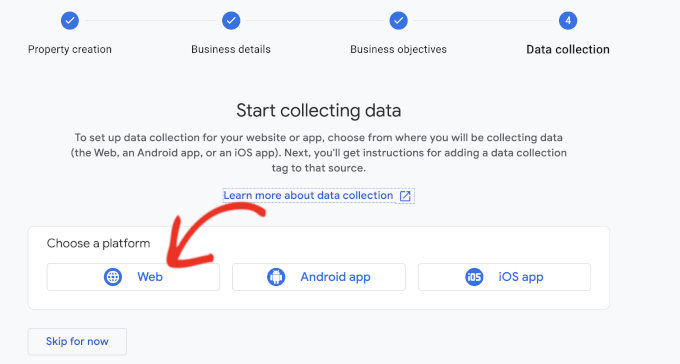
After that, enter your website URL and a stream name. By default, Google Analytics keeps ‘Enhanced measurement’ turned on, which tracks pageviews, scrolls, outbound clicks, file downloads, and more.
Next, click the ‘Create & continue’ button.
You will now see your stream details, including the Measurement ID. It starts with ‘G-‘ and is what connects your website to this Google Analytics property.
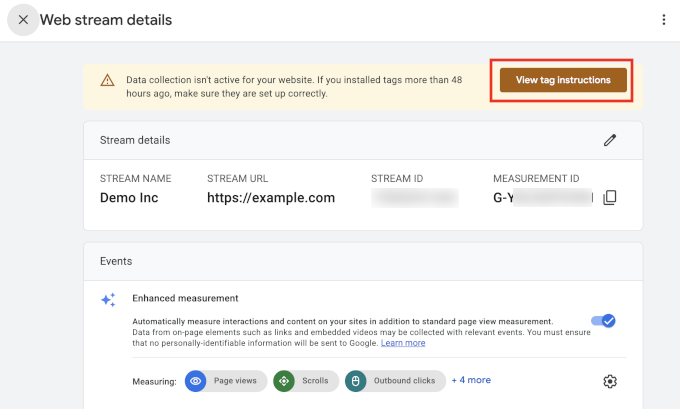
Google also shows an alert bar at the top with instructions for adding the tracking code to your site. Click the ‘View tag instructions’ button to see them.
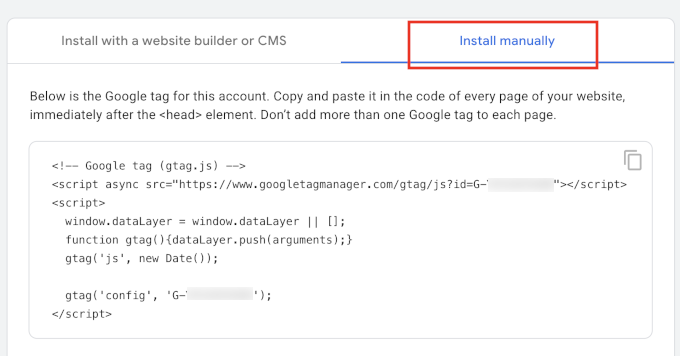
Switch to the ‘Install manually’ tab, and you will see the Google Analytics tracking code. You only need this code for Methods 2 and 3 below.
If you plan to use the plugin method, MonsterInsights adds the code for you.
Keep this browser tab open. You may need to come back to it while installing the code on your WordPress site.
How to Install Google Analytics in WordPress
Now that you have your Google Analytics account and Measurement ID, let’s add the tracking to your WordPress site.
There are three ways to add Google Analytics to WordPress. We recommend using a Google Analytics plugin (Method 1) because it’s the easiest and safest option for most WordPress users. You won’t need to edit your theme files, plus you can see Analytics data directly from your WordPress dashboard.
The other two methods let you add the tracking code manually. They’re useful if you prefer not to use a plugin or want more control over how the code is added.
- Method 1: Install Google Analytics with an Analytics Plugin
- Method 2: Install Google Analytics in WordPress with WPCode (Manual)
- Method 3: Install Google Analytics in Your WordPress Theme (Advanced)
- Bonus Tip: Track More Analytics Data in Google Analytics
- Video Tutorial: Install Google Analytics in WordPress
Method 1: Install Google Analytics with an Analytics Plugin
The easiest way to add Google Analytics to WordPress is by using a Google Analytics plugin. We use and recommend the free MonsterInsights plugin. It connects your site to Google Analytics without touching any code and shows your traffic reports right inside the WordPress dashboard.
You can also find many other Analytics plugins, like Google Site Kit, which works well for basic pageview and search data. But unlike MonsterInsights, it doesn’t offer a Pro version and lacks many advanced features, like User Journey, which shows the exact conversion path a visitor took through your site.
For details, see our comparison of MonsterInsights vs. Site Kit.
First, you need to install and activate the MonsterInsights plugin. For more details, see our step-by-step guide on how to install a WordPress plugin.
Upon activation, MonsterInsights opens its setup wizard. If it doesn’t, go to the Insights » Settings page and click the ‘use our setup wizard’ link.
The wizard first asks which category best describes your website. Choose business website, publisher, or eCommerce, and then click the ‘Save and Continue’ button.
Next, you need to connect the plugin to your Google Analytics account. Click the ‘Connect MonsterInsights’ button.
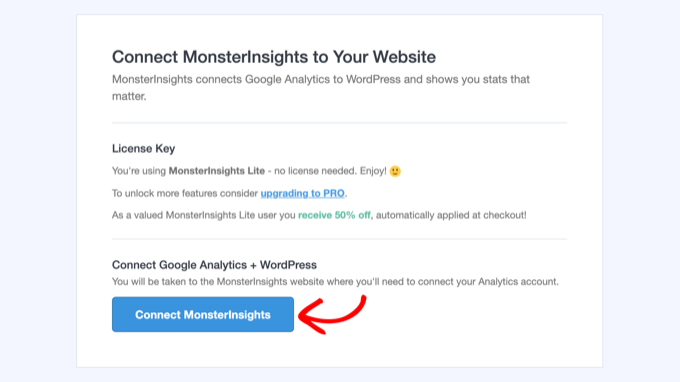
This takes you to Google, where you choose the Google account you used to create your Analytics property. Then click ‘Allow’ so that MonsterInsights can access your Google Analytics data.
After that, select the property you created for your website from the dropdown menu and click the ‘Complete Connection’ button.
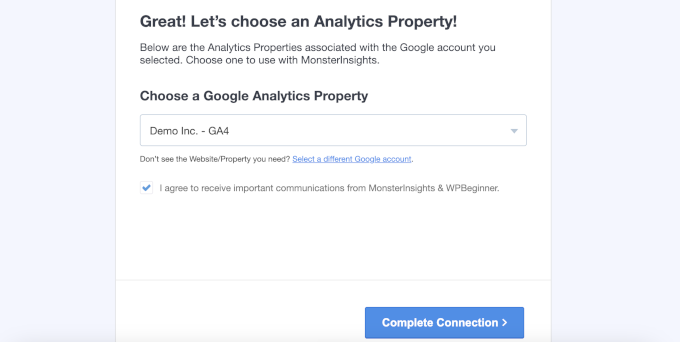
MonsterInsights will now add the tracking code to your site for you. All that’s left are a few screens where the wizard suggests settings based on the website category you picked earlier.
The defaults work well for most websites, so you can click ‘Save and Continue’ on each screen.
If you see a screen asking for a license key, just click the option to finish setup without upgrading.
That’s it! You’ve now successfully set up Google Analytics on your WordPress website.
View Google Analytics Reports Inside the WordPress Dashboard
Once Google Analytics has collected some data, you can see your reports without leaving WordPress. Visit the Insights » Reports page to see an overview of your traffic, top pages, and where your visitors come from.
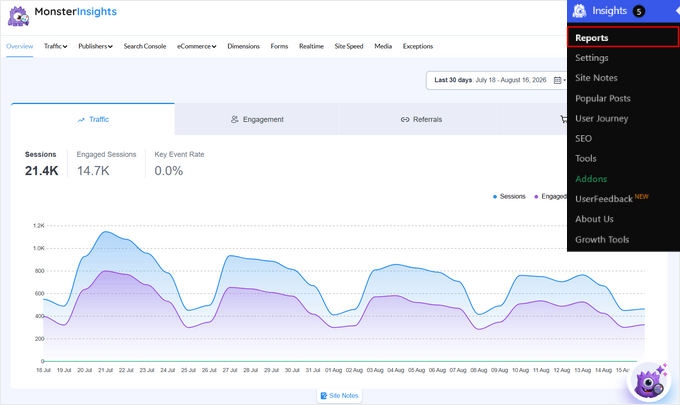
Keep in mind that Google Analytics takes a few hours to start showing data after you install it.
Method 2: Install Google Analytics in WordPress with WPCode (Manual)
If you don’t want to use a dedicated Google Analytics plugin, then you can use the free WPCode plugin instead. WPCode keeps the code separate from your theme, so you won’t have to worry about losing it during theme updates or accidentally breaking your site while making changes.
First, install and activate the WPCode plugin. If you need help, see our guide on how to install a WordPress plugin.
Upon activation, go to the Code Snippets » Header & Footer page. Then paste the Google Analytics tracking code you copied while creating your Analytics account into the ‘Header’ box.
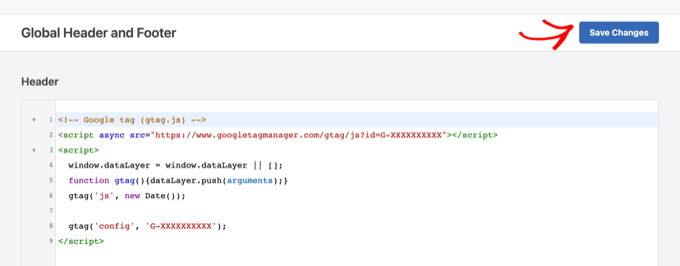
Don’t forget to click the ‘Save Changes’ button. Google Analytics is now installed on your site.
Method 3: Install Google Analytics in Your WordPress Theme (Advanced)
The last method skips plugins altogether and adds the tracking code directly to your theme.
Keep in mind that with this method, you will lose Analytics tracking whenever you update or switch your theme.
Simply add the following code at the bottom of your WordPress theme’s functions.php file.
add_action( 'wp_head', 'wpb_add_googleanalytics' );
function wpb_add_googleanalytics() { ?>

<!-- Paste your Google Analytics tracking code here -->

<?php }
Replace the comment line with the tracking code you copied from your Google Analytics account, and then save the file.
Your WordPress theme will now load the Google Analytics tracking code across your WordPress site.
Bonus Tip: Track More Analytics Data in Google Analytics
By default, Google Analytics tracks pageviews and basic engagement. However, it does not give you advanced reporting, like eCommerce tracking, affiliate link clicks, video tracking with Vimeo, and more.
With MonsterInsights Pro, you can enable additional tracking through addons. All you have to do is install the right addons by navigating to Insights » Addons page. Here is how to set up each one.
- eCommerce tracking: Enable the ‘eCommerce’ addon if you run a WooCommerce store, a digital downloads store, or a membership site. You can then see which products and customers bring in your revenue, and more.
- Set up form conversion tracking: Enable the ‘Forms’ addon to start tracking your form views, submissions, and conversion rates. MonsterInsights integrates with form plugins like WPForms, Formidable Forms, and more, so no additional configuration needed.
- Track video analytics: Enable the ‘Media’ addon to track whether people watch your videos or click away after a few seconds. It works with YouTube, Vimeo, and self-hosted HTML5 videos.
- Custom event tracking: With custom event tracking, you can record specific actions visitors take on your site, like a button click. It doesn’t need a separate addon to be installed.
For example, if you want to track a custom click event, then follow this formula:
<a href="https://www.example.com" data-vars-ga-category="Custom Category" data-vars-ga-action="Custom Action" data-vars-ga-label="Custom Label">Example</a>
Using this template, you’ll be able to override the default tracking behavior of MonsterInsights to customize what gets tracked as the category, action, and label. For example:
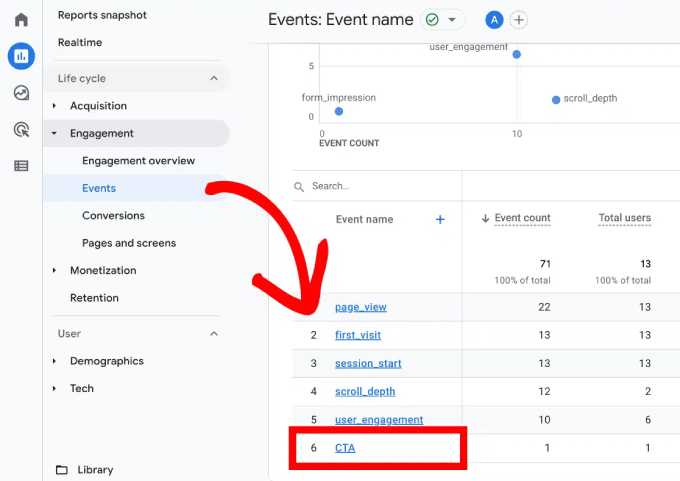
<a href="http://www.example.com/download.pdf" data-vars-ga-category="CTA">Download now</a>
To see the results, log in to your Google Analytics account and go to Reports » Engagement » Events. Your category name will appear in the list of events.
FAQs About Installing Google Analytics in WordPress
Here are answers to some of the most common questions we get about setting up Google Analytics.
Is Google Analytics free to use?
Yes, Google Analytics is completely free. Google offers a paid version for large enterprise websites, but the free version is more than enough for most small business sites and blogs.
How long does it take for Google Analytics to start working?
After you add the tracking code, Google Analytics may take a few hours to begin showing data in your reports. We recommend checking back after 24 hours to see your first full day of statistics.
Do I need Google Analytics if my site has Jetpack Stats?
Jetpack Stats gives you a simple overview of your traffic. Google Analytics goes much deeper, with detail about your audience, their behavior, and how they found your site.
For a full comparison, see our article on Google Analytics vs. Jetpack Stats.
How do I keep personally identifiable information (PII) out of Google Analytics?
Google’s terms do not allow you to send personal details like names, email addresses, or phone numbers to Google Analytics. To ensure you’re not accidentally adding such details via forms, you can go to Admin » Data streams and select your website’s stream in your Google Analytics Account. Then click ‘Redact data’ and strip any URL parameters.
If you use MonsterInsights, the Privacy Guard feature does this automatically from Insights » Settings » Engagement. It is included in the Plus plan and higher.
How do I track email newsletter traffic in Google Analytics?
You need to add UTM tags to the links in your newsletter. These are short labels at the end of a URL that tell Google Analytics where each visitor came from.
The most important tag is utm_medium=email. Google Analytics only puts a visit in its Email channel when the medium is ’email’, and a value like ‘newsletter’ lands in the Unassigned group instead.
Most email marketing services, including Constant Contact, Kit, and Mailchimp, can add these tags for you from a UTM or Google Analytics tracking setting. You can also build tagged links with the free URL Builder in MonsterInsights at Insights » Tools » URL Builder.
To see the results, go to Reports » Acquisition » Traffic acquisition in Google Analytics and filter the report for Email. Then add ‘Session campaign’ as a secondary dimension to see each newsletter by name.
Google Analytics only tracks what visitors do after they click a link. Your open rates stay in your email service.
Video Tutorial: Install Google Analytics in WordPress
If you prefer to watch the process, our video tutorial shows you how to install Google Analytics in WordPress.
We hope this article helped you learn how to install Google Analytics in WordPress.
Next, you may want to see our ultimate guide to GA4 in WordPress to make sense of your new reports. You can also check our WordPress SEO guide for tips on growing your traffic in AI search era.
If you liked this article, then please subscribe to our YouTube Channel for WordPress video tutorials. You can also find us on Twitter and Facebook.




Amy
In a switch to self hosting that has been so difficult, THIS was so helpful, and so simple to perform myself!
Paul Carr
Great tutorial with easy to follow step by step details.
I used this to set up Google Analytics on my blog using the free Monsterinsights plugin recommended in method one.
It took me about six minutes, and that included reading through the tutorial steps one at a time as I completed each one.
Many thanks!
WPBeginner Support
Hey Paul,
Thanks, we are glad that you found the article helpful. You may also want to subscribe to our YouTube Channel for WordPress video tutorials.
Admin
Josh
Finally what I been looking for! Thank you
Rex
Oddball question…but would it be possible to manually install Google Analytics (via headers theme & functions.php file) AND use a Monster Insights plugin? Assuming the same Google account tracking ID/code is used.
It’s not necessarily something we would do, just wanted to answer a client’s question.
(hope this makes sense)
Thank you,
Rex
WPBeginner Support
Hey Rex,
No it will cause double tracking issue.
Admin
Rex
Ah, now that’s interesting…
Also, thanks for the tutorial. Very helpful!
Karma
I tried the third way and did everything as instructed. After completing everything, my google analytics dashboard does not show any data. Can somebody help me with more details. The website was developed in Wordpress and i do not want to use the first method with plugin.
Katie
I tried this also and it doesn’t show any data either. However, on Activate it shows that my analytics are working and show my monthly users and unique users. Why am I not seeing any of this in Google Analytics?
Dan McCreight
THANK YOU! It’s really nice when someone takes the time to make a complicated process seam easy.
ihsan khattak
Thanks for this very informative post
Ruth
Thanks for this! I was starting to feel a bit overwhelmed, but this article made it super easy.
Laura Jevtich
Thank you so much for this article. I had a feeling it was going to be a plugin. Used to use Dreamweaver which had great ways to do SEO, but not so great with everything else. I’ll make sure to follow for other great insight.
Wendy Brentnll-Wood
Thanks this post was easy to follow and the links were really useful. I’m sure it saved me a lot of time getting analytics set up on a couple of new websites. Many thanks!
Karen
When I try to set up in Wordpress this works great until I get to adding the Authentication code. When I enter it, it either tells me “Bad Cod” or “Connection Error.” My host is Godaddy.
Thank you!
SJ B
Massively grateful for the ‘insights’ (ba dum ching!) you’ve provided here. Sorry about the pun. I’m just happy to finally be able to have a play with analytics. Thank you.
Navin Rao
It was a very detailed step by step explanation..Was helpful ..
You got a awesome theme, it’s very light loved it.
Thanks,
Navin Rao
Barnali
Excellent tutorial. I have been trying to use Google Analytics and this post of yours was very helpful.
Regards
(Barnali)
LaToya C
This was very helpful. Thanks for sharing!
Danielle
I entered in the code and it changed the color scheme of my entire page. I deleted the code and it went back to its original state. Why is this happening?
Rob
Hi,
Thanks, using Monsterinsights was easy. However, the google analytics code appears on all my pages in the upper left side. How do I hide the google analytics code from website?
Tank you.
WPBeginner Support
Hi Rob,
Try switching to a default WordPress theme like (Twenty Seventeen). It this resolves your issue, then most likely your WordPress theme is not using wp_head function which is required by WordPress.
Admin
Ebubedike Felix
love this lesson. thanks
Ed Schmidt
I did the easiest method and have the plug in on my wordpress ran site. To be clear if I did this method and followed all the steps I should start tracking immediately although results won’t show for a while. I did not ever copy and paste the universal tracking code anywhere but that was not in any steps that I saw. So if I did the steps it should work?
Thanks
Joyce
This was a very helpful article! Thank you very much!
Lisa
Very helpful article thank you! Exactly what I needed to know!
Jeff
1) I tried to put the code in my functions.php file and did not really pay attention. It did not work. On closer inspection, it is not really clear what I should be pasting and what is just there to help locate the code. Also, it is backwards (add action vs function) from my other code setting up my child theme. As a newbie to pho I do not know if this matters. Anyway, moved on
2) I am now using my theme >Theme Options>Custom Code>Footer Code and inserted the Google script direct into this. Is this okay without all the doings of all the plug ins?
Thanks
Shawn Vaillancourt
In regard to the step where you “select profile”, the analytics profile that is, mine says “select a profile”. However, there is no profile to choose from. Any idea why?
Shawn
WPBeginner Support
Hey Shawn,
This issue was caused by certain WordPress themes and plugins, it has been resolved in the latest version of MontserInsights. Please update your plugin. Let us know if you come across any issue.
Admin
Morgan Anderson
This was a great tutorial and so easy. Thank you for sharing!!
Scott
Performance impact of installing this?
Simone
Hi,
It is a very helpfull article, but I have a problem. When I reach the point where I’m supposed to select a google analytics profile, there aren’t any options to choose. I have created a google analytics profile by following the steps you show, so I don’t know why it doesn’t show up. Do you have any idea why it doesn’t work?
WPBeginner Support
Hi Simone,
Make sure you are logged in with the same Google/Gmail account that you used to create your Google Analytics profile. Next, you can visit your Google Analytics dashboard to make sure that your website profile is there.
Admin
margot
Hi! I’ve got the same problem! And I am logged in with the same google account + the google analytics dashboard shows my profile so there is no issue there. I’ve tried it two times already and it’s always at that last step that there is no profile to select…
WPBeginner Support
Hi,
There is an update available for MonsterInsights which should address this issue.
Ramesh
Very informative!
This is what a new bee of wordpress expects to know.
Good article! Will share for the needy
Bogdan
Thank you very much for this article! I always find you articles very helpful. Still, I didn’t find the report tab.
Geoff
Hi. I am using WP v4.7.2 and my theme is Traffica.
I have loaded the code in the footer section as suggested and replaced the text with my GA code. When I update and reload my web page, all I see is the GA code. Please can you advise where I am going wrong?
Chelsea
If you install this in the “insert header footer” plug-in and save, will that apply tracking to EVERY page on the site? So it will track data from every page? Thank you!
WPBeginner Support
Yes it will track data from every page.
Admin
aisha
Will tracking be for every page just when using the MonsterInsights plugin? And how long does it take to start tracking? I have been playing around on my site but have not noticed any reports so far. thank you!
WPBeginner Support
Hi Aisha,
Yes, it will track all pages on your WordPress site. Normally, Google Analytics takes sometime before you can start seeing reports.
David
I have been looking for this tutorial.very nice explained. Thank you
Nailil
Thanks for this tutorial!
Monet
Hi. Thank you for the tutorial. I think I set up my analytics correctly. How long does it take to track data? And how can I tell if I set it up correctly?
Chima ogbonnaya
Thank very much after reading your post about wordpress blogging I started and it is moving and working well Thanks..
WPBeginner Support
Hi Chima,
Glad to hear that Don’t forget to follow us on Facebook for more WordPress tips and tutorials.
Admin
Thabiso
Thank you for this wonderful tutorial.
Kristel Miley
Thank you so much for this tutorial! It was simple and easy to follow, and I now have google analytics set up. So glad I found this website!
WPBeginner Support
Hi Kristel,
We are glad you found it helpful. You may also want to subscribe to our YouTube Channel for WordPress video tutorials.
Admin
Arash
Hi, thanks for the helpful info!
I’ve added the code snippet in header section, now that i need to modify the code for each page for GA remarketing purpose, how can i do that?
nisrina
thanks you very much, this really help me to set my analytics
James
Thanks! Did the trick!
Jasmine A
I noticed on the wordpress plans page it said you need a business plan to have google analytics, is this true or is it just a way to get you to purchase this plan?
WPBeginner Support
Hi Jasmine,
You are looking at WordPress.com plans. Please see our guide on the difference between self hosted WordPress.org vs free WordPress.com blog.
Admin
Alex
Thank you so much this was easy and solved a huge problem for me.
Nathan K Smith
For those that don’t know make sure you pick whether your site is http or https.
Kshitij
I’m done this much. How and where can I see the results and tracked details?
Peru
Hello there,
If I add the tracking code to header.php, will it disappear when the theme updates?
In other words, is header.php a ‘theme file’?
Thanks for your help
WPBeginner Support
Yes, header.php is a theme file.
Admin
Mark
It’s best to create a child theme and adding the code to the child theme’s file, so that it is not affected when the theme updates.
Pawan Sahani
This article helped me solve my problem. Thank You
prettypenguin
in video, you said add the codes to ‘footer.php’ in plugin, but in article you said add to ‘header’. which one should i add?
WPBeginner Support
You choose either of them. However, header is recommended by Google so that it loads first.
Admin
Luna
Thank you! You made this soo easy
Sharon LoMonaco
I’ve just had a Google Analytics DISASTER! My WordPress dashboard indicated that the Google Analytics plugin needed an update.
This is the result!
Parse error: syntax error, unexpected T_PAAMAYIM_NEKUDOTAYIM in /home/content/p/e/n/penchant52/html/redscarfsociety/wp-content/plugins/googleanalytics/class/Ga_Admin.php on line 480
Website crashed or absolutely unavailable. NO DASHBOARD! NOT ABLE TO LOG IN!
HOW IS THIS GOING TO GET FIXED?
WPBeginner Support
Hi Sharon,
First you need to deactivate all plugins on your website. See our guide on how to deactivate all WordPress plugins when not able to access admin area.
Admin
Anuj Sharma
Thanks for the explanation!!!
WPBeginner Support
You are welcome
Admin
eli
Hello so it seems that i am doing something wrong my sites aren’t being tracked correctly? I originally started with a sub domain and an xyz domain . And then someone suggested to purchase .com domains if i wanted to get better rankings and more traffic. So i went ahead and changed them Here’s where the problem begins. Now when I track them on real time there is no sign of my tracking results on either of them and on one no results what so ever. So if you have any suggestions please give me some advice
Atul Thakur
so you said you were using your google analytics on some other domain and then you purchased a .com domain. Did you added that domain to your google analytics account also when you register your .com domain on google analytics you will get a code please use that code don’t use your old code from other domain