


No puedes mejorar tu sitio web de WordPress si no sabes lo que sucede en él.
Google Analytics te proporciona esas información de forma gratuita. Aunque suene técnico, no necesitas ser un desarrollador para añadirlo a WordPress.
En esta guía, te mostraremos cómo instalar Google Analytics en WordPress paso a paso.
Antes de poder conectar tu sitio, necesitas una cuenta de Google Analytics y un ID de medición. Si ya tienes ambos, puedes saltar a los métodos de instalación a continuación.
Cómo registrarse en Google Analytics
Para empezar a rastrear a los visitantes de tu sitio con Google Analytics, regístrate con tu cuenta de Google.
Primero, visita el sitio web de Google Analytics y haz clic en el botón 'Empezar hoy'. Luego inicia sesión con tu cuenta de Google, o crea una si aún no la tienes.
Una vez que hayas iniciado sesión, haz clic en el botón 'Empezar a medir' en la pantalla de bienvenida. Google te pedirá un 'Nombre de cuenta', que solo aparece en tu propia cuenta, así que introduce el nombre de tu negocio aquí.
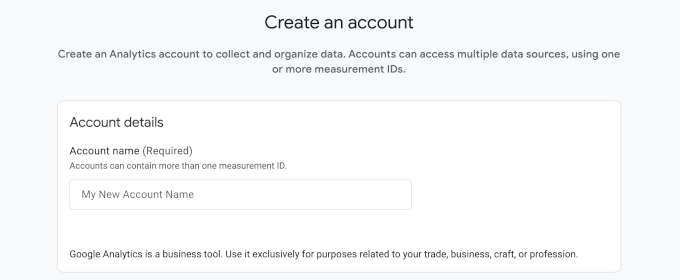
Puedes dejar la configuración de uso compartido de datos en sus valores predeterminados y hacer clic en 'Siguiente'.
Una vez que tu cuenta exista, Google te pedirá que crees una propiedad. Una propiedad es simplemente el contenedor que contiene los datos de un sitio web. Introduce un nombre de propiedad para tu sitio web, selecciona tu zona horaria y moneda de informes, y luego haz clic en el botón 'Siguiente'.
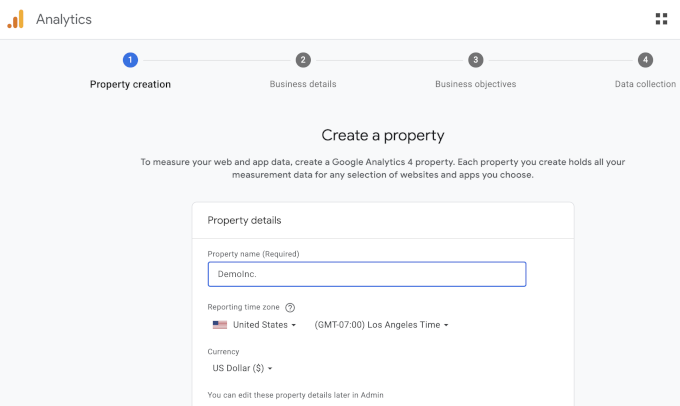
Google te preguntará sobre la industria, el tamaño y los objetivos de tu negocio. Responde a estas preguntas para que coincidan con tu negocio, haz clic en 'Siguiente'.
Ahora que tu propiedad está lista, Google necesita saber de dónde provendrán sus datos. Esto se llama un flujo de datos. Dado que estamos rastreando un sitio de WordPress, selecciona 'Web' como plataforma.
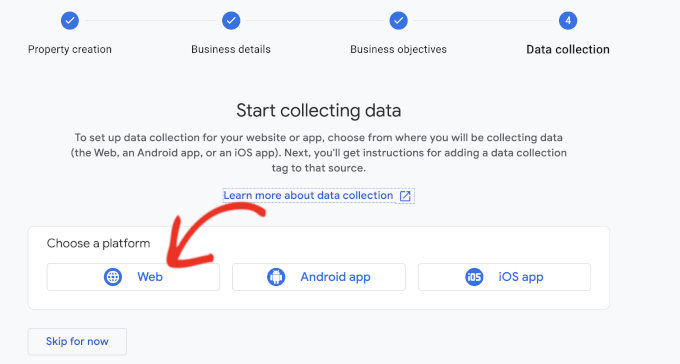
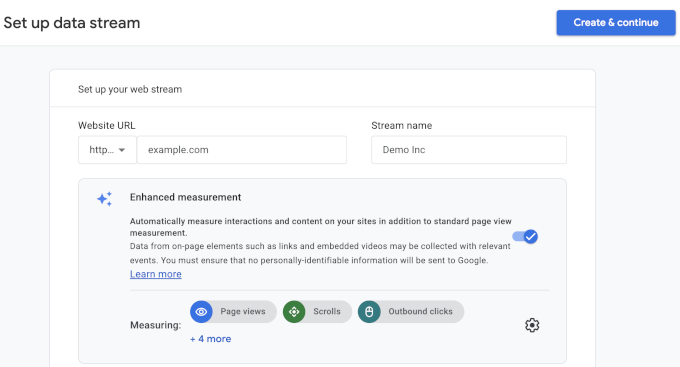
Después de eso, introduce la URL de tu sitio web y un nombre de flujo. Por defecto, Google Analytics mantiene la 'Medición mejorada' activada, que rastrea visualizaciones de páginas, desplazamientos, clics salientes, descargas de archivos y más.
A continuación, haz clic en el botón 'Crear y continuar'.
Ahora verás los detalles de tu flujo, incluido el ID de medición. Comienza con 'G-' y es lo que conecta tu sitio web a esta propiedad de Google Analytics.
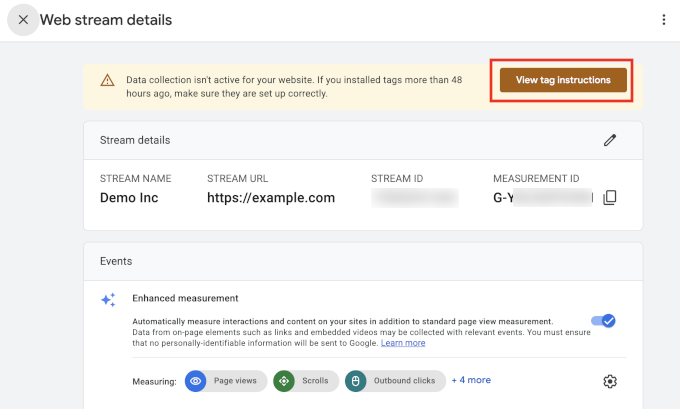
Google también muestra una barra de alerta en la parte superior con instrucciones para agregar el código de seguimiento a tu sitio. Haz clic en el botón 'Ver instrucciones de la etiqueta' para verlas.
Cambia a la pestaña 'Instalar manualmente' y verás el código de seguimiento de Google Analytics. Solo necesitas este código para los Métodos 2 y 3 a continuación.
Si planeas usar el método del plugin, MonsterInsights agrega el código por ti.
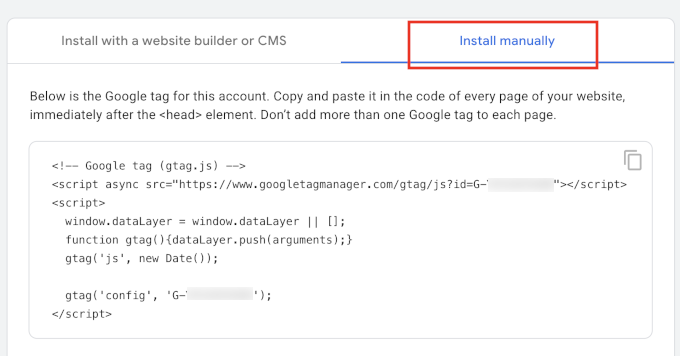
Mantén abierta esta pestaña del navegador. Es posible que necesites volver a ella mientras instalas el código en tu sitio de WordPress.
Cómo instalar Google Analytics en WordPress
Ahora que tienes tu cuenta de Google Analytics y tu ID de medición, agreguemos el seguimiento a tu sitio de WordPress.
Hay tres formas de agregar Google Analytics a WordPress. Recomendamos usar un plugin de Google Analytics (Método 1) porque es la opción más fácil y segura para la mayoría de los usuarios de WordPress. No necesitarás editar los archivos de tu tema, además podrás ver los datos de Analytics directamente desde tu panel de WordPress.
Los otros dos métodos te permiten agregar el código de seguimiento manualmente. Son útiles si prefieres no usar un plugin o si quieres tener más control sobre cómo se agrega el código.
- Método 1: Instalar Google Analytics con un plugin de análisis
- Método 2: Instalar Google Analytics en WordPress con WPCode (Manual)
- Método 3: Instalar Google Analytics en tu tema de WordPress (Avanzado)
- Consejo extra: Rastrea más datos de análisis en Google Analytics
- Tutorial en video: Instalar Google Analytics en WordPress
Método 1: Instalar Google Analytics con un plugin de análisis
La forma más fácil de agregar Google Analytics a WordPress es usando un plugin de Google Analytics. Usamos y recomendamos el plugin gratuito MonsterInsights. Conecta tu sitio a Google Analytics sin tocar ningún código y muestra tus informes de tráfico directamente dentro del panel de WordPress.
También puedes encontrar muchos otros plugins de Analytics, como Google Site Kit, que funciona bien para datos básicos de visitas y búsquedas. Pero a diferencia de MonsterInsights, no ofrece una versión Pro y carece de muchas funciones avanzadas, como User Journey, que muestra la ruta de conversión exacta que siguió un visitante en tu sitio.
Para obtener más detalles, consulta nuestra comparación de MonsterInsights vs. Site Kit.
Primero, necesitas instalar y activar el plugin MonsterInsights. Para más detalles, consulta nuestra guía paso a paso sobre cómo instalar un plugin de WordPress.
Tras la activación, MonsterInsights abre su asistente de configuración. Si no lo hace, ve a la página Insights » Settings y haz clic en el enlace ‘usar nuestro asistente de configuración’.
El asistente primero te pregunta qué categoría describe mejor tu sitio web. Elige sitio web de negocios, editor o comercio electrónico, y luego haz clic en el botón ‘Guardar y Continuar’.
A continuación, necesitas conectar el plugin a tu cuenta de Google Analytics. Haz clic en el botón ‘Conectar MonsterInsights’.
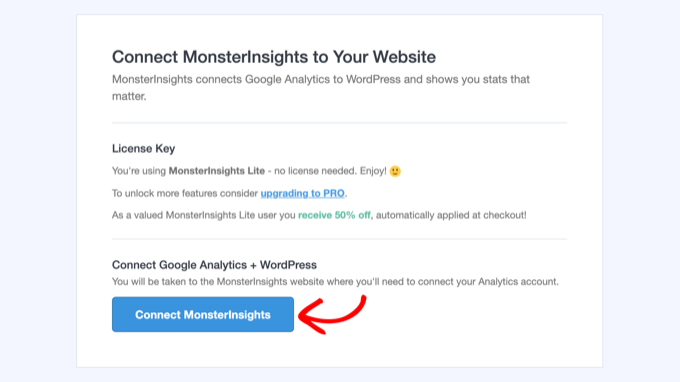
Esto te lleva a Google, donde eliges la cuenta de Google que usaste para crear tu propiedad de Analytics. Luego haz clic en ‘Permitir’ para que MonsterInsights pueda acceder a tus datos de Google Analytics.
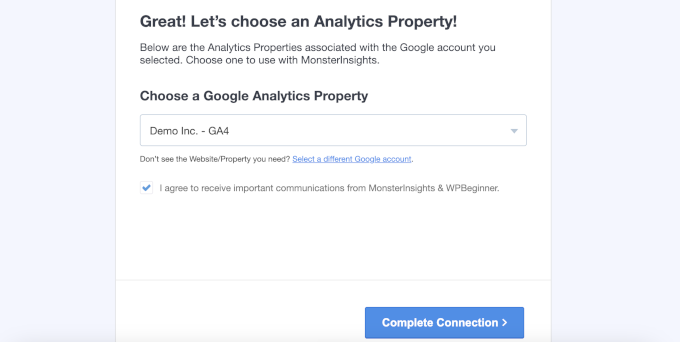
Después de eso, selecciona la propiedad que creaste para tu sitio web en el menú desplegable y haz clic en el botón ‘Completar Conexión’.
MonsterInsights ahora agregará el código de seguimiento a tu sitio por ti. Todo lo que queda son unas pocas pantallas donde el asistente sugiere configuraciones basadas en la categoría de sitio web que elegiste anteriormente.
Los valores predeterminados funcionan bien para la mayoría de los sitios web, así que puedes hacer clic en ‘Guardar y Continuar’ en cada pantalla.
Si ves una pantalla que te pide una clave de licencia, simplemente haz clic en la opción para finalizar la configuración sin actualizar.
¡Eso es todo! Ahora has configurado correctamente Google Analytics en tu sitio web de WordPress.
Ver informes de Google Analytics dentro del panel de WordPress
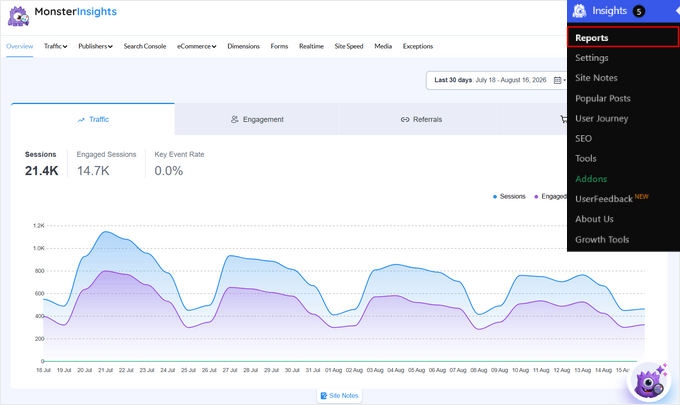
Una vez que Google Analytics haya recopilado algunos datos, podrás ver tus informes sin salir de WordPress. Visita la página Insights » Reports para ver un resumen de tu tráfico, las páginas principales y de dónde provienen tus visitantes.
Ten en cuenta que Google Analytics tarda unas horas en empezar a mostrar datos después de instalarlo.
Método 2: Instalar Google Analytics en WordPress con WPCode (Manual)
Si no deseas usar un plugin dedicado de Google Analytics, entonces puedes usar el plugin gratuito WPCode en su lugar. WPCode mantiene el código separado de tu tema, por lo que no tendrás que preocuparte por perderlo durante las actualizaciones del tema o por romper accidentalmente tu sitio mientras realizas cambios.
Primero, instala y activa el plugin WPCode. Si necesitas ayuda, consulta nuestra guía sobre cómo instalar un plugin de WordPress.
Tras la activación, ve a la página Snippets de código » Encabezado y Pie de página. Luego pega el código de seguimiento de Google Analytics que copiaste al crear tu cuenta de Analytics en el cuadro 'Encabezado'.
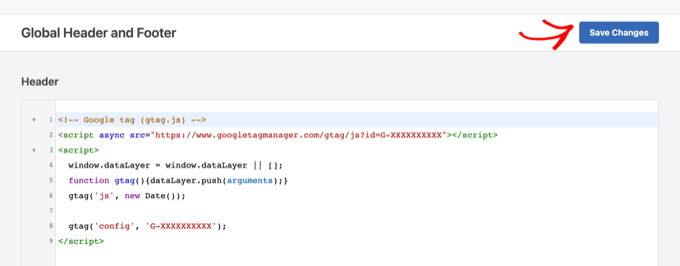
No olvides hacer clic en el botón 'Guardar Cambios'. Google Analytics ahora está instalado en tu sitio.
Método 3: Instalar Google Analytics en tu tema de WordPress (Avanzado)
El último método omite los plugins por completo y agrega el código de seguimiento directamente a tu tema.
Ten en cuenta que con este método, perderás el seguimiento de Analytics cada vez que actualices o cambies tu tema.
Simplemente agrega el siguiente código en la parte inferior del archivo functions.php de tu tema de WordPress.
add_action( 'wp_head', 'wpb_add_googleanalytics' );
function wpb_add_googleanalytics() { ?>

<!-- Paste your Google Analytics tracking code here -->

<?php }
Reemplaza la línea de comentarios con el código de seguimiento que copiaste de tu cuenta de Google Analytics, y luego guarda el archivo.
Tu tema de WordPress ahora cargará el código de seguimiento de Google Analytics en todo tu sitio de WordPress.
Consejo extra: Rastrea más datos de análisis en Google Analytics
Por defecto, Google Analytics rastrea las visitas a páginas y la interacción básica. Sin embargo, no te proporciona informes avanzados, como el seguimiento de comercio electrónico, clics en enlaces de afiliados, seguimiento de videos con Vimeo y más.
Con MonsterInsights Pro, puedes habilitar el seguimiento adicional a través de complementos. Todo lo que tienes que hacer es instalar los complementos correctos navegando a la página Insights » Complementos. Aquí te mostramos cómo configurar cada uno.
- Seguimiento de comercio electrónico: Habilita el complemento 'eCommerce' si tienes una tienda WooCommerce, una tienda de descargas digitales o un sitio de membresía. Luego podrás ver qué productos y clientes generan tus ingresos, y más.
- Configurar el seguimiento de conversiones de formularios: Habilita el complemento 'Forms' para comenzar a rastrear las vistas, envíos y tasas de conversión de tus formularios. MonsterInsights se integra con plugins de formularios como WPForms, Formidable Forms y más, por lo que no se necesita configuración adicional.
- Rastrear análisis de video: Habilita el complemento 'Media' para rastrear si las personas ven tus videos o se van después de unos segundos. Funciona con videos de YouTube, Vimeo y videos HTML5 autoalojados.
- Seguimiento de eventos personalizados: Con el seguimiento de eventos personalizados, puedes registrar acciones específicas que los visitantes realizan en tu sitio, como hacer clic en un botón. No necesita un complemento separado para ser instalado.
Por ejemplo, si deseas rastrear un evento de clic personalizado, sigue esta fórmula:
<a href="https://www.example.com" data-vars-ga-category="Custom Category" data-vars-ga-action="Custom Action" data-vars-ga-label="Custom Label">Example</a>
Usando esta plantilla, podrás anular el comportamiento de seguimiento predeterminado de MonsterInsights para personalizar qué se rastrea como categoría, acción y etiqueta. Por ejemplo:
<a href="http://www.example.com/download.pdf" data-vars-ga-category="CTA">Download now</a>
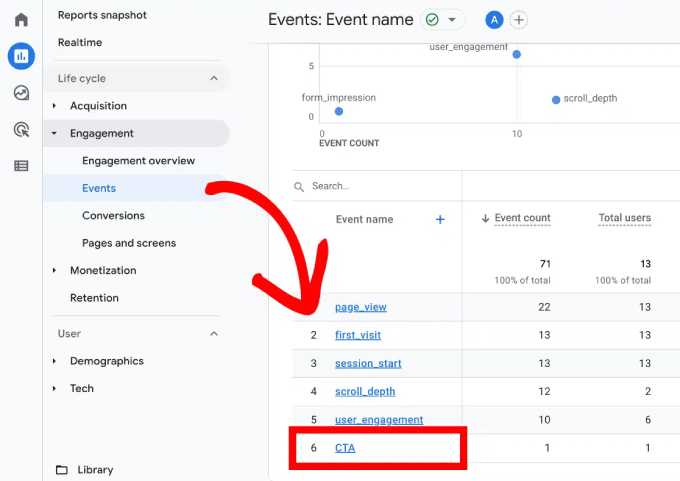
Para ver los resultados, inicia sesión en tu cuenta de Google Analytics y ve a Informes » Interacción » Eventos. El nombre de tu categoría aparecerá en la lista de eventos.
Preguntas frecuentes sobre la instalación de Google Analytics en WordPress
Aquí tienes respuestas a algunas de las preguntas más frecuentes que recibimos sobre la configuración de Google Analytics.
¿Es Google Analytics gratuito?
Sí, Google Analytics es completamente gratuito. Google ofrece una versión de pago para sitios web de grandes empresas, pero la versión gratuita es más que suficiente para la mayoría de los sitios web de pequeñas empresas y blogs.
¿Cuánto tiempo tarda Google Analytics en empezar a funcionar?
Después de agregar el código de seguimiento, Google Analytics puede tardar unas horas en comenzar a mostrar datos en sus informes. Recomendamos volver a revisar después de 24 horas para ver su primer día completo de estadísticas.
¿Necesito Google Analytics si mi sitio tiene Estadísticas de Jetpack?
Estadísticas de Jetpack le brinda una descripción general simple de su tráfico. Google Analytics profundiza mucho más, con detalles sobre su audiencia, su comportamiento y cómo encontraron su sitio.
Para una comparación completa, consulta nuestro artículo sobre Google Analytics vs. Estadísticas de Jetpack.
¿Cómo evito que la información de identificación personal (PII) llegue a Google Analytics?
Los términos de Google no te permiten enviar detalles personales como nombres, direcciones de correo electrónico o números de teléfono a Google Analytics. Para asegurarte de que no estás agregando accidentalmente dichos detalles a través de formularios, puedes ir a Administrador » Flujos de datos y seleccionar el flujo de tu sitio web en tu cuenta de Google Analytics. Luego haz clic en ‘Redactar datos’ y elimina cualquier parámetro de URL.
Si usas MonsterInsights, la función Privacy Guard hace esto automáticamente desde Insights » Configuración » Interacción. Está incluido en el plan Plus y superiores.
¿Cómo rastreo el tráfico de los boletines por correo electrónico en Google Analytics?
Necesitas agregar etiquetas UTM a los enlaces de tu boletín. Estas son etiquetas cortas al final de una URL que le dicen a Google Analytics de dónde provino cada visitante.
La etiqueta más importante es utm_medium=email. Google Analytics solo registra una visita en su canal de correo electrónico cuando el medio es 'email', y un valor como 'newsletter' termina en el grupo No asignado en su lugar.
La mayoría de los servicios de marketing por correo electrónico, incluidos Constant Contact, Kit y Mailchimp, pueden agregar estas etiquetas por ti desde una configuración de seguimiento de UTM o Google Analytics. También puedes crear enlaces etiquetados con el Creador de URL gratuito en MonsterInsights en Insights » Herramientas » Creador de URL.
Para ver los resultados, ve a Informes » Adquisición » Adquisición de tráfico en Google Analytics y filtra el informe por Correo electrónico. Luego, agrega 'Campaña de sesión' como dimensión secundaria para ver cada boletín por nombre.
Google Analytics solo rastrea lo que hacen los visitantes después de hacer clic en un enlace. Tus tasas de apertura permanecen en tu servicio de correo electrónico.
Tutorial en video: Instalar Google Analytics en WordPress
Si prefieres ver el proceso, nuestro videotutorial te muestra cómo instalar Google Analytics en WordPress.
Esperamos que este artículo te haya ayudado a aprender cómo instalar Google Analytics en WordPress.
A continuación, es posible que desees consultar nuestra guía definitiva de GA4 en WordPress para entender tus nuevos informes. También puedes consultar nuestra guía de SEO para WordPress para obtener consejos sobre cómo aumentar tu tráfico en la era de la búsqueda con IA.
Si te gustó este artículo, suscríbete a nuestro Canal de YouTube para ver tutoriales en video de WordPress. También puedes encontrarnos en Twitter y Facebook.


Benjamin
Hola,
Gran video. ¿Qué pasa si quisieras pegar el código de Google Analytics en una página específica? Quería pegar el mío en las páginas de "Carrito" y "Finalizar compra" de mi sitio web.
Gracias de antemano.
Benjamin
Sharon
¡Hola, muchas gracias por esto! Sin embargo, tengo una pregunta.
No configuré mi sitio de WordPress, lo hizo la becaria anterior a mí. Y en lugar de insertar el código de seguimiento de Google Analytics en un plugin, lo insertó en el encabezado y pie de página del tema.
Preveo que cambiaré el tema, y para ahorrarme a mí y a la próxima becaria muchos problemas, quiero insertar el código de seguimiento de Google Analytics a través de un plugin.
Sin embargo, me enfrento a dos problemas.
1. El código de seguimiento universal que me da Google Analytics es este:
Pero noté que el código de seguimiento en el pie de página del tema es una versión extendida que se ve así:
Entonces, mi pregunta es, ¿cuál es la diferencia entre los dos códigos de seguimiento? ¿La versión extendida cumple una función adicional? Si es así, ¿cuál es esta función?
2. Cuando intenté insertar el código de Google Analytics a través del plugin "Insert Header and Footer", y luego cuando revisé mi sitio de WordPress, mi Google Tag Assistant dice que se detectaron múltiples etiquetas. Mi pregunta es: ¿son las múltiples etiquetas un problema? ¿Afectará el seguimiento de alguna manera?
¡Realmente agradecería cualquier ayuda! ¡Gracias!
Soporte de WPBeginner
Solo deberías usar uno de estos códigos. Para estar seguro, usa el código proporcionado por Google Analytics ua tracking.
Administrador
Patricia
¡Gracias por esto!
Nate Balcom
No diría que soy principiante en WordPress, pero siempre olvido dónde incrustar el Código GA. Eso y que ha cambiado con los años. Gracias por la publicación. Me encanta el sitio también. Gran diseño.
Sally
¡Muy útil, gracias!
Beth
¡Gracias! ¡Esto fue muy útil!
Kate
Esto fue muy útil. ¡Gracias!
Gabrielle Tyler
¡Gracias por la información fácil, rápida y útil!
Sundar
Información útil. Bien presentada.
Amanda
Cuando busqué tu plugin, decía que no estaba probado con la versión actual de WP. No estoy seguro si lo sabías porque eres tan grande.
Gracias por toda esta información.
Soporte de WPBeginner
Por favor, echa un vistazo a nuestra explicación aquí, si instalas plugins no probados con tu versión de WordPress
Administrador
Barry Richardson
Tu cuadro de búsqueda no parece estar funcionando. ¡Lo intenté en Firefox y Chrome!
Michele
Genial e informativo. Sin embargo, no estoy usando WordPress.com Business sino la versión premium. Todavía no puedo agregar el código, ya que en la configuración, no veo la opción de instalar encabezados y pies de página. ¿Cómo lo hago?
Meg
Hola,
las instrucciones del plugin dicen “Pega el código de Google Analytics en la página de configuración del plugin”. ¿Esto significa el editor de plugins? No puedo entender dónde colocar el código.
Gracias de antemano,
Meg
Soporte de WPBeginner
Si estás usando el plugin Insert Headers and Footers, simplemente ve a Configuración » Insert Headers and Footers en tu área de administración de WordPress. Allí verás dos cuadros. Pega tu código de Google Analytics en el primer cuadro y guarda tus cambios.
Administrador
priscilla
Hola, soy un principiante total con los plugins de wp. No tengo idea de cómo instalar el plugin de inserción de encabezados y pies de página. Presioné descargar y luego va a la carpeta de descargas de mi computadora, pero ¿qué hago después? Tengo mi código de Google Analytics listo para pegar tan pronto como pueda entender este plugin. ¡Gracias!
Soporte de WPBeginner
Por favor, echa un vistazo a nuestra Guía Paso a Paso para Instalar un Plugin de WordPress para Principiantes.
Rob Stephens
He instalado tu plugin Insert ‘Header and Footer’ – solo me preguntaba si la analítica se coloca en cada página de mi sitio web o solo en la página de inicio.
Soporte de WPBeginner
Cada página.
Administrador
Kaugip
¡Servicial como siempre!
Prefiero los plugins, pero en este caso estoy usando Google Analytics en ocimpress – está construido usando WordPress pero no es compatible con sus plugins.
Nirmal
Gracias por tu excelente artículo. Logré agregar Google Analytics a mi sitio siguiendo tu artículo.
Frank
Gracias por los pasos claros y fáciles de seguir proporcionados para activar el código en mi sitio de WordPress, fue como A B C…….
Sigue así, continuaré suscribiéndome a más de tus productos.
Lebo
wpbeginner me ha ayudado a configurar mi sitio para que sea uno de los sitios web mejor clasificados en los resultados de búsqueda orgánica de Google para mis palabras clave
Dora
¡Gracias por este artículo! No estaba seguro de cómo implementar el código en mi sitio web, después de leer tu artículo me tomó 5 minutos descargar y configurar el plugin y ¡ahora mi nuevo sitio web está listo con Analytics!
Safwan
Pegué el código como se sugirió usando el plugin mencionado en el artículo...
Todavía no puedo ver ninguna estadística en la pestaña de informes.
Por favor, ayúdenme
Nicole
Gracias por las instrucciones – ¡espero haber hecho todo correctamente!
Paul
Funcionó bien y fue muy fácil de hacer con el plugin "Insert Headers and Footers". Agregué el nuestro al pie de página y funcionó de inmediato cuando lo verifiqué en la función en tiempo real de GA. Gracias por tu publicación.
Steven Taitinger
Creo que los sitios gratuitos de wordpress.com pueden usar Google Analytics si han comprado su propio nombre de dominio. Google tiene un método de proveedor de nombres de dominio para verificar que eres el propietario de tu sitio.
Candice
¡Muchísimas gracias… ustedes hacen que todo sea tan fácil!! ¡son geniales!! xx
nasri
El video fue muy útil, ¡gracias!
Thessauron
¡Gracias! Ojalá todos pudieran explicar de la manera concisa y clara que lo hacen ustedes.
McKenzie
¡Wow, eres mi salvación!
Shruti
Hola,
He pegado el código de Google Analytics a través del plugin 'insert header and footer' en el encabezado y pie de página. Pero, ¿cómo puedo cambiarlo para que vaya antes, ya que mi página web no está siendo rastreada por los motores de búsqueda? Por ahora, he eliminado el código.
¿Puedes decirme alguna otra forma que funcione para pegarlo antes.
Mi tema actual no es compatible en la sección del editor. Y no conozco técnicas de desarrollo.
Wander Bite
Hola,
¡He instalado Google Analytics by Yoast y no funciona! El primer paso en el plugin es 'autenticar con tu cuenta de Google'. Cuando hago clic en eso para copiar y pegar el código, no parece aceptarlo para que pueda continuar. Lo he intentado muchas veces y todavía nada. ¡Por favor, ayuden!
Liz Packwood
Hola, he introducido un código de autenticación de Google Analytics en mi plugin Yoast SEO. Pero, ¿pueden decirme cómo accedo al panel de control de GA para mi sitio web? Y una vez que mi sitio esté autenticado, ¿todavía necesito insertar el código de seguimiento en todas mis páginas? Si estoy usando el plugin gratuito Yoast SEO, pensé que podría encargarse de todo esto por mí, pero no veo ninguna evidencia de ello... ¿Todavía necesito activar el plugin 'insertar encabezados y pies de página'? ¿Algún consejo? Muchas gracias por su gran y útil sitio
Soporte de WPBeginner
Aún necesitarás ingresar tu código de Google Analytics.
Administrador
sazia kazia
Hola,
Es la primera vez que visito este sitio web. Se ve muy útil y encontré contenido muy informativo. Gran publicación y útil para todos los bloggers. En mi hosting HostGator, el tráfico muestra algo diferente y en Analytics es muy bajo en comparación con HostGator. Inicié sesión en Analytics con diferentes IDs de Google y muestra resultados diferentes para cada ID. Creo que necesito configurar Analytics. Por favor, echa un vistazo a mi sitio web y dame tu opinión sobre cómo mejorarlo. Estoy usando el framework Genesis + tema Pro. ¡Gracias por compartir!
Soporte de WPBeginner
Es posible y completamente normal que diferentes soluciones de análisis muestren estadísticas diferentes. Hay una variedad de razones para ello, puedes encontrar más información sobre el tema en el foro de soporte de análisis.
Administrador
Jake
¡gran tutorial! dos pulgares arriba
Personal editorial
Gracias
Administrador
vahid mohammadi
gracias gran artículo
pero ¿puedo usar mi Gmail para administrar sitios ilimitados
o es 1 gmail por sitio
Erik
Hola Vahid, Google permite 50 sitios por cuenta. ¡Disfruta!
Que tengas un día increíble.
James
Gracias por el buen tutorial.
mohammad koleiny
¡Quiero agradecerte por tu útil artículo!
Usé el método uno y me funcionó bien
¡Gracias de nuevo!
Jennifer Modisette
Gracias por este artículo. He instalado mi código de Google Analytics en el plugin que sugeriste. Lo hice hace aproximadamente 12 horas. Hasta ahora no puedo ver ninguna actividad en Google Analytics. ¿Es normal o no lo he instalado correctamente?
Soporte de WPBeginner
Es normal. Puedes visitar la sección Tiempo Real en Informes y luego visitar tu sitio web desde otro dispositivo. Podrás ver que se detecta en los resultados en tiempo real.
Administrador
Cephas
Lo intentaré. Espero que funcione.
Jenny
Gracias por el artículo, instalé Google Analytics en mi blog personal y ahora finalmente puedo revisar mis estadísticas. Sin embargo, muestra tantos datos que no estoy seguro si entiendo todo correctamente. ¿Hay alguna forma de simplificar los informes de estadísticas? ¿Quizás algunas estadísticas mostradas como infografía o algo así?
Deelip
Hola
¡Artículo increíble, aprendí mucho de tu blog. Gracias.
¿Tengo un sitio web y un blog de WordPress, es posible vincular ambos para que pueda ver lo mismo en una cuenta de analytics?
Saludos
Deelip
Soporte de WPBeginner
Si están en el mismo dominio, puedes usar el mismo código de análisis en ambos sitios.
Administrador
Malin Johansson
¡Hola!
He intentado buscar información sobre plugins y Google Analytics.
Si entiendo correctamente, ¿debes tener wordpress.org? ¿O es suficiente actualizar wordpress.com a premium para poder usar plugins?
Gracias
/Malin
Soporte de WPBeginner
No, todavía necesitarás un sitio de WordPress.org autohospedado para aprovechar al máximo los plugins. Por favor, consulta nuestra guía sobre la diferencia entre WordPress.org autohospedado vs. blog gratuito de WordPress.com.
Administrador
Sacha H
Este fue un artículo realmente útil. Pero, creo que hay un error con tu plugin. No incluye ninguna forma de excluir el tráfico del administrador. ¡Así que Google Analytics seguirá mostrando tráfico interno! Los plugins de Google Analytics de Yoast incluyen una forma de excluir el tráfico interno.
Iris Dorreboom
¡Hola!
Gracias por el plugin, realmente es de gran ayuda para alguien que no sabe cómo manejar las cosas de código. Una pregunta: ¿es suficiente pegar el código una vez en la sección de encabezado para que todas tus páginas y publicaciones sean seguidas?
Por cierto, también sigo tu blog, ¡y eso también es muy útil! ¡Gracias!
Iris
Soporte de WPBeginner
Sí, pegar el código una vez en el encabezado es suficiente.
Administrador
Iris Dorreboom
¡Gracias! Sin embargo, puede que lo haya hecho dos veces por error – ¿dónde compruebo si aparece solo una vez en el código?
mark p
Hola, gracias por el artículo. ¡Realmente útil! Tengo el código de análisis insertado y funcionando, ha estado así durante uno o dos meses. Sin embargo, acabo de notar que mi código de análisis aparece en la parte inferior de mis páginas... lo inserté en mi header.php.
Seguí las reglas de sintaxis, no entiendo por qué se muestra así... ¿alguna recomendación?
Mark Assing
¿Importa si el script está tanto en el encabezado como en el pie de página? Y ahora que he agregado Google Analytics a mi sitio web, ¿a dónde voy para obtener los datos? ¿Tienes un tutorial sobre Analytics en sí? Gracias por tu ayuda.
Soporte de WPBeginner
Sí, importa. Solo puedes tener el código de seguimiento de Google Analytics una vez en cada página. Consulta nuestra guía para principiantes sobre cómo usar Google Analytics para tu sitio de WordPress
Administrador
Katie
¡El video fue muy útil, gracias!
Amin
Hola,
desafortunadamente no puedo instalar el Plugin mencionado "instalar encabezados y pies de página" en mi sitio. Error: El paquete no se pudo instalar. PCLZIP_ERR_BAD_FORMAT (-10) : No se pudo encontrar la firma del registro del directorio central
Nota: wpbeginners transfirió mi antiguo sitio de wordpress.com a mi nuevo wordpress.org!
Saludos,
Amin
Soporte de WPBeginner
Este error puede ocurrir cuando no tienes suficiente espacio en disco en tu servidor web. Por favor, contacta al soporte de tu proveedor de hosting para obtener ayuda.
Administrador
Jarret Ruminski
Gran artículo. Solo un comentario: ustedes van muy rápido en los videos. Para aquellos de nosotros sin experiencia web/técnica, deberían bajar un poco el ritmo para que podamos seguir sin tener que retroceder constantemente. Aparte de eso, gran trabajo.
Soporte de WPBeginner
Gracias por tus comentarios, ya estamos al tanto y tratando de mejorar en videos más recientes. Por favor, echa un vistazo a algunos de nuestros nuevos videos en nuestro Canal de YouTube.
Administrador
Hengh Cheyyo
Gran Artículo..todo está claro. Leí todo y pude instalar el encabezado y el pie de página, luego copié el código de seguimiento de Google Analytics y lo pegué yo mismo... Guardé y listo
Simon Engström
Hola,
Noté en tu video que pegaste el código de seguimiento en el área "Scripts en el pie de página". Esto me confunde ya que la instrucción de Google es pegar el código de seguimiento "inmediatamente antes de la etiqueta de cierre ", es decir, en el Encabezado.
¿No debería pegarse el código de seguimiento en el área "Scripts en el Encabezado" entonces? ¿O quizás no hace diferencia?
Saludos
Simon
Simon Engström
Hm.. Mi cita de Google incluía un fragmento de código html, pero aparentemente fue eliminado. Intenté escribir "inmediatamente antes de la etiqueta de cierre ".
Simon Engström
¡Ay! Otra vez.. De todos modos, "la etiqueta de cierre head".
Soporte de WPBeginner
Puedes pegarlo en cualquiera de las dos. Sin embargo, pegarlo en el encabezado suele ser lo recomendado.
Administrador
Kat
¡Gracias por tu ayuda!