


We once had a blog post go viral, but the sudden traffic spike quickly brought our site speed to a crawl. We discovered the hidden culprit was the hundreds of comments making external requests to load Gravatar images.
Those small default profile pictures might seem harmless, but they can easily drag down your page load times. Disabling them gave our website an instant performance boost, especially on posts with lots of reader engagement.
In this guide, I will show you the exact methods we use to turn off Gravatars in WordPress. You can follow these simple steps to help your site run much faster.
Why Disable Gravatars in WordPress?
Gravatar is a third-party service that allows users to add a profile photo to their WordPress website and use it across the internet.
Basically, you create an account and then upload your profile photo.
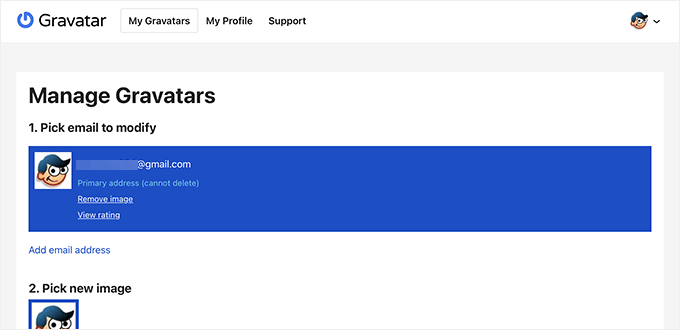
After that, whenever you use that particular email address on a website that supports Gravatar, it will automatically show your profile photo from the Gravatar website.
To learn more, you can see our explainer on what Gravatar is and why you should use it.
However, some website owners may not want to use Gravatars for several reasons.
For instance, they may want to turn it off to improve website performance and speed. Other site owners disable Gravatars due to privacy concerns, since every comment with a Gravatar sends a request to a third-party server.
Let’s take a look at how to easily disable Gravatars in WordPress. We’ll show you how to disable Gravatars completely using two different methods, as well as how to replace them with local avatars:
Method 1: How to Completely Disable Gravatars Using WordPress Settings
This is the quickest and easiest way to turn off Gravatars and is perfect if you don’t want to install another plugin. WordPress makes it super easy to do this right from your settings.
First, you need to log in to the admin area of your website and then go to the Settings » Discussion page.
From here, you need to scroll down to the Avatars section and uncheck the box next to the ‘Show Avatars’ option.
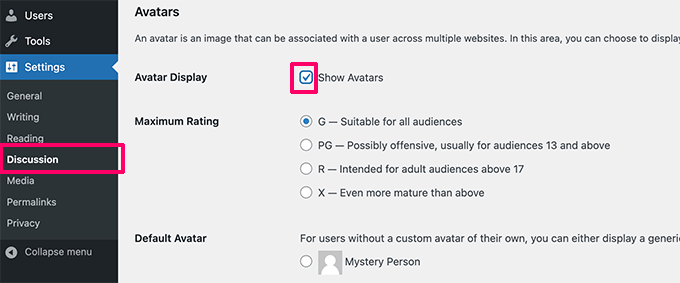
Don’t forget to click on the ‘Save Changes’ button to store your settings.
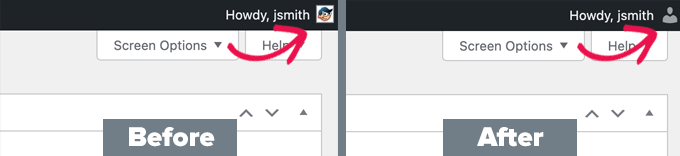
WordPress will now disable Gravatars across your website. You will now see a generic user icon in the admin toolbar instead of your Gravatar image.
Similarly, Gravatars will no longer be shown alongside comments.
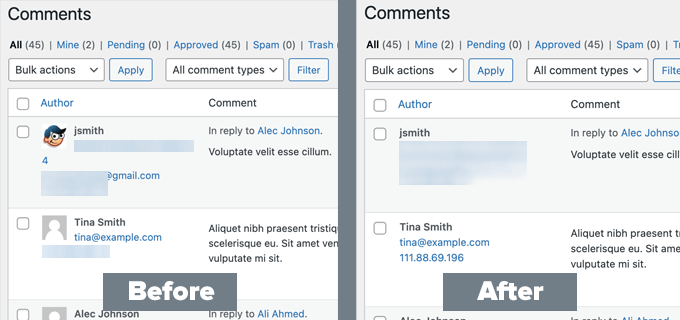
If you go to the Comments page in your WordPress admin area, then you won’t see the Gravatars anymore.
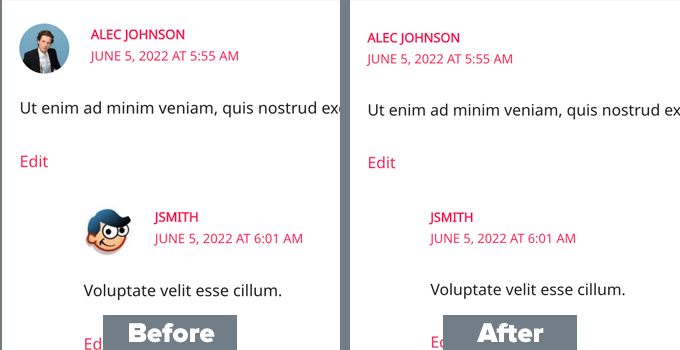
The same is true on your website’s front end.
WordPress will stop showing Gravatar images in the comments area under the posts and pages on your WordPress blog.
Method 2: How to Completely Disable Gravatars in WordPress Using a Plugin
Another way to disable Gravatars in WordPress is by using the WPCode plugin. You might be wondering why you would use code when you can just uncheck a box.
Using WPCode is highly recommended if you are a developer or building a site for a client, as it forcefully disables Gravatars and prevents anyone from accidentally turning them back on in the WordPress settings.
WPCode makes it easy to add custom code in WordPress, without editing your theme’s functions.php file, so you don’t have to worry about breaking your site.
At WPBeginner, we use WPCode to manage all our code snippets. It lets our team add new functionality safely without ever having to risk theme file errors.
First, you need to install and activate the free WPCode plugin. If you need help, you can see our guide on how to install a WordPress plugin for instructions.
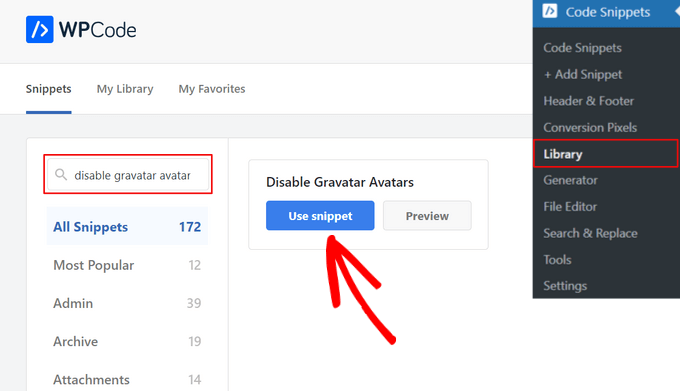
Upon activation, go to Code Snippets » Library from the WordPress admin dashboard.
From there, search for the ‘Disable Gravatar Avatars’ snippet and click the ‘Use snippet’ button underneath it.
WPCode will then automatically add the code and set the proper insertion method.
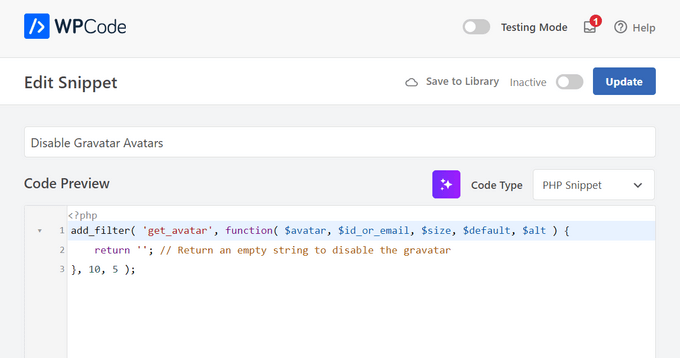
After that, all you need to do is toggle the switch from ‘Inactive’ to ‘Active’ and click the ‘Update’ button.
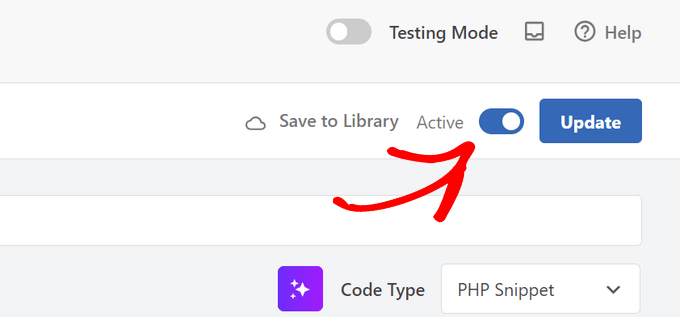
That’s it. Now Gravatar avatars will be completely disabled in WordPress.
How to Replace Gravatar With Local Avatars in WordPress
Some users may want to disable Gravatar but still display profile photos under author bios and other places.
This method lets you replace Gravatars with your own locally hosted profile photos instead of removing them entirely.
This is the perfect solution if you want the speed benefits of removing external Gravatar requests, but still want your blog’s comment section to look lively and personalized.
It stops your website from making requests to the Gravatar website while allowing users to upload their own profile pictures directly to your site.
To do this, you will need to install and activate the Simple Local Avatars plugin. For more details, see our step-by-step guide on how to install a WordPress plugin.
Upon activation, you need to visit the Settings » Discussion page and check the box next to the ‘Local Avatars Only’ option.
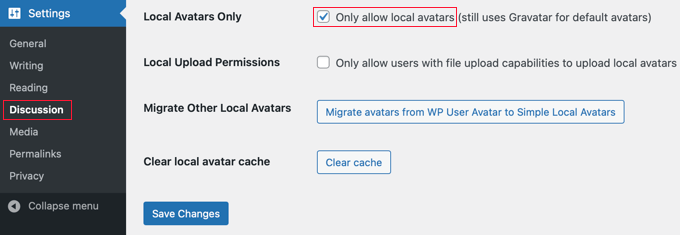
Don’t forget to click on the ‘Save Changes’ button to store your settings.
The plugin will now block any requests to Gravatar.com while allowing you to keep avatar functionality.
To upload profile photos, your users will need to add their own images on their user profiles.
They will simply go to the Users » Profile page. From here, they can use an image from the WordPress Media Library or add a new image by uploading it to the Media Library.
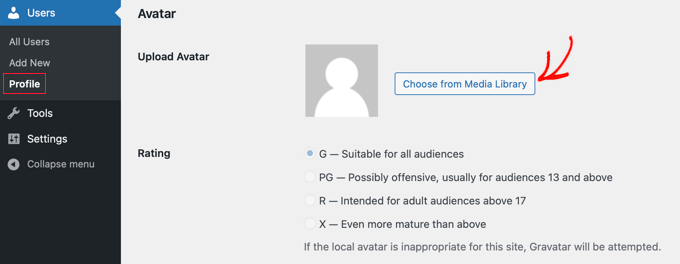
Don’t forget to click on the ‘Update Profile’ button to save your changes.
Now, WordPress will use the local avatars you’ve enabled. Registered users who have uploaded a profile picture will see their custom image.
WordPress will now display the custom image for users who upload one. If a user hasn’t uploaded a photo (or is an unregistered commenter), WordPress will simply fall back to your default avatar.
For all registered users, WordPress will use the custom avatar image that the user uploaded. If a user hasn’t uploaded their custom avatar image, then the plugin will use the default avatar image.
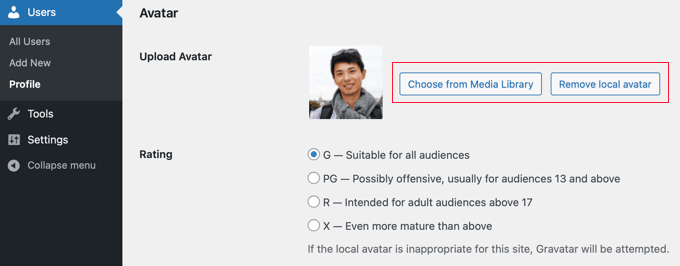
Once a user has chosen a local avatar, their Profile page will offer buttons to select a different image from the Media Library or remove the local avatar.
Frequently Asked Questions About Disabling Gravatars
Here are some of the most common questions we receive about turning off Gravatars in WordPress.
1. Why should I disable Gravatars in WordPress?
The main reason is to improve your website’s speed and performance. Each Gravatar loads as a separate external request, which can slow down your pages, especially those with many comments.
2. Will disabling Gravatars delete any comments on my site?
No, absolutely not. Disabling Gravatars only removes the profile images. All of your existing and new comments will remain completely untouched.
3. What image shows up after I disable Gravatars?
WordPress will display the default avatar you have selected under Settings » Discussion. This is typically the generic ‘Mystery Person’ icon unless you’ve chosen a different one.
4. Is it better to disable Gravatars or lazy load them?
For the biggest speed boost, disabling them is best as it eliminates all external requests. However, if you want to keep the profile images, lazy loading is a great alternative that still helps with initial page load times. You can see our guide on how to lazy load Gravatars for more details.
Our Best Guides for Using WordPress Gravatars
We hope this article helped you learn how to disable Gravatars in WordPress. You may also want to see some other tutorials on using Gravatars and avatars in WordPress:
- What is Gravatar and Why You Should Start Using it Right Away
- How to Display Gravatar from User Email in WordPress
- How to Change the Gravatar Image Size in WordPress
- How to Change the Default Gravatar on WordPress (Easy Tutorial)
- How to Lazy Load Gravatars in WordPress Comments
- How to Add an Author Info Box in WordPress Posts
If you liked this article, then please subscribe to our YouTube Channel for WordPress video tutorials. You can also find us on Twitter and Facebook.




Olaf
Gravatars are great for personal blogs where they fit quite well. However, for corporate blogs or portfolios where comments should be enabled, I believe it’s best to disable Gravatars because the website should maintain a certain level of prestige and professionalism. In such cases, Gravatars don’t really suit the tone at all. It’s good that they can be easily disabled with a simple code snippet, without needing any external plugins.
David Lim
Gravatars can be more fun on forums. Of course, you can also build a forum with Wordpress, there is no obstacle to this. But overall, I can only think of these as such a small plus.
Jiří Vaněk
I also banned gravatars only because I was trying to limit all wordpress functions that are not necessary and that have to download their resources from foreign servers. When I measured the speed of the site, a lot of these services slow down the loading of the site, and then one can very easily get worse numbers in the metrics.
Pradip Nalwaya
It’s Very Useful For me at right now. Thank you !!
WPBeginner Support
You’re welcome
Admin
Mike
Agree with Dave:
Gravatar still calls home. You can see this when you use Ghostery – and a Gravatar tracker is still active. This does not comply with GDPR in my opinion.
Question:
How can Gravatar completely disabled and ripped away from a wordpress blog???
Thanks!
michelle
Very helpful – avatar easily and successfully removed. Thank you!
Steve
Very helpful advice and it works. But still leaves my name on the page below where the gravatar used to be. Any solution?
lannis
Thanks, it was very helpful!
WPBeginner Staff
How to display gravatars with user email in WordPress
Alex
I have successfully disable gravatars, but would like my gravatar to be displayed in the author info box. How can I accomplish this?
WPBeginner Staff
Here is how to allow users to upload custom avatars in WordPress.
Manuel Echeverry
gracias amigo, domo arigato, tanks
Manuel Echeverry
how do you allow people to choose customs avatars?
Wil Ransz
Instead of dabbling with PHP, you could simply hide the avatar by adding the following CSS at the end of the stylesheet:
.comment-author .avatar {

	display: none;

}
WPBeginner Support
That’s possible. However, the gravatar will still be visible to crawlers. One reason that some users may not want gravatar could be that they are building something where they simply don’t need it.
Admin
Zimbrul
Is that possible to replace the Gravatar with another generic icon when the person commenting has got no Gravatar?
Editorial Staff
Yes you can do that. Follow this tutorial:
https://www.wpbeginner.com/plugins/how-to-add-new-default-avatars-in-wordpress/
Admin
Dave Navarro
This disables WordPress from showing Avatars, but it does NOT disable Gravatar. On the back end, it still calls home to Gravatar slowing your site down.
What’s needed is the ability to rip Gravatar out of WordPress.
Zimbrul
Is that possible?