


You’ve just launched your new WordPress site, but it doesn’t appear in the results when you search for it on Google. That feeling of confusion and frustration is something we’ve heard about from thousands of our readers.
They often wonder if they missed a critical step, and the answer is usually a simple one: connecting their site to Google Search Console. It’s the single most important tool for understanding how Google sees your website.
At WPBeginner, we connect every new site to Search Console on day one, and it’s easier than you might think. We’ll guide you through the exact process we use, step by step.
This will help you get your site properly indexed and showing up in search results.
What Is Google Search Console?
Google Search Console (formerly known as Google Webmaster Tools) is Google’s free control center for your website’s search presence. Think of it as your direct line of communication with Google about how your site appears in search results.
Here’s why it’s important for your website’s success:
- Search Performance Tracking: Monitor which keywords your content ranks for and how many clicks you’re getting from Google
- Technical Health Checks: Get instant alerts about mobile usability issues, security problems, or technical errors that could hurt your rankings
- Indexing Management: Make sure Google can find and index all your important pages
- Security Monitoring: Receive immediate notifications if Google detects malware or suspicious activity on your site
As WordPress SEO experts who’ve helped thousands of websites improve their search visibility, we can’t stress enough how essential Search Console is.
In fact, we consider it a day-one requirement for any new WordPress website. It’s that important for your site’s success in search results.
The best part? It’s completely free and gives you access to data you can’t find anywhere else. Let us show you how to properly set up Google Search Console for your WordPress site.
Adding Your WordPress Site to Google Search Console
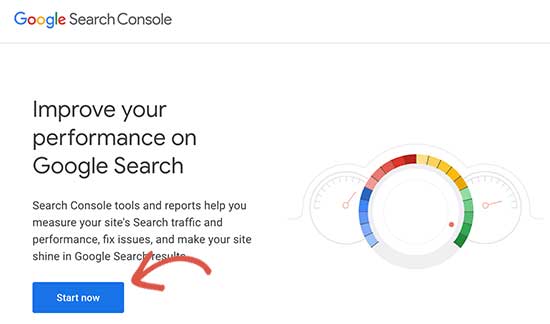
First, you need to visit the Google Search Console website and click on the ‘Start Now’ button.
Next, you’ll need to sign in with your Google / Gmail account.
Once logged in, you’ll be asked to enter your website URL.
There are two methods to verify your site: Domain and URL Prefix. The Domain method covers all versions of your site at once (including www and non-www), but it requires you to edit DNS records, which can be intimidating for beginners.
For this guide, we’ll use the URL Prefix method because it’s easier to set up with a WordPress plugin. The most important thing is to make sure you enter the full, correct URL of your site!
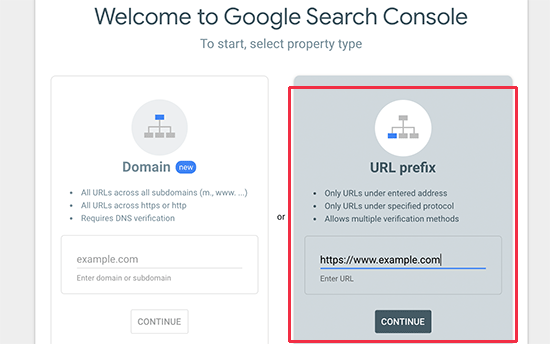
Keep in mind that Google considers HTTP and HTTPS as two different protocols. It also considers https://www.example.com and https://example.com as two different websites.
You need to enter the correct website URL used by WordPress.
If you are unsure, then there is an easy way to find out the exact URL you need to enter. Simply log in to your WordPress admin area and go to Settings » General page.
There you will see your website’s URL in the site address field.
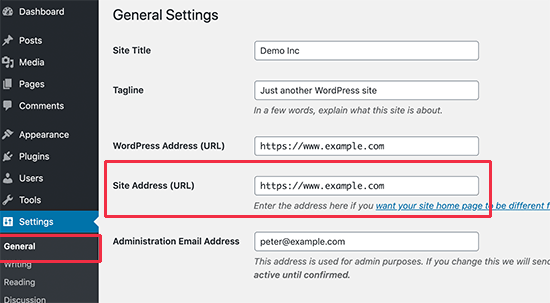
After entering your correct website address in the Google Search Console setup process, click on the ‘Continue’ button to go to the next step.
Now, you’ll be asked to verify ownership of your website. There are several ways to do that, but we will show the HTML tag method because it is the easiest one.
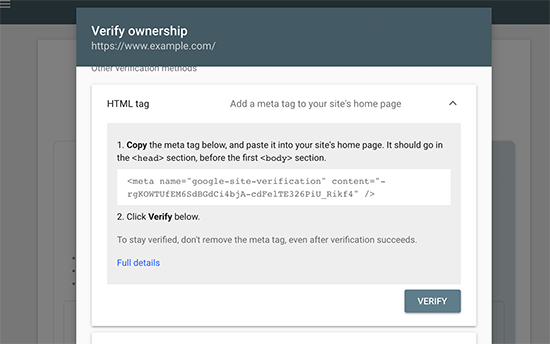
Click on the HTML tag to expand it and then copy the code inside it.
Now, you need to add this Google site verification meta tag in WordPress, so Google can verify that you are the owner of the website.
Most WordPress tutorials will guide you to just edit the header.php file in your WordPress theme and add the code just above the <body> tag.
However, we don’t recommend this method because if you update or change your theme, then the HTML tag will disappear.
Google periodically checks for the HTML tag and will disable your access to the site data in the search console if it cannot find the verification tag.
Here is how to make sure that Google can always verify your ownership of the website.
First, you need to install and activate the All in One SEO plugin. For more details, see our step-by-step guide on how to install a WordPress plugin.
Upon activation, go to All in One SEO » General Settings » Webmaster Tools page and click on “Google Search Console”.
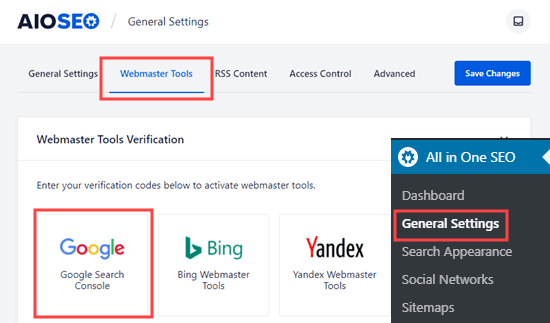
Then paste the code you copied from Google Search Console into the “Google Verification Code” box.
Don’t forget to click on the ‘Save Changes’ button to store your changes.
You can now go back to Google Search Console settings and click on the ‘Verify’ button.
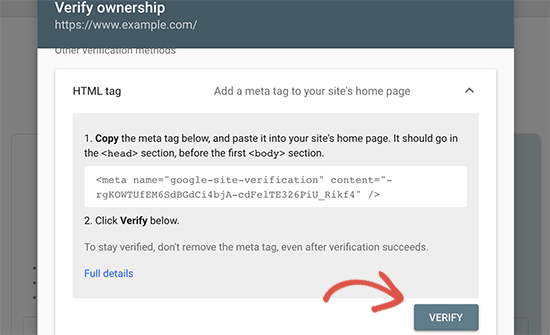
Google Search Console will now look for the HTML tag in your website code and will show you a success message.
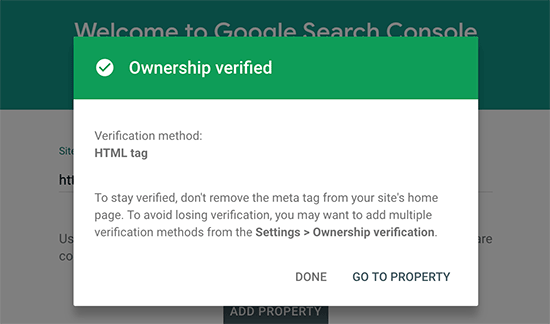
Note: If you don’t see a success message, then you need to clear your WordPress cache. This will ensure that Google can fetch the latest version of your website.
That’s all. You have successfully added your site to the Google Search Console (Webmaster Tools). You can now click on the ‘Go to Property’ link to visit your Google Search Console dashboard.
Heads up! After you verify your site, it can take Google some time—from a few hours to a few days—to start collecting and showing you data. Don’t worry if your reports are empty at first. This is perfectly normal! 😊
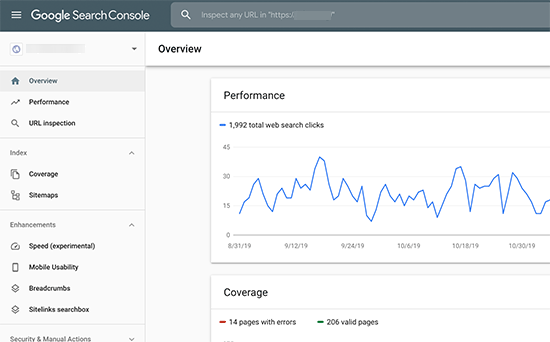
From here, you can see your website’s performance reports and index coverage.
Before you do that, let’s tell Google a little bit more about your website. This will help Google crawl your website a bit more efficiently.
Add XML Sitemap to Google Search Console
An XML sitemap is a file that lists all your website content in XML format, so search engines like Google can easily discover and index your content.
The good news is, if you installed the All in One SEO plugin in the steps above, you’ve already added an XML sitemap to your site automatically.
To see your sitemap, go to All in One SEO » Sitemaps. From here, you can see the sitemap is automatically enabled for you.
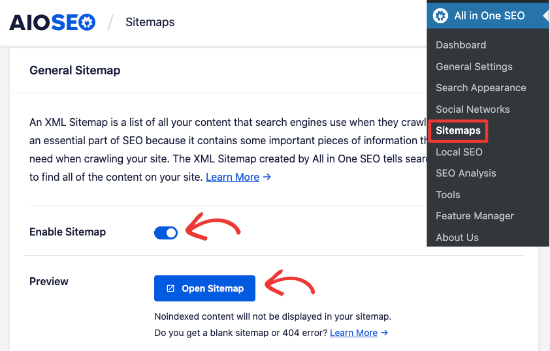
Next, you need to get the XML sitemap link. Simply click on the ‘Open Sitemap’ button, and you will see a link to your XML sitemap.
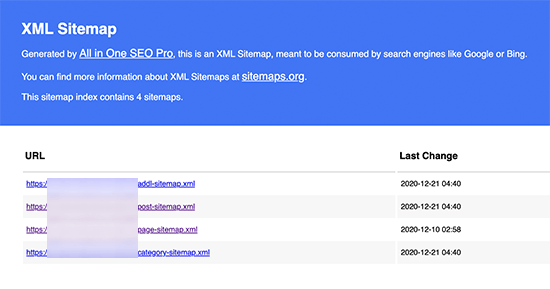
From here, you can just copy the URL from your browser’s address bar.
Alternatively, you can directly access your XML sitemap by adding sitemap.xml at the end of your website address. For example:
https://www.example.com/sitemap.xml
Now that you have the XML sitemap ready, let’s help Google find it quickly.
Simply switch to the Google Search Console dashboard and click on the Sitemaps menu from the left column.
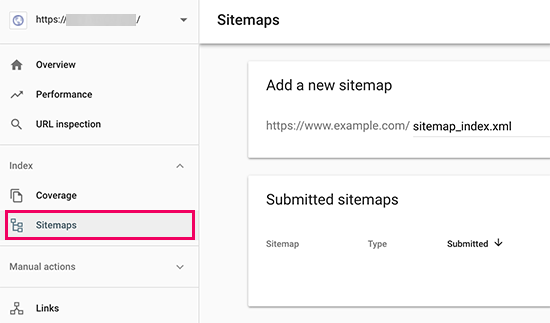
After that, you need to add the last part of your sitemap URL under the ‘Add new sitemap’ section and click the Submit button.
Google will now add your sitemap URL to your Google Search Console.
AIOSEO also includes specialized sitemaps for video, news, and RSS feeds. Submitting these helps Google discover and understand all your different content types, which can improve your site’s visibility in search results.
The process of submitting those sitemaps is the same as above.
That’s all, you have successfully added your website to Google Search Console.
View Google Search Console Data Inside WordPress with AIOSEO
The next step is to learn how to use the treasure trove of information in Google Search Console to grow your business.
We have an ultimate Google Search Console guide for beginners, which shows you how to make the most out of the data.
But you can also easily view a lot of this important data right from your WordPress dashboard using the AIOSEO Search Statistics addon.
With AIOSEO’s Search Statistics, you can track your keywords, view your top-performing content, discover valuable search statistics, and more, inside WordPress. This saves you time by bringing your most important SEO data right into your WordPress dashboard, where you’re already working.
Once Search Statistics is connected to Google Search Console, simply click on ‘Search Statistics’ in the AIOSEO menu from your WordPress dashboard.
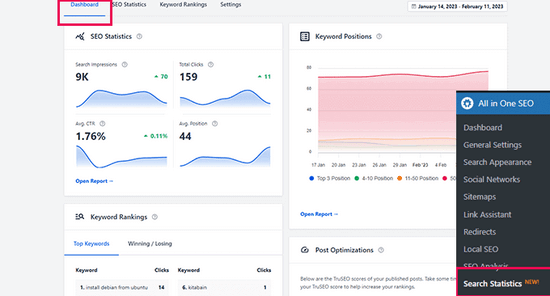
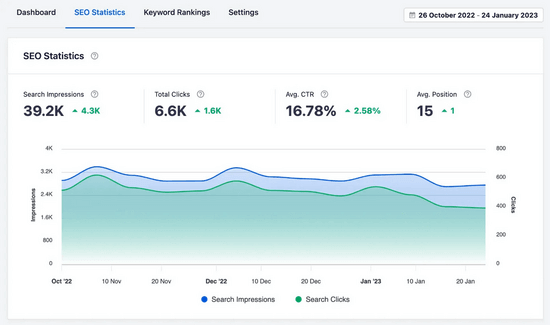
This will bring you to the Search Statistics dashboard. From here, you can see SEO Statistics, such as the search impressions, total clicks, average click-through rate (CTR), and average position of all of your content.
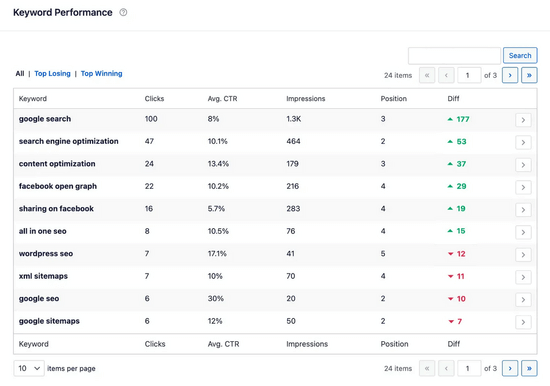
You can also use the Keyword Performance report to see which keywords your website content is ranking for in Google search results. By clicking on the ‘Top Winning’ and ‘Top Losing’ tabs, you can see what keywords have seen the biggest position changes.
In addition, with the powerful Content Rankings report, you can easily spot content decay and important content performance trends.
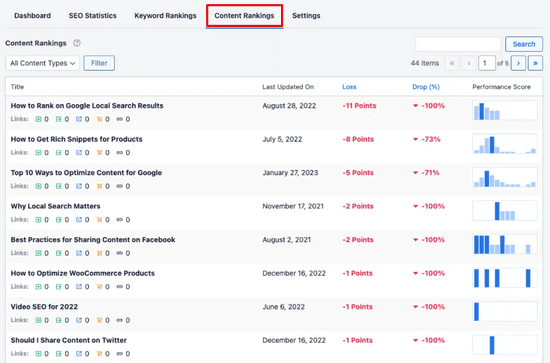
It will show you the date a URL was last updated, details about the rate at which your content is decaying, and other essential SEO and content marketing metrics.
Using AIOSEO’s built-in SEO recommendations, you can easily optimize your decaying content to boost your rankings again.
You’ll also get helpful reports for improving the user experience (UX) on your site, tips for troubleshooting issues that are negatively affecting your SEO, and more.
Video Tutorial
Google Search Console and WordPress FAQs
Having helped thousands of readers add and verify their websites in Google Search Console, we have seen just about every question you can think of. Here are the answers to some of the most frequently asked questions.
1. How can I upload a Google HTML verification file to my WordPress blog?
Google Search Console allows a few different ways to verify website ownership. In this article, we covered the easiest method, which is to use the Google site verification meta tag. However, some website owners prefer to upload the HTML file to verify site ownership.
To upload the Google search console HTML verification file to WordPress, you will need to log in to your WordPress hosting cPanel or connect to your hosting account using FTP.
Next, you need to upload the HTML verification file inside the /public_html/ folder of your website. This is the root directory where you’ll see other WordPress folders like /wp-admin/, /wp-content/, etc.
2. Should I use a Google Site verification plugin for WordPress?
There are many WordPress plugins that are designed specifically to help you with Google site verification. However, you don’t need to use them because you’ll likely need to verify ownership on other webmaster tools and platforms like Bing, Yandex, Pinterest, etc.
It’s much better to use the All in One SEO plugin because it lets you add site verification for all platforms (in a single plugin). Not to mention, it also has a ton of other WordPress SEO features to help you rank better and get more traffic.
3. How can I become a power user of Google Search Console?
Google Search Console has a lot of useful information that you can use to grow your business. We created an ultimate Google Search Console guide that shows you how to become a power user.
4. I’m running into problems. Is there a Google Search Console phone number that I can contact?
No, there’s no Google Search Console phone number that you can contact. If you’re running into problems with Google Search Console, then you can use their online support center. For specific questions about WordPress, you can always join our free WordPress help group to ask your questions.
Additional Resources
We hope this article helped you learn how to add your WordPress site to Google Search Console. Now you’re ready to use its data to grow your website.
Here are a few extra guides to help you take the next steps:
- The Ultimate Google Search Console Guide: Learn how to use all the powerful features inside Search Console to improve your SEO and find new content ideas.
- How to Increase Your Blog Traffic: Discover 27 proven tips that we use to get more visitors to our websites.
- WordPress SEO Made Simple: A complete step-by-step guide to help you properly optimize your website for search engines.
If you liked this article, then please subscribe to our YouTube Channel for WordPress video tutorials. You can also find us on Twitter and Facebook.





Mai Taup
I’ve been frequenting your site because it has been really helpful in building my blog. I just can’t seem to verify it thru google search console. I tried all the alternatives listed in this page. What am I doing wrong? HELP!
WPBeginner Support
Hi Mai Taup,
Do you see an error when trying to verify your blog? Make sure that you have added the correct address of your website in Google Search Console. Google treats https and http, www and non-www URLs differently.
Admin
Mai Taup
Thank you! Thank you! I have finally verified my site. awesome tips.
Chrissie Barclay
Thanks very much – your step-by-step description was so easy to follow & it worked a treat!
Mondakranta
Thank you! Inserting the meta tag via the insert header plugin worked for me. Grateful
Fareeha
It was helpful .. I had been messing up for long and this article solved my problems in a minute .. keep up the good work
Rebecca
it keeps telling me “we were unable to verify your property” Any thoughts on what i am doing wrong? thanks!
Jennifer
I keep getting an error when I follow the tips in this video. It says – “The Google XML Sitemaps plugin might cause issues when used in conjunction with Yoast SEO.” Any idea what I should do now?
alex
I used the insert headers footers and copied and pasted the code over and it still wouldn’t verify the site.
Jared
What led me to this video was I initially watched your video on how to install Google maps to wordpress with your provided plugin. The result was Javascript console prohibiting complete map loading.
I have done everything stated in this video tutorial, but I “do not receive the green check mark” allocating Google found my tag? Could one of these be why:
1. Domain was on another platform and I recently brought it over to Dreamhost (2 days ago)
2. New platform, theme, and wordpress are still under construction – could this hinder the tag from being found?
3. Google is stating verification failed, unable to connect to the server – Why is server not allowing connection?
Great to the point videos, Thanks for your time.
WPBeginner Support
Hi Jared,
If your website is in maintenance mode and not publicly accessible, then Google webmaster tools cannot verify the tag.
Admin
Ashley
Thank you! This is the issue I was having, so I’m glad someone asked and you responded!
John
Excellent video. I struggled for a couple of hours before I found your short, informative, step by step instruction. Bravo.
swetha
if we have verified our analytics account with insert header and footer plugin, how to verify with web masters ??
Tina Whitfield
What about setting up different versions of the website name on google’s search console?
i.e.
http://www.wpbeginner.com
wpbeginner.com
https:// etc etc etc
What is the purpose of that and how do you do it>
WPBeginner Support
Hi Tina,
Google considers them different websites. You will need to pick one to submit to Google webmaster tools.
Admin
Melody Burgess
Thanks! Very helpful video.
Ernest
I just verified by site with the plugin from WpBeginner
Elena
Thank you for an excellent tutorial! After struggling to figure the domain verification process for some time, this tutorial helped me to resolve the issue in minutes! Thank you!
Stephen
I am trying to verify the https versions of my site via ftp but cannot find those versions to upload the HTML verification file to. Any ideas where to find them?
Lena
Hello,
none of those methods worked for my website, I have followed the steps in the video and but it says it can not find the verification meta tag. Also uploading the html file did not work. What should I do now?
Thank you!
Prathmesh
Thank you very much for sharing such an important info especially the “Insert Headers and Footers Plugin” which is going to help me a lot. Is it OK to uninstall and delete “Insert Headers and Footers Plugin” after including meta tag in the header?
Eagerly waiting for reply…
Thanks again………
WPBeginner Support
Hi Prathmesh,
You will need to keep the plugin installed. Uninstalling the plugin will disable the code you added into header or footer using the plugin’s settings.
Admin
Prathmesh
Thanks.
That helped…
Kader
This is really helpful and I would hope my blog gets visitors too.
Diane
I was going around and around trying to get this to work and couldn’t.
I’m so happy I finally got the “green checkmark” after following your instructions. Thx a bunch
Sandra
Thanks for this video. Was going round in circles tying to verify my site and all done now. Thanks
Mahmud
After submit xml I got a messege “Improve the search presence of https://example.com“. There are a option named “Add all your website versions”. Do you have any instruction about this?
Arif wali
I have removed a plugin of wpbeginners from my WordPress site mistakenly I want to add that plugin again but It says that “Installation failed: Destination folder already exists” what to at this stage ?
WPBeginner Support
Hi Arif,
You will need to first connect to your website using File Manager in cPanel or an FTP client. Next, you need to locate /wp-content/plugins/ folder. Inside it you will need to locate the plugin you are trying to install and then delete it. After that you will be able to install the plugin normally from your WordPress admin area.
Admin
Arif wali
Thank you for your Kind support
Rajdeep Kaur
Hi i just wanted to say thanks i was trying to do the webmaster tool thing for my website and i had no idea how to do that i know somewhat but coding is not so much of my thing like where to put what code and i was having trouble knowing how to upload the html file but this meta thing was easy to do thank you helped me do it i was struggling with this and i asked someone for help and they made it seem like its impossible for me to do cuz usually ppl dont tell others and help but this helped me alot thanks i was struggling for a year asking for help now i just google and found ur site and it helped thank you so much really also can u let us know like a checklist to make sure points to apply for google adsense please plzzzz thanks
Michael
Dear Sirs,
can anyone help me with the recommended method ie. HTML file upload process step by step. Its vaguely explained. All other methods are explained in detail. please explain this method too in detail
Thanks
regards
Michael
Vladimir
Thank you. Very simple
Joe Brancatelli
Thank You, your recommended plugin made adding the meta tag very simple to the header. I believe this plugin should be with googles instructions and a lot more people will find this easier to insert meta tags. I failed the first time on all the other methods
john
thanks a lot, your article was very informative, easily instructed and understandable. i appreciate your help wordpress.
Beth
Can NOT thank you enough for this! Have been struggling all day trying to find a simple fix and this was so easy!!!
Asifiwe
This was really helpful. Thank you so much.
shabnam hasan
the tutorial is really great but i think i have messed it up somewhere.In my search traffic it is showing 0 ,even though the site is open in my phone . Can you suggest some way how to get the correct data.Also i have received plenty of comments on my blog still it shows 0 users from beginning.My website is :
kerry-anne Simpson
WOW thank you so much for the video tutorial. It was super simple to do, now I have the green light thanks again I love your tutorials
Zakir Hussain
The tutorial is really helpful and much easy to understand.
Manpreet Kaur
Hi,
I am trying to verify my website but failed many times. I have followed all the steps that are listed above but not working for my website. I tried submitting html tag code in google search console in Yoast SEO. Please help me. Thanks
Hil
Hi, The tutorial is really nice.
I use the sitemaps plugin (Better WordPress Google XML Sitemaps) on my wordpress site to send my sitemaps to Bing and google. Do I still need to use Google webmastertools for sitemaps
WPBeginner Support
Hello,
You can continue using that plugin. However, if you want to use Yoast SEO to submit sitemaps, then you should stop using your old plugin.
Admin
Karen Chase-Smith
After agonizing over “countless” foreign instructions on the web on how to verify as owner of my website, I stumbled across this tutorial. It took me a few minutes to understand what I was typing in my search engine to add a new plug-in, but after that, I was finally able to verify my Blog. The only suggestion I could make is that it the visuals could be a little more clearer.
Thank you so much for your help!
Tasha
I am SO grateful for WP Beginner. This tutorial helped me immensely. Thanks!
Varonette
Thank you so much. I have been trying so long to verify my website and I couldn’t until I visited your website. Thank you again.
Irma
Thank you so much! I was really stumped, as my several attempts were not working. Thanks to your video I got the green check mark on the first try!
Akshata
i did verified my site long before but have not added meta values to the webmaster tools. Can you please help me in finding the meta values. Where can get it with verifying again?
Fiona Sorg
Thank you for uploading and sharing this info. for me it’s very helpfull as a starter of wordpress sites. Without this kind of help it makes it mor difficult. Again thank you keep up the good job.
Thais Rodriguez
Hello all!
I am setting up Yoast Seo. I have done the process to add my website to Google Webmaster and it’s works ok. But when I go to put the authorization code to authenticate, it says “no profiles found”.
Please, some help will be appreciated.
Ipsita
thanks a lot..really helped me this article
Susan Perloff
This is wonderful. I have had a site for more than 10 years, paying various consultants thousands of dollars along the way. But no decent SEO. This looks like a way to go. I am stuck at 1 minute 50 seconds of the video. Then the voice goes too fast and the picture is too fuzzy for me to follow.
I have inserted the plugin but do not know how to capture the “metadata” that goes on a subsequent page. Can someone help?
C.Sern
Hi,
i am actually facing a problem.
I am helping my cousin with his website.
His website is actually
However, when i search for “brboss”, his website does not show up.
Can you please help with this problem
p.s. i already register in google webmaster
Thank you.
Trina
Thank you.. The video really helped me setup my site.
Rachel Neill
Hello,
Thank you for such an informative tutorial. I opted to verify my site via signing into Bluehost but have just read somewhere that says
‘When your site has been verified by Search Console, do not remove the verification code from your site. If the code is removed, it will cause your site to become unverified.’
Because I didn’t upload a code, do I still need to do so?
Or have they got one from Bluehost?
I’m also a bit confused on how to add ‘site versions’ in the next step,
Thankyou!
WPBeginner Support
Hey Rachel,
Yes you need to add the verification code again.
Admin
mohamed hassouna
Hello,
First of all you are awesome I really learned a lot from your site which is beginners frindly
I am newbie ti all this and I already started to take action but
When I came to verifing my site in google webmaster always get the same message every time that they cant find the meta tag though I tried many other ways for verification like the domain name and google analytic
I thought may be because I haven’t puplished my site yet but I already verified my google analytic account ,I am confused and don’t know what to do I even tried webmaster help but no good ,I am kindda frustrated but I really want to continuo because I still have the passion and feel I am heading forward so please help me with this issue
One more thing excuse me for my bad english
Thank you
Tessa
Hi,
just to say a BIIIIIIIG THANK YOU!
I first went down the route of FTC, but had no idea what I was doing, still don’t.
Your video was so simple. Love this plugin.
I got failed messages at first, but I think I must’ve put in my URL wrong somehow. When I started from scratch, it worked a treat. I am now verified and very happy.
Thanks again.
Kristel Miley
I followed all the steps and even repeated the process three times, but every time Google Webmaster said that my verification failed. Is there something I can do to fix this?
Thanks!
Lesley
As always very helpful. Once you insert the code into the header, can I deactivate the plugin or does it need to remain active?