


Do you want to remove the WordPress version number from your website?
Many believe that removing the WordPress version number from your website’s source code can prevent some common online attacks.
In this article, we’ll show you how to easily remove WordPress version number the right way.
Why Remove WordPress Version Number?
By default, WordPress leaves its footprints on your site for the sake of tracking. That is how we know that WordPress is the top website builder in the world.
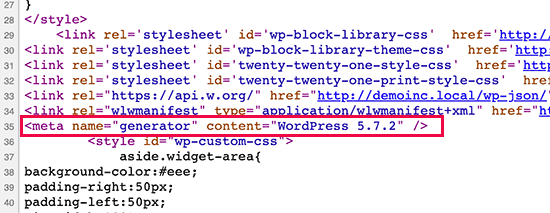
However, sometimes this footprint might be a security leak on your site if you are not running the most updated version of WordPress. It provides the hacker with useful information by telling them which version you are running.
Hackers often target known security vulnerabilities in specific software versions. By hiding your WordPress version number, you make it slightly more difficult for attackers to determine which version of WordPress your site is running
We recommend using the latest version of WordPress on all your websites so you don’t have to worry about this. However, if for some reason you are running an older version of WordPress, then you should definitely follow this tutorial.
It is quite difficult to remove all traces of which WordPress version you are using on your website. A sophisticated attack may still be able to find that information.
However, it will prevent automatic scanners and other less sophisticated attempts from guessing your WordPress version.
That being said, let’s take a look at some ways to easily remove the version number from your WordPress website.
- Method 1. Remove WordPress Version Information with Code (Recommended)
- Method 2. Remove WordPress Version Number using Sucuri
Method 1. Remove WordPress Version Information with Code (Recommended)
This method requires you to add code to your WordPress website. If you haven’t done this before, then see our guide on how to copy and paste code snippets in WordPress.
Now, many websites will recommend you to edit your theme’s header.php file and get rid of the following line of code:
<meta name="generator" content="WordPress <?php bloginfo('version'); ?>" />
This method doesn’t work as a new theme update will automatically replace the old template with the new file.
Another commonly recommended, but inefficient method is to put this code in your theme’s functions.php:
remove_action('wp_head', 'wp_generator');
This will only remove the information from the WordPress header. The version number will still be visible in your website’s RSS feeds.
The right way to remove WordPress version information is by disabling the function responsible for displaying it.
In order for you to completely remove your WordPress version number from both your header file and RSS feeds, you will need to add the following code to a code snippets plugin.
function wpbeginner_remove_version() {
return '';
}
add_filter('the_generator', 'wpbeginner_remove_version');
To make it even easier, you can use WPCode, the best code snippets plugin for WordPress.
WPCode has a built-in code library that has all of the most popular WordPress code snippets, including a snippet for removing the WordPress version number.
To get started, you need to install and activate the free WPCode plugin. For step by step instructions, see our guide on how to install a WordPress plugin.
Once the plugin is activated, head to Code Snippets » Library from your WordPress dashboard.
Next, search for the ‘Remove WordPress Version Number’ snippet and click on the ‘Use snippet’ button.
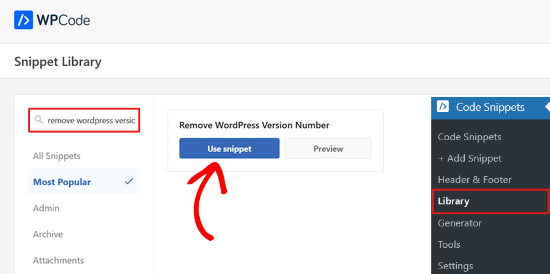
WPCode will then automatically add the code, add a title for the code, set the correct insertion method.
It will even add tags to help you organize it.
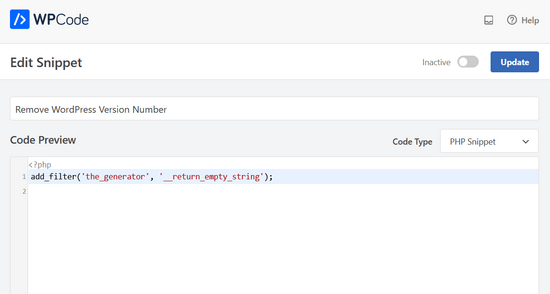
All you need to do is switch the toggle from ‘Inactive’ to ‘Active.’
Then, click the ‘Update’ button.
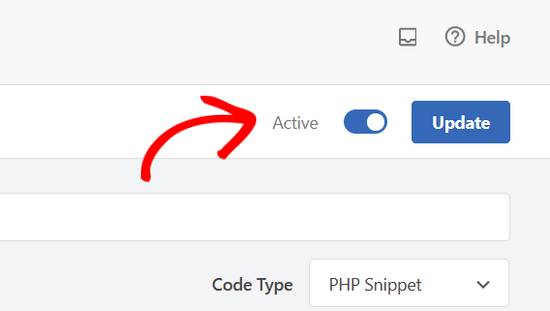
Now the WordPress version number will be hidden from your site’s frontend and RSS feeds.
Method 2. Remove WordPress Version Number using Sucuri
All top WordPress security plugins offer an option in the settings to hide your WordPress version number.
However, we recommend using Sucuri because it automatically hides WordPress version information and offers other more advanced security features.
On top of that Sucuri provides a firewall that filters and monitors HTTP traffic, blocking malicious threats before they reach your web server. If it detects malicious code, it allows you to clean up the website, removing the threats in the process.
Simply install and activate the Sucuri plugin. For more details, see our step by step guide on how to install a WordPress plugin.
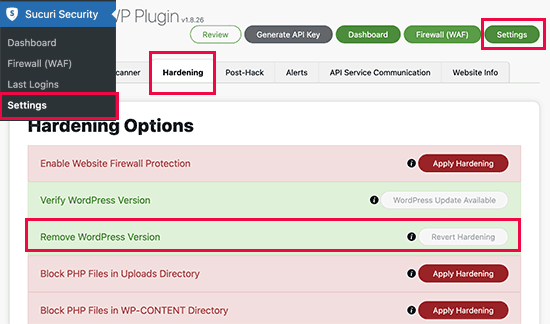
Upon activation, the plugin will automatically hide WordPress version information. You can verify it by visiting Sucuri Security » Settings and switching to the Hardening tab.
You may also be interested in our post about why we use Sucuri to improve WordPress security here at WPBeginner.
Can You Completely Hide WordPress Version?
WordPress may still add the version information in various other places throughout your website.
For instance, it is included as the query string in source code for CSS and JS files.
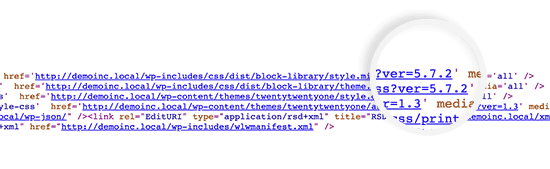
Removing all instances of WordPress version information can be time-consuming, complicated, and may not always work.
From a security perspective, removing the obvious generator tags can protect you from some very common attacks.
However, if someone is determined to break into your website, then hiding your WordPress version number does little to stop this.
You need to implement a proper WordPress security setup in place to make your website more secure. This adds layers of security around your website making it harder to hack into.
And you want to be choosing the best WordPress hosting provider for your website, since insecure web hosting is vulnerable to hacking attempts.
We hope this article helped you learn how to easily hide WordPress version number from your website. You may also want to see our guide on how to get a free SSL certificate for your website, or our list of must-have WordPress plugins for small business.
If you liked this article, then please subscribe to our YouTube Channel for WordPress video tutorials. You can also find us on Twitter and Facebook.




Syed Balkhi says
Hey WPBeginner readers,
Did you know you can win exciting prizes by commenting on WPBeginner?
Every month, our top blog commenters will win HUGE rewards, including premium WordPress plugin licenses and cash prizes.
You can get more details about the contest from here.
Start sharing your thoughts below to stand a chance to win!
Jiří Vaněk says
Sometimes it fascinates me how many details can be done, e.g. in terms of security, that I would not have thought of. So I removed the WordPress version from the website according to your instructions.
Ashkan says
function wpbeginner_remove_version()
what should we write instead of “wpbeginner” _remove_version?
a specific file name or our website name or what?
WPBeginner Support says
You do not need to change wpbeginner in the function name.
Admin
shamol says
code not work
WPBeginner Support says
This is to remove the version number from the HTML header, if you want to remove the text that you are using WordPress then you would want to reach out to your specific theme’s support.
Admin
Peter says
It worked like a charm, also for woocommerce version number
Sagar Patil says
it worked, thank you.
Abhishek says
i have added this line in functions.php, but wapplyzer can still detect the version
remove_action(‘wp_head’, ‘wp_generator’);
Ben Besselink says
Well Abhi, your code doesn’t remove the version in rss feeds.
bayu says
hy.. a practice that is still usable ? I want to ask, how to hide the plugin that we use information from view page source and various wordpress detector … thanks alot.
Ragoco says
Will this prevent WordPress from auto-detect and notify me about new versions, so that i can update? Thanks
WPBeginner Support says
No it won’t. We do not recommend you to disable updates. Keeping your WordPress site up to date protects your site from security vulnerabilities. Please see our guide on why you should always use the latest version of WordPress.
Admin
Marine says
Hello,
The functions.php is in my theme or in wp-includes, I have 2 files.
Tx !!
WPBeginner Support says
The functions.php file in your theme is where you can add custom codes. You should never edit files in wp-includes folder.
Admin
Marine says
Tx !
Waqas says
thanks. Great way to do this.
Chris Copland says
For those like me who have read this to the bottom looking for a definitive answer only to be left wanting despite all the possibilities no one has Identified a solution that works for everyone.
I suggest you load WordPress in Wamp or similar and check every possibility.
How about the editorial staff have a look remove…remove the wheat from the chaff and re-post
The Right Way To Remove WordPress Version Number?
nicmare says
why so complicated? make it easy:
// remove wp version
add_filter(‘the_generator’, ‘__return_false’);
Ted says
This doesn’t work for me.
Lencho says
If I’m using a a premium theme and the developer who keeps updating it, do I need to worry about this issue?
Nick McBurney says
What do you think to using the following in functions.php?
remove_action(‘wp_head’, ‘wp_generator’);
cantor says
this does nothing, I can still get the version number using fingerprinting….
Dan says
Maybe I’m missing something here, but adding the filter does remove the version number but fails to remove it from the end of some of the styles sheets and a few .js files as well from plugins. i.e.
….css?ver=3.8.1′ type=’text/css’ media=’all’ />
Anyway to remove those as well?
Thanks
Alys says
Hi
none of these methods work with WP 3.8/ RC2
I put the code:
function wpbeginner_remove_version() {
return ”;
}
add_filter(‘the_generator’, ‘wpbeginner_remove_version’);
in the bottom of my functions.php file. No effect.
Here is a sample of the scripts loading when I look at the source code, and you can see the wp ver is still tacked onto the end….
I tried some of the other code suggestions in this thread, and none of them worked either.
Perhaps I am doing something wrong?
Many thank in advance for your suggestions.
As you can see it is still showing at the end of each.
WPBeginner Support says
Try switching to a default theme and then try to remove generator meta tag.
Admin
Vinicius Silva says
thanks this really help me
Chathu says
But still Sucuri shows my WordPress version using the /wp-admin/js/common.js file.
WPBeginner Support says
You can password protect WordPress admin directory.
Admin
Chathu says
Yes, got it. Thank you so much.
Chathu says
Nope. It’s not working. Still sitecheck.sucuri.net show me that admin file,
Web application version:
WordPress version: WordPress
Wordpress Version 3.6.1 based on: http://www.mydomain.com//wp-admin/js/common.js
Igor says
One should also delete readme.html in the root of the website because it contains WP version number.
Madona says
There is a plugin for that. Very simple > http://wordpress.org/plugins/db-prefix-change/installation/
Dave says
That plugin doesn’t remove the version number. It changes the prefix (wp_) for the database tables.
Dave says
It should also be mentioned that if you want to hide the number, you should also get rid of the readme.html file that accompanies WordPress, as it displays the version in big giant numbers right at the top of the page. Last I read, it also hides in a JavaScript file somewhere as well, but I’m not sure which one.
Jeremy Simkins says
I use this to remove the WordPress version.
‘remove_action(‘wp_head’, ‘wp_generator’); // Remove WordPress version from site’
Travis Smith says
A cleaner way is just this:
add_filter( 'the_generator', '__return_null' );Alex says
WHERE DO I ADD THIS add_filter( ‘the_generator’, ‘__return_null’ ); in functions.php WHERE
WHICH LINE?!
Editorial Staff says
Add it in line 1. As long as it is not part of another function, then it would work.
Admin
Matthew Shuey says
This is arguably on of the most useful code snippets ever. Plugins break so this is a perfect way to remove the generator meta tag from WordPress.
mrahmadawais says
Why don’t wpbeginner use it ? :p
wpbeginner says
@mrahmadawais Because we keep the most updated version running.
techispot says
Sorry to say it is not working with feed, I means it not remove version number from feed, I personally add the function you specified , it remove from my home page source but not from rss page source, you can view my rss page source it is still there http://www.techispot.com/feed
Any one find solution please share
brasofilo says
i wanted to keep the generator without the version number, so i’m returning instead of an empty string…
is this correct?
Nacin says
Removing the generator code has nothing to do with security, frankly. If someone is targeting your site in particular, there are other effective ways to determine a version number. If it’s just a malicious script, it’s going to try every exploit that has ever worked regardless of your version. Indeed, we have never seen an exploit script attempting to do version detection.
Also, the statement “While plugins are great, they somewhat slow your site down,” is a bit misleading in this context, I feel. Yes, a lot of plugins that do heavy-lifting will increase drag on a server. But a good amount of core uses the Plugin API to hook into itself, using the same methods as a plugin. And adding this code to functions.php is doing the same thing.
Roger Ruz says
“Also, the statement “While plugins are great, they somewhat slow your site down,” is a bit misleading in this context, I feel. ”
Nice argument! I’m researching on how to remove plugin scripts that are not necessary/not in use to a page but being requested every time in the server.
N1NJA says
Thanks dude worked like a charm thanks again keep up the good work
Smashing Share says
Thats really great tip. Working perfect! Thanks
topdown says
It still leaves the version in the RSS source
http://wordpress.org/?v=2.9.1
Editorial Staff says
Do you have a screenshot? Because we activated this function on a few sites and it didn’t show.
Admin
Chuck Reynolds says
The only thing that bothers me about this is that it leaves the line open in the header… not normally an issue but my ocd hates that part
Brian says
I was using the remove_action method. Can’t thank you enough
Ray says
Realized that the “Secure WordPress” plugin already does that for you and more. Assuming most people would be interested in securing their WordPress (not just hiding the version number), it would be better to make use of that plugin to do all these for you.
Incidentally, I got to know of the Secure WordPress plugin via wpbeginner. https://www.wpbeginner.com/wp-tutorials/11-vital-tips-and-hacks-to-protect-your-wordpress-admin-area/
Nice work guys! Keep on writing!
Editorial Staff says
While plugins are great, they somewhat slow your site down. Why use a plugin if it can be done with a simple function in your functions.php file. But yes Secure WordPress plugin does that as well on all versions older than 2.4.
Admin
Ray says
Would have to agree with you on that: just modding the functions.php would be more efficient than adding a plugin just to remove the version number.
Nick says
Ok, I’ve found the error.
You must add the created function in the plugin.php file and not in the function.php file.
Editorial Staff says
The whole idea for this code is so you don’t have to edit any core files. If you edit plugin.php whenever you next update WordPress it will come back.
Admin
Nick says
Ok the error was mine, I was modifying the wrong function.php file.
The correct one is function.php inside the theme directory and not the one in the core.
Thank you!!!
Nick says
It’s strange, it gives me the error:
Call to undefined function: add_filter()
But I’ve checked the plugin.php file and I have obviously the add_filter() funciont defined.
Any suggestion? Ths.
Editorial Staff says
Did you copy and paste the code exactly from this site? It has to be inside php tags.
Admin
Djolhan says
It’s a nice tips, thanks a lot ! Probably the best way to remove it !
Duncan says
Great tip! nice to see a complete fix tutorial out there.
Roseli A. Bakar says
I’m sure a lot of bloggers doesn’t know how to remove the wordpress version correctly, this post is a great help.
Cayo Medeiros aka. yogodoshi says
Will it remove only the version number or the “WordPress” name too?
Editorial Staff says
It will remove both. The entire generator code.
Admin