


Have you ever tried to upload a file to your WordPress site and hit a brick wall? It’s super frustrating when you can’t upload that image, plugin, or theme you need. Our readers often ask us for help with file upload issues because they can bring your workflow to a crawl.
Sometimes, these file upload limits can unexpectedly stop you from adding content to your media library or installing those larger plugins and themes you need. It’s like being stuck with your hands tied. And it’s even more annoying when you don’t know how to fix it!
But don’t worry, we’re here to help. We love that WordPress is such a configurable platform, and there are often multiple ways to solve the same problem.
In this guide, we’ll show you the easiest ways to increase the maximum file upload size in WordPress. We’ll get you past those limitations so you can get back to doing what you love – running your website!
Why Increase the Maximum File Upload Size in WordPress?
Your WordPress hosting provider will set a default maximum file upload size when you sign up and install WordPress. Your hosting provider defines this limit, and it usually ranges from 2MB to 500 MB.
For most WordPress website owners, this limit will be more than enough.
However, there are times when you’ll need to raise this limit so you don’t run into upload errors.
For example:
- You run a photography website and need to upload large images.
- Your design or photography portfolio has large images.
- You want to install a larger WordPress theme or plugin.
- You want to sell digital products like eBooks, photos, videos, and more.
- You regularly update content and add audio, photos, and more that are beyond the current limit.
That being said, let’s show you how you can increase the maximum file upload size on your WordPress site.
Note: Keep in mind that displaying a lot of large files on your website can seriously slow down its speed and performance. That’s why we typically recommend never to upload videos to WordPress.
Since most users have different WordPress hosting setups, we will cover the following:
- How to Check Your Maximum File Upload Size Limit in WordPress
- Method 1: Contact Your WordPress Hosting Provider
- Method 2: Create or Edit an Existing php.ini file
- Method 3: Add Code to Your WordPress Theme functions.php File
- Method 4: Add Code to Your .htaccess File
- Method 5: Use a WordPress Plugin to Increase File Upload Size
How to Check Your Maximum File Upload Size Limit in WordPress
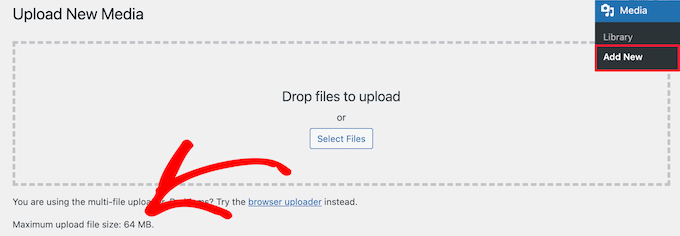
WordPress will automatically show the maximum file upload size limit when you are uploading images or other media.
To check this, simply go to Media » Add New in your WordPress admin panel, and you will see the maximum file upload size limit for your WordPress site.
Now that you know how to find the size limit, let’s show you how to increase the maximum upload size in WordPress.
Method 1: Contact Your WordPress Hosting Provider
One of the easiest ways to increase the maximum file upload size in WordPress is to reach out to your WordPress hosting provider.
This is a relatively simple task for their customer service team and can be done in a couple of minutes.
For beginners, this can be much easier than adding code to WordPress and editing server files.
Simply head over to your hosting provider’s website, like Bluehost, and log in.
Then, click the ‘Chat’ icon at the bottom of the screen. You can then ask the support staff to increase the file upload size on your WordPress site.
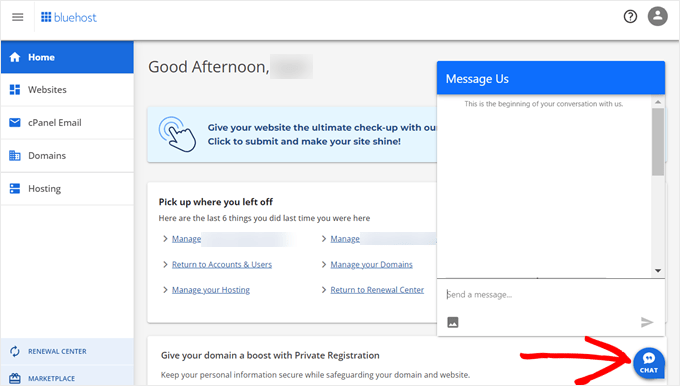
You can also reach out to support from within your hosting account dashboard.
Method 2: Create or Edit an Existing php.ini file
Another way to increase the maximum file upload size is by creating or editing a file called php.ini. This file controls a lot of settings for your WordPress hosting environment.
Most WordPress hosting providers like Bluehost have a beginner-friendly cPanel to help manage your website.
If your web host has a cPanel dashboard, then you can increase the file upload size through the built-in tools.
Note: The following is from the Bluehost cPanel. However, most shared hosting providers will have similar steps.
You will find a cPanel button at the bottom of the Hosting tab in Bluehost.
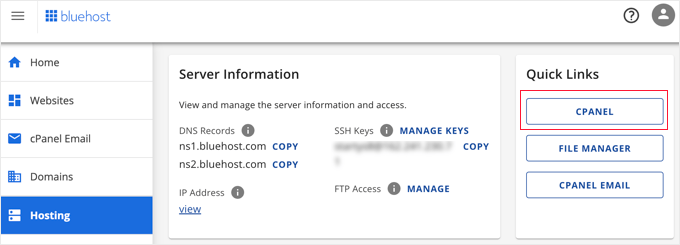
Clicking this button will open your cPanel dashboard.
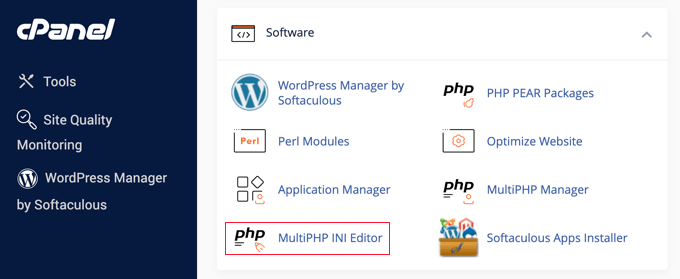
Now you need to scroll down to the Software section and click on ‘MultiPHP INI Editor’.
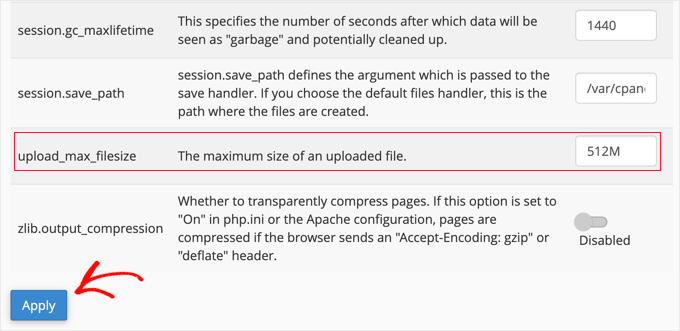
Next, scroll down to the section labeled ‘upload_max_filesize’ and enter a new maximum filesize into the box.
Then, click the ‘Apply’ button.
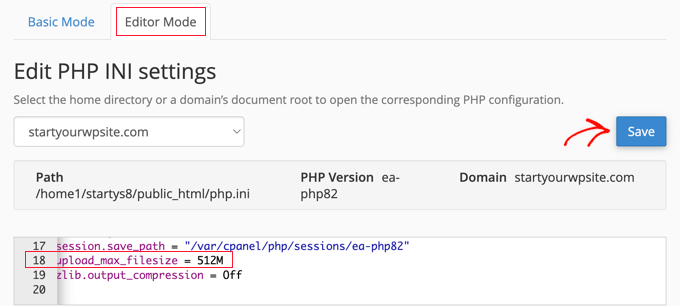
Alternatively, you can click the ‘Editor Mode’ menu tab, and then you can change the maximum file upload size directly in the editor.
You need to edit the ‘upload_max_filesize’ section to increase your file upload size.
Once you are finished, just click the ‘Save’ button.
Edit php.ini by Adding Code
If your current hosting provider doesn’t offer the cPanel option, then you’ll need to edit this file manually.
To do this, you can use an FTP client or the file manager option in your WordPress hosting control panel.
If you are using shared hosting, then you might not see the php.ini file in your hosting directory. If you don’t see one, then simply create a file named php.ini and upload it to your root folder.
Then, add the following code snippet to the file:
upload_max_filesize = 256M
post_max_size = 256M
max_execution_time = 300
You can modify the ‘256M’ limit to the file size you need for your WordPress blog.
Method 3: Add Code to Your WordPress Theme functions.php File
This method involves adding code to your functions.php file in your WordPress theme.
Instead of editing the file directly, we recommend using WPCode. It’s the best code snippets plugin that allows you to add code to your website without breaking it.
If you haven’t done this before, then see our beginner’s guide on how to add custom code in WordPress.
First, you need to install the free WPCode plugin. For more details, see our step-by-step guide on how to install a WordPress plugin.
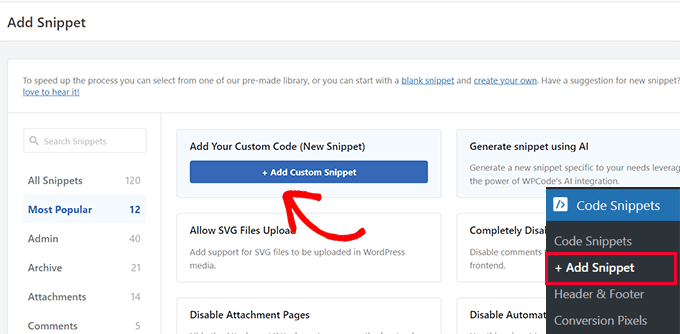
Upon activation, you should navigate to Code Snippets » + Add Snippet.
You will need to hover your mouse over the ‘Add Your Custom Code (New Snippet)’ option and then click the ‘+ Add Custom Snippet’ button.
Next, you need to choose ‘PHP Snippet’ as the code type from the list of options that appear.
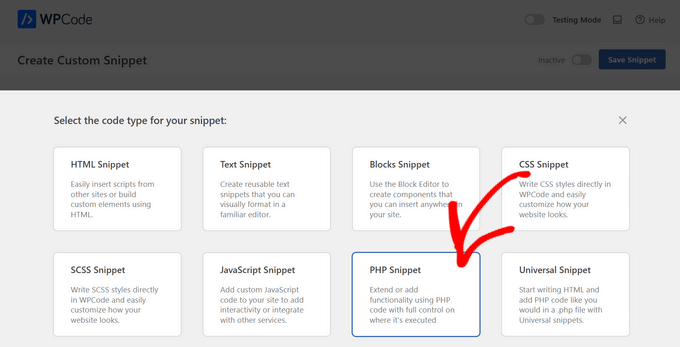
On the following screen, enter a name for your new snippet, which can be anything to help you remember what the code is for.
Then, you can copy and paste the following code snippet under ‘Code Preview’. Make sure you change ‘256M’ to the maximum file size you need:
@ini_set( 'upload_max_size' , '256M' );
@ini_set( 'post_max_size', '256M');
@ini_set( 'max_execution_time', '300' );
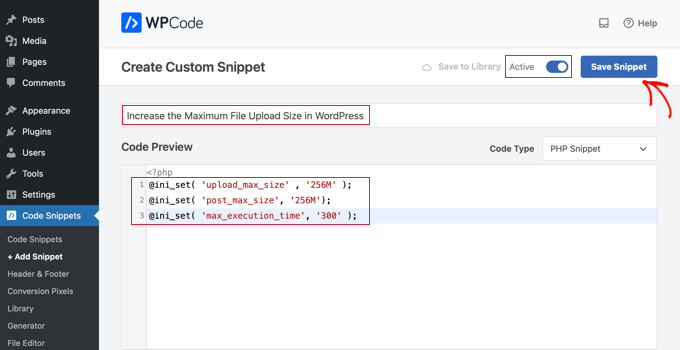
Finally, switch the toggle at the top to ‘Active’ and then click the ‘Save Snippet’ button. The code will now be executed on your website.
Method 4: Add Code to Your .htaccess File
Another way to increase the maximum file size is by modifying the .htaccess file. This file controls the high-level configuration settings for your website.
To do this, you need to log in to your website server via FTP. If you haven’t done this before, then see our guide on how to use FTP to upload files to WordPress for beginners.
After that, you need to locate your .htaccess file in your website’s root folder.
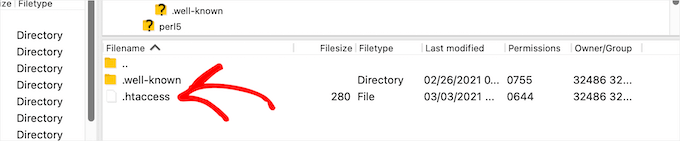
If you can’t find your .htaccess file, then it could be hidden by your file manager or FTP client. To learn more, see our guide on why you can’t find the .htaccess file on your WordPress site.
Next, you need to add the following code snippet to your .htaccess file:
php_value upload_max_filesize 256M
php_value post_max_size 256M
php_value max_execution_time 300
php_value max_input_time 300
To increase your maximum file upload size even more, simply change the ’64M’ to the size you require.
Method 5: Use a WordPress Plugin to Increase File Upload Size
Another way you can increase the maximum file upload limit is by using the WP Increase Upload Filesize plugin. If you are not comfortable adding code to WordPress, then this could be a good option for you.
The first thing you need to do is install and activate the plugin. For more details, see our guide on how to install a WordPress plugin.
Upon activation, navigate to Media » Increase Upload Limit in your WordPress admin panel.
This brings you to a screen where you can select a new file upload size in the ‘Choose Maximum Upload File Size’ drop-down.
Then, click the ‘Save Changes’ button.
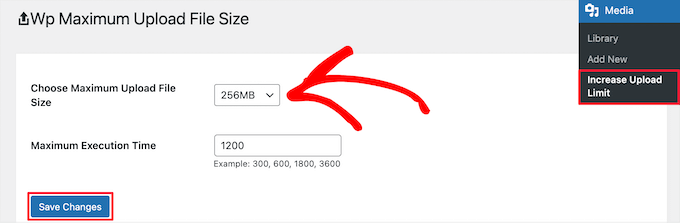
Note: The maximum file upload size will be set by your hosting provider. If you need a file size limit that’s larger than the one listed in the drop-down, then you need to contact your hosting provider and ask to increase the limit.
Video Tutorial
If you don’t enjoy following written instructions, you can check out our video tutorial instead:
We hope this article helped you increase the maximum file upload size in WordPress. You may also want to see our guide on how to add additional file types to be uploaded in WordPress and our expert picks of plugins and tips to improve the WordPress admin area.
If you liked this article, then please subscribe to our YouTube Channel for WordPress video tutorials. You can also find us on Twitter and Facebook.


Oyatogun Oluwaseun Samuel
Great Article, though, I like to add that if you’re not regularly uploading large file, you should temporarily increase the file size limit and then return it back to default value especially in php ini file this is to guard against the security loop that this might create. This is even more so if you have users that are allowed to upload file to your wordpress site. This one of the area that has to be treated with sensitivity.
Jiří Vaněk
The first working guide that worked for me. Eventually, I also found out why. Many tutorial sites only address the size of the uploaded file and only adjust this value. That didn’t work for me, and I didn’t know why. Usually, I ended up with a 500 server error. Your guide worked, and when I investigated the difference, I found out that, unlike others, you also change the max execution time. That was my problem. Although I had the file size set correctly, I hit the small script runtime limit, and the file couldn’t upload because the server terminated the script after a minute. So, thanks for considering such details, and now I know why the other guides didn’t work for me.
Dayo Olobayo
Thanks for showing how to check the default limit. Just checked mine now and saw it’s 1GB. I think that’s good enough for me so I won’t be touching anything. I must also add that the wpcode method would have been my preferred method if I needed to change anything.
Lisha Van Nieuwenhove
This help was BRILLIANT. THANK YOU!
WPBeginner Support
You’re welcome!
Admin
Ray Konopka
Thanks for the tips. My site is hosted in BlueHost so I first tried Method 2. However, after changing the upload_max_filesize value, the Add New media page for my site still showed 64 MB. I went back into the MultiPHP INI Editor and looked at the other values. One other value stood out:
post_max_size
Sets max size of post data allowed. This setting also affects file upload. To upload large files, this value must be larger than upload_max_filesize. Generally speaking, memory_limit should be larger than post_max_size.
After I increased the post_max_size value as well, then the Add New media upload page showed the new limit. Perhaps you can update the post to include this tip.
WPBeginner Support
Thank you for sharing this, we’ll be sure to look into it and possibly add it to the article in the future
Admin
Mark
All my limits were increased as suggested, but I started getting ‘files are too big’ after a plugin update. After double checking everything server and email side, the solution was changing from 5M to 5120kb in Contact Form 7 settings. The plugin suddenly stopped recognizing M when trying to override the default 1024kb setting.
WPBeginner Support
Thanks for sharing this should someone else run into this issue!
Admin
devshah
Function.php method is not Working.
WPBeginner Support
It would depend on your host and what else is set up on your server for what will work. If nothing else works you can always reach out to your host for assistance.
Admin
Halil AHMAD
The .htaccess worked for me. Thank you
Muzoora Barnabas
The .htaccess worked for me. Thank you
WPBeginner Support
Glad our recommendation was able to assist
Admin
Muhammad Farooqi
You comments and thanks secion is almost 10 times longer..than the content of this page is guarantee of your amazing tips
WPBeginner Support
We’re happy we can help so many WordPress users
Admin
Jacob Alas
The only method that worked for me was: htaccess Method
Thank you.
WPBeginner Support
Glad one of our methods was able to work for you
Admin
Daniyar Nauryz
htaccess Method has worked for me.
WPBeginner Support
Glad our recommendation worked for you
Admin
furqan
its not working.
WPBeginner Support
If the recommendations are not working for you, we would recommend reaching out to your hosting provider and they should be able to assist if this is something they’ve set on their end.
Admin
Abdullah Ashraf
Thank you so much. I tried all the methods and the last method was helpful for me.
I would like to know should I undo the second last step that was php.ini?
WPBeginner Support
It is not required to remove that file but you can remove it if it is not working for your server.
Admin
Bradley
None work.
WPBeginner Support
If none of our recommendations work, we would recommend reaching out to your hosting provider to see if it is a restriction that they have set on their servers.
Admin
Ben
If you have access to the FTP, can I just upload the file in the wp-content/uploads/[year]/[month] folder?
WPBeginner Support
If you do that you would need a plugin to find the images, we have a guide on how to do that below:
https://www.wpbeginner.com/plugins/how-to-bulk-upload-wordpress-media-files-using-ftp/
Admin
naved ahmed
Thanks a lot
.htaccess method worked for me.
You saved my lot of time.
Thanks again.
WPBeginner Support
Glad our guide was able to help you
Admin
Adio Usman
Does this method works for restoring backup that is up to 3.5gb manually?
WPBeginner Support
It would depend on the method you are using but it could help with restoring a backup that large.
Admin
viren
method 3 is perfectly worked for me.keep inspiring us.great work man.thnks
WPBeginner Support
Glad our recommendation was helpful
Admin
ayman
.htaccess methode worked with me
WPBeginner Support
Glad our recommendation was helpful
Admin
Sanchit Setia
Does this work on free hosting?
WPBeginner Support
You would want to check with your hosting provider if you are concerned
Admin
bara
It works for me
WPBeginner Support
Glad our recommendation helped you
Admin
abc
nothing is working for lms
WPBeginner Support
If none of the recommendations worked we would recommend reaching out to your hosting provider for assistance.
Admin
Ahmad
I tried this but the size did not change… status is same please help what should I do know I am using localhost
WPBeginner Support
You would want to try restarting your localhost service just in case, otherwise, you would want to ensure you added/editied the php.ini correctly for the most common reason.
Admin
Vittorio
I think
@ini_set( ‘upload_max_size’ , ’64M’ );
should be
@ini_set( ‘upload_max_filesize’ , ’64M’ );
WPBeginner Support
upload_max_size currently increases that value as well as a few other things which is why we don’t use upload_max_filesize
Admin
MFoale
Thank you. The 3rd method worked for me. Very useful post and video.
WPBeginner Support
You’re welcome, glad we were able to help
Admin
Masud Rana
Wow !its work. Thanks
WPBeginner Support
Glad our guide could help you
Admin
Oliver
IT WORKS!!! THANKS
I made a file ini.php then uploaded it, then renamed it from ini.php.txt to ini.php and it worked.
thanks
WPBeginner Support
You’re welcome, glad our guide was able to help
Admin
Brad
None of these works
WPBeginner Support
If our recommendations do not work you would want to reach out to your hosting provider to ensure they do not have it as part of their settings.
Admin
Arivazhagan
Method 2 worked for me thanks a lot ive been struggling with this for two days …
WPBeginner Support
You’re welcome, glad our recommended solution was able to help you
Admin
Sujan Chakraborty
you are great.I fix my problem by reading you post.Tnx
WPBeginner Support
Glad our article could be helpful
Admin
Krakawid
Method 3 worked
WPBeginner Support
Glad our recommendation worked for you
Admin
Tung
Method 1 worked wonders for me. Thanks a bunch!
WPBeginner Support
You’re welcome, glad our recommendation worked for you
Admin
Trasadu
Thanks Method 3 really worked for me.
WPBeginner Support
Glad our recommendation was helpful
Admin
Asad
How can i increase the upload limit while i have the wordpress hosting also functions.php isn’t updating
WPBeginner Support
If the file will not update, you would want to reach out to your hosting provider and they should be able to assist
Admin
Chris
I want to increase the limit to 250mb but i dont know if this exposes my site to security treats, though am only using gravity form and I have also set to disable php execution on my upload folder. And have allowed only jpg, and mp3 files.
Please do you think this may affect my site load times as huge upload is coming from several users?
WPBeginner Support
If multiple users attempt uploads at the same time it can have an effect on your site’s load time but it shouldn’t open you to security threats
Admin
Vinod
Thanks a lot!!! Method 3 worked for me
WPBeginner Support
Glad our recommendation worked for you
Admin
Janice
Nice article, but I tried adding your 3 lines of code to the functions.php file, but got an “unknown @ rule” error. What’s that all about?
WPBeginner Support
It would depend on the entire error but it could have been a hiccup with how the code was inserted, you may want to take a look at our guide here: https://www.wpbeginner.com/beginners-guide/beginners-guide-to-pasting-snippets-from-the-web-into-wordpress/
Admin
Abduaziz
Thanks a lot!!! Method 3 worked for me
WPBeginner Support
Glad our recommendation could help
Admin
Alexander Gartley
Thanks, this helped me troubleshoot an upload limit. I’m on a Wordpress multisite network install, so it ended up being a setting in the Network Admin Settings.
I was confused at first, because my php settings were allowing larger uploads, but it was restricted in the Network Settings.
WPBeginner Support
Thanks for sharing what solved the problem for you
Admin
Ernesto
Would have been great if you have included the .user.ini method.
.user.ini uploaded in the root folder with the same value/text in your edited php.ini
Most of the time, only this method works for shared hosting.
ErnestPH
WPBeginner Support
The php.ini file should work the same as the user.ini file unless your specific host ignores the php.ini but thank you for sharing your recommendation
Admin
Mark
This is the only solution that works on my shared hosting server. Thanks Ernesto!
Tamir Davidoff
Not working for me.
I have followed this guide and double checked the php.ini file to make sure that the changed are in fact saved. changed htaccess file to increase limits. and also tried modifying the phpMyAdmin httpd-app.conf and php-settings.conf file. All of these files reflect max upload higher than 40m and my WP site does not reflect Any of these changes. Really frustrated here.
Please help me, thanks !
WPBeginner Support
If you haven’t already, you would want to reach out to your hosting provider to ensure there is not a setting on their end that is overriding what you are setting
Admin
rajesh
i have tried all 3 method none of them worked. i am trying to upload newspaper theme in my in my wordpress site. but every time it show that php.ini file upload max file size.
plz help me
WPBeginner Support
You would want to reach out to your hosting provider to ensure they don’t have a setting that is overriding the changes you made.
Admin
Adam Walsworth
Watchout for hidden php.ini files. In my setup I found 2 of them. The one which I found actually resolved the issue was found under
./etc/php/7.0/apache2/php.ini
modifying this file fixed my issue.
WPBeginner Support
Thanks for sharing your solution, with where that file is located we would recommend most users reach out to their hosting provider before looking in locations like that.
Admin
Rafiq khan
Thanks buddy i have solved my problem by adopting method 2 by editing my php.ini file
Thanks alot you are working great
WPBeginner Support
Glad our article could help
Admin
Carla
None of the above worked for me. A matter of fact, editing the htaccess file broke my site even after deleting the above code. Overwriting with a new file fixed the problem though.
I have a dedicated server on Bluehost. What worked for me was going in the WHM root, not cpanel nor FTP access. Search for MultiPHP INI Editor. Give it at least 5 minutes to load if you only see the title and icon. You can set you upload time, post size, etc. there. Works instantly, even if your site is using Cloudflare, without placing it in development mode or clearing the cache. I hope this helps someone.
WPBeginner Support
Thank you for sharing what worked for you, should other users be on a dedicated server, if they reach out and let BlueHost know the need to increase the upload size then BlueHost can normally edit that for them
Admin
Pezza
Great Stuff! .htaccess worked for me!
WPBeginner Support
Thank you, glad our guide could help
Admin
ReineR
htaccess metod worked for me, thanks!
WPBeginner Support
Glad our article could help
Admin
Ahmed
Work for me
3. htaccess Method
you need to click (show hidden files to view and edit this file).
WPBeginner Support
Glad our article could help
Admin
rahul
when i tried this
Unable to communicate back with site to check for fatal errors, so the PHP change was reverted. You will need to upload your PHP file change by some other means, such as by using SFTP.
this happened to me
whats the solution of this
WPBeginner Support
You would need to use FTP rather than WordPress itself to add the code: https://www.wpbeginner.com/beginners-guide/how-to-use-ftp-to-upload-files-to-wordpress-for-beginners/
Admin