


A navigation menu is a list of links at the top of the page that point to important areas of your website. By adding a specific post to your WordPress menu, you’ll be able to highlight it for your viewers, which will help bring more traffic to the post.
Whether you want to highlight popular articles, important updates, or featured blog posts, customizing your navigation menu is a user-friendly way to guide visitors to key content.
In this article, we will show you how to easily add specific posts to the WordPress navigation menu.
When and Why Should You Add Specific Posts to Navigation Menu?
Navigation menus allow you to create a navigational structure for your WordPress website. This helps users quickly find the most important sections of the site.
Usually, a navigation menu displays an About Us page, a pricing page, a Contact Us page, and a blog page.
However, sometimes, you may want to add a specific post to your navigation menu.
This could be your most popular post, a beginners’ guide to the product you are selling, or something that you would like your users to find quickly.
That being said, let’s see how you can easily add specific posts to your WordPress navigation menu:
Method 1: Adding Specific Posts to the Navigation Menu (Easy)
You can easily add specific posts to your menu by editing the menu directly in WordPress.
Adding Specific Posts to the Navigation Menu in the Full Site Editor
If you are using a block theme, then you can simply go to the Appearance » Editor page from the WordPress admin sidebar to launch the site editor.
From here, you need to click on the navigation menu block to start editing it.
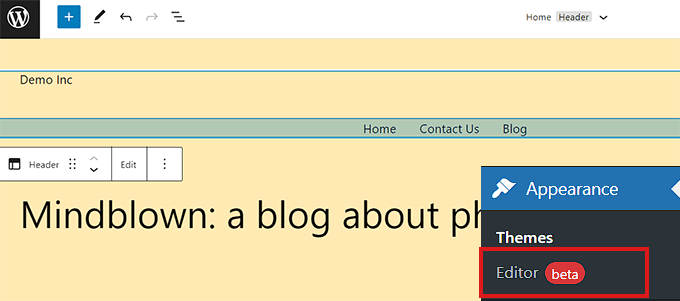
Once you are inside the navigation menu block, click on the Add New (+) button to enter a new menu item.
After that, you can simply search for the post that you want to add to your navigation menu.
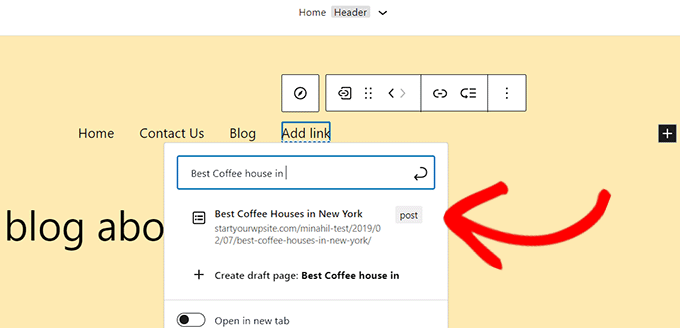
Once you have found the post, click to select and add it as a menu item.
You can change the menu label to be different than your actual post title by simply clicking on the text in the menu item.
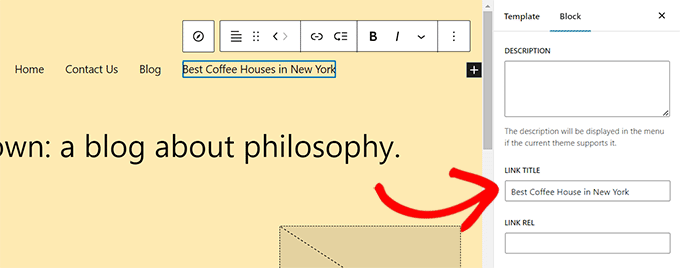
Once you are satisfied with your changes, don’t forget to click on the ‘Save’ button to store your settings.
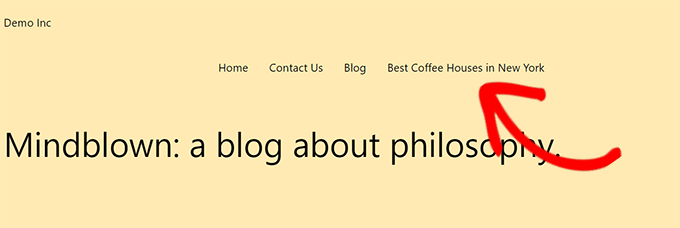
You can now visit your website to see your post appear in the navigation menu of your site.
Adding a Specific Post to the Navigation Menu in Classic Themes
If you are using a WordPress theme that doesn’t support the full site editor, then here is how you’ll add specific posts to your site’s navigation menu.
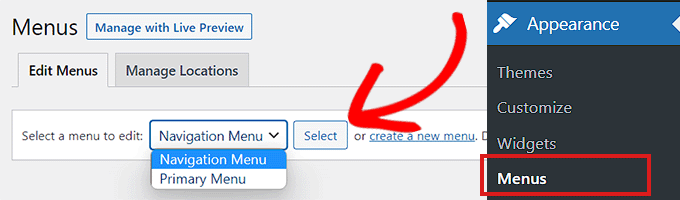
First, you need to visit the Appearance » Menus page from the WordPress admin dashboard.
Once you are there, simply select a menu to edit from the dropdown menu and click on the ‘Select’ button.
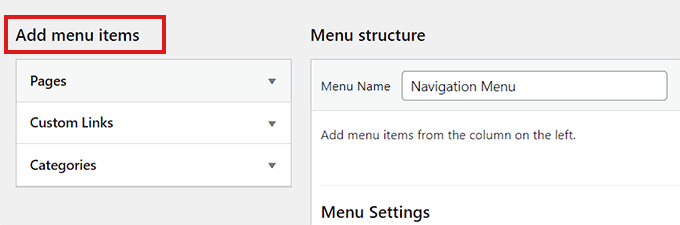
After selecting a menu, you’ll see an ‘Add Menu Items’ section.
This section will have tabs for pages, posts, custom links, and categories that you can add to your menu. You can click on each tab to expand it.
If you cannot see the ‘Posts’ tab there, then you can easily add it by clicking the ‘Screen Options’ button at the top right corner of the screen.
This will open up the ‘Screen Elements’ prompt. From here, check the ‘Posts’ box to display it in the ‘Add Menu Items’ section.
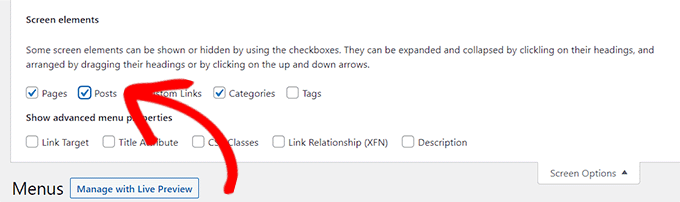
Once the ‘Post’ tab has appeared, you need to click on it to expand it. Now, all your posts will be displayed as a list.
Simply check the specific post that you want to display on your navigation menu and then click the ‘Add to Menu’ button.
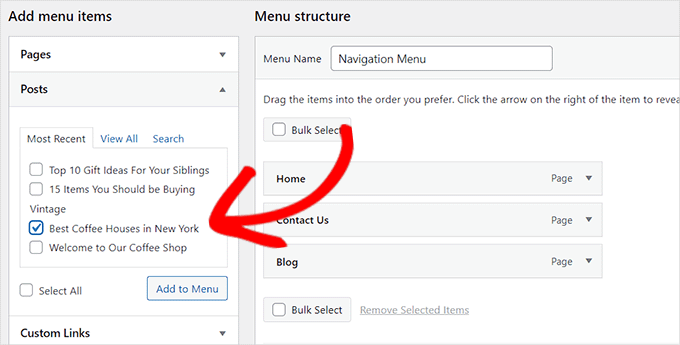
Now, the post will be added in the ‘Menu structure’ section along with other items in the navigation menu.
You can drag and drop the menu items to adjust their display order.
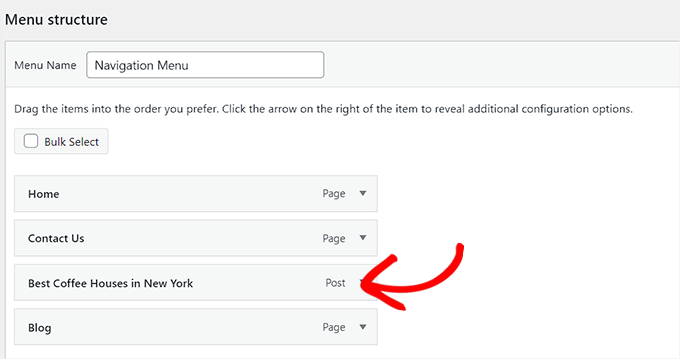
Once satisfied, click the ‘Save Menu’ button to store your changes.
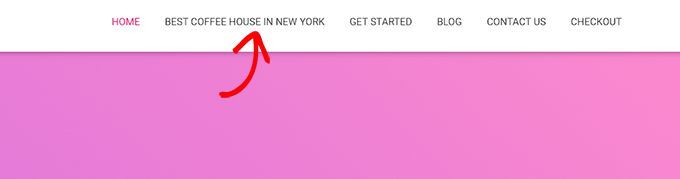
This is how your post will look in the navigation menu.
Method 2: Adding Specific Posts to the Navigation Menu Using SeedProd
You can also add specific posts to your navigation menu using SeedProd. It is the best WordPress landing page builder on the market, and it lets you create customized themes and landing pages without using any code.
First, you need to install and activate the SeedProd plugin. For more instructions, please check out our beginner’s guide on how to install a WordPress plugin.
Note: SeedProd also has a free version that you can try, but we will be using the premium plan for this tutorial.
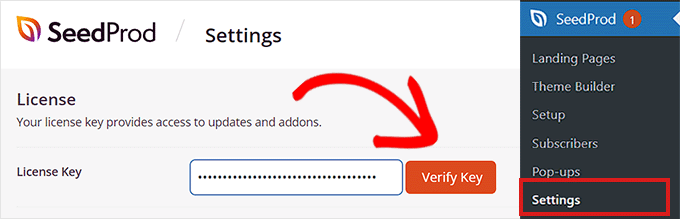
Upon activation, head over to the SeedProd » Settings page from the WordPress dashboard to enter the plugin license key.
You can find this information in your account on the SeedProd website.
Next, you can either create a landing page or customize a whole new theme for your site.
For this tutorial, we will be adding a specific post to a landing page.
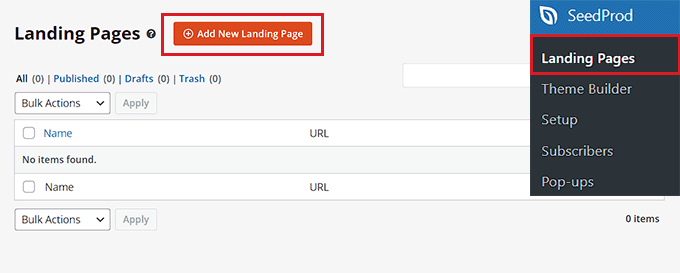
To create a landing page, visit the SeedProd » Landing Pages screen from the admin dashboard and click on the ‘Add New Landing Page’ button.
This will take you to the ‘Choose a New Page Template’ screen, where you’ll see many premade templates offered by SeedProd that you can use on your site.
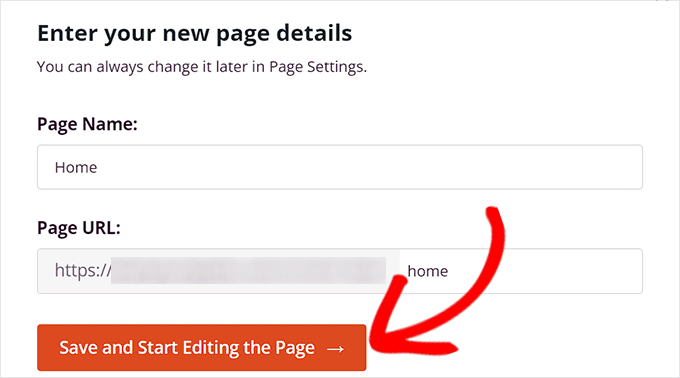
From here, simply click to select a template of your choice. You will then be asked to enter a name for the landing page that you are about to create.
After entering this information, click on the ‘Save and Start Editing the Page’ button to continue.
This will launch SeedProd’s drag-and-drop page builder, where you can now start editing your page.
For more instructions, please see our beginner’s guide on how to create a landing page in WordPress.
From here, locate the ‘Nav Menu’ block from the left column. Once you’ve done that, simply drag and drop the block to any place on the page where you want to display the navigation menu.
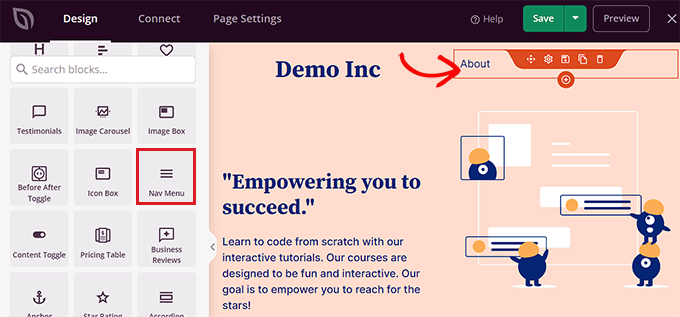
After the navigation menu is added, double-click on it to open up the ‘Nav Menu Settings’.
Now, SeedProd offers two methods to create and manage menus.
- WordPress Menu
- Simple
If you choose the ‘WordPress Menu’ option, then you can select any menu that you created in WordPress from the dropdown.
After that, click the ‘Menu Screen’ link under the ‘Menus’ section.
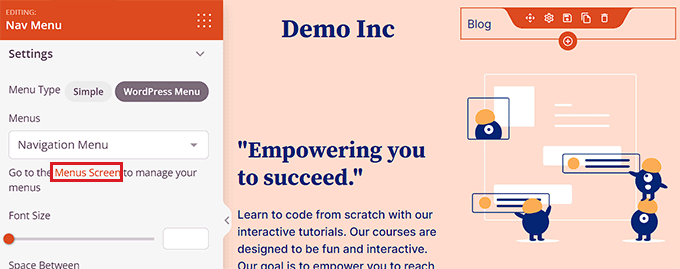
This link will take you to the WordPress’ Menus’ page, where you can add a specific post to your navigation menu, as shown in method 1.
On the other hand, the Simple option allows you to create navigation menu items by adding a link and text.
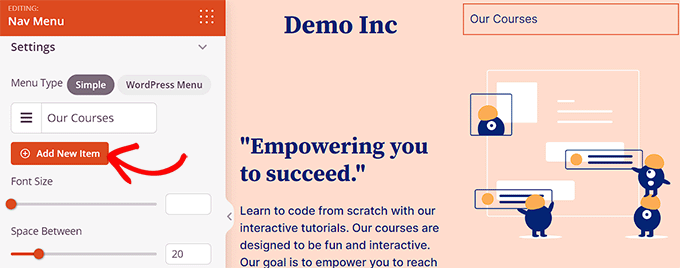
You can add more menu items by clicking on the ‘Add New Item’ button.
This will add a new item to your navigation menu, and you can repeat the process to add more links.
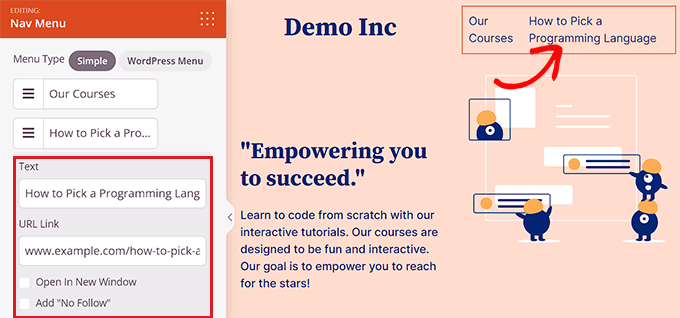
In order to link to a specific post, you have to add the post URL and text label.
You have now successfully added a specific post to your navigation menu using SeedProd.
Once you are finished, don’t forget to click the ‘Save’ and then the ‘Publish’ button located at the top right corner of the editor.
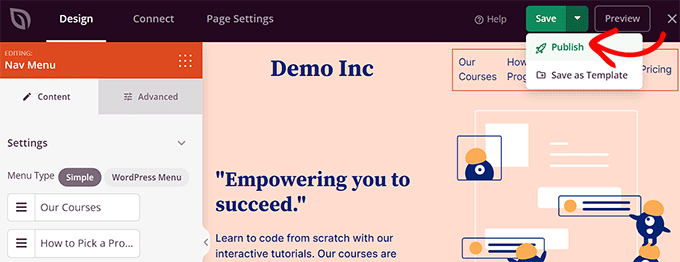
After that, you can visit your landing page to see your navigation menu in action.
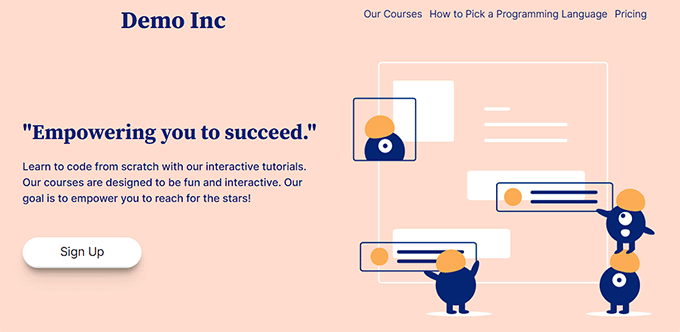
Here is how it looked on our demo site.
Bonus: Adds Specific Categories in the WordPress Navigation Menu
Apart from posts, you can also add categories and tags to your WordPress navigation menu.
For example, if you have a travel blog with guides for different cities, then you could add the cities as categories. This will make it easier for visitors to access your content, making your site more user-friendly.
To add categories, simply visit the Appearance » Menus page from the WordPress dashboard and click the ‘Categories’ tab to expand it.
Next, choose the categories you want to add to the menu and click the ‘Add to Menu’ button. Your selected items will now appear in the column on the right where you can move them up and down using drag and drop.
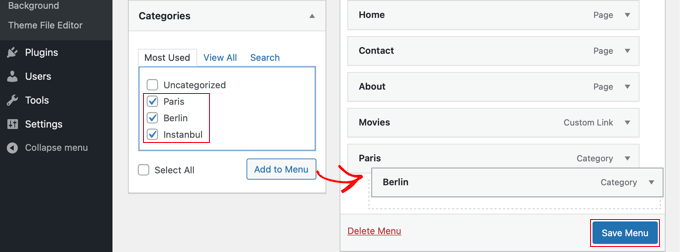
Once you are satisfied, click the ‘Save Menu’ button to store your settings.
You have now successfully added a specific category to your WordPress menu. For more information, you can see our tutorial on how to add topics in the WordPress navigation menu.
We hope this article helped you learn how to add specific posts to the WordPress navigation menu. You may also want to see our beginner’s guide on how to create a vertical navigation menu in WordPress and our tips on mastering WordPress navigation menus and using them to increase sales and conversions.
If you liked this article, then please subscribe to our YouTube Channel for WordPress video tutorials. You can also find us on Twitter and Facebook.


Kristen
IDK if you’re still responding to questions but my issue is that I can’t get my posts to publish under the menu items I need them to publish under. They publish under ALL of the menus. That’s my issue.
For example, one of my menu items is “Crime.” How do I get my crime posts to publish only under crime? What do I need to push to make that happen?
I’ve asked everywhere and people don’t seem to understand what I’m asking and IDK why.
Kanishk
I don’t understand how to add post ,for ex. I made a page of menswear and I wanna add a post(5 outfit ) in that page (menswear) by which someone click on a thumbnail (5outfit) and directly open into the complete post where 5 outfit are shown ,so I don’t understand how to do this
WPBeginner Support
You would want to create a category and add the category to your menu which we show how to do in our article below:
https://www.wpbeginner.com/beginners-guide/how-to-add-navigation-menu-in-wordpress-beginners-guide/
Admin
Shelly L. Snow
The Theme I have is Independant Publisher and I have several different pages. Example Book Reviews, Poetry, Musings, ect…
How do I publish posts under these pages?
WPBeginner Support
You could either use the shortcode method from our article here: https://www.wpbeginner.com/wp-tutorials/how-to-display-recent-posts-from-a-specific-category-in-wordpress/
Or instead, add the category of the posts to the menu rather than a specific page for WordPress to automatically create the page listing the posts in that category.
Admin
Sohail Ahmed
Hello, i am here to know about that how to customize premium themes, for example i have purchased and installed a theme now i want to replace its default navigation menu items with my own, in short, how to convert purchased theme’s design to my need-specific design, how to upload content,
WPBeginner Support
That would require knowledge of the theme and likely PHP, HTML, and CSS depending on how much you want to change the menu. If you check with your theme’s support they may have some documentation to help
Admin
Lisa
This is helpful info! I’m trying to figure out how to create my drop down menu with pages that will be like my home page with thumbnails linked to the posts within that category only. For example, the category on my navigation bar is FOOD. Then a sub category is a RECIPES page that shows thumbnails to my most recent recipe posts. I hope that makes sense. Do you know how to do this? Thanks!
WPBeginner Support
If you add the category itself to the menu then WordPress should automatically generate the page listing your posts in that category.
Admin
Daniels
Is it possible to dynamically show the last N posts in a menu?
I only see that it is only possible by manually checking existing posts
Thanks
WPBeginner Support
It is possible, we just do not have a simple recommended method at the moment.
Admin