


Have you ever forgotten your house key and felt stuck outside? Getting locked out of your WordPress website can feel a lot like that. It’s super frustrating, especially if hackers deleted your admin account. But don’t worry, you can get back in.
Think of your website like a house with a secret back door. That back door is your website’s database, and it’s usually accessed using MySQL code. Now, that might sound complicated, but it’s like a set of instructions you can use to make changes to your website behind the scenes.
In this article, we’re going to teach you how to use MySQL to create a brand new admin account for your website, just like getting a new key made for your house. That way, you can lock out the hackers and take back control.
Why Add an Admin User to the WordPress Database via MySQL?
We once ran into an issue where a user’s site was hacked, and their admin account was deleted from the database. This locked them out of their WordPress website.
We were able to help them get access to their website by creating a new admin user directly to the WordPress website. We did that using phpMyAdmin, a web-based tool that allows you to manage MySQL databases using your web browser.
If you find yourself locked out of your WordPress admin area due to hackers or simply because you forgot your password, then you can do the same.
However, you should always make a backup of your database before performing any MySQL edits. Then, once you can log back into your website, you may need to follow our beginner’s guide to fixing your hacked WordPress site.
With that being said, let’s take a look at how to add an admin user to the WordPress database via MySQL.
Adding an Admin User to the WordPress Database With phpMyAdmin
phpMyAdmin comes pre-installed with most top WordPress hosting companies. You can find it in the Databases section of your hosting account’s cPanel dashboard.
Here is a screenshot from the Bluehost control panel:
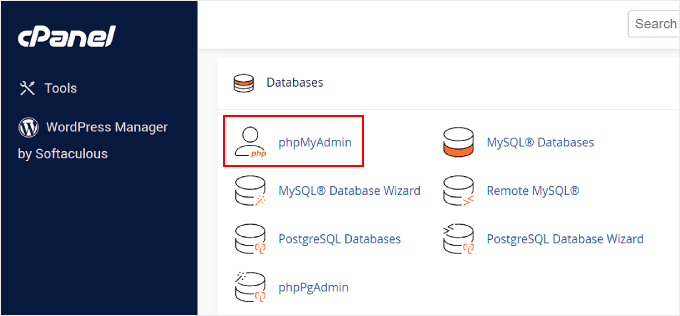
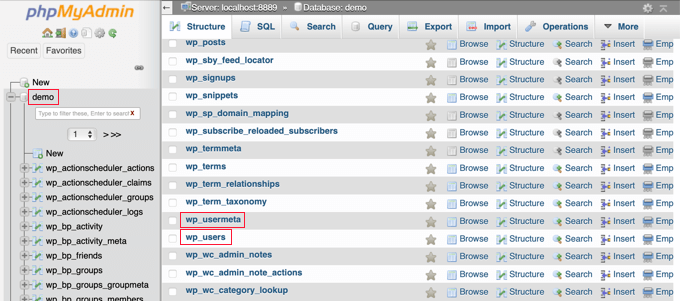
Clicking on the icon will open the phpMyAdmin interface. You need to select your WordPress database from the left column.
After that, phpMyAdmin will display all tables in your WordPress database. You will be making changes to the wp_users and wp_usermeta tables.
Adding a User to the wp_users Table
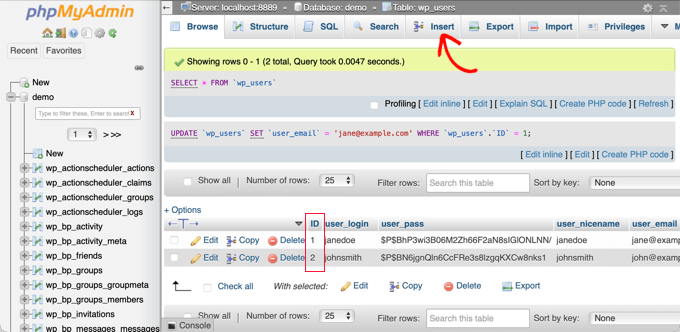
First, you need to find the wp_users table and click it. This will show the users currently listed in the table.
Notice in the screenshot below that there are two user IDs in our demo website’s table, 1 and 2. When we create a new user for our demo site, this ID needs to be unique, so we’ll type the number 3.
You need to click the ‘Insert’ tab at the top of the screen so you can insert the information for a new admin user.
Add the following information to the fields on the Insert form:
ID: pick a unique number (in our example, we’ll use 3)user_login: the username that will be used when logging inuser_pass: add a password, and make sure to select MD5 in the function menu (see the screenshot below)user_nicename: the user’s full name or nicknameuser_email: the user’s email addressuser_url: your website addressuser_registered: select the date and time the user was registered using the calendaruser_activation_key: leave blankuser_status: set this to 0display_name: the user’s full name or display name
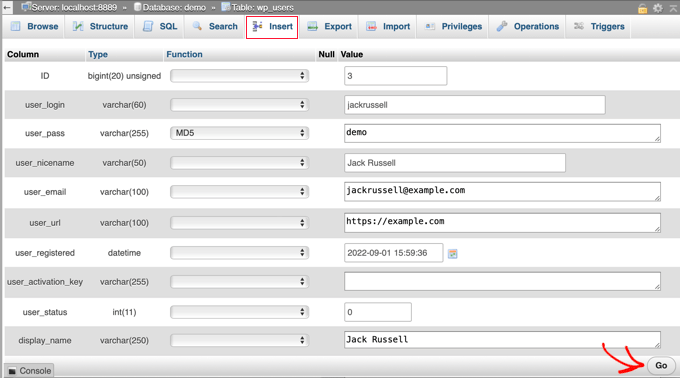
Once you have finished, make sure you click on the ‘Go’ button to store the new user.
Adding a User to the wp_usermeta Table
Now, you need to find the wp_usermeta table and click it. After that, you should click on the ‘Insert’ tab as you did in the previous step.
Next, you need to add the following information to the Insert form:
unmeta_id: leave this blank (it will be auto-generated)user_id: the user ID you used in the previous stepmeta_key: this should bewp_capabilitiesmeta_value: insert this:a:1:{s:13:"administrator";s:1:"1";}
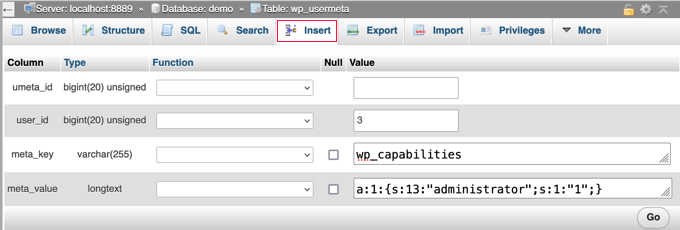
After that, when you scroll down, you should find fields for a second row. You need to add the following information:
unmeta_id: leave this blank (it will be auto-generated)user_id: the user ID you used in the previous stepsmeta_key: you need to enterwp_user_levelmeta_value: 10
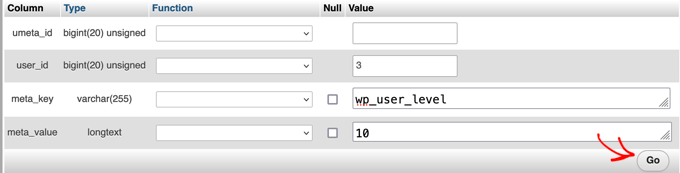
When you have finished entering the information into the fields, you need to click the ‘Go’ button. Congratulations, you have created a new admin username!
Now, you should be able to log in to your WordPress admin area using the username and password you specified for this user.
As soon as you log in, you need to navigate to Users » All Users, then click on the username you just created.
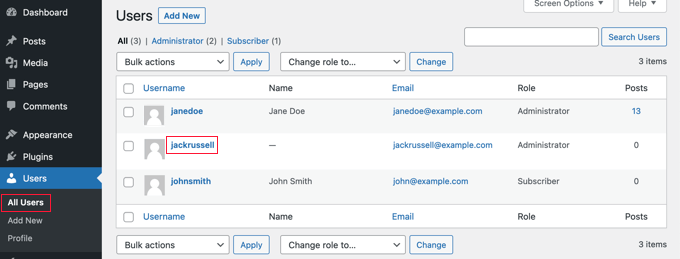
Now, without changing anything, scroll to the bottom of the page and click the ‘Save’ button.
This will allow WordPress to clean up the user you just created and add some extra information that is needed.
Adding an Admin User to the WordPress Database Using a SQL Query
If you are a developer, then you can speed up the process using code.
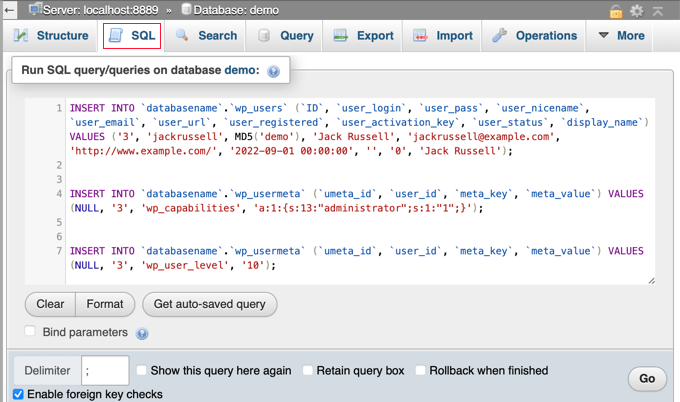
Simply drop this SQL query into your database:
INSERT INTO `databasename`.`wp_users` (`ID`, `user_login`, `user_pass`, `user_nicename`, `user_email`, `user_url`, `user_registered`, `user_activation_key`, `user_status`, `display_name`) VALUES ('3', 'demo', MD5('demo'), 'Your Name', 'test@example.com', 'http://www.example.com/', '2022-09-01 00:00:00', '', '0', 'Your Name');


INSERT INTO `databasename`.`wp_usermeta` (`umeta_id`, `user_id`, `meta_key`, `meta_value`) VALUES (NULL, '3', 'wp_capabilities', 'a:1:{s:13:"administrator";s:1:"1";}');


INSERT INTO `databasename`.`wp_usermeta` (`umeta_id`, `user_id`, `meta_key`, `meta_value`) VALUES (NULL, '3', 'wp_user_level', '10');
Make sure you change ‘databasename’ to the database you are working with.
Also, don’t forget to change the other values to those you want for the new user, as we explained in the first method.
Expert Guides on What to Do When Locked Out of WordPress Admin
Now that you know how to add an admin user via MySQL, you may like to see some articles on how to fix your website when locked out of the WordPress admin area.
- What to Do When You Are Locked Out of WordPress Admin (wp-admin)
- How to Use WordPress Recovery Mode
- How to Reset a WordPress Password from phpMyAdmin
- How to Unblock Limit Login Attempts in WordPress
- How to Deactivate All Plugins When Not Able to Access WP-Admin
- How to Fix the WordPress White Screen of Death (Step by Step)
- How to Fix The Critical Error in WordPress (Step by Step)
- How to Fix WordPress Login Page Refreshing and Redirecting Issue
- How to Fix the Error Establishing a Database Connection in WordPress
- How to Easily Fix This Site Can’t Be Reached Error in WordPress
We hope this tutorial helped you learn how to add an admin user to the WordPress database via MySQL. You may also want to see our ultimate WordPress security guide or our list of common WordPress errors and how to fix them.
If you liked this article, then please subscribe to our YouTube Channel for WordPress video tutorials. You can also find us on Twitter and Facebook.


Ewgeniy
Thank you, you helped me. I couldn’t find this information for a long time.
WPBeginner Support
Glad you found our guide helpful
Admin
Jiří Vaněk
This is great when someone needs access to WordPress and doesn’t know the main administrator password, and at the same time, doesn’t want to change it (which is also an option). I tried using an SQL query, and it works perfectly. You just need to be careful with the table prefix. I saved the SQL query just to be safe, as it’s very useful and might come in handy again. Thanks for sharing it.
Mark C
WARNING! If your WordPress database has a custom table prefix rather than wp_ you’ll need to use that for the capabilities and user_level entries or you’ll get issues trying to access the dashboard.
For example, if your database table prefix is wp_abcdef_ then you would use wp_abcdef_capabilities and wp_abcdef_user_level in the appropriate fields when inserting the usermeta table record.
Also, it is easy to get confused in phpmyadmin, think you didn’t press the Go button, and click the Go button again when adding a record.
WPBeginner Support
Thank you for clarifying that should anyone run into an issue!
Admin
Andrew Newby
Thanks for this!
Dennis Muthomi
this is super helpful for those times when you’re locked out of your site. I do have a quick question
I recently hired a freelance developer to work on a custom plugin for my site, but she needs admin access to get the job done.
the thing is, I’ve never given anyone else admin privileges before, and I’m a bit hesitant to hand over the admin rights,.Is there a way to create a temporary admin account or limit the time she has admin rights? I want to make sure my site stays secure while still giving her the access she needs.Thanks
WPBeginner Support
For that we would recommend taking a look at our article below that covers some options available to you
https://www.wpbeginner.com/opinion/should-you-give-admin-access-to-plugin-developers-for-fixing-bugs/
Admin
An
This guide just made my life so much easier!
I don’t know you but I love you!
Thanks!
Max Johnson
The user is inserted. The site accepts the credentials
but
site does not allow use of admin panel: /wp-admin
“Sorry, you are not allowed to access this page.”
This is WordPress 6.4.2 & PHP 8.2
WPBeginner Support
That looks like a message from a security plugin or security setting from your hosting provider. You can try disabling any plugins following our guide below but if that does not work you would want to reach out to your host and they should be able to assist!
https://www.wpbeginner.com/plugins/how-to-deactivate-all-plugins-when-not-able-to-access-wp-admin/
Admin
Navin Rangar
It’s not working for me, sadly. I’ve checked and everything is showing in the database tables, but the website says the email address is not registered. If I try username it says it’s not recognised. Any ideas would be gratefully received!
WPBeginner Support
You may want to check that you do not have multiple databases in the chance that a placeholder site was set up when you first signed up with your hosting provider.
Admin
Kashif Ali
I want Create Editor user in database ?
WPBeginner Support
For editor users, we would recommend manually creating them through the WordPress interface using an admin account.
Admin
perceval hasselman
I am so happy for your explanation. This saves me a lot of work.
It was hard to do without knowledge but this tutorial did it for me
Thanks a lot!
WPBeginner Support
Happy to hear our guide was helpful!
Admin
Eleanor
It’s not working for me, sadly. I’ve checked and everything is showing in the database tables, but the website says the email address is not registered. If I try username it says it’s not recognised. Any ideas would be gratefully received!
WPBeginner Support
It is hard to say the specific reason but for an alternate method we would recommend trying the method from our guide below!
https://www.wpbeginner.com/wp-tutorials/how-to-add-an-admin-user-in-wordpress-using-ftp/
Admin
Lucas
Thank you a lot. You save my life, bro. thks
WPBeginner Support
Glad our guide was helpful!
Admin
newbie
Hi there,
I’m trying to move my live wordpress site to my local server because I need to do an updates.
However after setting up in the local server I’m not able to login and I came accross this article
‘Adding an Admin User to the WordPress Database Using a SQL Query’. My questions is the adding of this user should be done in the live server or my local server.
Thank you.
WPBeginner Support
Instead of creating a new user on your localhost installation, we would first recommend going through our guide below:
https://www.wpbeginner.com/wp-tutorials/how-to-reset-wordpress-admin-password-on-localhost/
Admin
Sam
Excellent article. Forgot login details after years of hiatus.
WPBeginner Support
Glad our article was able to help!
Admin
daniele
done but is not working for me. I created an account but wo see it as subscriber account not an admin.
WPBeginner Support
There is a chance there was a typo in the query depending on the method you’re using. For a workaround you may want to take a look at the alternative method in our article below:
https://www.wpbeginner.com/wp-tutorials/how-to-add-an-admin-user-in-wordpress-using-ftp/
Admin
Nibedita
Thanks for the tips it really worked and i could know a lot more about configuration i wordpress.
WPBeginner Support
Glad our article could help you learn
Admin
Farkas Tibor
Thanks, it saved me from a lot of work.
WPBeginner Support
Glad our guide was helpful!
Admin
MKallas
Thank you. This might come handy in other cases too… I made a Local AMPPS Wordpress Install and for some reason first registrant got Subscriber rights instead of Admin. Really interesting. Anyways, PhpMyAdmin and fix of wp_usermeta -> wp_usercapabilities -> “a:1:{s:13:”administrator”;s:1:”1″;}” sorted it out.
Andy
Hi, thanks for the info. I’ve only been able to login as a general ‘User’ using this method – I can’t see/access the Admin Dashboard. The site is a directory site that i migrated from a backup to a new domain. Any suggestions to get full admin privileges?
B A
I come here 2-3 times a year to get that nice set of SQL boilerplate. Should probably just save it to my notes at this point. Thanks so much!
WPBeginner Support
Glad our guide is able to continue to be helpful
Admin
Jana
Thank you so much for this post! I had so many problems after migrating and changing the base url of my site and this post solved them all.
WPBeginner Support
Glad our guide was able to help
Admin
Kristen
I followed these steps and see my new account, but my site still will not allow me to log in. It says invalid user, then if I try resetting the password it says no account exists. What’s my next step to fix this?
WPBeginner Support
You may want to ensure you added the user to the correct database, you should also be able to reach out to your hosting provider for them to take a look.
Admin
Kyle Eggleston
Excellent, useful tutorial. Thanks for publishing.
WPBeginner Support
You’re welcome
Admin
Stefan Pl
1. Please change the post to include information about table prefixes – a problem that appeared quite a few times in the comments and will keep you from succeeding if you just follow the post and have an alternative prefix.
2. Thanks for the information presented here
WPBeginner Support
Thank you for your feedback about our post
Admin
Mandy
For everyone who can login but not see the wp-admin, these instructions aren’t wholly correct.
The wp_cabailities meta_value actually needs to be set as a:1:{s:13:”administrator”;b:1;}
Otherwise your user doesn’t end up with a role set and you can’t see wp-admin.
WPBeginner Support
Thank you for sharing the code that worked for you
Admin
Jan
Yes this also worked me, Many Thanks!
Cristina
Hi. My Wordpress website is being managed by a remote developer. He is an admin and so am I. We have a monthly agreement and I have every intention of paying him his dues. What measures can I do to make sure that I keep the access as well as my website should things go sideways? Can you please help me? Thanks in advance.
WPBeginner Support
Create backups of your site and as long as you are the one paying for hosting you can restore the site
Admin
Janne
Hi,
Thanks for writing this! I see I am not the only one who was looking for instructions. My user was created, and I can click on the “Reset password” link and also get an e-mail from the system, but I am not able to log in. I saw that my “usermeta” table looks different from the other users’ – mine starts with “closedpostboxes_attachment”, not “first_name” etc. What might be the reason for that?
j
WPBeginner Support
That table is for meta boxes that you have closed, the order you’re seeing the table shouldn’t cause an issue
Admin
Sofia
Hi!
I did all the process but when I log in to the dashboard I only see the “Welcome to WordPress” section, I don’t see anything else in the admin area.
Please, can you help me?
WPBeginner Support
Your hosting provider may have customized their login area, there is normally an advanced section you can go to or reach out to your host and they should be able to assist
Admin
Alexander Mtembenuzeni
This was really helpful. Thank you!
WPBeginner Support
Glad our post was helpful
Admin
Anisha
Working on this for days. Thank you…
WPBeginner Support
Glad our article could help you
Admin
Glenn Gordon
I have a WP blog site which I have been locked out of. I created a new admin and can log in, but not to my dashboard. Instead, I go to my main blog page with my name and admin # at the top right and a logout button. How do I gain access to my admin/dashboard area?
WPBeginner Support
You should be able to add /wp-admin to the end of your domain to get to your admin area but if you have a plugin locking you out, you could disable it using: https://www.wpbeginner.com/plugins/how-to-deactivate-all-plugins-when-not-able-to-access-wp-admin/
Admin
Asif
Thank you very much!
WPBeginner Support
You’re welcome
Admin
João
Hello,
Well, this is embarrassing but… would anyone be able and kind enough to help me solve the father of problems? – wp_users table gone/missing…
Thank you in advance.
WPBeginner Support
You would want to reach out to your hosting provider if that table is not with your database to see if they have a backup of your database to restore.
Admin
lhoucine
hi! thank you for your tutorials,
i did all these steps and my issue still the same, when I want to login to my wp-admin, show me this message “Sorry, you are not allowed to access this page.” please if know how to fix this I will so thankful
thank you
WPBeginner Support
If the user was created, have you tried disabling your plugins in case you have a plugin that could be preventing access? https://www.wpbeginner.com/plugins/how-to-deactivate-all-plugins-when-not-able-to-access-wp-admin/
Admin
Theo
Make sure you replace wp_capabilities with the correct prefix, if you are using a custom one, for example asdf_capabilities
Emmanuel Ekanem
Thank you for this info, Theo.
wp_capabilities didn’t work for me cos mine is custom and it’s wpix_capabilities.
Thank you once again.
Holly Fitzgerald
After backing up my database with updraftPlus, then restoring it, we lost all admin access. I followed these instructions but am still getting an error saying I do not have access. Help!
WPBeginner Support
You would first want to reach out to updraftplus for your old login, some caching plugins can cause issues with what database your site is attempting to use. If that does not work you can force reset the password for your user using the method in our article here: https://www.wpbeginner.com/beginners-guide/how-to-reset-a-wordpress-password-from-phpmyadmin/
Admin
john juncal
you are an absolute legend! after3 hours of trying useless suggestion from forums, you came up trumps, thank you!
WPBeginner Support
Glad our article could help
Admin
stephane
You Save my Life. Thank you so much!
WPBeginner Support
Glad our article could be helpful
Admin
Gina
EXCELLENT tutorial. Thank you so much!
mahmud
many many thanks bro. you are genius.
Punam
Many Many thank.. it is very helpful to me and my site work perfectly…
Taieuro
Thanks your information!
But after inserting a admin accout, i can not login my site.
Appear “Protection” button stop me to login WP dashboard.
Please help me!
WPBeginner Support
Hi Taieuro,
Please try steps in our WordPress troubleshooting guide, it will help you figure out what’s causing the issue.
Admin
Matthew
Didn’t work, I’m getting the “Sorry, you are not allowed to access this page.” message. I checked my wp-config.php and the prefix is “wp_” but it still doesn’t work. Any ideas?
Cavid Muradov
You helped my life, thank you very much.
Julia
Thank you so much. Worked perfectly. You helped me so much!
Julia
Rivhie
How did you do it? It didn’t work for me.
Chakerz
Hi,
change “wp_” to your installation prefix !!
UgoChukwu Agbams
Thank you very much. This article really helped me a lot, after my admin account was set to customer by a plugin I set to change user role from whatever to customer when they made a purchase.
I never knew it will affect the admin role as well.
JOEL
Very good, great info. The SQL worked super fast so thumbs up!
kerry
is there a common reason why user can login but Dashboard is not made available? I see a lot of meta key values in the db
Jules
Thank you, this has been very helpful.
PM
Thank you sooooo much for this. Just this morning my wordpress site was hacked and I could not login into wp-admin. It was giving “user not found” error. I used this to fix things in my hostgator account.
Very very grateful. Written instructions are excellent but the video could be slower with more details.
joel
Hi all,
it didn’t work for me…
an error message tell me that I can’t access to the dashboard
!!HELP !!
Anup Poudel
It is simple mate.See what is written in you database name.
Like in my case it was wprn_capabilities,wprn_user_level..