


Visual editing has transformed the way we create widgets.
What used to require custom code can now be done with just a few clicks, making widget creation accessible to everyone.
The visual editor in WordPress has become increasingly powerful, especially with the latest Gutenberg block editor updates.
This means creating block widgets is now more intuitive than ever. Whether you are customizing your sidebar, footer, or any widget area, you can now add beautiful, functional content without touching a single line of code.
In this guide, we’ll show you exactly how to use the visual editor to create widgets for your WordPress site.
💡Quick Answer: How to Use a Visual Editor to Create Widgets in WordPress
Here are the 2 easiest ways to use a visual editor to create widgets:
- Method 1 – Using the Widgets Options Plugin (Works with all themes): Install a plugin to add a powerful Text widget and extra settings to the standard editor.
- Method 2 – Using the Full-Site Editor (For block themes): Use the built-in editor to arrange blocks in widget areas without extra plugins.
Why Use Visual Editor to Create Widgets in WordPress?
Using the visual editor makes it easy to create custom widgets with rich content anywhere on your site without writing code.
You can add these widgets to widget-ready areas like the footer, header, or sidebar, depending on your theme.
Widgets are perfect for showing things like an about section, popular posts, newsletter signup forms, or even embedded social feeds.
WordPress lets you add blocks to these areas, and many plugins provide their own custom blocks.
For example, with the Smash Balloon Twitter Feed plugin, you can embed your recent tweets anywhere using its block.
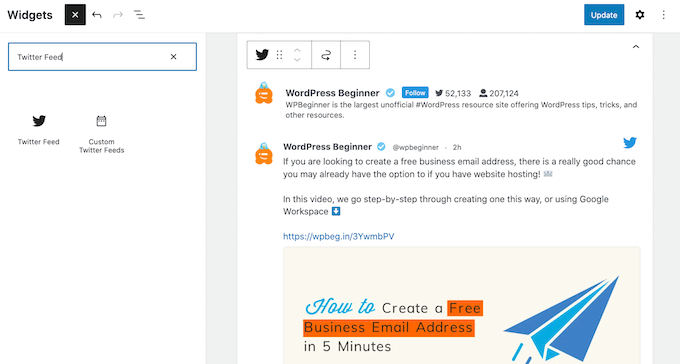
You can also create fully custom widgets, like an author bio with a photo and links to social profiles, to make your site more engaging.
That being said, let’s see how you can use a visual editor to create custom widgets in WordPress.
Simply use the links below to jump to the method that’s right for your theme:
Method 1: Using the Widgets Options Plugin (Works With All WordPress Themes)
The easiest way to add custom content to your widget areas is by using the Widget Options plugin.
It adds lots of extra settings to the standard WordPress visual widget editor, including the ability to show different widgets depending on the user’s role, hide WordPress widgets on mobile, and more.
It also adds a Text widget that you can customize with your own links, images, formatting, and more. This allows you to add rich, custom content to your widget areas without having to write any code.
First, you need to install and activate the Widget Options plugin. For more details, see our step-by-step guide on how to install a WordPress plugin.
Upon activation, go to the Appearance » Widgets page in your WordPress dashboard.
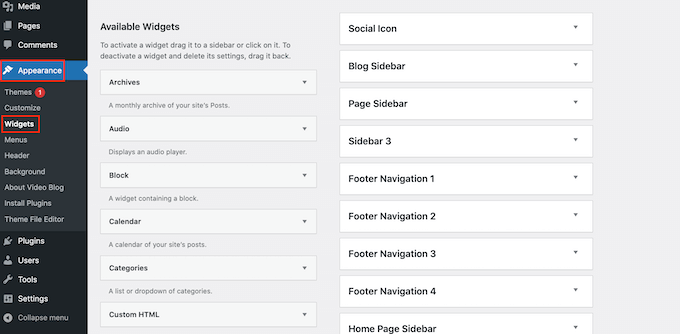
You’ll now see a list of all the widget areas in your WordPress theme. The Widget Options plugin adds an enhanced Text widget.
Find this widget and simply drag and drop it onto any widget area, like the sidebar or footer.
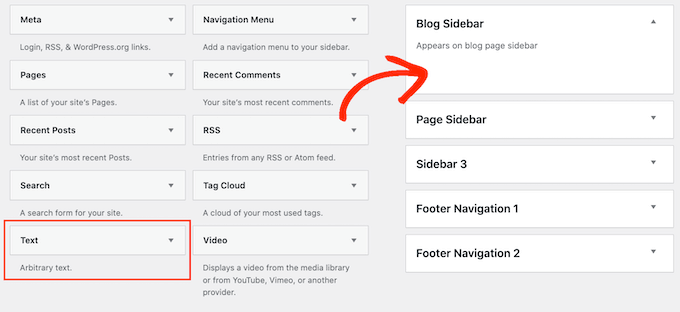
Once you do that, the Widget Options plugin will open a small popup.
This popup acts like a mini-page or post editor, so it should look familiar.
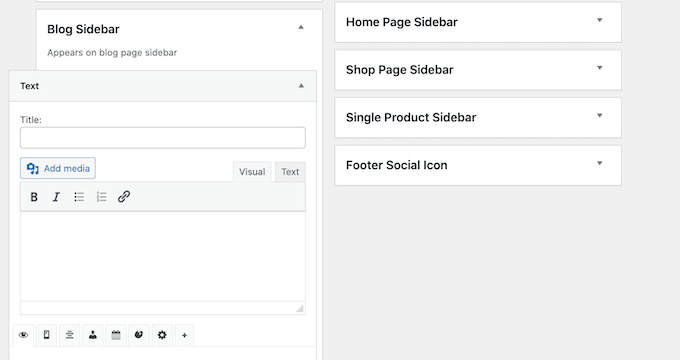
To start, you can type in a title, which will appear above the widget.
After that, you can type text directly into the small editor, add links and images, change the formatting, add bullet points and numbered lists, and more.
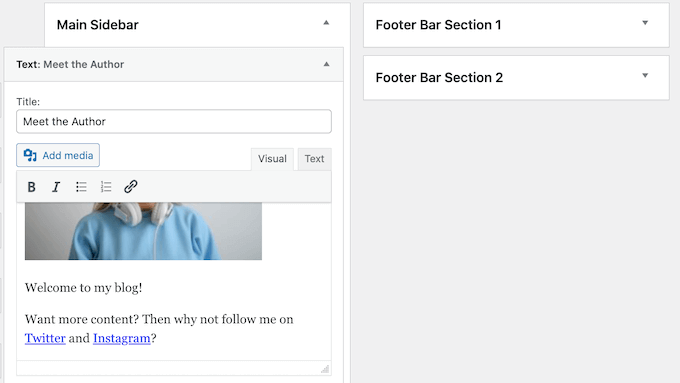
You can also show or hide widgets on specific WordPress pages and add custom styles to the WordPress widget.
When you are happy with the widget’s setup, click the ‘Done’ link to save its settings.
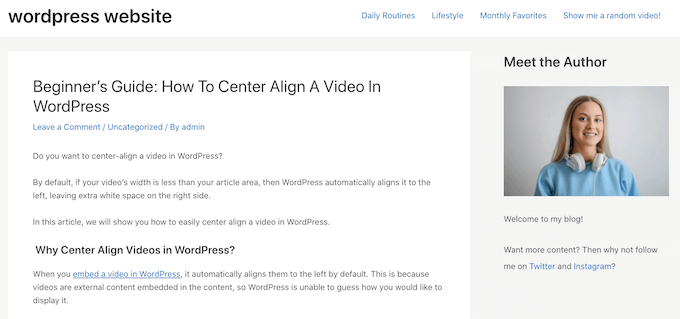
Now, if you visit your website, you’ll see the new rich-text widget live.
If you are using a classic WordPress theme, you can also create custom content for widget areas visually using the WordPress Customizer.
Simply go to Appearance » Widgets, but this time, click on ‘Manage with Live Preview.’
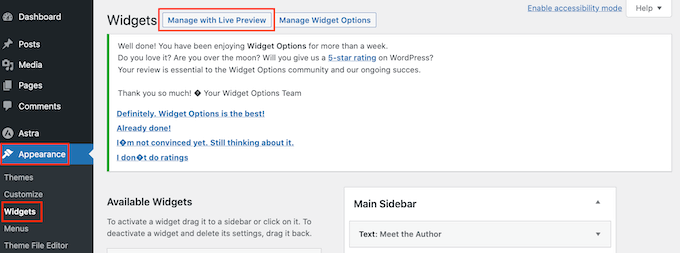
This will open the Customizer with the widget settings already selected.
You can now click on the area where you want to add the custom widget.
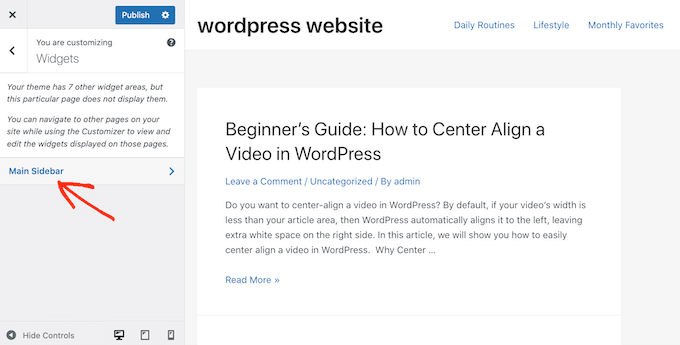
After that, click on ‘Add a Widget’, which opens a panel showing all the different widgets.
Simply find the classic Text widget and give it a click to add it to your website.
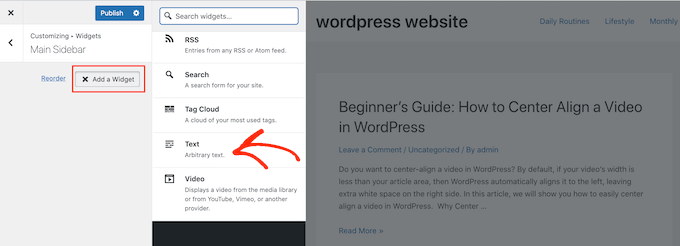
This opens a small editor where you can add text, links, media, and more.
As you make changes in the editor, the live preview will update automatically.
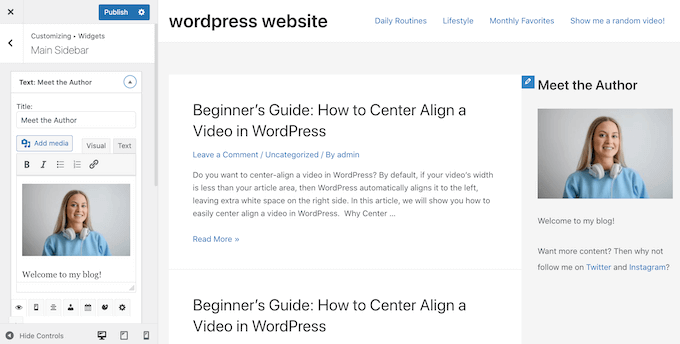
When you are happy with how the widget looks, click on the ‘Publish’ button to make it live on your WordPress blog or website.
If you can’t find the theme customizer in your WordPress dashboard, then please see our guide on how to fix the missing theme customizer in the WordPress admin.
Method 2: Using the Full-Site Editor (Works With Block-Enabled WordPress Themes)
If you are using a block-enabled WordPress theme, then you can add blocks to any area of your site’s templates using the full-site editor.
In this way, you can create custom content for areas like the sidebar by arranging standard WordPress blocks directly within your theme’s templates. You also don’t need to install a separate WordPress plugin.
It’s also a way to add widgets to areas you can’t edit using the standard WordPress widget editor or customizer. For example, you can add widgets to your 404 page template.
To get started, head over to Appearance » Editor in the WordPress dashboard.
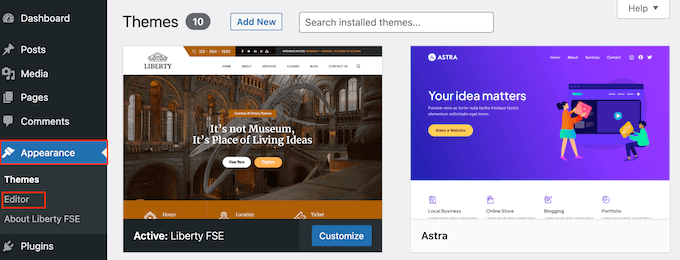
By default, the full site editor shows your theme’s home template, but you can add widgets and blocks to any area.
To see all the available options, just select either ‘Templates’ or ‘Template Parts.’
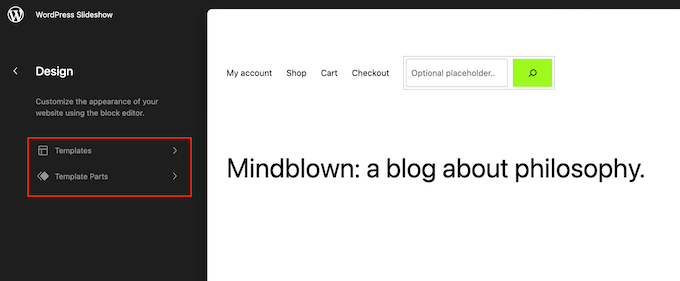
You can now click on the template or template part you want to edit.
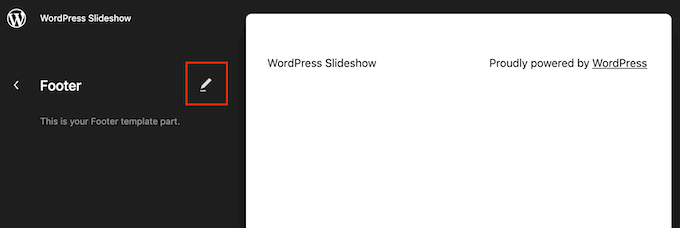
WordPress will now show a preview of the design. To go ahead and edit this template, click on the small pencil icon.
With that done, click on the blue ‘+’ icon and then find the first block you want to use for your custom content.
You can use any combination of blocks you like, but if you plan to use an image and text, then we recommend starting with the Media & Text block.
This allows you to easily arrange an image next to some text in a nice layout. With that in mind, the Media & Text block is perfect for creating an author info box, as you can see in the following image.
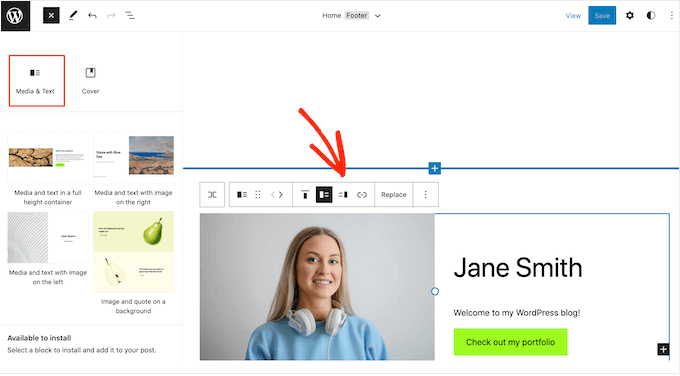
After selecting the block you want to use, just drag and drop it into a section of your template such as the sidebar and footer.
The full-site editor gives you access to the complete set of WordPress tools and settings. This means you can add a call to action button, text, links, images, and other content to a wider range of blocks.
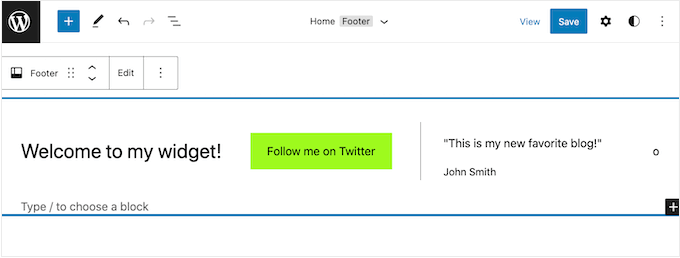
With that being said, you should be able to create exactly the custom content you had in mind. Simply add more blocks and content to your template until you’re happy with how it looks.
For more ideas on how to use your theme’s widget-ready areas, please see our checklist of things to add to the footer on your WordPress site.
When you are happy with the changes you’ve made, click on ‘Save.’
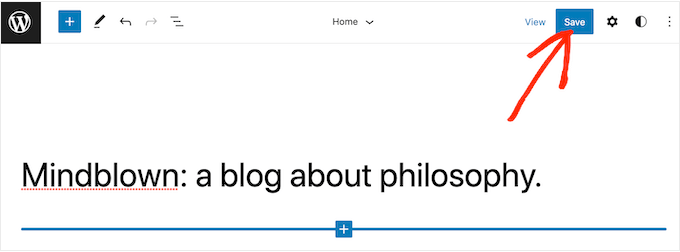
Now, if you visit your WordPress website, you’ll see the new custom content live in your template.
Frequently Asked Questions About Using a Visual Editor to Create Widgets in WordPress
Here are some questions that our readers frequently ask about creating widgets using the visual editor:
Do I need to install a plugin to create widgets visually?
Not always. If you’re using a block theme, you can add widgets using the Full Site Editor with no extra plugins.
However, if your theme doesn’t support the full-site editor, using a plugin like Widget Options gives you more control over where and how your widgets appear.
Why can’t I see changes to my widget right away?
If your widget doesn’t update instantly, try clearing your site cache and browser cache. Some caching plugins or CDNs may delay changes.
Using the Live Preview option is a good way to confirm your widget updates before publishing.
Can I add plugins’ custom blocks (like Smash Balloon or WPForms) inside a widget area?
Absolutely. Most modern plugins, such as Smash Balloon, WPForms, or MonsterInsights, include their own blocks that can be placed in any widget-ready area.
You can drag these blocks into your sidebar, footer, or header just like any other block.
What’s the difference between using the Widget Options plugin and the Full Site Editor?
The Widget Options plugin works with all themes, including older ones that don’t support FSE.
The Full Site Editor only works with block-enabled themes and offers deeper design flexibility since you can edit headers, footers, and templates visually.
We hope this article helped you learn how to easily use the visual editor for WordPress widgets. You may also want to see our guide on tips for mastering the WordPress content editor and how to create a landing page with WordPress.
If you liked this article, then please subscribe to our YouTube Channel for WordPress video tutorials. You can also find us on Twitter and Facebook.


Max
Thanks for this.
This is particularly useful for certain premium theme developers like StudioPress. The entire theme home page is built on Widgets. So this technique would work really well.
Ryan Love
You could also use Black Studio TinyMCE widget – http://wordpress.org/plugins/black-studio-tinymce-widget/
It does the same thing but allows you to do it within the widgets area and means you don’t have to have another item in your sidebar.
Hidayat Mundana
How can so I can add footer widgets in the other just below the footer ( footer widget should Fullwidth )
Is there a plugin that can be used ?
WPBeginner Support
Most themes have columns defined for footer widgets like three or four after that new widgets are placed below. If this is not the case with your theme, then you may need to define a new widget area.
Admin
Your Real Name
Andor and WPBeginner, thanks so much for these tips. I’ve often seen widgets that looked great and figured that I’d have to know how to code to do something similar. With these tips (don’t know whether I’l use the plugin or Andor’s tip) I now know how to create some nice widgets without coding.
Thanks!
Martin
Karen
Awesome!!! You guys always give me the best info at right, just when I need it, time!! xx
Andor Nagy
Hi,
Nice tutorial, but there’s a much easier way to do this. You simply make the look in the post editor, then you choose the text tab instead of the visual, and copy the html code into a text widget. And it requires no plugin.
Regards,
Andor Nagy
WPBeginner Support
Yes Andor you are right this would work. But it is basically for users who are developing for clients. Now if you told the clients that you can use visual editor in posts it would confuse them. This plugin provides a user interface with different labeling to do exactly what you suggested above.
Admin