


Are you looking for an easy way to find 404 error pages on your WordPress website and redirect them?
404 errors occur when users try to reach a page on your website that no longer exists. These errors create a bad user experience, which can lead to a drop in search engine rankings and lower eCommerce sales.
In this article, we will show you how to easily track 404 pages and redirect them in WordPress.
What Is a 404 Error?
A 404 error is an HTTP status code that shows that the server couldn’t reach the web page you are trying to visit.
This means that if you enter a URL of a web page that does not exist, then you will see a ‘404 Page Not Found’ error.
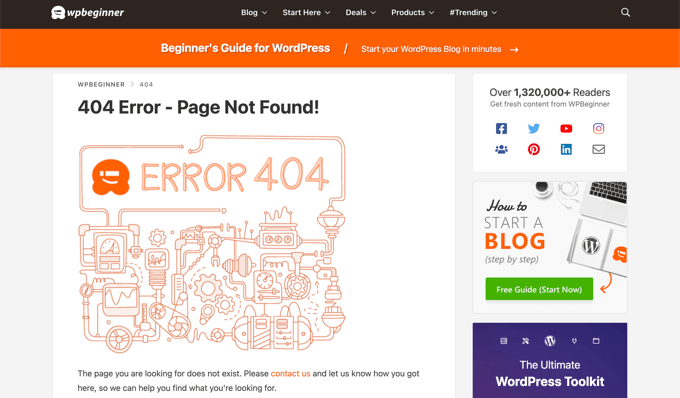
Now, there are many reasons why the 404 error occurs. It could be because the visitor made a mistake when entering the URL, the page was deleted from the website, or the domain name no longer exists.
Another cause of the 404 error is when a page was moved to another URL but wasn’t properly redirected, resulting in a broken link.
Finally, sometimes server malfunctions can also lead to 404 errors on a WordPress website.
Why Track and Redirect 404 Pages in WordPress?
Now that you know the different causes of 404 errors, let’s take a look at why it’s extremely important for website owners to track 404 errors and fix them.
404 errors are bad for your site’s user experience. If users can’t find the page they are looking for, then they will likely leave your site and go to your competitors.
This means you will lose potential customers and miss an opportunity to convert your visitors into subscribers.
Aside from that, 404 errors have a negative impact on your WordPress SEO rankings. Search engine ranking algorithms often penalize websites when they run into broken links.
Not to mention, these broken pages will cause you to lose valuable backlinks for your website, which results in lower domain authority and a significant drop in Google keyword rankings.
With that being said, let’s take a look at how you can easily track 404 pages and redirect them in WordPress. We will cover two different methods, so feel free to click the links below to jump ahead to your preferred method:
Video Tutorial
If you’d prefer written instructions, then just keep reading.
Method 1: Track & Redirect 404 Pages Using AIOSEO (Recommended)
The easiest way to track and fix 404 pages on your WordPress website is by using the All in One SEO plugin for WordPress, which is also known as AIOSEO. It’s the best SEO WordPress plugin that is used by over 3 million professionals.
AIOSEO allows you to easily find pages with broken links and fix them with just a few clicks using its powerful Redirection Manager.
The best thing about AIOSEO is that it helps you set up faster 301 redirects, which helps you improve search engine rankings.
For this tutorial, we will be using the AIOSEO Pro version because it includes the powerful Redirection Manager addon. There is a free version of AIOSEO, but it doesn’t include 404 monitoring or the Redirection Manager.
First, you will need to install and activate the AIOSEO Pro plugin. For more details, please see our step-by-step guide on how to install a WordPress plugin.
Activating Redirects and Enabling 404 Error Logs in AIOSEO
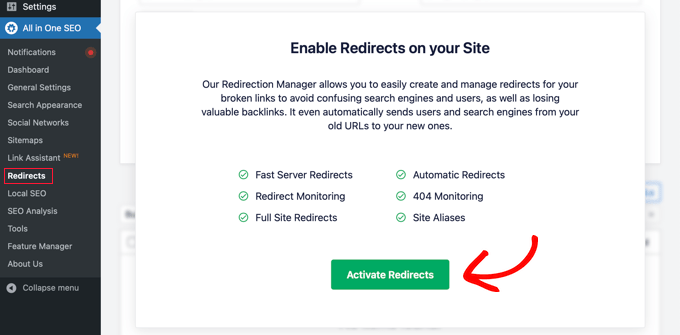
Once the plugin is active, you can go to All in One SEO » Redirects and click the ‘Activate Redirects’ button.
After that, you need to visit the ‘Settings’ tab under Redirects and configure the plugin to keep 404 logs and track pages with broken links.
Simply scroll down to the ‘Logs’ sections and make sure that the ‘404 Logs’ option is enabled. Next, select the time period to record the 404 logs using the dropdown menu. We recommend no longer than one month for optimal server performance.
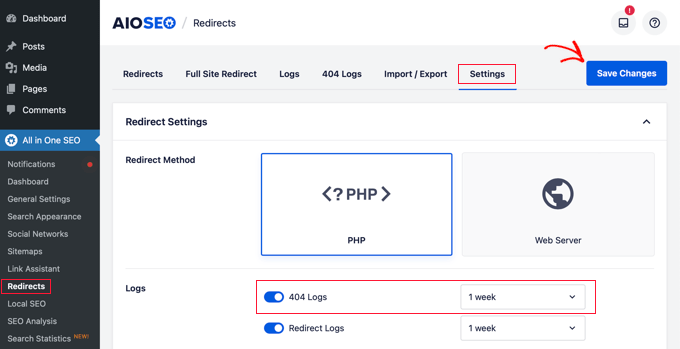
Once you are done, go ahead and click the ‘Save Changes’ button.
You will now see a ‘404 Logs’ tab in the Redirects section in AIOSEO. When you first enable 404 logs, this page will not have any data because it only starts monitoring 404 pages after you enable the setting.
In time, it will show a list of all the URLs that have a 404 error. You will see how many times someone tried to visit the link in the ‘Hits’ column and the date when it was last visited in the ‘Last Accessed’ column.
Once you have identified the pages with broken links, you can simply redirect them by clicking the ‘Add Redirect’ button. You should redirect the URL to a relevant page on your website.
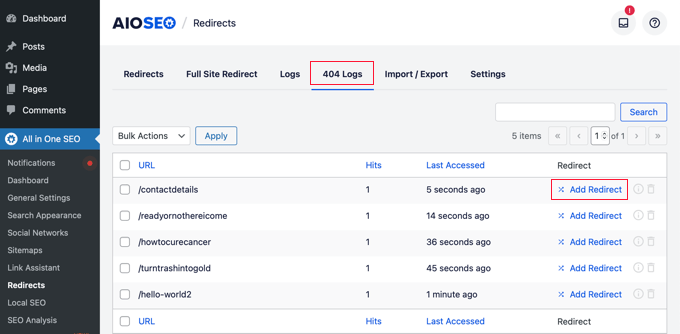
When you click the button, you will see the option to enter a target URL and select the redirection type from the dropdown menu.
For example, you can move a page permanently by selecting the ‘301 Moved Permanently’ option.
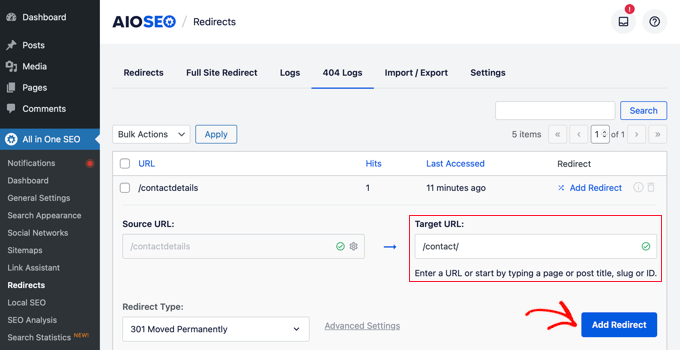
After that, click the ‘Add Redirect’ button, and your broken link will now automatically redirect to the new target URL.
Clearing 404 Error Logs in AIOSEO
With time, the size of your log file can grow and take up a lot of disk space. A lack of WordPress hosting disk space can lead to errors. To make sure that you don’t run into this problem, it’s a best practice to delete and clear 404 error logs.
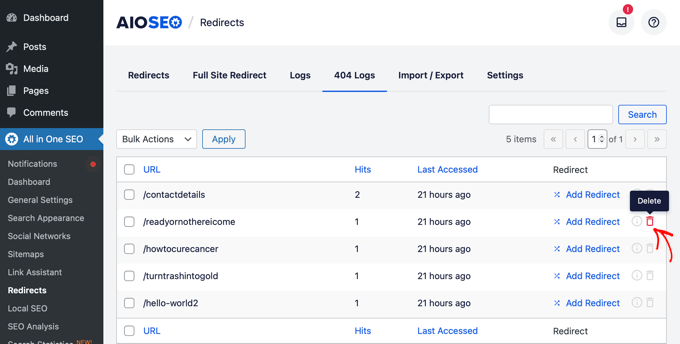
With AIOSEO, you can easily delete any individual 404 error from your logs by clicking the trash can icon.
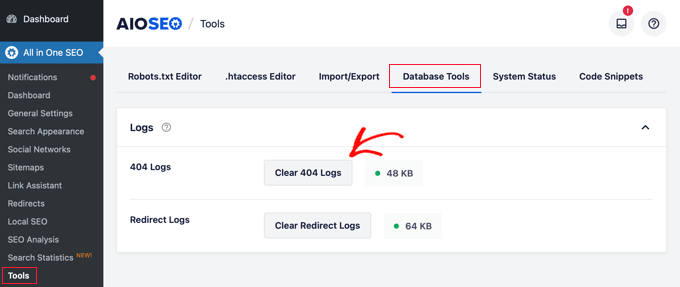
You can also bulk delete your 404 logs by going to All in One SEO » Tools and then clicking on the ‘Database Tools’ tab.
Now, just scroll down to the ‘Logs’ section and click the ‘Clear 404 Logs’ button.
Permalink Monitoring in AIOSEO
Aside from tracking 404 errors, the AIOSEO Redirect Manager also comes with permalink monitoring. This means that if you delete a page on your site, or change the URL of any blog post, then AIOSEO will automatically notify you to set up a redirect.
In some cases, AIOSEO can even set up the proper 301 redirects for you without any effort.
Bonus Tip: Set Up Faster 301 Redirects in WordPress With AIOSEO
AIOSEO also allows you to set up faster redirects by going to the ‘Settings’ tab and choosing the ‘Web Server’ redirect method.
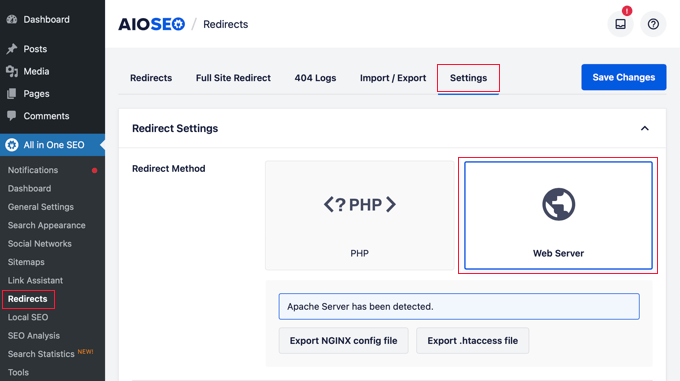
This allows you to unlock significant speed improvements when compared to the default WordPress/PHP redirect method.
Method 2: Track & Redirect 404 Pages Using the Redirection Plugin
The next method to track and redirect 404 errors is by using the free Redirection Plugin for WordPress. This is an advanced plugin, so some beginners may find it harder to use.
First, you need to install and activate the plugin. For more details, please see our step-by-step guide on how to install a WordPress plugin.
Upon activation, go to Tools » Redirection and then scroll down and click the ‘Start Setup’ button to set up your redirects.
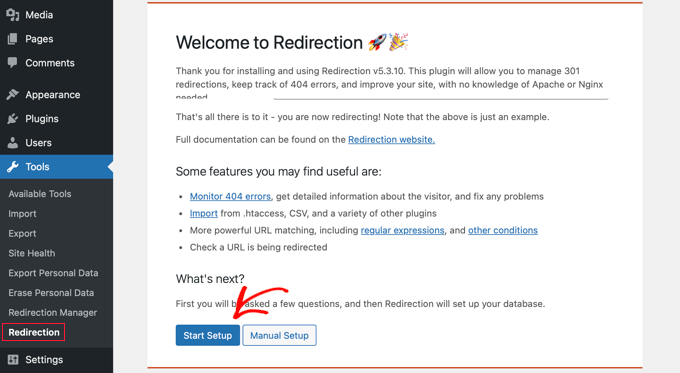
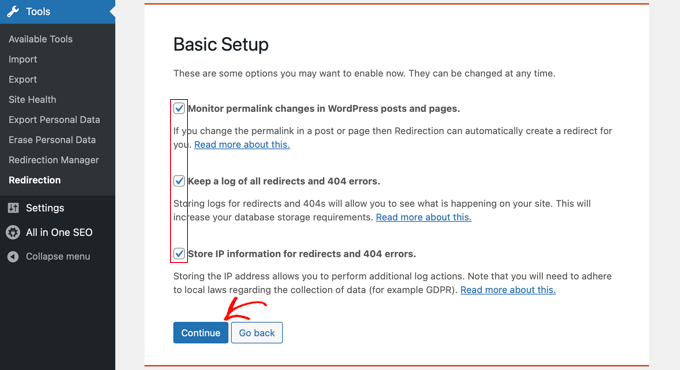
After that, the plugin will ask whether you would like to monitor permalink changes in WordPress and keep logs of redirects and 404 errors.
Just select the checkbox for these options and click the ‘Continue Setup’ button.
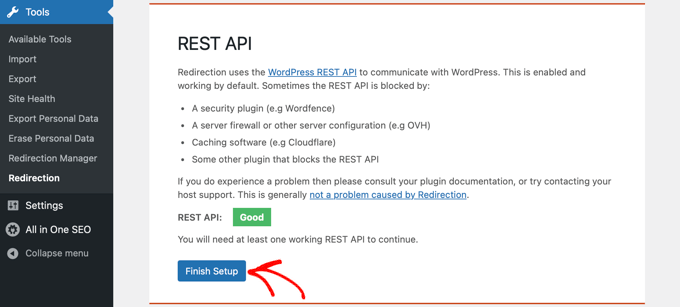
The plugin will now test the REST API status.
When the status result comes back as ‘Good’, you can click the ‘Finish Setup’ button.
After that, the plugin will set up redirection. This will take several seconds, and when it is complete, you will need to click the ‘Continue’ button and then the ‘Ready to begin!’ button.
Now, you can start to redirect your 404 pages.
Simply enter the URL of the page you want to redirect in the ‘Source URL’ column.
Next, select whether you’d like to exactly match the query parameters, ignore them, or pass them through to the target URL from the ‘Query Parameter’ dropdown menu.
Now, you need to enter the Target URL to where the 404 page will be redirected, keep the Group option as ‘Redirection’, and click the ‘Add Redirect’ button.
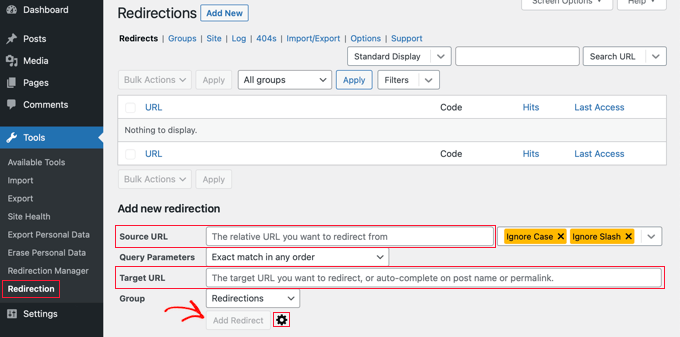
If you want more options to set up redirection, then just click the gear icon next to the ‘Add Redirect’ button.
You can begin by adding the old URL showing 404 in the ‘Source URL’ field, selecting the Query Parameter like before, and adding a title to describe the purpose of this redirect.
After that, select the ‘Match’ option from the dropdown. You will see multiple options, including URL only, URL and referrer, URL and user agent, and URL and login status.
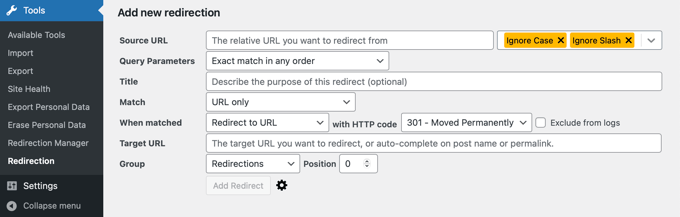
In most cases, you want to use the ‘URL and referrer’ setting. That’s because if you see several 404 requests for a specific page, then those users probably clicked on the same link to the wrong URL rather than all typing the same wrong web address.
Now, whenever someone else clicks on the broken URL, it will automatically redirect them to the new location.
Next, make sure that your action is ‘Redirect to URL’. The other options are complex and require advanced technical knowledge.
For the redirection type, you need to select an option from the HTTP code dropdown. For a permanent redirection, this should be ‘301 – Moved Permanently’.
Lastly, enter the target URL in the ‘Matched Target’ field. After you have entered this information, just hit the ‘Add Redirect’ button.
You can go to the new URL to test and make sure that the redirection is working properly.
The plugin also has the option to track 404 error logs. Simply click on the ‘404s’ tab at the top, and the plugin will show you recent 404 errors that occurred on your site since you installed the plugin.
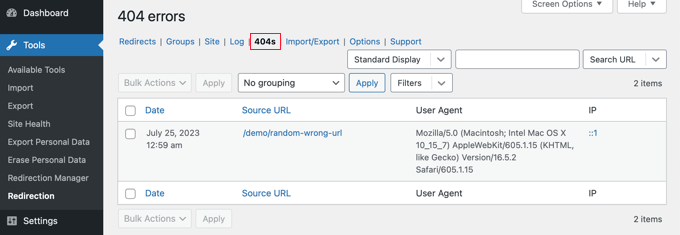
Note: If you just enabled the Redirection plugin, then the 404 log page will be empty. It only starts keeping a log of 404 errors after the plugin is activated.
Bonus: Design a Custom 404 Page With SeedProd
Setting up redirects means that visitors shouldn’t run into many 404 error pages on your WordPress website. However, if they do land on a 404 page, it’s a good idea to have a custom design that will help out your users.
Including your custom branding can make your 404 page look more reputable. Adding a contact form can allow users to tell you the address they entered that triggered the 404 error. You can even include links to your popular posts or products so that visitors will be tempted to stay on your website.
Luckily, it’s easy to design a custom 404 page with SeedProd. It’s the best WordPress landing page builder and comes with plenty of customizable templates for 404 pages.

You can learn more in our complete guide on how to improve your 404 page template in WordPress.
Expert Guides on Handling 404 Errors in WordPress
Now that you know how to track and redirect 404 errors, you may like. to see some other guides related to handling 404 errors in WordPress.
- Beginner’s Guide to Creating 301 Redirects in WordPress
- How to Find and Fix Broken Links in WordPress (Step by Step)
- How to Fix WordPress Posts Returning 404 Error (Step by Step)
- How to Improve Your 404 Page Template in WordPress
- Best WordPress 404 Error Page Design Examples
- How to Redirect Your 404 Page to the Home Page in WordPress
- How to Get Email Alerts for 404 Errors in WordPress
- Best Free 404 Redirect Plugins for WordPress
- How to Fix the 403 Forbidden Error in WordPress
We hope this article helped you learn how to track 404 pages and redirect them in WordPress. You may also want to see our guide on how to increase your blog traffic the easy way or our expert picks of the best 404 error page examples to inspire your website design.
If you liked this article, then please subscribe to our YouTube Channel for WordPress video tutorials. You can also find us on Twitter and Facebook.


Syed Balkhi says
Hey WPBeginner readers,
Did you know you can win exciting prizes by commenting on WPBeginner?
Every month, our top blog commenters will win HUGE rewards, including premium WordPress plugin licenses and cash prizes.
You can get more details about the contest from here.
Start sharing your thoughts below to stand a chance to win!
Mrteesurez says
Instead of redirection the 404 error page, why can one rebuild or customize it and make it a landing page that can even leads to conversion.
Thanks for the article.
WPBeginner Support says
You certainly can and it would depend on the use case for if a 404 page or a redirect would be better
Admin
Moinuddin Waheed says
Very often we encounter nice and intuitive 404 error pages with some navigation links to the other pages of the website.
it is good idea to completely redirect them without them having to navigate themselves to other pages.
Having said that, redirecting from 404 error pages, does it completely hide the error from users and just redirect behind the wall to some other pages of encountered 404 error or it shows 404 error and then redirects to other pages?
WPBeginner Support says
It would depend on the specific content that would originally cause a 404, if you have a good replacement article then you can redirect to the new article.
Redirecting would mean that your new page is shown instead of a 404 error.
Admin
Jiří Vaněk says
I would like to ask if it’s really a good strategy to perform redirects for 404 pages. Personally, I’ve taken the approach of creating a really nice 404 page where I apologize for the mishap and offer the reader other website content. This means showing them the latest 10 articles that might interest them. I’ve also designed the page to reduce frustration and give the reader a bit of amusement, even if they didn’t find what they were looking for. Why I’m asking: If I redirect to another page, won’t the user be confused that not only did they not find what they were looking for, but also they won’t see the information that the page doesn’t exist? Thus, preventing them from futilely searching for it and instead giving them a direct message that unfortunately, that content no longer exists?
WPBeginner Support says
It heavily depends on your content, personal preference, and site for which would be best. This guide helps those who want to set up this redirect.
Admin
Ralph says
It is very important to take care of our 404 error as it may looks very unprofessional for our viewers. Once again you guys prove All in One SEO is great tool that can take care of many things that matter.
sarah hawkins says
We moved host and build and our new build pages load fine but the crawlers still locate pages from our old host that end in .html and these bring up error 404 pages but are not in my sitemap or build.
Will these disappear over time with new search engine crawls or do i have to do anything? Any help would be very much appreciated.
WPBeginner Support says
If they are important pages then it would normally be best to redirect them to the correct URL.
Admin
Nikolinayoga says
Hi, can you erase the 404 URL that the crawl found (without having them among the actual pages in the dashboard)
I want to erase them but don´t know how to “locate them” lol
Or in that case the only option is to redirect them to the homepage?
Thank you
WPBeginner Support says
It would depend on the specifics of what you mean. If the page does not exist then redirecting it to the home page would let search engines know the page does not exist
Admin
benafflic says
thanks for the insight. everything I read is crystal clear
WPBeginner Support says
Glad our guide could be helpful
Admin
Lauren says
This was SO helpful, thank you!!
WPBeginner Support says
Glad our article was helpful
Admin
Raymond Cyprian says
Good I stumbled upon this. Had been looking for a way to redirect error 404.pages. I think this did a good job for me. Pls can I uninstall the plugin once I have completed all redirects as I already have slot of plugins and they are beginning to slow down my site.
WPBeginner Support says
Hi Raymond,
Nope, you cannot uninstall plugin. Your redirects would stop working if you uninstalled plugin.
Admin
Raymond says
Thanks. Is there any code I could use to perform the 301 redirects?
WPBeginner Support says
Hi Raymond,
You can do that by setting individual redirects in .htaccess file using a code like this:
1-click Use in WordPress
For more details, see our guide on how to setup redirects in WordPress.
dimip says
Nice… I have recently moved from http to https and i see in google search results both http and https links both works but i want for all non https link that the user is redirected to https. Does the above tool is what i need?
Does google sees http to https as different website shall i use change of address tool or is enough that i have registered also the https ?
Do you have a quide or plan to make one with easy steps http to https ?
WPBeginner Support says
Please see our guide on how to add SSL and HTTPS in WordPress.
Admin
Dimip says
Thanks a lot I forgot to add that it was a migration from weebly to wordpress. The site is a perfect copy, all structure kept the same but at weebly was example.com/sample.html where at wordpress example.com/sample.
I have given the new sitemap to Google and deleted the order without redirect that happened before a month plus now the https I have seen a major drop down in SEO in search results. Is there a way to recover from this? For example if I can find again the old sitemap from weebly? For the Google map section things are the same. Some advice please?
Precious says
Hello, thank you so much for this tutorial! It helped me redirect some of my 404 pages that result from my recent Blogger-WordPress move.
However, I noticed I have A LOT of posts that need to be redirected to the right URL, judging from the number of tracked errors on the 404 tab. My question is is there a way to automate this? Some of these links are mobile links from my former blog with the m? added to them. The thing is it may take so long to do all those redirects one after the other. I am also concerned about losing the confidence of those who visit my site.
How do I fix this? Is there a way to automatically redirect all the 404 pages to the right posts? Please help me.
Romeo Mariano says
How do I redirect every 404 error to the home page?
Zain Zaheer says
In the Target Url section place your Homepage Url.
David Pascal says
I have just installed it and did some redirection. I hope it works the way I expect. Anyway, its a nice plugin. Thanks for the helpful post about it.
Jaswinder says
Can we redirect 404 page without using any plugin? If yes how?
Thanks
Jatin says
redirection plugins with woo-commerce – 404 product page redirect to there category page
http://example.com/product/testname or http://example.com/product/“%anything%”
its in Jeans category
to
http://example.com/Jeans-category page
How can we do it?
Will Franco aka Flywheel says
Watch out with the Redirection plugin though!
Redirection Plugin Trialing Slash Issue
a. Issue with and without trialing /
b. Currently, I have to setup two redirects per URL
If you don’t the URL that’s not setup in redirection will 404.
the bug is easy to miss! and the plugin documentation doesn’t specify that you actually need to create two redirects per one.
if you visit the target page by clicking the source first it will work
and then if you visit the non-trailing slash it will work
you have the visit the non-trailing slash first to get the 404 (i.e. like a visitor of your site)
and it seems nobody is talking about this either!!!
Courtney says
FYI… this is not a bug. This is what regex is for – you can check the “regex” box to use that option. Regular expressions allow you to create 1 redirection and then tell it to redirect with or without the trailing slash. Regex is how ‘normal’ htaccess file rules are created, which is what this plugin does via WP instead (unless you have it set up to use Apache or nginx). More about regex here – . GL.
WPBeginner Staff says
Redirects not only help search engines but will also help users coming from other sources. If you are confident that you will not loose any visitors then you can deactivate the plugin.
AL Spaulding says
Great little plugin. Just handled a big batch of redirects on a site with it. I have a quick question though.
While I am aware that the plugin must stay activated for the redirects to work, how long after the big “G” (google) has indexed the correct page(s) and ranked them accordingly wuld it be safe to remove the plugin?
For example: if howdy/doody/funny is redirected to howdy/doody/funny/humor, and Google is now ranking and indexing howdy/doody/funny/humor, after you alert google of the repair in Webmaster Tools; is it not safe to remove the plugin then? Or is this permanent for the life of the site?
Excuse the lengthy question. Thanks in advance.
max sarasini says
Can I use the redirection plugin alone to redirect my entire old blog http://www.thepaintedsmile.wordpress.com to my new, self hosted website? Or do I have to pay $13 annually for the wordpress redirect facility in order to do this?
WPBeginner Support says
You can not use plugins on WordPress.com, please see our guide on the difference between self hosted WordPress.org sites vs free WordPress.com blogs. You will have to buy Redirect addon from WordPress.com
Admin
Silas Jura says
Does this work if I am building a new website in WordPress (on a new domain) and replacing my site that is currently with Weebly (on our old domain)? We decided it would be easier to use a new domain (plus it’s more SEO friendly, I think) to build the new site on WordPress so the redirect would need to come from our old domain (TitanMgmtGroup.com) and redirect to the appropriate pages on our new domain (TitanPropertyManagement.co). What do you think, should I redirect the old domain or should I switch the WordPress site to the old domain once I’m done building it? Thanks for any help you can provide.
Nur Ahmad Furlong says
I really love the redirection plugin, it has however been misbehaving alot lately, I think the developers have not been keeping it up to date. It still works but can sometimes get you stuck with redirects you can’t remove even after deleting them.
I’m sticl with a tricky problem. I converted atons of auto generated categories to tags and now have a ton of 404’s I need to somehow redirect automatically.
Any ideas how I can bulk redirect 404 category links to the tag equavalent?
Trent says
I’ll give this plugin a try, sounds like it’ll work great. My only concern is that it will slow the site down. This leads me to a question: if I use the plugin now and fix all my 404s through 301 redirects with this app, then delete the app when I’m done redirecting all the pages, will the redirects stay, or will they go away with the app. In other words, do I need to keep the plugin installed and activated to keep the 301 redirects active? Thanks!
Editorial Staff says
The plugin has to stay activated for the redirects to work. If you only have a few redirects, then you can simply make those in the .htaccess file.
Admin
Frank says
And what does Google like this? Or will it give you a lowere rate?
Google cleans up the 404 results automatically right?
Editorial Staff says
Your 404 pages shouldn’t be getting indexed to begin with.
Admin
Brandon N. says
What are “match”, “action”, and “regular expression” used for? Was hoping that would be covered in the article.
javierojuel says
Is it better to manage the 404 error pages in the htaccess file or with this plugin? Is there a performance issue using one of these two systems?
wpbeginner says
@javierojuel This plugin is a must have for pretty much every blog. It is very well optimized. The point is that you can’t track 404 pages as well as this plugin does. Also by doing the hard code way, you can screw things up if you don’t know what you are doing. Redirection protects you at least to some extent.
TobyFoote says
Ironically, the Velvet Blues Plugin for WordPress link in this article goes to a 404 error page.
wpbeginner says
@TobyFoote Fixed it