


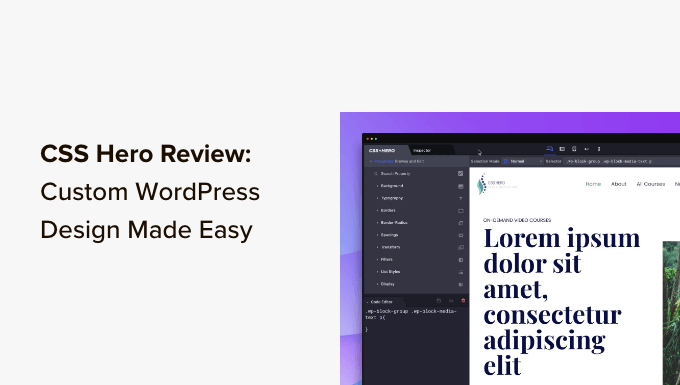
Want to make design tweaks that WordPress’s built-in customizer or even page builders don’t offer? The CSS Hero plugin lets you customize these hard-to-reach elements without touching any code.
We often use CSS Hero ourselves when we need to adjust specific design elements – like hover effects, complex spacing, or subtle animations – that usually require custom CSS. It’s perfect for those visual adjustments that seem simple but typically need coding knowledge.
In this CSS Hero review, we’ll show you how to use CSS Hero to easily customize your website’s appearance. Whether you’re tweaking button styles or adjusting complex layouts, this tool makes advanced customization accessible to everyone.
Here is an overview of the topics we’ll cover:
What Is CSS Hero?
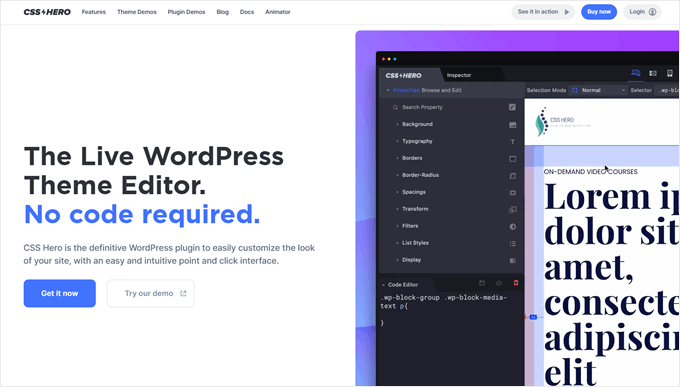
CSS Hero is a premium WordPress plugin that allows you to design your own WordPress theme without writing a single line of code (no HTML or CSS required).
You can undo changes to your WordPress design quickly, making it extremely helpful for beginners. All changes are saved as an additional stylesheet, so you can update your WordPress theme without worrying about losing the changes.
You will find CSS Hero equally good if you are a designer or developer. It works well with all popular WordPress themes and frameworks. You can quickly change a theme or child theme and export it to a client’s website.
How We Used and Tested CSS Hero
We’ve actually been using CSS Hero in many of our WordPress tutorials already. It’s become our go-to solution when readers need to make specific design adjustments without coding.
Here are some examples:
- How to Add Custom Styles to WordPress Widgets
- How to Style WordPress Navigation Menus (Updated)
- How to Style Individual Categories Differently in WordPress
For this review, we took an extra step and installed CSS Hero on a fresh test site. We went through every feature and applied various customizations. This thorough testing helps us catch any new capabilities or limitations that we might have missed in our day-to-day usage.
Why Trust WPBeginner? 📣
We’ve been tracking WordPress customization tools since 2009, testing every major solution that enters the market. With so many plugins available, we understand how overwhelming it can be to choose the right one for your website.
Our recommendations come from real testing and hands-on experience. Most importantly, we’re constantly updating our knowledge as WordPress evolves. When tools like CSS Hero release new features or updates, we will evaluate them and share our findings with you.
For more information, you can check out our editorial guidelines.
Is CSS Hero a WordPress Page Builder?
No – CSS Hero and page builders serve different purposes. CSS Hero is specifically designed for making style adjustments to your existing theme elements, while page builders are for creating entirely new page layouts.
Think of CSS Hero as a design customization tool. It lets you tweak color schemes, spacing, typography, and other visual elements without touching code, but it won’t help you build new pages from scratch.
For creating custom layouts, landing pages, or sales pages, you’ll want a proper page builder like SeedProd. It’s our recommended solution that lets you build any type of page using drag-and-drop blocks, pre-made templates, and powerful design controls.
You can check out our SeedProd review for more information.

How to Use CSS Hero to Customize Your WordPress Theme
First, you need to install and activate the CSS Hero plugin. For more details, see our step-by-step guide on how to install a WordPress plugin.
Since CSS Hero is a premium WordPress plugin, you need to pay $29 for a single site. That said, we think the price is totally worth the investment, considering the time and hassle it will save you.
You can use the CSS Hero coupon code WPBEGINNER to get a special discount of 34% Off. If you buy the PRO plan, the same code will get you a 40% discount.
Upon activation, you will be redirected to get your CSS Hero license key. Follow the on-screen instructions, and you will be redirected back to your site in a few clicks.
CSS Hero aims to provide you with a WYSIWYG (what you see is what you get) interface for editing your theme.
Simply visit your WordPress website while logged in, and you will notice the CSS Hero button in the WordPress admin bar.
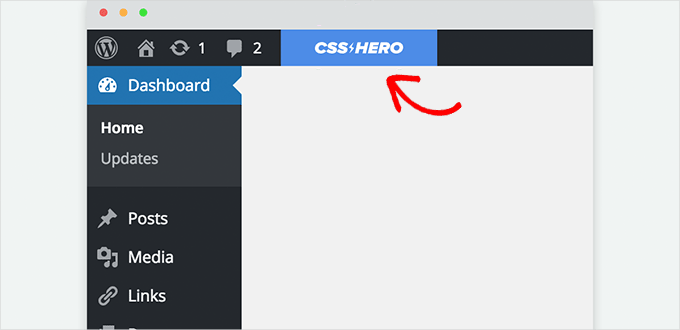
Clicking on the button will convert your site into a live preview.
You will now be able to see the CSS Hero editor. It has a top and bottom toolbar, a left column, and a live preview of your website.

Next, take your mouse over to an element that you want to edit, and CSS Hero will highlight it to indicate where you are.
Clicking on it will select that element and show its properties in the left column.
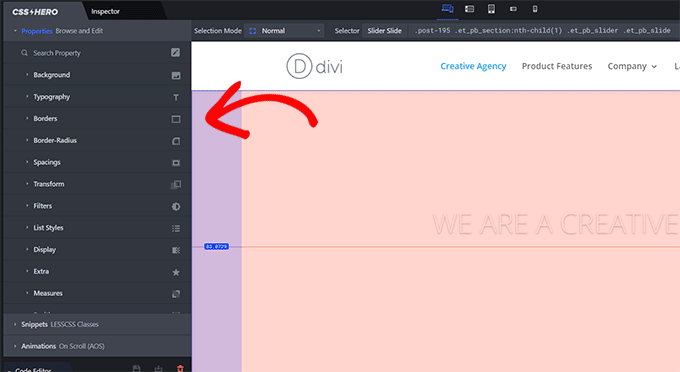
These will include common CSS properties for the selected element, like the background, typography, borders, spacing, and more.
You can click on any item to expand it and then edit the CSS properties using a simple user interface.
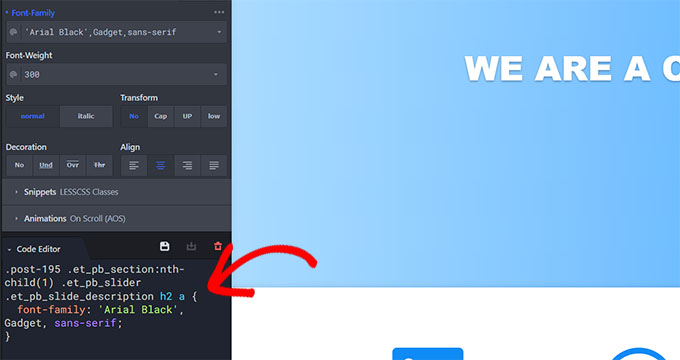
As you make changes, the custom CSS magically appears below.
If you are learning CSS, then you will find it helpful to see how different CSS changes are applied with the result in the live preview.
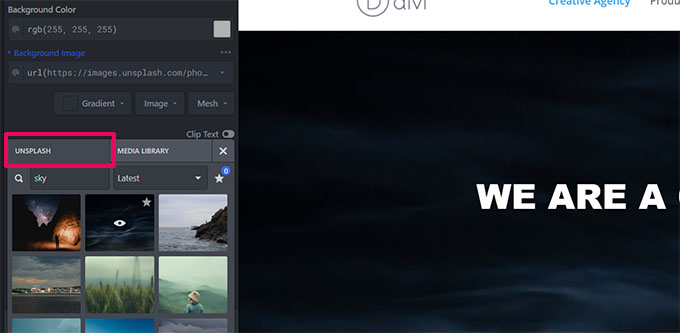
Having trouble finding royalty-free images for your website?
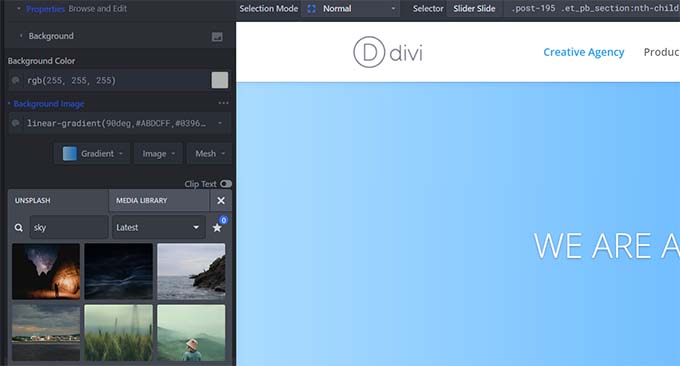
CSS Hero also has a built-in Unsplash integration, allowing you to browse, search, and use beautiful photographs in your website’s design.
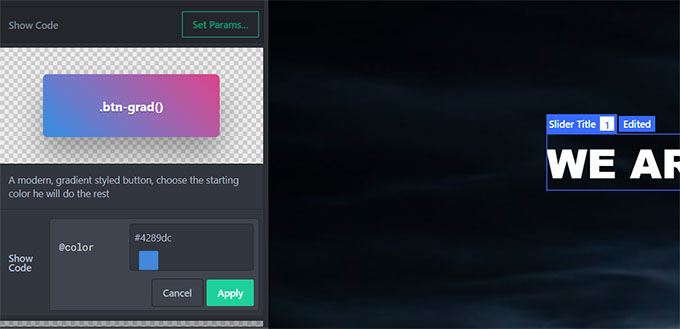
CSS Hero also comes with some ready-made snippets that you can apply to different elements on your website.
Switch to the ‘Snippets’ tab in the left column, and you will see a bunch of common elements listed there.
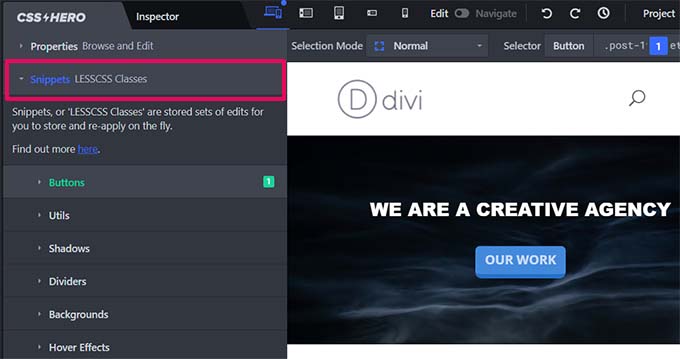
You can click to select an element, and CSS Hero will show you different style variations.
Click on the ‘Set Params’ button to edit a style you like, and then click the ‘Apply’ button to add it to your theme.
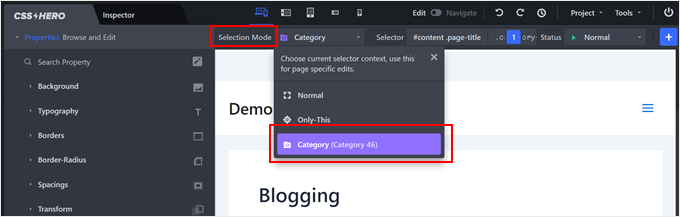
Another cool thing CSS Hero can do is customize a specific element on individual posts or certain template types. To do this, navigate to the ‘Selection Mode’ setting at the top left side of the screen. This determines how widely your customizations will apply:
- Normal: Your changes affect every instance of that element across your site
- Only This: Changes apply to just the specific element you’re editing
- Template/Archive Types: Changes apply to all pages using that template (like category pages)
This flexibility lets you make targeted design changes exactly where you need them, without affecting other parts of your site.
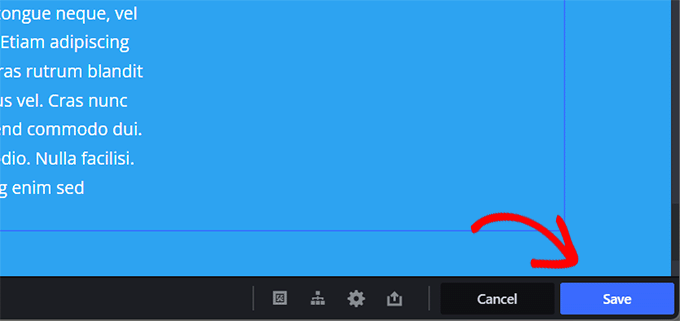
As you make changes to your website, CSS Hero will autosave those changes but not publish them.
To apply these changes to your live website, click the ‘Save and Publish’ button in the bottom right corner of the screen.
How to Undo Changes in CSS Hero
One of the best features of CSS Hero is the ability to undo any changes you make at any time.
CSS Hero keeps a history of all the changes you make to your theme. Simply click on the history button in the CSS Hero toolbar to see the list of changes. This button looks like a small clock.
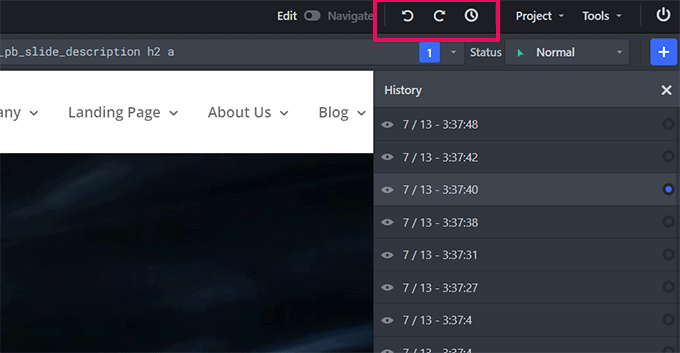
You can click on a date and time to see what your site looked like at that time. If you want to revert to that state, save or resume editing from that point.
This doesn’t mean that changes you made after that point will disappear. They will still be stored; you can also revert to that time. It doesn’t get any simpler than that.
But what if you only want to revert changes you made to a particular item?
In that case, you don’t need to use the history tool. Click on the element you want to revert to an earlier version and then click the ‘Reset’ button.
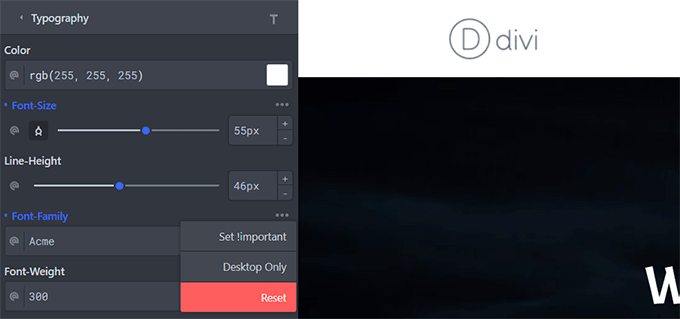
This will change the item back to the default settings defined by your WordPress theme.
Customizing Your Site for Mobile Devices in CSS Hero
The most challenging aspect of web design is device compatibility. You must ensure your site looks equally impressive on all devices and screen sizes.
Web designers use various tools to test for browser and device compatibility. Lucky for you, CSS Hero comes with a built-in preview tool.
Select a mobile, tablet, or desktop device in the top toolbar. The preview area will change to that device. You can also toggle between ‘Edit’ and ‘Navigate’ modes to hide other toolbars.
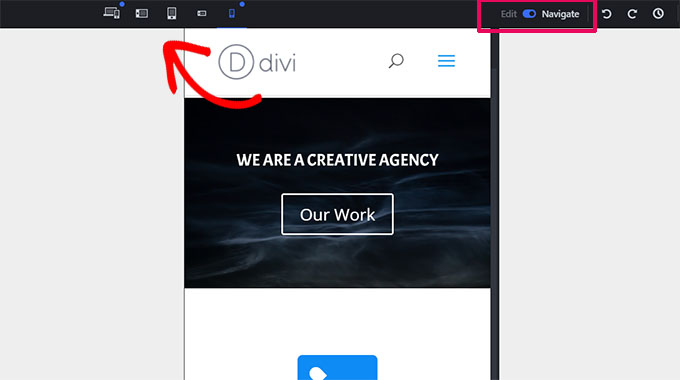
Switching to the ‘Edit’ mode will allow you to edit your site while previewing it for mobile devices. This tool is handy for tweaking your theme’s design for mobile and tablets.
Is CSS Hero Compatible With All WordPress Themes?
The official CSS Hero website has an ever-growing list of compatible themes. This list includes many of the best free WordPress themes.
It also has the most popular premium themes from shops like Divi, CSSIgniter, Themify, StudioPress, Astra, and more.
What About Themes Not on the Theme Compatibility List?
CSS Hero comes with a feature called Rocket Mode Auto-detection. If you use a theme not included in the theme compatibility list, then CSS Hero will automatically start using Rocket Mode.
Rocket Mode tries to guess the CSS selectors from your theme. This works perfectly most of the time. If your theme follows WordPress coding standards, then you will be able to edit almost everything.
You may also want to contact your theme developer and ask them to provide compatibility with CSS Hero.
Which Plugins Are Compatible With CSS Hero?
CSS Hero is regularly tested with top WordPress plugins for compatibility.
These include contact form plugins, popular page builders, WooCommerce, and others.
If you are using a WordPress plugin that generates an output that is not editable by CSS Hero, then you can ask the plugin author to fix that. They don’t need to do much to provide compatibility with CSS Hero.
For more details, see our guide on how to properly ask for WordPress support and get it.
We hope that you found our CSS Hero review useful. You may also want to see our ultimate guide on improving WordPress speed and performance for beginners and our comparison of the best WordPress theme builders.
If you liked this article, then please subscribe to our YouTube Channel for WordPress video tutorials. You can also find us on Twitter and Facebook.




Dennis Muthomi
This CSS Hero review is incredibly comprehensive and helpful! I particularly appreciate the detailed explanation of how it differs from page builders like SeedProd. As someone who’s struggled with CSS customization in the past, the ability to make changes without coding and easily undo them is a game changer.
The built-in Unsplash integration and device compatibility preview are fantastic features I would want to try out.
This review has convinced me to give CSS Hero a try.
Thank you for such an informative and well-structured review!
Jiří Vaněk
This is a very useful tool. Sometimes, when I needed to modify something on my website, I used to struggle with using Firefox’s inspect tool or various developer tools from other browsers to find the CSS class I needed to adjust, which often took a long time. Then, I had to rely on AI-assisted CSS editing because I don’t understand CSS myself. This completely changes the game for such modifications and greatly simplifies everything. Great tool!
THANKGOD JONATHAN
Thank you the post. You have made it really simple with this plugin to customize Wordpress site. I will really try CSS Hero sometime.
Ralph
I had 3 websites for over 10 years on wordpress and I never touched CSS. I tried as I had to fix something that i couldn’t do in theme builder but that never turned around good. All tutorials were super complex and didn’t really help people who are not familiar with coding.
Good to know there are alternatives now that can help less tech savy people to do what they just want to do, without learning new skill just to fix few small thing.
WPBeginner Support
Glad we could share this plugin with you
Admin
Frank Biganski
I have nearly ten years’ experience with WordPress and somewhat knowledgabe with CSS. I cannot write it but I can implement it with help.
I purchased the CSS Hero plugin as they state it will work with LearnPress LMS plugin. However, after giving it a go, I found the plugin does not work with the LMS.
I spoke with my very experienced theme developer (WPExplorer) and he stated, in short terms, the LearnPress plugin is complexly and somewhat poorly written, which will make the CSS Hero plugin not function properly.
CSS Hero states a 30 day money back guarantee however after contacting them twice, and two weeks later, I still have not heard back from anyone at CSS Hero.
Just beware about the warranty as it seem I will have to try and contact my credit card company and try to cancel.
WPBeginner Support
Thank you for sharing your experience, just to be safe please be sure that any messages they may have sent are not caught in your spam folder.
Admin
Claire Smith
Hi there,
Does CSS Hero work with the Simple Membership plugin do you know? Many thanks
WPBeginner Support
You would want to check with CSS Hero for any questions about current conflicts.
Admin
Richard
I just started up a new website and have been crazy frustrated with the inability to customize themes very much. A lot of the controls are locked behind paying for a theme, but I’m not even sure if I like the theme enough to risk paying for it because I can’t edit everything enough. Will CSS Hero let me sidestep buying themes and edit the free versions?
WPBeginner Support
It would depend on the customizations you are looking for, CSS hero will certainly help you customize your site without the need for a paid theme. You may want to take a look at their demo page on their site to see what the plugin is able to do.
Admin
Michael
Amazing how good this is in the review. Maybe it’s got something to do with all of the affiliate links that you’ve got peppered throughout it to make referral money from it?
I’m not saying that the plugin isn’t good, but these sort of reviews are hard to take seriously. If it was really good you could say so, but saying that it’s good on the same page as trying to make money from selling it makes it seem like a very big paid editorial advertisement for this plugin.
WPBeginner Support
Hi Michael,
At WPBeginner, we only recommend products that we have used and tested. Please see our disclaimer page to learn more about how we make money on this website.
Admin
Art
I’m a little confused as to why you would use CSS Hero with a theme builder like Elementor or Divi other than seeing the code that is use for a certain element. Am I missing something?
Jon Seager
Hi thanks for letting me be the first questiner. Still have broblems showing them w/o the image box on the main page but on the single product page I was able to ditch the image then sqoosh the placehold off the screen to the left. It didn’t really squoosh but it did allow the text to start at a more respectable starting point.
I would still love to speak to someone that has enough free time to allow me to hire on a task based relationship. I could use some help making a better searchbar with to and from date and then some plus much more work to do and could use a partner to divie up the tasks and work together.
Samuel Lin
Hi, found wpbeginner is really helpful for beginner as I am.
One of the subsite under my multisite had installed with Affinity theme which we love very much.
But when we added Buddypress plugin, the display of buddypress group admins and mods is wasting a lot of space especially on mobile
Can we modify the layout of BP under Affinity using CSS Hero?
Thanks,
Sam
WPBeginner Support
Hi Samuel,
We are not sure, please contact the plugin author to learn if someone has tried it with BuddyPress and Affinity.
Admin
Erik
Hello there,
is this plugin compatible with Slider revolution (5.4) and Visual Composer?
It could be a faster way in working with this – than with the others… in some cases.
Love to hear from you!
Erik
Louis
Can’t find CSS HERO in the plugins
WPBeginner Support
Hey Louis,
CSS Hero is a paid plugin available from its own website.
Admin
AnnaD
Hello
I’ve perchased this plugin but can’t use it: CSS Hero isn’t active
but I can’t finf the way where can I activate it …
Enn
Hi,
Very nice overview and the plugin itself looks really useful. I have downloaded the CSS Hero, but not able to start it up on my computer. Is this plugin meant for Mack only?
Regards,
Enn
WPBeginner Support
Hi Enn,
No, it is a WordPress plugin and would work on any WordPress installation.
Admin
Jerry
I just recently discovered WPB. Though I have been a WP site maintainer for several years i find that I am learning something new every time i view one of your tutorials. Thanks. I appreciate your efforts.
WPBeginner Support
Hi Jerry,
Thank you for kind words. Don’t forget to join us on Twitter for more WordPress tips and tutorials.
Admin
Al
Will this plug in remove the menus on a Pavillioin theme, one of the standard Wordpress themes? I see how it is kind of like firebug in that you can identify the part of the code you want to change but this plug in will actually allow you to change it without knowing code, right? But will it remove the menu instead of changing color or location or whatever.
Thanks
Anthony
Hi,
I purchased a wordpress theme from theme forest and uploaded the theme to my wordpress builder. The site is being hosted by inmotion hosting. My question is, since i am using the wordpress site builder to work on my site, after I install the plug in for CSS Hero, will that button still appear on the top right of my site so i can edit the content when im using the wordpress web builder? or do i have to host my site to have that capability? i dont think it matters if someone else is hosting my site correct? as long as im using the wordpress builder? little ignorant to this and so im learning as I go. Thanks
WPBeginner Support
Hi Anthony,
If your theme follows the standard WordPress coding best practices then you will be able to use it with CSS Hero without any problems. If you cannot, then please contact your theme’s support.
Admin
Derek
I have have just returned to a wordpress site to update but the CSSHERO plugin does not work even though it is visible on the page. Nothing happens when I hover over content even though CSSHero seems to be active. The plug in active (V 2.1) but I noticed that the current version is 2.3 but no notice to update?
WPBeginner Support
Hi Derek,
Please contact the plugin’s support team. For a quick work around, you can manually upload the plugin’s zip file.
Admin
THE VIP
Isn’t it is same as Chrome Dev Tools….I didn’t found any considerable differences b/w CDT n CSS hero….
BTW coupon code is not working for me too ???
Jitka Hruzova
I have Yuuta free theme. atm, I need this to be able to modify size, of my logo on the website ( using jetpack is terrible, it inserts the logo but it is a small and I can modify size or anything) is it going to work for me?
Phermiki Phawa
How to make my blog become friendly with mobiles?
Bhaskar Dhiman
sir how we can compress the theme coding manually ? i am using newspaper 7.
Darshan Gajara
Wow! It’s a real hero.
Andy V.
Can CSS Hero be used with premium themes purchased on WordPress.com?
WPBeginner Support
No it cannot be used on WordPress.com. Please see our guide on the difference between self hosted WordPress.org vs free WordPress.com blog.
Admin
Juergen | webbeetle
I followed the link and came to page with “Pricing Plans”… A big no-no for me! I understand that this is the most efficient way for any business to make money, but I have no plans to subscribe to any “plan” – other than my website hosting (where I stopped to be a “loyal customer” when the service and load times aren’t right).
CSS Hero
There is no automatic subscription – you can renew every year if you want plugin updates – but the product WILL continue to work where it was installed – without paying each year.
Tom
Purchased your plugin, the first site i tried it on Wordpress Stella Magazine Theme……didn’t fly.
I’m disappointed
What can we do ?
WPBeginner Support
Please contact CSS Hero support.
Admin
Tom Tortorici
If you’re changing the properties of, say, h2, can you change it for just one instance or one page, or can it only change all the h2’s throughout the site?
WPBeginner Support
It can do both. For example you can create a custom class for h2 tags on a particular page.
Admin
Juliette
Amazing! It’s really what I need.
Working like a charm with DIVI and GENESIS!
Monnie
Hi, the discount code doesn’t seem to be working.
Editorial Staff
I just tried it, and it seems to be loading just fine. Can you please try again
Admin
Louise Findlay
Yes. I have been looking for something like this for a while.
Saurabh Chatterjee
Is it free ? if not, is there is any other visual css editor like this , which is free of cost ?
Editorial Staff
This is not free as stated in the article. No you will not find any free visual editor like this one.
Admin