


Your website’s background color sets the entire mood for your visitors.
Maybe you want something clean and professional, warm and welcoming, or bold and creative – whatever vibe you’re going for, the right background color can make all the difference.
The good news is that changing it doesn’t require any technical skills or expensive tools. WordPress has built-in features that let you customize colors with just a few clicks.
After helping many site owners personalize their websites, we’ve found that most people are surprised by how simple and immediate the process can be.
We’ll walk you through different easy ways to update your background color in WordPress, starting with the most beginner-friendly option and moving to slightly more advanced techniques.
💡Quick Answer: Which Method Should You Use?
Don’t have time to read the full guide? Here is a quick summary of the best method for your specific site:
- Theme Customizer: Best for classic themes. Use this method if you see Appearance » Customize in your admin menu.
- Full Site Editor: Best for modern block themes. Use this method if you see Appearance » Editor in your admin menu.
- Custom CSS: Best for advanced customizations, specific elements, or adding animation effects.
Why Your WordPress Background Color Really Matters 🎨
Think of your website’s background color as the walls of your digital home. While your WordPress theme comes with a default color, choosing the right background can make a big difference in how welcoming your site feels to visitors.
Here’s why this WordPress design element is so important:
- They make your content easier to read
- They help important information stand out
- They set the mood for your website
- They can make your site look more professional
The right background color can help highlight your important buttons and increase your conversions. You can also use different colors to organize your content better, like using specific colors for different blog categories or special announcements.
And if you want to make your site even more engaging, you can even add video backgrounds to catch your visitors’ attention.
That being said, let’s take a look at how to change the background color in WordPress. We will show you different ways to customize the background color so you can jump ahead to the section you prefer:
- How to Change Background Color in WordPress Theme Customizer
- How to Change Background Color in Full Site Editor (Block Themes)
- How to Change Background Color in WordPress With CSS
- How to Randomly Change Background Colors in WordPress
- How to Change Background Color for Individual Posts
- Bonus Tip: Use a Page Builder for More Design Control
- Frequently Asked Questions About Changing Background Colors in WordPress
How to Change Background Color in WordPress Theme Customizer
Depending on your theme, you may be able to change the background color using the WordPress Theme Customizer. It lets you edit the appearance of your site in real time and without the need to edit code.
Note: If you see Appearance » Customize in your dashboard, then you can use this method. However, if you see Appearance » Editor, then you should skip to the next method on using the full site editor.
To access the WordPress Theme Customizer, you can log in to your website and then go to Appearance » Customize.
This will open the Theme Customizer, where you’ll find multiple options to modify your theme. This includes the menus, colors, homepage, widgets, background image, and more.
The specific options available will depend on which WordPress theme your site is using. For this tutorial, we are using the default Twenty Twenty-One theme.
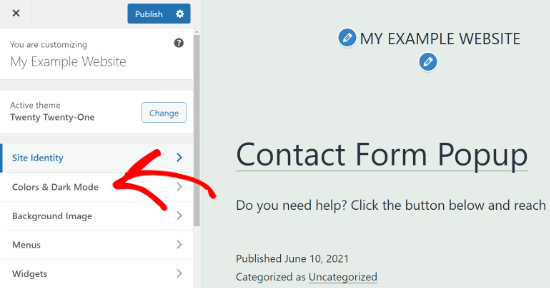
To change the background color of your website, go ahead and click on the ‘Colors & Dark Mode’ settings tab from the menu on your left.
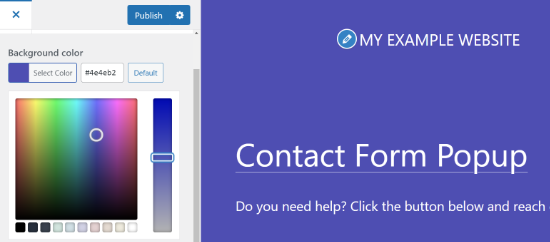
Next, you’ll need to click the ‘Background Color’ option and choose a color for your website.
You can use the color picker tool or enter a Hex color code for your background.
When you’re done with the changes, don’t forget to click the ‘Publish’ button.
You can now visit your WordPress website to see the new background color in action.

Your theme may not have this option available in the Theme Customizer. In that case, you can try one of the methods below.
How to Change Background Color in Full Site Editor (Block Themes)
The full site editor (FSE) is a WordPress editing platform for editing block themes. This editor makes it super easy to change your site’s background color. Let’s walk through the process together.
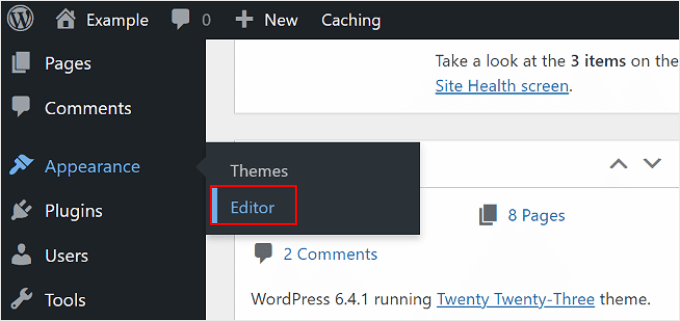
Start by going to Appearance » Editor in your WordPress dashboard.
Now, you’ll see a ‘Styles’ button in one of the menu options.
Go ahead and click on it.
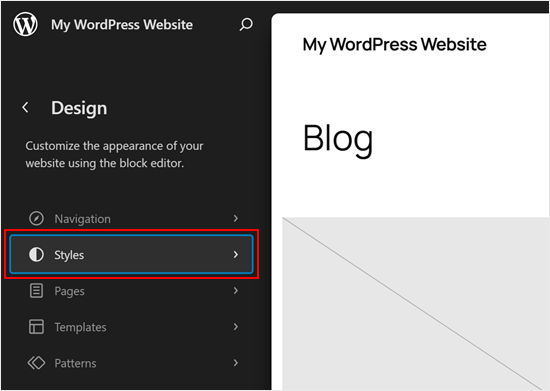
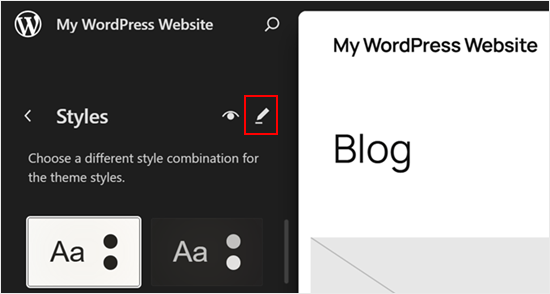
Now, click the pencil edit button.
This will bring you to the editing interface.
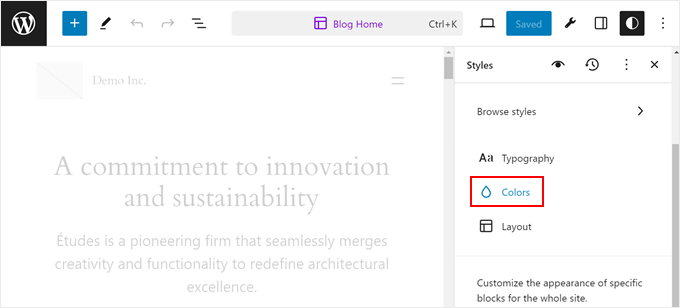
Now, you’ll notice a handy panel on the right side of your screen. This is your design control center where you can change colors, fonts, and more.
To change your background color, just click ‘Colors’ in the Styles panel.
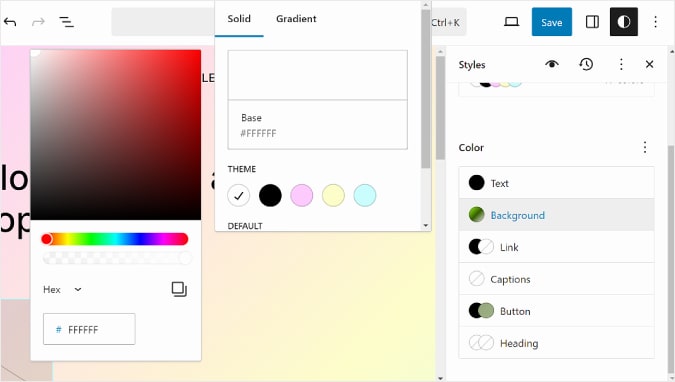
Next, click ‘Background.’
You can now choose between a solid color or create a gradient. Feel free to pick whatever matches your style. When you’re happy with your choice, hit ‘Save’ and you’re done!
How to Change Background Color in WordPress With CSS
Are you wondering how to change the background color using CSS?
Another way you can change the background color of your WordPress website is by adding custom CSS in the WordPress Theme Customizer.
To start, head over to Appearance » Customize and then go to the ‘Additional CSS’ tab.
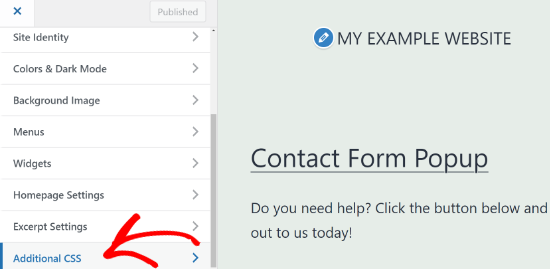
Next, you can enter the following code:
body {
 background-color: #FFFFFF;
}
All you have to do is replace the background color code with the color code that you want to use on your website. Next, go ahead and enter the code in the Additional CSS tab.
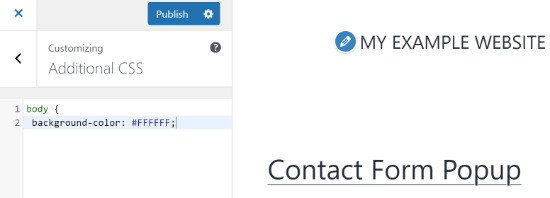
When you are done, don’t forget to click the ‘Publish’ button. You can now visit your website to view the new background color.
For more details, please refer to our guide on how to easily add custom CSS to your WordPress site.
How to Randomly Change Background Colors in WordPress
Do you want to add a smooth background color change effect to your site? This effect automatically transitions through different colors, which can be great for highlighting a specific section or grabbing attention.
To add the effect, you’ll need to add code to your WordPress website. We’ll walk you through the process below.
The first thing you’ll need to do is find out the CSS class of the area where you’d like to add the smooth background color change effect.
You can do this by using the Inspect tool in your browser. All you have to do is take your mouse to the area you want to change the color and right-click to select the Inspect tool.
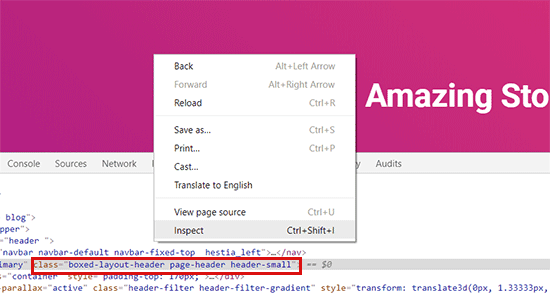
After that, you’ll need to write down the CSS class you want to target. For example, in the screenshot above, we want to target the area with a CSS class ‘page-header.’
Next, you need to open a plain text editor on your computer, like a notepad, and create a new file. You’ll have to save the file as ‘wpb-background-tutorial.js’ on your desktop.
Once that’s done, you can add the following code to the JS file you just created:
jQuery(function($){
        $('.page-header').each(function(){
            var $this = $(this),
            colors = ['#ec008c', '#00bcc3', '#5fb26a', '#fc7331'];

            setInterval(function(){
                var color = colors.shift();
                colors.push(color);
                $this.animate({backgroundColor: color}, 2000);
            },4000);
        });
        });
If you study the code, then you’ll notice that we used the ‘page-header’ CSS class as it’s the area we want to target on our website.
You’ll also see that we used four colors using the hex color code. You can add as many colors as you want for your background. All you have to do is enter the color codes in the snippet and separate them using a comma and single quotes, like the other colors.
Now that your JS file is ready, you’ll need to upload it to your WordPress theme’s JS folder. The easiest way to do this is with a file transfer protocol (FTP) client, which lets you directly manage files on your web server.
For this tutorial, we’ll use FileZilla. It’s a free and simple FTP client for Windows, Mac, and Linux. In fact, it’s a common tool we have tested ourselves for managing site files.
To start, you’ll need to log in to your website’s FTP server. You can find the login credentials in the email from your hosting provider or in your hosting account’s cPanel dashboard.
After you’re logged in, you’ll see a list of folders and files of your website under the ‘Remote site’ column. Go ahead and navigate to the JS folder in your site’s theme.
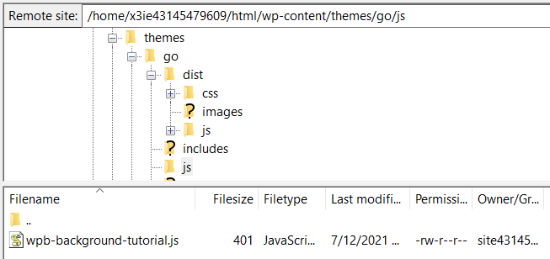
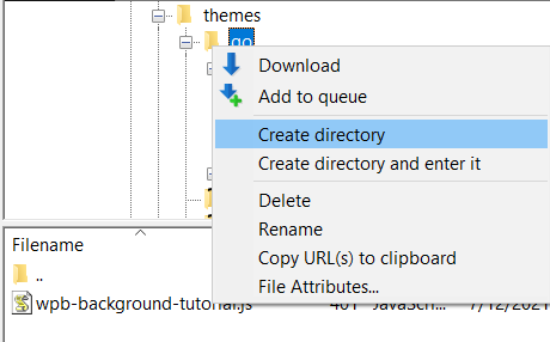
If your theme doesn’t have a js folder, then you can create one.
Simply right-click your theme’s folder in the FTP client and click the ‘Create directory’ option.
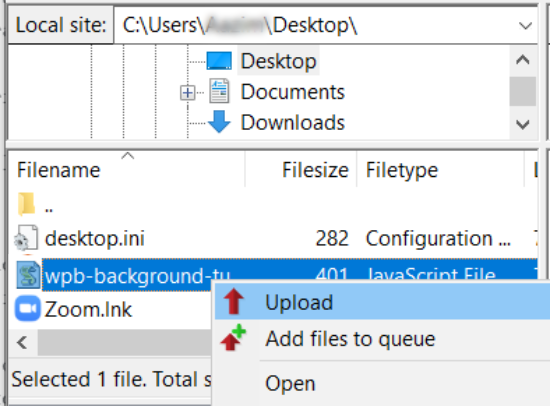
Next, you’ll need to open the location of your JS file under the ‘Local site’ column.
Then right-click the file and click the ‘Upload’ option to add the file to your theme.
For more details, you can follow our tutorial on how to use FTP to upload files to WordPress.
Next, you’ll need to enter the following code into your theme’s funtions.php file. This code properly loads the JavaScript file and the dependent jQuery script that you need for this code to work:
function wpb_bg_color_scripts() {
wp_enqueue_script( 'wpb-background-tutorial',  get_stylesheet_directory_uri() . '/js/wpb-background-tutorial.js', array( 'jquery-color' ), '1.0.0', true );
 }
add_action( 'wp_enqueue_scripts', 'wpb_bg_color_scripts' );
We recommend using the free WPCode plugin to safely add the code to your site. For more details, see our guide on how to paste snippets from the web into WordPress.
You can now visit your website to see the randomly changing colors in action in the area you targeted.

How to Change Background Color for Individual Posts
Would you like to give a specific blog post a unique look? You can change the background color of individual posts using custom CSS. This allows you to highlight special announcements, categorize content by color, or simply get creative with your design.
First, you need to find the specific Post ID class in your theme’s CSS. Simply view the blog post you want to customize, right-click anywhere on the page, and select the ‘Inspect’ tool.
Look for the <article> tag or the <body> tag in the source code. You will see a class that looks like post-104 or postid-104.
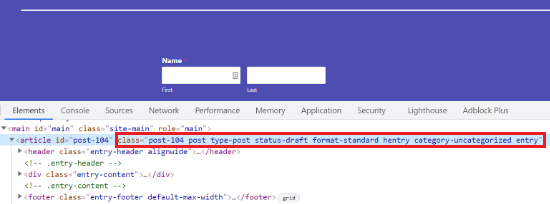
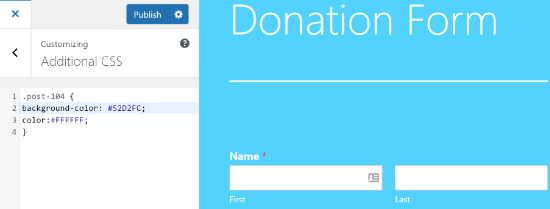
Once you have your post ID, you can use the following custom CSS snippet. Make sure to replace the post ID and the color code with your own details:
.post-104 {
background-color: #D7DEB5;
color:#FFFFFF;
}
To add this code, go to Appearance » Customize and paste it into the ‘Additional CSS’ tab.
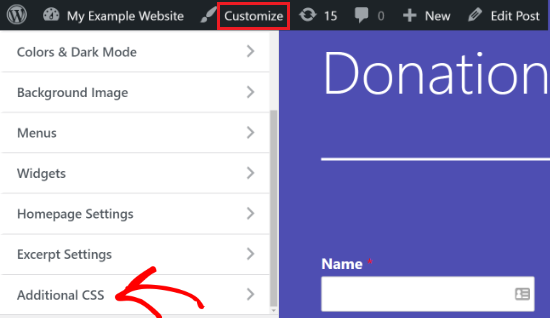
Once you click ‘Publish,’ the background color will change only for that specific blog post.
You can now visit your blog post to see the new background color.
If you want to change the background color based on author, comments, or category, then check out our detailed tutorial on how to style each WordPress post differently.
Bonus Tip: Use a Page Builder for More Design Control
Changing background colors is just the start. If you want to take full control of your website’s design, a page builder can open up so many more possibilities.
At WPBeginner, we recommend SeedProd because it’s the most popular and user-friendly page builder for WordPress. Our partner brands have also used it to design their websites, including WPForms, Duplicator, and Charitable.
It gives you complete design control and lets you:
- Design any page without coding
- Customize colors, layouts, and spacing
- Create professional-looking pages in minutes
- Make your pages look great on all devices
We have thoroughly tested the tool in our demo environment and have found it to be super intuitive and easy to use. To find out more about our experience, you can see our SeedProd review.
Getting started is easy – just install and activate SeedProd using our simple WordPress plugin installation guide.
Note: You can start with the free version, but SeedProd Pro gives you access to more templates and design options if you need them.
Once the plugin is active, you’ll be asked to enter your license key. You can find the key in your SeedProd account area. After entering the key, click the ‘Verify Key’ button.

Next, you can head over to SeedProd » Pages.
From here, click on the ‘Add New Landing Page’ button.
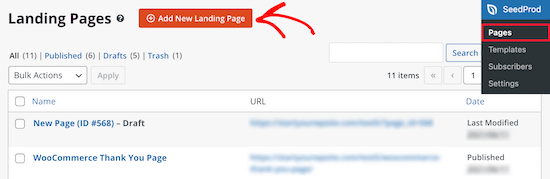
After that, you’ll need to select a theme for your landing page. SeedProd offers lots of beautiful landing page templates to get started.
You can also use a blank template to start from scratch. However, we suggest using a template as it’s an easier and faster way to create a landing page.

When you select a template, you’ll be asked to enter a Page Name and choose a URL.
After that, simply click the ‘Save and Start Editing the Page’ button.

On the next screen, you’ll see the SeedProd page builder. Here you can use the drag-and-drop builder to add blocks from the menu on your left. You can add a headline, video, image, button, etc.
When you scroll down, there are more blocks under the Advanced section. For example, you can add a countdown timer to create urgency, show social profiles to increase followers, add an option form to collect leads, and more.

Using the drag-and-drop builder, it’s effortless to change the position of each block on your landing page. You can even change the layout, size, color, and font of the text.
To change the background color of your landing page, simply select any section of the page. You’ll now see options in the menu on your left to edit the background style, color, and add an image.

After you’re done editing your landing page, don’t forget to click the ‘Save’ button at the top.
Next, you can head over to the ‘Connect’ tab and integrate the page with different email marketing services. For example, you can connect to Constant Contact, Brevo (formerly Sendinblue), and others.

After that, go ahead and click on the ‘Page Settings’ tab.
Here, you can change the Page Status from Draft to Publish to take your page live.

Other than that, you can also change the SEO settings of the page, view the analytics, add custom code under Scripts, and enter a custom domain.
Once you’re done, you can exit the SeedProd page builder and visit your custom landing page.

Video Tutorial
Frequently Asked Questions About Changing Background Colors in WordPress
Here are some questions frequently asked by our readers about changing background colors in WordPress:
Can I use an image for my background instead of a color?
Yes, you absolutely can. Most WordPress themes that let you change the background color also have an option to upload a background image.
You can typically find this setting in the Theme Customizer (Appearance » Customize) under a tab like “Background Image.” From there, you can upload a file from your computer.
Will changing my background color affect my site speed?
A solid background color has virtually no impact on your site’s speed, making it a safe and easy performance win.
However, using a large, unoptimized background image can significantly slow down your page load times. If you use an image, we always recommend compressing it first.
For more tips, please see our guide on how to optimize images for the web without losing quality.
How do I find the correct hex code for my brand color?
A hex code is a six-digit code that represents a specific color (e.g., #FFFFFF for pure white). The best place to find your brand’s hex code is in your company’s official style guide.
If you don’t have one, you can use a free online tool like HTML Color Codes. Their color picker lets you find the exact hex code for any shade you want.
We hope this article helped you learn how to change the background color in WordPress. You may also want to check out our guide on how to convert Figma to WordPress and our comparison of the best web design software.
If you liked this article, then please subscribe to our YouTube Channel for WordPress video tutorials. You can also find us on Twitter and Facebook.




Chris
Unfortunately, the Appearance » Customize link is not available on my site. Though, the customizer shows up when I type the URL in the browser’s search bar. I have to admit that customizing WordPress by the way of the Admin screen can be quite confusing. As I have been wondering how to do so for a while, this article has de-mystified some aspects of the process. Is there an article on how to edit raw HTML from the Admin screen?
WPBeginner Support
We do not have a specific tutorial for editing HTML at the moment.
Admin
Dayo Olobayo
What exactly are you trying to achieve by editing raw HTML? Often, desired changes can be made using the built-in WordPress editor or theme options. Knowing your specific goal might help suggest alternative solutions that don’t involve raw HTML editing.