


We use the Quick Edit feature constantly to make fast updates to our posts and pages. But it is incredibly annoying when you click the link, and it simply refuses to open.
This tool is meant to speed up your workflow, so a glitch here can really slow you down. The good news is that the cause is often a minor conflict that is easy to fix.
To fix WordPress Quick Edit not working, you need to first clear your browser cache and cookies. If the issue persists, check for plugin conflicts by deactivating all plugins or switching to a default theme to rule out theme issues.
We have fixed this issue on our own websites many times. In this guide, we will show you exactly how to repair the Quick Edit button in WordPress.
What Is Quick Edit in WordPress?
Quick Edit is a built-in WordPress feature that lets you make small changes to your content without opening the full editor.
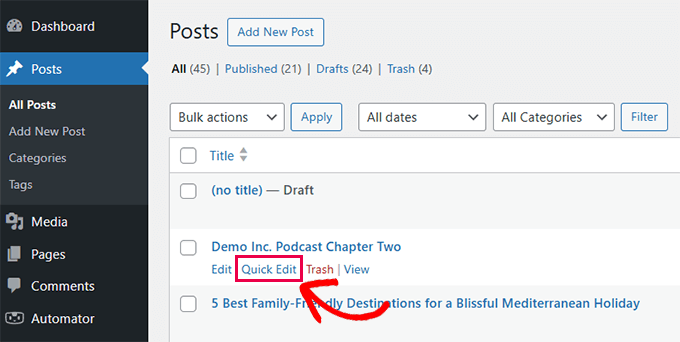
It appears as a link under each post, page, and custom post type in the WordPress admin dashboard. Note that you must hover your mouse over the post title row for the ‘Quick Edit’ link to become visible.
It allows you to edit basic details like the title, slug, categories, tags, and publish status directly from the post list screen.
This can save you a lot of time, especially when you need to rapidly update multiple posts or pages one by one.
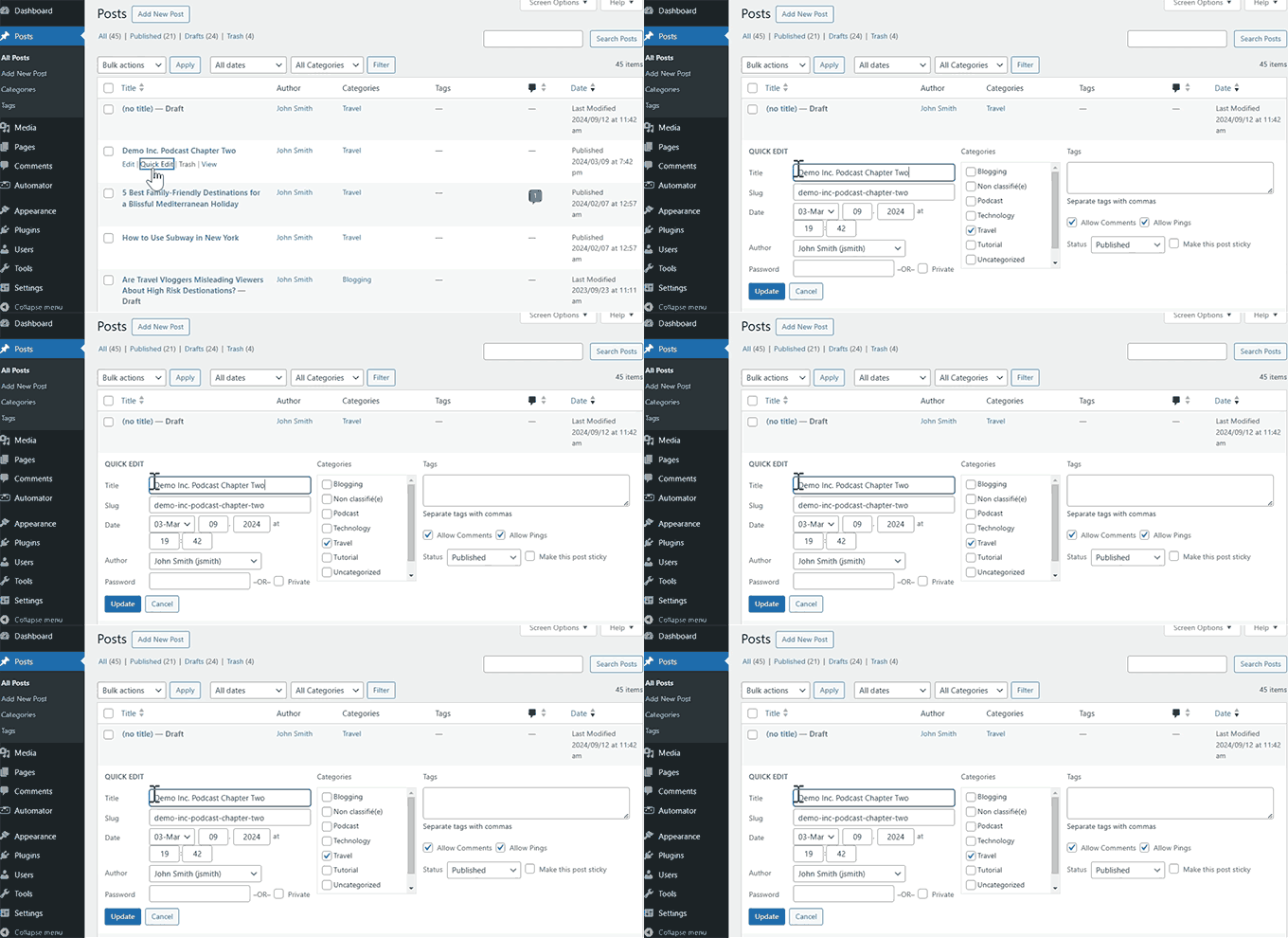
The Quick Edit feature does not allow you to edit the post content. It is intended for fast changes to meta items such as title, date and time, author, taxonomies, and status.
We’ve also found Quick Edit helpful when updating WooCommerce products. It makes product management faster without needing to load the full product editor.
However, when Quick Edit stops working or disappears, it can disrupt your workflow. It is important to know that Quick Edit is designed for desktop use. It may not be visible or function correctly on mobile devices or tablets where hover actions don’t exist.
Why Does Quick Edit Stop Working?
Quick Edit may stop working or disappear due to several reasons. These issues often come from minor conflicts or misconfigurations.
Before assuming something is broken, check your “Screen Options” tab at the top right of the dashboard. Sometimes columns are hidden, which can affect the layout.
Here are the most common causes:
- Browser-related issues: Cached files or JavaScript errors can prevent the Quick Edit link from loading correctly.
- Plugin conflicts: A poorly coded plugin may block the scripts needed for Quick Edit.
- Theme conflicts: Your active theme might be overriding core WordPress functionality.
- User role restrictions: If a user doesn’t have the necessary permissions, the link won’t appear.
How to Fix WordPress Quick Edit Not Working
Now that you know why Quick Edit may stop working, let’s go step by step to fix the issue. We’ll cover common troubleshooting methods that can resolve the problem quickly.
Important: Before you begin troubleshooting, we strongly recommend creating a full backup of your website. We use Duplicator because it is reliable and easy to use. This ensures you can restore your site if anything goes wrong.
Check Browser Issues
Sometimes, the problem is browser-related. Cached files or JavaScript errors can prevent Quick Edit from functioning properly.
Follow these steps to rule out browser issues:
- Clear your browser cache and cookies to ensure you’re loading the latest version of the WordPress dashboard.
- Open your site in an incognito or private window to test if the issue continues.
- If the problem is still there, check the browser console for errors. You can do this by right-clicking on the page and selecting Inspect, then clicking the ‘Console’ tab. (Chrome users can also press Ctrl+Shift+J on Windows or Cmd+Option+J on Mac).
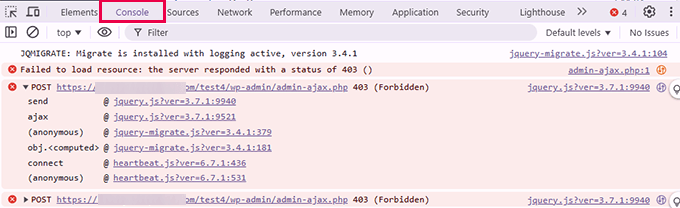
We’ve seen errors like Uncaught TypeError or Failed to load resource cause Quick Edit issues. If you spot errors like these, they may indicate a deeper conflict.
Disable Problematic Plugins
More commonly, a poorly coded WordPress plugin may block or create conflict with the core WordPress JavaScript responsible for executing the Quick Edit feature.
In our experience, WordPress caching plugins often cause these conflicts. Before you deactivate plugins, try clearing your WordPress cache first.
If that doesn’t work, follow these steps to find the conflict:
- Go to the Plugins » Installed Plugins screen.
- Select all plugins, choose ‘Deactivate’ from the Bulk actions dropdown, and click ‘Apply.’
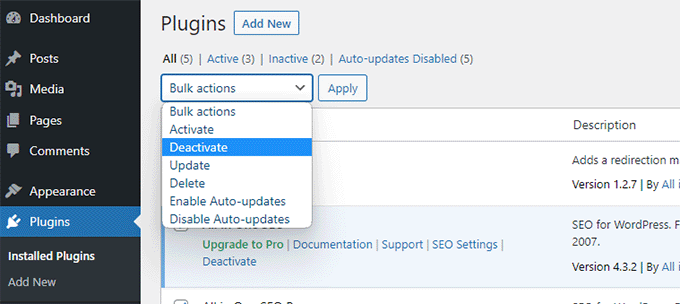
- Go to Posts » All Posts and check if Quick Edit works. If it does, a plugin was the problem.
- Reactivate your plugins one by one, checking Quick Edit after each activation to identify the culprit.
Once you have identified the plugin causing the issue, you can either find a replacement or contact the plugin author for support.
Also, if you have added custom code snippets using a plugin like WPCode, make sure to check if a specific snippet is causing the error.
Switch to a Default Theme
WordPress themes can conflict with the core software and other plugins. This can cause unexpected behavior, including JavaScript malfunctions.
Warning: Switching themes can affect your site’s appearance and widget settings. Make sure you have a backup (using Duplicator) before proceeding.
To test if your theme is the issue:
- Go to the Appearance » Themes page.
- ‘Activate’ a default theme like Twenty Twenty-Four or Twenty Twenty-Five.
- Test the Quick Edit feature again.
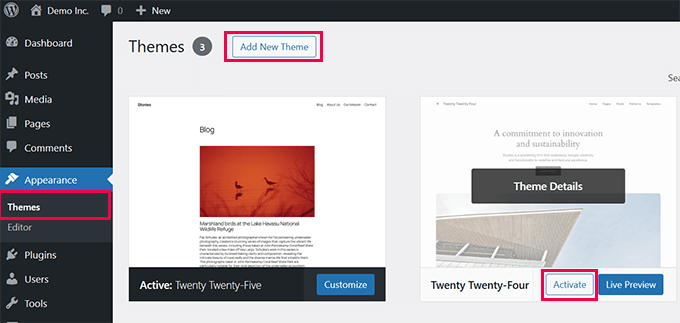
If switching to a default WordPress theme fixed the problem, then the issue was with your current theme. You can report the issue to the theme developer or find a new WordPress theme.
Check User Roles and Permissions
WordPress lets a website administrator choose user roles for different users on your website. Each role has different permissions that affect the Quick Edit link.
- Administrators and Editors: Can use Quick Edit on all posts and pages.
- Authors: Can only Quick Edit their own posts.
- Contributors/Subscribers: Usually do not have access to Quick Edit.
You can view what user role you are assigned by visiting the Users » All Users page and checking your role.
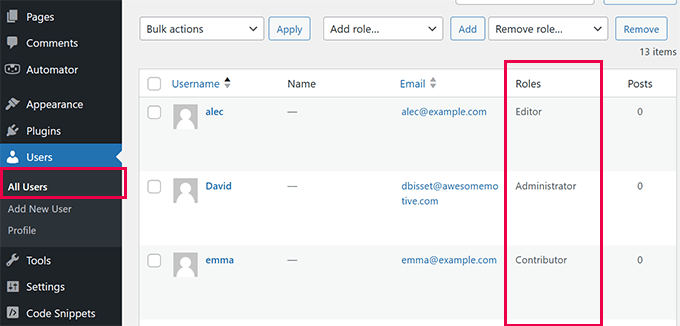
To learn more, we recommend reading our article on WordPress user roles and permissions.
Additional Resources for WordPress
Now that you have fixed the Quick Edit button, you might want to learn other ways to improve your workflow:
- How to Safely Update WordPress (Step by Step)
- How to Enable WordPress Debug Mode to Fix Errors
- Tips to Improve Your WordPress Site Health Score
- Beginner’s Guide to Troubleshooting WordPress Errors
We hope this tutorial helped you learn how to easily fix the WordPress Quick Edit not working issue. You may also want to see our guide on improving WordPress security or our expert picks for the best WordPress caching plugins.
If you liked this article, then please subscribe to our YouTube Channel for WordPress video tutorials. You can also find us on Twitter and Facebook.




Have a question or suggestion? Please leave a comment to start the discussion.