


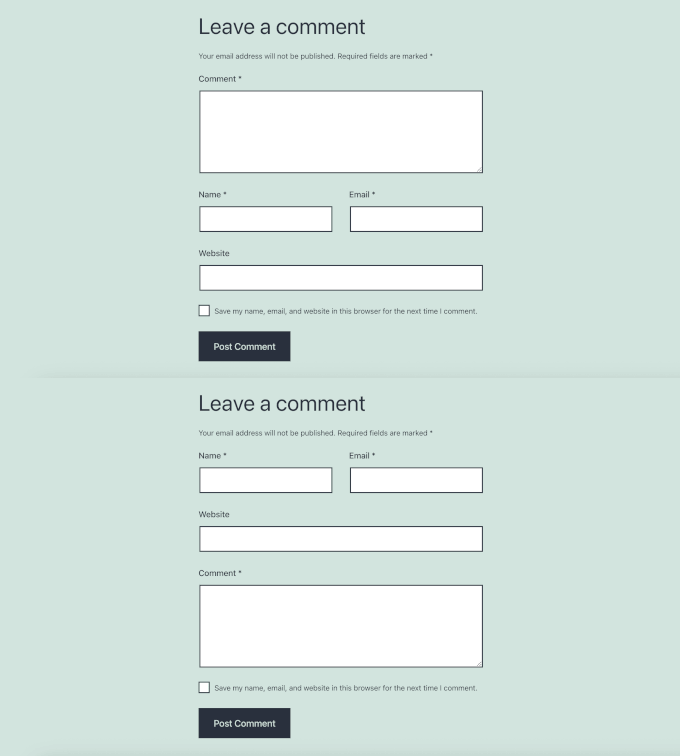
Since WordPress 4.4, the comment field has appeared above the name, email, and website fields in the default comment form. This layout lets visitors share their thoughts right away, without having to fill in their personal details first.
Many website owners prefer to move the comment box back to the bottom because of user familiarity and design preference. In this article, we’ll show you how to move the comment text field to the bottom in WordPress.

Moving the Comment Text Field to the Bottom
The easiest way to move the comment text field to the bottom is by adding a code snippet to your site with WPCode. It is a free plugin that lets you add PHP snippets to your site without breaking your site.
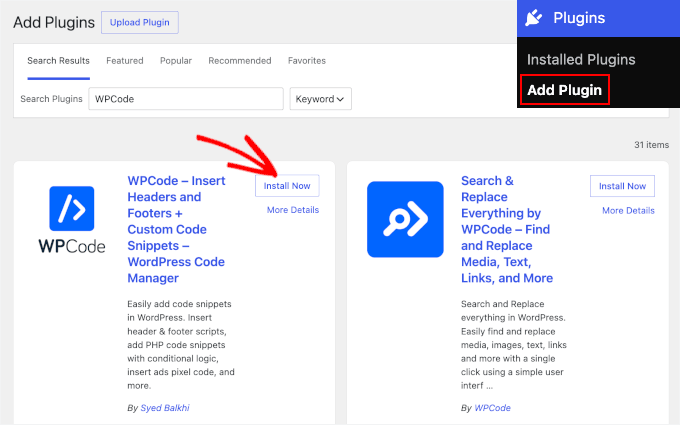
First, install and activate the WPCode plugin. For more details, see our step-by-step guide on how to install a WordPress plugin.
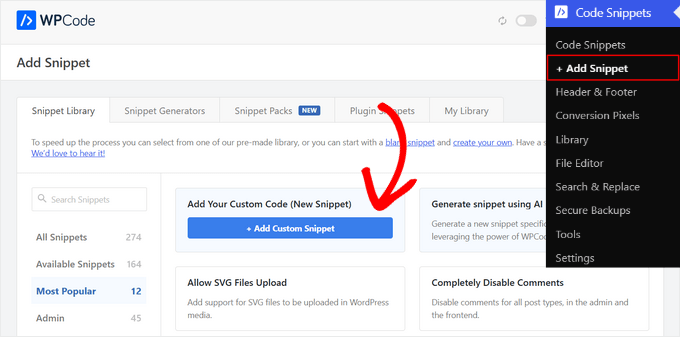
Once it’s active, go to Code Snippets » + Add Snippet in your WordPress dashboard. Hover over ‘Add Your Custom Code (New Snippet)’ and click ‘+ Add Custom Snippet.’
On the next screen, give the snippet a clear title so you can easily find it later.
Then, open the ‘Code Type’ dropdown, choose ‘PHP,’ and paste the following code into the editor. If you have WordPress’s comment cookie consent checkbox enabled, the snippet below also moves it below the Comment field.
function wpb_move_comment_field_to_bottom( $fields ) {
    // Move the comment textarea to the end.
    $comment_field = $fields['comment'];
    unset( $fields['comment'] );
    $fields['comment'] = $comment_field;

    // If the GDPR cookies consent checkbox is present, move it after the comment field.
    if ( isset( $fields['cookies'] ) ) {
        $cookies_field = $fields['cookies'];
        unset( $fields['cookies'] );
        $fields['cookies'] = $cookies_field;
    }

    return $fields;
}
add_filter( 'comment_form_fields', 'wpb_move_comment_field_to_bottom' );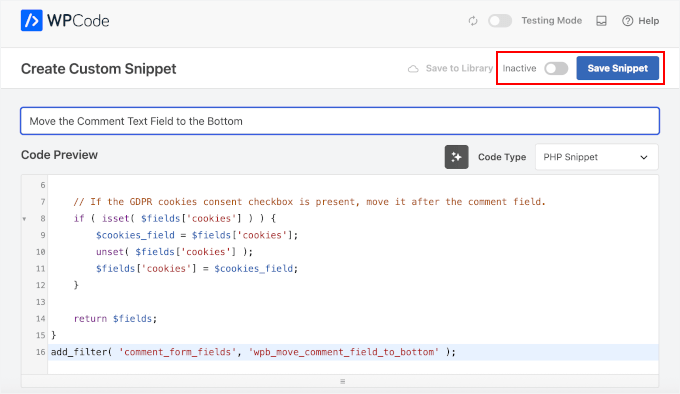
When you’re ready to make the code live, click the ‘Inactive’ toggle so it switches to ‘Active.’ Then click ‘Save Snippet.’
Now visit a post on your site as a logged-out user to see the change in action:
Does This Work with Block Themes?
Yes. We tested this on WordPress 7.1 with the Twenty Twenty-Five block theme, applying the snippet through WPCode.
The Post Comments Form block doesn’t offer field-ordering controls in the Site Editor, so the snippet above is the only way to change the order for now.
Can I Use a Comments Plugin Instead?
If you’re already using (or considering) a dedicated comments plugin like Thrive Comments or wpDiscuz, you won’t need this snippet. Those plugins control their own field order through their settings. See our guide on the best WordPress comment plugins if you want to compare your options.
We hope this article helped you move the comment text field to the bottom in WordPress. You may also want to see our guides on how to style the WordPress comment form and how to remove the website URL field from your comment form.
If you liked this article, then please subscribe to our YouTube Channel for WordPress video tutorials. You can also find us on Twitter and Facebook.



Mariass
That’s a wonderful post.
WPBeginner Support
Thank you
Admin
molina
This is really helpful. thank you so much for sharing with us such an interesting and useful.
wsef
how to create leave a reply form
Kneema
Thank you so so much! I’ve been looking for this code for a long time… God bless you
Andres
Hi there!,
Thanks so much, I have resolve my problem
lucy
i like this post
Aleks
You know what would be nice, if you could provide an example, how to move comment box above comments. Right now I had to go through entire comments, to write it. I want to switch places. Top > Comments Box. Bottom > Comments. So I don’t need to scroll. I can see that it’s quite easy to do in comments.php, but it’s better if there were a safer way to do so; child theme for instance.
Shamim Mia
It worked well, thank you so much for sharing the snippet!
Romee Prajapati
It doesn’t work for me. I am using understrap theme. Can anybody help.
majid
Thank you for sharing your wealth of knowledge
Ivan Zhotev
Great snipped. Thanks a lot! Cheers!
Umer Sheikh
Thank you! It is a useful article.
Anhduc
Thanks you so much!!!!
Leo Nguyen
Many thanks to you. This is really big help for me.
Susann
a big thank you for that snippet. Saved me quite some time
WPBeginner Support
Glad you found it helpful
Admin
Portekoi
Thanks a lot ! Save my time
Abhilash Sharma
thank you so much
Emily
You are awesome!!! Thank you!!!
Ruby Ann Rosales
Works like magic! Thanks
Lucas
Awesome solution to a very aggravating problem. This should be ranked higher for rearranging the comment field order on wordpress. It’s the only link that actually included a WORKING solution.
Thanks!
Lucas
Sabin
Thanks a lot. This was awesome.
After 2 hours trying to fix it, it took me 1 minute to copy-paste this code. – WP 4.4.2.
Alejandro
You saved my life, i worked three days trying to fix it thinking it was the theme.
Pascal
Thanks!
Iman Dastbelaraki
Thank you very much, very useful article.
Erin Kodama
Just what I was looking for. Thanks!
Guyom
Very useful snippet! Thanks a lot for that.
Omid
It is a useful article, thanks!
moho
thank you for this tip, I had used a code to automatically approve comments of a specific category but after the last update 4.4 this code not work, do you know how to automatically approve comments in the posts of a specific category?
Mr Darlington
Really amazing… I just learned a few thing right here.
awesome article..
Syams
How to remove website/url coloum?
Editorial Staff
This article should help: https://www.wpbeginner.com/plugins/how-to-remove-website-url-field-from-wordpress-comment-form/
Admin
Simon Lock
I have been struggling with the comments section for the last 3 days on my wife’s travel blog after it was drawn to my attention that the comments section was not working properly. Of course I had not realized that WordPress had made changes that might impact that area. Seems like the order is now:
Comment > Write (instead of post > Name > EMail > captcha
but the more logical order should really be:
Name > EMail > Website URL (missing right now) > Comment > captcha > Post
So your article was both timely and appreciated except the code provided does not appear to work with the theme that is currently being used (TeslaThemes ~ Epilog).
In the theme they provide a place to add custom code but when I pasted in your code nothing changed with the order of the comment fields. Also you show a box for entering a website URL and that does not even show up in the comments area.
Perhaps you could suggest what is going on – also I was playing around with Jetpack to try and make the comments work and now the home page is screwed up too and is dark brown instead of white. Not sure if this is coming from the Epilog theme or from Jetpack.
Guidance would definitely be appreciated. URL for the blog was withheld per your policy but can be provided if it is germane to the consideration of this comment.
Thank you
Simon
Editorial Staff
Hi Simon,
I’m not sure about the Epilog theme, but most themes have insert codes area for front-end (i.e HTML / CSS). The code we’re asking you to enter here must be inserted as a site-specific plugin or in your theme’s functions.php file in order for it to work.
On our site, we have disabled the website field because it attracts a lot of spam.
More info on that here: https://www.wpbeginner.com/plugins/how-to-remove-website-url-field-from-wordpress-comment-form/
Admin
Simon Lock
Thanks for the hints. I could not figure out where to add this code in to Functions.php but while exploring the appearance editor I discovered a file called Comment.php. Although I don’t really understand all the coding I placed your code in what I thought was the appropriate place. I also discovered the “Write” button location and changed that to “Post Your Comment”.
This successfully moved things around except for the Captcha code created by BestWebSoft. The order now with your code inserted is:
Name > E-Mail > Captcha > Message > Post Your Comment
Problem is that I now get an error message “Time Limit is Exhausted. Please enter CAPTCHA value again”
If I remove the need for a Captcha ie
Name > E-Mail > Message > Post Your Comment
then everything works great!!
Is there some additional code I should add to position the Captcha after the comment block, OR should I just eliminate the need for entering a Captcha.
If you recommend leaving the Captcha out, what is the downside – do I leave the site vulnerable to spambots or is there some other mechanism of protecting against this?
Thank you for sharing your wealth of knowledge
Simon
WPBeginner Support
As you have already figured it out, it is your recaptcha plugin. There are other recaptcha plugins that you can use.