


If you’ve ever browsed a website and seen a row of links like Home » Blog » This Post near the top of the page, then you’ve already used breadcrumbs. These navigational aids give visitors a simple way to see where they are on your site and jump back up a level.
We use breadcrumbs across our own websites, and they make it easier for readers to move around between pages. Breadcrumbs can also appear in your Google search results, which helps your listing stand out.
In this guide, we’ll walk you through how to add breadcrumb navigation links in WordPress, starting with the easiest method.
What Is Breadcrumb Navigation and Why Do You Need It?
Breadcrumb navigation is a term used to describe a navigation menu in the form of a trail of links. It’s often used as a secondary navigation menu that allows users to go up in the website’s hierarchy of pages.
There are three common types of breadcrumbs:
- Hierarchy-based (most common): Shows where the page sits in your site structure, like Home » Category » Post. This is the type most WordPress themes and SEO plugins generate.
- Attribute-based: Shows the attributes of the page a visitor is on, like Home » Clothing » Men’s » Blue. You’ll see these most often on WooCommerce stores.
- History-based: Shows the path a visitor took to reach the page, like a browser back trail. These are less common on WordPress sites.
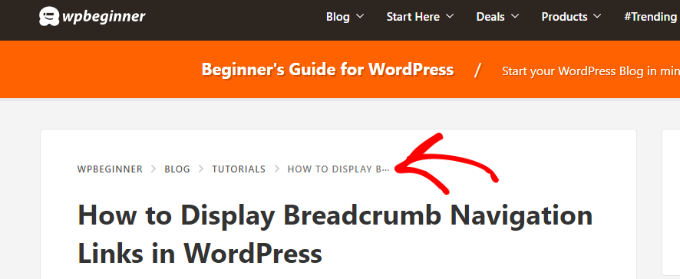
Breadcrumb navigation links are different from the default navigation menu system in WordPress. They help users move around your website, and they also help search engines understand the structure and hierarchy of your pages.
If your breadcrumbs are set up the right way, then search engines like Google may also display them along with the page title in search results. This makes your listing stand out in the search results and can help improve your click-through rate.

The methods in this guide will help you to set up breadcrumbs properly by using schema markup. Schema is a smart markup code that helps Google to identify your breadcrumbs so they’ll be displayed in search results.
In other words, the on-page links are for your visitors, and the schema markup is for Google. Some methods add both, while others only add the visible links, which is why we’ll show you how to verify your setup later using rich snippets.
Now, let’s look at how to add breadcrumb navigation links in WordPress. We’ll show you multiple methods, starting with the easiest, so you can choose the one that works best for you:
- Method 1: Add the Native WordPress Breadcrumbs Block (No Plugin Needed)
- Method 2: Adding Breadcrumb Navigation in WordPress Using All in One SEO (Recommended)
- Verify Your Breadcrumbs Are Working
- Troubleshooting Common Breadcrumb Problems
- Key Takeaways
- Frequently Asked Questions About WordPress Breadcrumbs
Method 1: Add the Native WordPress Breadcrumbs Block (No Plugin Needed)
If you’re using a block theme, then this is the easiest way to add breadcrumbs, and it doesn’t require any plugin at all.
WordPress includes a native Breadcrumbs block that you can add right inside the Full Site Editor in just a few clicks.
Simply head over to the Appearance » Editor page to open the Site Editor.
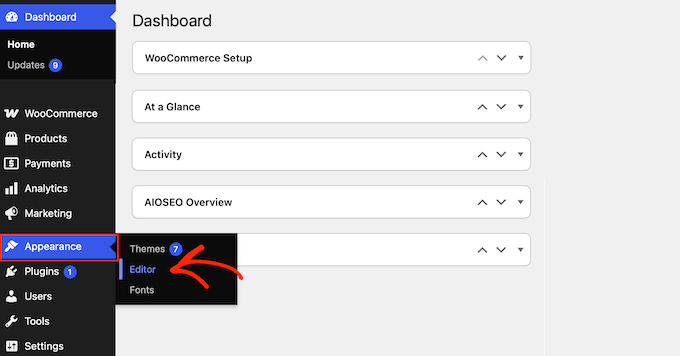
From here, you can edit a template like ‘Single Posts’ or your header template part.
Then, add the Breadcrumbs block where you want the trail to appear.
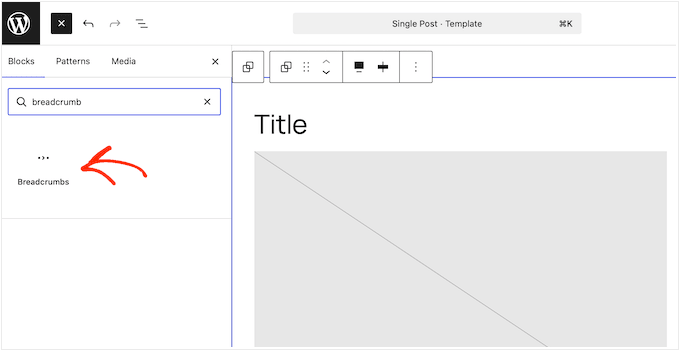
The block automatically builds the trail from the current page’s position in your site hierarchy, so you only have to add it once.
In the block settings, you can customize exactly how the trail looks and behaves. You can show or hide the link to your homepage, show or hide the current page title, and change the separator character between items.
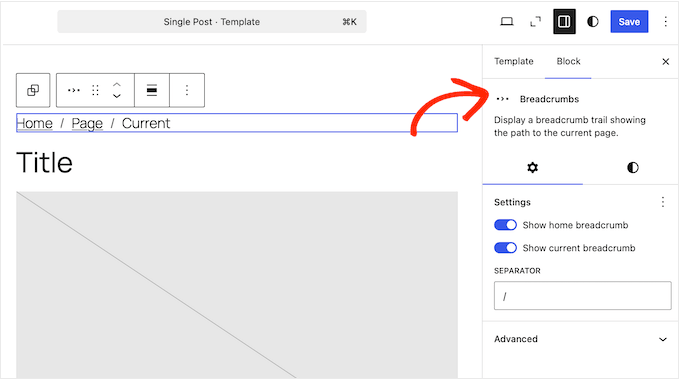
You can also choose whether the trail follows your strict page hierarchy or uses your category structure to organize the links.
One thing to keep in mind is that the native block is designed primarily to display the on-page trail for your visitors.
It may not add the BreadcrumbList schema markup that Google needs to display breadcrumbs in search results, so we recommend confirming this with the Rich Results Test.
Method 2: Adding Breadcrumb Navigation in WordPress Using All in One SEO (Recommended)
If your theme doesn’t handle breadcrumbs, or you want the search-result benefit that comes from proper schema markup, then an SEO plugin is the way to go. This method is beginner-friendly and works on any theme.
For this method, we will be using the free All in One SEO for WordPress plugin, which is the best WordPress SEO plugin on the market.
It helps you easily improve your WordPress SEO without any technical skills. It also comes with an easy-to-use breadcrumbs feature.
Once you have installed and activated the plugin, you will be taken to the setup wizard. You can follow the on-screen instructions to set it up.

Need help with the setup? See our step-by-step tutorial on how to install and set up All in One SEO.
Next, you need to visit the All in One SEO » General Settings page and switch to the ‘Breadcrumbs’ tab.
The breadcrumbs schema markup is automatically added by All in One SEO to your website’s code so that search engines can find it.
However, if you want to display breadcrumb navigation links on your website, too, then you need to turn on the ‘Enable Breadcrumbs’ option.
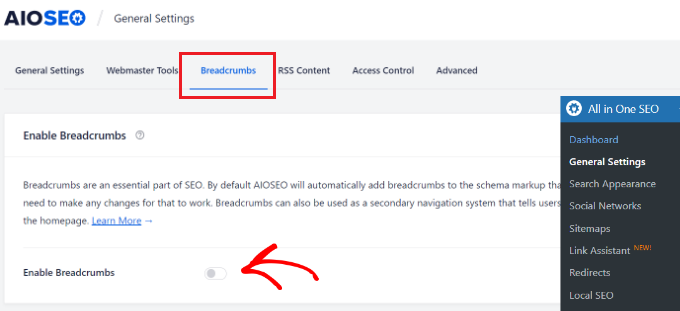
Switching the toggle allows you to see the different breadcrumb display settings that you can use on your WordPress website.
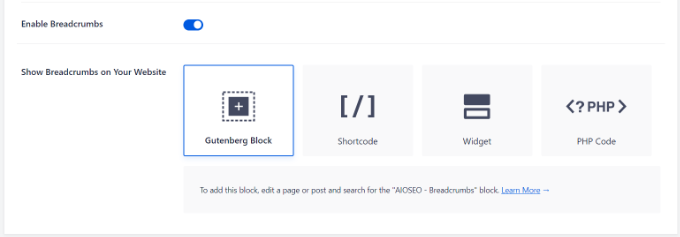
There are four ways you can use to display the breadcrumb navigation trail on your WordPress website:
- Block (easiest): Edit any post or page and add the AIOSEO – Breadcrumbs block where you want the trail. The plugin shows a live preview right in the editor.
- Shortcode: Add the provided shortcode to any post, page, or product where you want the trail to appear.
- Widget (site-wide): Go to Appearance » Widgets and add the AIOSEO – Breadcrumbs widget to your sidebar, footer, or any widget area so it shows automatically across your site.
- PHP code (exact placement): Add the snippet below to your theme template where you want the trail. This is best for advanced users who want to display breadcrumbs in a specific spot, like right under the post title.
For the code option, you can add the following code where you want the breadcrumb navigation links to appear (usually right below your header or just above your post title in the single.php file):
<?php if( function_exists( 'aioseo_breadcrumbs' ) ) aioseo_breadcrumbs(); ?>
As with any theme edit, we recommend using a child theme or a code snippets plugin so your change isn’t lost on the next update.
For more help, see our guide on how to add code snippets in WordPress and our cheat sheet on which files to edit in a WordPress theme.
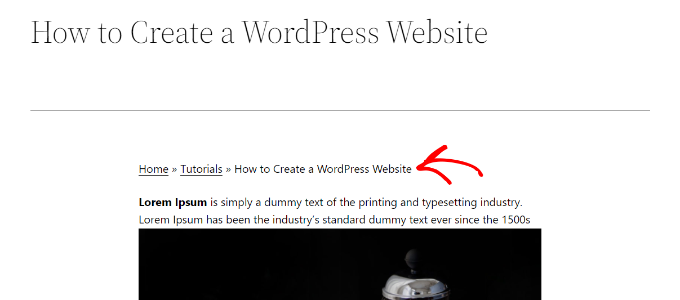
Here’s how the breadcrumbs looked on our test site:
Changing How Your Breadcrumb Links Look
By default, All in One SEO uses a template to display your breadcrumb navigation links. It contains a link to your home, category, parent page, and post or page title separated by the ‘»’ symbol.
You can change that by visiting the All in One SEO » General Settings page and heading over to the ‘Breadcrumbs’ tab. Next, scroll down to the Breadcrumb Settings section.
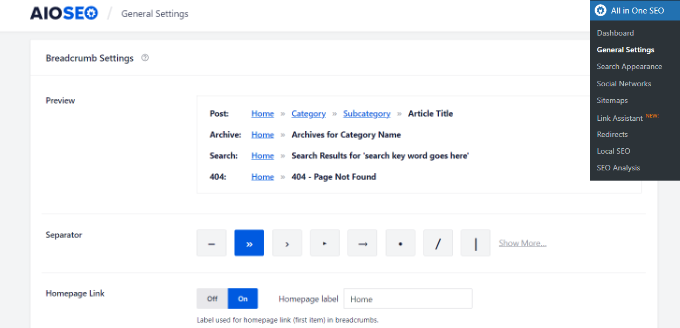
From here, you can change the separator, show or hide the home link, add a prefix, and more.
Once finished, don’t forget to save your settings.
Using Yoast SEO or Rank Math instead?
The idea is exactly the same with other popular SEO plugins.
You just enable breadcrumbs in the settings, then drop in the plugin’s block or shortcode, or add its snippet to your theme:
- Yoast SEO: Turn on breadcrumbs under Yoast SEO » Settings » Advanced » Breadcrumbs, then add the
[wpseo_breadcrumb]shortcode, or place<?php if ( function_exists( 'yoast_breadcrumb' ) ) { yoast_breadcrumb(); } ?>in your theme. For a closer look at this plugin, see our guide on how to set up Yoast SEO. - Rank Math: Turn on breadcrumbs under Rank Math SEO » General Settings » Breadcrumbs, then add the
[rank_math_breadcrumb]shortcode, or place<?php if ( function_exists( 'rank_math_the_breadcrumbs' ) ) { rank_math_the_breadcrumbs(); } ?>in your theme.
Verify Your Breadcrumbs Are Working
Once your breadcrumbs are live, you need to confirm that Google can actually read them.
Simply open Google’s free Rich Results Test tool, paste in the URL of a published post or page, and run the test.

If everything is set up correctly, the tool will show ‘Breadcrumbs’ as a detected item with a green, valid status. This confirms your BreadcrumbList schema is present and eligible to appear in search results.
If you see a warning or an error, or if breadcrumbs aren’t detected at all, then your method likely added the visible links without the schema. In that case, switching to the SEO plugin method above will add the markup that Google needs.
Troubleshooting Common Breadcrumb Problems
Breadcrumbs are usually simple to set up, but a few issues come up often. Here’s how to fix the most common ones.
Breadcrumbs aren’t showing in Google
Even after the Rich Results Test passes, breadcrumbs won’t appear in the search results instantly. Google relies on automated bots to crawl billions of pages, and it won’t know you’ve added breadcrumb schema until its bots revisit your specific URL. This recrawling process can take anywhere from a few days to a few weeks.
To speed things up, you can request indexing through Google Search Console by using the URL Inspection tool. This alerts Google that you have updated your content and signals their system to review your schema markup sooner.
The category is missing from the trail
The trail is built from the current page’s position in your site hierarchy. For posts, that middle level comes from the post’s category, and for pages, it comes from the page’s parent.
So the usual cause is a missing link in that hierarchy. The post has no category assigned (or only the default ‘Uncategorized’), or the page has no parent page set.
For a post, open it in the editor, assign it to the right category under Post » Categories, and then reload the page to check the trail.
If the level is still missing, then the issue may be which hierarchy the trail follows. The native Breadcrumbs block has an Advanced setting called ‘Prefer taxonomy terms’ that switches the trail between your page hierarchy and your category structure.
If you use an SEO plugin instead, then check its breadcrumb source or taxonomy setting. In All in One SEO, this lives under All in One SEO » General Settings » Breadcrumbs.
Breadcrumbs are showing on your homepage
Breadcrumbs don’t serve much purpose on your front page, since there’s nowhere ‘up’ to go.
If you added breadcrumbs with the native block or a widget, then you should place them in a template that doesn’t apply to the homepage. Alternatively, you can use your SEO plugin’s built-in settings to hide the trail on your front page.
You got a PHP error after adding the snippet
Rather than editing files directly, we recommend adding the snippet with a code snippets plugin like WPCode. This plugin validates your code and lets you deactivate a snippet safely if something breaks.
Adding the code to a child theme is another safe option, since it keeps your changes separate from the parent theme.
Key Takeaways
- Check your theme first: You often don’t need an extra plugin for breadcrumbs, especially if you use a block theme that includes the native Breadcrumbs block.
- Schema markup is what matters for search: The schema markup, not the visible links, is what gets your breadcrumb trail into Google search results. Always confirm this is working with the Rich Results Test.
- Use your existing tools: If you already run an SEO plugin like All in One SEO, then you can use it to handle your breadcrumbs. There’s no need to add a second tool to your site.
Frequently Asked Questions About WordPress Breadcrumbs
Do I need a plugin for breadcrumbs in WordPress?
No, not always. Many WordPress themes add breadcrumbs on their own, and WordPress includes a native Breadcrumbs block, so it’s best to check your theme before installing anything. If your theme doesn’t support breadcrumbs, then an SEO plugin is the easiest way to add them.
Why don’t my breadcrumbs show in Google?
This is usually down to indexing lag or missing schema. If Google hasn’t recrawled your pages yet, then request indexing in Google Search Console. If the trail still doesn’t appear, run your URL through the Rich Results Test to confirm your BreadcrumbList schema is valid.
Are breadcrumbs good for SEO?
Yes. Breadcrumbs improve the user experience by making your site easier to navigate, and they help search engines understand your site structure. When set up with schema markup, they can also earn richer search listings that improve your click-through rate.
Shortcode, block, or widget — which one should I use?
Use the block or the widget when you want breadcrumbs to appear automatically across your whole site. Use the shortcode when you only want to drop the trail into a specific post or page.
We hope this article helped you learn how to display breadcrumb navigation links in WordPress. You may also want to see our ultimate WordPress SEO guide or our pick of the best WordPress themes.
If you liked this article, then please subscribe to our YouTube Channel for WordPress video tutorials. You can also find us on Twitter and Facebook.




Dennis Muthomi
My theme had a problem with breadcrumbs feature it could not let me click the breadcrumb item, it just displayed the breadcrumb.
I do not know if it was coded like that or it was na error.
But since i had AIOSEO, I used its breadcrumbs feature and made it easy to jump back up the site hierarchy.
AIOSEO solved my problem.
Dayo Olobayo
Thanks for this informative article. I added the aioseo breadcrumbs widget and it automatically shows breadcrumbs for my blog posts. However, I notice it displays breadcrumbs on the home page which I don’t like. Is there a way to fix that please?
Also, I notice from the screenshot above that your breadcrumbs looks appealing compared to what I have on my blog. Is there a way to customize it?
PS: I use the aioseo lite plugin.
WPBeginner Support
It would depend on what method you used to add breadcrumbs to your site for how to remove it from the homepage specifically. For our breadcrums those are currently something we have styled specifically with our theme.
Admin
Dayo Olobayo
About the breadcrumbs showing up on my homepage, I contacted aioseo support and they provided me with a CSS code that fixed the problem. Thanks for your response.
Steven Jæger
I have tried different breadcrumbs variants now also the NavXT. The breadcrumb show up and all looks fine.
My main menu are based on pages. My articles are made as posts, I add them in categories. It’s when I visit an article and try to use a link in the breadcrumb to go back one step it goes wrong.
WPBeginner Support
You may want to resave your permalinks to ensure there wasn’t a hiccup there, otherwise, you would need to reach out to the support for the plugin you are currently using for the support to take a look.
Admin
Surjeet Kumar Verma
Thanks for sharing valuable content on breadcrumbs in WordPress. I really like it.
WPBeginner Support
Glad our guide was helpful
Admin
Rintesh Roy
The plugin is not at all documented. At least, I could not find any.
WPBeginner Support
The documentation for the plugin is linked on the plugin’s page
Admin
Elizabeth Morgan
I am using the Breadcrumb NavXT plugin and I added the code you suggested to my header.php file and it gave me this error:
“Your PHP code changes were rolled back due to an error on line 68 of file wp-content/themes/generatepress/header.php. Please fix and try saving again.
syntax error, unexpected ‘<', expecting end of file"
What do I do about this?
WPBeginner Support
There are a few possible reasons, you may want to take a look at our article here: https://www.wpbeginner.com/beginners-guide/beginners-guide-to-pasting-snippets-from-the-web-into-wordpress/
Admin
Varun
Thank you finally problem is solved
WPBeginner Support
Glad our recommendations could help
Admin
Hammad Rashid
The plugin is awesome…. Thank You!
WPBeginner Support
Glad we could recommend it
Admin
Andres
Hi WPBeginner,
Amazing post.
I wonder the following.
How do you make the “home” breadcrumb (in your case WPBEGINNER) appear in blogs and posts but not in your HOME page.
I mean, when you go “home” I dont see the breadcrumb, but when I click on other page I see the breadcrumb.
Thanks a lot for your time.
Editorial Staff
In our theme, we have it set to only add breadcrumbs on singular pages and not the homepage template.
Admin
Manish Ransubhe
Hello, I am not using any plugin and I have never enabled Breadcrumbs.
Why my search Result showing breadcrumbs help me to disable this
Thank you
Ravi Singh
same problem happened with me. So I check my theme panel and my theme had enabled breadcrumbs. you can also check your theme panel for more info about this. and I was using Newspaper theme. So if you are also using this theme then it is the one who is create difficulties for you. Disable it from there.
Dua Centre
I have used seo yoast plugin. Breadcrumbs are being displayed on my webpages but not google search results . When will they start displaying in google search result as well ?
Walter
Hello! Do you know if is it possible to insert the breadcrumbs inside the menu? I have to design a website with a vertical side menu, and the customer wants to have the breadcrumbs at the bottom of the menu.
DUy
Is it posible to change the font size and the font color of Breadcrumb?
thanks
Sameer
Hello,
I’m using breadcrumbs using the Yoast SEO method, But it’s only showing on homepage it’s not showing in Google Search.
Ex : the ideal structure should be Domain.com>Category but it’s showing as Domain.com/Category. can you please tell me how to implement this ?
Joshua
Hello.. I am using breadcrumb navxt and its widget is working. I inserted the code for the header.php using “insert header and footer” plugin but I can’t see any changes to my site even after saving and refreshing it.
Pls help, because the widgets area is working but no breadcrumb is showing in my sites header.
juan luis
Hi. I’m afraid to manipulate codes. In case something goes wrong, can I just delete the inserted code without consequences?
WPBeginner Support
Hi Juan,
If you don’t want to use code method, then you can try the plugin method. This way you will be able to undo changes by simply deactivating the plugin.
Admin
Nate Balcom
By the way I’m using the Yoast code that you have above and it doesn’t display the correct hierarchy. It omits a link for categories, projects, galleries. Anything that isn’t a post basically gets handled the same way. It’s close, but not correct.
Nate Balcom
Thanks for posting this. I’ve been looking for a way to properly display my breadcrumb trail for the spiders. It gets a bit jenky with categories, projects, galleries and the like. I’ve been hand coding mine, but the php handles the hierarchy in the incorrect order. This is a huge help.
Anna
My child theme (GeneratePress, from their own child theme download) doesn’t have a header.php file.
I’ve added the code into the parent GP theme header.php and the breadcrumbs are working now. But when I update GP …?
subhan
Just copy the header.php to the the generate press child theme forlder.
Sunil
Thanks for great post. Cheers!
Raymond Chukwuman
Thank you so much. It is really working on my website God bless you
Abiodun
I followed the steps, didn’t really work for me with the posts. I just saw the ‘Home Breadcrumbs’on my homepage. How do I make it appear for my posts please? I’m using Yoast SEO
WPBeginner Support
Breadcrumbs should automatically appear. If they don’t then please contact your theme’s support.
Admin
Abiodun
It worked…but the category do not appear before my posts, I just get Home>>posts title. How do I make categories appear before posts?
Michelle
Hey! You have to set a parent page for your page that you are publishing. mine was only showing home > current page until i set the current page as ‘child’ of the articles page, and the articles page as ‘child’ of the homepage. you can do it in the page editor.
JOY
Great! This is really useful! Thanks a lot!
malek
thanks you , really usefull