


Adding custom code to WordPress shouldn’t put your entire website at risk.
But when you update the functions.php directly, even one incorrect character can trigger a PHP error and lock you out of your WordPress dashboard. A code snippet plugin solves this problem and makes your customizations future-proof.
In this article, I’ll compare the best WordPress code snippets plugin for your needs based on my testing and experience.
Quick Overview: 7 Best WordPress Code Snippets Plugins
| # | Plugin | Best For | Free Version | Pricing |
|---|---|---|---|---|
| 🥇 | WPCode | Best all-around code snippets plugin | ✅ | Free (Pro from $49/yr) |
| 🥈 | Code Snippets | Best for beginners who want maximum safety | ✅ | Free, PHP only (Pro from $149/yr) |
| 🥉 | Woody Code Snippets | Best for marketers who also manage ads | ✅ | Free (Pro from $39/yr) |
| 4 | WPCodeBox | Best for developers who write SCSS | ❌ | From $39/yr or $199 lifetime |
| 5 | Header Footer Code Manager | Best for free device targeting | ✅ | Free, no PHP (Pro from $35/yr) |
| 6 | FluentSnippets | Best for file-based performance | ✅ | 100% free |
| 7 | Insert PHP Code Snippet | Best for embedding PHP in posts and pages | ✅ | Free, PHP only |
How I Tested and Reviewed WordPress Code Snippets Plugins
Adding custom code helps you extend your website’s functionality without installing another plugin. When done right, code snippets can easily replace 4-5 premium WordPress plugins on your site, which is a few hundred dollars a year in license fees.
But choosing the wrong code snippets plugin can make those customizations harder to manage or even put your site at risk. So I installed each plugin on a real test site, and here are the factors I considered when evaluating them.
- 🔒 Safety – I pasted broken PHP code into each editor to check if the error crashed the site.
- 🧩 Supported Snippet Types – I tested each plugin’s support for custom PHP, JavaScript, CSS, HTML, and SCSS.
- 🎯 Use Cases – I looked at what each plugin does best, from ad code insertion to AI code generation and simple tracking scripts.
- 💰 Value for Money – I compared the features included in each free version against the cost of upgrading.
Over the last 17 years of building WordPress websites and businesses, we’ve used custom code to extend WordPress in countless ways. That hands-on experience has taught us what really matters when adding custom snippets. You can read more about how we research and test plugins in our editorial guidelines.
1. WPCode – Best All-Around Code Snippets Plugin
| WPCode Pros | ✅ Supports PHP, JavaScript, CSS, HTML, and text snippets for free ✅ Auto-deactivates a broken snippet before it can lock you out ✅ Built-in library of ready-made snippets that are tested and proven to work |
| WPCode Cons | ❌ Conversion pixel tracking and WooCommerce integration require the Plus plan ($99/year) or higher ❌ AI snippet generation is capped by plan (the higher tiers raise the yearly limit, up to 500 on Pro and 1,000 on Bundle) |
| Pricing | Free version available. Paid plans start at $49/year |
| Best For | Users who need the most feature-rich snippet plugin to replace premium WordPress plugins. |
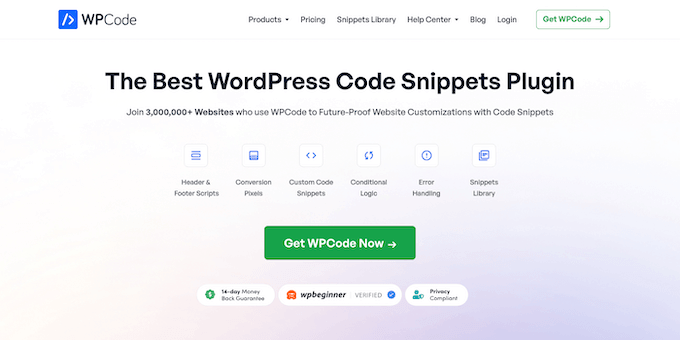
WPCode is the most popular code snippets plugin for WordPress, with over 3 million active installations. It is also the plugin we use to manage custom code on our own websites.
Even if you’re not sure how to write custom snippets yourself, you can rely on WPCode’s extensive snippet library to find ready-made code for common WordPress customizations.
My Experience
WPCode is by far the best way to future-proof your website customization.
During testing, I intentionally pasted a PHP snippet with a missing semicolon. Instead of crashing the website, WPCode caught the fatal error, kept the snippet deactivated, and highlighted the error.
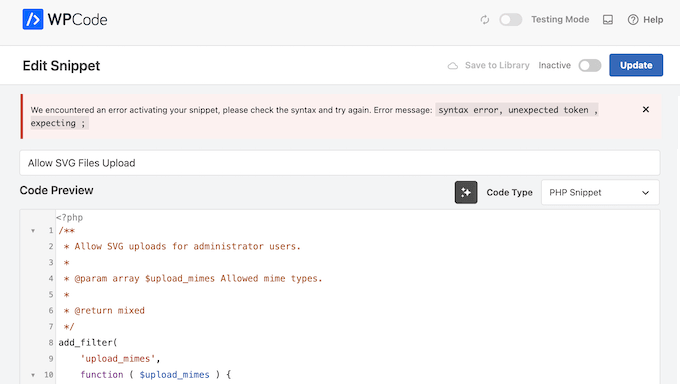
If a snippet causes an error, WPCode automatically disables it and records the snippet name and line number in an error log. It also provides a Safe Mode URL that lets you disable all snippets if you ever get locked out of your site.
Another favorite feature of mine is its code revisions, which let you keep track of previous versions of your snippets and quickly restore an earlier version when needed. I tested different colors and styling for a sticky header bar, then used code revisions to revert to a previous version that was performing better than the current one.
The free version offers a complete set of features:
- Global Script Placement: Easily add header, footer, and body scripts across your entire website.
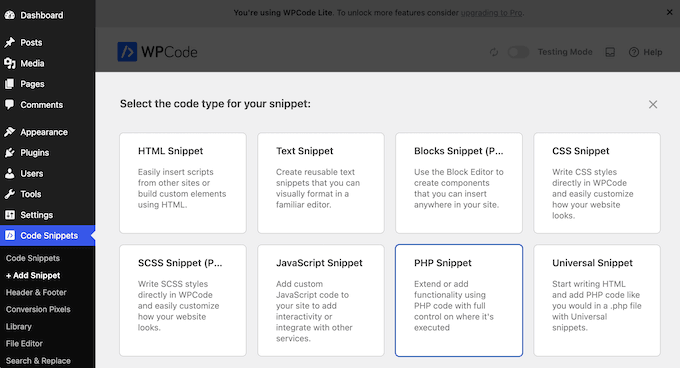
- Multiple Code Languages: Supports PHP, JavaScript, CSS, HTML, and plain text snippets.
- Auto-Insert Locations: Automatically inserts code in specific locations, like before or after post paragraphs, without editing template files.
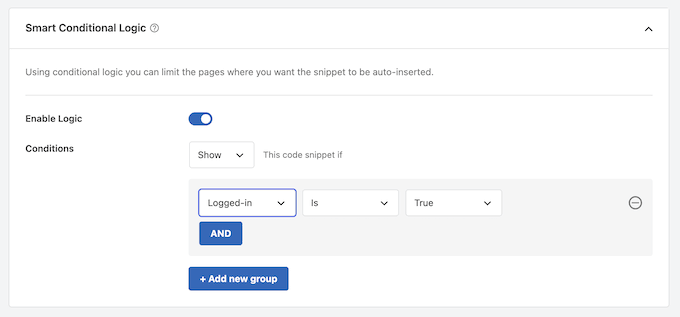
- Conditional Logic: Allows you to load code based on specific conditions, such as showing a snippet only to logged-in users or on specific post types.
- Built-in Snippet Library: Includes ready-made code snippets for common tasks, such as enabling SVG uploads or disabling comments.
If you outgrow the free version, the Basic plan ($49/year) adds scheduled snippets and a testing mode, while the Plus plan ($99/year) adds conversion pixel tracking for WooCommerce and Easy Digital Downloads. The Pro plan ($199/year) adds AI snippet generation, which quickly drafts working code that you can fine-tune to fit your site.
🧑💻 Why I Recommend WPCode: This is the safest and most reliable way for most users to add custom code to WordPress. You can access all of its essential features for free, including conditional logic, auto-insert options, all supported code types, and a basic snippet library.
For a closer look, see our full WPCode review.
2. Code Snippets – Best for Beginners Who Want Maximum Safety
| Code Snippets Pros | ✅ Safe Mode catches fatal errors and disables the broken snippet ✅ Familiar interface that mirrors the standard WordPress plugins page ✅ Reduces overall database workload |
| Code Snippets Cons | ❌ CSS and JavaScript snippet support requires Pro starting at $149/year ❌ No built-in code generators or extensive pre-made snippet library ❌ Conditional logic for controlling where snippets run is locked behind the Pro plan |
| Pricing | Free for PHP snippets. Pro starts at $149/year |
| Best For | Beginners who are nervous about adding custom code and want the strongest crash protection available |
Code Snippets is the most credible free alternative to WPCode for pure snippet management, with over 1 million active installations. Its free version runs on unlimited sites with no limit on how many snippets you can add.
However, it only supports PHP, so managing CSS or JavaScript means upgrading to the Pro plan ($149/year).
My Experience
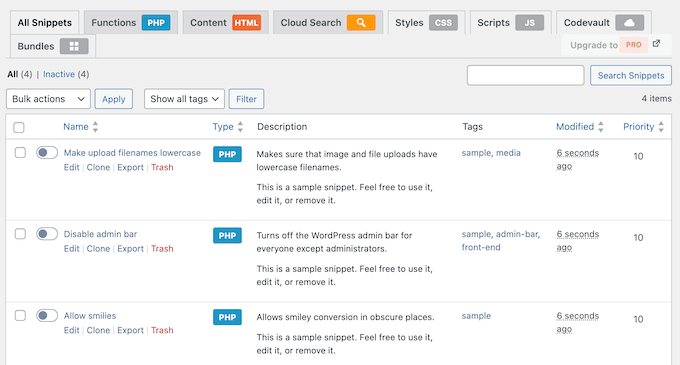
Upon activation, the first thing I noticed was how familiar the Code Snippets interface felt. The snippet management screen looks almost identical to the standard WordPress plugins page.
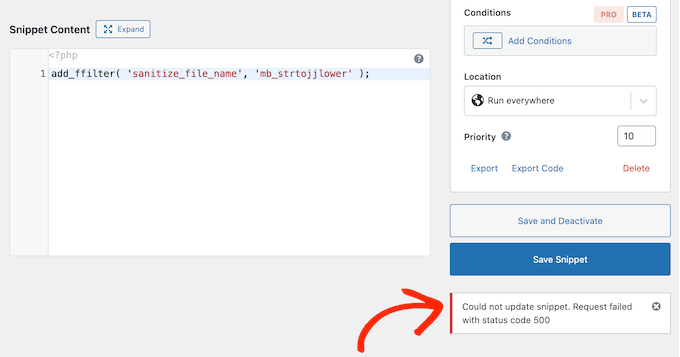
To test the plugin’s Safe Mode feature, I pasted a snippet containing a syntax error directly into the editor.
Instead of crashing the site with a fatal PHP error, Code Snippets detected the issue, automatically disabled the broken snippet, and displayed a clear error message.
The alert pinpointed the exact line where the error occurred, making it fast and easy to fix.
I also verified Code Snippets’ file-based execution mode, which you switch on in the plugin settings. Rather than loading snippets from your database on every page view, it writes your custom code directly to your site’s file system. This process reduces overall database workload and keeps your pages loading quickly.
Migration is another area where Code Snippets performs well. The plugin features an import tool that lets you migrate snippets from WPCode, Header Footer Code Manager, and Insert PHP Code Snippet with just a few clicks.
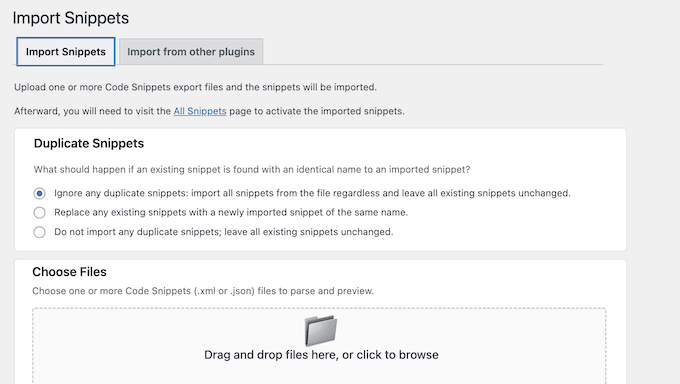
I also explored the Code Snippets Cloud platform, which acts as a community library. You can search for common code tweaks inside the dashboard and download them directly to your site.
The Pro plan also adds AI-powered snippet generation, where you describe what you want in plain English and the plugin generates the necessary PHP code.
This is a major drawback compared to WPCode Lite, which includes free support for PHP, JavaScript, CSS, and HTML. The conditional logic builder is also locked behind the paid version, which holds free users back from page-level targeting.
🧑💻 Why I Recommend Code Snippets: This is an excellent option for beginners who want a familiar WordPress-style dashboard and are looking for a WPCode alternative. Its Safe Mode provides strong protection against site crashes, though users who want to manage CSS or JavaScript for free will need to use an alternative plugin.
3. Woody Code Snippets – Best for Marketers Who Also Manage Ads
| Woody Code Snippets Pros | ✅ Dedicated ad snippet type manages AdSense and affiliate banners alongside code ✅ Email error notifications alert you the moment a snippet breaks ✅ Code revision history lets you roll back to a previous working version |
| Woody Code Snippets Cons | ❌ Code revisions and rollback require the Personal plan ($39/year) or higher ❌ No pre-built snippet library. You’ll need to write all code from scratch or find it externally |
| Pricing | Free on WordPress.org. Premium plans start at $39/year |
| Best For | Bloggers and marketers who need to manage both custom code and ad placements from a single interface |
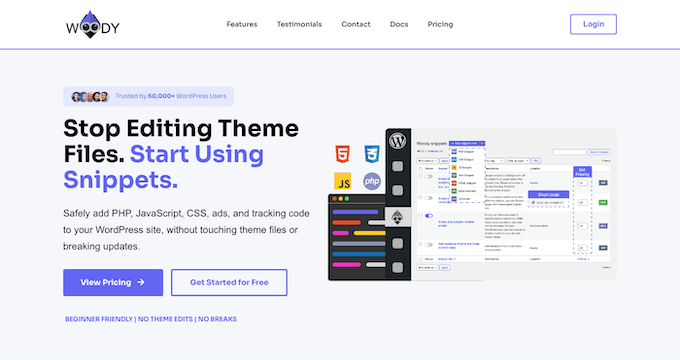
Woody Code Snippets is a hybrid code and content management plugin. What makes it unique is its built-in ad snippet type, which lets marketers manage AdSense placements, affiliate banners, and promotional blocks alongside their custom code.
My Experience
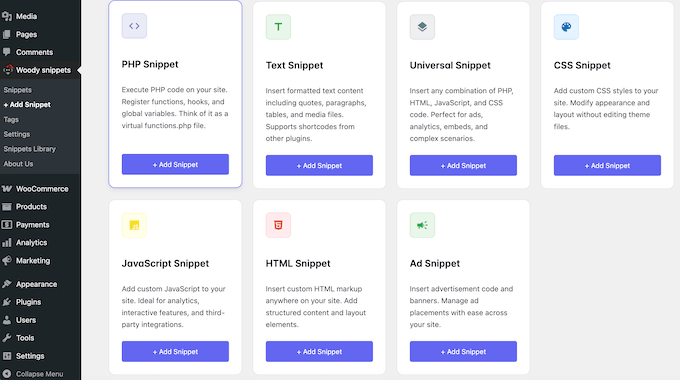
The ad snippet feature was the first thing I tested, since that’s what really sets Woody apart from other code managers.
Instead of installing a separate ad management plugin, I created ad snippets directly in Woody’s user interface.
During testing, I set up different ad banners for different categories on a fictional personal finance blog. The finance category got investment-related ads, while the budgeting category got different promotions.
The conditional targeting made this whole process straightforward. If you’re currently adding Google AdSense manually, Woody is a much cleaner approach.
Just remember that you’ll still need to add your main Google AdSense account script to your site’s header before these individual ad blocks will appear.
I also tested the standard code snippet types. Woody supports PHP, JavaScript, HTML, CSS, and ‘Universal’ snippets, which let you combine multiple code types in a single snippet.
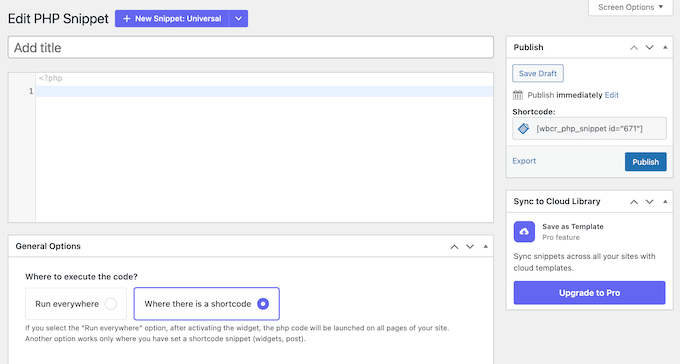
Woody’s email error notification feature was also genuinely useful. When I deliberately broke a PHP snippet during testing, the plugin sent me an email alert within seconds.
These notifications are invaluable when you manage multiple sites. Most competing plugins only show error messages in the admin panel itself, which are easy to miss when you’re juggling lots of different websites.
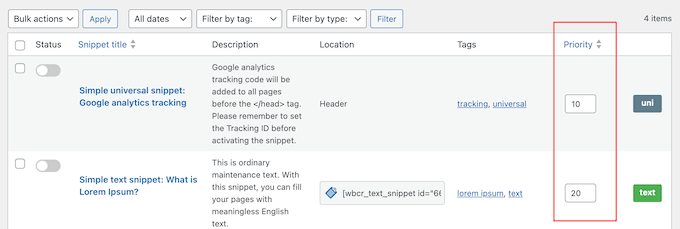
I also spent some time exploring the execution priority control, which lets you assign a priority number to each snippet when several are active.
After that, I explored the code revision history in the premium plugin, which saves a version every time you edit a snippet. This is a life saver if you make a change that breaks something and need to roll back quickly.
However, this feature requires a paid plan (starting at $39/year). Without this feature, there’s no easy way to undo a bad edit if it breaks your snippet.
Woody doesn’t offer import tools for migrating from other snippet plugins. If you’re switching to Woody from other existing snippets plugin, you’ll need to recreate your snippets manually.
🧑💻 Why I Recommend Woody Code Snippets: This is the best choice for bloggers and marketers who want to manage both custom code and ad placements from a single plugin. The dedicated ad snippet type saves you from installing yet another plugin, and the email notifications keep you informed as soon as something goes wrong.
4. WPCodeBox – Best for Developers who Write SCSS
| WPCodeBox Pros | ✅ Monaco editor brings VS Code-level autocomplete and syntax highlighting ✅ Automatic SCSS and LESS compilation with no separate build tool ✅ Export snippets as standalone plugins that run without WPCodeBox |
| WPCodeBox Cons | ❌ No free version available, so you can’t try it before you pay ❌ Cloud storage costs an additional $9 to $19 per month on top of the plugin license ❌ Professional developer interface is complex for beginners |
| Pricing | Starts at $39/year. No free version. 30-day money-back guarantee. |
| Best For | Developers who write SCSS or LESS and want it compiling inside wp-admin, rather than just storing and managing snippets |
WPCodeBox brings a full integrated development environment (IDE) directly into your WordPress admin dashboard.
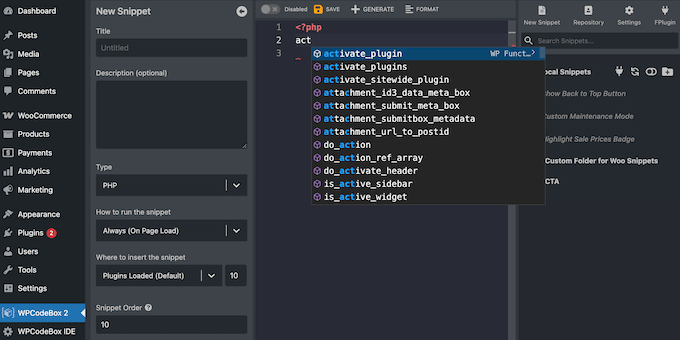
It uses the Monaco editor, which is the exact same engine behind Microsoft VS Code. This allows it to provide professional-grade features like syntax auto-completion, inline-item error checking, and Emmet shortcuts.
My Experience
Most snippet plugins give you a text box. WPCodeBox gives you an editor that knows WordPress.
As soon as I started typing a WordPress hook name, the autocomplete menu appeared with parameter details and direct documentation links on hover. This workflow feels like coding in a dedicated desktop application rather than inside a web browser.
I tested the SCSS compilation by writing a set of partials with variables, nesting, and mixins. WPCodeBox compiled everything to clean, minified CSS automatically, with no build tools, npm, or command line. It supports LESS the same way. Live reload was another highlight, since editing CSS updated the front end in real time without a refresh.
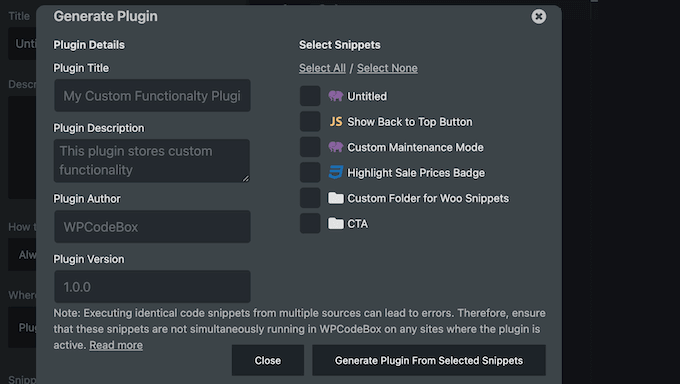
You can also export snippets as standalone plugins. You simply select your snippets, and WPCodeBox generates an independent plugin file. This keeps your custom code running smoothly even if you deactivate WPCodeBox.
The cloud sync works through API keys, so you can keep each client’s snippet library separate. The catch is that cloud storage is an extra monthly cost on top of the plugin license.
The developer interface is also complete overkill if you only need to add a basic tracking script.
🧑💻 Why I Recommend WPCodeBox: If you write SCSS or LESS and want it compiling inside wp-admin, nothing else on this list does that. The Monaco editor, live front-end reload, and standalone plugin generator make it a real development environment rather than a snippet box.
5. Header Footer Code Manager – Best for Free Device Targeting
| Header Footer Code Manager Pros | ✅ Free version handles HTML, CSS, and JavaScript with page-level targeting ✅ Device targeting loads scripts on mobile or desktop only, even on the free plan ✅ User audit log tracks who added or changed each snippet |
| Header Footer Code Manager Cons | ❌ PHP code support requires the premium version (starting at $35/year) ❌ No syntax highlighting, code editor, snippet library, or code generators ❌ No cloud sync or cross-site snippet management |
| Pricing | Lite version of HFCM available for free. Pro plans start at $35/year |
| Best For | Site owners who want free mobile and desktop targeting for tracking scripts like Google Analytics and the Facebook Pixel |
Header Footer Code Manager (HFCM) is a lightweight plugin designed to insert tracking scripts and code snippets into your site’s head, footer, or content sections. With over 600,000 active installations, it is a popular option for site owners who need to add tracking scripts.
My Experience
Setting up Header Footer Code Manager was refreshingly simple.
The plugin gives you a clean form where you name your snippet, choose the type (HTML, CSS, or JavaScript), pick where it should load, and select which pages it appears on. That’s the entire workflow.
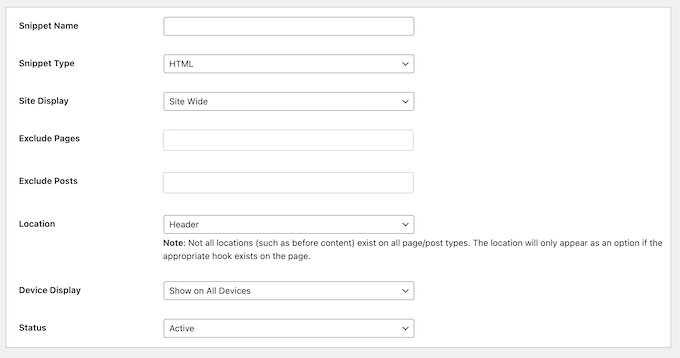
There’s no code editor or conditional logic builder, so you might find the interface a bit intimidating. But for someone who just needs to paste a Google Analytics tracking code or a Facebook Pixel into their site’s header, this simplicity is perfect. I had a tracking script running on specific pages within about 60 seconds.
The page-level targeting options also let you choose whether a snippet loads site-wide, on specific posts, pages, categories, tags, or custom post types. You can also exclude specific content from loading a snippet.

The device targeting feature was another practical touch, and it’s included in the free version. This is useful when you want to show your mobile and desktop audiences completely different campaigns.
One thing I really liked about Header Footer Code Manager is the user audit trail. You can see who created each snippet, who last edited it, and when.
For teams where multiple people manage the same site, this accountability is invaluable. You can quickly figure out who added a script that’s causing issues.
The plugin also supports shortcode output, so you can manually place a snippet anywhere in your content.
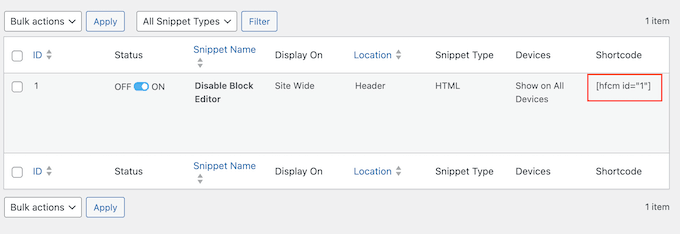
The shortcode approach is more flexible than the automatic placement options when you need pixel-perfect control. In fact, during testing, I used this to insert a custom notification banner on a specific post.
I also tested the import and export functionality. I had no problems exporting all my snippets as a file, and then importing them to another site. This is useful for agencies that use the same tracking scripts across multiple client sites, although it’s not as smooth as WPCode’s cloud sync feature.
One frustrating limitation is that the free version doesn’t support PHP snippets. For that, you’ll need to upgrade to the premium plan, which starts at $35/year.
Header Footer Code Manager also lacks syntax highlighting, which means you’re pasting code into a plain text box. For complex scripts, this makes debugging harder. There’s also no snippet library or code generators either.
🧑💻 Why I Recommend Header Footer Code Manager: This is the best choice if you want to load tracking scripts, pixels, or simple HTML and CSS on specific pages, or even specific devices like mobile only, without paying to unlock that targeting. It does one job and does it extremely well, with the lightest footprint on this list.
6. FluentSnippets – Best 100% Free Plugin With the Smallest Footprint
| FluentSnippets Pros | ✅ Completely free and open source, with no upsells or locked features ✅ Stores snippets as files instead of the database for speed ✅ Standalone Mode keeps code running even if you delete the plugin |
| FluentSnippets Cons | ❌ Basic editor ❌ No snippet library ❌ No cloud sync |
| Pricing | 100% free. There is no paid version |
| Best For | Performance-focused users who want a completely free, file-based snippets manager |
FluentSnippets is a completely free code snippets plugin from the team behind FluentCRM and Fluent Forms, with more than 50,000 active installations.
Unlike many other snippet managers, there is no premium version, no upsell screen, and no requirement to submit an email address to download it. Every single feature comes included in the free version.
My Experience
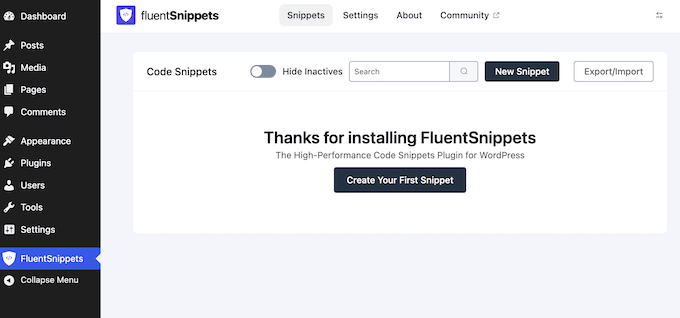
The main feature of FluentSnippets is its file-based storage architecture.
Instead of saving snippets into your database and running SQL queries on every page request, it saves custom code as files on your server. This design removes database queries entirely for custom code, which improves your website’s performance.
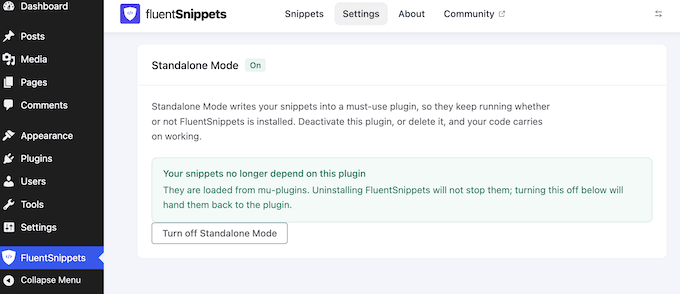
The Standalone Mode is another standout feature. Turning this on moves your active snippets into the mu-plugins (must-use) directory in WordPress.
This means your code continues running even if you deactivate or delete the FluentSnippets plugin itself.
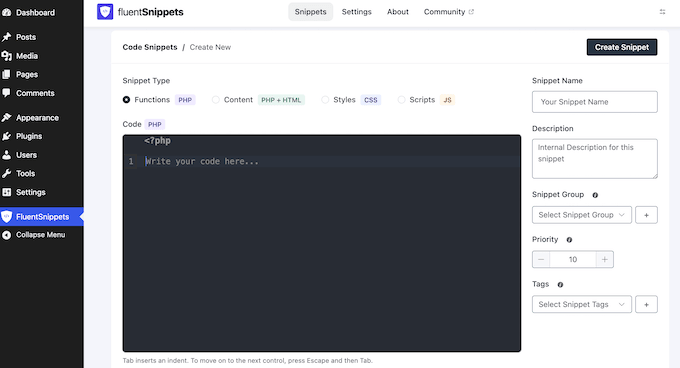
FluentSnippets also catches fatal PHP errors rather than letting a broken snippet take the site down. It supports PHP, CSS, JavaScript, and HTML snippets with conditional logic for targeting where each one runs.
However, a few missing features keep FluentSnippets from taking the top spot. Its editor is very simple compared to an IDE like WPCodeBox, there’s no snippet library, and it doesn’t offer cloud sync to share snippets across multiple websites.
Still, if you want a lightweight, completely free plugin for a single site, these tradeoffs are easy to overlook.
🧑💻 Why I Recommend FluentSnippets: This is the best choice if you want a completely free, file-based code manager. Its zero-database-query setup keeps your site fast, and Standalone Mode ensures your custom code keeps running even if the plugin is deleted.
7. Insert PHP Code Snippet – Best for Embedding PHP in Posts and Pages
| Insert PHP Code Snippet Pros | ✅ Shortcode approach embeds dynamic PHP output right in post content ✅ Multiple placement methods: automatic, on-demand, and shortcode ✅ It covers core PHP-to-shortcode with no upgrade needed |
| Insert PHP Code Snippet Cons | ❌ No conditional logic, auto-insert locations, or page-level targeting ❌ Interface is dated with no syntax highlighting or code editor |
| Pricing | Free |
| Best For | Users who specifically need to run PHP code inside post or page content via shortcodes |
Insert PHP Code Snippet is a streamlined plugin that converts PHP code into WordPress shortcodes that you can place directly in posts, pages, and widgets. With over 90,000 active installations, it’s a popular plugin that’s often praised for its simplicity.
My Experience
Insert PHP Code Snippet is a straightforward plugin. You write your PHP in the snippet editor, save it, and the plugin hands you a shortcode.
Paste it into any post, page, or widget where you want the PHP output to appear.
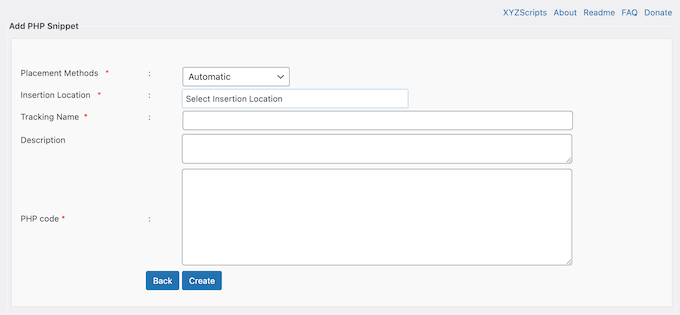
During testing, I created a snippet that queries a custom database table and displays a dynamic pricing table. I pasted the shortcode into a page, and the table rendered perfectly.
The TinyMCE dropdown is also a thoughtful touch. It lists all your snippets in a menu right inside the editor, so you never have to remember or type shortcode names.
While the dropdown is primarily designed for the Classic Editor, you can still insert your snippets via the block editor using the shortcode block. The plugin also added an ‘Execute shortcodes in editors’ setting so you can preview your custom PHP output live inside the Elementor page builder.
This plugin recently added new placement methods. You can set snippets to run automatically on every page, execute on demand through a trigger, or use the traditional shortcode approach.
I used the automatic placement to add a site-wide disclaimer footer without editing any template files, and it worked perfectly.
I also tried the exception handling feature, which catches PHP errors within your snippets and sends you an email report. This isn’t as powerful as the safeguards in WPCode and other plugins, which prevent the error from affecting your site entirely. However, it still helps you identify when a snippet is causing problems.
The management screen shows all your snippets in a clean list with the shortcode displayed next to each one. You can activate, deactivate, edit, and delete snippets from this screen. It also supports bulk actions so you can manage multiple snippets at once.
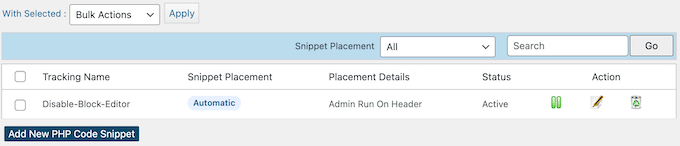
One clear limitation is that it only handles PHP. If you need to manage CSS, JavaScript, or HTML, you’ll need to use a different plugin.
The interface is also dated compared to modern alternatives. There’s no syntax highlighting, no code autocomplete, and no error detection in the editor itself.
While this is fine for quick PHP snippets, for anything more complicated, I recommend writing the code in a proper editor and then pasting it in.
There’s also no conditional logic or page-level targeting beyond the shortcode approach. If you want to run a snippet on specific pages, then you’ll need to place the shortcode on every single page manually.
🧑💻 Why I Recommend Insert PHP Code Snippet: This is a solid choice when you specifically need to run PHP code inside your post or page content. It’s the simplest solution for that particular use case, and the free version handles it perfectly.
That’s it! I hope this article helped you choose the best WordPress code snippets plugin.
FAQs About WordPress Code Snippets Plugins
What is a code snippets plugin and why do I need one?
A code snippets plugin gives you a safe way to add custom code to your WordPress site without editing your theme’s functions.php file.
It stores your code separately from your WordPress theme, so you can update or even change your theme without losing your custom code. Most also include error detection that catches mistakes before they crash your site.
How do I add a code snippet in WordPress?
The safest way is to use a code snippets plugin instead of editing your theme files.
First, install and activate a free plugin like WPCode. Next, go to ‘Code Snippets’ and click ‘Add Snippet’, then paste your code and choose where it should run. Finally, switch the snippet to ‘Active’ and save it.
For a full walkthrough, see our guide on how to add custom code in WordPress.
Will a code snippets plugin slow down my WordPress site?
Most modern code snippets plugins have minimal impact on your site’s performance. Some plugins like Code Snippets even offer file-based execution that bypasses database queries entirely.
Just be aware that the snippets themselves can affect speed if they contain inefficient code.
Can I use multiple code snippet plugins at the same time?
Technically yes, but it’s not recommended.
Running multiple snippet plugins simultaneously can easily cause code conflicts, slow down your site performance, and make debugging errors much harder. For example, if two separate plugins try to run the same function or hook at the exact same time, it can trigger a fatal PHP error and take your website offline.
Instead, I recommend picking the best plugin for you, and using it consistently.
What happens to my code snippets if I deactivate the plugin?
Typically, your custom code stops running straight away, but your snippets aren’t deleted. They stay in the database and you can restore them at any point by reactivating your code snippets plugin.
FluentSnippets can even keep your code running through its Standalone Mode, and WPCodeBox can export snippets as standalone plugins.
Is it safe to add PHP code snippets as a beginner?
Yes, as long as you use a plugin with proper error handling. Both WPCode and Code Snippets catch fatal errors before they crash your site.
You can also enable WordPress debug mode to troubleshoot issues, and I still recommend testing new snippets on a staging site first.
Do code snippets plugins work with page builders like Elementor?
Yes, most code snippets plugins work alongside popular page builders without conflict. Insert PHP Code Snippet even added an ‘Execute shortcodes in editors’ option especially for Elementor.
What is the best free WordPress code snippets plugin?
It depends on what you need. WPCode Lite is the most complete free option, because it supports PHP, JavaScript, CSS, and HTML along with a built-in snippet library.
FluentSnippets is the best choice if you want the lightest footprint, since it stores snippets as files and adds zero database queries. Code Snippets is a strong pick if you only work in PHP and want the simplest, safest interface, although its free version doesn’t support CSS or JavaScript.
If you don’t want to use any third-party plugins, then you can create your own site-specific WordPress plugin to add custom code. You may also want to see our pick of the must have WordPress plugins for every website.
If you liked this article, then please subscribe to our YouTube Channel for WordPress video tutorials. You can also find us on Twitter and Facebook.


Have a question or suggestion? Please leave a comment to start the discussion.