


You try to log in to your WordPress site. Wrong password. You click “Lost your password?” No email. Now you’re worried you might lose access to your entire site.
The good news is that you’re not stuck.
WordPress actually gives you several reliable ways to reset your password, including a few options that work even when the reset email doesn’t.
And after years of running WPBeginner and managing multiple WordPress sites, we’ve tried and tested every way to recover a lost password.
In this step-by-step guide, we’ll show you the fastest and most secure way to get back into your WordPress admin area. Whether you’re locked out right now or just want a solid backup plan, these steps will help you regain access with confidence. 🧑💻
We’ll cover a lot in this guide, so here’s a quick overview of everything to help you navigate:
- Recover a Lost Password in WordPress, Step-by-Step
- Bonus #1: Ensure the Deliverability of Password Reset Emails
- Bonus #2: Create a Strong and Memorable WordPress Password
- Bonus #3: Keep WordPress From Forgetting 'Remember Me'
- FAQs – Recover a Lost Password in WordPress
- Video Tutorial – Recover a Lost Password in WordPress
- Next Steps to Reinforce Your WordPress Security
Ready? Let’s get started.
Recover a Lost Password in WordPress, Step-by-Step
The first thing to do is go to your WordPress site’s login screen. By default, the login page of your WordPress blog is located at:
https://www.example.com/wp-login.php
Don’t forget to replace www.example.com with your own website address.
Your WordPress login screen should have a ‘Lost your password?’ link below the login form, just like in the screenshot below:
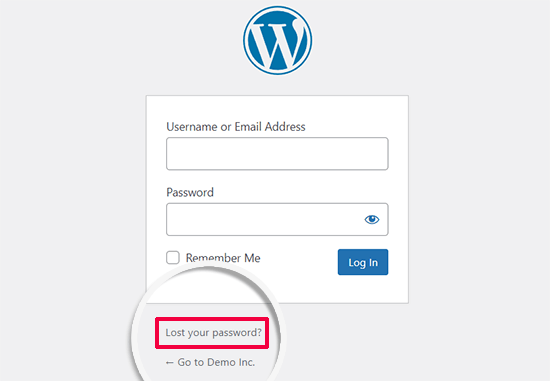
Go ahead and click the ‘Lost your password?’ link.
On the next screen, simply enter the username you use to log in to your WordPress site. Or, provide the email address you used during the installation or registration.
Then, click the ‘Get New Password’ button.
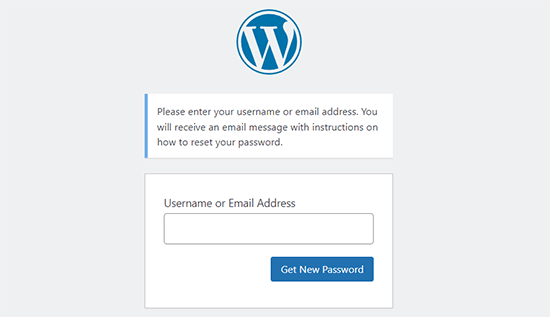
After verifying that you entered a valid username or email address, WordPress will send a recovery email to the address linked to your account.
It will also show you a ‘Check your e-mail for the confirmation link, then visit the login page’ notification.
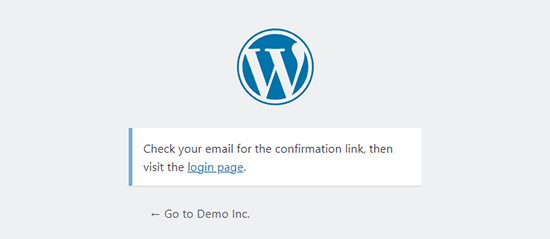
Now, check your email inbox. You should see an email with the subject [Your Blog Title] Password Reset.
If you don’t see the email right away, wait a few minutes. If it still doesn’t appear, check your ‘Spam’ or ‘Junk’ folder.
When you get the email, it will have a message similar to the following:
Someone has requested a password reset for the following account:
Site Name: Your Site Title
Username: YourUserName
If this was a mistake, ignore this email and nothing will happen.
To reset your password, visit the following address:
https://www.example.com/wp-login.php?action=rp&key=tKU2jF3cf2U1XaJgrnhc&login=yourusername&wp_lang=en_US
This password reset request originated from the IP address 192.168.1.132.
Let’s click on the link to reset your password.
This link will take you back to your website and allow you to enter a new password for your WordPress account.
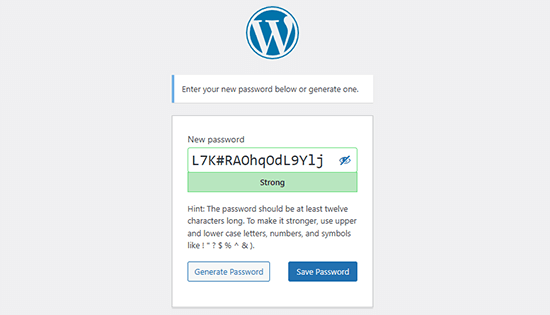
WordPress will automatically generate a strong password for you, but you can replace it with your own strong password if you prefer.
The strength indicator bar will also show how strong your password is. WordPress will let you set a weak password, but we strongly recommend using a strong one.
A strong password is at least 12 characters long and contains upper and lower case letters, numbers, and special characters such as ! “? $ % ^ &.
Once you’ve entered a password, click the ‘Reset password’ button. You’ll see a notification saying, ‘Your password has been reset. Log in’.
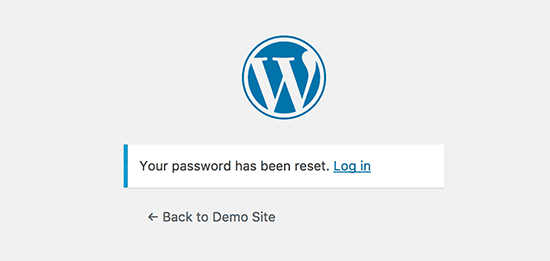
Congratulations! You have successfully reset your WordPress password.
Simply click on the ‘Log in’ link to sign in to your WordPress blog using the new password.
🌟 Expert Tip: Advanced-level WordPress users can also reset the WordPress password from phpMyAdmin.
Bonus #1: Ensure the Deliverability of Password Reset Emails
Sometimes, WordPress may not send you an email even if you request a password reset. This often happens when your WordPress hosting server is not properly configured to use the PHP mail() function.
Even if your hosting is configured correctly, many email providers, like Gmail, may block or filter emails sent using the default WordPress method.
The easiest way to ensure WordPress emails are properly sent is by using an SMTP plugin for WordPress like WP Mail SMTP.
At WPBeginner, we use WP Mail SMTP to improve our email deliverability. It helps ensure our emails reach users’ inboxes instead of the spam or junk folder. See our extensive WP Mail SMTP review to learn more.
📝 Note: You can also use a free version of WP Mail SMTP for this purpose.
Unlike the PHP mail() function, WP Mail SMTP uses proper authentication, which significantly improves email deliverability.
For more details, check out our guide on how to fix the WordPress not sending email issue.
Bonus #2: Create a Strong and Memorable WordPress Password
When you reset your password, WordPress automatically generates a strong password that’s hard to guess. We recommend storing this password in a password manager.
Otherwise, you’ll likely forget it and end up resetting your password again. This often tempts users to pick weaker but more memorable passwords, which is not recommended for your WordPress site’s security.
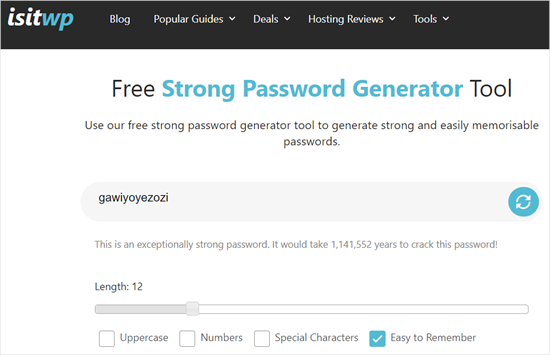
This is why using IsItWP’s Free Strong Password Generator Tool is helpful. It quickly creates strong, unique passwords for you. It’s a free online tool – no login or download required.
Bonus #3: Keep WordPress From Forgetting ‘Remember Me’
Entering your password each time you log in to your WordPress blog can be bothersome.
However, if you always log in to your WordPress site from your own devices on a private connection, you can stop WordPress from forgetting you with the Always Remember Me plugin.
This plugin automatically checks the ‘Remember Me’ box on your login screen. Once you log in, you’ll stay logged in for a long time unless you clear your browser cookies.
FAQs – Recover a Lost Password in WordPress
If you still have questions about recovering or resetting your WordPress password, the FAQs below will help clear things up.
Can I regain administrator access to my WordPress site if I forgot my credentials?
Yes, you can. The easiest way is to click the ‘Lost your password?’ link on the login page. If that doesn’t work, you can reset your password from your hosting account using phpMyAdmin, or even create a new admin user through FTP.
Where is the WordPress admin password stored?
WordPress doesn’t save your actual password anywhere. It stores a scrambled (hashed) version of it inside the wp_users table in your database. That’s why you can’t “look up” your password. You can only replace it with a new one.
How to log in to WordPress admin without a password?
If you can’t use the password reset link, you can reset your login details from your hosting dashboard. Most web hosts let you update your WordPress password through phpMyAdmin or a built-in user manager. That way, you can get back into your site without knowing the old password.
How to force a login in WordPress?
If you need quick access, you can reset the password directly in your database or create a brand-new admin account using a PHP snippet via FTP. After that, you just log in normally with the new details.
How do I find out my WordPress password?
You can’t see your existing password because WordPress hides it for security. But you can always reset it using the password recovery link or through your WordPress hosting account.
Video Tutorial – Recover a Lost Password in WordPress
If you prefer learning by watching, then feel free to see our video tutorial on how to recover a lost password in WordPress below. 📽️
Next Steps to Reinforce Your WordPress Security
We hope this tutorial helped you learn more about resetting your WordPress password.
You may also want to see our other helpful guides on:
- How to Force Strong Passwords on Users in WordPress
- How to Easily and Securely Manage Passwords
- How to Hide Password-Protected Posts from the WordPress Loop
- Best WordPress Login Page Plugins (Secure and Customizable)
- The Ultimate WordPress Security Guide
If you liked this article, then please subscribe to our YouTube Channel for WordPress video tutorials. You can also find us on Twitter and Facebook.




Kween Kleokatra
Hi,
This is not “recovering” a lost password, this is “resetting” a lost password. Yes? I still think this is a great site, though.
WPBeginner Support
You are correct that it would be more resetting the password as having the ability to find the current password would cause a security risk but setting the password to what was believed to be the correct password would work the same as recovering it
Admin
Jiří Vaněk
It is also good to mention that sometimes people in WordPress have an email that doesn’t work. Then there is another option, where the password can be replaced with a new one directly in the MySQL database. The user table, where either the original hash can be replaced with a new one or a new one can be generated. This is a kind of safety measure when everything else fails but at least the database credentials are available (which can be provided by the website provider).
Bilal
I am experiencing an issue on my WordPress website. The problem occurs when a regular user forgets their password and tries to reset it by clicking on the “Forgot Password” link.
After entering their email address, the email they receive contains only a confirmation that the password was changed, without providing any link through which they can actually reset their password.
WPBeginner Support
If you have not done so already, please check your active plugins to see if any of your plugins modify how the forgot password link works.
Admin
brian
hello I have a problem, in the link that is sent to the email the https: // is repeated 2 times, I would like to know how can I solve this, please
WPBeginner Support
For that, you would want to ensure your domain is set properly in your WordPress settings and you don’t have a plugin that modified that email for the most common reasons.
Admin
Magda
Hi,
I have a different problem – I click on the ‘Lost your password?’ link, but instead of displaying the Wordpress page where I can enter my email address, I get redirected to my actual website instead (where the users of my website can retrieve the passwords to their accounts). After entering my email address there I get a message ‘Invalid username or email.’
Is there a different way to get to the screen which you show on the second image?
Many thanks!
WPBeginner Support
It sounds like you may have a strange redirect happening, you would first want to try clearing your cookies and cache, otherwise, you can force your password change using the method from our article here: https://www.wpbeginner.com/beginners-guide/how-to-reset-a-wordpress-password-from-phpmyadmin/
Admin
Ivory Austin
Good morning,
wordpress is not sending me the password reset link
WPBeginner Support
Your site may be having trouble sending emails, you can force a reset using the method in: https://www.wpbeginner.com/beginners-guide/how-to-reset-a-wordpress-password-from-phpmyadmin/
Admin
Bryan
I go through the process, get the email, select the link, go to the WP page with the suggested new password, however when I select the reset button, I get an error message that the passwords don’t match. There is only one place to provide the new password, so I don’t see how it can’t match anything.
John Felageller
Hi,
I had received an invite link for wordpress which was sent by my blog admin. The link had expired, and so I went through the whole process you described above, however when I got the email with the link to reset, I can’t click on it. I can cut and paste it but that essentially takes me back to the same page. Any ideas on how I can access that page/function, or should I just notify my admin and let them handle it?
Thanks!
WPBeginner Support
Hi John,
Please notify your blog admin and they can send you a new invitation link by deleting your old account and creating a new one.
Admin
Anita
hi
I’ve done this – and my email is accepted – however no email with a confirmation link ever arrives. I’ve hit enter a few times over the last few weeks – and still no email
Thanks for your advice
WPBeginner Support
Hi Anita,
Seems like your WordPress site is unable to send emails. If this is the case, then you can recover your WordPress password using phpmyadmin.
Admin
Felix Ongoma
Thanks. Really helped. I had spent two days annoyed at WordPress for locking me out but it took few seconds after reading through your site.
Sheraz Bukhari
I have no Cpanel and no Email address to reset my password. anyone give me a solution.
but i ihave /wp-includes/ folder
Amar
hi
I am facing with below error when trying to recover my password.
The email could not be sent.
Possible reason: your host may have disabled the mail() function.
yessss
also not received to my mail inbox
Amar
Hi ,
I am trying to reset my password but it is saying your mail() is
The email could not be sent.
Possible reason: your host may have disabled the mail() function.
jai
I have get a email confirmation link. buy when I click on the password reset link it always takes me again to the username/email enter link. My password is not resetting and even I am not getting the problem solved by the wordpress confirmation links… Now what should I do??
Fábio Tojal
I am having a problem in the “lost password” link! When I click on the lost password link nothing happen, I just stay in same page of login!
The lost password link is working which is
but, I don’t know what to do to put it working on the wp-login.php page!
Thanks for your time!
Govind Kumar
i want my wordpress site to reset user’s password using mobile number is there any way to do this ?
waiting for you reply
thanks
John
I clicked on the link lost password, but haven’t received any emails from . And it’s not in my junk folder.
WPBeginner Support
Seems like your WordPress installation is unable to send email notifications. You can recover your password using phpMyAdmin. Once you recover your password you need to follow the steps in our guide on how to fix WordPress not sending email issue.
Admin
Hellena
Hi, I forgot the password and the email that was used to register the website (the owner is unable to access it) How can I reset the password now that I cant use the email option? Its a company website and I really need to update it.
WPBeginner Support
If you have access to the site’s database then you can change the WordPress password using phpMyAdmin.
Admin
Virginia
I’m very sad

I just did change the facebook sharing in wordpress. Somehow my blog did close and worpress asked for the pasword but i didn’t remember it because it always remember me.
I used the option to get an e mail and get a new password. But it did not send the e mail, it said that they send me a SMS, but I never put my celphone numbre in it.
I don’t understand the “PhpMyAdmin mode”. My blog is a free wordpress. Like “.wordpress.com”
Please help me I’m devastated
WPBeginner Support
This guide is for self hosted WordPress.org sites (the difference between WordPress.org vs WordPress.com). Please check out WordPress.com support to recover your lost password.
Admin
Raghu
Hi Hello,
I am recieving a mail for resetting the password when we clicked the forgot password, but that does not contain a link for resetting the password.
Any one can help me in this please?
WPBeginner Support
One possible cause could be that a plugin messing with your email content type. Try deactivating all WordPress plugins.
Admin
Ravi Janardhan
Somehow it’s not accepting my username & pAssword. On top of that I am not getting mall for ‘forgot password’. No clue, what to do, now?
Noumaan
Ravi check your junk mail folder. The email will be sent to the email account associated with your WordPress username. As a last resort, you can reset your password using phpMyAdmin.
Ravi Janardhan
Thanks so much Noumaan for timely help!
We are able to reset password with phpMyAdmin.
piyush goyal
today I just lost my password then your this article help me alot
thanx a lot for this
Gautam Doddamani
pretty standard procedure but no doubt a helpful guide for many…thanks for sharing!
Rod Salm
I’ve done this method several times, but then get an error message “You don’t have permissions to perform this function.” which forced me to try the complicated myphp admin route. Anyone know why an install of Wordpress would offer up this error?
Rod Salm
Editorial Staff
If you are not the site admin, then it is possible that the site admin has disabled that functionality. We shared a tutorial on how to do that a while ago:
https://www.wpbeginner.com/wp-tutorials/how-to-remove-the-password-reset-change-option-from-wordpress/
It is also possible that somehow your permissions got messed up for that username. It might be best to create a new user of that level, and copy and paste the permission code in your database for that user.
Admin
zimbrul
Once done few times the PhpMyAdmin mode is quite easy to perform