


Are your WordPress RSS feeds too basic, giving you little control over how your content appears on other platforms? This lack of customization often leads to lost traffic, frustrating content theft by scrapers, and missed opportunities to reinforce your brand.
We have spent countless hours fine-tuning our own custom RSS feed to protect our content and boost engagement. Now, we are sharing those exact steps with you.
In this guide, we will show you the easiest ways to completely customize your RSS feed in WordPress and protect your hard work.
TL;DR: To customize WordPress RSS feeds easily, we recommend using the All in One SEO plugin to add global content and protect against scrapers. For advanced, specific changes like adding custom fields or featured images, we provide safe code snippets you can manage with WPCode.
Here is a quick overview of the things we will cover in this article:
- Add Custom Content to WordPress RSS Feeds (Easy Way)
- Adding Content to WordPress RSS Feed Using Code
- Add Data from a Custom Field to Your WordPress RSS Feed
- Adding Additional Text to Post Titles in RSS
- Add Custom Content to Posts with Specific Tags or Categories
- Add Featured Image to RSS Feed
- 5. Include Custom Post Types in Your RSS Feed
- Frequently Asked Questions About Customizing WordPress RSS Feeds
- Bonus Resources on Customizing WordPress RSS Feeds
Add Custom Content to WordPress RSS Feeds (Easy Way)
The easiest way to add custom website content to your WordPress RSS feeds is by using the All in One SEO plugin. It is the best WordPress SEO plugin on the market and allows you to easily optimize your website SEO.
The first thing you need to do is install and activate the All in One SEO plugin. For more details, see our step-by-step guide on how to install a WordPress plugin.
Upon activation, you will be prompted to set up the plugin. Simply follow the on-screen instructions or check out our guide on how to set up All in One SEO.
After that, you need to visit the All in One SEO » General Settings page and switch to the ‘RSS Content’ tab.
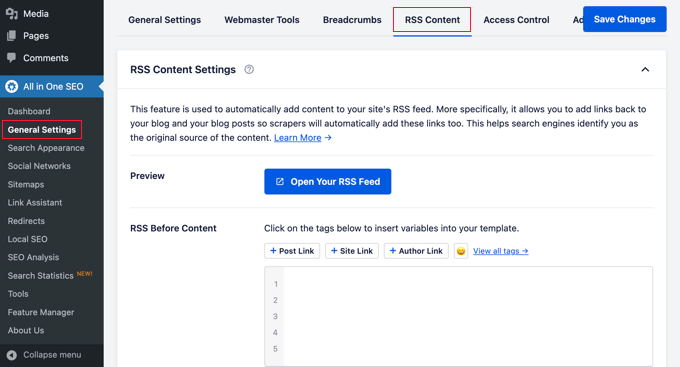
From here, you can add content that you want to display before and after each RSS feed item.
You can use smart tags to add links and other metadata to the custom content.
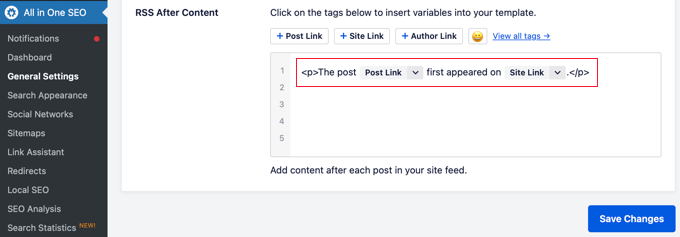
You can also use basic HTML to format your custom content any way you like.
Once you are satisfied with the changes, don’t forget to click on the Save Changes button.
All in One SEO will now add your custom content to each RSS feed item.
Adding Content to WordPress RSS Feed Using Code
The first method mentioned above is the easiest way to add custom content to your WordPress RSS feeds. However, it adds content to all items in your WordPress feed.
What if you wanted to add content to specific posts, posts in select categories, or display custom metadata in your RSS feed?
If you need more granular control, for instance, adding content only to specific posts, categories, or custom metadata, we have a collection of code snippets for you. Keep in mind that these are advanced methods, but we will show you how to apply them safely.
Expert Tip: When creating your new snippet in WPCode for the examples below, make sure to select ‘PHP Snippet’ as the Code Type from the dropdown menu on the right side of the screen.
You can use the following code snippets individually or combine them to customize your feed in multiple ways. For example, you can use one snippet to add featured images and another to add a special message to posts in a specific category.
You can add these code snippets directly to your theme’s functions.php file. However, we recommend using the WPCode plugin instead because it’s the easiest way to add custom code to WordPress without breaking your WordPress website.
It even includes several RSS snippets in its library that can be activated with a few clicks.
Simply install and activate the WPCode free plugin using the instructions in our guide on how to install a WordPress plugin.
Let’s try some examples of adding custom content in WordPress RSS feeds manually.
1. Add Data From a Custom Field to Your WordPress RSS Feed
Custom fields allow you to add extra metadata to your WordPress posts and pages. However, this metadata is not included in RSS feeds by default.
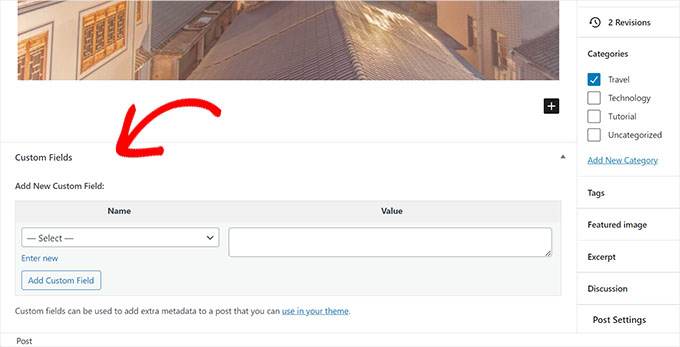
Note: By default, the Custom Fields box is hidden in the WordPress block editor. You can easily enable it by clicking the three-dot options menu in the top right corner of your screen, selecting ‘Preferences’, clicking on ‘Panels’, and toggling on the ‘Custom fields’ option.
Here is a snippet you can use to retrieve and display custom field data in your WordPress RSS feed:
function wpb_rsstutorial_customfield($content) {
global $wp_query;
$postid = $wp_query->post->ID;
$custom_metadata = get_post_meta($postid, 'my_custom_field', true);
if(is_feed()) {
if($custom_metadata !== '') {
// Display custom field data below content
$content = $content."<br /><br /><div>".$custom_metadata."</div>
";
}
else {
$content = $content;
}
}
return $content;
}
add_filter('the_excerpt_rss', 'wpb_rsstutorial_customfield');
add_filter('the_content', 'wpb_rsstutorial_customfield');
This code retrieves data from a custom field named ‘my_custom_field’. If the custom field is not empty, it appends the custom field’s content to the bottom of the post content within your RSS feed.
2. Adding Additional Text to Post Titles in RSS
Do you want to display additional text to the title of some posts in your RSS feed? Perhaps you want to distinguish between regular articles and guest or sponsored posts.
Here is how you can add custom content to post titles in your RSS feed.
Example 1: Adding Data from Custom Fields to RSS Feed Post Title
First, you will want to save the content you want to display as a custom field. For instance, you can add guest_post or sponsored_post custom fields.
After that, you can add the following code to your website:
function wpb_rsstutorial_addtitle($content) {
global $wp_query;
$postid = $wp_query->post->ID;
$gpost = get_post_meta($postid, 'guest_post', true);
$spost = get_post_meta($postid, 'sponsored_post', true);

if($gpost !== '') {
$content = 'Guest Post: '.$content;
}
elseif ($spost !== ''){
$content = 'Sponsored Post: '.$content;
}
else {
$content = $content;
}
return $content;
}
add_filter('the_title_rss', 'wpb_rsstutorial_addtitle');
This code simply looks for the custom fields. If they are not empty, then it appends the value of the custom field to the post title in your RSS feed.
Example 2: Adding Category Name to Post Title in RSS Feed
For this example, we will display the category name in the post title.
Simply add the following code to your website:
function wpb_rsstutorial_titlecat($content) {
$postcat = "";
foreach((get_the_category()) as $cat) {
$postcat .= ' ('.$cat->cat_name . ')';
}
$content = $content.$postcat;
return $content;
}
add_filter('the_title_rss', 'wpb_rsstutorial_titlecat');
Now, it will show categories along with post titles in the RSS feed. For example, “Top New Restaurants in Bay Area (News) (Travel)” where News and Travel are categories.
3. Add Custom Content to Posts with Specific Tags or Categories
Now, let’s suppose you want to add custom content but only for posts filed under specific tags or categories.
The following code will help you easily add content to posts filed under specific categories and tags:
function wpb_rsstutorial_taxonomies($content) {

if( is_feed() ){

// Check for posts filed under these categories
if ( has_term( array( 'travel', 'news' ), 'category' ) ) {

$content = $content."<br /><br />For special offers please visit our website";

}
}
return $content;
}
add_filter('the_excerpt_rss', 'wpb_rsstutorial_taxonomies');
add_filter('the_content', 'wpb_rsstutorial_taxonomies');
In the code above, we use an array to list our target categories (array( 'travel', 'news' )). If you want to target more categories, simply add them inside the parentheses, separated by commas and enclosed in single quotes.
You can also modify this code to target tags as well as any custom taxonomies.
Here is an example of targeting specific tags:
function wpb_rsstutorial_tags($content) {

if( is_feed() ){

// Check for posts filed under these tags
if ( has_term( array( 'holidays', 'blackfriday' ), 'post_tag' ) ) {

$content = $content."<br /><br />For special offers please visit our website";

}
}
return $content;
}
add_filter('the_excerpt_rss', 'wpb_rsstutorial_tags');
add_filter('the_content', 'wpb_rsstutorial_tags');
4. Add Featured Image to RSS Feed
By default, your WordPress RSS feed does not show featured images for posts. You can easily add them by using a code snippet that’s included in WPCode’s library.
Simply navigate to Code Snippets » + Add Snippet and then search the library for ‘rss’.
You can then hover over the snippet named ‘Add Featured Images to RSS Feeds’ and click the ‘Use Snippet’ button.
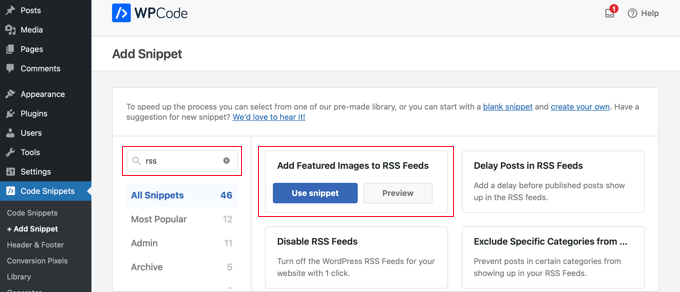
Now, all you need to do is switch the ‘Active’ toggle to the On position and then click the ‘Update’ button.
Featured images have now been added to your RSS feeds.
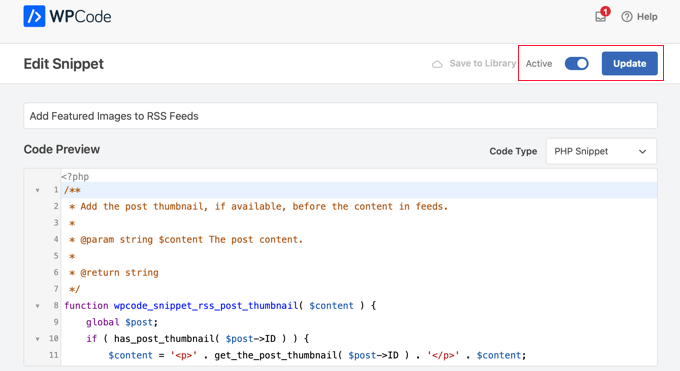
You can also add featured images to your RSS feed manually.
This is the code you can use:
function wpb_rsstutorial_featuredimage($content) {
global $post;
if(has_post_thumbnail($post->ID)) {
$content = '<p>' . get_the_post_thumbnail($post->ID) . '</p>' . $content;
}
return $content;
}
add_filter('the_excerpt_rss', 'wpb_rsstutorial_featuredimage');
add_filter('the_content_feed', 'wpb_rsstutorial_featuredimage');
This code simply checks if a post has a thumbnail (featured image) and displays it along with the rest of your post content
5. Include Custom Post Types in Your RSS Feed
By default, WordPress only includes standard blog posts in your main RSS feed. If you use custom post types for things like recipes, portfolios, or reviews, you will need to add them to your feed manually.
You can use the following snippet to add specific custom post types alongside your regular posts:
function wpb_rsstutorial_custom_post_types($query) {
  if (isset($query['feed']) && !isset($query['post_type'])) {
    $query['post_type'] = array('post', 'recipes', 'books');
  }
  return $query;
}
add_filter('request', 'wpb_rsstutorial_custom_post_types');
Make sure to replace 'recipes' and 'books' with the actual names of the custom post types you want to include.
Frequently Asked Questions About Customizing WordPress RSS Feeds
We often get questions about the best ways to manage and change WordPress RSS feeds. Below are answers to some of the most common ones we receive.
1. What is a WordPress RSS feed used for?
An RSS (Really Simple Syndication) feed helps users subscribe to your content using RSS feed readers like Feedly. It also allows you to syndicate your content across other platforms, helping you automate your content marketing and reach a wider audience.
2. How do I find my WordPress RSS feed URL?
You can typically find your main WordPress RSS feed by adding /feed/ to the end of your website’s domain name. For example, if your site is www.example.com, your feed URL would be www.example.com/feed/.
3. Why should I customize my RSS feed?
Customizing your RSS feed gives you control over your content. It helps prevent content scraping by adding backlinks to your original posts, allows you to add special promotions, and ensures your branding is consistent everywhere your content appears.
4. Is it better to show a full post or a summary in the RSS feed?
We recommend showing a summary instead of the full post. This encourages subscribers to visit your website to read the full article, which increases your page views and helps with SEO. You can change this setting in WordPress under Settings » Reading.
5. Are RSS feeds still relevant?
Absolutely. While social media algorithms change constantly, RSS feeds remain a foundational technology for content syndication, podcasting, and delivering content to dedicated readers using apps like Feedly or Flipboard.
6. How do I display an RSS feed on a WordPress webpage?
If you want to show an external RSS feed on your own site, WordPress has a built-in RSS block. Simply open the block editor on any post or page, add the RSS block, and paste the URL of the feed you want to display.
7. How can I test if my customized RSS feed is working?
Once you have customized your feeds, it is always a good idea to test them. You can copy your feed URL and paste it into the free W3C Feed Validation Service to make sure your new RSS feed is formatted correctly and free of syntax errors.
Bonus Resources on Customizing WordPress RSS Feeds
We hope this article helped you learn how to add content to your WordPress RSS feeds. You may also want to see some more resources that will help you further optimize your WordPress feeds:
- Best WordPress RSS feed plugins
- How to fix WordPress RSS feed errors
- Tips for optimizing your WordPress RSS feeds
- Exclude specific categories from RSS feeds
- Fetch content from any RSS feed to your WordPress site (auto-blogging)
If you liked this article, then please subscribe to our YouTube Channel for WordPress video tutorials. You can also find us on Twitter and Facebook.





Jiří Vaněk
Great article. I have a blog on a subdomain and a personal portfolio on the main domain. I added an RSS aggregator to the main domain so I can display the latest blog posts in my portfolio, attracting people from the portfolio to the blog. Thanks to this article, I customized the RSS feed exactly as I wanted, and now I have a great connection between my portfolio and my blog. Thanks.
Dayo Olobayo
Thanks for outlining the different methods for adding custom content to RSS feeds. The option to use plugins or code snippets makes this accessible to a wider range of users. I had no idea that one can customize WordPress RSS feeds to this extent. This opens up a lot of possibilities for making my feed more engaging for my readers.
Roberto Diaz
Hi guys, I am trying to add the featured image by default to RSS posts and I have 2 questions:
1. Where exactly do you add the code you mention?
2. In your code I see “function wpb_rsstutorial” are we supposed to replace this or any other part of the code with our own parameters?
Thank you for your help!
WPBeginner Support
If you check under our ‘Adding Content to WordPress RSS Feed using Code’ section we cover the different methods for adding the code from our guide.
For the function names, those are not required to be changed unless you want to and if you change it you would want to ensure you change every instance of it with the original name to your new name.
Admin
Gaganpreet singh
How to show after each paragraph?
WPBeginner Support
We do not recommend adding content after every paragraph in your RSS feed at this time.
Admin
Macca Sherifi
On your RSS feed you’ve got a real simple “To leave a comment please visit [Post Title] on WPBeginner.”
How do I replicate this? In your code that you’ve supplied, presumably I have to change “coolcustom”, but which one do I edit specifically?
Lapan
Hi.
If I have in post:
[text1]Text one[text1]
[text2]Text two[text2]
How do I return text2 shortcode in rss only?
Gretchen Louise
I’m trying to use the third option to add the Digg Digg plugin’s buttons to the bottom of my RSS feeds. Any suggestions on editing the content to incorporate PHP rather than just text?
brandy
I am trying to use this to implement CSS disclosure buttons in my feed, but I *cannot* figure out how to get it into the description. I have code of what I tried (2 different functions for the excerpt & the post). i hate how the buttons show up in the excerpt and i don’t think it’s necessary. help?
Editorial Staff
Your feed doesn’t load your template’s CSS, so you would have to use inline CSS.
Admin
Matt
I really appreciate you sharing this information with us. I have implemented this on my site now…I always really liked how it looks in your “weekly” emails that I receive.
I think that it looks very professional and of course it is gonna help fight back against those content scrapers (thieves).
Again, well written code, and very useful advice. Thank you!
Etienne Bretteville
Do you know if this tweak is still working with wordpress 3.4.1?! Can’t make it work.
Editorial Staff
Yes, it should still work with 3.4.1.
Admin
Adam
Great info! One question… on #1 Add a Custom Field to your WordPress RSS Footer, for some reason the content/custom field is displayed twice. Any idea why?
wpbeginner
No idea why. Have to see your code to tell that. Our code seemed to work fine when we installed it on a client’s site.
rahul
I have problem that in my site if someone fills a contact us form then his all personal info is displayed in rss feed and any user can see it
plz help !!!!!
wpbeginner
Which contact form plugin are you using?
thehifly
I actually got it now. Just edited the “$content = $content.”<br /><br /><div>”.$coolcustom.”</div>n”;” line. Perfect!
thehifly
Adding the additional text works great but I’m trying to have the RSS to show only that custom field (for example the “coolcustom”) as the post’s description. Get rid of the actual text of the post. Is that possible?
TheNerdyNurse
Now I can stick it to those content stealers!
scot
Hi, I’m looking to add two fields to my ‘full’ rss feed. One which displays the author of the post and the other which displays a list of the taxomonies, if any, that the post is in. So let’s say the author is JohnR and the post is in the NFL, Raiders and Jets taxonomies, the RSS would have two additional fields:
JohnR
NFL, Raiders, Jets
Can someone point me in the right direction to get this done?
– Scot
Diane
Is there a way to find out who is subscribing to your RSS feeds on Wordpress?
Editorial Staff
Yes, you can use FeedBurner. In our beginner’s guide category we have a full article covering it.
Admin
Agilworld
Thanks for sharing…
Your tutorial is useful to me for verify the Technorati claim token! It worked nicely. I was looking for an effective way to verify it and found articles that discuss about that. But most of it, is not effective. And in the end, thought in my mind how add extra text in each footer post RSS feeds, Great! I found a smart way through your article, Thanks!!
Juri
Hi,
your code to add Custom Fields to RSS works great!!!! Thanks!
I’m wondering if there is a way to edit the position and not to show the custom fields in the footer but above the title, or under the title, or etc… Is there a chance to add the tag “style” and so use some css?
Thank you very much
Juri
Add a Custom Field to your WordPress RSS Footer:
THANKS Your code works perfectly. I have a question: How can I edit the position to show custom field up before the title or just after the title?
I tried to edit the code here:
$content = $content.””.$coolcustom.”
“;
I can remove the br tags and it works but where can I add style and css?
Thanks for your great help
Editorial Staff
You would have to use inline styling for the RSS to work on all different readers. To add it before, you will add it like $coolcustom.$content and then add div tags using quotation where you like…
Admin
Robert Simpson
Hi,
I’m trying to find a way to use a custom field to EXCLUDE a post from the RSS feed.
Any ideas?
Cheers,
Robert
Editorial Staff
The easiest solution would be to post it in a separate category and exclude that category from RSS Feeds with the use of Advanced Category Plugin…
Admin
Zach
Hey, thanks for the tutorial. It worked perfectly. Had a quick question though – after I get the extra content to load into the RSS Feed (for example if I’m viewing it in Safari), when I actually embed the RSS Feed on a website, that extra info goes away. Do you have any idea why that would happen? It’s been about 4 days as well – and I’ve tried clearing my cache several times. Thanks!
kiki
Thanks for this so far! I haven’t been able to find much on adding custom fields to the RSS feed until now.
Would it be difficult to add multiple custom fields with the code from section 1? I have an event listing website with custom fields for each post I want to display in the RSS, i.e. “Venue,” “Event Date,” “Address,” et al.
Editorial Staff
You should be able to add as many custom fields that you want without any problem
Admin
Kiki
Sorry, I’m a bit of a novice, but what would the code look like to get the multiple custom fields. I’ve tried playing with a few configurations of the code so far but it keeps resulting in errors. One field is working great though!
Ajay
I had a plugin released a while back that eases this process:
http://ajaydsouza.com/wordpress/plugins/add-to-feed/
Editorial Staff
Ajay but does your plugin allows one to add custom fields in the RSS Text? Because it just seems like that it has the exact same functionality that Joost’s RSS Footer Plugin has which is not what this article is showing. What if you need to display different FTC texts for each post, then plugins like yours and RSS Footer would fail because they show the same text on each post. With this, one can set different ways: For example, if custom field this: Display that otherwise display the default copyright or something like that.
Admin
Topan
I grab your rss. Ho ho ho. Let me begin to do this tutorial on my own :confuse:
FAQPAL
Good ideas and post. Thanks for the Share.
Made it our featured tutorial at FAQPAL.
Oscar
This is great, it should help out a lot when trying to do quick little customizations. Little bite-sized tips like this are very helpful. I’ve seen people put some of the social media icons at the bottom too, to add to digg, and su and stuff.
John (Human3rror)
great! thanks for this. very helpful.