


Managing a WordPress site often involves making changes across many posts and pages. One common task is searching for specific content and replacing it with something new.
We know firsthand how time-consuming it can be to search for and replace content manually. If you aren’t careful, it can also cause mistakes.
That’s why we looked for easier ways to search and replace content on your WordPress site. These methods let you make bulk changes quickly.
Let’s look at the reasons why you might need to search and replace WordPress content and how to do it effectively.
Quick Answer: How to Search and Replace in WordPress
Install the Search & Replace Everything plugin, then go to Tools » WP Search & Replace. Enter your search term and replacement text, preview the changes, and click ‘Replace All’.
Why Use Search and Replace in WordPress?
Search and replace lets you update content across your entire site at once, instead of editing each post or page manually.
- Save hours — update text, URLs, or images across hundreds of posts in seconds.
- Avoid mistakes — bulk replacements are more consistent and accurate than manual edits.
There are many situations where you might need to search and replace content on your WordPress site.
Here are some common use cases:
- Changing URLs: When you move a WordPress site to a new domain or switch to HTTPS, you will need to update all URLs across your website.
- Updating Old Content: Quickly update outdated information like product pricing, stats, and figures across multiple posts.
- Fixing Typos: If a repeated typo appears across your content, search and replace fixes it everywhere at once.
- Replacing Shortcodes: If you switch plugins that use shortcodes, a quick search and replace updates all instances.
- Updating Brand Names or Phrases: When your business rebrands, you can update the brand name across your entire site in one go.
- Replacing an Image Used Across Multiple Locations: Replace an outdated image anywhere on your site with just a few clicks.
Using a search-and-replace plugin saves time and keeps your content consistent. Now, let’s create a backup before making any changes.
Preparing for Search and Replace
Before making any changes to your WordPress database, back up your site first. This way, you can restore everything if something goes wrong.
We recommend using Duplicator. It is the best WordPress backup plugin for creating on-demand backups. More importantly, it makes it easy to restore your site from those backups.
Note: A free version of Duplicator is also available. It has fewer features but is enough to create a database backup and store it on your computer.
For detailed instructions and alternative backup options, see our beginner’s guide on creating WordPress backups.
Once your backup is ready, you can safely perform search and replace tasks on your website.
We will cover 2 methods in this tutorial. Use the quick links below to jump to the one you want to use:
| Feature | Search & Replace Everything | Better Search Replace |
|---|---|---|
| Price | Free & Pro (paid plans starting from $29 /yr) | Free & Pro (paid plans starting from $59 /yr) |
| Undo changes | Yes (Pro only) | No |
| Replace images | Yes | No |
| Preview before replacing | Yes | Yes (dry run) |
| Case-insensitive search | Yes | Yes |
| Search specific tables | Yes | Yes |
| Best for | Most WordPress users | Simple text changes |
Method 1: Using Search & Replace Everything (Recommended)
For this method, we will show you how to use the Search & Replace Everything plugin.
Created by the team behind WPCode, the best WordPress code snippets plugin, Search & Replace Everything is the easiest way to search and replace content on your WordPress site. It also handles serialized data correctly, which matters when you’re updating URLs or domain names stored in the database.
It can be used for all kinds of content, including:
- Text
- Images
- Content within specific database tables
First, you need to install and activate the Search & Replace Everything plugin. If you need help, see our tutorial on how to install WordPress plugins.
Note: There is also a free version of Search & Replace Everything. However, it has fewer features — for example, it doesn’t let you undo changes or view history.
Upon activation, go to Tools » WP Search & Replace to start using the plugin.
Searching And Replacing Content
Under the Search & Replace tab, enter the content you want to search for and then add the content you want to replace it with.
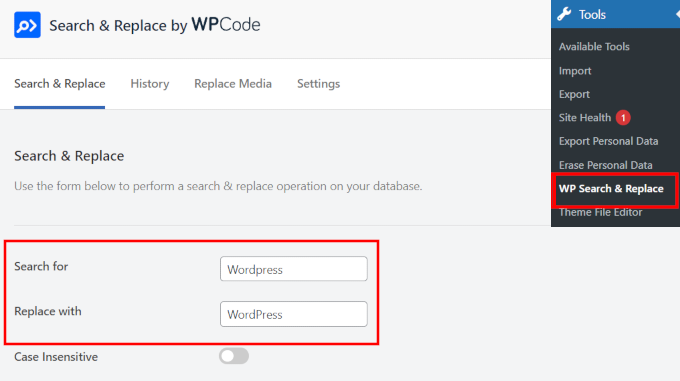
By default, all searches are case-sensitive. This means if you search for “Wordpress,” it will not match “wordpress,” “WordPress,” or “WORDPRESS.”
If you want your search to match all instances regardless of case, toggle the “Case Insensitive” switch.
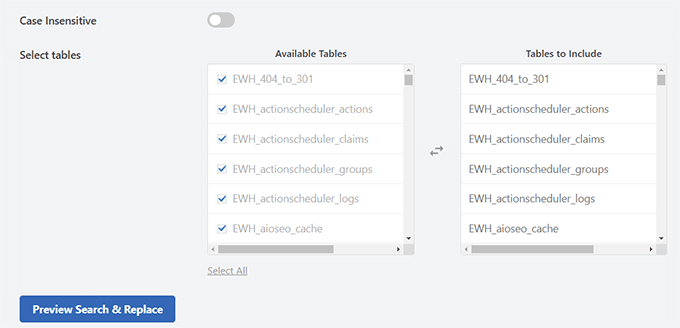
If you know which database tables to look in, you can select those below.
For example, if you want to search and replace text in your posts, select the posts table. This makes your search faster and more precise.
You can also select multiple tables or all tables. The plugin handles large databases well and won’t slow down your site.
Bonus Tip 💡: Learn more about WordPress database management and what each table does in WordPress.
Click the ‘Preview Search & Replace’ button.
The plugin will open a popup showing items that match your search term and how they will look after the replacement.
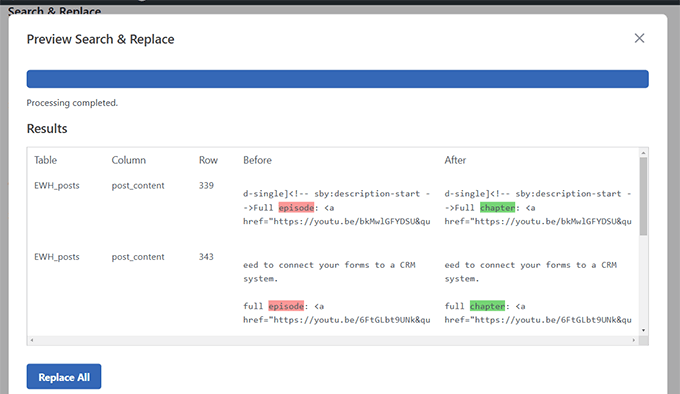
If everything looks good, click the ‘Replace All’ button to apply your changes.
The plugin will show a warning reminding you to create a backup.
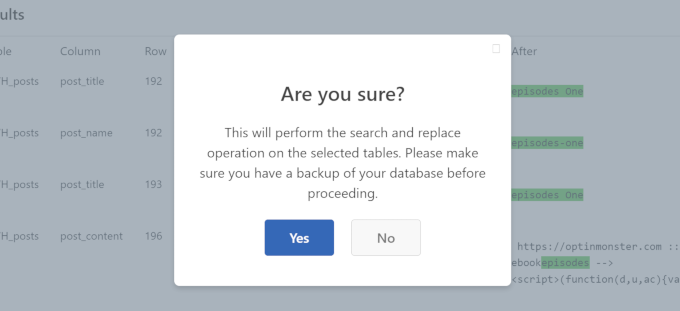
Since you already created a backup, click ‘Yes’ to apply your changes.
Track And Undo Changes
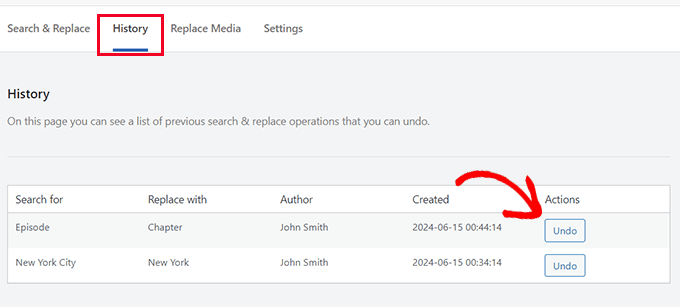
If you are using the Pro version of the plugin, you can view past changes and undo them if needed.
Switch to the ‘History’ tab on the plugin’s settings page to see a list of your search and replace operations.
Click the ‘Undo’ button to revert any changes.
Replace Images in WordPress
Search & Replace Everything can also replace images, not just text.
This is useful when you’ve used the same image across multiple posts, pages, and other locations. Replacing it through the plugin updates the image in all those locations at once.
Switch to the ‘Replace Image’ tab under the plugin settings and locate the image you want to change.
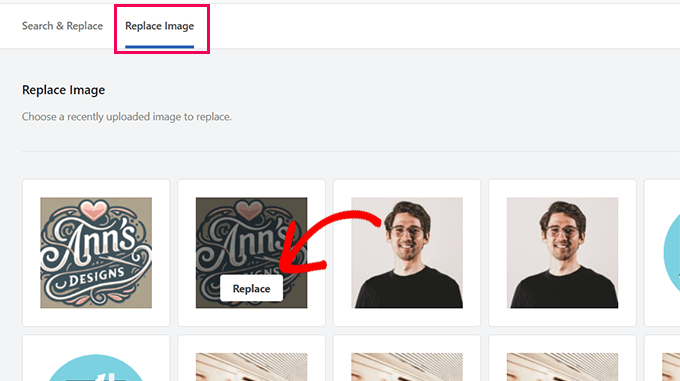
Hover over the image and click the ‘Replace’ button.
Next, upload your replacement image by clicking ‘Choose a file…’.
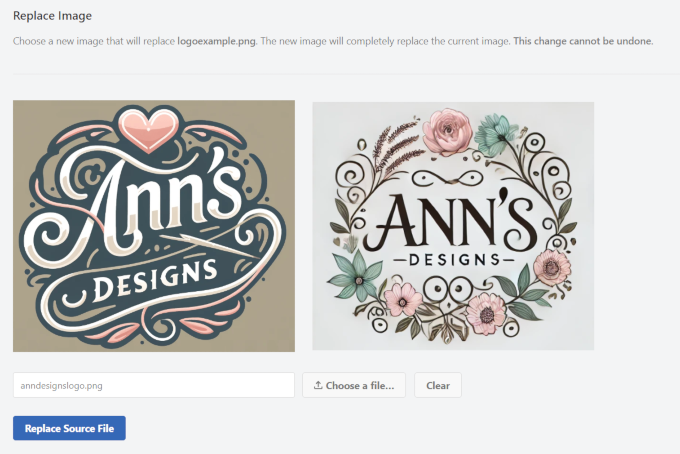
The plugin will show a preview of the new image next to the old one.
Tip 💡: For best results, use a replacement image with the same dimensions (width and height) as the original.
Click ‘Replace Source File’ to save your changes. The plugin will now swap the old image for the new one across your site.
Tip 💡: If you still see the old image, try clearing the WordPress cache.
Method 2: Using Better Search Replace Plugin
For this method, we will use the Better Search Replace plugin. It is a free plugin with a slightly different set of options than Search & Replace Everything.
Note: Better Search Replace does not have a built-in undo option. Once changes are written to the database, you cannot reverse them through the plugin. That’s why creating a backup before using it is so important.
The first step is to install and activate the Better Search Replace plugin. For details, see our tutorial on installing a WordPress plugin.
Once activated, go to Tools » Better Search Replace.
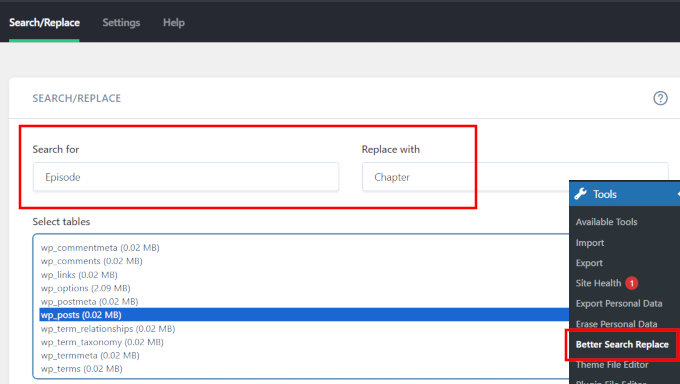
Add the text you want to search for, then add the replacement text.
Next, select the database tables you want to search. If you want to search and replace text in your posts, select the posts table. You can also select multiple tables.
By default, all searches are case-sensitive. This means if you search for “Wordpress,” it will not match “wordpress,” “WordPress,” or “WORDPRESS.”
If you want your search to match all those strings, make the search case-insensitive.
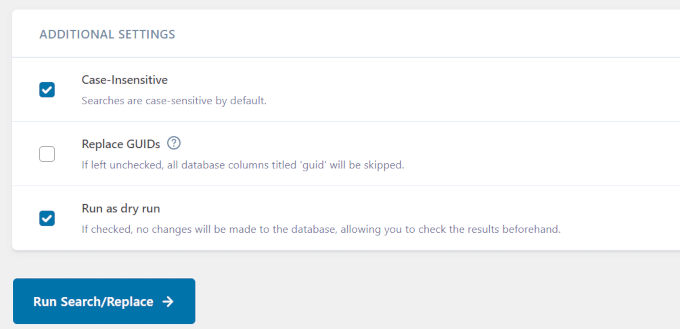
Check the ‘Run as dry run’ option if you want to preview the results first.
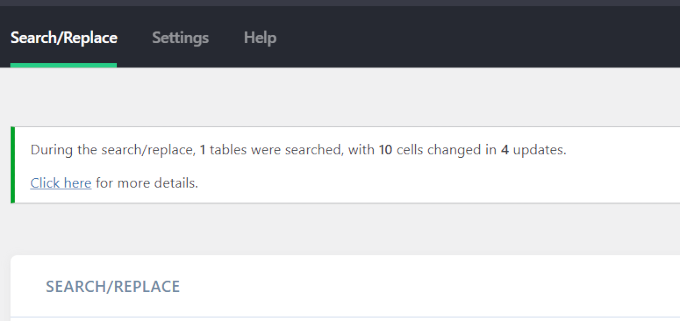
This runs the search and shows how many tables and cells will be affected, without making any changes to the database.
Click the ‘Run Search/Replace’ button to continue.
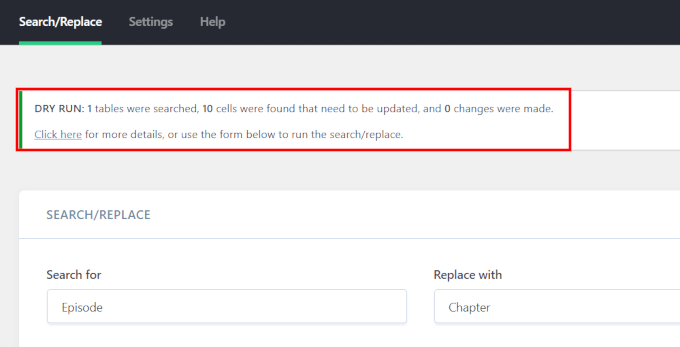
If you ran a dry run, you will see the affected database tables and cells. You will need to run the search again with the ‘Run as dry run’ checkbox unchecked to actually apply the changes.
If you skipped the dry run, the plugin applies the changes right away.
Troubleshooting
If you see a white screen or run into timeouts during a search and replace, click the ‘Settings’ tab on the plugin page.
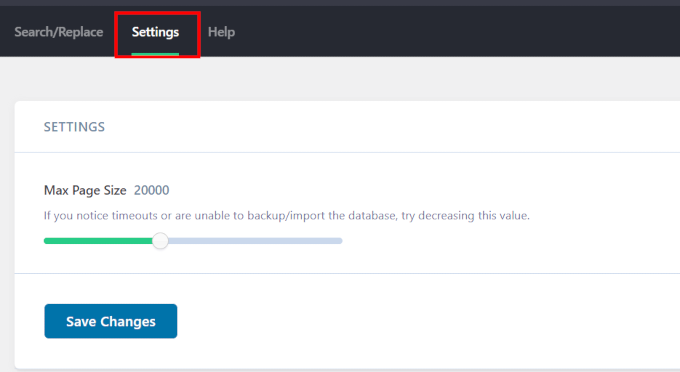
Try decreasing the ‘Max Page Size’ to avoid timeouts and the white screen issue.
Frequently Asked Questions
Can I find and replace in WordPress without a plugin?
Yes. Developers can use WP-CLI with the wp search-replace command, or run a MySQL query via phpMyAdmin. For beginners, a plugin is much safer and easier to use.
Does WordPress search and replace work on serialized data?
Yes. Both Search & Replace Everything and Better Search Replace handle serialized data correctly. This is important when updating URLs or domain names stored in the WordPress database.
Can I undo a search and replace in WordPress?
With the Pro version of Search & Replace Everything, yes — use the History tab to view and undo past operations. Better Search Replace has no built-in undo, which is why creating a backup before running any search and replace is so important.
What’s the difference between Search & Replace Everything and Better Search Replace?
Search & Replace Everything is more powerful — it supports image replacement, change history, and the ability to undo changes (Pro). Better Search Replace is a free, simpler plugin best suited for straightforward text or URL changes.
What is the WP-CLI search replace command?
The command is wp search-replace 'old-text' 'new-text'. It’s a developer tool for making database changes via the command line. Always use the --dry-run flag first to preview changes before running the actual replacement.
We hope this article helped you learn how to search and replace content in WordPress. You may also want to see our tutorial on how to clean up your WordPress database for improved performance or how to bulk delete WordPress posts.
If you liked this article, then please subscribe to our YouTube Channel for WordPress video tutorials. You can also find us on Twitter and Facebook.





Angela Arden
So this plug in does not assist in redirects, correct?
I have an old website I’m revamping – rewriting articles, swapping pics, moving them. If I could, I’d just delete and start over but from what I’ve read, that’s not a good idea. I’m not a techie…if you couldn’t tell LOL!
WPBeginner Support
Correct this is not a plugin for redirects, our article with our recommended tools for creating redirects can be found below
https://www.wpbeginner.com/beginners-guide/beginners-guide-to-creating-redirects-in-wordpress/
Admin
Dayo Olobayo
Upgrading to the premium version of this plugin was worth every penny. The advanced features like case-sensitivity and selective table targeting saved me so much time. Definitely a must-have tool in my WordPress toolkit.
Daniel
Does the plugin work for bbpress topics and replies too?
WPBeginner Support
The plugin does have the ability to search what was added through other plugins, you would mainly want to make ensure you search the correct tables.
Admin
Paul G
Thanks, this mostly worked for me but didn’t quite change all of the image links.
The rest I could easily change myself by editing the custom modules.
WPBeginner Support
Glad our guide was helpful
Admin
Karol
Changed a website from http to https via cpanel; green lock did not appear and “connection is not secure” warning was present. This plugin worked great for me. The only difference I did was that I left the checkmark off “Case Insensitive?”.
Every site can be different with it’s own hurdles to jump through but the dry run seemed to look okay without any errors so I ran with it. Green lock appeared right away for the site. Plugin worked for me. I hope it continues to work with other sites.
My only question now is … Do I leave the Better Search Replace plugin installed and activated or do I uninstall it now that I’m done?
WPBeginner Support
That would be a personal preference question but you should be able to remove the plugin without worry
Admin
Mandy
Hello,
My site is having issues showing images lately, and my host said that it’s because the paths are wrong. They recommended this plug in, but my problem is that I am not sure what I am searching and replacing. Here’s why:
When I insert an image in “visual” mode within a post, it shows up. They all do.
Then when I preview or publish, some images don’t show up. What I am noticing lately is that instead of the code showing them as “image.jpg”, they now have the image size you choose in the path – “image-300×188.jpg” (this happens to be the medium size for this particular image). Why is it putting the pixel dimensions? If none of the images worked, I could say yes, the paths are incorrect, but some images DO work! I am officially bamboozled. It seems so random.
Best,
Mandy
WPBeginner Support
Hi Mandy,
Please take a look at our guide on how to fix common image issues in WordPress.
Admin
Ashraf Ali
I am switching from http to https now the common problem faced is broken css, I am wondering if could use this plugin to replace https:// to just //
So that all contents are delivered over https
Cheers
Drew
I had a program enter structured data that is all different. I want to remove everything between and including this : ———————-
How would I do that?
WPBeginner Support
Hi Drew,
We are not sure we completely understand your issue. However, we are guessing that you had a plugin to add structured data and now you want to remove the structured data from your WordPress posts and pages? If this is the case, then you can simply uninstall the plugin.
Admin
Sueli
Great plugin!
I have a question.
Can I use a wildcard?
I am trying to remove numbers added after an image file. They are different (both the numbers and their length). The stop point would be the (“).
Some examples of what I want to replace with (jpg”)
(jpg?11906004322295206140″)
(jpg?15231215847335105667″)
(jpg?82668654789154738″)
Is it possible with this plugin?
Thanks
David
I download “Better Search & Replace. Once it found entries, it doesn’t show me unless I buy premium addon.
So instead I ditched that and downloaded “Search & Replace”. It took me only two minutes to replace 100 entries.
Ralpheal
Wow thanks so much, this is truly a luxury. Going to save me a lot of time, as I was considering changing a phone number on 1oo’s of blog posts.
Thanks so much,
Ralpheal
Mike
This plugin did not work for me. I backed up the database, then unchecked “Dry Run”. It messed up things all over the site and there was no way to undo the changes.
I even tried to restore the database backup I created with it before making changes and that didn’t work. Don’t use this unless you’re prepared to do an entire site restoration.
WPBeginner Support
You should have tested with dry run first to see how many rows are affected by the plugin. Glad that you followed the instructions and made a backup first.
Admin
vikas kumar
sir
help me out from pagination error i did which you show in video but i didn’t get result
i am using macbook air in this your given shortcode not work properly
Marko Tiosavljevic
yes, but this plugin is practically useless when it comes to migrations.
When you migrate website from domain . com to another . com you need to change
you need to connect to database for changing url or you need to insert it in wp_config as url
i am working on external app wp safe mode that is solving this problems in best way.
WPBeginner Support
It is highly useful in performing search and replace after you have connected to the WordPress database.
Admin
Nico
Hi, it seems that this plugin is no longer available in Wordpress Plugin Directory. Which alternative plugin do you recommend?
With kind regars,
Nico.
Syed Umair Umar
Better Search and Replace is an alternate for me. The editorial staff of WP Beginner seems too lazy and replies to comments very few times.
WPBeginner Support
Thanks for helping out.
Admin
Brian
Does this take into account serialize data or will it break plugins that use serialized metadata? I know of a few plugins that do this for migration purposes. If it doesn’t it could cause more problems than it solves.