


When we first launched our blog, security was always on our minds. We knew that building a successful site meant more than just great content. It required a secure foundation to protect our hard work and our readers.
But when we noticed a big increase in login attempts, we realized that we needed to do more.
Taking inspiration from big websites like Facebook and Google, we knew two-factor authentication (2FA) was the solution we needed. This extra layer of security makes it much tougher for hackers to gain access.
Luckily, we found that adding 2FA to our site was quite easy. It boosted our site’s security and gave us peace of mind.
In this article, we will show you how to add two-factor authentication (2FA) to your WordPress site, step by step. With 2FA enabled, logging in will require both your password and a time-sensitive code from an app on your phone.
We will walk you through two easy methods to set this up.
💡 Quick Answer: How to Add Two-Factor Authentication in WordPress?
To add two-factor authentication (2FA) to your WordPress site, you can use a dedicated plugin that integrates with an authenticator app (like Authy or Google Authenticator) to generate time-sensitive codes for login.
- Method 1 – WP 2FA plugin: Recommended for most users as it offers flexible setup options and allows you to enforce 2FA for all or specific users.
- Method 2 – Two-Factor plugin: A simpler method for adding 2FA, particularly if you only need to set it up for your own user account.
Why Add Two-Factor Authentication in WordPress?
Adding Two-Factor Authentication (2FA) is crucial for securing your WordPress site against common hacker tactics like brute force attacks and stolen passwords.
It adds an essential extra layer of defense, ensuring that even if your password is compromised, your site remains protected.
Here are the main benefits in detail:
- Defend Against Brute Force Attacks: Automated scripts try to guess your login credentials. 2FA adds a barrier to these attempts, making it harder for hackers to gain access.
- Safeguard Against Stolen Passwords: Even if a hacker manages to steal or guess your password, they cannot log in without the secondary, time-sensitive code from your authenticated device.
- Prevent Site Compromise: By blocking unauthorized access, 2FA protects your admin area from malware installation, user information theft, or complete site deletion.
Types of Two-Factor Authentication for WordPress
- Authenticator Apps (TOTP): This is the most common and recommended method, generating time-sensitive, one-time passwords (TOTP) on a smartphone app like Authy or Google Authenticator. It’s highly secure and doesn’t rely on cell service.
- Email Codes: A code is sent to your registered email address. While convenient, it’s less secure if your email account is compromised.
- Backup Codes: One-time use codes generated during setup, essential for regaining access if you lose your primary 2FA method.
- SMS Codes: A code is sent via text message to your phone. This method is popular but can be vulnerable to SIM-swapping attacks and relies on cellular network availability.
- Security Keys (FIDO U2F): Physical hardware devices (like YubiKey) that plug into your computer. These offer the highest level of security against phishing and sophisticated attacks.
What Is an Authenticator App?
An authenticator app is a smartphone application that generates temporary security codes for your online accounts. It is the most secure and reliable method for setting up a 2-step login in WordPress.
The app and your website use a shared secret key to generate time-sensitive, one-time passwords. You will use these codes as the second layer of protection when you log in.
There are many excellent apps available for free. Here are a few popular choices:
- Google Authenticator: A very common choice, but it does not offer cloud backups. If you lose your phone, you might be locked out unless you have saved your recovery codes separately.
- Authy: This is our top recommendation for most users. It’s a free app that securely saves your accounts to the cloud. This way, if you lose your phone, you can easily restore access on a new device.
- 1Password and LastPass: Popular password managers often come with their own built-in authenticators. Here at WPBeginner, our whole team uses 1Password to keep our logins and 2FA codes in one secure place.
For this tutorial, we will use Authy in our screenshots. You can follow along with a different app, as the process is very similar across all of them.
That being said, let’s take a look at how to add 2FA in WordPress. Simply click the links below to jump to the method you prefer:
Now, let’s take a look at how to easily add two-factor verification to your WordPress login screen for free.
Method 1: Adding Two-Factor Authentication Using WP 2FA
This method is easy and recommended for all users. It is flexible and allows you to enforce two-factor authentication for all users.
First, you need to install and activate the WP 2FA – Two-factor Authentication plugin. For more details, see our step-by-step guide on how to install a WordPress plugin.
Upon activation, the WPA 2FA setup wizard will launch automatically. Otherwise, you can visit the Users » Your Profile page and scroll down to the ‘WP 2FA Settings’ section.
Clicking the ‘Configure Two-factor authentication (2FA)’ button will launch the setup wizard.
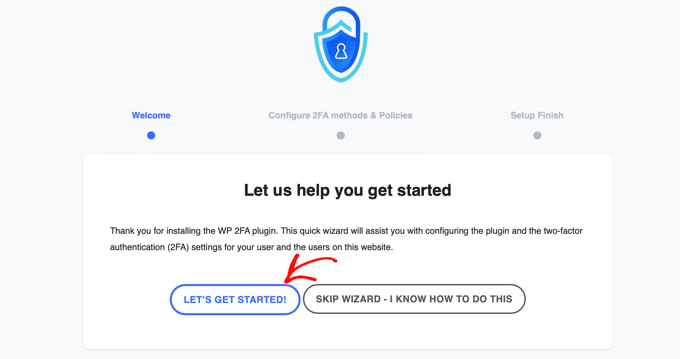
The WP 2FA Setup Wizard
Simply click the ‘Let’s Get Started!’ button to start configuring the plugin.
On the next page, you will be asked to choose an authentication method.
There are two options:
- One-time code generated with your 2FA app of choice (recommended)
- One-time code sent to you via email
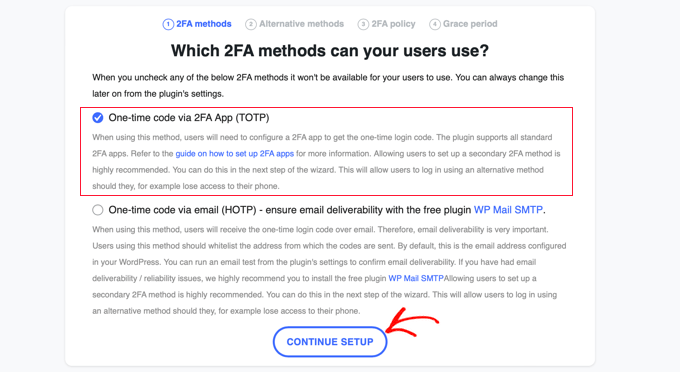
We recommend that you choose the authentication via the 2FA app (TOTP) method, as it is more secure and reliable.
Once you have made your choice, you can click on the ‘Continue Setup’ button to go to the next page of the setup wizard.
You will be asked which alternative 2FA methods you’d like your users to use if the primary 2FA method fails, such as if they lose their phone.
On the free plan, only the backup code method will be available. If you would like more alternative 2FA methods, then you will need to upgrade to WP 2FA Premium.
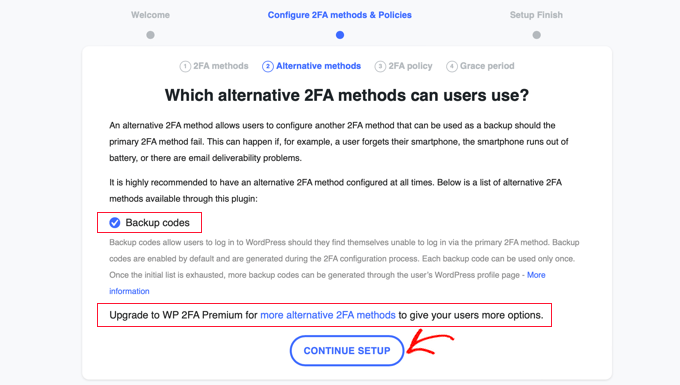
Simply click the ‘Continue Setup’ button to move to the next page.
On this page, you can make two-factor login compulsory for some or all users. We recommend this, especially if you run a multi-user WordPress website, like a membership site.
If you’d like to enforce 2FA for all users on your website, then simply select the ‘All users’ option and click ‘Continue Setup’.
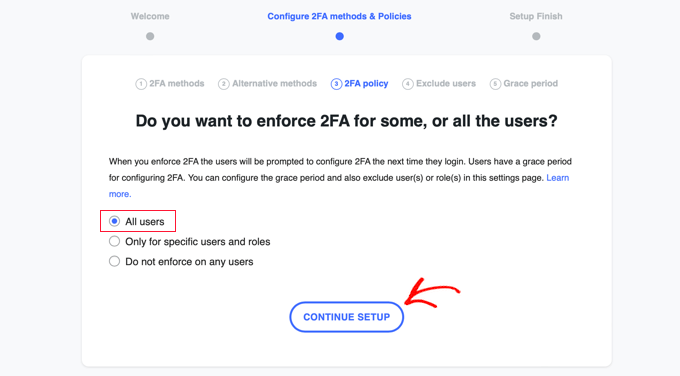
Now all of your users will be required to use 2FA.
However, maybe there are some users on your website that you don’t want to force to use 2FA. The next page allows you to type the usernames or user roles of those team members.
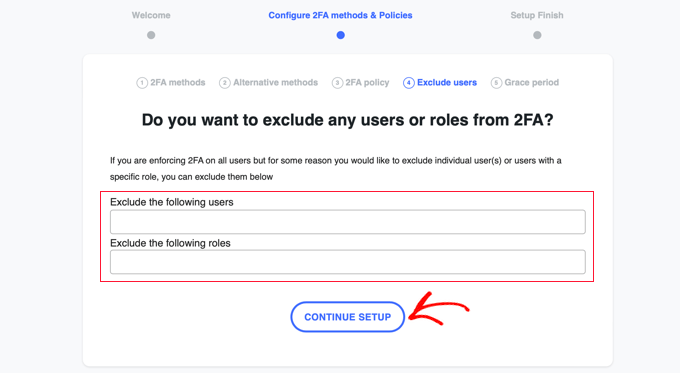
Once you have done that, clicking the ‘Continue Setup’ button will bring you to a page where you can decide how soon your users need to start using 2FA.
You can require them to start right away, or you can give them a grace period of, say, 3 days, so they have time to set things up. Just click on the option you want to use on your website.
If you want to give a grace period, then you can choose how many hours or days that will be. The default setting of 3 days will work well for most websites.
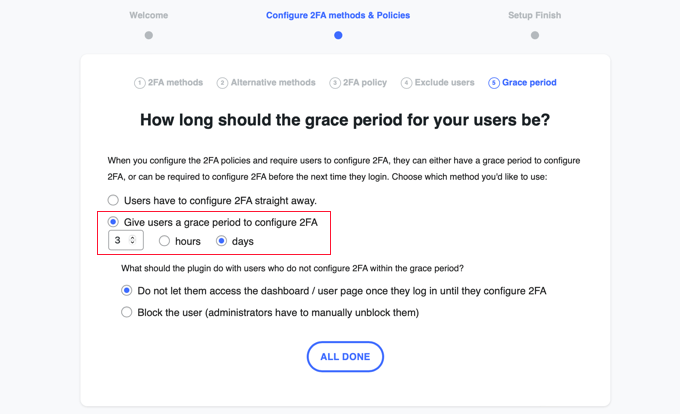
There are also options for what to do after the grace period ends if some users have not set up 2FA. You can either let them in but not let them access the dashboard or block them from being able to log in at all. For most websites, the first option will be best.
Once you have made your choice, you can click ‘All Done’ to exit the setup wizard. Congratulations, you have set up two-factor authentication on your site!
You will see the Setup Finish screen with a congratulations message. You will also see a button that will allow you to set up 2FA for your own user account. You should click the ‘Configure 2FA Now’ button.
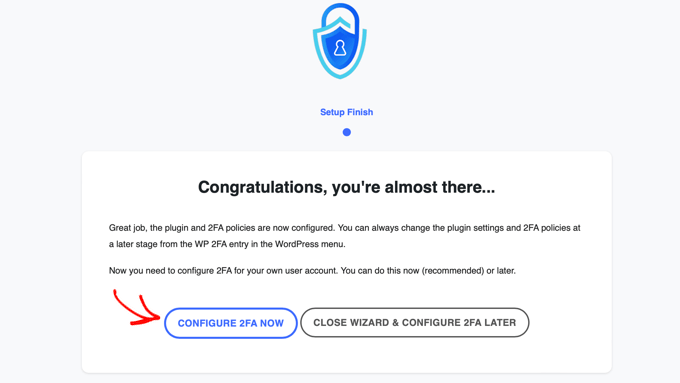
Configuring Two-Factor Authentication for Your Own User Account
A new setup wizard will start to help you set up two-factor authentication for your own user account. Other users on your website will be prompted to do the same.
The first thing you will need to decide is which 2FA method you wish to use. You should see the option for a one-time code via an authenticator app. You may also see other options depending on the choices you made during the setup wizard.
Simply choose the ‘One-time code via 2FA app’ option and then click the ‘Next Step’ button.
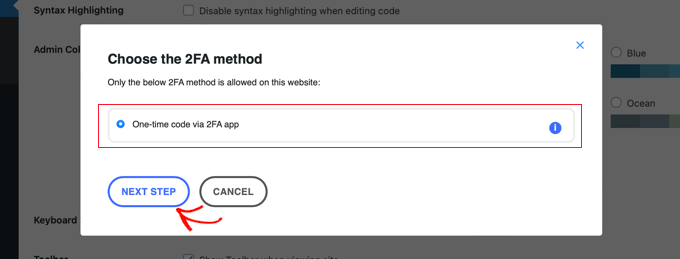
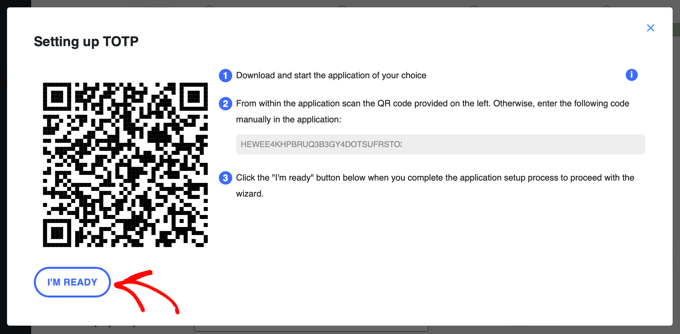
The plugin will now show you a QR code and a text code.
You will need to scan the QR code using an authenticator app. Alternatively, you can type the text code into the app manually.
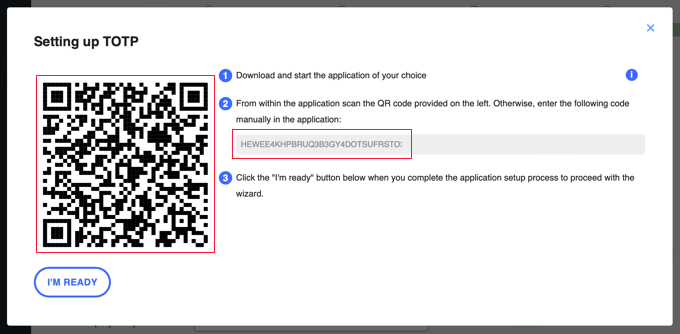
Now you will have to pick up your mobile device and open your preferred authenticator app. The screenshots below are using Authy, but other apps work in a similar way.
First, click on the ‘+’ or ‘Add account’ button in your authenticator app.
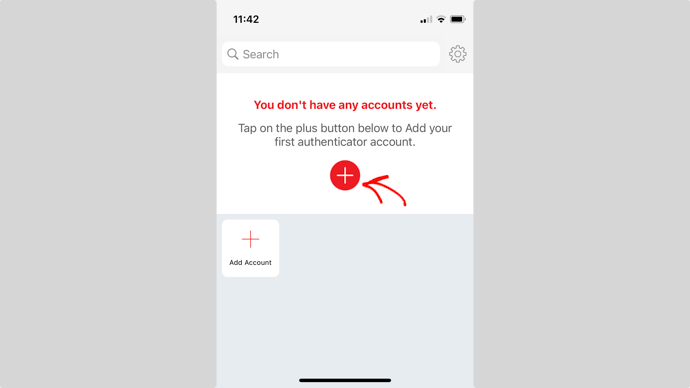
The app will then ask permission to access the camera on your phone.
You need to allow this permission and then tap the ‘Scan QR Code’ button so that you can scan the QR code shown on the plugin’s settings page on your computer.
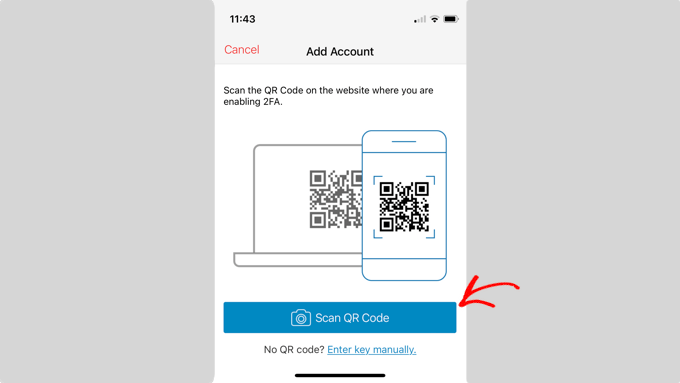
Once the app recognizes the QR code, it will automatically start to save the account.
After that, you can edit the default logo and nickname for the account. When you are ready, you should tap the ‘Save’ button.
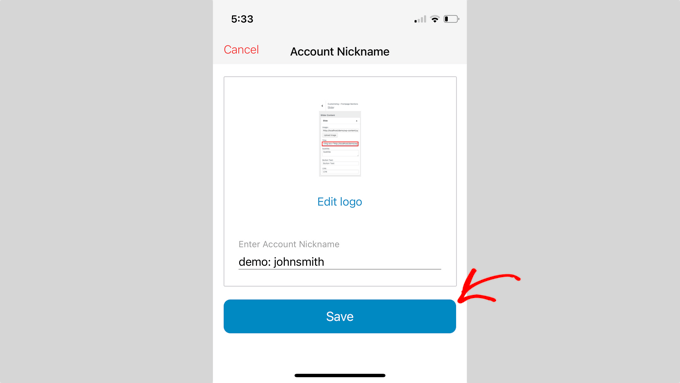
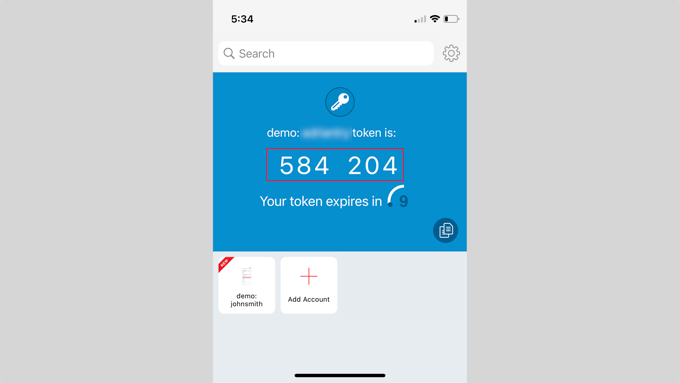
The authenticator app will now save your website account.
Next, it will start showing a one-time password. You will need to enter this in the plugin settings on your computer.
Now you need to switch back to your computer.
In the plugin’s setup wizard, click on the ‘I’m Ready’ button to continue.
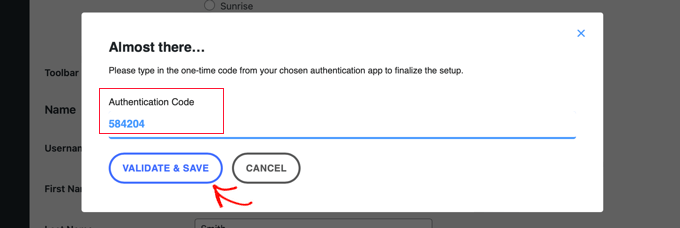
The plugin will now ask you to verify your one-time password.
Simply type the code from your mobile app into the ‘Authentication Code’ field before it expires.
After that, you should click on the ‘Validate & Save’ button to finalize the setup.
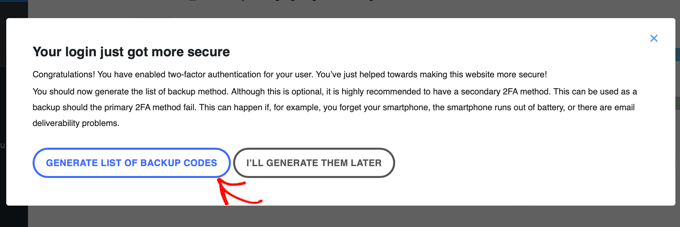
Next, you will be given the option to generate and save a list of backup codes. These codes can be used in case you don’t have access to your phone.
You should click the ‘Generate List of Backup Codes’ button.
The backup codes will be generated and displayed.
You can download these backup codes to a secure location on your computer, print them, and put them somewhere safe, or send them to yourself via email. Make sure you keep them somewhere you can get to if you don’t have your phone.
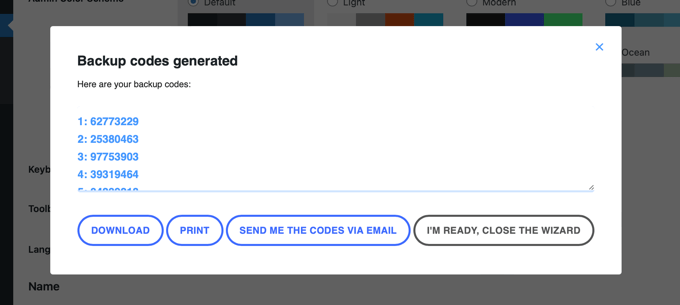
After that, you can click the ‘I’m Ready, Close the Wizard’ button to exit the setup wizard.
Using Two-Factor Authentication When Logging In
Next time your users log in, they will see a notification that they need to set up two-factor authentication, along with the deadline date at the end of the grace period.
They can click on a button to configure 2FA now or choose to be reminded on their next login.

When they click the ‘Configure 2FA now’ button, they will be taken through the same steps as when you set up 2FA for your own user account in the previous section.
When they sign in after setting up two-factor authentication, they will see the WordPress login screen as normal. However, when they enter their username and password, a second screen will be displayed, asking for the code from their authenticator app.
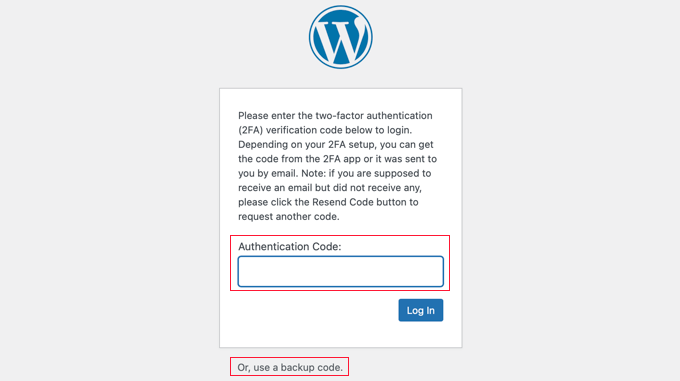
They will need to enter the code from the app on their phone before they can be logged in. Alternatively, they can enter a backup code if they don’t have their phone with them.
This makes your website more secure. If a hacker learns the username and password of one of your users, they will not be able to log in unless they also have access to their phone.
Tip: If your WordPress website uses a custom login form page, then you can also create a custom page where users can manage their two-factor authenticator settings without accessing the WordPress admin area.
Method 2: Adding Two-Factor Authentication Using Two-Factor
This method is less flexible as it does not allow you to enforce two-factor logins for all users. Each user will have to set it up on their own and can disable it from their profile. However, it is a quick and easy method if you just want to set up 2FA for your own account.
First, you need to install and activate the Two-Factor plugin. For more details, see our step-by-step guide on how to install a WordPress plugin.
Upon activation, you need to visit the Users » Profile page and scroll down to the ‘Two-Factor Options’ section.
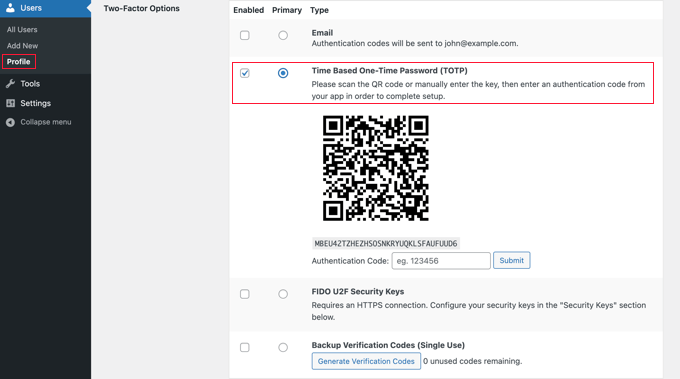
From here, you need to choose a two-factor login option. The plugin offers methods like authenticator apps, email, and FIDO U2F Security Keys.
We recommend using the authenticator app method. Simply scan the QR code on the screen using an authenticator app like Google Authenticator, Authy, or LastPass Authenticator.
Once you have scanned the QR code, the app will show you a verification code that you need to enter into the plugin options and click on the ‘Submit’ button.
The plugin will now set the secret key. You can reset this key at any time from the settings page to rescan the QR code.
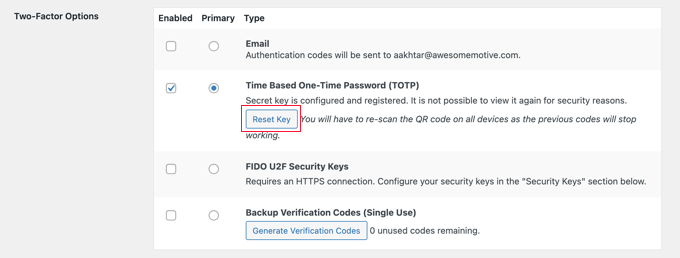
Don’t forget to click on the ‘Update Profile’ button at the bottom of the page to save your settings.
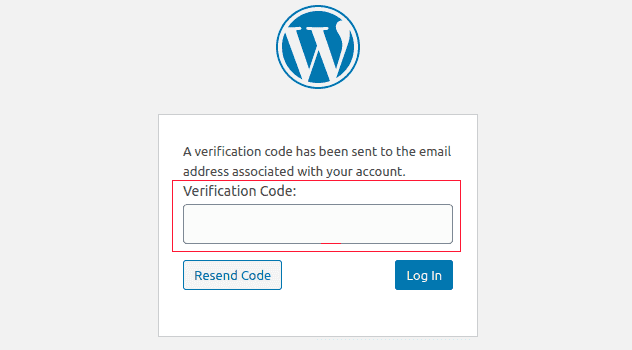
Now each time you log in to your WordPress website, you will be asked to enter the authentication code generated by the app on your phone.
FAQs About Two-Factor Authentication (2FA) in WordPress
Here are some answers to some of the most commonly asked questions about using two-step login in WordPress.
How do I log in with 2FA if I don’t have access to my phone?
If you don’t have your phone, you have several ways to access your account, provided you prepared ahead of time.
- Use a Cloud-Backed App: If you use an authenticator app with cloud backups like Authy, you can install the app on another device (like your laptop or a new phone). Simply log in to your Authy account to access your 2FA codes.
- Use Backup Codes: When you set up 2FA, the plugin provides a list of one-time backup codes. You can use one of these codes instead of the app-generated code to log in.
How to log in without any codes from my authenticator app?
If you don’t have access to your phone, another device with your codes, or your backup codes, the only way to log in is by disabling the 2FA plugin.
You can follow our guide on how to deactivate all WordPress plugins when you are locked out of the admin area. This will turn off the 2FA requirement, and you will be able to log in. Once inside, you can reactivate your plugins and reset the 2FA setup.
Do I need to password-protect the WordPress admin folder?
Website security works best when you use multiple layers of protection, starting with the basics like secure WordPress hosting. While 2FA secures your login page, you can make your site even safer by password-protecting your WordPress admin directory.
This means users will need to enter a separate password just to access your login page, adding another strong barrier against attacks.
Expert Guides on Protecting WordPress Login
Now that you know how to add 2-factor verification to WordPress, you may like to see some other articles related to making WordPress login more secure.
- How and Why You Should Limit Login Attempts in WordPress
- How to Add a Custom Login URL in WordPress (Step by Step)
- How to Add CAPTCHA in WordPress Login and Registration Form
- How to Add Security Questions to the WordPress Login Screen
- How to Disable Login Hints in WordPress Login Error Messages
- How to Password Protect Your WordPress Admin (wp-admin) Directory
- How to Limit Access by IP to Your wp-login.php file in WordPress
- How to Add Passwordless Login in WordPress with Magic Links
- How to Protect Your WordPress Site From Brute Force Attacks
We hope this article helped you add 2-factor verification for WordPress login. You may also want to see our guide on how to get a free SSL certificate for your WordPress site or our expert pick of the best WordPress security plugins.
If you liked this article, then please subscribe to our YouTube Channel for WordPress video tutorials. You can also find us on Twitter and Facebook.




Olaf
In WordPress, security is absolutely crucial. Any additional layer of security is excellent, especially against brute force attacks. I consider two-factor authentication to be a very strong and key element in the impenetrability barrier between the WordPress admin area and hackers. I have the WP 2FA – Two-factor Authentication plugin active on several websites and I really like using it because it is completely reliable and the integration process into the website is not overly complicated. It’s a great choice for security.
Dayo Olobayo
I completely agree with the importance of two-factor authentication, but I also think we should consider the user experience implications. Some 2FA methods can be cumbersome and lead to friction so it’s essential to strike a balance between security and usability.
Mrteesurez
Helpful article in securing website with 2FA, I don’t know how important 2FA is before and with this guide, I will be adding it to my site. But my question is, if I enforce 2FA to all my users, how often will they be asked to use it when logging in, is it just the first time or what ?
WPBeginner Support
They would be asked for 2fa each time they try to log in to your site.
Admin
Jiří Vaněk
I wanted to follow up on the question. With many services, I am used to having the option of “remembering the device” for 2FA. This means that 2FA is entered only once, and then there is an option to remember my device, so I don’t have to enter 2FA repeatedly on the same machine. Is it possible to set this up, or is 2FA always enforced? My concern is also about user convenience on a website that will have a registration form.
WPBeginner Support
The plugin does not have that capability at the moment, you would want to reach out to the plugin’s author for requesting that capability.
Felix
Cloud Syncing feature is now available at Google Authenticator. So, you won’t lose your accounts even if the phone is lost. For me, personally, I use Google Authenticator because it’s more convenient for me as a Google user.
Dayo Olobayo
That’s a great point! Cloud syncing in Google Authenticator is a lifesaver. No more worrying about losing access to accounts if your phone gets lost. Plus, using it with your Google account makes things even easier.
Moinuddin Waheed
two factor authentication is a must have things for the security of the websites.
I have used it after learning a horrible lesson from a shared hosting account. my website was corrupted and malfunctioned and I had no clue what to do.
when I made fresh installation the first thing I did to enable two factor authentication.
this might at times seem an additional thing to do while logging in but it saves from a large headache that may cause if account is compromised.
I want to know how the hackers or brute force attackers target a website?
do they have database of websites stolen from hosting providers or just they do it randomly?
WPBeginner Support
There are different ways that sites are targeted but in the long run it is random.
Admin
Jiří Vaněk
I use two-factor authentication for administration integrated into the Wordfence plugin, which also serves for overall website protection. Additionally, I would recommend changing the URL address from wp-admin to something custom for added security.
WPBeginner Support
While that can be done we would warn against it. If you change the wp-admin url it can cause conflicts with some plugins and can make any site troubleshooting more difficult.
Admin
Jiří Vaněk
Okay, thank you for the advice. I’ve changed the URL on many websites, and so far, I’ve never had any issues with it. It might also be because I use a very similar, trusted series of plugins on many of these sites that I’m familiar with. Nevertheless, thanks for the warning.
J P Welch
I’d like to use 2FA on one link to several pages of data, but not the entire site. Is that possible?
WPBeginner Support
While possible, we don’t have a recommended plugin to achieve that at the moment, we will be sure to keep an eye out!
Admin
Skye
What if you migrate your website to a different domain- will your 2FA be linked to the old domain? Would you have to deactivate it before migrating your website to the new host and domain?
Bikash Rai
How to remove two factor authentication that I get every time I login. I want to simply get rid of this thing.
Thanks in advance!
WPBeginner Support
It would depend on which method you used to set it up, if you used the plugin then you would remove the plugin to remove the two factor authentication. Should you be unable to remove it, if you reach out to your hosting provider they should be able to assist.
Admin
MuZa
Hey please update this post. This plugin is too old and not tested on three major updates of WordPress.
WPBeginner Support
Thank you for letting us know about the plugin not being updated we’ll be sure to take a look at it. The Two Factor SMS plugin is the only one not updated, the first plugin has been updated
Admin
Lisa Smith
Found this to be really helpful related to Two Factor, but FYI – the Two Factor SMS plugin hasn’t been updated in several WP versions.
WPBeginner Support
Thank you for letting us know, we’ll be sure to take a look into this for other plugin options
Admin
Harman
You can simply do it via wordpress.com.
Anna Walton
I’ve followed your exact instructions just now to set up 2FA with Twilio. I logged out after finishing the set-up as per the article, and now I can’t get back into my site! I get the code from Twilio, but it says there’s an error! Unfortunately, I’d not yet set up the 2FA with the authenticator app, as I followed the steps in the article, which was to log out first to see it working. Can you advise please? I’ve checked your article https://www.wpbeginner.com/wp-tutorials/locked-out-of-wordpress-admin/, but this doesn’t seem to cover getting locked out due to 2FA error. I use your site loads, and think your guidance is great! Please help on this one!!
WPBeginner Support
Hi Anna,
You can manually delete the plugin using FTP. Connect to your website and go to /wp-content/plugins/ folder and then delete two-factor and two-factor-sms folders. You can always reinstall the plugins after login.
Admin
Patrick Bartkus
FreeOTP is an Open Source alternative to Google Authenticator. It is not controlled by Google and is maintained by Red Hat under the Apache 2.0 license. It is available for iOS and Android. It also works on Google sites.