


Getting your website visitors to notice important messages can be tricky.
You want to share valuable offers, but finding the right balance between visibility and user experience isn’t always easy. Too subtle, and people miss it. Too aggressive, and it feels intrusive.
Floating footer bars offer the perfect middle ground.
They stay visible as people scroll through your content, providing a consistent but subtle way to share your message.
We’ve found them super effective for promoting discounts and showcasing newsletters on our websites – they catch attention without interrupting the browsing experience.
In this guide, we’ll walk you through the entire process, from choosing the right method to customizing your floating footer bar for maximum impact.
💡Quick Answer: Creating a Sticky Floating Footer Bar
Floating footer bars help you share important messages without annoying your visitors. Here are the two best ways to add one:
- Method 1: OptinMonster (Recommended). This is the best tool for maximum conversions. It offers powerful display rules like Exit-Intent and beautiful premade templates.
- Method 2: Firebox (Free). A good free plugin option if you need a simple sticky bar with basic customization features.
What Is a Floating Footer Bar in WordPress?
A sticky floating footer bar allows you to prominently display important content and news to users.
This bar remains visible to visitors at all times, so they are more likely to click on it and discover more useful content.
You can use the floating footer bar to:
- Drive more clicks to other blog posts.
- Generate leads and build your email list.
- Bring attention to special coupons or discount offers/sales.
- Promote your social media accounts.
- Build brand recognition.
- Provide access to important resources on your WordPress website.
Having said that, let’s see how to easily create a sticky floating footer bar in WordPress. We will show you two methods in this tutorial, and you can use the links below to jump to the method of your choice:
Method 1: Create a Sticky Floating Footer Bar With OptinMonster (Recommended)
You can easily create a sticky floating footer bar with OptinMonster. It is the best lead generation and conversion optimization tool on the market, and it makes it super easy to convert your website visitors into subscribers.
At WPBeginner, we have used it to create banners and popups that promote our pro services or newsletter. If you would like to learn more about our experience with the tool, you can see our full OptinMonster review.
The plugin comes with a drag-and-drop builder and premade templates that allow you to create a floating footer bar, slide-in popups, and banners without using any code.
We recommend this method because OptinMonster is super easy to use and offers more customization options than the free plugin method.
Step 1: Install OptinMonster on Your Website
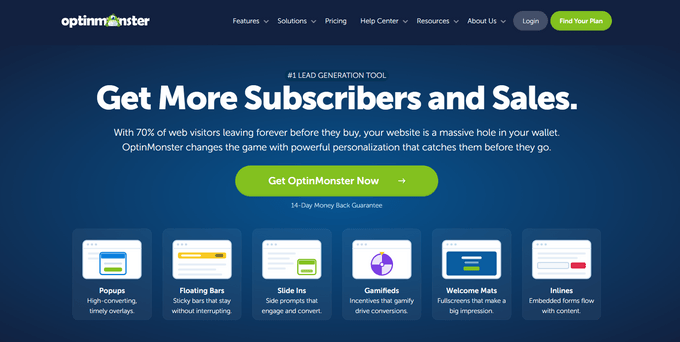
First, you will need to sign up on the OptinMonster website by clicking on the ‘Get OptinMonster Now’ button.
Next, you must install and activate the free OptinMonster connector plugin on your website. For more instructions, see our beginner’s guide on how to install a WordPress plugin.
This free plugin acts as a bridge between your WordPress site and your OptinMonster account.
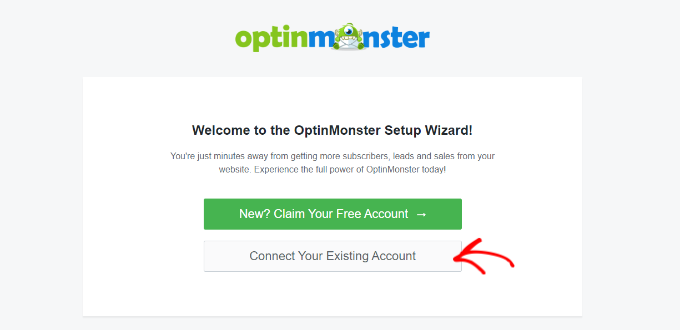
Upon activation, the OptinMonster setup wizard will open up on your screen, where you have to click the ‘Connect Your Existing Account’ button. This will connect your WordPress site with your OptinMonster account.
Once you do that, a new window will open up on your screen.
Here, click the ‘Connect To WordPress’ button to move ahead.

Step 2: Create And Customize the Floating Sticky Footer Bar
Now that you have connected OptinMonster with your website, it’s time to create a sticky floating footer bar.
To do this, you need to visit the OptinMonster » Templates page from the WordPress admin sidebar and select ‘Floating Bar’ as the campaign type.
Once you do that, all the premade templates for the floating bar will load on the screen. From here, you can click the ‘Use Template’ button on the one you want to use.
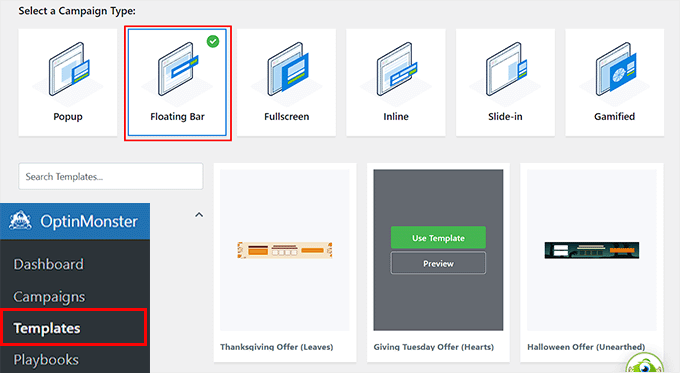
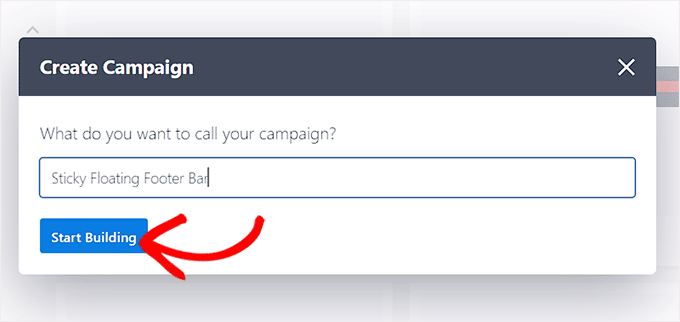
This will open the ‘Create Campaign’ prompt on the screen, where you can add a name for the floating footer bar that you are about to create. It can be anything you like, as the name won’t be displayed to your visitors.
After that, just click the ‘Start Building’ button.
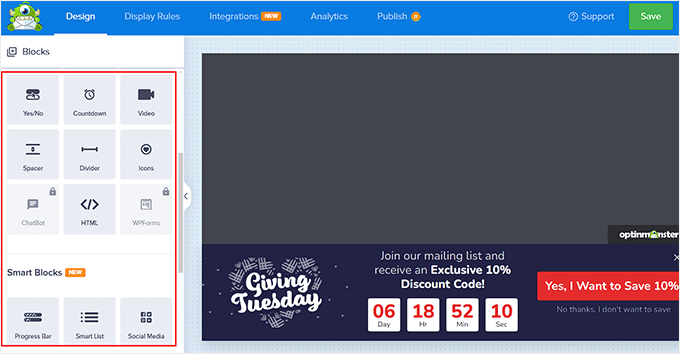
OptinMonster’s drag-and-drop builder will now be launched on your screen, where you can start customizing your floating footer bar. Here, you will notice a floating bar preview on the right with blocks in the left column.
For example, you can use a countdown timer block if your floating footer bar is promoting a discount offer. This will help create a sense of urgency among users and encourage them to take action.
You can also add a CTA, video, or social media block to the footer bar. For detailed instructions, you can see our tutorial on how to create an alert bar in WordPress.
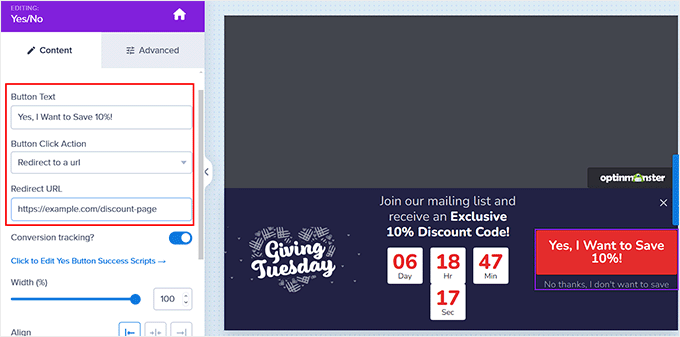
You can also edit text on the footer bar by clicking on it. This will open the block settings in the left column, where you can adjust them according to your liking.
For example, if you want to change the discount offer in the template, then you can change the button text. After that, you can select the ‘Redirect to a URL’ option and add the page link that you want users to be directed to upon clicking on the button.
Step 3: Configure The Display Rules For Your Floating Footer Bar
Once you are satisfied with your footer bar’s customization, just switch to the ‘Display Rules’ tab at the top.
Here, you can configure when to display the bar on your page. If you want to display the floating footer bar at all times, then you must select the ‘time on page’ option from the left dropdown menu.
💡Pro Tip: We have found that setting a 3 to 5-second delay often prevents the bar from feeling intrusive.
Giving users a moment to settle into the content before showing the offer often leads to a better user experience and higher conversion rates compared to showing it immediately.
After that, choose the ‘is immediate’ option from the dropdown menu on the right.
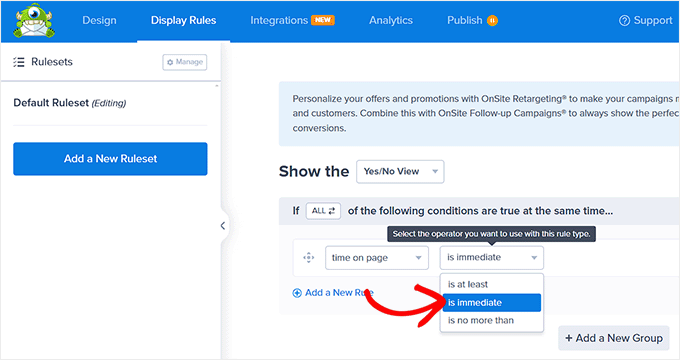
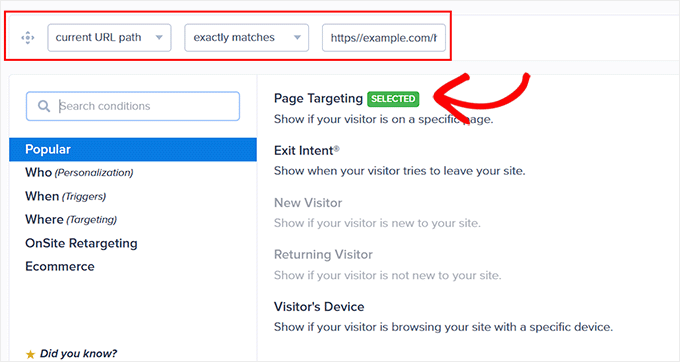
However, to display the floating footer bar on a specific page, you must select the ‘Page Targeting’ option from the right dropdown menu.
After that, choose the ‘exactly matches’ option from the dropdown menu in the middle and then add a page URL. Once you do that, the floating footer bar will only be displayed on the page you chose.
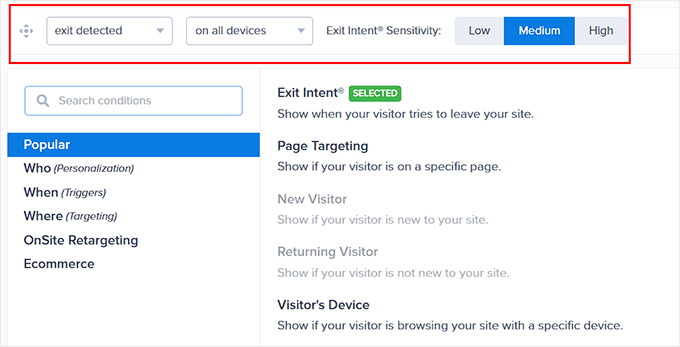
Additionally, you can select the ‘Exit Intent’ option to show the sticky floating footer bar when the user is about to leave your site. You can then configure the exit intent sensitivity and choose the devices where the footer bar will be displayed.
It is a powerful feature available in the Pro plan that can be handy for reducing bounce rates.
You can even select the ‘Visitor’s Device’ option if you only want to display the floating footer bar to desktop visitors.
You can also configure the display rules according to the date, time, or scroll distance by selecting the ‘When’ option from the left column.
For an explanation of more display rule options, you can see our complete OptinMonster review.
Step 4: Publish Your Floating Footer Bar
Once you have defined the display conditions for your footer bar, switch to the ‘Publish’ tab from the top.
Here, simply click the ‘Publish’ button.
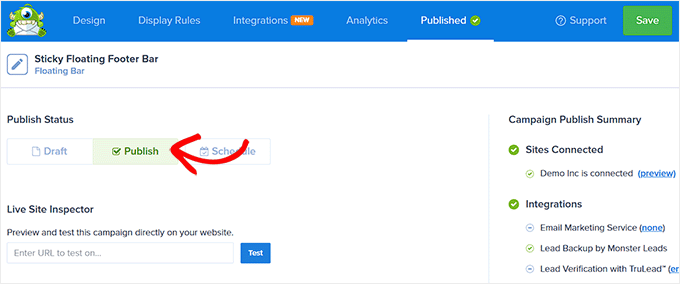
After that, don’t forget to click on ‘Save’ to make your changes live.
Now, you can visit your WordPress blog to see the sticky floating footer bar in action.
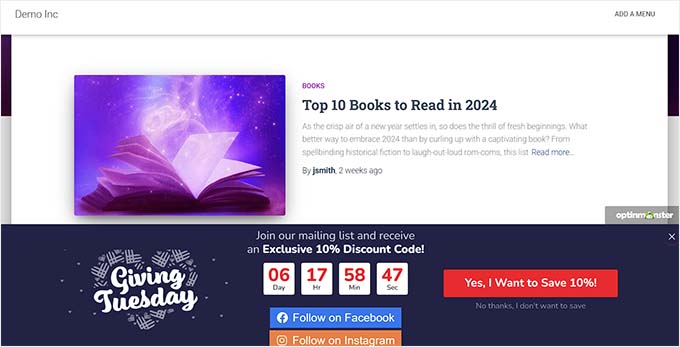
Alternative: You can also use Thrive Ultimatum to show a countdown timer floating footer bar on your website. For more details, see our complete Thrive Themes Suite review.
Method 2: Create a Sticky Floating Footer Bar With a Free Plugin
If you are looking for a free way to create a sticky floating footer bar, then this method is for you. However, keep in mind that you will have limited customization options compared to when using OptinMonster.
First, you need to install and activate the Firebox Popup Builder plugin. For detailed instructions, see our tutorial on how to install a WordPress plugin.
Upon activation, visit the Firebox » Campaigns page from the WordPress dashboard and click the ‘+ New Campaign’ button.
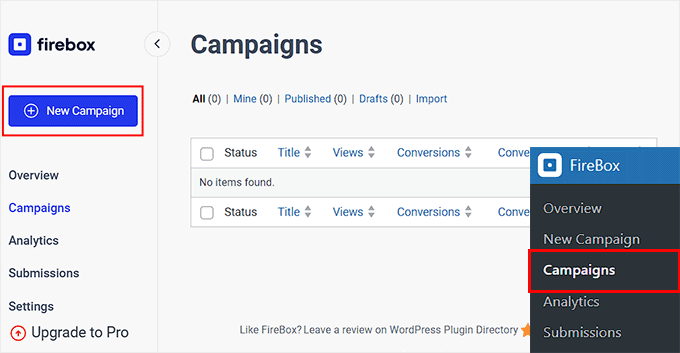
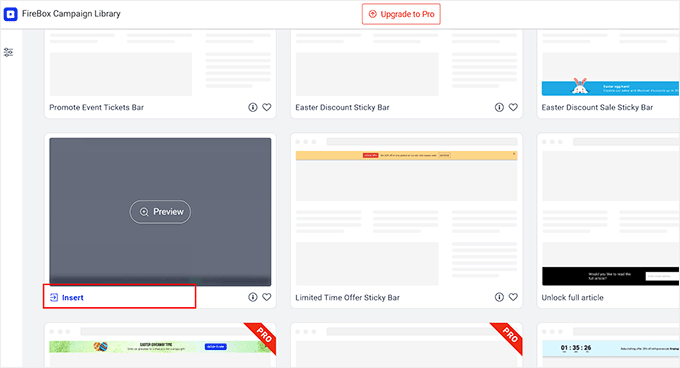
This will open the Firebox campaign library, where you can search for sticky floating bar premade templates.
Next, simply click the ‘Insert’ link under the floating footer bar that you like. We recommend selecting a template specifically designed for the footer to make the setup process easier.
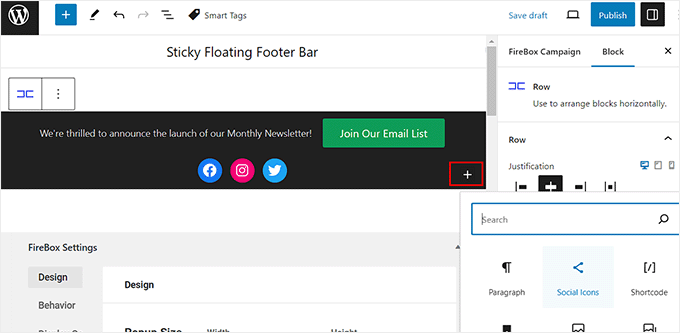
The block editor will now open up on your screen, where you can start by adding a name for your floating bar.
After that, you can edit the text in the footer by clicking on it and add new blocks by clicking the ‘+’ button. This will open the block menu, where you can add images, headings, paragraphs, videos, quotes, or list blocks.
For instance, if you want to add social media handles, then you can choose the Social Icons block. After that, you can add social media accounts and links using the block panel.
For more details, you can see our tutorial on how to add social media icons in WordPress menus.
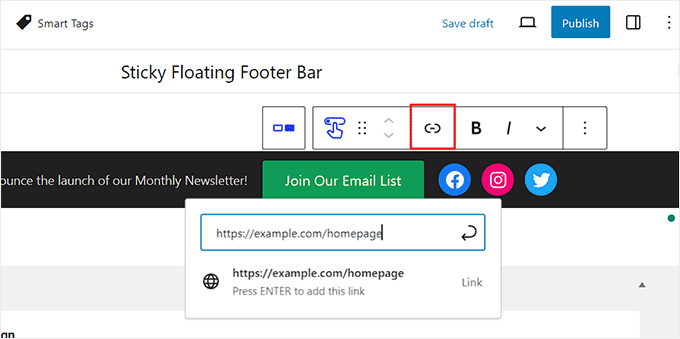
You can also change the text in the button block and add a link to the page where you want to direct users by clicking on the link icon in the block toolbar.
After that, type in the URL of your choice and press ‘Enter.’
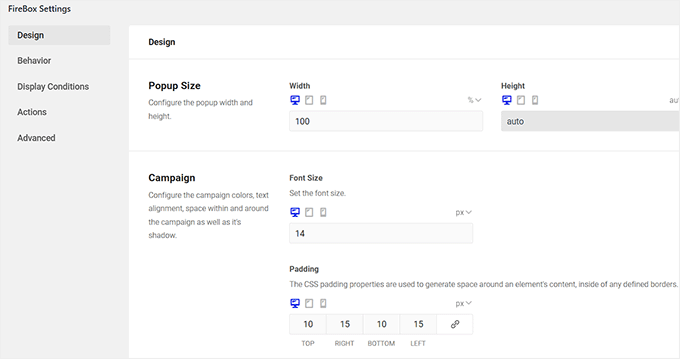
Next, you can scroll down to the ‘Firebox Settings’ section.
Here, you can change the background color, text color, alignment, size, padding, and margin for the floating footer bar. We also recommend previewing the bar on a mobile device to ensure it doesn’t cover your navigation menu.
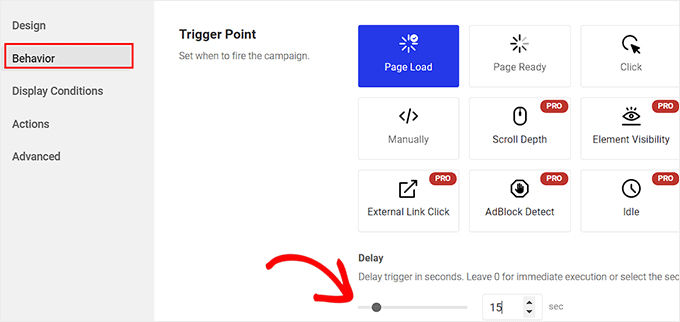
After that, switch to the ‘Behavior’ tab from the left column and select ‘Page Load’ as the floating bar trigger point.
Then, use the ‘Delay’ slider to choose a delay timing for the floating bar. For example, if you drag the slider to 15 seconds, then the floating footer bar will be displayed once the user has spent 15 seconds on your site.
If you want the sticky floating footer bar to be displayed immediately, then you can keep the slider at 0.
Next, you can leave other settings as they are or configure them according to your liking.
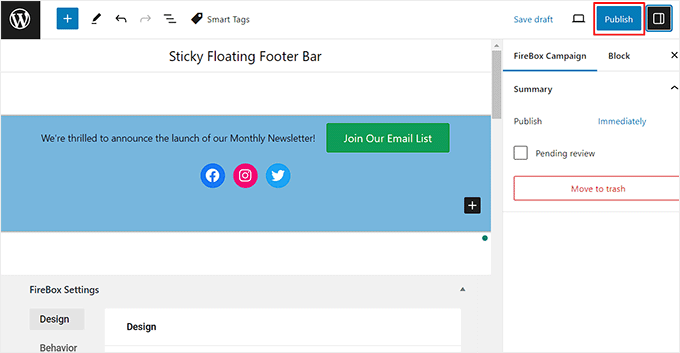
Once you are done, don’t forget to click the ‘Publish’ button at the top.
Now visit your WordPress site to view the sticky floating footer bar in action.
This is what it looked like on our demo site.

Bonus: Create a Sticky Floating Navigation Menu in WordPress
Apart from adding a sticky footer bar, you might also like to create a sticky floating navigation menu on your WordPress site.
A navigation menu contains links to the most important pages on your WordPress blog and acts as an organizational structure for your website.
If you make this menu sticky, then it will remain visible on your page at all times, even as the user scrolls down on your screen. This can increase engagement and make your website easier to navigate.

To create a sticky floating navigation menu, simply install and activate the Sticky Menu & Sticky Header plugin. For details, see our tutorial on how to install a WordPress plugin.
Upon activation, visit the Settings » Sticky Menu page from the WordPress dashboard.
Next, you need to enter the CSS ID of your navigation menu next to the ‘Sticky Element (required)’ option.
This ID varies depending on the WordPress theme you are using. You can find it by using the ‘Inspect’ tool in your browser to look at your site’s header code.
After finding the correct ID (such as #site-navigation or #main-header), enter it in the field.
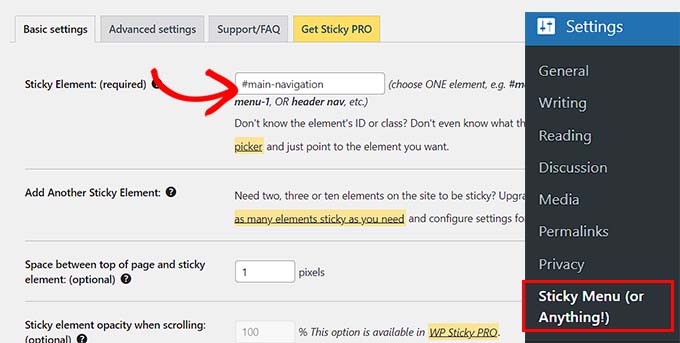
After that, click the ‘Save Changes’ button to store your settings. You have now successfully created a sticky floating navigation menu.
For detailed instructions, please see our tutorial on how to create a sticky floating navigation menu in WordPress.
Frequently Asked Questions About Floating Footer Bars
Here are some questions frequently asked by our readers about floating footer bars:
Will the floating footer bar work on mobile devices too?
Yes, most floating footer bars work well on mobile. But it’s a good idea to test it on different screen sizes to make sure everything looks good and fits properly.
Some plugins even let you show the bar only on mobile or desktop, depending on your needs. That way, you can customize the experience for each user.
Can I control when the floating footer bar shows up?
Yes! Many plugins, like OptinMonster, let you set rules for when the bar appears. For example:
- Show after a few seconds on the page
- Show when the user scrolls down
- Only show on certain pages
This helps you get the user’s attention at the right time without being too pushy.
What should I avoid when using a sticky footer bar?
Here are a few tips:
- Don’t make the bar too tall – it should be helpful, not distracting.
- Make sure it doesn’t cover other important content.
- Keep the message short and clear.
Also, don’t use too many animations or flashy colors. A clean, simple design usually works best.
We hope this article helped you learn how to easily create a floating sticky footer bar in WordPress. You may also want to see our beginner’s guide on how to add header and footer code in WordPress and our checklist of things to add to the footer on your WordPress site.
If you liked this article, then please subscribe to our YouTube Channel for WordPress video tutorials. You can also find us on Twitter and Facebook.



Greg
How can I position this sticky bar at the top of the page? Using CSS or a setting I’m missing? Apologies if this has already been answered. Thanks!!
WPBeginner Support
For that you would want to use the header option instead of footer for most of these and that would place it at the top of the page
Admin
Moinuddin Waheed
Having a floating footer bar is very effective for marketing and lead generation.
It gives a constant temptation in the users mind about the ongoing promotions and offers.
I have made purchase in the past because of this constant reminder and a fomo that this offer would end up soon.
Thanks for step by step breakdown of steps of how can we make one for our websites.
WPBeginner Support
You’re welcome, glad our guide was helpful!
Admin
Hajjalah
I use the OptinMonster plugin to add a floating footer bar with my social links which has drastically increased my social media audience, courtesy of this detailed step by step article .
But if I may ask. Is it possible to add some code so that the OptinMonster plugin footer bar does not appear or appears after when a footer Ad like Google AdSense footer Ads is available?
WPBeginner Support
You would want to reach out to OptinMonster’s support and they can help you look into and/or set up something like that
Admin
Ahmed Omar
An excellent tutorial on creating a “sticky” floating footer bar in WordPress
Your step-by-step guide, especially the first method is clear and effective.
I use the first method for this floating footer
Thanks for this practical solution
WPBeginner Support
You’re welcome!
Admin
Steve Alvi
Please I want a close button with this footer floating bar.
WPBeginner Support
OptinMonster would be the method that allows you to have a close button the easiest.
Admin
Jiří Vaněk
I use Optin Monster where I can configure the closing and even measure the closing. That way I know how many people used the floating bar and how many closed it because they weren’t interested.
Trendy Avinash
Worked Like a Charm,Without any Plugins.
Thanks
WPBeginner Support
Glad our guide was helpful
Admin
Alejandro Ferguson
The floating footer code really works. Thank u
WPBeginner Support
Glad our guide could help set it up
Admin
John SMith
How to add a FB sharing button in a floating bar in the only mobile, not for desktop.
WPBeginner Support
You would want to take a look into option 2 in our social media plugins here: https://www.wpbeginner.com/plugins/best-social-media-plugins-for-wordpress/
Admin
wlepcha
How to add menus in the sticky footer instead of random ads.
WPBeginner Support
You would want to take a look at our article here: https://www.wpbeginner.com/wp-themes/how-to-create-a-sticky-floating-navigation-menu-in-wordpress/
Admin
Marius
Very nice tutorial. I implemented the manual code and worked like a charm. Only one more feature I need… can we also have a X or close button to close the floatingbar and remain like this for the rest of the visit? I know, cookies are involved, but maybe you can give us a simple solution. Thank you!
Greg Guz
Very clear and east to follow tutorial.
Floating bar seem to work absolutely fine, but I’m getting following error in chrome console:
Failed to load resource: the server responded with a status of 404 ()
Any ideas?
Ankush jain
Very helpful your website
thank you very much
Mark Rowles
Just a quick pointer CSS wont work for this.
You’ve got fixedBar in the html as a class name (capital B) and you’ve got fixedbar in the css (lowercase b) so the css doesn’t apply.
Can someone correct the code please to help others that discover this post?
WPBeginner Support
Hey Mark,
Thanks for pointing this out. We have updated the code.
Admin
Robi
Dear WPBeginner, and Friends
If I have specific section that I’ve created using Elementor Page Builder, How I can use it as a custom sticky footer? (It contains more than one column, some buttons and text). I want this type of sticky footer, Instead of simple text as explained in this tutorial.
Thanks..
Daniel
1) Added code just before the tag in the footer.php from my theme dir /wp-content/themes/mytheme/
2) Added code to my theme dir /wp-content/themes//mytheme/style.css not working deleted and then i try to added from the theme option to custom css menu same problem not working
3) Added floatingbar.js with the code inside in /wp-content/themes/mytheme/js
4) Added code to functions.php first not working.. tried with site-specific plugin also same thing
I tried on both website different theme same problem not working just sit there it`s not floating
Some help will be welcome… I really need this
WPBeginner Support
Hey Daniel, try using Inspect tool to troubleshoot any issue with CSS.
Admin
Daniel
Thanks for the replay but for me messing with css and js it`s like building a space ship… i will give a try to figure out whats rong
Regards
Daniel
Daniel
I used the inspector tools and i don`t see any read lines there….
Dueadla Framin
I have the same issue! The code you posted isn’t even working on default twenty sixteen theme. It’s not floating it’s just stuck on the bottom of the webpage after you scroll all the way to the bottom.
Igor
there is an error in the fixedBar reference in the css code (it is referencing as “.fixedbar” whereas it should be “.fixedBar”. Change that and see if it works.
henrykene
WpBeginner please i will like to use it for displaying my Adsense ads on mobile views. How will i go about it and what are the code to make it show Adsense stick footer for mobile viewers?
Nawaf
Awesome.
But there is a bug. When you open it in mobile. The ribbon gets cutted. And u can see only half of it
Tip
In my new theme, I have the option of using an infinite scroll feature. This is great except that the reader would have to scroll a long time to reach my old footer, which is where I put the legal disclosures, etc.
With this floating footer bar, I was able to nicely put the links there and now I can use the infinite scroll feature without having to reposition a bunch of required links.
Thanks for this tutorial. I learned a little bit more PHP and CSS too!
Sarah Noah
I have a client who wants to have a link to REQUEST A QUOTE on every page so when I saw this sticky footer it seemed perfect until I read that somer users are annoyed by it. Do you guys think REQUEST A QUOTE stuck on the bottom of every page is annoying? Of course it is the most important thing the company wants the user to do.
Roy E
Footer bar shows fine in FireFox but is not sticky in IE11 where I had to scroll down to see “About WPBeginner”, “Site Links”, and “Sites We Like” ??
Roy E
Of course, when I pressed Enter on the previous comment ( IE issue), the sticky footer bar appeared. Not sure what happened but the problem went away. Please disregard this comment and the previous one.
yugishtha
do we also have a floating top bar menu plugin for WP?
Hutzel
I tried all, but it does not Show me the fixed footer. Can somebody help or assist me please? thanks
Devendra Meena
Is there any plug in, which can have some scripts on a floating box, and with a x button to close it.
Khushal Rao
this can also be used to showing ads too..
Dick Sijtsma
Lowering the opacity to, for example 0.60 gives the visitor a glimps of the underlying content. I think that would be a nice effect. But changing the opacity of the bar, changes the opacity of the text too. And that ‘dilutes’ the message. Any trick to prevent that?
Thanks.
Jan dB
As mentioned earlier, this is a very easy tutorial and works like a charm on most computers.
However, I also have issues regarding the mobile browsers.
Have you already come up with a solution for that?
Thanks and keep up the good work!
Editorial Staff
For mobile browsers if you have a responsive design, then you can simply use media queries and display: none the entire footer bar.
Admin
Theresa @DearCreatives
Nice. I am actually looking for a tutorial for adding script to top of post that is there every time I post for disclosure purposes. If you have one like that or know of a plugin can you send me an @DearCreatives on twitter or email me thanks!!
Dick Sijtsma
Hi, looks good, but i do understand the reasons some people dislike these kinds of footers very much. Nevertheless i’m trying to accomplish this effect too.
In the source of this very page, i saw you externalized the javascript. You’ve put it in the main.js javascript file, and linked this main file to the page in the header.
So far so good, i can manage that. But, i can’t find the place where the ‘randomtip’ function is called.
In short my question is: how do i externalize the javascript? Hope to hear from you.
Matthew
Great tutorial. One issue that other might also run into – I only have one footer link (as opposed to having several in rotation) and this footer bar shows even on the page that I link to in the footer. Do you know of a quick way to not show this footer on particular pages? Or to, perhaps, only show it on the homepage?
Editorial Staff
Sure just wrap the text with the conditional statement is_front_page().
Admin
Antonio
Here a true beginner. How do I actually do that? I totally new to WP and PHP. As far as I understand I have to put somewhere in the footer.php but I really have no idea where. Great article though. It managed to add it to my blog as well
Caio
I like it, but it is a bit too distracting. Maybe make it nice and light by turning down the opacity, and then adding a style statement on hover to turn the opacity back up to .9
Sopheak
Wow! It was a great tutorial.
Pawan
Great, I was looking for same.
Sai Kumar
Hi, this sticky floating footer bar is really awesome! I am going to add it in my blog for sure. Thanks a lot for Sharing!!
Max Manroe
Wow nice tutorial and think this is great, I will try it to my blog. Thanks
Zseller Istvan
Guys, this is the only thing that I really hate about WpBeginner. When I read your articles on my tablet, with Opera this footer bar stays in the middle of the page for seconds when scrolling. It is a new tablet, and powerful enough. The footer bar covers the content, which is really annoying. After some time it moves to place.
Editorial Staff
We are working on a mobile/tablet version. This won’t be an issue soon enough.
Admin
Salman Ahmad
Wow ! This is Awesome ,Thanks for sharing
Peter
Thanks a lot for providing us this great tutorial. Definitely it will be helpful for me.
Amitabha Chakraborty
Hi
Nice tutorial. Was thinking a “X” button to close it if it annoys someone would have been great.
Regards
Amitabha
David
I like a footer bar. I think its a great place to put social sharing buttons. I made my own on a client’s site but it has the option of being able to close. It also holds the go to the top button. Pretty nifty. However, like the footer bar I made, on my HTC EVO 4G your footer bar doesn’t stick at the bottom as it should. It actually is stuck in the middle of an article and is really annoying because it covers up a bit of the text. The bar I made can be closed so it is only a quick annoyance. Your bar cannot so I can never read that text. Again this is on my phone. If you can figure out the workaround please let me know.
I came to this article through your newsletter which is great. Thanks for that.
Michael
Like or hate these types of bars, there is great value in seeing how the code is written to implement such a thing, at least. I use Hello Bar and the Wibya bar on several of my sites and although I think some people have become blind to them, including myself, and some hate them, they still work to help convert and share content a lot of the time.
I appreciate what I view as a helpful little code lesson. Great site!
Taryn Fox
I personally feel that the floating footer bar is an extremely user-hostile feature, especially one like yours which is a) unhideable, and b) expands to twice its intended size (or greater) when viewed while the font size is increased.
Speaking of which, even with nosquint magnifying the rest of the text on this site, the text in the comments field is tiny and hard to read if you have visual accessibility issues.
Speaking of other accessibility issues, asking for a person’s “Real Name” is hostile to anyone who uses a pseudonym. This includes trans women, people who are being stalked, people who are hiding their online activity from others who are capable of hurting them, and people who simply prefer and are better known by their pseudonyms than their legal or birth names (both of which are more inclusive and accurate terms for what you call a “real name”).
Also, you misspelled “meaningful” in the “Add a comment” notice.
I wasn’t going to leave a long rambling comment of criticism, but I feel most people have banner blindness to footer bars, and are ambivalent towards them at best and annoyed by them at worst. Most people who aren’t web designers, anyway. I thought maybe someone should speak up for the people who are actually affected by them. Then I ran into the other issues once I went to your site from Google Reader, and tried to leave a comment.
Thank you for your tutorials, and I hope things go well for you.
Editorial Staff
Hey Taryn,
We really appreciate your invaluable feedback. There are definitely pros and cons to having a floating footer bar like this ones. The cons you have already pointed out. We thought about doing a cookie tracking option where regular users can close the bar and never have it shown again. But even the regular users sometime miss out on great deals because of that. Also if they clear their browser’s cache or use a different computer, the bar shows up again. Yet another downside of cookie tracking. We’ve given extensive thoughts of having user registration and offer personalization on the site.
As for comments, the real name text in the field is there to serve one purpose, stop spammers. If you read the comments policy, it says “We do not allow Keywords stuffed in the name field. You must use your name or nick name for commenting.” Often folks use their nicknames, and we are completely ok with it. But if your nickname is “best insurance company” or something like that… then we mark it as spam.
Thanks for pointing out the typo. We have fixed that.
Admin
Partha Bhattacharya
This is with respect to Taryn’s comment above:
“…I feel most people have banner blindness to footer bars, and are ambivalent towards them at best and annoyed by them at worst.”
Since you continue using them there is no doubt you get benefits from them, and people do click on them to remain updated just as I did just now…coming here from another page.
Would you mind sharing some stats / lookins as to how effective is the footer bar for you, and also how effective it is as against using a header bar!
staion
Thanks for this easy and amazing small tutorials! I’ve already implemented it on my site, but without the jquery thing, just using it as announcements.
FreedomJackson
Awesome thanks for sharing this dude I’m doing some updating and I was trying to find a good way to add this footer bar.
mucho grande gracias senior