


After creating a website, the first thing every business owner needs is a professional email address with their business name in it.
A professional email address will help you win trust when dealing with other businesses and customers. Google Workspace (previously known as G Suite) is a productivity suite that allows you to use Gmail with your own professional email address.
Over the years, we’ve helped lots of WordPress users set up a professional email address for their websites. Many users think that the process might be complicated, but it is actually pretty simple.
In this article, we will show you how to set up a professional, custom-branded email address with Gmail and Workspace. We’ll walk you through the entire process step by step.
What Is a Professional Email Address?
A professional email address is one that includes your business name. For example, john@myphotostudio.com is a professional email address.
Email accounts on free email services like john.photographer@gmail.com are not as good for business because they do not look professional. Your customers and other businesses will find a professional email address more trustworthy.
For a professional email address, you will need a domain name and a website. We have step-by-step guides on how to choose a domain name and how to quickly make a website.
If you already have a domain name and a website, then you are ready to set up your own professional email address.
Why Use Google Workspace for a Professional Branded Email Address?
You might be thinking, why use Google Workspace when most WordPress hosting companies offer unlimited email accounts with your own domain name?
Email is one of the most important communication tools for business owners. If you miss an important email, then it can hurt your business.
Many web hosting email servers are unreliable, restrictive, isolated, and less secure. You won’t even know if the email you sent was actually delivered.
This is where Google Workspace and Gmail come in.
Gmail is the industry leader in email, with over 1.8 billion active users. Google Workspace is Google’s productivity app suite for business owners, which includes Gmail and is used by over 6 million businesses.
Google Workspace works with your own domain name, which allows you to use Gmail to create your professional branded email address.
Here are some of the benefits of using Workspace and Gmail for a professional email address:
- Professional business email address on your own domain
- Gmail’s rock-solid security and spam filters
- 30GB to unlimited storage
- Manage email even when offline using the Gmail app on mobile devices
- Works anywhere: web, mobile, tablet, you name it
- Works great with Outlook and can even sync old Outlook accounts
- Each user can have up to 30 email aliases
- Use Google Calendar and Google Meet for chat, video, and voice calls using your own business email address
- No advertisements and 24/7 professional support whenever you need help
- Works seamlessly with your WordPress site
- Most important of all: high deliverability, no delays, and no ending up in the spam folder
Now that you know why using Google Workspace for professional emails is important, let’s take a look at how to set up a branded professional email address.
Editor’s Note: We use Google Workspace for all of our professional email addresses and can honestly say it’s the best.
Setting Up a Professional Email Address with Gmail (Workspace)
First, you will need to sign up for a Google Workspace account.
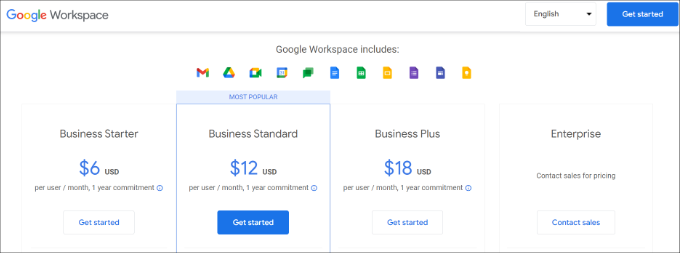
It starts at $6/month for each user, billed annually. Google also offers a free 14-day trial, which allows you to test drive everything before you make up your mind.
Basically, you get all the powerful features you are used to with Gmail, Drive, Calendar, and more, but now they are for your business.
Simply visit the Google Workspace website and click on the ‘Get started’ button for the plan you want to use.
Next, you need to enter your business name, select the number of employees, and the country where you are located.
You can choose the ‘Just you’ option for one user account or select the number of employees.
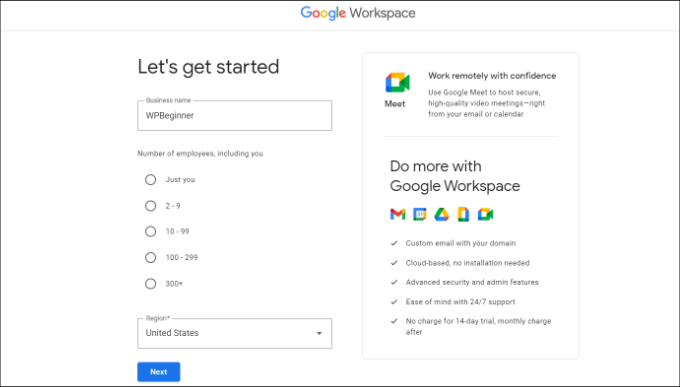
Once you are done, click on the ‘Next’ button to continue.
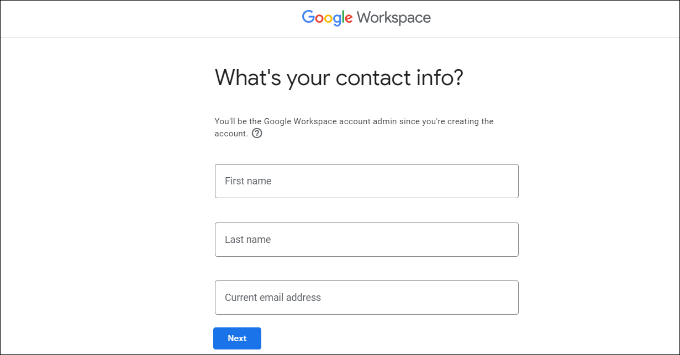
In the next step, you will be asked to enter your personal contact information, including your name and email address.
After that, you will be asked to choose a domain name. If you already have a domain name, then click on the ‘Yes, I have one I can use’ option.
Otherwise, you must click on ‘No, I need one’ to register a domain name.
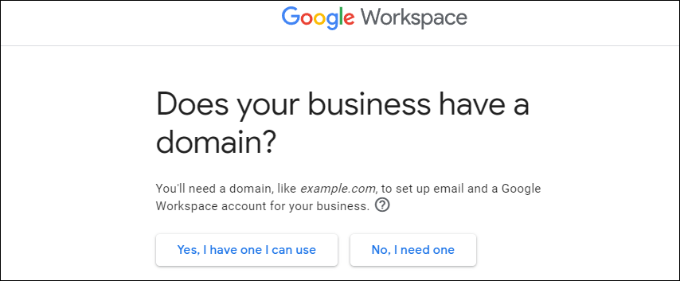
For this tutorial, we will use the ‘Yes, I have one I can use’ option.
It’s important to note that if you need to register a new domain name, you will be charged separately for doing so.
Pro tip: Here is how to register a domain name for free.
Next, you will need to enter your business domain name and click the ‘Next’ button.
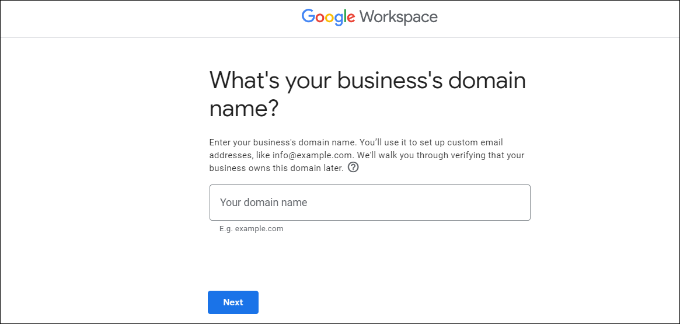
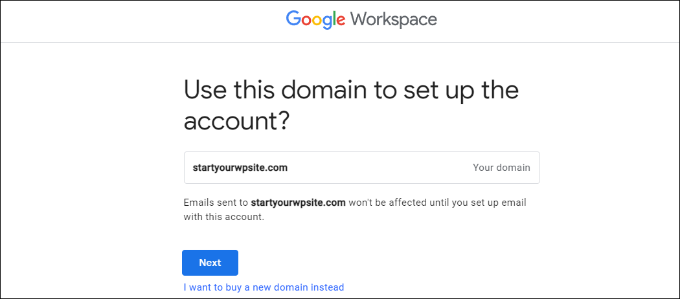
After that, Google will confirm your domain name.
Go ahead and click the ‘Next’ button.
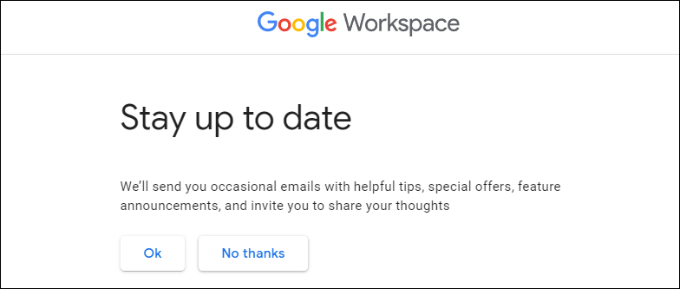
On the next screen, Google will ask you if you’d like to stay up to date with helpful tips, special offers, and more.
You can click the ‘Ok’ or ‘No thanks’ button to move ahead.
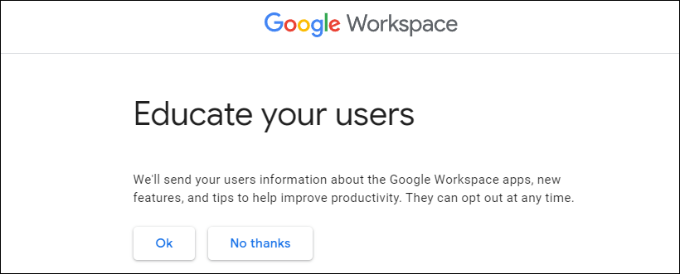
After that, you can also choose to send users information about Google Workspace and its features.
If you’d like to opt for this option, then click the ‘OK’ button.
In the next step, you will be asked to create your Google Workspace user account by entering a username and password.
This username will also be your first professional email address. So, you need to choose a suitable and professional username.
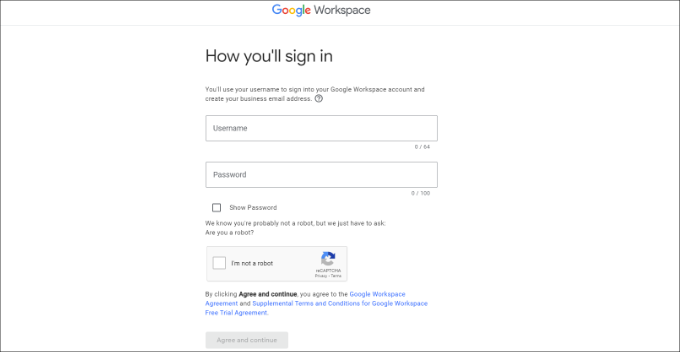
After entering the details, you must check the reCAPTCHA box and click the ‘Agree and continue’ button.
You have now successfully created your Workspace account. You can now click on the ‘Continue to setup’ button.
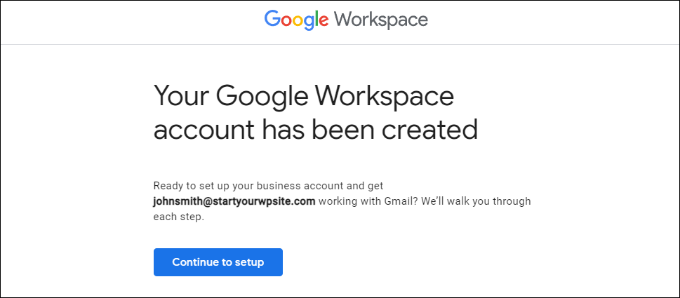
On the next screen, you will be asked to sign in to your newly created account.
After signing in, you will need to agree to Google services. Simply click the ‘I understand’ button to continue.
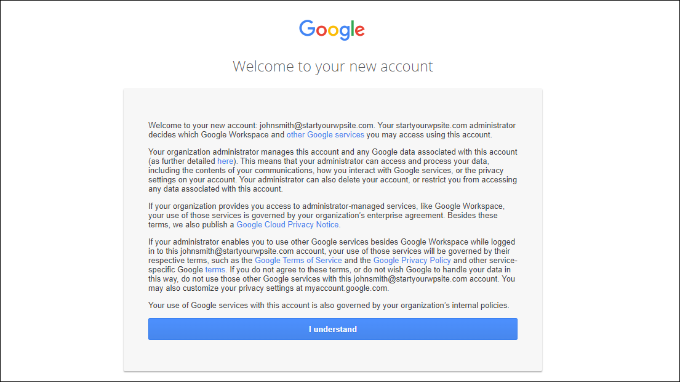
You can now follow the onscreen instructions to complete the setup.
Once that’s done, you will see the Admin console.
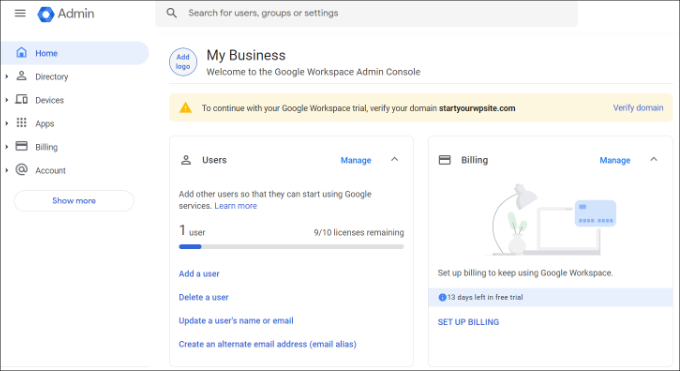
The next step is to verify your domain.
Verifying Your Domain in Google Workspace
If you registered your domain name elsewhere, then you will now be asked to verify your ownership of it.
From the Admin dashboard in Google Workspace, simply click the ‘Verify domain’ option.
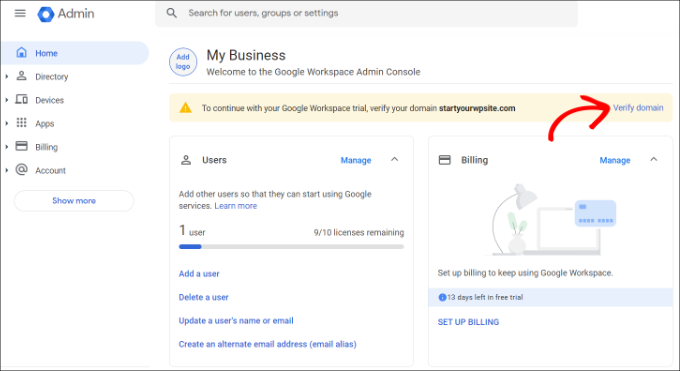
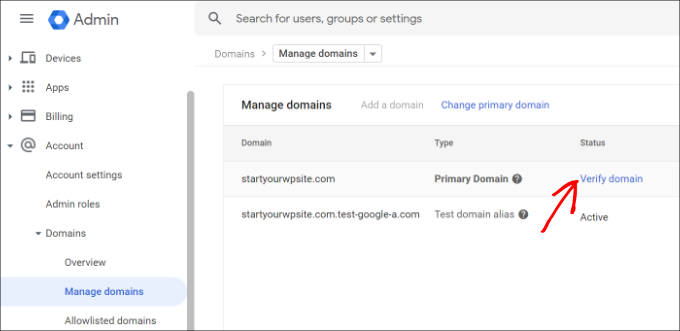
Alternatively, you can also go to Account » Domains » Manage domains from the menu on your left.
From here, simply click the ‘Verify domain’ option.
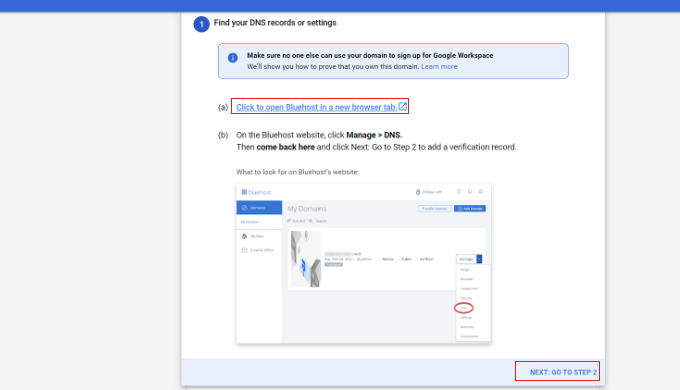
On the next screen, you will be asked to find the DNS records or settings of your domain host.
For this tutorial, we will be using Bluehost. However, Google will automatically detect your domain host.
You can click the link to open the hosting settings and then click the ‘Next: Go to Step 2’ option at the bottom.
Next, you will need to log in to your hosting provider.
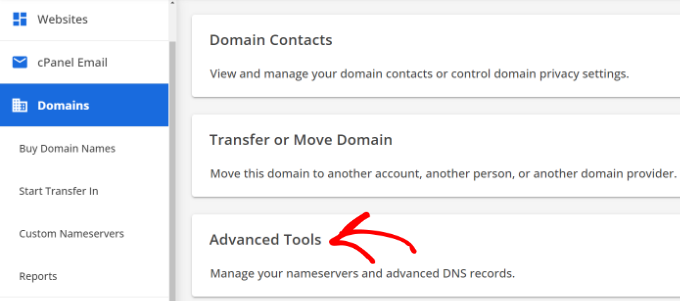
In Bluehost, you can head to Domains from the left panel and then scroll down to the ‘Advanced Tools’ option.
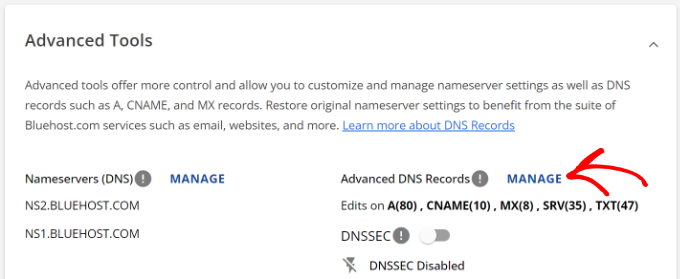
This will expand the tools and show the nameservers and DNS records.
After that, simply click the ‘Manage’ link in front of Advanced DNS Records.
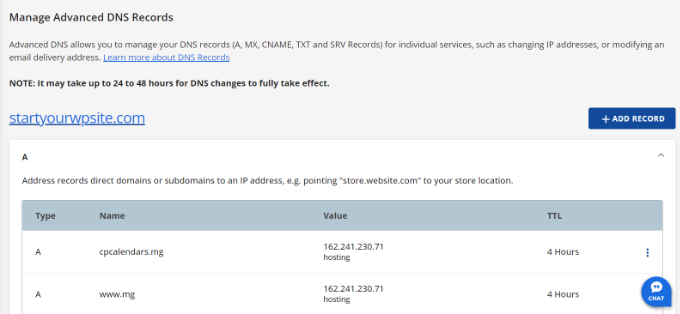
From here, you will find the DNS records of your website.
Go ahead and click the ‘+ Add Record’ button.
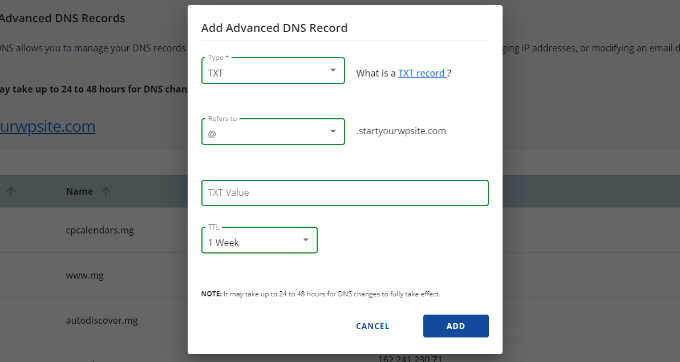
After that, you will need to enter the TXT details.
Here are the details you need to enter:
- Host Record: @
- TXT Value: Google site verification code
- TTL: 4 Hours (min)
You can find the TXT record details in the Google Workspace settings.
Simply switch to the window or tab where the settings are open, and you will see all the details under the ‘Add verification record’ step.
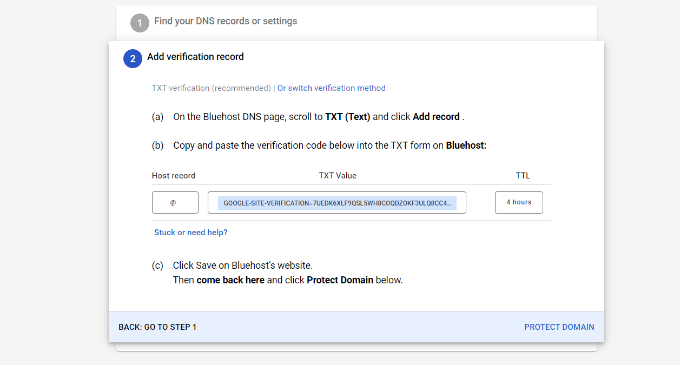
Don’t forget to click the ‘Save’ button when you are done.
After you have saved the TXT record in Bluehost, just click the ‘Protect Domain’ option.
Verifying the details will take a few seconds. Once that’s done, you will see a message that your domain is protected.
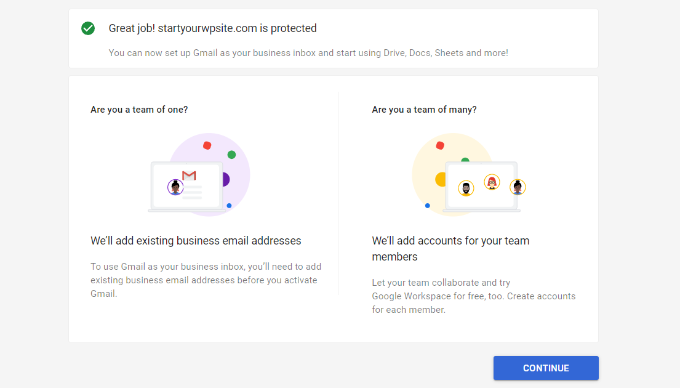
Go ahead and click the ‘Continue’ button.
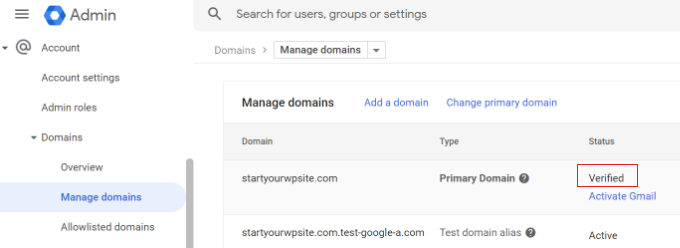
You’ll be taken to the ‘Manage domains’ settings in the Admin console in Google Workspace. You should see the status for your domain change to ‘Verified’.
Using Your Professional Email With Workspace and Gmail
Your email account works like any other Gmail account. You can access it by visiting Gmail and signing in with your email address, like john@yourdomain.com.
You can also manage your Google Workspace account by visiting the Admin console.
In the ‘Users’ section, simply click on ‘Manage’. This is where you can add/remove new users to your domain name.
Each of your users will have at least 30GB storage or the storage defined in your pricing plan, along with all the same features. However, they will not have access to the Admin console. You can also remove those users at any time.
Troubleshooting Google Workspace Domain Setup
Your web host may not be using a dashboard like the one we have shown in the screenshots above.
Google Workspace has detailed documentation for many of the popular web hosting and domain registration service providers. Simply visit the activate Gmail for Google Workspace page, and then locate your domain registrar or web host from the list.
If you do not find your service provider in the list, then you can ask them directly to help you set up Google Workspace for your domain name.
We hope this article helped you set up a professional email address with Workspace and Gmail. You may also want to see our list of the best email verification tools to clean your email list and how to create an email newsletter the right way.
If you liked this article, then please subscribe to our YouTube Channel for WordPress video tutorials. You can also find us on Twitter and Facebook.




Oyatogun Oluwaseun Samuel
The value that having your customize google gmail address will bring to your business cannot be quantify. it is really a must have for every serious business.
WPBeginner Support
It is certainly helpful for brand recognition
Admin
THANKGOD JONATHAN
I have been having issues with my Wordpress site not sending emails properly.
This article is really helpful. I will try to use Google Wordspace and see it myself.
thank you once more
WPBeginner Support
For the issue of emails not being sent, we would recommend taking a look at our article below:
https://www.wpbeginner.com/wp-tutorials/how-to-fix-wordpress-not-sending-email-issue/
Admin
Ralph
I think having email in our own personal domain is crucial for a professional look. It is dirt cheap, but it really looks way better.
I also suggest having many mail accounts on your own domain for different purposes. One casual for everyday use, one professional with your full name, and one or two for additional things related to our business like newsletters and accounts or subscriptions. It really helps separate all of those things, and I personally prefer that over folders and such organization.
Moinuddin waheed
Having a professional email address increases the branding value in visitors mind. I have not used professional email because I thought we can’t receive emails from professional email I’d to our Gmail account.
if we don’t purchase gsuit and want to add our domain email to Gmail so that we can receive emails directly in our Gmail account, is there a way to do so?
WPBeginner Support
You could try checking if Gmail’s check mail from another account works with your domain’s email for what it sounds like you are wanting to do.
Admin
John
If you’ve configured the MX records through Gsuite and added them to your webhosts DNS editor, do you also need to then configure Gsuite through a plugin such as WP Mail SMTP on your actual website?
WPBeginner Support
If you wanted to send your mail on your WordPress site then we would recommend using an SMTP plugin.
Admin
Mhlengy
Tankx for your help
WPBeginner Support
You’re welcome
Admin
Alex
I am a little confused (I am not tech savvy). You say “Setup a Professional Email Address with Gmail and G Suite”, I have a Gmail account but I only see instructions for G Suite. So am I to assume this can only be done with just the G Suite and NOT a Gmail account?
WPBeginner Support
Correct, you would use G Suite to have a Gmail account for your branded email address.
Admin
Michael Shaw
Gmail and G-suit are both are effective for business. But when it comes to business it’s email ID matters a lot. So, using a professional mail ID that could more trustable to persons in business matters as that ID contains a business name.
WPBeginner Support
Correct, and G Suite allows you to create an email address with your business name
Admin
Brendan Ryan
I use G-suite for my Domain mail routing in exactly this way. I set it up a couple of years ago when I was looking to give a more professional appearance but primarily to increase deliverability. Less warnings to recipients about “Sever could not verify your-domain.com was the actual sender”
I have a G-suite account where I am the only user. But it does allow you to add any other Domains you happen to own. When you do this , you then get to set up MX records for each of those additional domains and Google then serves the mail. At this point you add the extra domains as part of the primary G-suite Domain Organization. I have google routed mail addresses for each one of those dot coms and Google verifies the secure layer. And yes i do Use WP MAIL SMTP plugin on each of those sites also. All of this and 30GB storage on Drive for AU$5 a month. I am about to up the ante and go the next level at $10 per month which gives me additional function but primarily the 1TB – Unlimited storage on Drive.
WPBeginner Support
Thanks for sharing your reasons for using G-suite for your domain for others looking
Admin
kamlesh
How many emails can be sent using g suite basic? Can we use it as email marketing to large client-base?
WPBeginner Support
Rather than using g suite, we would recommend some of the services here for email marketing: https://www.wpbeginner.com/showcase/best-email-marketing-services/
Admin
Lesley P.
Are there any places that do business emails for say, 16 total different dot com business domains that I already have? Who would those be if so, please? Also, do any of these paid services have monthly billing options, or are they all annual subscription billing only? I’d really be interested if anyone knew of any free sites that allow you a business email dot com for your current domain names, again, I need about 16 different email dot coms on it and am on a fixed income searching for the lowest price or at least a low monthly fee rather than having to pay a whole year up front. Thank you!
WPBeginner Support
You may want to check with your hosting/domain provider if they offer something like that where you could forward the emails without the concern with billing.
Admin
Ramzi ElAchkar
Beware of using google for your business. Someone hacked our account and google shut us down for “violating google policies”….
We can’t access any of our emails or any history or communication for our company. Everything we built is destroyed. THERE NOT EVEN AN EMAIL AT GOOGLE TO CONTACT… worst company we ever dealt with. Beware… this can happen to you!
WPBeginner Support
If you are still having issues with your Google email, you may want to visit their support page with their contact information here: https://gsuite.google.com/support/
Admin
Trystan
‘Scroll down and you will find MX Records. There would be one or more entries there. You need to delete all of them.’
I done this and now my website is down for 24-48 hours until the dns records propagate through the web. This deletes pointers to where your domain is held!
Derek
This isn’t true. MS records only effect your email and during the time it takes to propagate the original value still holds. So your email may continue to go wherever it had gone before for up to 2 days. (Almost all modern systems will update in a few hours.)
Gmail Support Number
Thanks for sharing this information, I appreciate the article and decided to give Google Apps for Work a try because I’ve had many issues with the current email service I currently use for my business mail and also for my clients business mail as well as their website service provider.
Sanjib
Thank you for this tutorial. This was a very helpful post and helped me in setting up email for my new website.
Faris Naqib
Thank you for the tutorial. Your article are very helpful for beginner like me.
Rohit
Thanks WPBeginner team!
This was a very helpful post and helped me in setting up email for my new website.
nick d
Tried and failed no easy task for most non tech savy small bus people like myself. I gave up.
WPBeginner Support
Hi Nick,
We are sorry that you didn’t find the tutorial helpful. Please let us know where you are stuck and we’ll try to help.
Admin
zhou yanjun
I have a domain, but do not have a WordPress site . Can I set up the business email address?
Thanks
WPBeginner Support
Hi zhou yanjun,
Yes you can. You will have to adjust your domain’s DNS settings.
Admin
Joe Tittiger
We really need some FREE options. This article did not even address how to fix my non working, PHP email, or any free options.
You should also state that they cost at the beginning. Before I waste an hour of my time. I love the paid services, I just can not afford them
John
look at the above answer
Cory
I’ve had my gmail account since 2011. I didn’t sign up for (Google Apps at the time) G Suite back then. Can I be grandfathered into getting a free business email domain since I had a gmail account before the 2012 price implementation to upgrade?
WPBeginner Support
Hi Cory,
Nope, we don’t think that would work. You can still ask on GSuite support forums for more information.
Admin
oliver nakyejwe
How can i maintain my email address
Ragnhild Margreth Nordlund
Why on earth do you hide yourself? Why make it so difficult to get in touch with you?
And, why do I not get my e-mails? And why do I get så many “failures” (mislykket)?
Why do you send me failure messages when I send to correct e-mail addresses?
I am fed up with you.
Perhaps time to find myself some other e-mail company?
Best regards
Ragnhild Margreth Nordlund
WPBeginner Support
Hi Ragnhild,
If you are talking about Google Apps for work (also known as Guite), then they do have 24/7 dedicated email and phone support.
Admin
Tom B.
Would Google Apps for Work provide the same services as described in your “7 Best Email Marketing Services for Small Business (2016)” blog post using Constant Contact, AWeber, or MailChimp, etc.?
Editorial Staff
No google apps for work does not offer email newsletter service. It does give you a professional email address that you can use in combination with an email marketing service, so your emails look more professional
Admin
Yvette
Hi, thank for your this detailed walk-through; only thing, (maybe I’m just slow/dunce; I did read through the entire article btw), but I’m unsure about this: if I sign up for business email with GSuite/Google apps and I respond to an email sent to the business email, the client will see the business email, right?
You see, I’m new to this owning your website business. I have a subdomain.wordpress.com website (I plan on upgrading to my own domain soon) and I know the upgraded WP offers business emails, but when I read the info. on the WP site, no where does it say that when I respond to a client’s message, that the client will see the business email; it looks like the client will see my own/non-business email.
Eg. Let’s say my business is wpbeginner and I upgraded to WP’s business plan and I selected the email: hello (at) wpbeginner to forward emails to my actual/non-business email: justanexample (a) gmail.
If a client hits the ‘contact’ button on my site and/or sends an email to hello (at) wpbeginner, when I reply, will the client see hello (at) wpbeginner or will the client see prettylady (a) gmail? That’s what I don’t understand.
I have this same question for Google apps.
I want to make sure I do the correct thing; if it is that the client will see my non-business email when I respond, then getting a WP business email doesn’t make sense.
But on Google apps, the client *will* see my *business* email when I respond, correct?
Thank you for clarifying.
WPBeginner Support
Clients will see your business address when you reply to them.
Admin
Eriab Nsereko
Clarify pliz. Should i use support@example.com or eriab@example.com or both??
WPBeginner Support
Hi Eriab,
It is totally up to you. You can use either or both.
Suz
There is nothing mentioned about WhoIs privacy. Is this option automatic or an extra cost?
Gil
You can purchase Domain Whois Privacy from your registrar.
Debra Ferris
When I get to the page “Open Google Cloud Account” I am taken to my main Google sign-in page. I put in passwords for account, it goes back to “Open GC Account”. I put in password that I just created for the account, still doesn’t work.
Pulling my hair out in Texas.
Can you advise?
Debbe
Dhiraj
I have purchased an 30 days trial.
Now when I am trying for billing, it is automatically showing me this on
(HOW YOU PAY:
Automatic payments: Pay after your ads run. Your ads typically start running almost right after you submit billing details. You pay only after you accrue costs, via an automatic charge when you reach your billing threshold or 30 days after your last automatic payment, whichever comes first. Learn more
Manual payments: Pay before your ads run. Your ads typically start running after we process your first payment. We deduct charges from your prepaid balance each time your account accrues a cost. If your account runs out of funds, your ads stop running until you make another payment. Learn more)
Now, I just wanna purchase an Professional email not this Ad service account what should I do
WPBeginner Support
Contact Google customer support from your account dashboard.
Admin
Gil
I believe you were routed to the AdWords page. As for the Apps payment, or Email payment, basic is like $3/user and also the payment can be automatic if you put a card. You can also deposit an amount minimum of $10.
usman zahoor
I creat email account
Sammy
What about adding addresses in a group in outlook?
How can it be achieved under this setup ?
Liz
Hi thanks for the tutorial! I ran into 1 hiccup though at the “verify your domain” step. Once I click the button to do so, I get a small gray popup that says “Server error”. What does that mean?
No explanation. I can’t click on it to get more details. when I click on the listed “help center” link under the google setup steps, I got a 403 error.
Is it because bluehost only lets us set min. TTL at 14400 and google asks for it to be 3600?
Can you please help…
WPBeginner Support
Your domain may not be properly setup. Please contact BlueHost support, they will be able to help you troubleshoot,
Admin
Tatiana
Yet 6 days I’d tried to do it, but still unsuccessful. My new account not excist((
Bheema
Nice article, Have one question , Some where I read that google will provide free user accounts like
, etc with main account, is it correct ? and what generic accounts it will provide as free user accounts?
Mahevash
Hi. I want to use a free custom email address for my website. How should I go about doing that? I am using Bluehost.
Hozaifa
if i use 5 emails on my domain, which is used by 5 other people, then is it necessary that i have to take all the emails to google work email.
if yes, do i have to pay for all accounts seperately.
can i only take one email and rest will be used normally on outlook or integrated with free google account.
subha
I didn’t know about the google app .I guess Good things do not come with free option. I am happy to use my professional email provided by my hosting. Maybe in future Will go for google app .
Chuck
Hi – I appreciate the article and decided to give Google Apps for Work a try because I’ve had many issues with the current email service I currently use for my business mail and also for my clients business mail as well as their website service provider.
FYI: The only issue I have at this point is that the coupon code provided in this article was only valid for a single user (which I guess was first come firs served). I contacted Google who would not honor the 20% off offer.
Christine Tabor
Excellent step by step… I’m going to definitely save this…
So, to confirm… if I am the only one accessing the email… then other alias’ I set up, e.g. info@, sales@, etc., do not incur a charge as another user… correct?
How difficult to sync with Outlook… especially if you want updates to be global… and and Outlook uses folders and Google apps/gmail does not… any issues?
Finally… I’m building out my next site on a subdomain.domain.com right now… would I be able to go ahead and set up the email or should I wait until I migrate the site and turn on the search engine, etc.?
Christine
WPBeginner Support
Christine, yes that is correct aliases do not incur charges as separate user. For Outlook you can use Google Apps Sync tool for Microsoft Outlook. You can also add your Google Apps account as an IMAP or POP account to your Outlook mail. If you have access to domain’s DNS records, then you can set it up.
Admin
Mark
Great tutorial as usual! You guys truly do the heavy lifting and it’s all very helpful. Thanks!
Jay Castillo
As always, thanks for the awesome tutorial. Always wanted to do this to use our own domain for emails, but never had the time to research. Now i don’t have to research, you already have the info i need here for new email addresses, thanks!
I just have one question, what happens to my old/existing email addresses using my domain? How do i migrate them?
WPBeginner Support
If you are the only person using those email addresses then you can add them as email aliases. If other users use those email addresses, then you will need to add them as users in Google Apps Admin Console.
Admin
Jay Castillo
Got it, thanks!
Rich
Thank you for this tutorial. When I add aliases, do they have to be al @yourdomain.com or can they be totally different? I have a few different websites and would rather not have a separate Google Apps for Work account (& fee) for each. Thanks again!
Katherine
They have added multiple domain support to Google Apps, but there are A LOT of restrictions and issues associated with it.
And what really sucks is those of us with legacy accounts can’t add multiple domains. So much for the early adoption bonus.
Kim
I have created a Google Apps Work account (example.com) and have 5 users … one is my son shane@example.com … he has a youtube business and has used a free gmail account for this business for a few years username@gmail.com … I thought that I could simply add username@gmail.com as a send from and send to account so that Shane can stay logged into his shane@example.com email and view ALL emails coming in from shane@example.com and username@gmail.com …. this seems like it would be a VERY common requirement but I cannot get it to work!! Ironically, I have no problem adding a NON gmail account as a send from and send to account. Does ANYONE know how to set this up using a Google Apps Work account and adding a free gmail account?
WPBeginner Support
Instead of change Send From and Reply to fields, you can also setup forwarding. Open the Google Apps email account and go to Settings -> Forwarding and add the gmail address. Similarly you can setup forwarding on free gmail account to forward all mail to the Google Apps account.
Aziz
amazing Guide and rich info, just wondering if you can suggest a free one until i can afford to buy from google thanks said
subha
I agree
Radu
Yes, thank you for the article… However a very important aspect has been left out I think.
Setting up the MX record in the actual domain handler.. This is a crucial piece of the puzzle, this way you can have complete control over the email and there is no connection to the webhost.
They way to do it is to temporarily park the domain so you can access the DNS manager inside:
1. Park domain – i.e. with godaddy just put the default NS records or “set to default”
2. Go to the DNS file zone editor and post the host to your webhost IP
3. And now add the mail exchanger info
So this way I think your email address with google aps is 100% independent.
Or this is not the way to do this? Please confirm.
WPBeginner Support
Yes, this is correct and we have mentioned it in the article above. You need to delete existing MX entries from your domain and add Google MX records.
Admin
Mike Rosekrans
I use Google apps for my business email and it works flawlessly.