


With nearly half a billion active users, Pinterest is a huge potential source of traffic for your blog. However, a lot of WordPress site owners post amazing content there but fail to get the traffic they deserve.
I discovered the missing piece is usually site verification. I’ve seen many WordPress sites boost their traffic from Pinterest simply by completing this one step.
The good news is that verifying your WordPress site on Pinterest is straightforward and only takes about 10 minutes. Once you’re verified, you’ll unlock better reach in Pinterest’s feed, gain access to powerful analytics tools, and build trust with your audience.
I’ll walk you through the process step by step to improve your Pinterest traffic potential.
TL;DR: Want more traffic from Pinterest? Verifying your WordPress site is a key step that takes less than 10 minutes. Just upgrade to a free Pinterest Business account and use a plugin like All in One SEO or WPCode to add the verification tag.
Why Verify Your WordPress Site on Pinterest
Verifying your WordPress site on Pinterest improves your visibility on the Pinterest platform and gives you access to powerful marketing tools to improve your content strategy.
Pinterest is one of the top platforms for driving traffic through visual content. Unlike other social media platforms where content quickly disappears, Pinterest pins can drive traffic to your website for months or even years after posting.
When you verify your site, Pinterest recognizes you as the official owner of your domain. This means your pins get priority placement in Pinterest’s algorithm, leading to more visibility in user feeds and search results.
Here are the key benefits you’ll unlock after verification:
- Access Pinterest Analytics – Get detailed insights about your pin performance, audience demographics, and which content drives the most traffic to your site.
- Unlock Pinterest advertising programs – Run promoted pins and shopping ads to reach even more potential visitors and customers.
- Build trust with your audience – When your site is claimed, your profile picture and a ‘Follow’ button will appear on all Pins that come from your site. This shows users that the content is yours and helps you grow your audience.
- Helps You Enable Rich Pins – Verification is the first step to using Rich Pins, which display extra information directly on your pins (such as prices or article headlines). After verifying, you’ll still need to ensure your site has the correct code for Pinterest to read.
The verification process only takes a few minutes, but the impact on your Pinterest marketing can be huge. Once you’re verified, you’ll have all the tools you need to turn Pinterest into a major traffic source for your WordPress site.
💡 Pro Tip: Plugins like All in One SEO not only help with verification but also automatically add the special code (called meta tags) needed to make Rich Pins work correctly.
Step 1: Upgrade Your Pinterest Account to Business
Before you can verify your WordPress site, you’ll need to upgrade to a Pinterest Business account. This type of account is completely free and gives you access to the verification tools and analytics features you’ll need.
Start by logging into your existing Pinterest account. If you don’t have a Pinterest account yet, then you can create one at pinterest.com using your email address.
Once you’re logged in, click on the down arrow next to your profile picture in the top-right corner of the screen. In the dropdown menu that appears, you will see whether you have a personal or business account under your name.
If you have a personal account, then you need to click on the ‘Convert to business’ option.
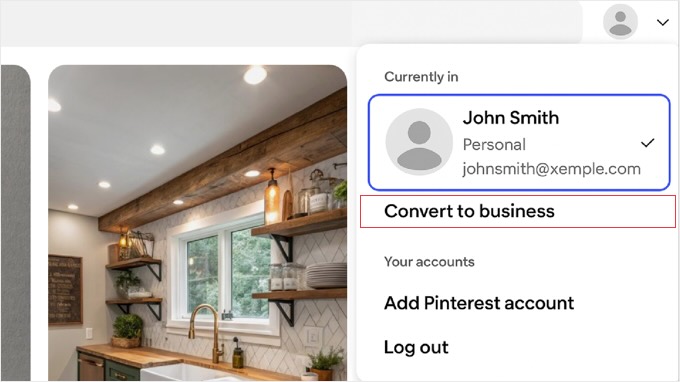
💡 Note: If you don’t see that option directly, then you can also find it by going to Settings » Account management, and clicking the ‘Convert to business account’ button.
Pinterest will then guide you through a few screens to set up your profile. On the ‘Tell us about your business’ step, you’ll enter your Business name and Country.
It’s important to make sure you enter your full website address in the ‘Website’ field. Entering your website here is a key step that makes the verification process much quicker.
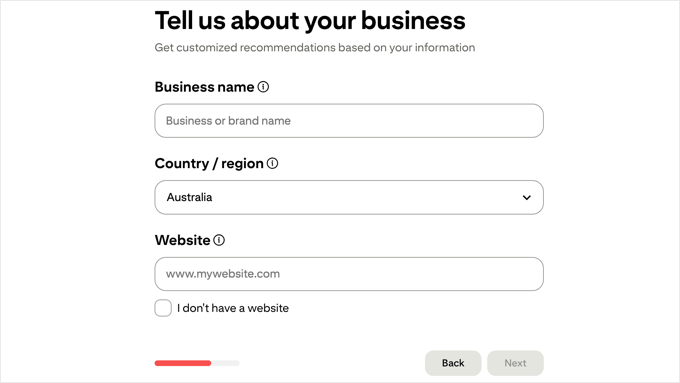
The upgrade to a business account is instant and completely free. You won’t lose any of your existing pins, boards, or followers during this process.
Step 2: Claim Your Website on Pinterest
Now that you have a Pinterest Business account, it’s time to claim your WordPress website. While Pinterest calls this process ‘claiming’ your website, this means verifying that you are the owner.
First, navigate to your ‘Business Hub’ by clicking the Pinterest logo in the top-left corner and selecting ‘Business Hub’ from the menu.
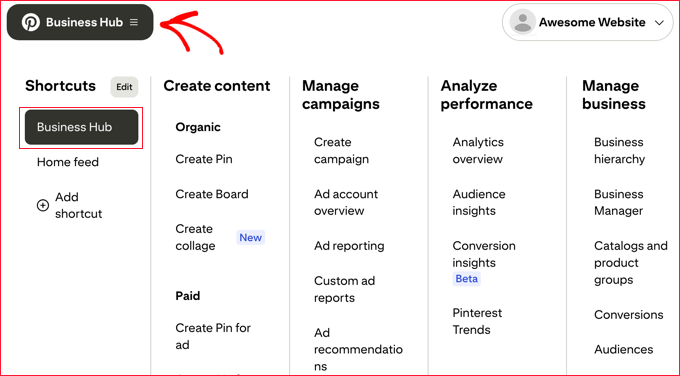
Once you’re there, look in the top-left area of the dashboard.
You should see a section with your profile picture and a prominent, clickable link that says ‘claim [your website name]’. Click this link to begin the verification process.

A popup titled ‘Choose how you want to claim’ will appear. It will present you with three options: ‘Add HTML tag’, ‘Upload HTML file’, or ‘Add TXT record’.
Under the ‘Add HTML tag’ option, you will see a rectangle containing your unique code. When you hover over it, a ‘Click to copy’ prompt will appear.
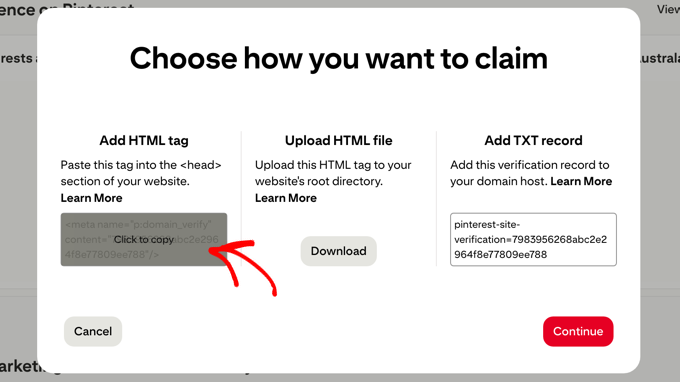
Simply click on this rectangle to copy the entire HTML tag to your clipboard. After you have successfully copied the code, click the ‘Continue’ button.
Keep this Pinterest tab open in your browser, as you’ll need to return here to complete the verification process. Now you’re ready to add this HTML tag to your WordPress website.
Step 3: Add an HTML Tag to Your WordPress Website
The safest and easiest way to add the Pinterest HTML tag to your WordPress site is by using a plugin. This method prevents you from having to directly edit your theme’s code, which can be risky and may get overwritten during theme updates.
Method 1: Use All in One SEO (AIOSEO)
All in One SEO is one of the most popular WordPress SEO plugins, and it includes a built-in feature for adding Pinterest verification tags.
First, you’ll need to install and activate the AIOSEO plugin. You can use either the free or premium version of AIOSEO.
Related: For help configuring the plugin for SEO, see our guide on how to set up All in One SEO for WordPress correctly.
Once AIOSEO is installed, navigate to All in One SEO » General Settings from your WordPress dashboard.
On the General Settings page, click on the ‘Webmaster Tools’ tab at the top of the page. This section is specifically designed for adding verification codes from various platforms.
Scroll down until you find the ‘Pinterest Verification Code’ field. This is where you’ll paste the verification code from Pinterest.
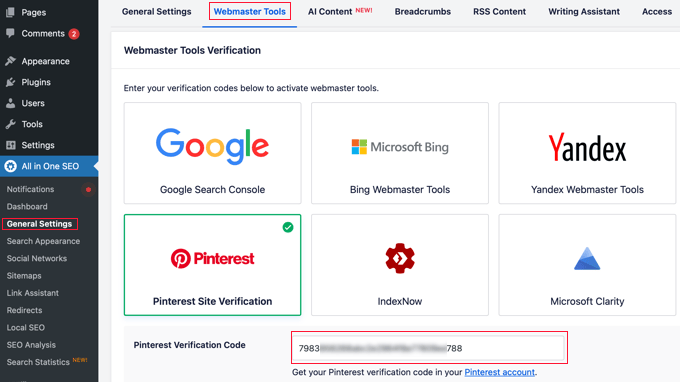
You only need to paste the unique verification code itself, not the entire HTML tag. This is the long string of letters and numbers inside the content="" part of the tag. Don’t worry if you paste the whole tag by mistake. AIOSEO is smart enough to format it for you automatically.
After pasting your Pinterest verification code, scroll down and click the ‘Save Changes’ button to store your settings.
Method 2: Use WPCode
WPCode is a code snippets plugin that makes it easy to add custom code to your WordPress site safely.
Start by installing and activating the free WPCode plugin. If you need help, please see our beginner’s guide on how to install a WordPress plugin.
After activation, go to Code Snippets » Header & Footer in your WordPress dashboard.
In the Header section, paste the complete HTML tag that Pinterest provided. Make sure you paste the entire tag, including the opening <meta and closing /> parts.
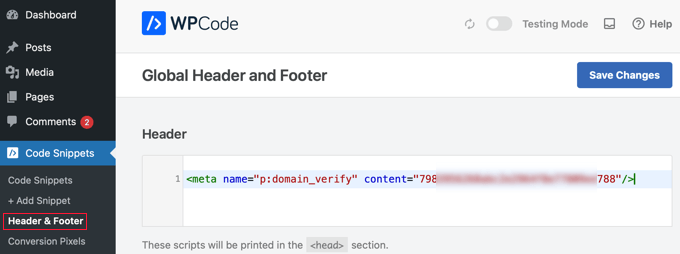
Click the ‘Save Changes’ button to add the verification tag to your site’s header.
Both methods will add the Pinterest verification tag to every page of your WordPress site. This ensures Pinterest can find and verify the tag no matter which page they check.
Step 4: Verify That You Claimed Your WordPress Website on Pinterest
After adding the Pinterest verification tag to your WordPress site, you’ll need to return to Pinterest to complete the verification process.
Now, return to the Pinterest tab you left open. In the popup window, enter your full website URL into the text box, and then click the ‘Verify’ button.
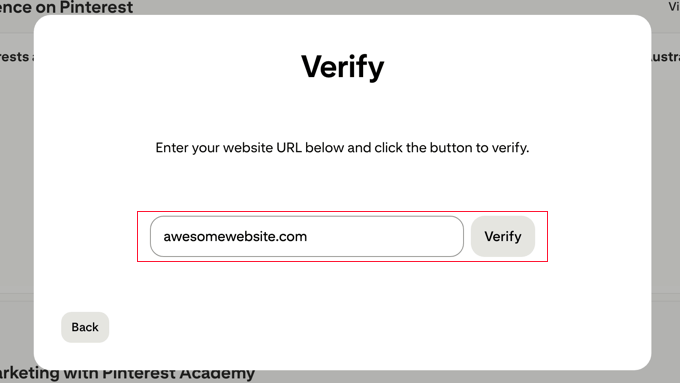
If Pinterest successfully finds your verification tag, then you’ll see a green checkmark and a confirmation message. Your WordPress site is now officially verified on Pinterest.
However, if the verification fails, don’t worry. This is a common issue that’s usually easy to fix.
⌛ Be Patient – Verification Isn’t Always Instant: After you click the ‘Verify’ button, Pinterest may need some time to check your site for the tag. The process could take up to 24 hours in some cases, and you will usually receive a confirmation email once your site is successfully claimed. If it doesn’t verify immediately, wait a little while before assuming there’s a problem.
Troubleshooting and Tips
The most common reason verification fails is due to WordPress caching. If you’re using a caching plugin like WP Rocket or W3 Total Cache, then you’ll need to clear your cache after adding the verification tag.
Also, if you use a Content Delivery Network (CDN) like Cloudflare or Sucuri, then you may need to clear its cache as well. Simply go to your caching plugin’s settings and look for a ‘Clear Cache’ or ‘Purge Cache’ button. Click this button to refresh your site’s cached files.
If you’re unsure whether caching is enabled, you can also try waiting 10-15 minutes before attempting verification again. Sometimes it takes a few minutes for the changes to take effect across all servers.
Another tip is to double-check that you copied the verification tag correctly. Return to your AIOSEO or WPCode settings and ensure that there are no extra spaces or missing characters in the tag.
While Pinterest’s official documentation says you can remove the verification tag after your site is claimed, we strongly recommend leaving it in place using a plugin like AIOSEO or WPCode.
This is the best practice for managing all third-party verification codes, ensuring you won’t have to re-add the code if Pinterest ever needs to verify it again in the future.
Frequently Asked Questions About Pinterest Verification
Here are answers to some of the most common questions we receive about verifying a WordPress site on Pinterest.
How long does Pinterest verification take?
The Pinterest verification process is usually instant once you click the ‘Verify’ button. However, it can sometimes take up to 15 minutes for Pinterest to detect the HTML tag on your website, especially if you’re using caching plugins.
Is a Pinterest business account free?
A Pinterest business account is completely free to create and use. It gives you access to Pinterest Analytics, the ability to run ads, and other verification features without any cost.
Why did my Pinterest site verification fail?
The most common reason Pinterest site verification fails is due to WordPress caching or an incorrectly added HTML tag. To fix this, you should clear your site’s cache, double-check that you copied the tag correctly, and then try verifying again after a few minutes.
Do I have to use a plugin to add the Pinterest verification tag?
You do not have to use a plugin to add the Pinterest verification tag, but it is the recommended and safest method. Using a plugin like AIOSEO or WPCode ensures your verification tag stays in place even when you update or change your WordPress theme.
Will I lose verification if I change my WordPress theme?
According to Pinterest, your site should stay verified even if the tag is removed after the initial check. However, we still highly recommend using a plugin to add the tag.
If you add the verification code directly into your theme’s files, that code will be completely erased when you switch to a new theme. Using a plugin like AIOSEO or WPCode keeps the code separate from your theme.
This makes sure the code remains in place no matter how many times you change your design. It’s the safest method and a WordPress best practice.
Additional Resources for Pinterest Marketing
Now that your WordPress site is verified on Pinterest, you can take your Pinterest marketing to the next level with these helpful guides:
- Learn how to maximize your Pinterest traffic with our comprehensive guide on how to supercharge Pinterest traffic to your blog. This tutorial covers advanced strategies for creating pins that drive more visitors to your WordPress site.
- You can also showcase your Pinterest content directly on your website by following our tutorial on how to show your latest Pinterest pins in WordPress sidebar widgets. This helps keep your website content fresh and encourages visitors to follow you on Pinterest.
- Discover how to add special, hidden images to your posts that are perfectly optimized for Pinterest. Our guide on how to hide Pinterest images in your WordPress blog posts shows you how to encourage shares with beautiful vertical pins without cluttering your article’s layout.
- Stop guessing social media image sizes with our complete social media cheat sheet for WordPress. This technical guide gives you the exact dimensions for profile pictures, cover photos, and shared images on all major platforms, and shows you how to set up your site with plugins to ensure your content looks great when shared.
- Finally, if you want to add social sharing buttons to make it easier for visitors to share your content, then see our roundup of the best social media plugins for WordPress.
If you liked this article, then please subscribe to our YouTube Channel for WordPress video tutorials. You can also find us on Twitter and Facebook.


Carla Valdetaro
Do I need a business WordPress plan to verify my pinterest account? I’m starting my blog and it’s still a free WP.
WPBeginner Support
Hi Carla,
Please see our guide on the difference between self hosted WordPress.org vs free WordPress.com blog.
Admin
Kacey
Thank you this helped me out for sure. It was so confusing at first yet such a simple solution. Thanks again.
Pat
Wow! This was super easy to follow! Thank you!
Carolyn Lawton
I have just switched my personal Pinterest account to Business, and I’m now in the process of verifying my website. I do not have – nor do I want a Facebook account. I do not choose to use Twitter either. Can I pass that step and only use Pinterest?
I do have a Quora account in addition to Pinterest … can that be added? Thank you for your help.
Carolyn
Whitney
Thank you! Your video was super helpful
Stacy
Thank you so much! I’ve been trying to find an easy way to do this – I had no idea I could verify my website with Pinterest through Yoast SEO. It took like 30 seconds. Next time I have a question about how to do something on Wordpress, I’m coming straight to your site!
Angela
Thank you!! This worked perfectly!! It was immediate. Had searched through and tried other tutorials which were vague or gave erroneous information!!
Thanks again!!!!!
Jena
I have tried this step by step process about 4 different times and I always get an email back from pinterest saying:
“We couldn’t find the HTML meta tag or verification file on your site. Be sure to paste the HTML meta tag in the section of your site’s homepage, or upload the verification file to your site’s root directory. Try again or get help.”
What am I doing wrong?
Kat
I am having the exact same problem. Argh.
Nickesha S
This was extremely straightforward and helpful. I was so confused by the directions I got in the pinterest help forum.
Bridget
Gosh thank you so much! I’ve been trying to claim my site for days…I’m so happy I came across this post because within 5 minutes, my site is verified completely.
Amazing!
Avalon
Hi,
I tried both methods and an error screen came up saying:
“403 Forbidden: A potentially unsafe operation has been detected in your request to this site.”
Any idea to why this might be happening?
Julie Robertson
Thanks for this tutorial! You made it so easy!
Sarah
Hi,
This tutorial worked perfectly me for my word-press site, but I had to go through a lot of other duff tutorials to find this one.
Is there any chance I can “pin” a link to this tutorial on a new pinterest board I am building about pinterest analytics and wordpress websites?
Many Thanks
Sarah
Millye
Pinterest has changed since then I think, because the process was different, but it was still helpful to see this before doing it! Thank you so much!
I have a question about the plugin you recommended. Let’s say I need to claim/verify my website on other social media, (ex.bloglovin) can I simply copy paste the new codes i’m given under the pinterest one? I mean, can I add more than one code in the Header box of the plugin? thanks in advance!
WPBeginner Support
Hi Millye,
Yes you can add more than one code in the header box of the plugin.
Admin
Shikhar Sehgal
Hello Sir,
I dont have any technical experience so I always try not to mess things up in the coding area. Can you please suggest any plugin that can make this work? For eg. for bing verification, i simply pasted the code in the Yoast SEO Plugin.
WPBeginner Support
Hi Shikhar,
The above method is a plugin method. You will be using insert headers and footers plugin to add your verification code.
Admin
Debbie Magee
I tried your method and it didn’t work. I get an Opps message and that it can take more than an hour. I waited overnight and it didn’t work.
Also, I am having a problem since Dec 18 when the only image that can be generated is the Featured Image. On Dec 29 the post Pinintert worked fine! But the next post has the same problem, plus it doesn’t even generate the thumbnails of the other images. They are not too big – I resize them like always in . What the heck? Is it related to not being able to confirm my website?
WPBeginner Support
Hi Debbie,
We are not sure if it is related to that. Pinterest verification had some issues in the past but those issues were resolved.
Admin
Rachel
i followed the steps but I got an error message
{“code”:”MethodNotAllowedError”,”message”:”POST is not allowed”}
not sure what I did wrong
Eleanor
I tried to install the recommended plugin but got an install fail message: “Installation failed: Download failed. cURL error 6: Couldn’t resolve host ‘downloads.wordpress.org'”
WPBeginner Support
Hi Eleanor,
Please retry again. If the same thing happens again, then contact your WordPress hosting provider. They may not have curl extension enabled, which is required by WordPress to function properly.
Admin
Katie
Thank you! After trying several methods this one worked! I will reference it in my future posts for anyone that has this issue!
Sarah Lentz
Thank you! I tried uploading the file to my “public.html” root directory, but 24 hours later … nothing. And I wasn’t sure exactly where to put the meta tag, so finding this post really helped. I downloaded the “Insert Headers & Footers” plugin and added the meta tag in the plugin’s settings window (in the header section). Here’s hoping …
But this is the most helpful article on this by far. Most articles just repeat what the Pinterest website tells you to do, which isn’t much help if you’re still an amateur blogger who doesn’t know where to put a “meta tag.” Maybe I should know that by now, but the techy side of blogging is still murky waters for me.
Lisa
Thank you so much for this info! After trying several methods, the Insert Headers & Footers was the plug-in that did the trick
Veronica
Thank you so much for this information. I was completely lost at the instructions on Pinterest but I found this article after a quick google search and my site is now verified.
Astrid
I had this problem months ago and tried all the fixes and it didn’t work so i gave up. I just tried it again and it finally worked! I also received the message that it could take up to an hour to confirm but see that it only took a few minutes and my site is now confirmed. Thank you for the easy to follow instructions – I ended up trying second way by inserting into the header.
A Burrili
Amazingly easy compared to all of the other methods I’ve seen out there. Thank you!!!!
Burt Whyte
Thanks for the excellent on target information! my site confirmation is official!
Gabby
I tried a couple of different methods before I finally came across this post. Pinterest pop up said “may take up to an hour” but I can be patient a little longer because I finally found a way to make it work! Thanks
Michelle
Your videos have been very helpful thank you. My website has already been confirmed on Pinterest and I never saved the meta tag or html file. Would you please advise how I can get the meta tag from my account with Pinterest. I can not find it anywhere?? Arrghh
Thank you.
Elizabeth
I did exactly what this article says, but my website won’t confirm. Why is this?
Sara
I searched all over and couldn’t figure out how to do this, then I found this article. Thank you for giving such simple instructions! My website is now confirmed:)
Craig
Very good, practical instructions. Thanks!
Bob
Super easy to understand – love it.
Angie
Wow, you made this so easy! I was just about to give up when I found this video. Thank you thank you!!!
The Rambler
THANK YOU!!! Omg, this was the craziest brain hurting thing I’ve done with my blog. I downloaded that plugin and it so helped! Thank you, Thank you!!!!
Jessica Abbott
I had the same issue as everyone above. API method not found. Someone from pinterest reached out right away after I submitted my question, confirmed they could see the meta tag and sent in a request to have it confirmed manually within a day on their end.
Dee
Also tried this and I get the same API message. Is there something up with Pinterest?
I’m self hosted and the domain I’m trying to verify is top-level. I’ve tried about 3 different methods and none work.
I also get an error that Pinterest is having trouble connecting to my website but it’s running fine (double checked to make sure) Whats up?
angela
Does this still work for the free Wordpress acounts?
I have the Canard theme, and I have linked to my own domain..
I dont have anywhere where it says header in my customization!
Please help!
Thank YOU
WPBeginner Support
Please see our guide on the difference between self hosted WordPress.org vs free WordPress.com blog.
Admin
Tracy
Also tried this and got the API message. I am self-hosted (Blue Host) but I am terrible with anything like this, especially adding HTML – have you got a simpleton’s version of what to do when you get the API message?! Thank you! Love your site – it’s helped me out loads of times!
Lauren
Yes I get the same API message. No one seems to know how to fix this. I’d love to know if you get an answer. Thanks!
Renee
I have put into the plugin and also tried putting it into my header. No matter what I do Pinterest tells me it can not find the API. It looks like others are having the same problem. What do I need to do to fix this?
WPBeginner Support
The Pinterest API allows only top level domain to be verified, if your site is hosted on a subdomain then it will not be confirmed. You can also try downloading the HTML file and then uploading it to your root domain.
Admin
Grace
Hi there, I followed all your steps. However, after I copy the code into the header section and save it, I recieve a message from pinterest saying ‘API method not found’.. help!
Melinda
I get the same message. API method not found.
Chelsea
I received the same API message. Did you guys ever figure it out?
Whitney Pack
Thank you so much. I have been trying to figure out how to do this for weeks. I am so glad i found your site
WPBeginner Support
Glad you found it helpful.
Admin
Jessie
THANK YOU SO MUCH!! I looked at so many posts that explained how to do this in terms that were over my newbie-blogger head. This worked perfect. Thanks again!
WPBeginner Support
Glad you found it helpful.
Admin
Heather @ Boston Girl Bakes
Hi- followed the instructions correctly- but when I added to the headers section with the plugin- and then clicked finish on pinterest- nothing happened.
Saw others had the similar problem-…please help!
Marjorie
Hi!
Good video and tutorial! I added the good version of Insert Headers and Footers on my site WP, I put my pinterest code but nothing happen.. No confirmation! Do you have more information about confirmation problems? Thanks!
Kelly Mason
Just want to say thank you, thank you, thank you! You guys have helped me on say many occasions that I have stopped counting. I love all your tutorials, videos, and various css helps, including this Pinterest one. I have been trying for over a week to confirm my website and could not figure it out. Downloaded plugin and verified in less than a minutes.
Raza Bajwa
I have added the code, but not receive any confirmation message or email that i have successfully add the code. How can i verify that my website is verified or not???
Kobi Jae
Thanks for the article! I used to have my site on blogger and it was verified with pinterest. I’ve recently migrated to self-hosted WP, but with the same domain. Do you know if I need to update anything? Thanks!
Ann Marie
I tried this but got the following warning:
“The Header and Footer plugin(s) might cause issues when used in conjunction with Yoast SEO.
Both Yoast SEO and Header and Footer create OpenGraph output, which might make Facebook, Twitter, LinkedIn and other social networks use the wrong texts and images when your pages are being shared.”
There was the recommendation to deactivate Header and Footer (which I did), but I am temporarily at a loss on what I should do next. By the way, I’m a novice at this stuff.
WPBeginner Support
Please remove header and footer plugin and then install “Insert Headers and Footers” plugin. These are two different plugins. The one you have installed is not compatible with Yoast SEO. The other one, that we have recommended in the article is fully compatible with Yoast SEO.
Admin
Devon
I have installed the “Insert Header and Footer” plugin on my Wordpress blog (hosted my GoDaddy) and have pasted the meta tag generated by Pinterest. This and all previous attempt via different method (using Verify Pinterest plugin and manually entering in section) result in the same message from Pinterest: API method not found.
I am frustrated beyond belief. Any suggestions?
WPBeginner Support
For the time being, Pinterest verification seems to be not working for most users. We tried reaching out to Pinterest but did not get a response.
Dave
That is the problem with Pinterest. When one reaches out to them they do not respond. For poor support.
Sapna
Has there been any update on this post? I am having the same API Method Not Found error, despite trying every method I can find to verify.
Lemurian Girl
Thank you! This worked on my self-hosted WordPress blog. Appreciate the tutorial ~ Alohas
Meg
Thanks for this! I did as instructed but didn’t get the success message. When I attempted it again I got simply the word “error” when I attempted to get my code. Any idea if this means it worked?
Robert J Banach
Already hooked up website to Pinterest, how does one get the Verification Code?
WPBeginner Support
visit your account settings page. See the article above for instructions.
Admin