


We’ve had moments where a website impressed us so much, we just had to know who was hosting it. Maybe it loaded super fast, had zero downtime, or handled tons of traffic without breaking a sweat.
If you’ve ever wondered who’s behind the scenes powering a website, you’re not alone. Many of our readers ask us how to check the hosting provider for a site they admire or want to learn from.
We’ve tested many tools for this exact purpose, both out of curiosity and when helping others migrate to better hosting. The good news is, you don’t need technical skills to find out who hosts a site.
In this guide, we’ll walk you through the easiest and most reliable ways to find out who is hosting any website. All methods are beginner-friendly and free to use.

Why Find Out Who is Hosting a Website?
Every website on the internet needs web hosting, which is where all of a website’s files are stored. Without web hosting, a site simply can’t exist online.
Web hosting is different from a domain name. A domain name is like the address of a website, for example, wpbeginner.com.
Finding out a website’s hosting provider isn’t difficult since this information is publicly available, and we’ve done this process ourselves many times.
There are several situations where knowing the web hosting service behind a site can be very useful:
- A WordPress developer built a website for you, but they didn’t mention who the web host is, or you lost the details. This happens more often than you’d think.
- You set up your WordPress website a while back and can’t remember the hosting provider.
- You’ve come across a fast and highly performing website, and you’re curious about the hosting provider so you can consider using them too.
- If a site is scraping your content, knowing the host can help you file a DMCA takedown notice to resolve the issue.
We use a few reliable and tested ways to discover who is hosting a website. Here, we’ll guide you through two of the quickest methods to identify a website’s hosting provider.
Method 1: Use the WPBeginner Theme Detector Tool
Our WordPress Theme Detector tool not only reveals which WordPress theme a site is using but also identifies the hosting provider. It’s a quick way to gather important information about any WordPress site.
To use it, just visit the WordPress Theme Detector Tool page and enter the site URL or domain name:
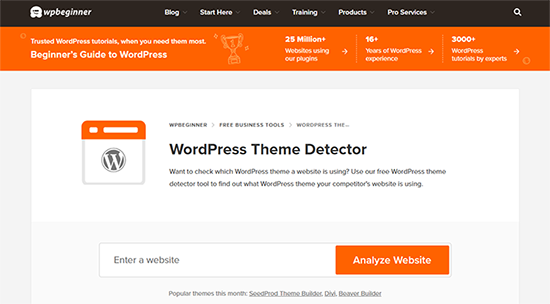
Click on the ‘Analyze Website’ button to see detailed results in seconds, including the hosting provider’s name:

Common hosting names you may see:
- Unified Layer: Newfold Digital (formerly EIG, Endurance International Group) hosts brands like Bluehost and HostGator.
- New Dream Network, LLC: the parent company behind DreamHost
- Media Temple: Owned by GoDaddy.
Advantages of Using the Theme Detector Tool
- Speed: Provides fast results in just a few seconds.
- Simplicity: No technical knowledge needed. Enter a URL and click a button.
Disadvantages to Consider
- Limited by CDN and Firewalls: May not identify hosting providers if a CDN or firewall like Cloudflare or Sucuri is used, as they reroute traffic through their servers.
For example, if you check wpbeginner.com, it might show Cloudflare as the provider, even though we’re hosted by SiteGround.
If the theme detector doesn’t provide a clear answer, rest assured, the following method in our guide delves deeper to uncover the true hosting provider behind a website.
Method 2: Using WHOIS Tools to Find Who is Hosting a Website
Another effective way to find a website’s host is by checking its WHOIS information. WHOIS acts like a public directory, allowing you to discover who manages a website.
We favor this method as it reveals lots of useful information, beyond just hosting details. However, it may seem a bit challenging for those unfamiliar with the technical terms in these records.
What is WHOIS Information?
Managed by ICANN, a global non-profit, WHOIS is a public directory containing key data about domains, including possibly where a site is hosted.
This information is accessible to everyone. Various tools can help you perform WHOIS lookups for almost any website.
To get started, head over to the WHOIS Lookup tool provided by Namecheap. Enter the website’s URL and run the lookup.
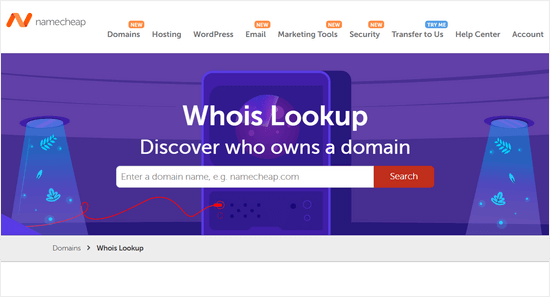
You’ll find a list of details about the domain name. Look for the ‘Name Server’ entry, as this often points to who is hosting the site:
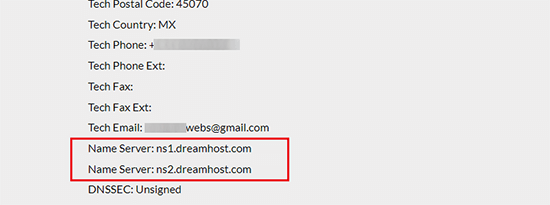
For example, the host might be DreamHost. If you’re unfamiliar with the nameserver, a quick Google search can help identify the host.
Sometimes, host information isn’t directly available. The nameservers may link to a CDN provider like Cloudflare.
Advantages of Using WHOIS Tools
- Comprehensive Data: Provides extensive domain information, sometimes even the owner’s contact details.
- Publicly Accessible: Anyone can access this information without restrictions.
Disadvantages to Consider
- Technical Complexity: The data can be overwhelming for those unacquainted with technical jargon.
- Potentially Incomplete Hosting Info: Sometimes the hosting information isn’t directly visible due to services like CDNs.
Method 3: Use The IsItWP Theme Detect Tool
IsItWP offers several tools for WordPress users, including one that allows you to enter a domain name and get helpful insights about the site.
Simply head over to the IsItWP website, type in the domain name you’re curious about, and start your search.
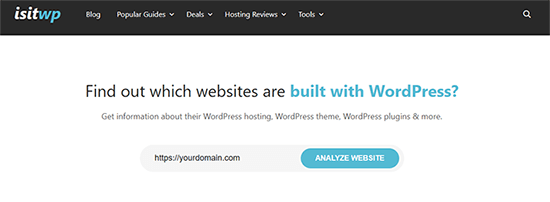
On the results page, IsItWP will indicate whether the site uses WordPress and also show the hosting information for the website.
If the website runs on WordPress, IsItWP can also reveal extra details like the WordPress plugins and theme it uses.

Advantages of Using the IsItWP Tool
- Convenience: Quickly find both hosting and WordPress configuration information.
- Comprehensive Insights: Provides information on plugins and themes for WordPress sites.
Disadvantages to Consider
- WordPress Limitation: Primarily useful only for WordPress-powered sites.
- Potentially Imperfect Results: Might not always provide complete hosting details if the site uses complex configurations.
Other Ways to Find a Website’s Host
If the quick options above don’t work, these longer methods are worth trying.
For your website, check your billing records, as hosting charges should be listed there.
You could also contact the person who initially set up your website or look through any related information they sent you.
Identifying the host of someone else’s site is more challenging, but here are a few tips.
Search for host information directly on the website, often found on the ‘About’ page or in the footer. For example, WPBeginner’s footer notes that we are hosted by SiteGround:

If you can’t find hosting information, try reaching out to the site owner or editor directly.
Most websites offer a contact form for this purpose. A kind inquiry about their host may get a helpful response.
Frequently Asked Questions
Here are some common questions we hear from users trying to find out who is hosting a particular website:
How can I find out who is hosting a specific website?
You can use online tools like WPBeginner’s WordPress Theme Detector or WHOIS lookup services to identify a website’s hosting provider. These tools analyze domain information and DNS records to reveal hosting details.
What is a WHOIS lookup, and how does it help?
A WHOIS lookup provides information about a domain’s registration, including the registrar and nameservers. By examining the nameservers, you can often determine the hosting company.
Are there tools that can identify the technologies a website uses, including its host?
Yes, tools like Wappalyzer and BuiltWith can detect the technologies a website employs, such as content management systems, analytics tools, and sometimes hosting providers.
Can I find hosting information without technical knowledge?
Absolutely. Many online services offer user-friendly interfaces where you simply enter a website’s URL to retrieve hosting information. These tools are designed for users without technical backgrounds.
What should I do if the hosting information is not publicly available?
If standard lookup tools don’t yield results, consider contacting the website owner directly or checking the website’s footer for hosting credits. Additionally, reviewing the site’s DNS records might provide clues.
Is it possible for a website to hide its hosting provider?
Yes, some websites use services like Cloudflare, which act as intermediaries and can mask the actual hosting provider’s details. In such cases, identifying the host becomes more challenging.
Bonus Resources
Learning about hosting providers and domain tools can be highly useful in growing your online business. The following are a few additional resources that you may find helpful:
- How to Find Out Who Actually Owns a Domain Name?
- What’s the Difference Between Domain Name and Web Hosting (Explained)
- How to Host a Website (Simple Guide for Beginners)
- Best Free Website Hosting Compared
We hope this article helped you learn how to find out who is hosting a certain website. If you need help finding a great hosting service, check out our guide on how to choose the best WordPress hosting service or our comparison of the best WooCommerce hosting companies.
If you liked this article, then please subscribe to our YouTube Channel for WordPress video tutorials. You can also find us on Twitter and Facebook.





Dennis Muthomi
I liked the WHOIS lookup method. As a web developer I’ve had to find this info many times when migrating client sites. Well yes, some hosts use custom nameservers that don’t show the company name. In those cases I’ve found a reverse IP lookup can be useful. It’s a bit more technical but can be helpful when other methods fail.
Jiří Vaněk
I think the DNS method is very inaccurate. In general, the DNS can be with the domain registrar, while the website is hosted somewhere completely different. As you mentioned in the article, I also have DNS with Cloudflare, but the website is hosted elsewhere. Personally, I use a technique where I first verify the domain using the ping tool in the command prompt, and then I use an online tool to find out who owns the IP address the domain is pointing to. This seems to me to be the most reliable method. Of course, if I find out the domain points to Cloudflare, I’m out of luck, but in 90% of cases, this method works great.
Marica Ohlsson
Thank You for the tips!
WPBeginner Support
You’re welcome!
Admin