


I’ve learned that the easier you make it for users to log in to your website, the more likely they are to become active members and engage with your content.
That’s where OAuth login comes in – it lets people sign in to your WordPress website with just one click using their existing social accounts like Google, Facebook, or X.
But here’s the thing: while OAuth login sounds simple in theory, setting it up correctly can be tricky. I’ve tested various plugins and methods on real WordPress websites to find the most reliable solution.
Today, I’m sharing my proven method for adding OAuth login to WordPress. I’ll show you how to set it up correctly, avoid common pitfalls, and get it working smoothly on your site.
💡Quick Answer: To add OAuth login to WordPress, you will install a social login plugin like Nextend Social Login. Then, you’ll create a developer app with a provider such as Google to get an API Client ID and Secret.
Finally, you will enter these keys into the plugin’s settings to activate one-click social login on your site.
The Benefits of Adding OAuth Login to WordPress
Adding OAuth login to your WordPress site addresses common user frustrations like forgotten passwords and weak credentials.
Users often struggle to remember their login details, which leads to frequent and frustrating password resets.
OAuth prevents these issues by using secure authentication methods from major providers. Instead of creating new passwords, visitors can log in with accounts they already trust, like Google, Facebook, or GitHub.
Many of these providers also offer two-factor authentication, which adds an extra layer of security.
This streamlined login process leads to faster access and fewer abandoned registrations. Users are more likely to complete the signup when it’s easy.
It also helps reduce spam and fake accounts. Since users are logging in through verified third-party accounts, it becomes harder for bots to create fake profiles.
Overall, adding OAuth login to your site creates a smoother, more secure experience for your users.
Now, I will show you how to set it up in WordPress.
How to Add OAuth Login in WordPress
Setting up OAuth login in WordPress is easier than you might think. With the right plugin, you can allow users to sign in with their existing social accounts in just a few clicks.
I recommend using Nextend Social Login. It is a popular social media plugin designed to add social login options from providers like Google, Facebook, and X directly into your site.
Once you set it up, users will see social login buttons on your login and registration pages. This makes it simple for them to access your site without creating a new account.
Step 1: Install and Activate the Nextend Social Login Plugin
First, you need to install and activate the Nextend Social Login plugin. For details, see this tutorial on how to install a WordPress plugin.
Note: Nextend Social Login also has a free version that you can use for this tutorial.
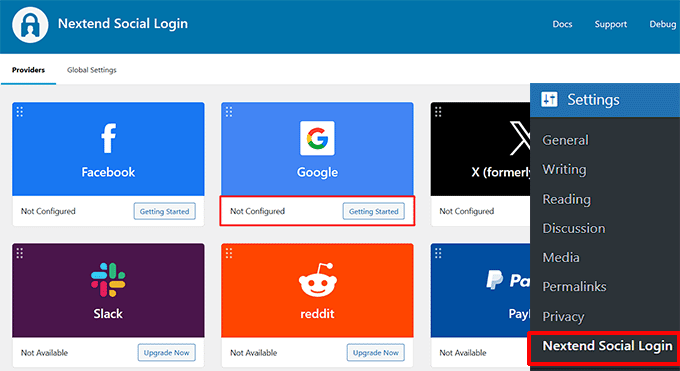
Upon plugin activation, head over to the Settings » Nextend Social Login page from the WordPress dashboard.
For this tutorial, I will show you how to add OAuth login with Google. Nextend Social Login also offers login via Facebook, X (formerly Twitter), Reddit, and more. The process may be slightly different depending on the provider you choose.
Step 2: Create a Google App
First, click the ‘Getting Started’ button in the Google section of the plugin.
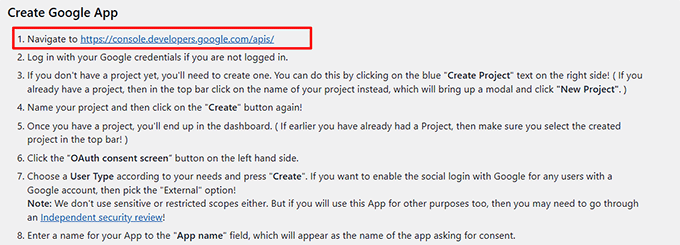
This will take you to a page with on-screen instructions for creating your Google app.
Once you’ve reviewed the instructions, click the link to go to the Google Cloud Console.
Here, you may be prompted to log in with your Google account credentials.
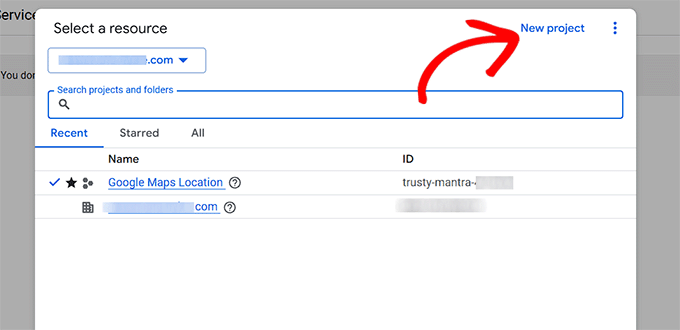
Once in the console, click the button at the top to open a popup and select ‘New project’.
Next, you need to give your project a name.
You can also add an organization and location if you wish, then click the ‘Create’ button.
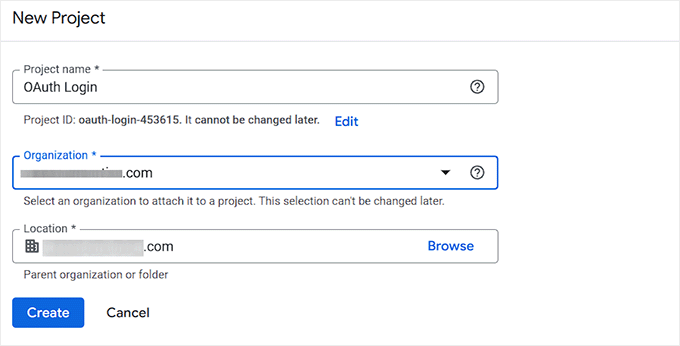
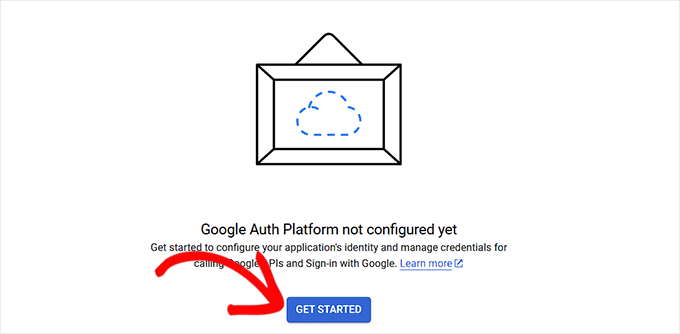
Once you add a project, you will end up back in the dashboard. From here, switch to the ‘OAuth consent screen’ tab from the left column.
Go ahead and click the ‘Get Started’ button.
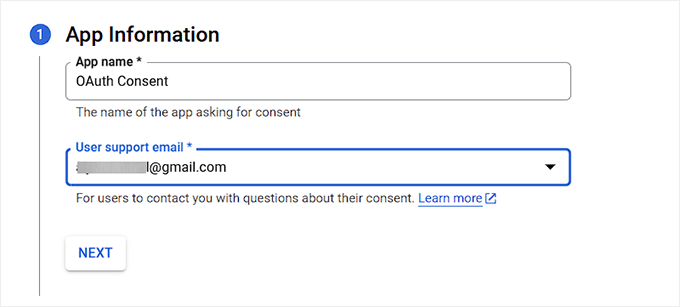
Now, you have to add a name for your app. This is the name users will see when asked for their consent to log in.
Then, enter your business email in the ‘User support email’ field so people can contact you with questions.
Click the ‘Next’ button to continue.
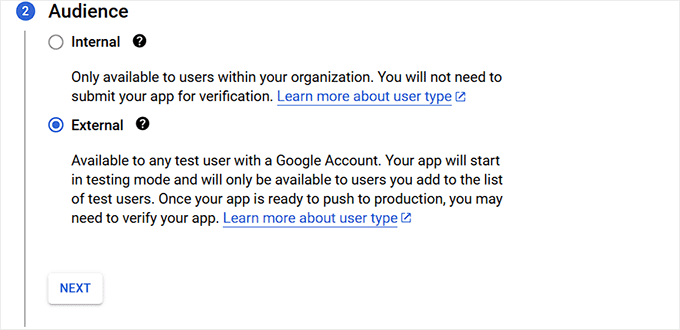
After that, you have to select an audience for your OAuth login in WordPress.
You can choose the ‘Internal’ option if your app is meant for private use within a Google Workspace (formerly G Suite) organization. This means only users within your company’s domain will be able to log in.
On the other hand, the ‘External’ option is best if your app or website is intended for public use. This allows anyone with a Google account to log in.
When you first set it up, the app will be in testing mode. This means only users you manually add as test users can log in.
After that, add your contact email address again.
This is where Google will notify you about any changes to your project. You can also add multiple email addresses.
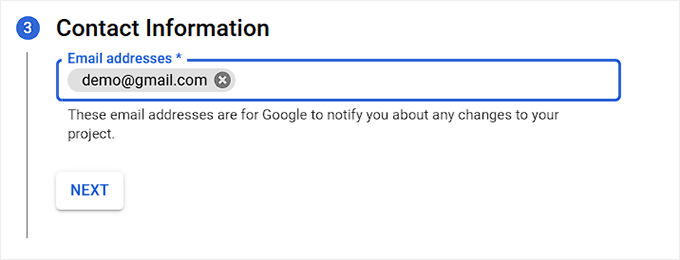
In the end, simply agree to the Google API services policy.
Finally, click the ‘Create’ button.
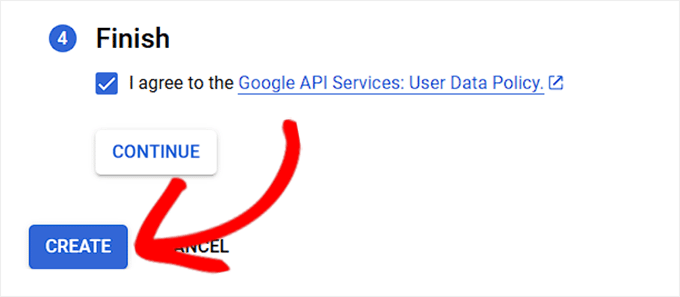
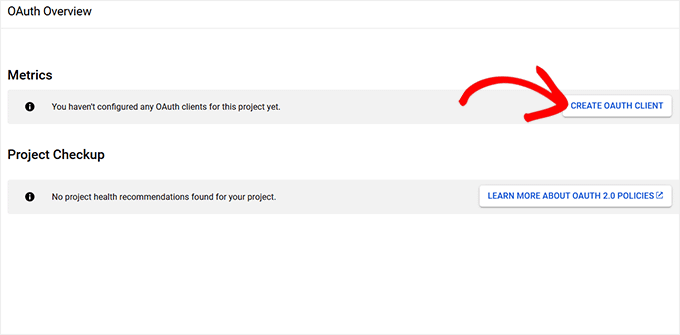
Once the process is complete, you will be taken to the ‘OAuth Overview’ page.
From here, click the ‘Create OAuth Client’ button.
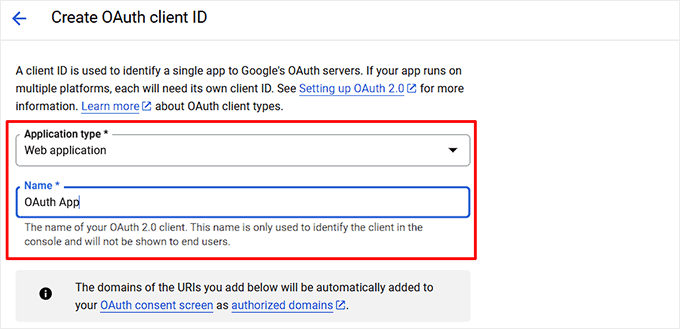
On the next screen, you will need to create an OAuth Client ID.
Choose the ‘Web application’ option under the Application type dropdown menu.
Then, add a name for your client ID.
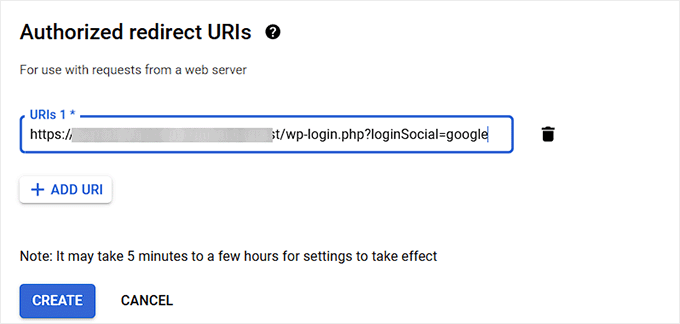
Now, scroll down to the ‘Authorized redirect URIs’ section and click the ‘+ Add URL’ button.
Here, you need to add the unique URL provided by the Nextend Social Login plugin on your WordPress dashboard.
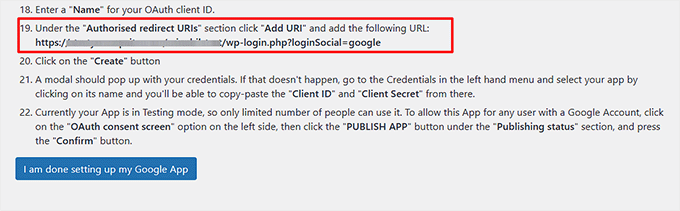
This URL tells Google the only valid address to send users back to after they log in, which is a key security step that prevents hijacking.
Once you’ve added the URL, click the ‘Create’ button.
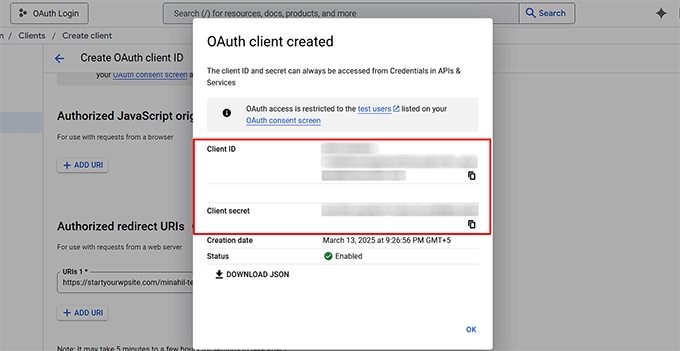
A popup will appear with your credentials.
Simply copy your Client ID and the Client Secret from here and store them somewhere safe.
It is critical that you treat the Client Secret like a password and never share it publicly, as it protects your app and user data.
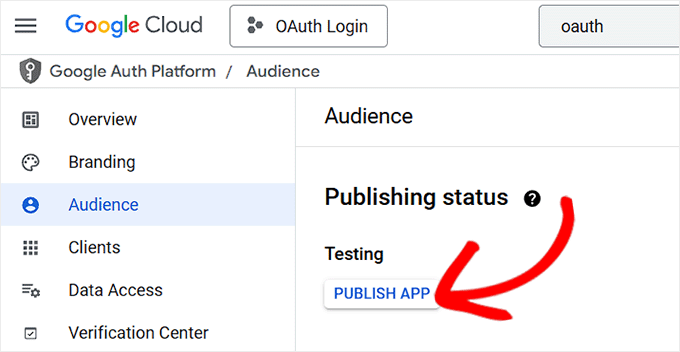
Next, return to the ‘OAuth Consent Screen’ page from the menu on the left.
Find the button labeled ‘Publish App’ to move your application from ‘Testing’ to ‘Production’ status.
This will open a popup, where you can click the ‘Confirm’ button.
Please note that after you submit, Google’s official verification and review process can sometimes take several days to complete.
Step 3: Verify Your Google Configuration
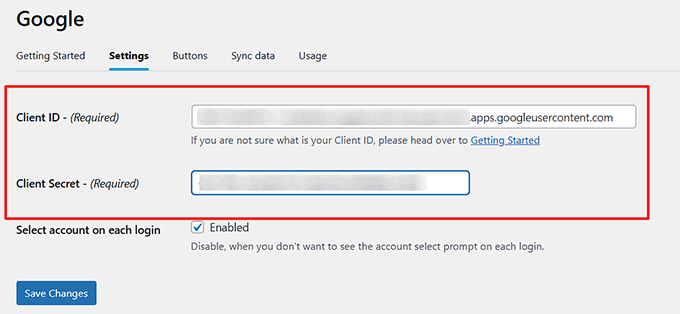
Now, head back to your WordPress dashboard and switch to the ‘Settings’ tab for Google from the top.
After that, add the Client ID and Client Secret that you copied earlier and click the ‘Save Changes’ button.
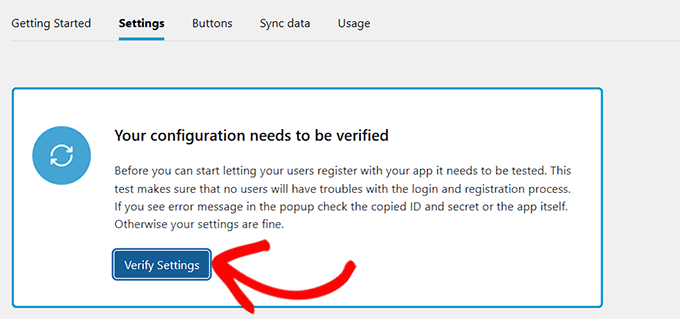
Once you do that, Nextend Social Login will show a popup asking you to verify your configuration. Go ahead and click the ‘Verify Settings’ button.
Keep in mind that if you skip this step, the Google OAuth sign-in option will not appear on your screen.
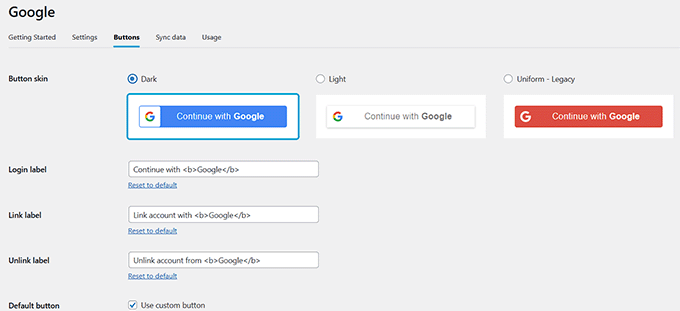
Next, switch to the ‘Buttons’ section from the top.
Here, you can choose a button style for your Google OAuth login. You can also create a custom button with custom code if you like.
Once you are done, just click the ‘Save Changes’ button to store your changes.
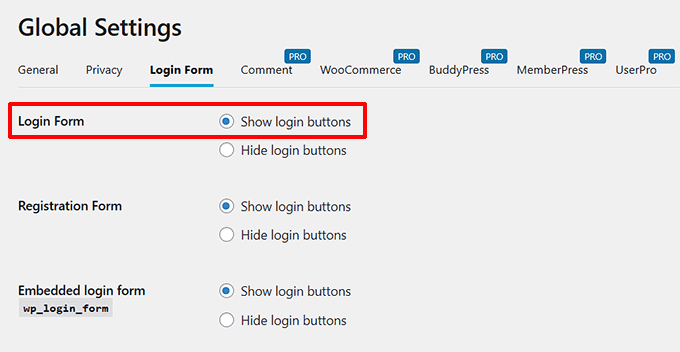
Now, you need to switch to the Global Settings » Login Form tab from the top.
Here, check the ‘Show login buttons’ box for the ‘Login Form’ option so that users can easily opt for the OAuth sign-in option from here.
💡Related Post: If you don’t want to use the default WordPress login form, then see our tutorial on how to create a custom WordPress login page.
You can also configure the remaining settings to your liking.
Next, click the ‘Save Changes’ button.
Then, you have to head back to the Settings » Nextend Social Login page from the WordPress dashboard.
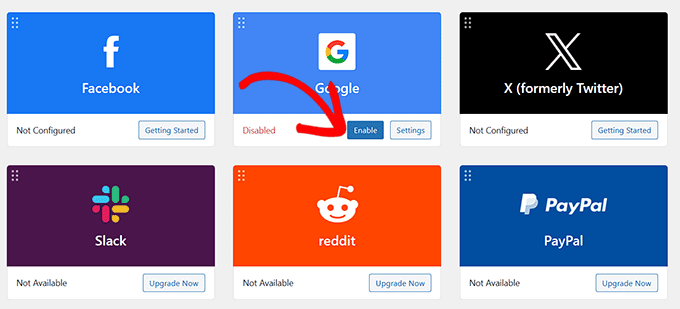
Finally, click the ‘Enable’ button under the ‘Google’ option. You can now repeat this entire process with different third-party apps to add OAuth login for them.
Once you are done, simply visit your WordPress site to see the OAuth login in action.
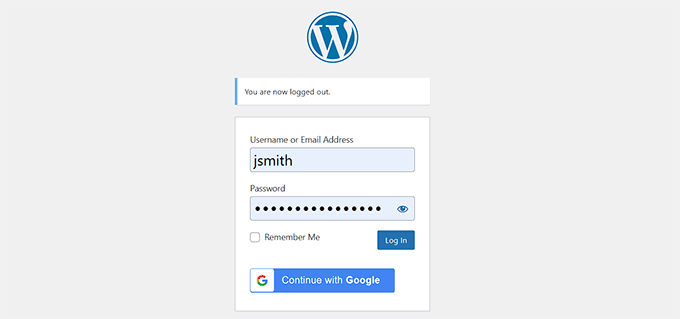
Bonus: Add Passwordless Login in WordPress with Login Links
While OAuth simplifies login by using existing social accounts, passwordless login with magic links offers another way to improve the user experience by removing passwords entirely.
This method lets users bypass WordPress login credentials. They simply click a secure link sent to their email to log in to their accounts.
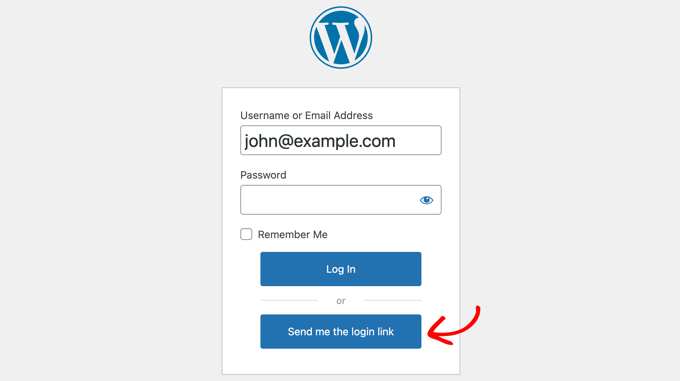
With a plugin like Magic Login, users only need to enter their email address, and a one-time login link is sent to their inbox. Clicking the link grants instant access, with no passwords needed.
This reduces login friction while keeping accounts secure. It’s especially useful for websites where you want to minimize barriers to entry.
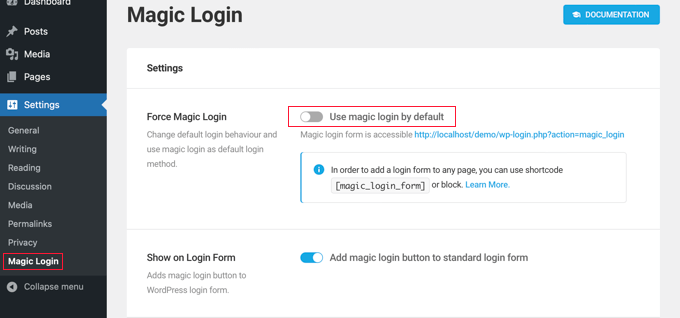
Plus, since these login links are time-sensitive and unique, they provide an extra layer of security against brute-force attacks.
To get started, see our tutorial on how to add passwordless login in WordPress.
Frequently Asked Questions About OAuth Login
Here are some questions that our readers ask before adding OAuth login in WordPress:
What is OAuth login?
OAuth is a secure way for users to sign into your website using their existing accounts from services like Google, Facebook, or X. This saves them from having to create and remember another new password just for your site.
Is it safe to add social login to my WordPress site?
Yes, it’s very secure. OAuth is a standard protocol used by major tech companies that relies on tokens instead of passwords. Your website never has to handle or store your users’ sensitive login information from their social accounts.
Can I add other social login options besides Google?
Absolutely. The Nextend Social Login plugin supports many other platforms. You can easily add login buttons for Facebook, X (formerly Twitter), LinkedIn, and more, depending on which services your audience uses most.
Does it cost money to add OAuth login to WordPress?
You can get started for free. The Nextend Social Login plugin has a free version that includes popular options like Google and Facebook. For more providers and advanced features, they also offer a pro version.
I hope this article helped you learn how to add OAuth login in WordPress. You may also want to see our beginner’s guide on how to add one-click Google login in WordPress and our tutorial on adding CAPTCHA in WordPress login and registration form.
If you liked this article, then please subscribe to our YouTube Channel for WordPress video tutorials. You can also find us on Twitter and Facebook.



Have a question or suggestion? Please leave a comment to start the discussion.