


For a long time, we treated our RSS feed as a simple content stream for our subscribers. But after digging into our stats, we discovered a frustrating problem: thousands were reading, but almost no one was clicking back to our site.
Worse, we found our articles being stolen by content scrapers who were republishing our work without permission. That’s when we realized our RSS feed needed a secret weapon to protect our content and drive traffic.
By adding a custom footer, we turned this passive feed into a powerful tool. It automatically adds a credit link back to our original post, which helps with both SEO and getting readers back to our website.
We’ve perfected this method, and now we’re going to show you exactly how to do the same. In this guide, we’ll walk you through two easy ways to take control of your RSS feed footer.
Why Add Content to RSS Feeds Footer in WordPress?
RSS feeds make it convenient for your audience to follow your content through popular feed readers like Feedly, Inoreader, and NewsBlur.
But here’s something many WordPress site owners don’t realize: your RSS feed is also a target for content scrapers who automatically steal and republish your posts the moment they go live.
Content scrapers copy entire articles and sometimes even outrank the original posts in search results, essentially stealing your traffic and authority. That’s where a customized RSS feed footer becomes your secret weapon.
A strategic RSS feed footer serves multiple important purposes for your WordPress site.
First, it helps combat content theft because when scrapers copy your posts, they also copy your footer content, which includes backlinks pointing to your original article. This means even stolen content works in your favor by creating backlinks to your site.
The SEO benefits are significant, too. These embedded backlinks help search engines identify your site as the original source, which can improve your rankings even when your content gets copied elsewhere.
We’ve also found that customized footers drive direct traffic by making it easy for feed readers to click through and explore more content on your website.
Beyond protection and traffic, RSS footers build brand recognition through consistent branding that keeps your site top-of-mind for subscribers. They also increase engagement by including strategic calls-to-action that convert passive feed readers into active community members.
At WPBeginner, we’ve used this approach to not only protect our content but also significantly increase the number of feed subscribers who become regular website visitors. The best part? Once you set it up, it works automatically for every new post you publish.
Having said that, let’s take a look at how to easily control your RSS feed footer in WordPress. We will cover two methods:
Method 1: Add Content to RSS Feed’s Footer Using All in One SEO
This method is easier and recommended for all WordPress users. It uses the All in One SEO plugin, which is the best WordPress SEO plugin used by over 3 million websites.
First, you need to install and activate the All in One SEO plugin. For more details, see our step-by-step guide on how to install a WordPress plugin.
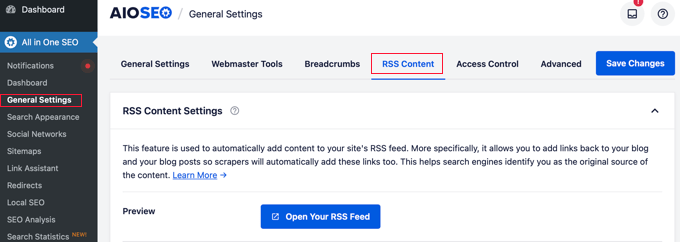
Upon activation, you need to visit the All in One SEO » General Settings page and click on the ‘RSS Content’ tab.
This gives you an overview of your WordPress RSS feed settings and your WordPress RSS feed URL.
Next, scroll down to the ‘RSS After Content’ section.
This is where you can add your custom text to the footer of every item in your RSS feed.
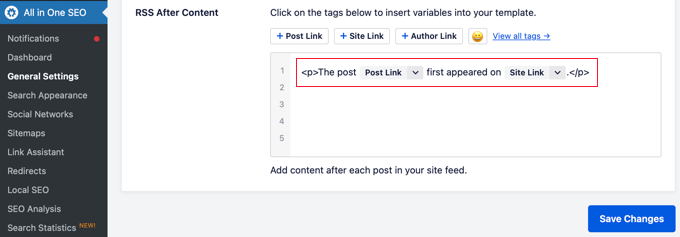
Right away, you will notice that AIOSEO automatically adds credit text with backlinks to your WordPress website in the RSS feed footer.
You can either use the text as-is or you can add your own content and tags.
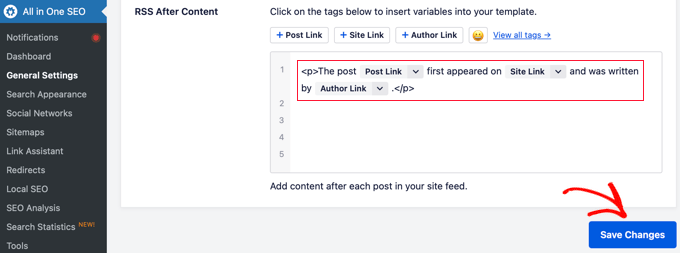
Don’t forget to click ‘Save Changes’ before you exit the screen.
You can now view your RSS feed to see the changes. At the end of each article, you will be able to see the content you added to your RSS feed footer.
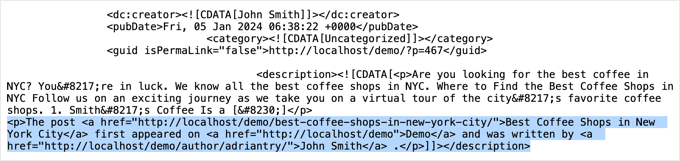
Method 2: Manually Add Content to RSS Feed’s Footer in WordPress
This method requires you to add code to your WordPress files. If you haven’t done this before, then check out our guide on how to copy and paste code in WordPress.
You will need to copy and paste the following code in your theme’s functions.php file or add the code snippet using the WPCode plugin (recommended).
function wpb_feed_filter($query) {
if ($query->is_feed) {
add_filter('the_content','wpb_feed_content_filter');
add_filter('the_excerpt_rss','wpb_feed_content_filter');
}
return $query;
}
add_filter('pre_get_posts','wpb_feed_filter');

function wpb_feed_content_filter($content) {
// Content you want to show goes here
$content .= '<p>Thanks for reading, check out <a href="'. get_bloginfo('url') .'">'. get_bloginfo('name') .'</a> for more awesome stuff.</p>';
return $content;
}
This code simply checks if the page requested is an RSS feed and then filters the content to display your message in the RSS feed footer.
For more details, please see our guide on how to add custom code in WordPress without breaking your website.
Frequently Asked Questions About RSS Feed Footers
After helping thousands of users optimize their sites, we’ve noticed a few questions about RSS feed footers come up regularly. Here are the answers to the most common ones.
1. Why is customizing the RSS feed footer important?
A custom RSS footer is crucial for two main reasons. First, it helps combat content scrapers by automatically inserting a backlink to your original article, which is great for SEO.
Second, it encourages subscribers reading your content in a feed reader to click through to your website, increasing your traffic and engagement.
2. Can I add images or other HTML to my RSS feed footer?
Yes, you can add any HTML content you like. If you use the All in One SEO plugin method, the editor allows you to add images, links, and text formatting.
For the manual code method, you can simply include the necessary HTML tags within the code snippet to display images or other elements.
3. Will adding content to my RSS feed footer slow down my website?
No, it will not affect your website’s performance. The content is only added when your RSS feed is generated, which is a separate process from a user loading a page in their browser. The impact on your server is negligible.
4. Is it better to use a plugin or add the code manually?
For most users, especially beginners, we strongly recommend using a plugin like All in One SEO. It’s safer, easier to manage, and you don’t risk breaking your site with incorrect code.
The manual method is for advanced users who are comfortable editing code and want to implement custom logic not available in a plugin.
Additional Resources on RSS in WordPress
We hope this article helped you learn how to control your RSS feed footer in WordPress. You may also want to see some other guides related to RSS in WordPress:
- Tips to Optimize Your WordPress RSS Feed (Quick & Easy)
- How to Create Custom RSS Feeds in WordPress
- How to Completely Customize Your WordPress RSS Feeds
- How to Add Post Thumbnails to Your WordPress RSS Feeds
- How to Limit the Number of Posts in WordPress RSS Feed
- How to Make Separate RSS Feeds for Each Category in WordPress
- How to Disable RSS Feeds in WordPress
- How to Fix WordPress RSS Feed Errors (Step-by-Step Tutorial)
If you liked this article, then please subscribe to our YouTube Channel for WordPress video tutorials. You can also find us on Twitter and Facebook.



Jiří Vaněk
I just came across this article, but I’ve already encountered content theft through RSS on my blog, and it’s definitely not pleasant. Any RSS modification that helps either prevent or at least make this practice more difficult is welcome. It’s not only unethical but also significantly harms the content owner and author. Thanks for another small adjustment to RSS so I can better prevent this method of content theft.
Rohit
Hello sir, how do I find out if this code given by you has been applied on my website or not. I put this code in function.php
WPBeginner Support
You would need to check your RSS, we have a guide on using RSS that you can take a look at below:
https://www.wpbeginner.com/beginners-guide/what-is-rss-how-to-use-rss-in-wordpress/
Admin
tom g
how can we disable the rss feed copyright warning! It is causing problems bc it has an email in it that is being obfusated an THAT is making rss invalid so it won show. I dont want to install yoast seo fo rjust that reason plus i use aloseo for seo.
Thanks That rss footer plugin might have worked if it was not joined with yoast…smdh…lol
Please lmk asap if you can . I have to figure this out soon to finish a project.
ty
George
Nice tut. Is there a reason why you don’t internationalise the code of the code snippet?
JohanFalendo
Sorry for out of topic. Can you tell me what plugin that wpbeginner used to create “I need help with” widget? I want to create widget lije that
WPBeginner Support
Hey Johan,
It is a custom plugin we wrote specifically to use on our own websites.
Admin