


Do you see an allowed memory size exhausted error message in WordPress?
This is one of the most common WordPress errors, and you can easily fix it by increasing the PHP memory limit in WordPress.
In this article, we will show you how to fix the WordPress memory exhausted error by increasing the PHP memory limit.

What Is the WordPress Memory Exhausted Error?
The WordPress memory exhausted error is a message you might see if your website is struggling to perform tasks.
WordPress is built using PHP, a server-side programming language that needs memory to run.
Just like any other computer, web servers have a limited amount of memory to run multiple applications at the same time. WordPress hosting providers allocate specific memory sizes to different applications, including PHP.
When your WordPress code requires more memory than the default allocated memory, you will see this error message:
Fatal error: Allowed memory size of 33554432 bytes exhausted (tried to allocate 2348617 bytes) in /home4/xxx/public_html/wp-includes/plugin.php on line xxx
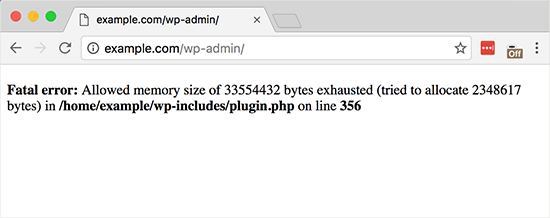
Your WordPress site may be exhausting its server memory if it has:
- A lot of images, videos, and other types of media
- Plenty of unused WordPress plugins
- Outgrown its hosting plan resources
By default, WordPress automatically tries to increase the PHP memory limit if it is less than 64MB. However, 64MB is often not high enough.
Having said that, let’s see how to easily increase the PHP memory limit in WordPress to avoid the memory exhausted error.
You can use the quick links below to navigate through the tutorial:
Note: Some of these methods require you to directly edit your WordPress files. We suggest backing up your website first to avoid further errors from appearing on your website.
Option 1: Editing the wp-config.php File
First, you need to edit the wp-config.php file on your WordPress site. This is one of the core WordPress files located in the root directory, usually named public_html.
You will need to use an FTP client like FileZilla or file manager in your web hosting control panel.
Next, you need to paste the following line in the wp-config.php file just before the one that says, That's all, stop editing! Happy blogging.
define( 'WP_MEMORY_LIMIT', '256M' );
This code tells WordPress to increase the PHP memory limit to 256MB.
For more details, see our step-by-step guide on how to find and edit the wp-config.php file.
Once you are done, you need to save your changes and upload your wp-config.php file back to your server.
You can now visit your WordPress site, and the memory exhausted error should have disappeared.
Option 2: Editing the .htaccess File
The next method is to edit the .htaccess file. This file is also located in the WordPress website’s root folder.
Here, you need to paste the following code before the line that says #END WORDPRESS.
php_value memory_limit 256M
Similar to the previous code, it will tell WordPress to increase the PHP memory limit to 256MB.p
After that, simply save your changes and upload the file back to your web server. You can now open your WordPress website again to see if the memory limit error has gone.
If you can’t find the .htaccess file, check out our guide on why the .htaccess file may be missing and how to find it.
Option 3: Checking Your php.ini File
If the above methods don’t work, you may want to look at your php.ini file.
php.ini is a file that controls your PHP settings, including the PHP version and PHP scripts. It’s not a WordPress core file, as your hosting provider usually manages it.
You can check its code to see your PHP memory usage limit. For more details, you can see our guide on how to find and edit the php.ini file.
However, because this is an advanced method, we recommend contacting your web hosting provider’s support team instead to see if they can increase the WordPress memory limit manually. Otherwise, this can result in further errors.
You can read our guide on how to properly ask for WordPress support for more information.
Option 4: Upgrading Your WordPress Hosting
If you’re constantly encountering the memory exhausted error, it might be a sign that your website has outgrown its current hosting plan.
As your website attracts more visitors and adds more content, it requires more resources to function smoothly. Upgrading to a plan with a higher memory allocation can be a permanent solution.
Consider upgrading your WordPress hosting if:
- You’ve tried the previous solutions and the error persists.
- Your website has significantly grown in traffic or content.
- You plan to add features or functionality that require more resources.
Bluehost offers affordable and reliable WordPress hosting plans that can scale with your website’s needs. They provide a user-friendly platform specifically optimized for WordPress, making it easy to manage your website.
If you use our Bluehost coupon code, then you can get up to 61% off your first purchase. Just click the button below to get it:

How to Avoid Exhausting Your WordPress Memory
Now that you’ve fixed the WordPress memory exhausted error, here are some proactive steps to prevent it from happening again:
- Deactivate unused plugins. Many plugins contribute to memory usage. Regularly review your installed plugins and deactivate any you’re not actively using to free up memory for essential tasks.
- Optimize images. Large images can be memory hogs. Consider using a plugin like EWWW Image Optimizer to automatically compress images before uploading them to your site.
- Use a caching plugin. Caching plugins store website data, reducing the need for WordPress to regenerate it on every visit. This can significantly improve website performance and lower memory usage.
We hope this article helped you solve the WordPress memory exhausted error by increasing the PHP memory limit. You may also want to see our step-by-step beginner’s guide to troubleshooting WordPress errors and our expert picks for the best WordPress plugins to grow your site.
If you liked this article, then please subscribe to our YouTube Channel for WordPress video tutorials. You can also find us on Twitter and Facebook.




Syed Balkhi says
Hey WPBeginner readers,
Did you know you can win exciting prizes by commenting on WPBeginner?
Every month, our top blog commenters will win HUGE rewards, including premium WordPress plugin licenses and cash prizes.
You can get more details about the contest from here.
Start sharing your thoughts below to stand a chance to win!
mohadese esmaeeli says
With your permission, I’d like to add a note for users to the article:
Please note that htaccess is a hidden file. First, check if it exists. In case you couldn’t find the .htaccess file in your hosting, you can create one using text editor programs like Notepad. Simply create a file named htaccess. Alternatively, in the public_html directory, click on “New File” and create a file with the same name.
mohadese esmaeeli says
I have encountered this issue multiple times, and it seems to be one of the most common problems in the WordPress domain. Each time, I either contacted the hosting support or edited the htaccess file to resolve the issue. The htaccess file appears to be like a magic solution, and whenever an issue arises, it can be quickly reviewed and fixed.
Mrteesurez says
I used to encounter some errors like this on my websites but I didn’t know what to do. Something when I tried to solve it, I just uninstall the step and re-install it back and upload the backup.
I noticed the problems still persist, when I enable wp debug mode, t then see the exact errors and the it’s source.
I later find this guide and implented it and it works.
Thanks.
WPBeginner Support says
Glad to hear our guide was helpful!
Admin
karma tsheten says
AFter updating my .htaccess it gives me this error:
Internal Server Error
The server encountered an internal error or misconfiguration and was unable to complete your request.
WPBeginner Support says
To be safe, for the internal server error we would recommend going through the steps in our article below:
https://www.wpbeginner.com/wp-tutorials/how-to-fix-the-internal-server-error-in-wordpress/
If removing the code from the htaccess solves the issue, we would recommend reaching out to your host to see if they have a setting that could be the source of the conflict.
Admin
Jiří Vaněk says
Regarding the .htaccess file, be cautious. Many shared web hosting providers may have directives for increasing the memory limit disabled. Such a directive in the .htaccess file can cause a 500 error on the website, requiring its removal or commenting out. Be careful with this. Sometimes, simply increasing the memory limit may not solve the problem but rather delay it, like a painkiller. The pain might subside, but it doesn’t mean the cause has been resolved. Therefore, while increasing the memory limit might seem like a solution, it’s also important to check what is consuming the memory. Sometimes, people increase the memory limit from 512 MB to 1024 MB without considering whether it’s necessary, and whether the memory limit isn’t masking an underlying issue on the website.
WPBeginner Support says
Thank you for sharing your feedback on the htaccess change. Unless the host has very strict rules in place adding to the htaccess shouldn’t cause an error it is more likely to not work and would require you reach out to the host to request an override.
Admin
ROOK says
SAVED THE DAY!! TY
WPBeginner Support says
Glad our guide could help!
Admin
Qamar Shafique says
Thanks for this help.
WPBeginner Support says
You’re welcome!
Admin
Aisha says
It doesn’t solve my problem still shows an error after placing the code “define( ‘WP_MEMORY_LIMIT’, ‘256M’ );” and I also change the size of Memory_limit of Php.ini file
WPBeginner Support says
As we state in the article, if our code does not work, there is a good chance your hosting provider is overriding the memory limit and you would need to reach out to your host to fix the error.
Admin
Sohaib Siddiq says
It doesn’t solve my problem still shows an error after placing the code “define( ‘WP_MEMORY_LIMIT’, ‘256M’ );” & this is my front-end page showing
Fatal error: Allowed memory size of 67108864 bytes exhausted (tried to allocate 8192 bytes) in /home/X/wp-includes/class-wp-dependencies.php on line 260
WPBeginner Support says
If the code does not work for you, we recommend reaching out to your hosting provider as they may have a limit set on their end that could be the root of the issue.
Admin
Zachary Murri says
Thank you so much <3
WPBeginner Support says
You’re welcome
Admin
Bogosi says
Thank you for this!
WPBeginner Support says
You’re welcome!
Admin
Devox says
Super! it solved the problem quickly ,thank you very much
WPBeginner Support says
Glad our guide was helpful!
Admin
Ifedayo says
Thank you, this was helpful! All problem has been solved by carefully following this step-by-step instructions. Keep up the good work
WPBeginner Support says
Glad you found our guide helpful!
Admin
John says
Thanks very much. It was very veryhelpful.
WPBeginner Support says
Glad our guide was helpful!
Admin
Michie says
Your website is beneficial, especially to a beginner like me. Thank you so much
WPBeginner Support says
Glad you found our guides helpful
Admin
Doy says
Hi,
Thank you for this awesome website. I got this in the error log after adding this code.
[26-Apr-2022 02:45:31 UTC] PHP Warning: Use of undefined constant ‘WP_MEMORY_LIMIT’ – assumed ‘‘WP_MEMORY_LIMIT’’ (this will throw an Error in a future version of PHP) in /wp-config.php on line x
Is this a problem? Should I remove the code?
WPBeginner Support says
That would only be an error for future versions of PHP. This solution should only be a temporary fix and your hosting provider should be able to assist with the root cause of the issue.
Admin
Alison Taylor says
Thank you! You folks rock. This solved my problem. WPBeginner is my go-to website for learning new things about WordPress, even though I’m not a beginner.
WPBeginner Support says
Glad our guide was helpful
Admin
J h says
“Once you are done, you need to save your changes and upload your wp-config.php file back to your server.”
How again do you upload the file back to your server?
WPBeginner Support says
You would need to use FTP or your host’s file manager again and there should be the option to upload and replace the file
Admin
Daniel says
The changes are not having effects. We are still with 40MB and the site does not accept the changes. What should I do?
WPBeginner Support says
As we state at the end of the article, if our recommendations do not work, please reach out to your hosting provider as they may have set a limit that would override what you as a user can set.
Admin
Liviu says
Really worked.
I had white screen when I wanted to create a new post on PC browser. But worked on my phone.
Thanks
WPBeginner Support says
You’re welcome
Admin
Simeon Adedokun says
Thank you so much for this! It’s really helped me.
WPBeginner Support says
Glad our guide could help
Admin
John Harries says
Thank you for providing a straight forward solution to an error which occurred when I tried to update the php version from 7.1 to 7.4
Mart says
Fantastic, thank you soooo much for this, simple straight talk.. excellent.. first problem solved … now got to learn more
WPBeginner Support says
Glad our guide was able to help
Admin
Julian says
I had to change mine to much higher and hope it won’t cause an issue? Changed to 1024M!
WPBeginner Support says
It can mean the site can take longer to notice issues if some arise but shouldn’t cause a major issue in general.
Admin
Mujahid Siyal says
I added the code problem is gone but a text “WP_MEMORY_LIMIT” has appeared in the top corner of logo. So what should I do about that?
WPBeginner Support says
You would want to ensure you added the code snippet correctly as it is likely showing that code thinking it is text.
Admin
David says
“First you need to edit the wp-config.php file on your WordPress site. It is located in your WordPress site’s root folder, and you will need to use an FTP client or file manager in your web hosting control panel.”
Simple! What does that mean? It is gobbledegook to me.
WPBeginner Support says
For using an FTP client we would recommend taking a look at our article below for a better understanding on the subject:
https://www.wpbeginner.com/showcase/6-best-ftp-clients-for-wordpress-users/
Admin
Anna yakub says
This was super helpful for an issue I’ve battled with for a while now. Thanks so much
WPBeginner Support says
Glad our recommendations were helpful
Admin
Katerina says
I’m new in WordPress and I’m trying to figure out, for a couple of days, why suddenly I get an error 500 and can’t save my edits. This helped solve my problem. Thank you so much!
WPBeginner Support says
Glad our guide could help
Admin
Richard Lamsdale says
Thanks for this – it fixed my problem.
WPBeginner Support says
Glad our guide was helpful
Admin
Malou says
Helpful, Thank you so much
WPBeginner Support says
You’re welcome
Admin
Segun says
This worked perfectly for me. Thanks
WPBeginner Support says
You’re welcome
Admin
Rick Richi says
can I increase the memory to 512?
WPBeginner Support says
You can certainly try to see if that fixes the error for you.
Admin
Haris imran says
Thanks it helped me a lot
WPBeginner Support says
Glad our guide was helpful
Admin
Arpita Hunka says
This solution is not working for me, my website is hosted at AWS server and I have all the access, I have tried to set memory_limit in php.ini, wp-config and .htaccess. but still getting issue when accessing backend pages.
WPBeginner Support says
You would want to reach out to the support for your hosting for what other options you have available with AWS
Admin
Anders says
Thanks a lot….
A quick and easy fix!!
WPBeginner Support says
You’re welcome, glad our guide was helpful
Admin
Faisal Arafin says
You just saved me from heart attack…..
WPBeginner Support says
Glad our guide could help
Admin
Laura says
Thaaaanks, you save my day!
WPBeginner Support says
You’re welcome
Admin
Benthe Kuijpers says
Thanks so much! Was so worried when I had this fatal error, but this fix is just a piece of cake!
WPBeginner Support says
Glad our guide was helpful
Admin
Dileepa K says
Thank you for this post…
Very Helpful
WPBeginner Support says
You’re welcome
Admin
Gunvant Nakum says
Thanks you so much for your help
WPBeginner Support says
You’re welcome
Admin
Sumit Gupta says
This is not working for me.
WPBeginner Support says
If our recommendations are not working, you would want to reach out to your hosting provider and they should be able to assist
Admin
Ademola Kayode Abdulai says
this still works after few years,, Great thank you… works for me as well
WPBeginner Support says
Glad our recommendation was helpful
Admin
Luuk says
Great tip! Thank you very much!
WPBeginner Support says
You’re welcome
Admin
Mehedi Mahmood says
Thank you so so much! can’t really explain how helpful this was
WPBeginner Support says
Glad our guide was helpful
Admin
Manthan Admane says
Thank you so much.
Solved my issue
WPBeginner Support says
Glad our guide was helpful
Admin
Mevlut Demiroz says
Very thanks, fixed
WPBeginner Support says
Glad our guide was helpful
Admin
Ivan says
Hi, I had the memory exhausted message and I increased the wp memory limit to 12mb and it worked. Then a few days later I had the same error, so I had to increase the wp memory limit to 256mb and the message kept showing. I am currently on 1024mb, which seems excessive for a small website of 4 pages and a blog post of 15,000 words. Any suggestions how to resolve the issue or what might be causing it?
WPBeginner Support says
You would want to reach out to your hosting provider and they can normally assist in finding the root of the issue for your specific site.
Admin
player says
thank you so much.
WPBeginner Support says
You’re welcome
Admin
Mathilda says
thanks so much!
WPBeginner Support says
You’re welcome
Admin
Sone Eric says
Thank you very much. You solved my problem.
WPBeginner Support says
Glad our article was able to assist
Admin