


Backups are the most important security step and are often the most neglected by website owners.
Manually backing up a WordPress database is a quick and easy way to download all your WordPress data. It is not a complete WordPress website backup, but it is handy for recovering a WordPress site.
In this article, we will show you how to back up a WordPress database manually.
Here is a quick overview of the topics we will cover in this tutorial:
- When and Why Make a WordPress Database Backup Manually?
- Making a WordPress Database Backup Using a Plugin
- Backing Up WordPress Database Manually Using phpMyAdmin
- Creating a Manual WordPress Database Backup From cPanel
- Restoring a WordPress Database Backup
- Set Up a Proper Automated Backup System for the Future
When and Why Make a WordPress Database Backup Manually?
You should always install and set up a WordPress backup system for your site. This allows you to restore your site should something go wrong.
There are several situations when you may need to manually back up a database.
For instance, you could be making some big changes to your WordPress website and just to be on the safe side, you want to have a database backup.
If you have access to the admin area of your website, then you can use a plugin to make an on-demand database backup (We will show you how and which plugin to use later in this article).
On the other hand, in some instances, you may not have access to the admin area of your WordPress website.
For example, this can happen when your WordPress website is hacked or inaccessible due to a WordPress error.
This is when you’ll need to make a completely manual backup using a database management utility (we will show you how to do that as well).
A manual database backup is exactly the same as a database backup created by a plugin.
Having said that, let’s take a look at how to easily make a WordPress database backup manually.
1. Making a WordPress Database Backup Using a Plugin
This method is easier and recommended, but it will only work if you have access to the admin area of your WordPress website.
First, you need to install and activate the Duplicator plugin. For more details, see our tutorial on how to install a WordPress plugin.
Note: There is also a free version of Duplicator, which can be used to create database backups. We recommend upgrading to the paid version because it offers more features.
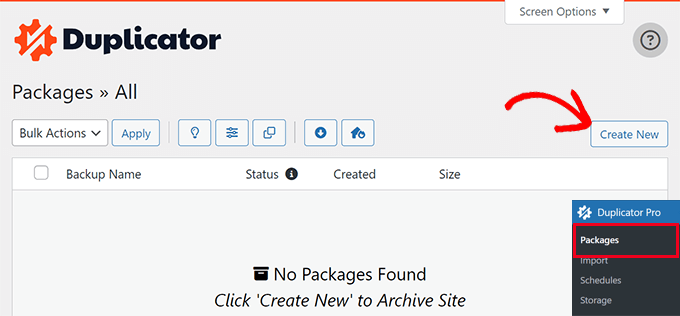
Upon activation, you need to go to the Duplicator Pro » Packages page and click on the ‘Create New’ button.
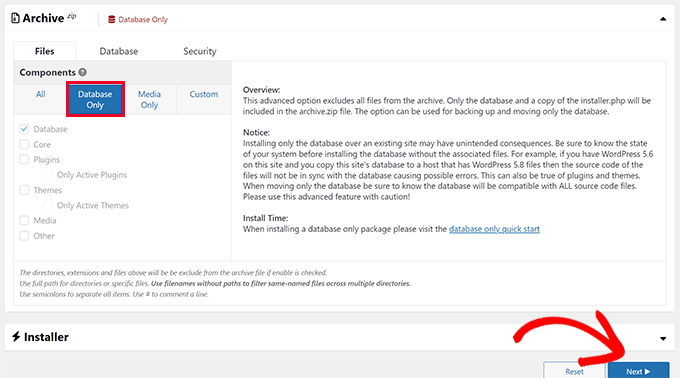
On the next screen, Duplicator allows you to choose what you want to include in the backup.
Select ‘Database Only’ and then click on the ‘Next’ button.
Duplicator will now scan your WordPress site and database.
After that, it will show you the scan results. There may be a notice next to the Database section informing you that you are creating a database-only package.
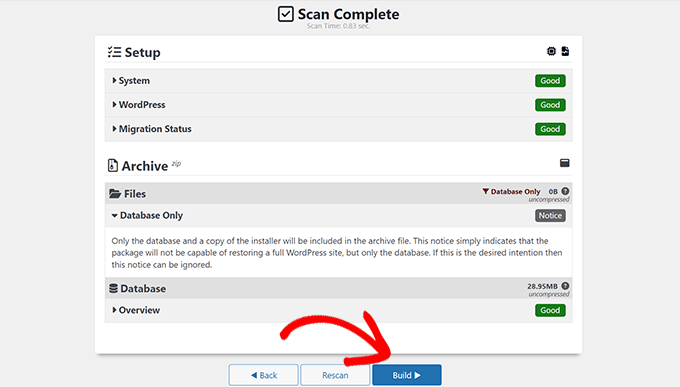
Click on the ‘Build’ button to continue.
Duplicator will now prepare your database backup in the background and show you the progress.
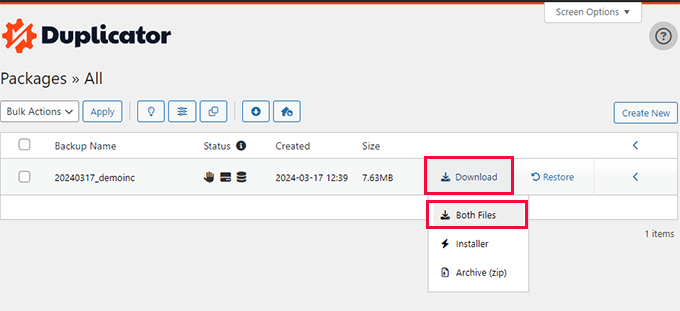
Once finished, you will be able to download the backup files. We recommend downloading both Archive and Installer files. This will allow you to restore your website more easily.
2. Backing Up WordPress Database Manually Using phpMyAdmin
For this method, we will be using phpMyAdmin. It is an open-source software that allows you to manage your MySQL database using a web-based interface.
phpMyAdmin comes pre-installed on most WordPress hosting providers.
For the sake of this article, we will show you screenshots from Bluehost. However, the basic procedure is the same for most hosting providers.
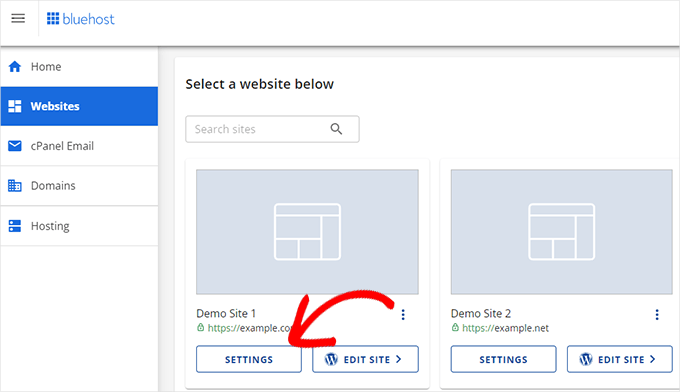
First, you need to log in to your WordPress hosting control panel and click on the ‘Settings’ button under your website.
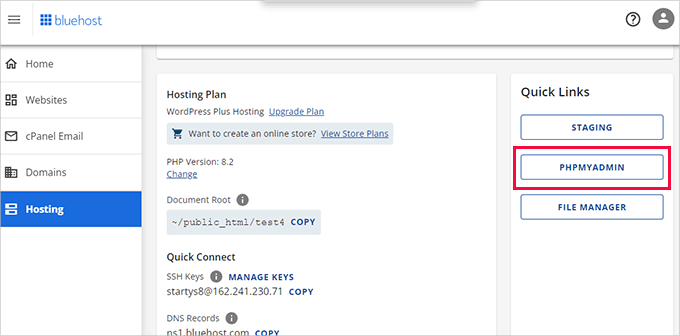
Under your website settings, scroll down to the Quick Links section.
Next, click on the ‘phpMyAdmin’ button to continue.
This will launch the phpMyAdmin app in a new browser tab.
From here, click to select your WordPress database from the left column and then click on the ‘Export’ button at the top.
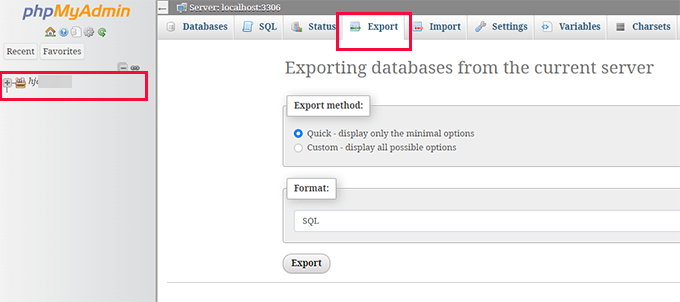
You will be asked to select the export method.
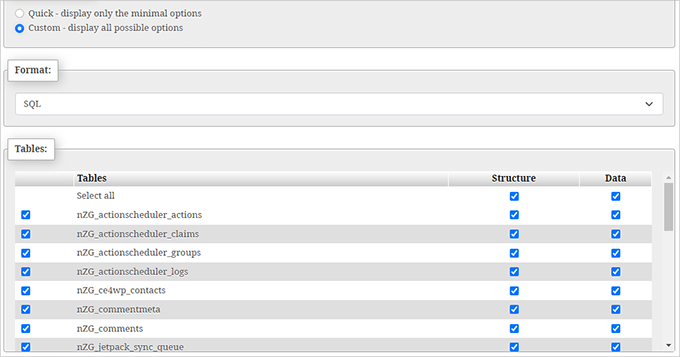
Next, you need to select ‘Custom’, as it will give you more options to explore.
Once you choose the Custom option, it will show all your tables in your WordPress database as selected.
Sometimes, WordPress plugins add their own tables to your database. If there are any tables that you would like to exclude from export, then you can deselect them. If you are unsure, it is better to keep them all selected.
You now need to scroll down to the ‘Output’ section.
By default, phpMyAdmin will show you the output of the export process as text.
You need to change that by selecting the ‘Save output to a file’ option.
For compression, you must select the zipped or gzipped option.
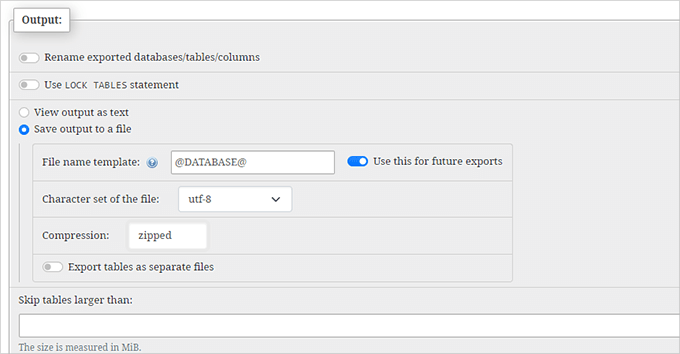
Now, you need to scroll down to the bottom of the page and click on the ‘Go’ button. phpMyAdmin will now send you the database export as a zip or gzip file.
That’s all. You have successfully made a manual WordPress database backup.
3. Creating a Manual WordPress Database Backup From cPanel
Most good WordPress hosting companies also offer easy ways to download on-demand backups. Here is how to make a manual WordPress database backup from your hosting dashboard.
Hosting providers like Bluehost, SiteGround, and HostGator all have similar options.
For the sake of this tutorial, we will show you screenshots of Bluehost. However, the basic procedure is quite similar for other hosts.
First, log in to your hosting account dashboard and click on the ‘Settings’ button under your website.
On the next screen, you need to switch to the ‘Advanced’ tab.
From here, simply scroll down to the cPanel section and click the ‘Manage’ button.
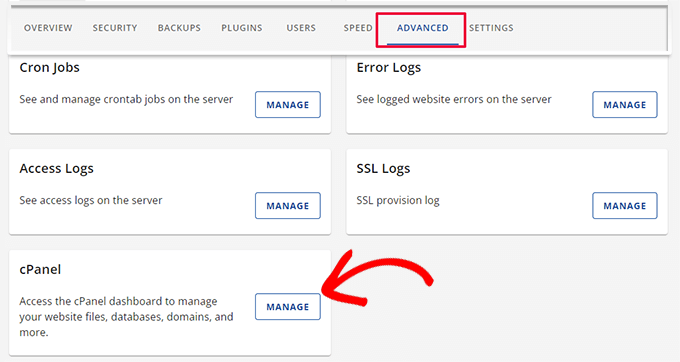
This will launch the cPanel interface in a new browser tab.
From here, just scroll down to the files section and click on the ‘Backup’ button.
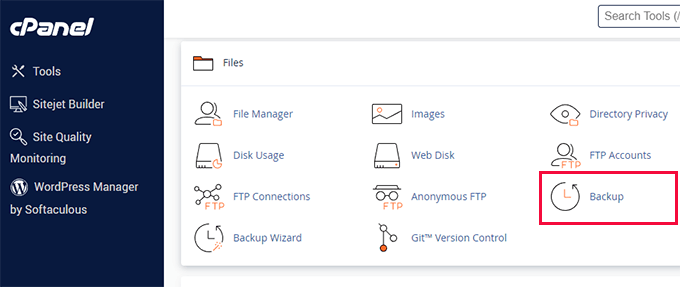
On the backups page, scroll down to the partial backups section.
From here, you need to click on your database name to download your database backup file.
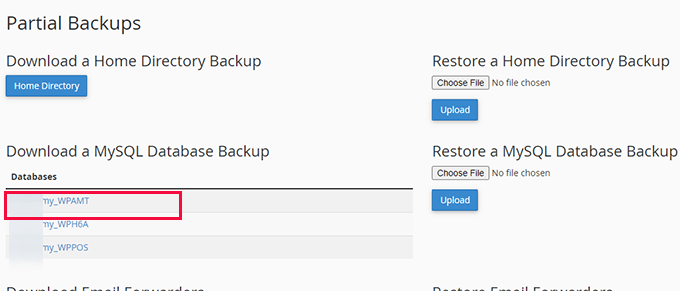
You can also download the backup of your WordPress files from this page if you need to.
Restoring a WordPress Database Backup
Once you have downloaded the WordPress database backup, you can continue fixing your hacked WordPress site or make any other changes you need to.
In many cases, you probably won’t need to restore your website from the backup.
But in case you do, we have a detailed step-by-step guide on restoring WordPress from backup. It covers all common WordPress backup options including restoring from a database backup.
Set Up a Proper Automated Backup System for the Future
You can make WordPress database backups manually, but keep in mind that this is not an alternative to a proper backup solution for your WordPress site.
There are situations when you may not have access to your WordPress database. For example, this can happen if your hosting company suspends your account or loses your website data.
Another possible scenario is when some hacker injects malicious code into your WordPress database. Cleaning an infected database will be a lot more difficult.
That’s why we suggest using a proper backup plugin to store your WordPress database backups on the cloud automatically.
We recommend using Duplicator. It automatically creates and stores your backups on a cloud storage service like Google Drive, Dropbox, OneDrive, and more.
You can see this guide on how to automatically back up WordPress for detailed instructions.
We hope this article helped you learn how to make a WordPress database backup manually. You may also want to see our guide on how to restore your WordPress site with just a database backup or our expert picks of the best WordPress database plugins.
If you liked this article, then please subscribe to our YouTube Channel for WordPress video tutorials. You can also find us on Twitter and Facebook.



Syed Balkhi says
Hey WPBeginner readers,
Did you know you can win exciting prizes by commenting on WPBeginner?
Every month, our top blog commenters will win HUGE rewards, including premium WordPress plugin licenses and cash prizes.
You can get more details about the contest from here.
Start sharing your thoughts below to stand a chance to win!
Mrteesurez says
When I used Duplicator, free version to backup my site, do I still need to backup database separately when I have done a complete backup of the files ?
Isn’t a database not included ??
WPBeginner Support says
The free version includes the database so you would not need to worry about that.
Admin
Prajwal Shewatkar says
Backup is the only solution to achive ultimate security. No matter how much you try someday you’ll have security issues on website and only backups can save you. I recommend daily full backup.
WPBeginner Support says
It would depend on how often content is added to a site for how often backups should be ran but they are great for keeping a site safe
Admin
Jiří Vaněk says
I use phpMyAdmin for exporting the database. When I use a plugin, can I rely on the resulting backup being as comprehensive as using phpMyAdmin?
WPBeginner Comments says
Yes, it should copy the whole WordPress database. It can actually be more comprehensive, because it can also include things like images and media.
Jiří Vaněk says
Thanks a lot for the confirmation. So I will probably switch to an automated backup with the help of a plugin.
Moinuddin Waheed says
I am getting stucked with the import file of the database in phpmyadmin of the local xampp server.
I wanted to make a test site for a live website, I followed the steps mentioned above but when I am importing the database file, it gives an error Maximum execution time of 300 seconds exceeded”
and it doesn’t proceed further.
is there a way I can solve this issue?
WPBeginner Support says
That can happen if you are importing a large database, you would need to increase your execution time, our guide below has two methods you can use or you may need to go into your XAMPP options to change these settings if it does not work for you.
https://www.wpbeginner.com/wp-tutorials/how-to-fix-fatal-error-maximum-execution-time-exceeded-in-wordpress/
Admin
Moinuddin Waheed says
Thanks for the reply.
I have sorted out this problem following this guide.
I increased the execution time limit and it worked.
so, by default the execution time is very less and it needs to be updated for importing large files.
Moinuddin Waheed says
I have done manual backups many times and was unable to restore the back up database files in the liver server.
Having said this, is there any method which can ensure full back of everything like themes , settings and database all in one?
if this can be achieved, it would be very easy to restore any website without losing anything.
WPBeginner Support says
We would recommend taking a look at our guide below for some of the ways to backup your files and database for what you are looking for.
https://www.wpbeginner.com/beginners-guide/how-to-backup-your-wordpress-site/
Admin
Moinuddin Waheed says
Thanks for the recommendation, I have gone through the guide and found it really helpful for creating backup that can be used to restore the website when needed.
A Owadud Bhuiyan says
Manually backing up the database is incredibly useful, especially when testing plugins locally.
WPBeginner Support says
It can certainly be helpful
Admin
Richard says
What is the difference between a database backup and a site backup performed by a plugin such as Duplicator Pro?
WPBeginner Support says
It varies from plugin to plugin but normally a site backup includes the theme and plugin files while a database backup is for your content.
Admin
Rafal says
I dont see any Backup Buttons on my Bluehost account: there are only tabs: Home, My sites, Marketplace, e-mail, domains, advanced
WPBeginner Support says
Hi Rafal,
Click on the Advanced Tab to access the full cPanel interface.
Admin
Rose says
If I have a premium or business wordpress site, then wordpress is my host, correct? What can I do from wordpress.com besides an export?
WPBeginner Support says
Hi Rose,
Please see our guide on the difference between self hosted WordPress.org vs free WordPress.com blog.
Admin
tim says
Hi. I have all folders from a wordpress site but i dont have any database backup. Is it possible to restore drom folders without sql backup?
WPBeginner Support says
Hi Tim,
No you cannot. You can try finding the lost content by using Google Cache or Way Back Machine.
Admin
David John says
I have Finished the given all the steps, but i can’t backup my site, it shown be a Sever Error…And How to Rectify this error….
Rebecca says
Can you use the built in “export” feature as a manual backup?
WPBeginner Support says
Not a good idea. The export file will be able to import your comments and posts into WordPress. However, it will not be able to import images if they have been removed or lost from original server. It will also be unable to restore any other data stored in WordPress database.
Admin
afdhal ilahii says
my i share this at my blog?
Syed Azad Shah says
Dear Syed,
Many thanks for your wonderful posts. They are really doing miracles for me. Just one question – I have four or five sites running on one hosting account. One from main directory and rest from sub-directories. How do I go about backing them up all. My website is
Should I back them up as one file or different files
Thank you very much
Azad
WPBeginner Support says
Depends on your setup. If all of them are using the same database, then you can select tables for each site and then export them. Repeat for the next site.
If they are using different databases then you need to export in different files.
Admin
Teguh says
And how to restore it?
WPBeginner Support says
See our guide, how to restore WordPress from backup.
Admin
Ahmed LAHMAR says
Hi WPBeginner,
I use WP-DBManager and i would recommend it to anyone who wants some peace of mind it’s a wonderful plugin that you can backup your database, compress it into .gz file (my 70 mb SQL file became 5 mb after compression) and email it to you as schedueled. You can choose daily and weekly backup or you can do the backup manually.
The plus other featues like optimisation which you can scheduel as well
Ahmed LAHMAR says
Sorry for typing mistakes m’y keyboard went mad