WPBeginner WordPress tutorials help you learn WordPress, so you can improve your website. Our step by step WordPress tutorials are easy to understand and will help you follow the WordPress best practices. Don't waste your time buying WordPress books or outdated WordPress tutorial PDFs that cover just the basics. Our WordPress tutorials are written by experts with 15+ years of WordPress experience, and it contains real-life examples and tips that allows you to learn WordPress faster. We also keep our tutorials up to date.
You can find our other latest free WordPress tutorials below, and you can always use the search feature on our site to find helpful WordPress tutorials faster.
If you don't see a WordPress tutorial that you're looking for, then please reach out to your team and let us know. All our WordPress tutorial ideas are suggested by our users over the last 13+ years.
Affiliate marketing is a steady source of income for many blogs, including ours. And Amazon’s affiliate program is one of the largest and most popular programs for bloggers. However, long Amazon affiliate links can look ugly and untrustworthy to visitors. On the other hand, clean,… Read More »
Do you want to add an iframe border around your video embed? Recently a user asked us for a way to add a border around their videos in WordPress. Since you can use both iframe and oEmbed to add videos in WordPress, we will show… Read More »
Cloaking affiliate links is an essential practice for anyone running an affiliate marketing website. It helps make long, messy URLs more user-friendly, improves your site’s credibility, and can even protect your affiliate earnings from being hijacked. By cloaking your links, you not only create a… Read More »
Moving your WordPress site with a backup plugin is simple. But if you only want to move a custom post type, things can get tricky, as they often have their own taxonomies. In this article, we will help you import and export custom post types… Read More »
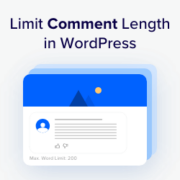
WordPress comments encourage discussions about your blog post content. But you may find that comments that are irrelevant, brief, or overly long are not very helpful. Limiting the length of comments can prevent spam, enhance readability, and ensure that user contributions remain valuable. This can… Read More »
Have you ever been on a WordPress site and noticed a little message pop up – “127 people are viewing this page right now”? Instead of clicking away, that simple counter probably made you curious enough to stick around. The same thing can happen on… Read More »
Facebook like box also known as Facebook fan box has become a must have element for many websites. Recently Facebook replaced this widget with the new Facebook Page plugin. In this article, we will show you how to add the Facebook page plugin in WordPress.… Read More »
It’s frustrating to pour your heart and soul into a blog post, only to see its traffic dwindle over time. But what if you could breathe new life into those older articles and attract a whole new wave of readers? The good news is, you… Read More »
Do you want to speed up your WordPress site? Want to know the WordPress optimization tricks that can help you reduce your site load time? In this article, we will show you how to speed up WordPress by sharing how we optimized our List25 site… Read More »
Are you struggling with WordPress trackback spam? WordPress trackback spam can become a serious problem for many site owners. In this article, we will show you how to put a stop WordPress trackback spam. If your spam solution is not working for you, then one… Read More »
Used to store interaction and conversion data for campaigns in conjunction with Revenue Attribution.
1 year
_gat_omTracker*
Set, controlled and used by Google Analytics to collect and store data and then send that data to Google Analytics. OptinMonster provides the name if there is no existing tracker found on that page.
-
omCountdown-{id}-{elementId}
Used for countdown elements {elementId} in campaigns {id} to determine when it should complete.
-
om-{id}-closed / omSlideClosed-{id}
Used specifically with slide-in campaigns {id} to determine if it has been closed or not by a visitor.
30 days
om-success-cookie / omSuccessCookie
Used to determine if a visitor has successfully opted in to any campaign on your site to unlock content when using our Content Locking feature.
365 days
om-success-{id} / omSuccess-{id}
Used to determine if a visitor has successfully opted in to a campaign with the ID of {id} on your site.
365 days
omSeen-{id}
Used to determine if a visitor has been shown a campaign by the slug.
30 days
om-{id}
Used to determine if a visitor has interacted with a campaign ID of {id} on your site.
30 days
_omappvs
Used to determine when a new visitor becomes a returning visitor.