


Ever feel like some of your best blog posts are hidden gems, lost in the archives of your WordPress site? Or maybe you’re seeing those engagement numbers dip and wish there was a way to keep visitors clicking?
We’ve found one of the simplest ways to make your content more visible and engage your visitors at the same time: showing users a random post. You can do this by adding a button or setting up automatic redirection after users finish reading a post.
With this quick setup guide and a beginner-friendly WordPress plugin, you’ll have visitors exploring more of your content in no time.

When to Redirect Users to a Random Post
Redirecting users to a random post can be useful when you have a bunch of blog posts, but only a few of them get a lot of views.
By sending visitors to a random post, they can discover new articles they may not have visited. This can increase pageviews and reduce the bounce rate in WordPress.
You might also want to add a ‘Random post’ button to your 404 error pages. This way, they may be less likely to exit your website and become interested in exploring your content further.
That being said, let’s take a look at how to redirect users to a random post in WordPress.
Video Tutorial
If you don’t want to watch the video, then you can continue reading the text version below.
How to Show Users a Random Post in WordPress
The easiest way to redirect users to a random blog post is by using Redirect URL to Post. This plugin creates a redirect URL that you can add to any location that supports links, such as a button, email newsletter, or navigation menu.
The first thing you need to do is to install and activate the Redirect URL to Post plugin. For more details, see our step-by-step guide on how to install a WordPress plugin.
Upon activation, you will see some information about the different URL query parameters you can use to redirect visitors to a random post.
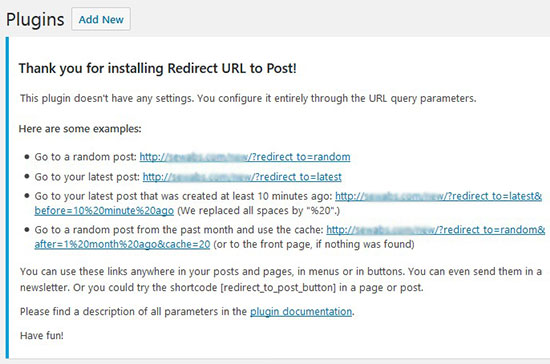
To redirect users to a random WordPress post, simply copy the URL and then add it to any location you want, such as a navigation menu, a sidebar widget, or a call-to-action button.
If you have moved away from this page or closed it by accident, then here are the different queries that redirect to a random post. You will need to replace http://www.example.com with your own domain name:
- http://www.example.com/?redirect_to=random&pk_campaign=random. Redirects to a random post and tracks the visit.
- http://www.example.com/?redirect_to=random&each_once=rewind. Redirects to a random post, avoiding duplicates, and then starts over again.
- http://www.example.com/?redirect_to=random&count=10. Redirects to a random post among the 10 latest posts.
- http://www.example.com/?redirect_to=random&after=1%20month%20ago. Redirects to a random post among the posts that are not older than 1 month.
Pro Tip: This is optional, but the plugin developer suggests adding &cache=120 parameter at the end of your URL. This helps store your random results for 120 seconds, which will make your WordPress site load faster for users.
You can also add a ‘Random post’ button to any page, post, or widget-ready area using the following shortcode:
[redirect_to_post_button]
For more information on how to place the shortcode, please see our guide on how to add a shortcode in WordPress.
When readers click on the random redirect button, they will be sent to a random blog post on your WordPress website.
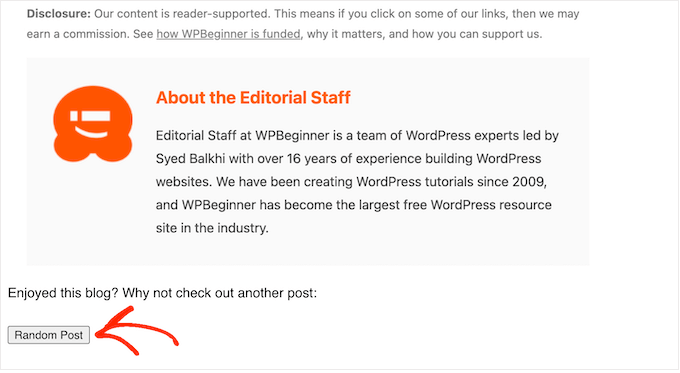
If you are using a block-based WordPress theme, then you can also add this button to any template or pattern in the Full Site Editor.
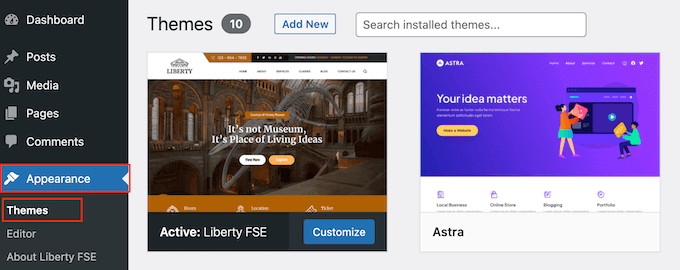
To get started, head over to Appearance » Editor in the WordPress dashboard.
You will now see some menu items to edit your website using the Full Site Editor.
For demonstration, go ahead and select ‘Templates.’
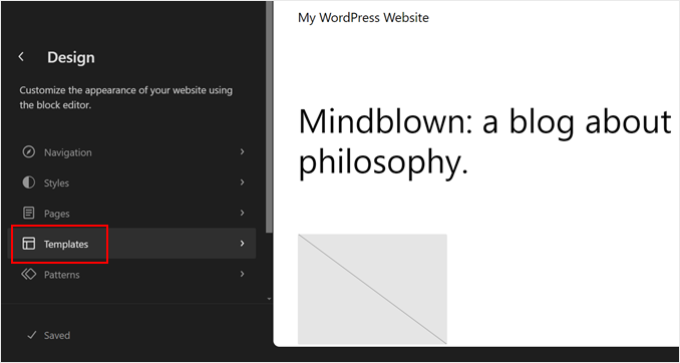
You can now click on the template or template part you want to edit, like the homepage or an archive page.
As an example, we will add the ‘Random Post’ button to the 404 page template, but the steps will be exactly the same no matter which template you select.
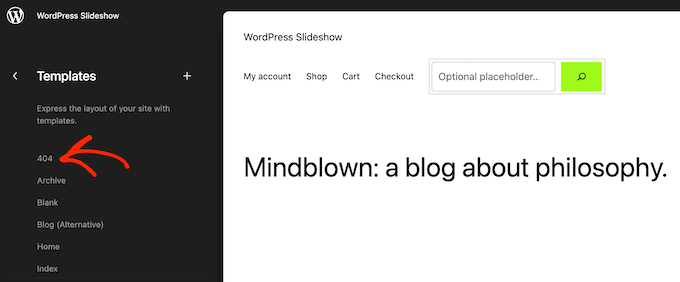
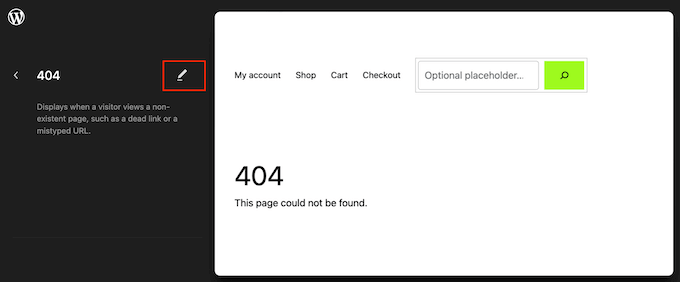
WordPress will now show a preview of the template or template part.
To add the random post shortcode, go ahead and click on the small pencil icon.
With that done, click on the blue ‘+’ icon in the top left corner.
In the search bar, you need to type in ‘Shortcode.’
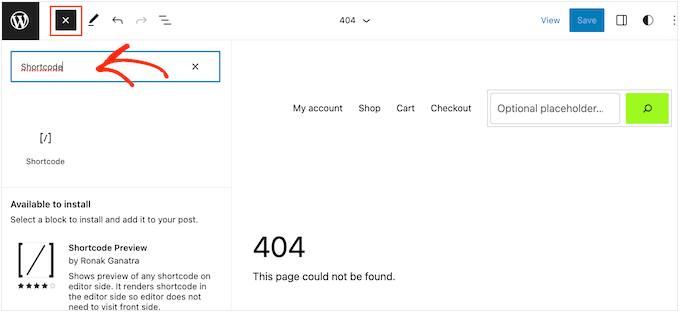
When the right block appears, drag and drop it onto the theme template.
You can now either paste or type the [redirect_to_post_button] shortcode into this block.
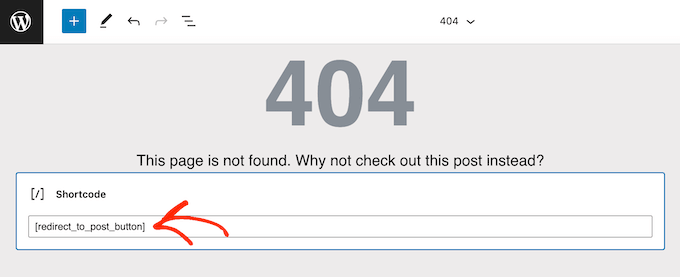
After that, go ahead and click on the ‘Save’ button.
Now, simply visit your WordPress blog to see the random post button in action.

Bonus Tip: Redirect Commenters to a Related Post With Thrive Comments
Want an easy way to keep people hooked on your blog? Try this: after someone leaves a comment for the first time, automatically redirect them to another one of your posts they might like!
We love using a plugin called Thrive Comments for this. It’s super easy to set up and lets you choose exactly where you want to send commenters.
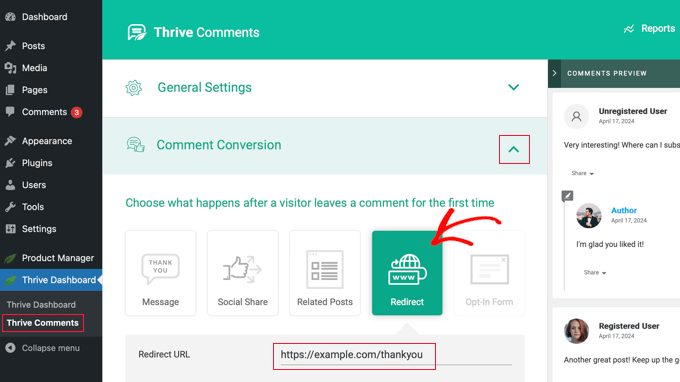
For step-by-step instructions, check out our guide on how to redirect your user’s attention with comment redirect.
Discover More Ways to Increase Your Blog Engagement
Besides redirecting users to a random post, there are other ways you can encourage your readers to explore your blog. Here are some ideas:
- How to Add Inline Related Posts in WordPress Blog Posts
- How to Make Sticky Posts in WordPress (Quick and Easy)
- How To Efficiently Manage Post Series in WordPress
- How to List Future Upcoming Scheduled Posts in WordPress
- Best Popular Posts Plugins for WordPress (Compared)
- How to Add Load More Posts Button in WordPress
We hope this article helped you learn how to redirect users to a random post in WordPress. You may also want to see our expert picks of the best related posts plugins for WordPress and our guide on how to display popular posts by views in WordPress.
If you liked this article, then please subscribe to our YouTube Channel for WordPress video tutorials. You can also find us on Twitter and Facebook.


Wesley Huang
Is that possible to randomly redirect to part of the post? I am thinking of something that allows user to post something under a type, and other user will randomly see one of the post belongs to that category, but not randomly from all the posts
WPBeginner Support
If you mean you are going to add user-submitted posts then the plugin does have the option to limit the random post selected to those within the specific category or other parameters.
Admin
daniel
Is there a way to do this mannually ?
WPBeginner Support
It would require coding knowledge and would not be beginner friendly if you tried to do it manually.
Admin
Xolani
What parameters to use to redirect users to a random custom post type?
Chris
You can redirect to a random post from a custom post type by adding the parameter post_type, for example …?redirect_to=random&post_type=product
See all parameters at https://documentation.chattymango.com/documentation/redirect-url-to-post/getting-started-redirect-url-to-post/search-parameters/
Unfortunately, the plugin cannot pick a random post type out of a set of post types, if that’s what you need.
Elena
Hi,
I have a website created in WordPress.com. I wanted to have a self hosted site so i moved it to Site Ground. I also wanted to have my site in WordPress.org so I could have more freedom to change my site. Can you help me how I can move my site to WordPress.org? Thanks.
WPBeginner Support
Hi Elena,
Please see our article on how to move from WordPress.com to WordPress.org.
Admin
Rodney Coleman
Interesting read and very handy plugin. Thanks for the heads up..