


Most visitors skim your posts instead of reading from start to finish. If they have to scroll through several paragraphs to find the main points, they will abandon your site before they get the information they need.
In this guide, we’ll show you how to add a TL;DR (short for “too long, didn’t read”) summary to your WordPress posts with AI. We’ll also cover manual options if you’d rather write summaries yourself.
TL;DR: How to Add a Summary to WordPress Posts
If you want to generate custom key points, then use AIOSEO’s AI Copilot or use unsynced block pattern in WordPress. To generate automated TL;DRs in every post, use the WPSummarize plugin. To add summaries in bulk to existing posts, use the WPVibe plugin.
Why Add a Post Summary in 2026?
Your site visitors typically read less than 30% of the words on a page. A summary or key takeaways box near the top lets visitors get the main points even if they don’t read the whole article.
A clearly structured summary also makes it easier for AI tools like ChatGPT and Claude to pull your content into their answers. Check out our guide on getting your WordPress content cited by AI tools for more details.
With that said, here’s everything we’ll cover in this guide:
- Method 1: Generate Custom Key Points with AI
- Method 2: Create Automatic AI Summaries with OpenAI
- Method 3: Bulk-Add Summaries in Your Existing Posts with AI
- Method 4: Add a Summary Manually with Patterns (No Plugin)
- Adding a Call to Action Under Your Summary
- FAQs About Adding Summary in WordPress Posts with TLDR CTA
Method 1: Generate Custom Key Points with AI
The easiest way to add a key takeaway box to your blog content is with the free version of All in One SEO (AIOSEO). Other SEO plugins like Yoast also offers a similar feature, but AIOSEO is what we use on WPBeginner.
Its AI Copilot can generate a Key Points block right inside the WordPress block editor. It lets you choose the tone and target audience before generating the summary.
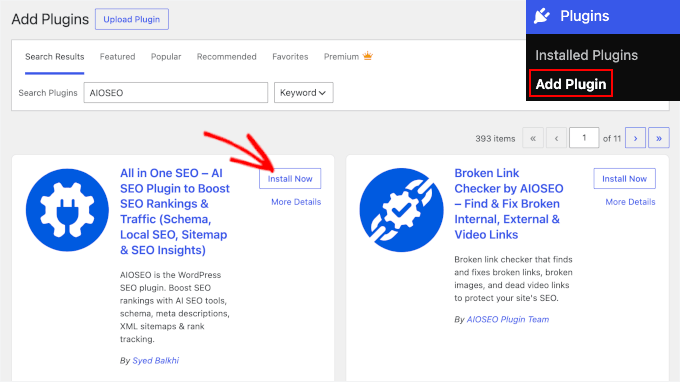
First, install and activate the AIOSEO plugin. If you haven’t installed a plugin before, our guide on how to install a WordPress plugin will walk you through it.
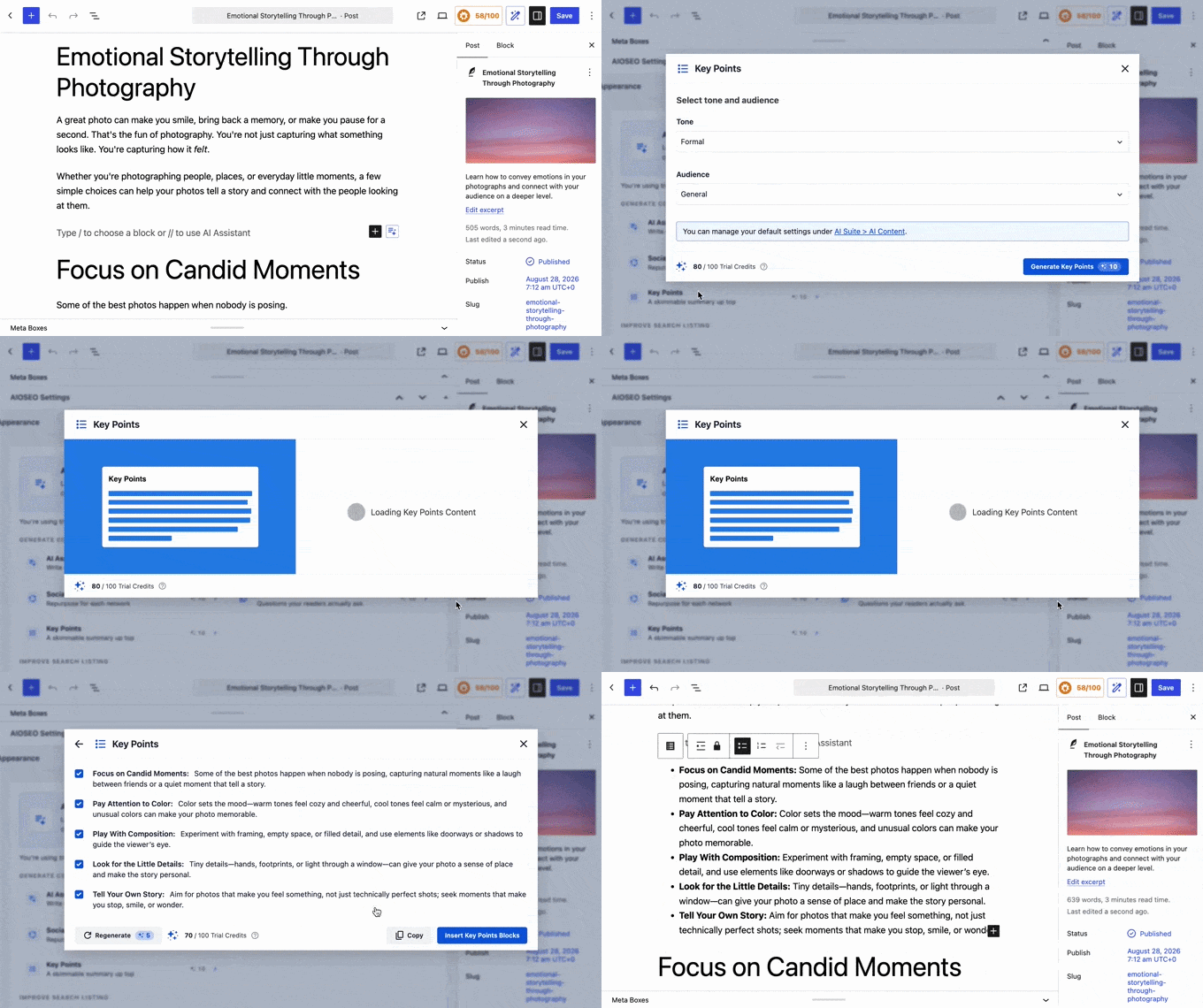
Next, edit the post where you want to add a TL;DR and place your cursor where you want it to appear in the block editor.
Then, open the AIOSEO AI Copilot panel and select the Key Points option. In the popup, choose your preferred tone and target audience, and then click ‘Generate Key Points’. AI Copilot will draft a Key Points block for you.
From here, read through the generated points, edit anything that needs adjusting, and click the ‘Insert Key Points Block’ when you’re done.
The AI features run on AI credits for both free and paid users. New users get free trial credits to start. After that, it’s $9.99 for 10,000 pay-as-you-go credits, and generating a Key Points block uses roughly 10 credits. Credits are also bundled into AIOSEO’s paid plans.
Method 2: Create Automatic AI Summaries with OpenAI
If you’d rather have summaries generated automatically when you publish, WPSummarize is built for that. The free version connects to your OpenAI API key and generates a summary for each new post, up to 50 summaries a month. You can choose between a key-takeaways list and a narrative-style summary, and it works with Gutenberg, Elementor, and Divi.
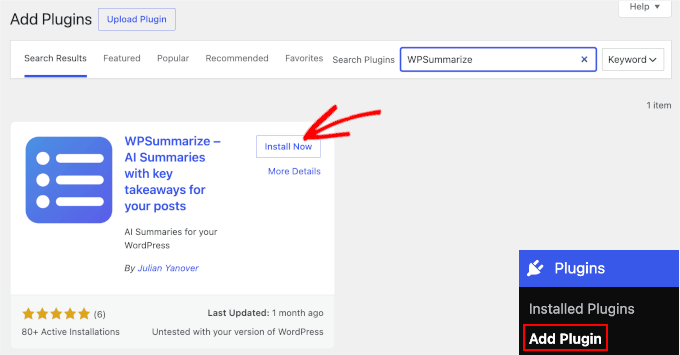
First, install and activate WPSummarize. If you need help with this step, see our guide on how to install a WordPress plugin.
In the plugin’s settings, paste your OpenAI API key. This key allows WPSummarize to connect to OpenAI on your behalf.
You can create the OpenAI API key from here if you don’t already have it.
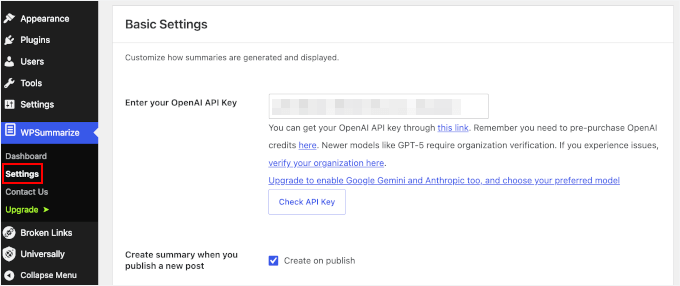
Then, choose your preferred summary style: a key-insights list or a narrative-style summary.
WPSummarize also lets you configure other things, including adding a title and choosing where to insert the summary inside your posts.
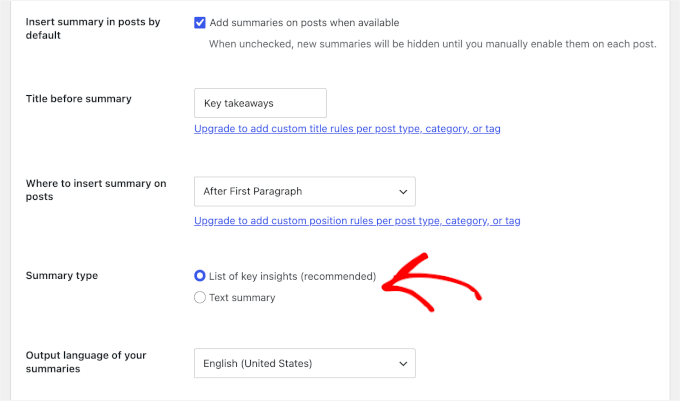
Once you’re done, click the ‘Save Changes’ button to keep your configuration.
From here, you can publish (or update) blog posts as usual. WPSummarize generates the summary automatically and inserts it into the post. There’s no extra step required on your end.
Method 3: Bulk-Add Summaries in Your Existing Posts with AI
If you want to add summaries to all your existing posts, doing it one at a time isn’t realistic. WPVibe connects your WordPress site to an AI assistant like Claude or ChatGPT, so you can simply ask it to add a TL;DR box to your existing posts. WPVibe also has a free plan that works across unlimited sites.
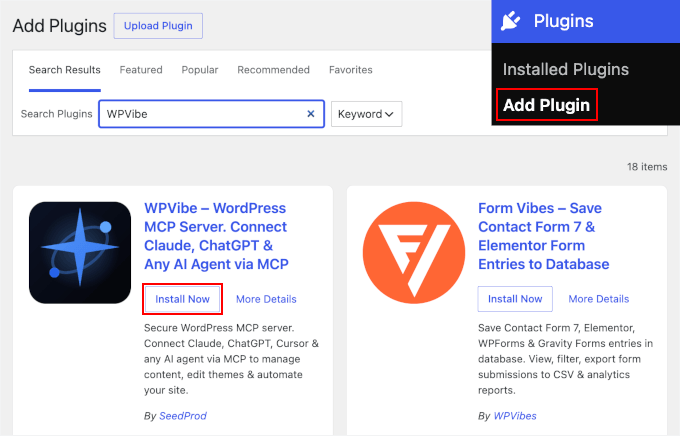
To start, install and activate the free WPVibe plugin on your WordPress site.
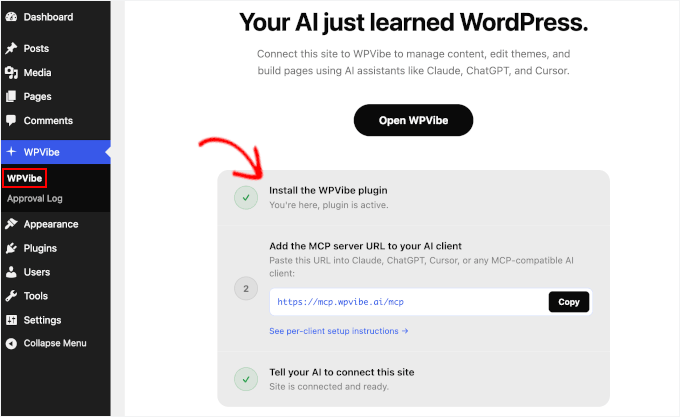
Then, add WPVibe’s connector URL to your AI assistant (Claude, ChatGPT, or another supported tool) and follow the on-screen prompts to authorize your site. For details, refer to our guide on how to connect AI agents with WordPress using MCP.
With that done, open a chat with your connected assistant and enter a prompt asking it to review your existing posts and add a TL;DR box to each one. For example, you could prompt it with something like: “Go through my published posts and add a short TL;DR box summarizing the key points at the top of each one.”
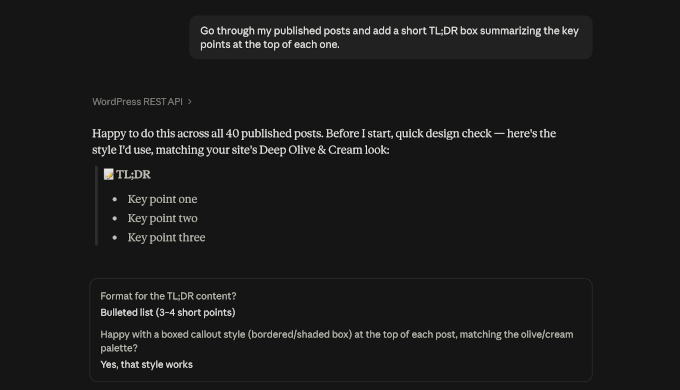
We recommend checking a few of the updated posts afterward to make sure the summaries look right.
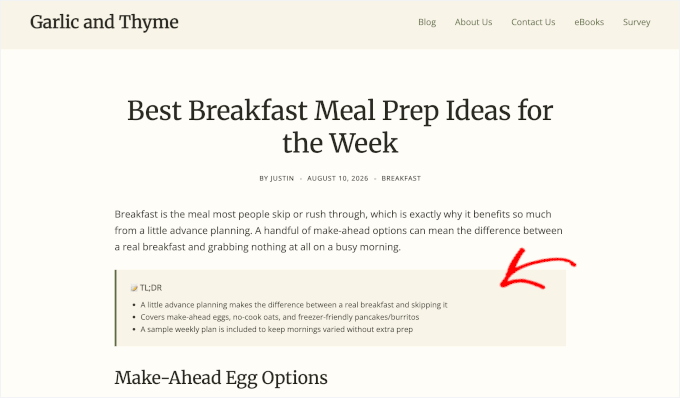
Method 4: Add a Summary Manually with Patterns (No Plugin)
If you don’t want to install anything, you can build a Key Takeaways box yourself using the block editor’s reusable patterns. Set it up once, and you can add it to any post while keeping the same layout and styling.
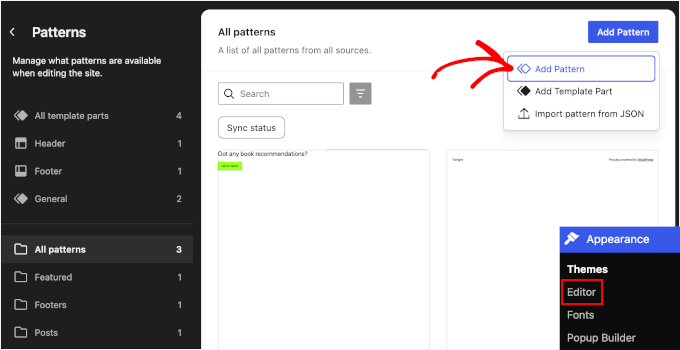
First, go to Appearance » Editor » Patterns and click ‘Add pattern.’
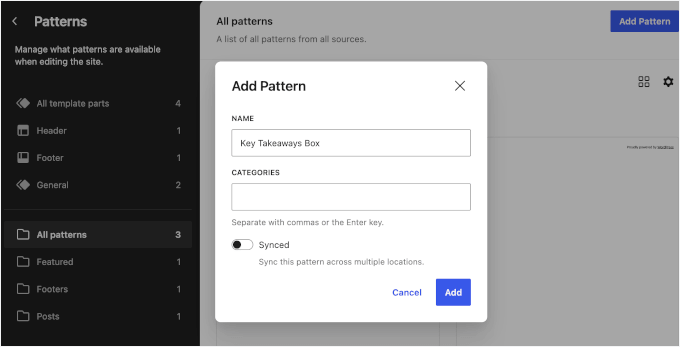
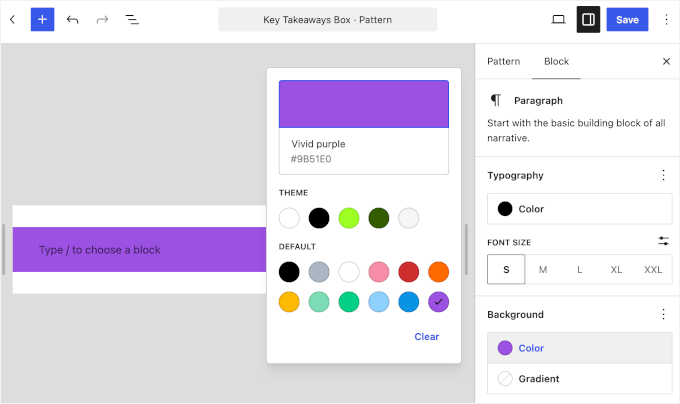
In the popup that appears, give it a name like “Key Takeaways Box” and leave ‘Synced’ turned off. Since each post needs its own takeaways, you don’t want a synced pattern here. That would make your edits in one post overwrite the box in every other post using it.
You can then add a background color or customize the border to make the summary stand out from the rest of your post. Click ‘Save’ when you’re done customizing it.
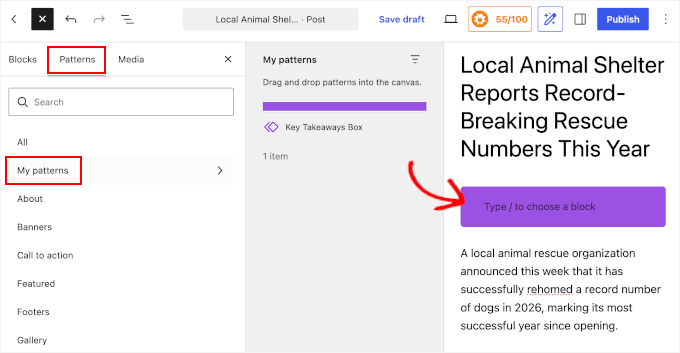
After that, go ahead and insert the pattern near the top of any post. Just click the ‘+’ button, switch to the ‘Pattern’ tab, and add your new pattern.
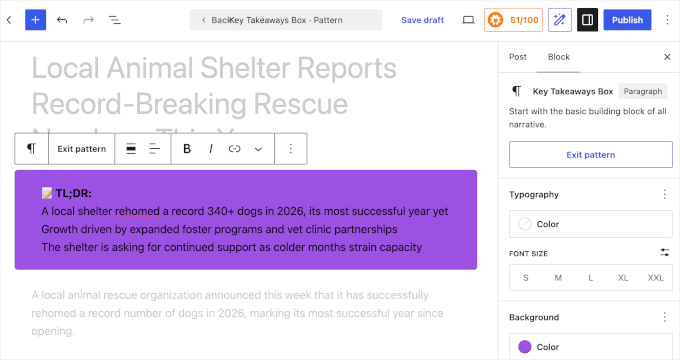
Then, write that post’s specific takeaways into the box. Because it’s unsynced, you can edit it freely without affecting any other post.
This method works on any WordPress site without installing an additional plugin, but it comes with a downside: you’re writing every summary yourself, for every post, indefinitely.
Adding a Call to Action Under Your Summary
If you want, you can put a call to action directly beneath the summary. This is one of the few spots on the page you can count on skimmers to see.
Use this opportunity to promote something that gives readers a clear next step, such as downloading a checklist or jumping right to the main step in the article.

FAQs About Adding Summary in WordPress Posts with TLDR CTA
What is the difference between a summary and an excerpt in WordPress?
An excerpt is a short, plain-text snippet WordPress uses on archive pages, search results, and RSS feeds. It’s not something readers see inside the post itself. A summary or key-takeaways box, by contrast, sits inside the post, can include formatting and links, and is meant to be read by someone already on the page.
Do TL;DR summaries help with SEO?
A TL;DR summary can make your content easier for visitors to scan and understand, which can improve the overall user experience. However, you shouldn’t add a summary solely for SEO. Focus on making it genuinely useful and accurately representing the content of the post.
How long should a TL;DR summary be?
There is no fixed length, but it should be short enough to scan quickly. For many WordPress posts, 3–5 bullet points or a short paragraph is enough to communicate the main takeaways without becoming another long section of content.
We hope this guide helped you add better summaries to your WordPress posts. Whether you let AI generate them or create them yourself, your goal should be to give skimmers the main points in a few seconds and make your content easier for AI tools to understand and cite.
Next, you might want to see how to redirect your users’ attention with a comment redirect. You can also check out our comprehensive WordPress SEO guide
If you liked this article, then please subscribe to our YouTube Channel for WordPress video tutorials. You can also find us on Twitter and Facebook.


Sachin
This summary plug-in will be very useful for me. As i write long long product reviews. This may be helpful to those visitors who are in hurry. Well i have to test it first. Looks great to me. Thanks.
Nas
One question, this plugin will automatically create summary or author need manually insert it?
Travis Pflanz
You need to create it. You can see in the screenshot where to enter the summary – https://www.wpbeginner.com/wp-content/uploads/2016/03/metaboxes.png