


If you’re running a WordPress site, you’ve probably wondered if you’re doing enough to keep it secure. Strong passwords and updated plugins are a great start, but there’s another layer of protection many site owners overlook.
Enter WordPress security keys.
These keys are a powerful feature that can instantly boost your site’s defenses. They help protect against hacking attempts, especially around login and authentication.
Behind the scenes, they scramble sensitive data to prevent attackers from hijacking sessions or sneaking into your site.
In this guide, we’ll walk you through everything you need to know about WordPress security keys. From understanding what they do to applying them properly on your site, we’ll help you sleep better knowing your WordPress site has this security layer in place. 🛡️
What Are WordPress Security Keys and SALTs?
In short, WordPress security keys are encryption tools that protect your login information by making it harder to decode. SALTs, on the other hand, add random data to this encrypted information, adding another layer of security to your stored credentials.
WordPress security keys act just like real keys and are used to lock and unlock encrypted information, such as passwords, keeping your WordPress site secure.
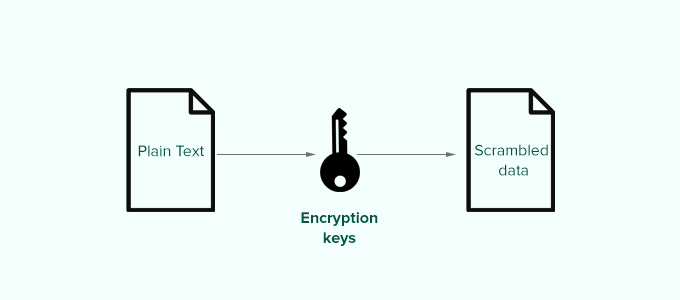
Here is how it works.
Basically, when you log in to a WordPress website, your information is stored on your computer’s cookies. This allows you to continue working on your website without the need to log in each time a page loads.
All information is stored in an encrypted form by converting it into a string of alphanumeric and special characters. This encrypted data can be translated using WordPress security keys. Without the keys, this data is nearly impossible to crack.
Your WordPress site automatically generates these security keys and stores them in your WordPress configuration file (wp-config.php).
There are a total of four security keys:
- AUTH_KEY
- SECURE_AUTH_KEY
- LOGGED_IN_KEY
- NONCE_KEY
Apart from WordPress security keys, you’ll also find the following SALTs.
- AUTH_SALT
- SECURE_AUTH_SALT
- LOGGED_IN_SALT
- NONCE_SALT
Salts add extra information to your encrypted info, which provides another layer of security for your encrypted data.
Why Use WordPress Security Keys?
WordPress security keys protect your website against hacking attempts by making your passwords secure.
For instance, a regular password with medium-level difficulty can be easily cracked using brute force attacks.
On the other hand, a password string like ‘7C17bd5b44d6c9c37c01468b20d89c35e576914c289f98685941accddf67bf32b49’ takes years to decrypt without knowing the security keys.
That’s why you should never share WordPress security keys with anyone and protect them as you normally protect sensitive information online.
With that in mind, we’ll look at how to use WordPress security keys to keep your WordPress site protected. Here’s a quick overview of all the topics we’ll share in the following sections:
Let’s dive in!
How to Use WordPress Security Keys?
Generally, you don’t need to do anything extra since, in most cases, WordPress will automatically generate and use security keys + salts on each new WordPress install.
You can view your WordPress security keys and salts by using an FTP client or the File Manager app in your WordPress hosting account control panel.
Simply connect to your website and open the wp-config.php file. Inside it, you’ll see your WordPress security keys defined.
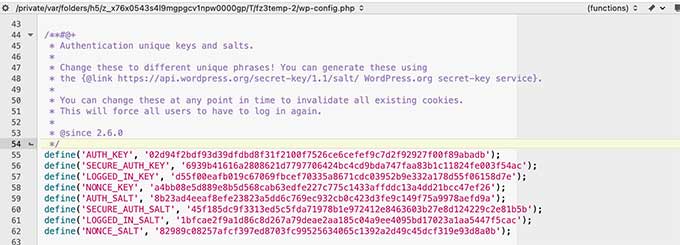
However, depending on how you initially installed WordPress, your website may not have security keys defined at all.
If your security keys are empty, then don’t worry. You can easily add them manually by going to the WordPress Security Key Generator page to generate a new set of keys.
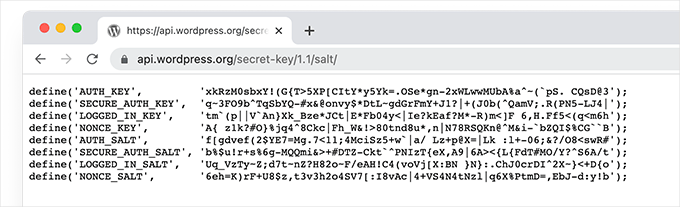
Next, copy and paste these keys inside your wp-config.php file, and you are done.
You can use the same method to delete your current WordPress security keys and replace them with new keys.
📝 Note: When you replace the security keys, all users will be forced to re-login, which is great for security.
How to Regenerate WordPress Security Keys Using a Plugin?
If you suspect that your website is hacked, then you need to regenerate WordPress security keys and change your passwords.
You can manually copy and paste new security keys, as mentioned above. However, you can also use a plugin. This way, you can set a schedule to automatically regenerate security keys regularly, too.
1. Update WordPress Security Keys using Sucuri
The easiest way to automatically regenerate WordPress security keys is by using Sucuri. It is one of the best WordPress security plugins on the market that protects your WordPress website against common threats.
For more information about the tool, you can check out our extensive Sucuri review.
To get started, the first thing you’ll need to do is install and activate the Sucuri Security plugin. For more details, see our step-by-step guide on how to install a WordPress plugin.
Upon activation, you’ll want to visit the Sucuri Security » Settings page and switch to the ‘Post-Hack’ tab.
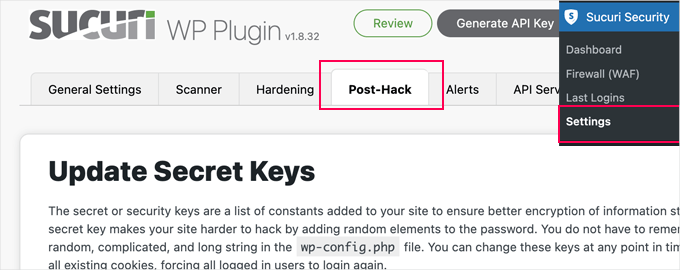
From here, simply click the ‘Generate New Security Keys’ button under the ‘Update Secret Keys’ section.
📝 Note: Regenerating new security keys will log you out of the WordPress admin area, and you’ll need to log in again.
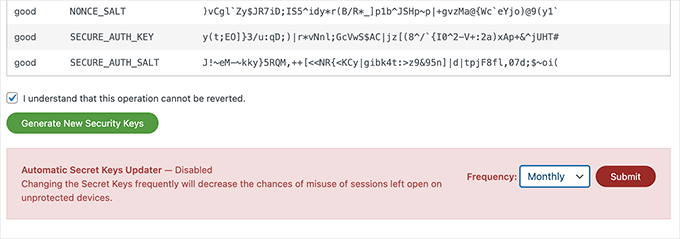
After that, revisit the Sucuri Security » Settings page and switch to the ‘Post-Hack’ tab again.
Under the security keys section, enable the ‘Automatic Secret Keys Updater’ by choosing a frequency (daily, weekly, monthly, yearly).
Then, go ahead and click on the ‘Submit’ button.
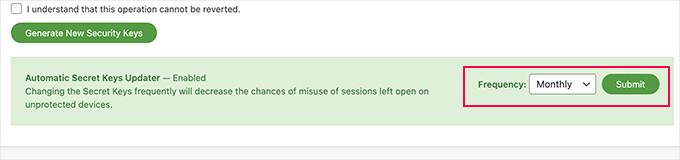
Sucuri will now automatically reset your WordPress security keys based on your chosen frequency.
2. Update WordPress Security Keys using Salt Shaker
This method is for users who are not using Sucuri and need to automate security key regeneration.
First, you need to install and activate the Salt Shaker plugin. For more details, see our step-by-step guide on how to install a WordPress plugin.
Upon activation, you’ll need to visit the Tools » Salt Shaker page to configure plugin settings.
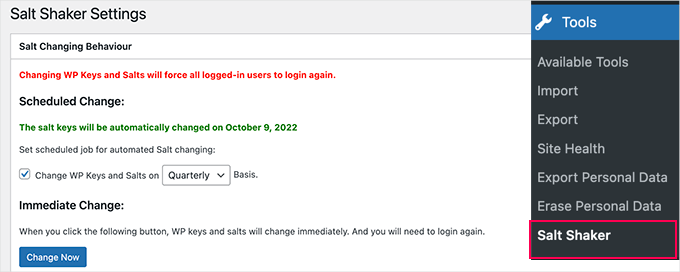
From here, you can set a schedule to generate security keys automatically. You can also just click on the ‘Change now’ button to regenerate security keys immediately.
Bonus Tip: Add Extra Protection with Two-Factor Authentication (2FA)
Adding Two-Factor Authentication (2FA) along with your WordPress security keys can make your site even safer.
Even if someone manages to get one of your security keys, they’ll still need a second verification step to log in. This makes it much harder for hackers to get into your site.
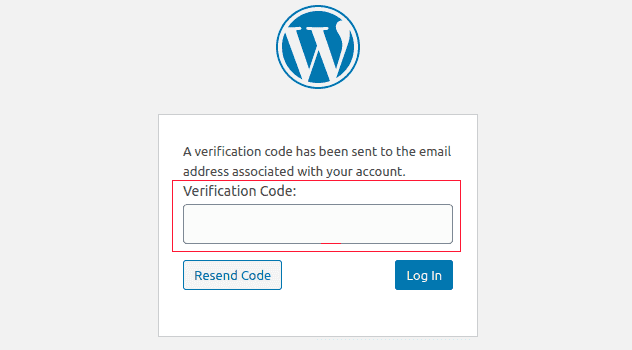
Setting up 2FA on WordPress is simple with plugins like Google Authenticator or Authy.
Generally, all you have to do is install and activate your chosen authenticator, then follow the setup process to link it with your account. Once set up, enable 2FA for yourself and other users to add an extra layer of security when logging in.
For detailed step-by-step instructions, read our guide on adding two-factor authentication in WordPress.
Frequently Asked Questions About WordPress Security Keys
Got questions about WordPress security keys? Here are some of the most common ones –answered.
What happens if my wp-config.php file doesn’t have security keys?
If your wp-config.php file is missing security keys, WordPress will create them automatically for the current session.
However, this method is not as safe. Without permanent keys defined in your file, the encryption protecting your login cookies is weaker. This makes your website more vulnerable to attacks.
How often should I change my WordPress security keys?
For most websites, there’s no need to change your keys on a regular schedule.
However, if you suspect your site has been hacked or compromised, you should update it right away. When you change your keys, all users are automatically logged out. This helps secure your site by cutting off any unauthorized access that may have occurred.
Is changing my security keys enough after my site is hacked?
No, changing your security keys is just one important step. You should also change all user passwords, scan your site for malware, remove any suspicious user accounts, and consider restoring from a clean backup.
Additional Resources for Stronger WordPress Website Security
We hope this article helped you understand WordPress security keys and how to use them. Next, you may also want to see our guides on:
- Best WordPress Firewall Plugins Compared
- How to Perform a WordPress Security Audit
- Beginner’s Guide to WordPress User Roles and Permissions
- How to Get a Free SSL Certificate for Your WordPress Website
- How to Fix the Secure Connection Error in WordPress
- Best WordPress Backup Plugins Compared (Pros and Cons)
- Ultimate Guide to Backing Up Your WordPress Site
- The Ultimate WordPress Security Guide – Step by Step
If you liked this article, then please subscribe to our YouTube Channel for WordPress video tutorials. You can also find us on Twitter and Facebook.


Samuel
wow!, thank you so much for this article, I have always been seeing these keys in wp-config file but don’t know what function they do. this article shines light on their usage. however, I like to ask a question. if I change these security keys without changing my password would it affect the password? I am just curious.
WPBeginner Support
The security keys do not directly affect your user passwords so there should be no change to your password.
Admin
Samuel
Thank you so much for providing clarification to this question. I was initially thinking it might affect the passwords.
Mrteesurez
I am just hearing ‘SALT’ here in this post, what’s the difference between SALT and KEY ?
Can I just update those keys even if I didn’t suspect any hack attempt ?
If yes, when often should it be changed ?? Thanks.
WPBeginner Support
It depends on your personal preference but they can be as changed as often as weekly or once a quarter depending on how much you would like to focus on changing them.
Admin
Jiří Vaněk
Regarding security keys, I encountered an issue when migrating the website to a new database. Even after changing the connection in the wp-config.php file, WordPress refused to connect to the new DB, reporting an ‘establishing error.’ Eventually, I had to delete the old wp-config.php, upload a new one from the installation package, re-enter the connection to the new database, and then everything worked fine. It seems that the keys in the wp-config.php file were the culprit.
Josh
How often do you recommend changing the keys? Quarterly as shown in the screenshot?
WPBeginner Support
We do not have a specific recommended refresh time at the moment other than after a hack on your site at a minimum.
Admin
Bjornen Nilsson
Hi,
QUESTION »
Will it affect anything besides “extreme” increased security if one has the web browser set to delete all history, temp, cookies etc. every time it is shut down AND if one changes the SALT in wp-config after logging out each time?
Thanks!
shanderman
Hi,
I have 2 url product,for 1 product.like this:
example.com/?product=product-name
example.com/product/product-name/
why? how should i fix it? please help me.
WPBeginner Support
Hi shanderman,
Please visit Settings » Permalinks page to make sure that your WordPress site is using SEO friendly URLs.
After that view your website’s source code and make sure that it is showing the URL format that you like.
The ugly URL structure will still work in WordPress if you typed it in the browser. However, your product’s canonical URL will be the one you choose on the permalinks settings page. This is the URLs that search engines will follow and index.
Admin
sam
I am a beginner to Wordpress , i have a doubt how those keys make the Wordpress secure ? i want to know the actual role and working of the keys ?
Kishan Dalsania
What is the actual benefit of these using the keys in config.php. Can you define how it will work to prevent the hackers?
sam
Hi , i have used this method and can not log onto my site at all. how do i fix it or remove the issues
WPBeginner Support
Please take a look at our tutorial on what to do when you are locked out of WordPress admin area.
Admin
kOoLiNuS
Just a quick question… Why do you suggest to:
Instead of the latter? Have you got some links that dig this approach?
Thank you in advance!
Nick
In wordpress 3.1 these keys are automatically generated.
MichealKennedy
Was just gonna ask “why don’t they just automatically generate these for you?” but you answered it
Riese F
Appreciate this information and quickly updated my files. My concern is the same as Ricks’ from April in that if my wp-config.php file is hacked then these keys are available to whomever is looking at them correct? But then I thought that if my wp file is hacked and someone other than me is looking at them I am already in trouble…
Any precaution is better than just hoping for the best though! Thank you for your work and efforts.
Keith Davis
Hi
Thanks for a short and informative post.
I notice that in your example there are four secret keys.
There appear to be more secret keys in Wordpress 3.0 – can these be added to previous versions of Wordpress?
Editorial Staff
Those keys become available with WordPress 3.0
Admin
Dave
You’ll need to use 3.0 to utilise all eight secret keys, rather than the former four. The new WordPress random key generator can be found at https://api.wordpress.org/secret-key/1.1/salt
Rick
Um, so does this change your admin password or what? I don’t understand what this does? Maybe that’s because I’m not a hacker. But, if this is just stored in your config.php file, wouldn’t it be way easier for a hacker just to hack into your ftp site and nab this security key out of the config file?
I want my WordPress sites to be more secure, but I just don’t understand what this is preventing?
Jack
Nicely said. The directions are pretty easy, but I think the security and safety is understated in the documentation. Thanks for spelling it out and making the web a safer place.
gabrielle
if you develop multiple wordpress sites do you create a security key for each one or use the same one on all of them?
Editorial Staff
Use a new one
Admin
Konstantin
While you’re adt it:
Why not define the salt constants and save yourself some database queries?!
It should look like this:
define('AUTH_SALT',        'put your unique phrase here');

define('SECURE_AUTH_SALT', 'put your unique phrase here');

define('LOGGED_IN_SALT',   'put your unique phrase here');

define('NONCE_SALT',       'put your unique phrase here');
This article from Digging into Wordpress explains the advantages of this practice.
Tony
Thanks for sharing!
Editorial Staff
Good idea, didn’t even think of that.
Admin
maged
very handy and important thanks for sharing