


Want to keep your WordPress site buzzing with fresh content without lifting a finger? RSS feed plugins make it easy to automatically pull in articles, videos, news, and updates from other sites—turning your blog into a dynamic hub your audience will keep coming back to.
Not only do RSS feeds make your site more engaging, they can also help drive traffic, boost user interaction, and expand your reach by making it simple for readers to discover your latest posts.
But here’s the catch: not all RSS feed plugins are created equal. Some are limited in customization, making it tricky to match your site’s design. Others are built for very specific content types—like YouTube videos or Twitter updates—or may pull in lower-quality content.
That’s where we come in. We’ve researched the most popular RSS feed plugins so you don’t have to. Our top pick for blog content is WP RSS Aggregator, while the Smash Balloon collection shines for social feeds.
We’ve also included a variety of other tools to cover unique use cases and feed types. Keep reading to discover the best WordPress RSS feed plugins for your site.

Quick Pick – The Best WordPress RSS Plugins
Are you in a rush? Here’s a brief overview of the RSS feed plugins we’ll share:
| # | RSS Feed Plugins | Best For | Pricing | Free Plan |
|---|---|---|---|---|
| 🥇 | WP RSS Aggregator | Content aggregation, auto-blogging, and content curation | Starts at $99/yr | ✅ |
| 🥈 | Smash Balloon Instagram Feed | Displaying Instagram feeds, custom hashtag feeds, and WooCommerce product links | Pro starts at $49/yr | ✅ |
| 🥉 | Smash Balloon Custom Facebook Feed | Displaying Facebook group or page content | Pro starts at $49/yr | ✅ |
| 4 | All in One SEO (AIOSEO) | SEO optimization with RSS customization to prevent content scraping | Pro starts at $199.60/yr | ✅ |
| 5 | Smash Balloon Twitter Feeds | Showing Twitter content, custom feeds, and boosting social proof | Pro starts at $49/yr | ✅ |
| 6 | Smash Balloon Feeds for YouTube | Displaying YouTube videos, live streams, and custom feeds | Pro starts at $49/yr | ✅ |
| 7 | Feedzy RSS Feeds | Multiple RSS feeds, auto-blogging, translation, and affiliate integration | Starts at $99/yr | ❌ |
| 8 | Featured Image in RSS Feed | Adding featured images to RSS feeds for email services or news aggregators | Pro starts at $4.99/mo | ✅ |
| 9 | Super RSS Reader | Sidebar widgets displaying multiple RSS feeds in tabbed layouts or news tickers | Pro starts at $25/yr | ✅ |
Why Use a WordPress RSS Feed Plugin?
RSS feeds allow websites to publish content in an XML file format. This lets people subscribe to content using RSS feed readers like Feedly.
By default, WordPress publishes RSS feeds for your blog posts, categories, authors, and more.

Apart from your own articles, RSS feeds can also be used to pull content from one website and display it anywhere else.
You may want to use an RSS feed plugin to curate content from different websites that you like. You can also automatically pull the latest content from social media websites like Facebook, Instagram, Twitter, and YouTube to display them in WordPress.
When users subscribe to the feed, they can stay caught up with your WordPress blog or website without needing to visit it constantly.
While WordPress has a built-in RSS widget, it does not let you customize the display to add thumbnails, social buttons, etc. This is why most people use a RSS plugin for the added functionality.
How We Test and Review RSS Plugins
When reviewing RSS plugins, we focused on key factors that make a real difference in how you manage and display feeds on your WordPress site. Evaluating these criteria helped us ensure you get the best options for your needs.
Here’s what we looked for:
- Ease of Use: Overall, we favor plugins that are user-friendly, even for beginners. So, we checked if they have simple installation options and a straightforward setup process.
- Customization Options: We assessed how much flexibility you get when customizing how feeds appear. This way, you are able to match feeds to the look and feel of your site.
- Performance Impact: We know how important website performance is. Slow-loading pages can scare off users. We evaluated whether the plugin impacts your site speed.
- Features vs. Cost: We considered the range of features provided in free and paid versions, weighing their value against the pricing.
- Support and Updates: Reliable customer support and frequent updates are essential for a smooth experience and compatibility with WordPress. That’s why we made sure to look into the support options and documentation of every tool.
- User Reviews: We thoroughly research every tool we recommend, but we can’t test out every single scenario and feature. With that in mind, we also read reviews on the WordPress plugin directory and other testimonials to identify additional strengths and weaknesses for each plugin.
Why Trust WPBeginner?
At WPBeginner, we have over 16 years of experience in WordPress, blogging, web design, and more.
When it comes to RSS plugins, we’ve explored everything from setting up automated content imports to integrating feeds for newsletters. We know what features matter and how each plugin performs in real-world scenarios.
Our reviews focus on ease of use, functionality, and reliability so you can confidently make an informed choice. If you want to learn more about it, here’s our complete editorial process!
Now, let’s take a look at some of the best WordPress RSS feed plugins.
1. WP RSS Aggregator

WP RSS Aggregator lets you transform your WordPress site into a powerful content aggregator. After thoroughly researching the plugin, we think it’s perfect for auto-blogging and curating content.
Check out our WP RSS Aggregator review for complete details on our testing.
We’ve put this plugin at the very top of our list because it lets you easily import, merge, and display RSS feeds without any coding. This is super convenient whether you’re fetching job listings, news articles, or top posts from your favorite blogs.
During testing, we also found that WP RSS Aggregator is super user-friendly.
You just need to install and activate it like any other WordPress plugin, then add your first feed URL. Once added, the plugin will display the latest items from the RSS feed on your site.
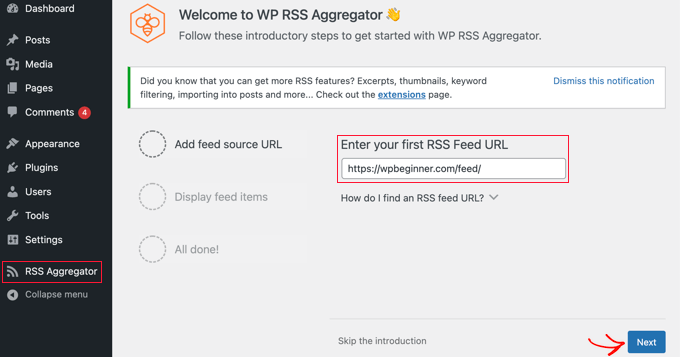
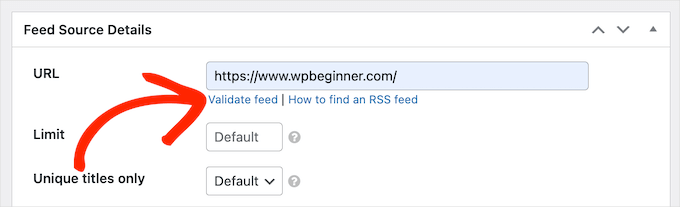
With WP RSS Aggregator, we also discovered that it’s possible to add as many feeds as you want. In most cases, you can simply enter the source website’s URL, which will let the plugin find the RSS feed automatically.
Additionally, we like the fact that we can validate the feed with just one click.
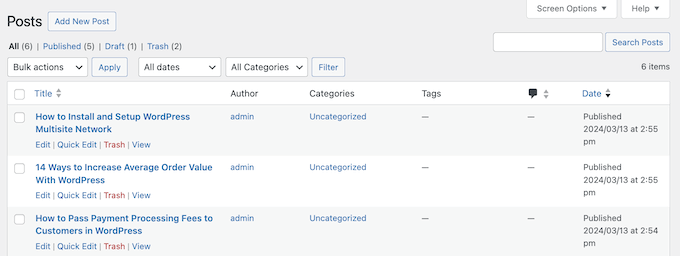
What’s more, you can import content as blog posts and store them in your database.
We believe this is fantastic for keeping everything organized.
For step-by-step instructions, you can refer to our guide on how to fetch and display RSS feeds in WordPress.
However, be cautious if you plan to scrape full content from third-party sites. It can lead to copyright issues.
Why we recommend WP RSS Aggregator: We picked this as our number one RSS feed plugin because it gives you everything you need to create a website for aggregated content. Plus, it doesn’t require coding skills. It’s perfect for autoblogging or curating other types of content from multiple websites.
Pricing: The Basic plan starts at $99 per year with one year of support and updates.
2. Smash Balloon Instagram Feed
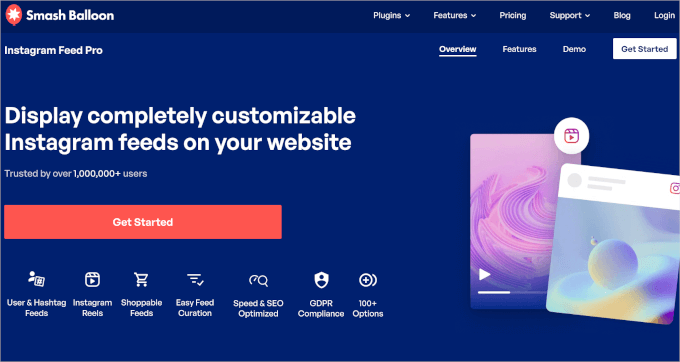
Smash Balloon Instagram Feeds is your go-to tool for easily embedding your latest Instagram content into your blog. This plugin uses Instagram’s API to automatically display photos from your account, making it super easy to keep your site fresh with social media updates.
For more in-depth information, check out our complete Smash Balloon review and jump to the Create Instagram Photo Feeds section.
Upon testing this plugin out, we found it simple to use, with multiple layouts that adapt beautifully to any device. You can create custom Instagram feeds using hashtags, which is perfect for targeting specific content.
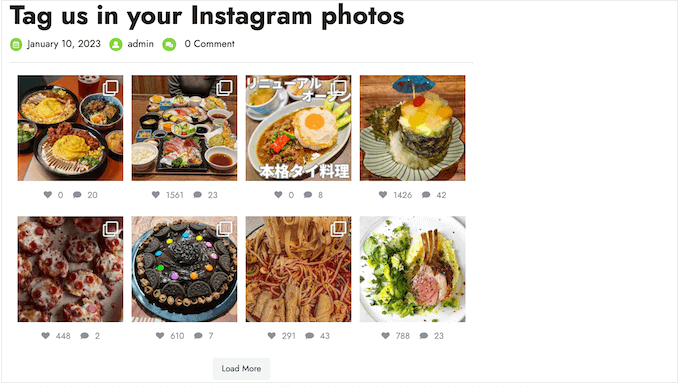
It also supports Instagram Stories, which you can display in a lightbox popup on your website. This handy integration helps drive more engagement for your stories.
What’s more, linking your posts to WooCommerce product pages can drive sales directly from your Instagram feed.
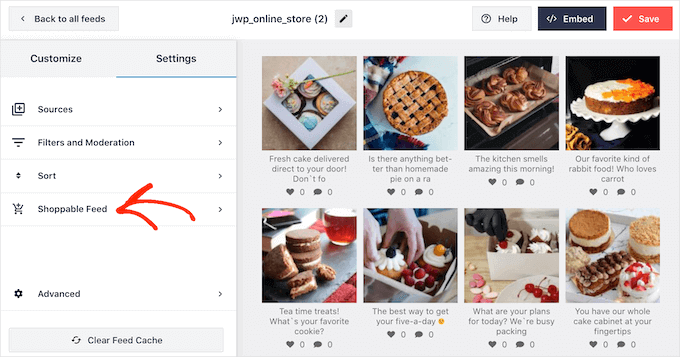
In addition, it comes with built-in feed analytics that tracks clicks, views, and profile visits. This lets you uncover what content drives the most traffic to your Instagram profile.
Our overall impression is that Smash Balloon Instagram Feeds really is a great option for boosting user engagement on Instagram.
Why we recommend Smash Balloon Instagram Feeds: This plugin is great for users who want to aggregate social media content. It lets you easily display Instagram feeds and custom hashtag feeds. Plus, you can even link out Instagram posts to WooCommerce product pages to drive sales.
Pricing: They have a free Instagram feed plugin with limited features. Custom Instagram Feed Pro starts from $49 per year for a personal plan to use on 1 site. You can also get all Smash Balloon plugins for unlimited sites at $299 per year.
3. Smash Balloon Custom Facebook Feed

Smash Balloon Custom Facebook Feed is the best option if you want to showcase posts from your Facebook pages and groups. We tried this RSS feed plugin ourselves and loved how user-friendly it is.
For more details on our experience with testing it, feel free to read our complete Smash Balloon review and jump to the Create Facebook Social Media Feeds section.
Before continuing with this review, do note that Facebook decides the reach of your content based on user engagement. This means that users will see more of your Facebook updates when they interact with them.
As a result, adding your latest Facebook content feed to your WordPress site is an easy way to boost engagement.
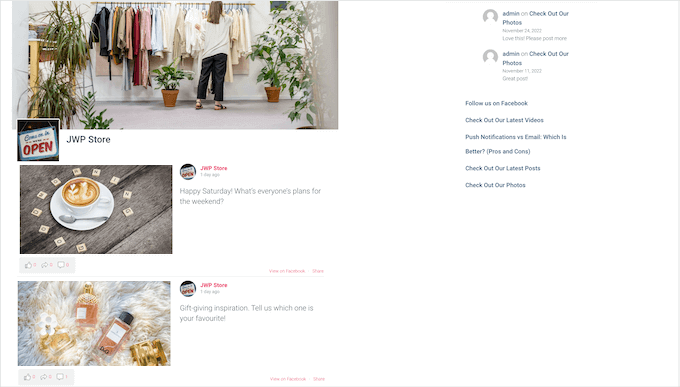
When we experimented with this plugin, we learned that it allows for a beautiful display of the latest posts from Facebook groups and pages in WordPress.
We also liked that it’s easy to use and lets us connect as many groups and pages as we want. Plus, you can merge feeds to create one feed or use multiple feeds in different areas of your website.
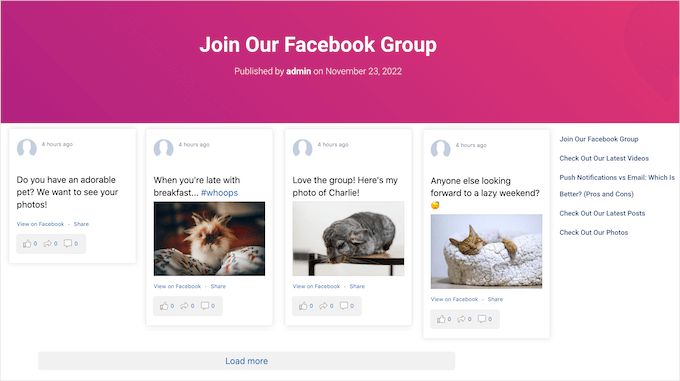
Another great feature is that the plugin comes with multiple layouts. Plus, it allows you to customize the appearance of your Facebook feed to match your website layout.
Why we recommend Smash Balloon Custom Facebook Feed: Adding feeds from your social media accounts can be a great way to repurpose content and bolster engagement. This plugin is perfect for anyone who wants to do this with content from their Facebook pages and groups.
Pricing: They have a free Facebook feed plugin with limited features. Custom Facebook Feeds Pro starts from $49 per year for a personal plan to use on 1 site. You can also get all Smash Balloon plugins for unlimited sites at $299 per year.
4. All in One SEO (AIOSEO)
AIOSEO is another excellent RSS feeds plugin because it lets you customize and add credits to your RSS feeds. That way, you can prevent content scraping (when people republish posts from your blog’s RSS feed).
We did a deep dive into this plugin’s features, which you can see in our complete All in One SEO (AIOSEO) review.
As the name suggests, AIOSEO is mainly an SEO plugin. It offers this RSS feed editing feature because content scraping can actually hurt your search engine rankings.
By adding custom content to your RSS footer, you can direct readers back to your blog. From personal testing, we’ve seen how this can improve traffic.
The nice thing is that the RSS editor offers a user-friendly interface and clear instructions, which make optimizing your site straightforward, even if you’re a beginner.
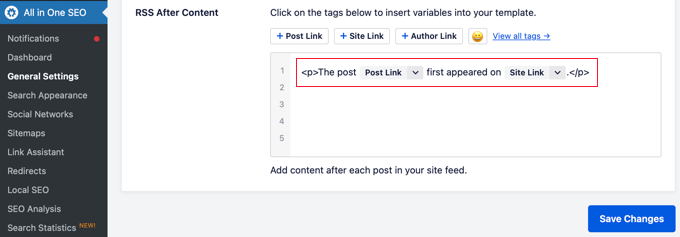
For detailed instructions, you can see our guide on how to control your RSS feed footer in WordPress.
Why we recommend All in One SEO: AIOSEO focuses on search engine optimization features. However, its RSS feeds editor makes it ideal for anyone who has a WordPress feed. It lets you easily optimize your feeds to add credits and prevent content scraping.
Pricing: There’s a free version of AIOSEO with basic WordPress SEO features, which includes the RSS footer editor. To unlock all the features and fully optimize your website, you’ll need the Pro version, which starts at $199.60 per year.
5. Smash Balloon Twitter Feeds
Smash Balloon Twitter Feeds makes displaying Twitter content on your WordPress site a breeze. This plugin helps boost social proof by allowing you to showcase tweets in various layouts, including a carousel and grid style.
For more details, you can see our complete Smash Balloon review and jump to the Embed a Twitter Feed in WordPress section.
Our testing revealed that you can create custom Twitter feeds by merging different accounts, hashtags, keywords, and more. It comes with infinite scroll, and users can load more tweets as they scroll down.
Along the way, we also noticed that the plugin comes with native Twitter engagement buttons, such as Like, Retweet, and Reply actions. All media and videos open in a lightbox popup, so your users can interact with these buttons without leaving your site.
What we like most about this plugin is the fact that it’s lightning-fast with built-in caching. Plus, with a responsive layout, it looks great on all devices.
Why we recommend Smash Balloon Twitter Feeds: This plugin is perfect for anyone who wants to boost social proof by displaying their Twitter activity on their WordPress site.
Pricing: They have a free Twitter feed plugin with limited features. Custom Twitter Feed Pro starts from $49 per year for a personal plan to use on 1 site. You can also get all Smash Balloon plugins for unlimited sites at $299 per year.
6. Smash Balloon Feeds for YouTube

As the name suggests, Smash Balloon Feeds for YouTube is the best choice for showcasing your YouTube videos. Unlike just embedding URLs, this plugin automatically displays your latest uploads and even live streams on your site.
If you want more information, you can read our Smash Balloon review. We have a dedicated section called Embed YouTube Videos Without Affecting Site Speed.
With Smash Balloon’s YouTube feeds, you can automatically display the latest videos on your website as soon as they are uploaded on YouTube.
We particularly appreciate the variety of layout options, such as masonry grid layout, gallery layout, list, and more. They’re all mobile-friendly, so you’ll have a great viewing experience on all devices.
Plus, the ability to create custom feeds based on keywords or multiple channels is a fantastic feature for any content creator. You can then use the feed analytics feature to determine which feeds drive the most engagment and traffic.
On top of all, we love that it includes custom actions when a YouTube video completes. For example, you can display a link to a product page or other video thumbnails.
Why we recommend Smash Balloon Feeds for YouTube: Some RSS feed plugins on this list stand out for a particular type of content feed. This tool is ideal for anyone who wants to add a YouTube feed to their WordPress site.
Pricing: They have a free YouTube feed plugin with limited features. Custom YouTube Feeds Pro starts from $49 per year for a personal plan to use on 1 site. You can also get all Smash Balloon plugins for unlimited sites at $299 per year.
7. Feedzy RSS Feeds

Feedzy RSS Feeds is another top-notch option for importing content from unlimited RSS feeds. It also stands out for its affiliate marketing features.
When trying out its features, we discovered that Feedzy comes with several templates to control how you display feeds. We liked that you can rearrange the post layout to your liking, which makes the content look native to your website.
We also appreciate that it integrates with your affiliate links. Meaning, you can display products with your affiliate ID and earn a commission when you send traffic to third-party sites.
The article spinner feature is handy for those considering auto-blogging, but just remember that copyright laws apply here. The spinner can even translate content.
Why we recommend Feedzy RSS Feeds: This is a powerful tool for content creators looking to streamline their processes. It lets you import content from unlimited RSS feeds and integrates with your affiliate links. The translation option that comes with its article spinner can be ideal if you have a global audience.
Pricing: Feedzy’s Personal plan starts at $99 per year and supports one site.
8. Featured Image in RSS Feed

Featured Image in RSS Feed simplifies adding featured images to your RSS feeds without any coding. We think it’s super handy if you want your posts to stand out in news aggregators and email marketing campaigns.
For detailed instructions, then you’ll want to check out our guide on how to add a featured image to your RSS feeds in WordPress without writing code.
When testing this tool, we found that we can choose multiple styles for the post thumbnails. We also learned that it uses standard formatting options for the featured image, which allows news aggregators like Feedly to automatically detect and display it.
Additionally, the plugin works seamlessly with top email marketing services that support the RSS to email list feature. This can boost your content’s visibility.
Why we recommend Featured Image in RSS Feed: The plugin is a great option for anyone who wants to add featured images to their RSS feeds. This can make your content more visually appealing in news aggregators and email campaigns.
Pricing: The base plugin is free. There is a paid version with extra features starting from $4.99 per month (billed annually) for a single site license.
9. Super RSS Reader

Super RSS Reader offers an excellent way to display content from multiple RSS feeds in your WordPress sidebar. It comes with an easy-to-use widget, which we think is great for beginners.
During setup, we discovered that it lets us display post titles as a news ticker. This can be perfect for news websites that show content from other sources.
The widget also supports a tabbed layout to display feeds from multiple sources. It includes featured image support, multiple styles, and color choices.
Why we recommend Super RSS Reader: This plugin can be super helpful if you want to show multiple RSS feeds in your WordPress sidebar. It even offers tabbed layouts and a news ticker.
Pricing: The basic plugin is free to get started. But if you want more advanced options like the ability to show or hide feed items based on keyword search or customize the display feed items for different pages, you’ll want to upgrade to the Pro version. The Pro plan starts at $25 per year.
What Is the Best WordPress RSS Feed Plugin?
Choosing the right RSS feed plugin can make a big difference for your website. It’s important to think about what you need the RSS feed for.
For example, are you looking to aggregate content, display social media feeds, or boost SEO?
Understanding your goals will help you select the best option.
That said, here are our top 3 picks to consider:
- WP RSS Aggregator is best for content aggregation and auto-blogging. It’s powerful and user-friendly, allowing you to pull in content from various sources and merge them into your posts. This makes it perfect for curating news or showcasing multiple blogs.
- Smash Balloon Instagram Feeds excels at displaying Instagram feeds and boosting engagement. This plugin makes it simple to showcase your Instagram posts directly on your site. Plus, you can customize feeds using hashtags to better target your audience.
- Feedzy RSS Feeds is ideal for fetching and displaying multiple RSS feeds. It offers flexibility with various templates and supports affiliate links and translation. This makes it a great choice for auto-blogging, monetization, and international sites.
These plugins cater to different needs, so consider what features are most important for your website.
Best WordPress RSS Feed Plugins FAQ
Before we wrap up, let’s address some common questions about using RSS feed plugins for WordPress.
Does WordPress have an RSS feed?
Each WordPress website comes equipped with a built-in RSS feed.
To access your site’s RSS feed URL, you can simply append /feed/ to the end of your website’s URL, ensuring that your site’s ‘Privacy Settings’ are configured as public, not private.
What are some best practices for an RSS feed?
If you want to maximize your RSS feeds for more exposure, you can follow these tips:
- Make your titles and descriptions clear so readers understand what your content is about.
- Put links to your website in the feed to bring more visitors.
- Keep your feed updated with new content to keep readers interested.
- Match your feed’s look with your website’s style.
- Test your feed with different platforms to make sure it shows up correctly everywhere.
- Add credits to your feed using a tool like All in One SEO (that way you don’t lose traffic to content scrapers).
How can you promote your WordPress RSS feed?
One way to encourage visitors to subscribe to your site’s RSS feed is by adding an RSS icon to a prominent location, such as your sidebar. Or you could connect your RSS feed to an email marketing service so subscribers can receive your blog posts in their inboxes.
We hope this article helped you find the best RSS feed plugins for your WordPress website. Next, you may also want to see our expert tips to optimize your WordPress RSS feed and our guide on how to create custom RSS Feeds in WordPress.
If you liked this article, then please subscribe to our YouTube Channel for WordPress video tutorials. You can also find us on Twitter and Facebook.




Moinuddin Waheed
I have seen websites completely relying on RSS feed content and promote ads on the website.
I was not aware how easy it is implement and get RSS newsfeed to our own websites.
But I think it is unethical and not a good idea for complety relying on RSS feeds of others content.
are there a websites that allow RSS feed for their content to be used ?
how can we be assured that this or that websites allow RSS feeds?
WPBeginner Support
You would want to check with the site you are wanting to feature for if they would want their content linked to in that way and that is the main way.
Admin
Moinuddin Waheed
Thanks for the clarification.
I think it is not only ethical to get first hand permission and informed consent before using some one elses content as your RSS feed but also it is the only thing one should do.
after all we wouldn’t want for ourselves and for our content to be used by and in any form without express consent.
Jiří Vaněk
Thanks for this guide. I wanted to display post from site which I read on my blog (as recomended articles) and this guide help me to decide, which plugin will the best choice for me.
Jiří Vaněk
Thank you for the article. I did not know that AIO SEO can add additional information to the rss footer or header. I sometimes struggle with theft of my website content and this way I can at least protect the rss. Thanks for inspiration.
Christopher Kemmett
Thank you for including the CBX plugin. I know it is not a traditional RSS aggregation plugin, etc…
This list helped me activate the CBX Custom Post Type plugin, which gave me the ability to combine my member profiles into my rss feed!!
This means I can share the profile pages automatically now into my social groups or anywhere! Awesome job including this plugin.
WPBeginner Support
Glad you like our recommendation
Admin