


When you’re a beginner managing multiple WordPress blogs, posting content at the right time can be a constant struggle. We run several blogs ourselves, so we know exactly how stressful this can be without the right setup.
You may find yourself staying up late to publish posts or scrambling to get them out during busy workdays, often missing the best times to reach your audience.
But we’re here to tell you – there’s a better way!
WordPress’s scheduling feature can completely transform how you manage content – it did for us. Instead of rushing to publish posts at specific times, we now set everything up in advance and let WordPress do the work for us.
Whether you’re running a small business blog or managing content for clients, being able to schedule posts ahead of time is a game-changer. In this step-by-step guide, we’ll show you exactly how to schedule your WordPress posts to publish automatically at any date and time you choose.
Here’s a quick overview of what we’ll cover in this post:
Why Schedule Posts in WordPress?
Scheduling posts is essential for running a successful blog.
You can write content ahead of time and set specific publishing dates, helping you maintain a consistent posting schedule without rushing to meet deadlines.
Every website has peak traffic hours when most readers are active. By scheduling posts for these busy times, you can reach more readers and get more views.
Scheduling also lets you plan around your life. When you’re on vacation or busy with other tasks, your blog can stay active because posts will publish automatically on the dates you choose.
Now that you know the benefits, let’s look at how to schedule posts in WordPress.
How Do You Schedule a Post in WordPress?
Once you have finished writing your blog post, you need to look under the ‘Post’ tab in the right column of the edit screen.
Under the ‘Summary’ panel, you need to click on the ‘Immediately’ link next to the ‘Publish’ option.

This will show you a date and time picker.
You can now select the date and time when you want to publish this post.
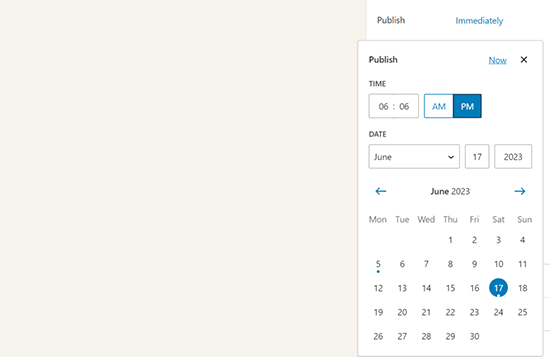
You can select a future date and time to schedule your article in WordPress.
You can also select a past date using the same tool to backdate your blog post.
When you select a future date, you will notice that the Publish button at the top will change to ‘Schedule…’.
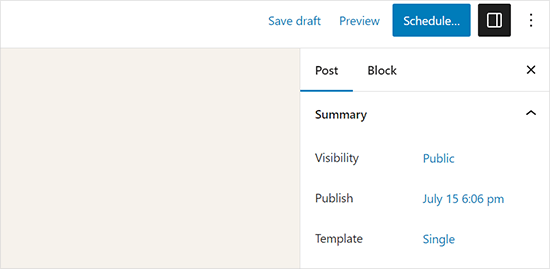
Simply click on the ‘Schedule’ button, and WordPress will schedule your post.
The scheduled post will be automatically published on the date and time you choose.
How to Schedule WordPress Posts in the Classic Editor
If you are using the classic WordPress editor, then we highly recommend you start using the WordPress block editor.
The block editor is speedy, modern, intuitive, and helps you create better content for your blog.
However, if you still want to use the older classic editor, then here is how you schedule posts in WordPress.
Once you are done writing your post, look under the ‘Publish’ meta box in the right column of the edit screen and click on the ‘Edit’ link next to the ‘Publish immediately’ option.
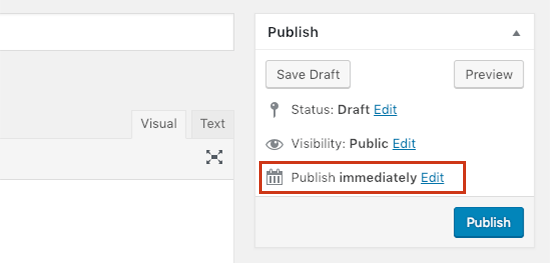
It will now show you the date and time options.
Go ahead and enter the date and time when you want to publish your blog post, and click on the ‘OK’ button.
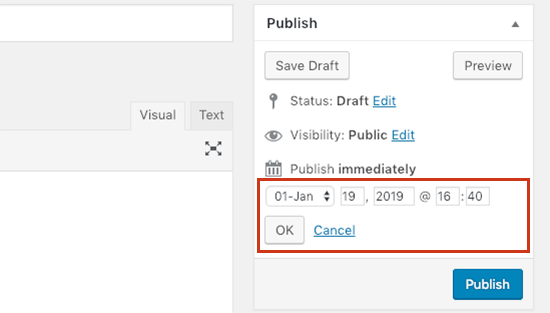
You will notice that the blue ‘Publish’ button will now change to ‘Schedule’. Go ahead and click on the ‘Schedule’ button to save your changes.
WordPress will now publish your blog post on the date and time you entered.
Video Tutorial
Troubleshooting WordPress Scheduled Posts
As your website grows, you will be regularly managing and scheduling WordPress posts. Here are some handy tips that will help you efficiently manage your scheduled posts in WordPress.
How do I use my own timezone in WordPress?
You need to change the WordPress timezone settings so that your website uses your preferred timezone to publish scheduled posts.
How to view all scheduled posts in WordPress?
Simply go to the Posts » All Posts page in your WordPress admin and then click on the ‘Scheduled’ link above the posts table. It will show all scheduled WordPress posts in the queue.
What to do if WordPress scheduled posts missed the schedule?
To run scheduled tasks, WordPress uses a system called WP Cron. If the cron is unable to run due to a misconfiguration on your WordPress hosting server, then your scheduled posts will miss the schedule and won’t be published.
If you notice that your blog is affected by this, then you can install the Missed Scheduled Posts Publisher plugin.
To learn more, you can see our article on how to fix the missed schedule post error in WordPress.
How to unschedule a WordPress post?
You can unschedule a WordPress post by editing the post and changing its status from ‘Scheduled’ to ‘Draft’.
In the new default WordPress editor, you will find the option to switch to draft at the top.
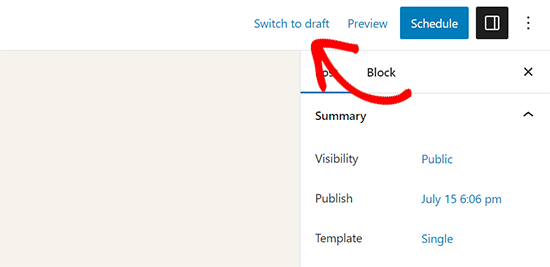
Clicking on it will unschedule the post and save it as a draft.
On the other hand, if you are using the old classic editor, you will find the Draft option in the Publish meta box.
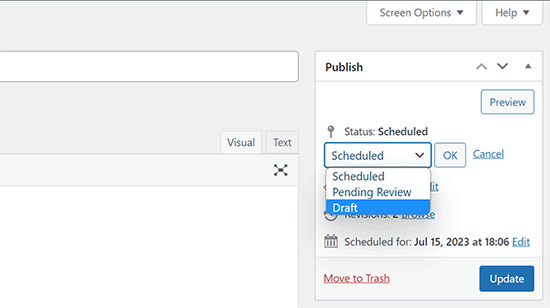
After you have changed a scheduled post to a draft, you can continue working on it, or you can publish it right away if you want.
Can I also schedule WordPress pages?
Yes, you can schedule a WordPress page just like you would schedule a normal blog post.
Can I schedule changes to a published post or page in WordPress?
By default, you cannot schedule changes to a post or page that you have already published. Any changes you make to a published post will become live as soon as you save it.
However, you can use the PublishPress Revisions plugin to make scheduled content updates.
For more details, please see our tutorial on how to schedule content updates in WordPress.
Once you get used to scheduling posts for your website, you may want to explore other areas of your website tasks that you can automate.
We have compiled a detailed guide on creating automated workflows in WordPress that will teach you how to save time on routine website tasks with automation.
We hope this article helped you learn how to easily schedule your blog posts in WordPress. You may also want to check out our guide on the best times to publish blog posts.
If you liked this article, then please subscribe to our YouTube Channel for WordPress video tutorials. You can also find us on Twitter and Facebook.


Jiří Vaněk
Am I correct in assuming that scheduled articles are run by WordPress’s own CRON? Will this work even if I have WordPress internal CRON turned off and call the WordPress CRON URL using the internal CRON on the server every 5 minutes?
WPBeginner Support
Normally posts would use the WordPress CRON but if you have set up your CRON to use a different tool then it should still post using your other CRON service.
Admin
Jiří Vaněk
Thank you for the confirmation. Since I have my own server, I disabled WordPress’s internal CRON and manually run the CRON URL that WordPress has every 10 minutes using the Linux CRON directly on the server. You are absolutely right; it works great this way.
Christoph
Thank you for this great tutorial.
I have a category of 10 posts and want one of them published while every 9 others are unpublished. After a week another one will go live and the last one get unpublished. Is there a scheduler which can do this?
WPBeginner Support
We do not have a recommended method for setting that up at the moment.
Admin
Dennis Str
Hi !
Can I publish a post in a loop? For example, a post that will be shown every 20th of June every year.
I want to make a history category where the user will see each day of the year (365) the article of that day automatically.
Thank you
WPBeginner Support
You would want to look at the Tao Scheduled Update plugin at the bottom of this article
Admin
Dennis Str
I saw that has long time to be updated but thank you very much for your reply.
Helly
wow good information sir i like it your blog very well thank you so much
WPBeginner Support
Glad you like our content
Admin
Pranaya Nair
This was pretty helpful. Thank you so much!
WPBeginner Support
Glad our guide was helpful
Admin
Keshav Vanjara
How much posts are required to post per day
WPBeginner Support
That is a personal preference and availability question. The answer changes by person and time they have available
Admin
Perfect Lussa
Good news I always think how will I do to schedule my post. But I wasn’t able to know that. But thank you very much. I got something this will help me
WPBeginner Support
Glad our article could be helpful
Admin
Andrea
Thank you very much for your page!
WPBeginner Support
You’re welcome, glad you like our tutorials
Admin
Jackie
Thank you SO much for this post! I am not a beginner to WordPress, having started a site in 2009. I did, however, feel like a complete beginner with the new editor! (Which I at first groaned over the change, but now find it quite nice.) I am making a commitment to blog once a week at the same time and wanted to schedule my post in advance. The tabs are NOT intuitive, like, if you want to “schedule” a post, why would you click on a link that says, “immediately”??? Very confusing. I already messed up by hitting Publish and had to trash and redo the post because once published, you can’t unpublish. I have saved this article to reference until I have mastered it. By then, I’m sure they will change things again! In the world of technology, we will always be beginners. With major gratitude! Jackie
WPBeginner Support
Glad our article could help clear up some of the confusion
Admin
Rex
Hello. Your articles are always so helpful. Thanks.
I am looking for a way to set an individual post (or possibly posts in a designated category) to republish regularly (such as weekly, on Sundays, every 10 days or similar). This would operate independently of any other global republishing schemes. Nothing is coming up on google.
Thanks for your help.
locloc
I posted a product and when I updated that product it automatically scheduled for me three days later. I do not know what’s going on. If you help me!
Sanjay Sajeev
Hi, It is a great and simple schedule tip you have share here.
But I have a doubt. WIll it affect my blog, if I scheduled more than 5 posts to be published a day? Will it affect my blog’s SEO performance?
WPBeginner Support
Scheduling your posts should not have an affect on your site’s SEO
Admin
helal
Hi every body!
Is there a way to set a default time for all posts? I want all my posts be published at a certain time of the day , i wil only set the date one by one
maggie
I scheduled a post and it has posted three times on my home page. I only wanted it to post once but now I have now clue what I did to make it post three times:( Any help?
WPBeginner Support
Hi Maggie,
You can delete the duplicate posts. If this happens again, then please review your plugins or contact your hosting provider for help.
Admin
Drew
It seems that the “schedule” button is broken in the current version of wordpress.. 4.9+
In our version, 6 wordpress sites now all of them do not show the “schedule” button. Even after changing the schedule post date, the “Publish” button does not revert to “Schedule” as it previously did…
Sigh..
WPBeginner Support
Hi Drew,
It is working fine at our end. Please try these WordPress troubleshooting steps to figure out what’s causing this issue.
Admin
Patrick
I’m totally unable to schedule posts. I can’t even click the button! Nothing happens. Some help would be great… I’m going on holiday soon and need to do some scheduling. Many thanks.
Irina
I can’t see the calendar button anymore. Why is that? It was there a few days ago, yesterday it disappeared and now can’t find it anymore. I can only publish on the spot, but no way to schedule it anymore.
Emily
Me too. Maybe it’s gone??? Surely they wouldn’t make it not an option any more?!
Anand
Is this 24hrs time format?
Nicki Brunton
I have a page that i update daily, is there any way i can schedule say a weeks worth of updates for the one page? Rather than having to update it daily…..
Chris Klosowski
Nicki,
You could check out h Revisionary plugin if you haven’t already.
It might get you closer to what you are looking for.
Hà Duy Tuân
Hi Wpbeginner..!
I want to everyone can see Schedule posts at my site..
What can i do now??
thanks for support
WPBeginner Support
You can try ‘SOUP – Show off Upcoming Posts’ plugin.
Admin
Amelia
Question, My scheduled posts are working just fine, but on my blog on the home page where you have a list of the various blog posts and a “read more” option for each one, there is this random circle on all the scheduled blog posts.
I dont really want everyone to know which ones were scheduled and which were posted live. Is there any way to remove this?
Edmond
Hello, I just scheduled my post but when the day and time arrive, Nothing is happening. Only publish today i see even if the time have passed.
Aqsa Tariq
Hi, my scheduled posts are giving an error on both websites I am maintaining – how do I check for any errors? I already have too many plugins installed and don’t want to add another for this.. just wondering why the error is there and what I can do to fix it?
Thanks,
Lisa Braithwaite
I don’t see an option for scheduling at a.m. or p.m. In my settings, I’m using a 12-hour clock, not a 24-hour clock, but it looks like I have to use 24-hour time here. Or am I missing something?
Mark
Thanks for the info on this. Everything seems to go ok at first. I make a change to a page that I don’t want to be visible for another couple days. I pick my date/time and hit schedule. The problem is that for the next couple days anytime I go to the page I get an oops page not found error. Once the scheduled time arrives, then the change goes through and everything works fine again. Please help this is driving me bonkers!
Thanks,
Mark
WPBeginner Support
The page will not appear until the time it is scheduled to be published. If you want to take a look at the page before it is published, then you need to login to your WordPress dashboard. Go to Posts or Pages and locate the post/page you scheduled. You will find a preview link below the post/page title.
Admin
Donna
Wow! I never thought it would be such an easy fix. Thank you so much!
Michael A Terndrup
This is also great for churches correct when they have a special worship service
Kori Miller
Hi. On one of my blogs, scheduling isn’t working. After I hit edit and ok, the schedule button doesn’t appear. Any ideas why this might be happening on one site, but not the others? They’re all updated to the most recent WP version. Thank you!
Irina
I’m having the same issue, just 2 years later. No idea how to fix it…
WPBeginner Staff
You add time in 24 hr format. Like 13:00 for 1 pm.
Melissa {Persnickety Plates}
Am I missing where you pick am/pm?
Nathan Pierce
I don’t understand how the time my visitors coming relates to the time I should post.
If they come on Fridays at 4:30 p.m. (while they’re waiting for their work week to end), shouldn’t I post any time before Friday at 4:30 p.m.? I want to be sure the content is already there when they come. If I publish at 4:30 p.m. and someone comes a little early at 4:27 p.m., they’ll miss my post. Even if I publish as early as Thursday, or last month, the content will be there waiting for them when they come this Friday at 4:30 p.m.
What am I missing?
Anders Riise Koch
I use scheduling more to free up my own time. If I have a week of scheduled posts I don’t have to sit down every day, think of what to write, write the post and publish immediately. It lets you have a day off without your blog being neglected.
Twiford Ministries
Thank you! We travel extensively. This is perfect! We also want to have about 10 posts scheduled before we actually go public with our site so we’re not so pressured – we newbies at this!
Debbie Roberts
Thank you for this post. I thought I had to install a plugin to schedule posts, I had no idea that it was so simple!
rahul
Even after getting adsense !!
There is always a lot to learn !!
Basics are good .. thanks
Mike
Thanks for posting. Didn’t even know this feature existed. Good to learn something new everyday!
Vasant Sakpal
ohh… nice catch… I have using wordpress from 1 year but didnt notice this option. thanks for sharing
WPBeginner Staff
Please see our guide on how to fix missing schedule error in WordPress.
Angélica Costa
Any suggestions on what to do about the “missing schedule” issue?