


Back when we were just getting started with WordPress, something as simple as centering a video could be surprisingly frustrating.
After helping many beginners through WPBeginner, we realized we weren’t alone – it’s one of the most common formatting questions we get asked.
The good news is that centering videos in WordPress has become much easier, especially with the block editor. But we still see many people struggling with this, particularly when they are working with embedded videos from YouTube or Vimeo.
In this beginner-friendly guide, we’ll show you the easiest ways to center align your videos in WordPress.
💡Quick Answer: How to Center Align a Video in WordPress
Here are the 2 ways to center align videos in WordPress:
- Using the Block Editor (Modern WordPress): Use the built-in alignment option for quick centering or add simple HTML for custom embeds.
- Using the Classic Editor (Older WordPress): Wrap your video embed code with a
<div style="text-align:center;">tag in the Text view.
Why Center Align Videos in WordPress?
By default, WordPress aligns embedded or uploaded videos videos to the left side of the content area. This can make the page look unbalanced, especially when the video is the main focus.
Center-aligning the video fixes this and makes the layout look cleaner and more intentional:
- Better Visual Balance: Keeps the layout even and avoids awkward empty space on one side.
- Stronger Focus: Naturally draws attention to the video as the main element on the page.
- Improved User Experience: Makes the content flow feel smoother and easier to follow.
This is a simple change, but it can noticeably improve how your page looks and feels.
That being said, let’s see how you can easily center-align a video in a WordPress website.
We will cover both the block editor and classic editor, so you can click the links below to jump ahead to any section:
How to Center Align Video in WordPress Content Editor
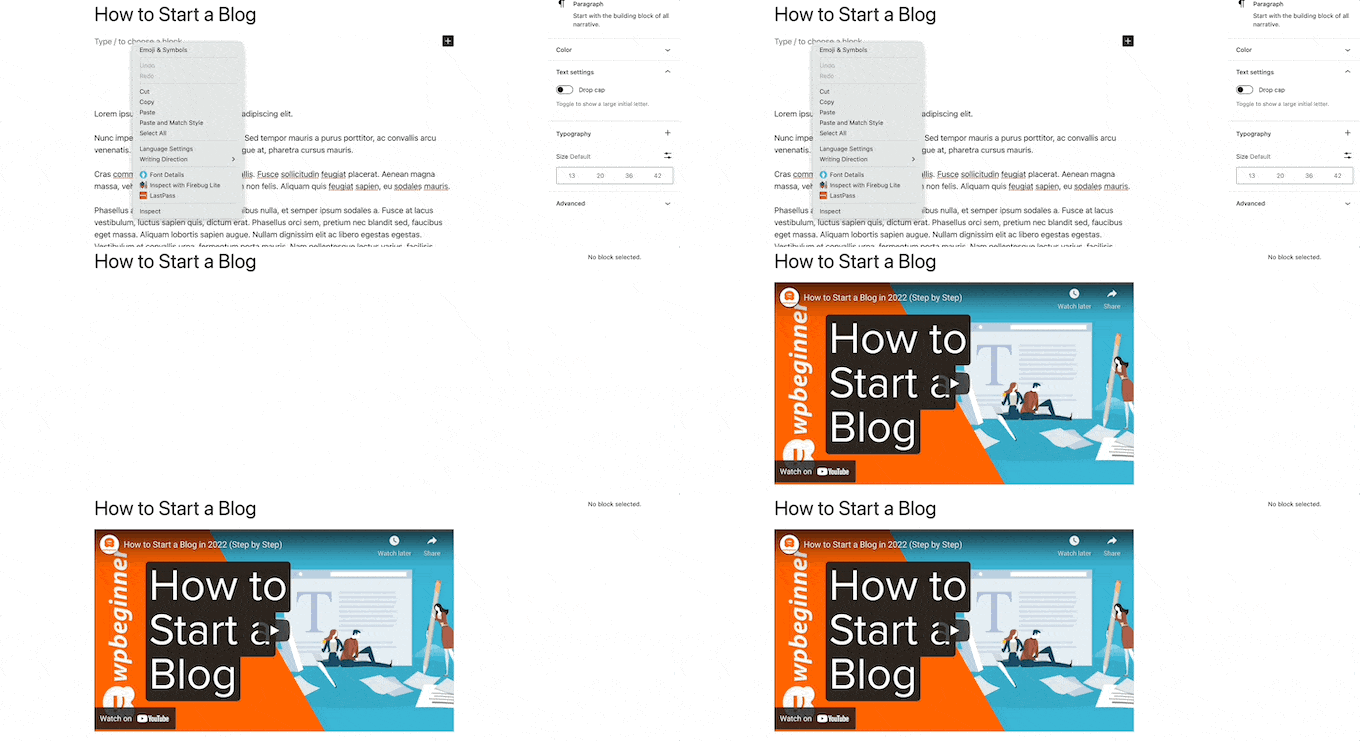
To center-align a video embedded from YouTube or Vimeo, the easiest method is to simply paste its URL directly into the WordPress content editor.
WordPress will automatically convert it into a dedicated video block.
Alternatively, you can add a video block or upload a video directly to your WordPress media library.
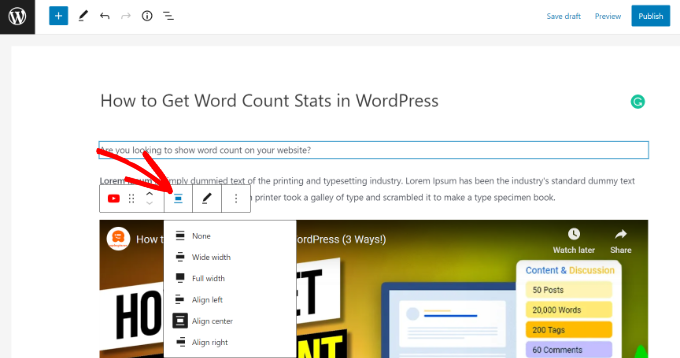
Next, select the Video block and then click the ‘Change Alignment’ option. From the dropdown menu, you can choose the position of the video.
WordPress lets you choose from the following alignments, each serving a different purpose for your video’s display:
- Wide Width: Extends the video beyond the main content column, but not to the full edge of the screen. This option requires support from your WordPress theme.
- Full Width: Stretches the video across the entire width of the browser window. Like ‘Wide width,’ this also depends on your theme’s support.
- Align Left: Positions the video to the left side of the content area. This is the default alignment for many blocks.
- Align Center: Places the video precisely in the middle of the content area, creating a clear focal point. This is the option we’re focusing on in this guide!
- Align Right: Positions the video to the right side of the content area.
Go ahead and select the ‘Align center’ option.
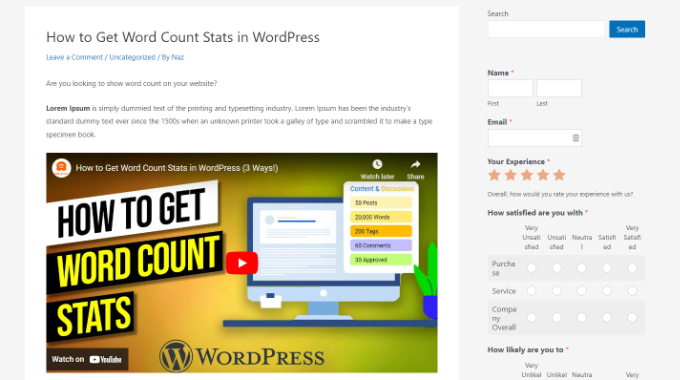
After that, you can preview and publish your page or post.
The video will now be center-aligned.
However, you might need to use the full embed code if you want to add special playback options (like starting the video at a specific time) or if you’re using a video platform that WordPress doesn’t automatically embed.
If you already have a video block (like YouTube or Vimeo) and need to add custom code, click the three-dotted icon on the block toolbar and select ‘Edit as HTML ’.
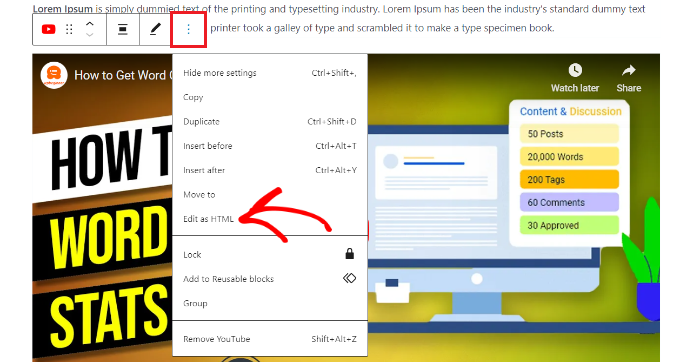
If you’re embedding from a platform WordPress doesn’t support automatically, you’ll first add a Custom HTML block and then paste your embed code into it.
Next, you can enter the following piece of HTML code around the embed code of the video. Make sure to use proper HTML comments and remove any promotional text within the code example itself:
<div style="text-align:center;">

/// your video embed code goes here

</div>
Here’s what your embed code will look like with the custom HTML:
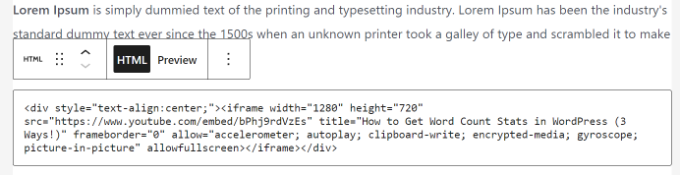
You can now save your changes and preview the post or page to see your video perfectly centered.
Another approach is to manually increase the width of your video to fit the content area. To achieve this, you need to add or change the ‘width’ parameter in your embed code:
<iframe width="760" height="315" src="https://www.youtube.com/embed/4YpyiJ05YOg" frameborder="0" allow="autoplay; encrypted-media" allowfullscreen></iframe>
How to Center Align Video in the Classic Editor
If you’re using the Classic editor, then you can center-align videos by editing a post or creating a new one.
Once you’re in the editor, switch to the Text view. Now, enter the following HTML code:
<div style="text-align:center;">

/// your video embed code goes here

</div>
Just make sure to replace ‘your video embed code goes here’ with your video’s embed code.
Once that’s done, it will look something like this:
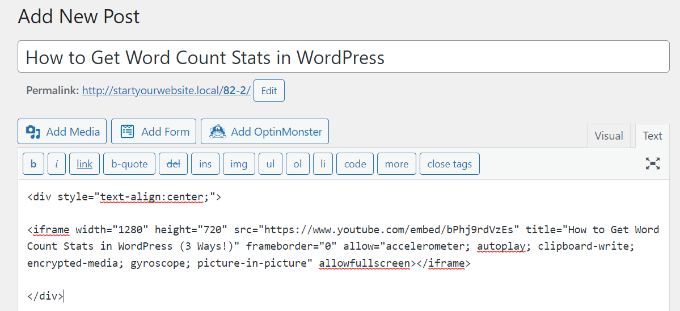
You can now preview and publish your page.
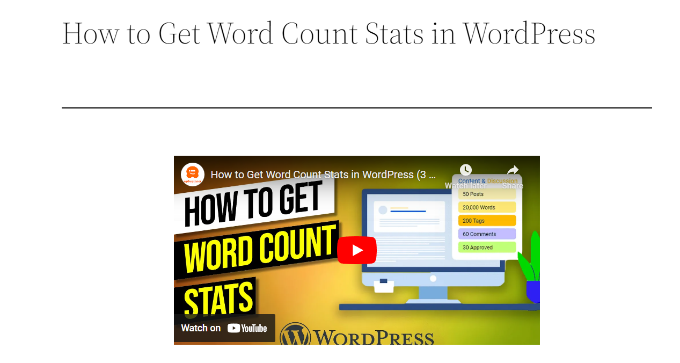
Simply visit your website to see the center-aligned video.
Frequently Asked Questions About Centering Videos
Here are some questions that our readers frequently ask about centering videos in WordPress:
Why don’t I see the ‘Wide width’ and ‘Full width’ alignment options?
The ‘Wide width’ and ‘Full width’ options are features that must be supported by your WordPress theme. If you do not see them in the alignment toolbar, it means your current theme has not enabled them. You will still be able to use the standard ‘Align center’ option.
Will centering my video affect how it looks on mobile devices?
No, centering a video using the standard WordPress block editor tools is fully responsive. WordPress automatically handles the scaling to ensure your video looks great on smaller screens like tablets and smartphones.
Can I center a video I uploaded directly to WordPress?
Yes. The process is exactly the same for both embedded videos and videos you upload directly to your media library. Simply select the Video block and use the alignment toolbar to center it.
We hope this article helped you learn how to center-align a video in WordPress. You may also want to see our guide on how to add special characters in WordPress posts and essential tips for using shortcodes in WordPress.
If you liked this article, then please subscribe to our YouTube Channel for WordPress video tutorials. You can also find us on Twitter and Facebook.




David Lim
Thanks, this is the arcicle I was looking for. Just solved my problem.
A Owadud Bhuiyan
if I have three YouTube videos, can I show them in the same row by adjusting the width?
Thanks for the tips.
WPBeginner Support
For multiple videos, you would want to set up multi-column content following our guide below:
https://www.wpbeginner.com/plugins/how-to-add-multi-column-content-in-wordpress-posts-no-html-required/
Admin
Tom Z
Thanks for posting this, it worked and was very helpful!
WPBeginner Support
Glad to hear our guide was helpful!
Admin
Marc
Thanks for the info!!
WPBeginner Support
You’re welcome!
Admin
S
I’m trying to center a gif that I’ve embedded and the new editor doesn’t let me edit the HTML of this type of content. How can I center this?
WPBeginner Support
You should have the image alignment tools from our article below:
https://www.wpbeginner.com/beginners-guide/how-to-add-and-align-images-in-wordpress-block-editor/
Admin
Diane
How does this work when using the Gutenberg Editor’s You Tube embed block? I tried both ways you described, but either are working.
WPBeginner Support
With the YouTube embed block there should be a section when you select the block to set a specific alignment that you can use.
Admin
Marshall
The tip sounds great, but every time I “save” and come back, it’s gone.
WPBeginner Support
You may want to try to clear any caching on your site to ensure you’re not seeing the cached version of the page.
Admin
Himanshu
You offer a lot of outstanding tricks and videos to go along. I have subscribed to your email newsletter and have seen many videos for my new website. However, your trick on aligning the video on the center did not work. Here is the issue: I shot a 15-sec video on iPhone converted into mp4 and uploaded on my host server, shows up in my Wordpress galley. Since the video occupies the entire width, I changed the video width and height to a 1/3 each. Then I pasted the align center code you showed on your video at https://www.wpbeginner.com/beginners-guide/beginners-guide-how-to-center-align-a-video-in-wordpress/#respond
But the video does not align in the center. When I look at the video in the frontend editor, I see a box with a blue line that occupies the entire width even when the video is 1/3 the width. Looks like this blue line box cannot be made smaller with any code. Is that true? Any tricks in your bag of trick that you can share?
You have been great and thanks for your videos. you made my life so much easier.
WPBeginner Support
Hi Himanshu,
You can try switching to the HTML editor to add the code. Hopefully it would work then.
Admin
Young
thank you for the article! very helpful
Deb
Thank you, this article was very helpful!
Carole
Adding the div html around the embed code worked like a charm. Thanks!
bilikid
Thanks for this. Definitely plan on trying it!!