


“I’m stuck with GoDaddy’s Website Builder and can’t grow my business.” That’s something we hear from small business owners almost every week.
We know exactly how that feels — struggling with limited features, rigid design options, and no real way to scale.
Since then, we’ve helped hundreds of businesses move from GoDaddy Website Builder to WordPress. With the right approach, this transition doesn’t have to be complicated or risky.
In this step-by-step guide, we’ll show you how to move your GoDaddy site to WordPress without losing content or confusing your visitors.
Whether you’re a complete beginner or somewhat tech-savvy, you’ll find everything you need to make the switch smoothly.

Note: This article has many manual steps, which can be time-consuming depending on the size of your website. There is no export tool to move your site from GoDaddy Website Builder, so just be aware that the process can be pretty complicated.
Quick Answer: How to Move GoDaddy Website Builder to WordPress
GoDaddy Website Builder has no export tool, so you have to manually save your content, set up WordPress on new or existing hosting, and then recreate your pages and posts. Depending on your site size, the whole process takes anywhere from a few hours to a full day.
Why Switch from GoDaddy Website Builder to WordPress?
WordPress gives you full ownership of your website — GoDaddy Website Builder locks your content into their closed platform.
- More flexibility: WordPress has over 59,000 free plugins and 10,000+ themes. GoDaddy Website Builder offers a small set of built-in tools with no way to extend them.
- No lock-in: With WordPress, you own your content and can move it to any host at any time. GoDaddy Website Builder has no export feature — which is why this migration takes manual effort.
| Feature | GoDaddy Website Builder | WordPress |
|---|---|---|
| Themes / Templates | ~300 templates | 10,000+ free and paid themes |
| Plugins / Apps | ~20 built-in tools | 59,000+ free plugins |
| Content Ownership | GoDaddy-hosted only | Self-hosted, fully yours |
| SEO Control | Basic | Full control (with AIOSEO) |
| Export Feature | None | Full content export available |
Step 0: Getting Started
GoDaddy’s Website Builder and WordPress use completely different systems. That means you can’t install WordPress on the same plan you’re currently using — you’ll need a new hosting account to make the switch.
If you already have GoDaddy’s regular hosting (not Website Builder), then yes, you can use it for your WordPress site. But if you’re starting fresh or moving away from GoDaddy altogether, we recommend choosing a better WordPress hosting provider that makes WordPress easier to manage.
We’ve helped thousands of beginners set up their WordPress sites using Bluehost. It’s one of the most beginner-friendly options out there and comes with WordPress pre-installed, so you don’t have to worry about technical setup.
They’re also offering WPBeginner readers a generous discount — starting at just $2.99/month, plus a free domain name and SSL certificate.
That’s helpful if you’re ready to move your site to a new URL too.
Now that you’ve picked your hosting plan, let’s walk through the steps to move your site from GoDaddy Website Builder to WordPress.
Here is an overview of the steps you’ll take to switch from GoDaddy Website Builder to WordPress:
- Step 1: Save Your Content and URLs from GoDaddy Website Builder
- Step 2: Set Up GoDaddy Hosting for Your WordPress Site
- Step 3: Point Your GoDaddy Domain to a Different WordPress Host
- Step 4: Installing WordPress
- Step 5: Add Your GoDaddy Website Content to WordPress
- Step 6: Setting up Redirects
- Step 7: Customizing Your WordPress Site
- Frequently Asked Questions
- 🎁 Bonus: Useful Resources for Your New WordPress Site
Step 1: Save Your Content and URLs from GoDaddy Website Builder
One thing we appreciate about WordPress is how flexible it is. It supports a variety of tools that make it easier to move content from other platforms.
There are importers available for services like Blogger, Tumblr, LiveJournal, and even for moving from platforms like Weebly or Shopify.
But when it comes to GoDaddy Website Builder, there’s no automated importer. That means you’ll need to take the manual route.
It takes a bit more time, especially if you have lots of content. But we’ve helped people do this before, and we’ll walk you through it step by step.
Backing Up GoDaddy Website Builder Content
Since GoDaddy doesn’t offer export tools, you’ll need to save everything manually to your computer.
Option 1. Download Images and Content Manually
If your site has just a few pages, this is the easiest option. You can save each image and copy the text into text files.
To save an image, right-click on it and choose ‘Save image as…’

Do this for each image you want to move to WordPress.
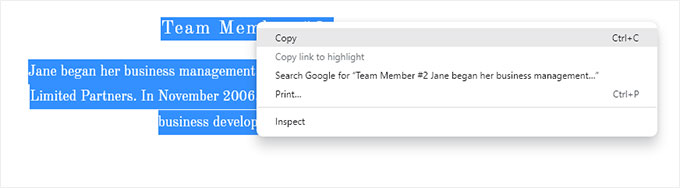
For text, highlight the content and copy it. You can paste it into a text file or Word document.
Another method is to open each page in your browser and press CTRL+S (Command+S on Mac).
Select ‘Webpage, Complete’ as the format when saving. This will grab images and text together.
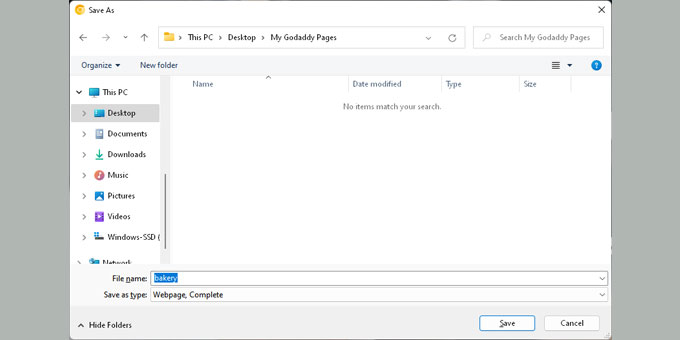
Repeat for every page. Once you’ve saved everything, open the files offline to double-check that all content saved correctly.
Option 2. Download All Pages Using HTTrack
HTTrack is a free website copier tool for Windows, MacOS, and Linux. It lets you download an entire website to your computer.
It works well for text-heavy sites. Keep in mind that GoDaddy hosts images on CDN servers, so some images may not download automatically — you may need to save a few of them manually after the download is done.
If your site doesn’t rely heavily on images, this option can save you a lot of time.
Once HTTrack is installed, start a new project. Choose a name and pick a folder to save your website.
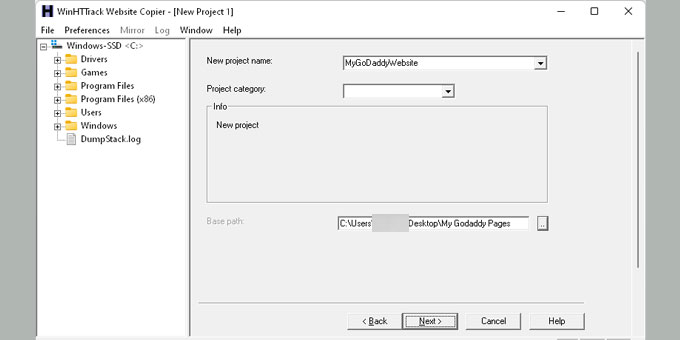
Click ‘Next,’ then click ‘Add URL’ and enter your website address (like https://yourdomain.com).
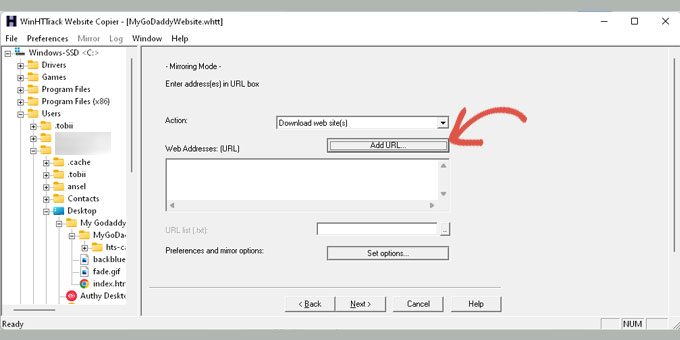
Click ‘Next’ again to start the download process.
When it’s done, HTTrack will show a confirmation message.
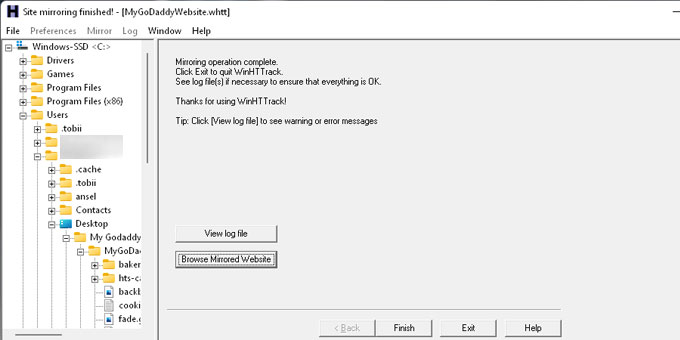
You can then click ‘Browse Mirrored Website’ to view your downloaded site.
Note: Be sure to double-check that you’ve copied everything. Once GoDaddy Website Builder is turned off, you won’t be able to access your old site.
This part might feel a bit tedious, but it’s worth doing carefully.
GoDaddy makes this process harder than it needs to be. But switching to WordPress means full control over your site — and that’s worth a few extra steps.
Backing Up Your Link Structure
You’ll also want to save your site’s URL structure. This helps you set up redirects later so visitors don’t land on broken pages.
If your site is small, you can copy each page URL and save it in a text file.
For larger sites, use a tool like Link Klipper for Chrome to extract and save all URLs at once.
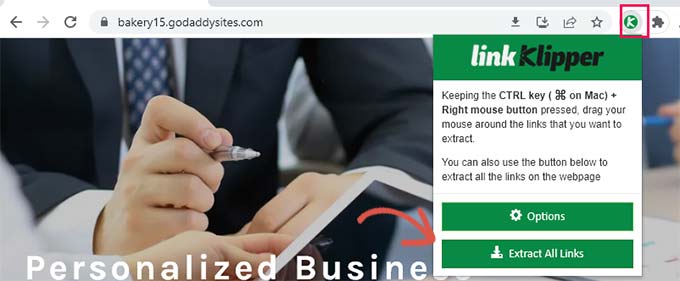
Don’t worry if you miss a page or two. We’ll show you how to catch missing pages using WordPress 404 tracking tools later in the guide.
Step 2: Set Up GoDaddy Hosting for Your WordPress Site
This step is only for users who plan to use GoDaddy’s hosting service for their WordPress website.
If you’re using a different host like Bluehost, SiteGround, or Hostinger, you can skip ahead to the next step.
Disable GoDaddy Website Builder
To install WordPress on your domain, you’ll first need to turn off the GoDaddy Website Builder.
Log into your GoDaddy account. Click on the ‘My Products’ tab under your username.
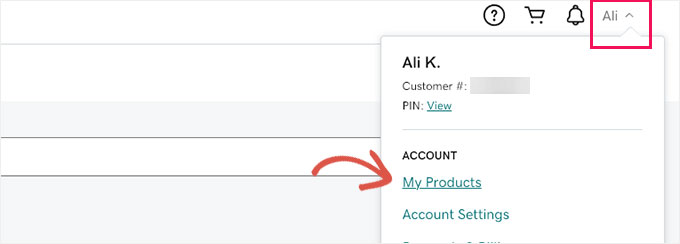
You’ll see your website listed under the Products section.
Click the three-dot menu next to your site. Then select ‘Edit your plan.’

This opens a popup with your Website Builder options.
Go to the ‘Overview’ tab and look for a link to cancel your account.
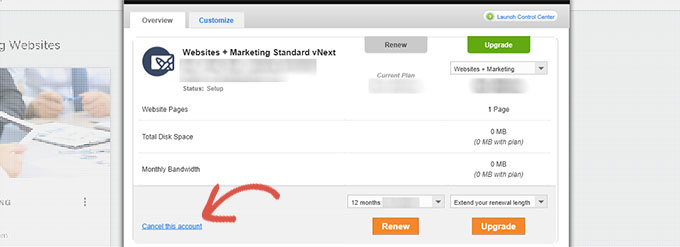
Once you cancel the Website Builder plan, your domain will be free to use for WordPress.
This process may take up to an hour before everything is fully deactivated.
Adding Hosting to Your Domain
Now that your domain is available, you need to assign hosting to it.
From your GoDaddy dashboard, click ‘Web Hosting’ under Account Manager. Then click the ‘Manage’ button next to your hosting account.
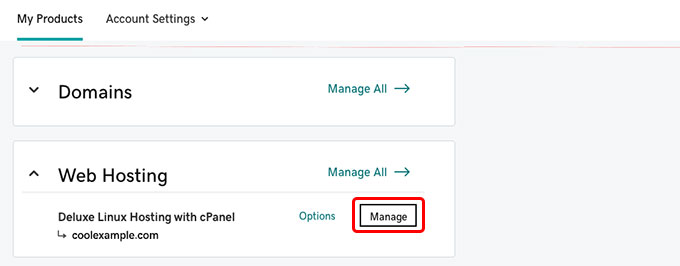
This will take you to your hosting account’s cPanel dashboard.
Scroll down to the Domains section and click on ‘Addon Domains.’
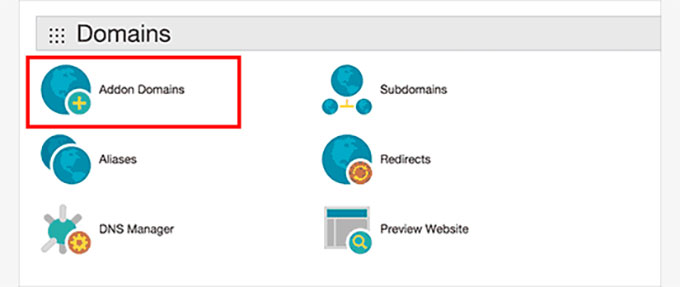
Enter your domain name in the provided field.
The system will fill in the subdomain and document root automatically.
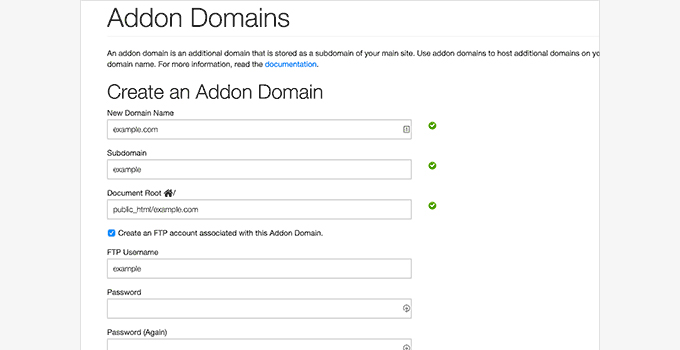
Check the option to create an FTP account. Set a username and password for it, then click the ‘Add Domain’ button.
That’s it! You’ve disconnected your domain from Website Builder and added hosting for your new WordPress site.
You can now jump to Step 4 to learn how to install WordPress and continue the migration.
Step 3: Point Your GoDaddy Domain to a Different WordPress Host
This step is for you if your domain is registered with GoDaddy, but you’re hosting your WordPress site elsewhere — for example, Bluehost, SiteGround, or another provider.
To get started, log into your GoDaddy account. Click on ‘My Products’ under your username in the top-right corner.
On the products page, find your domain name. Then click the three-dot menu next to it.
Select ‘Manage DNS’ from the dropdown menu.
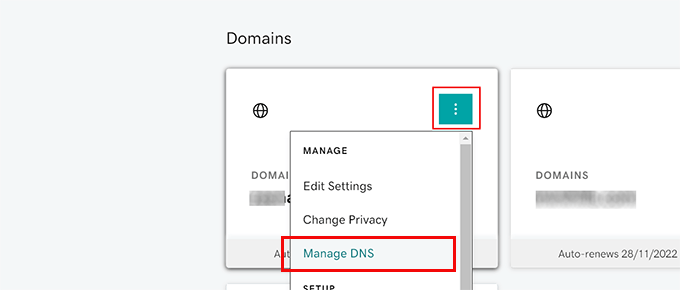
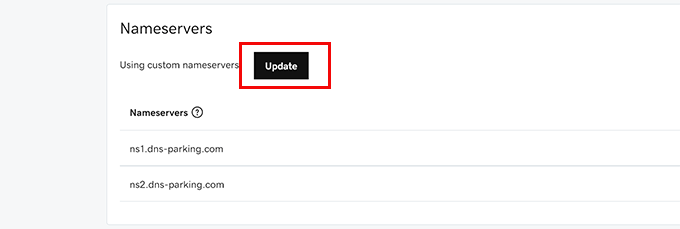
Scroll down to the ‘Nameservers’ section. Click the ‘Update’ button next to it.
This is where you’ll point your domain to your WordPress hosting account.
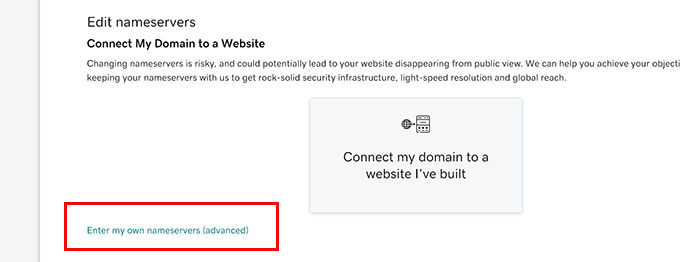
When the popup appears, click the link that says ‘Enter my own nameservers.’
Your hosting provider will give you two nameservers. They look something like ns1.bluehost.com and ns2.bluehost.com.
Enter both nameservers into the fields provided.
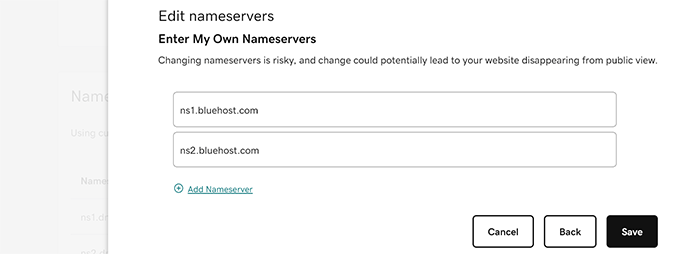
Click the ‘Save’ button when you’re done. That tells GoDaddy to start pointing your domain to your new host.
DNS changes usually go live within a few hours. In some cases, they can take up to 24 hours to fully update across the internet.
Once your domain is pointing to your new WordPress host, you’re ready to move on to the next step.
Step 4: Installing WordPress
At this point, your domain should be connected to your hosting account. You’re ready to install WordPress!
Whether you’re using GoDaddy, Bluehost, or another host, the installation process is basically the same.
WordPress is known for its famous 5-minute install. Most hosting providers make it even easier with one-click installers built right into your hosting dashboard.
If it’s your first time or you’d like some guidance, we’ve put together a full step-by-step WordPress installation tutorial for beginners.
Step 5: Add Your GoDaddy Website Content to WordPress
As we mentioned earlier, GoDaddy Website Builder doesn’t offer an export option. So there’s no automatic way to import your content into WordPress.
This means you’ll be adding your content manually. We’ve done this for several sites before, and once you get the hang of it, it’s a long but straightforward process.
WordPress uses two main types of content: posts and pages. If you’re not sure which to use, here’s a quick guide on the difference between posts and pages.
Go ahead and create new pages or posts inside WordPress. Then copy and paste your content from your saved GoDaddy files into each one.
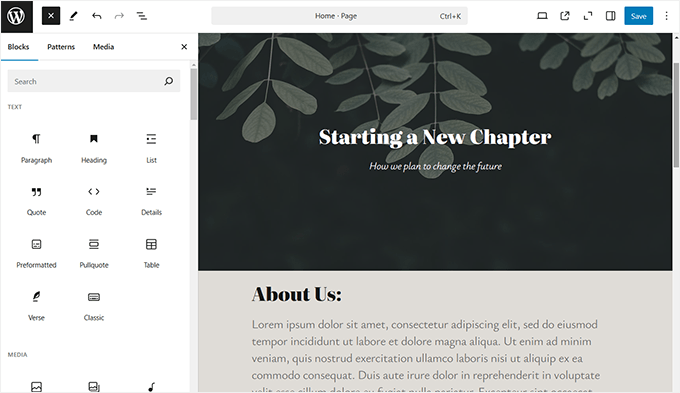
Adding content in WordPress is beginner-friendly. You’ll see an intuitive editor with an add (+) button to insert different content blocks — images, lists, columns, tables, and more.
To add images, click the (+) button and select the Image block. Upload the images you saved from GoDaddy in Step 1. Don’t worry about getting the layout perfect right away — you can adjust it later.
If you’re new to the editor, check out our tutorial on how to add a new post in WordPress and explore all the built-in features.
Once you’ve added content for all your pages and posts, move on to the next step.
Step 6: Setting up Redirects
If you have the list of links from your old GoDaddy site, you can go right ahead and set up redirects.
We’ll show you two methods to set up redirects. Choose the one that works best for you.
Method 1. Set up Redirects Using All in One SEO (Recommended)
This method is more flexible and user-friendly, so we recommend it.
For this method, we’ll be using All in One SEO for WordPress.
It’s the best WordPress SEO plugin on the market. It helps you improve your website’s search rankings and includes a built-in redirect manager.
First, install and activate the All in One SEO for WordPress plugin. For more details, see our step-by-step guide on how to install a WordPress plugin.
Note: There is a free All in One SEO plugin, but you will need at least the Basic plan to unlock the redirects manager feature.
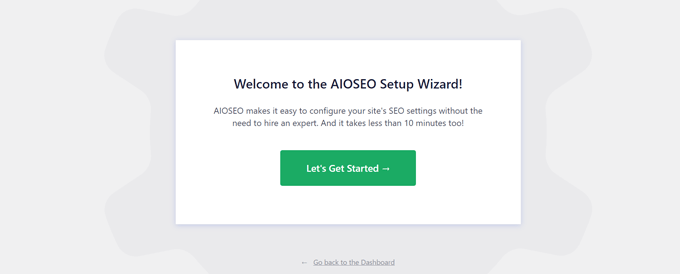
Upon activation, you will see the setup wizard, which will walk you through the initial setup. Follow the on-screen instructions to continue.
Next, go to the All in One SEO » Redirects page to set up your redirects.
Enter the old URL under the ‘Source URL’ field and the new URL for that page in the ‘Target URL’ field.
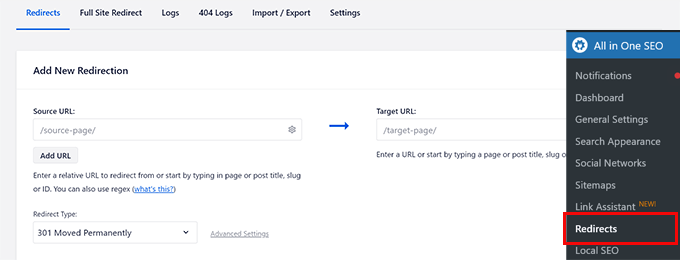
Click ‘Save’ to add the redirect.
Repeat the process for all other links, then visit the old URLs to confirm they redirect properly to your new WordPress pages.
AIOSEO’s redirect manager also tracks how many times each old link is visited, which helps you monitor traffic coming from your old GoDaddy site.
Method 2. Set up Redirects Using Simple 301 Redirects
For this method, we’ll use a free WordPress plugin. It has fewer features, but it gets the job done.
Install and activate the Simple 301 Redirects plugin. For more details, see our step-by-step guide on how to install a WordPress plugin.
Once activated, go to Settings » 301 Redirects. Enter your old URL in the ‘Request’ field and the new WordPress URL in the ‘Destination’ field.
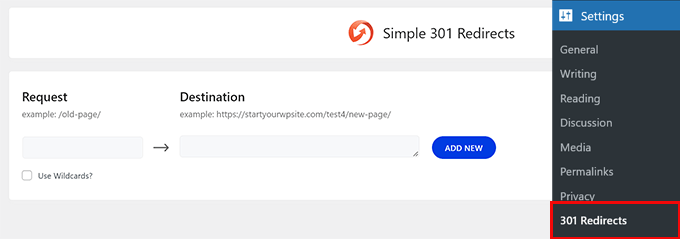
Click ‘Save changes’ to store the redirect. Repeat for all other URLs.
For more options and methods, see our guide on creating redirects in WordPress.
Once your redirects are set up, we recommend creating a backup of your new WordPress site before going live. Duplicator is a free backup and migration plugin that makes it easy to save a full copy of your site.
Step 7: Customizing Your WordPress Site
WordPress comes with thousands of beautiful themes, both paid and free. Take a look at our guide on selecting the perfect theme for WordPress.
The most powerful feature of WordPress is its plugins. There are thousands of WordPress plugins that let you do almost anything you can imagine.
Take a look at all the plugins we use on this site in WPBeginner’s Blueprint, or see our expert picks for must-have WordPress plugins for business websites.
Frequently Asked Questions
Can I migrate my GoDaddy website to WordPress?
Yes, but there’s no automated tool. You have to manually save your content from GoDaddy Website Builder and then recreate your pages and posts in WordPress. The guide above walks you through every step.
Will I lose my SEO rankings when switching from GoDaddy to WordPress?
Not if you set up 301 redirects. Once redirects are in place, search engines follow them to your new WordPress URLs, preserving most of your ranking signals. We recommend using All in One SEO to manage this.
How long does it take to move from GoDaddy Website Builder to WordPress?
It depends on your site size. A small 5-page site can take 2–4 hours. Larger sites may take a full day or more, since all content must be moved manually.
How do I disconnect GoDaddy Website Builder from my domain?
Log into GoDaddy, go to My Products, find your Website Builder plan, click the three-dot menu, and select “Edit your plan.” From there, cancel the Website Builder plan to free up your domain for WordPress.
Do I need to buy new hosting to switch to WordPress?
Yes, unless you already have GoDaddy’s regular web hosting (separate from Website Builder). GoDaddy Website Builder runs on a different system, so WordPress needs its own hosting account. We recommend Bluehost for beginners.
🎁 Bonus: Useful Resources for Your New WordPress Site
Now that you’ve moved your site to WordPress, here are some guides to help you get the most out of it.
- Must-Have WordPress Plugins for Business Websites – The real power of WordPress comes from its massive library of plugins. Think of them like apps that add new features to your website.
- Best Free WordPress Business Themes – Want a fresh new look? Here are some of our favorite free themes for business sites.
- Ultimate WordPress SEO Guide for Beginners – Many users switch from GoDaddy because of SEO limitations. Now that you’re on WordPress, use this guide to boost your search rankings.
- The Ultimate WordPress Security Guide – WordPress is secure out of the box, but this step-by-step guide helps you lock things down even more.
- MonsterInsights – Set up Google Analytics on your new WordPress site. MonsterInsights shows your traffic stats right inside the WordPress dashboard — no coding needed.
These guides will help you build a site that’s faster, more secure, and ready for growth.
We hope this article helped you move your GoDaddy Website Builder site to WordPress. You may also want to see our comparison of the best drag-and-drop page builders for WordPress to build your new website or our guide on how to create an email newsletter the right way.
If you liked this article, then please subscribe to our YouTube Channel for WordPress video tutorials. You can also find us on Twitter and Facebook.




Joni
Hi, Thanks for the article. It looks like this article was edited recently however I don’t know if you’ve tried to cancel an existing plan in Godaddy recently. It does not work like you explained. Once I hit ‘Edit Plan’ I have no option to cancel. They just give me 2 other options besides the one 1 have. I will have to call them. Just wanted to let you know for accuracy.
WPBeginner Support
Thank you for letting us know, we will be sure to look into this for the article. Hopefully there isn’t another update after we find the new method
Admin
Lori Schubert
I have my website built on go daddy and have my domain and email through them. I want to switch to wordpress. II am also redesigning my website. Is it better to transfer my existing site to wordpress and then modify it or just build a new site on wordpress and then transfer the domain if I can even do that? I’m looking for the easiest way to do this. Thanks!
WPBeginner Support
From what it sounds like you are wanting to do, you would want to create a new site and transfer the domain when you’re ready.
Admin
sandhiya
Hi,
Thank you for this great article! But I want to know is it possible to move the current Godaddy website builder to WordPress with a new own domain?
WPBeginner Support
You certainly could use this article for doing that.
Admin
Md. Kamrul Hasan
If I register with godaddy then can I use wordpress plugins for free? or I have to Buy business plan from wordpress?
WPBeginner Support
If you are hosted on a host other than WordPress.com then you do not need to pay for a plugin. You would want to take a look at our article here: https://www.wpbeginner.com/beginners-guide/self-hosted-wordpress-org-vs-free-wordpress-com-infograph/
Admin
Tony
Hi, but what if you have email hosted with them and ONLY wish to move website hosting to not use their website builder?
So basically, keep their nameservers, just point website to another server.
Can you include that in your article or have another article?
Jerry
Is it possible to move a wix website to wordpress?
WPBeginner Support
You can, we have an article that shows you how to do just that here: https://www.wpbeginner.com/wp-tutorials/how-to-properly-switch-from-wix-to-wordpress-step-by-step/
Admin
Papii
I’ve been contemplating taking action while reading your write-up over and over and over for over a month now. I know this is the move I want to make, I just don’t want to completely loose my company’s current website in the process. Now that I am done procrastinating and ready to make the change, I do have a question if you can answer it…
On Step 2, when canceling GoDaddy Website Builder to switch to GoDaddy Shared Hosting, do I need to be prepared to make a new payment for the hosting service?
If so, while steering clear of GoDaddy’s promoted Wordpress Managed Hosting, do you have a suggestion on what I should choose? This is for a business with very little web traffic now, but, plans of heavy daily web traffic in the future.
WPBeginner Support
Hello,
If your GoDaddy plan includes hosting, then you wouldn’t need to pay for it. You can also move to another WordPress hosting provider.
Admin
Lindy
I’m really happy to read this article because I got stuck (even though I just signed up today). I wanted to have the domain name of my choice and signed up for godaddy.
You must know I am a complete beginner. I want to start a blog with wordpress. Now I’ve understood so far that Wordpress could be my host. I would prefer using Wordpress as a host, rather than setting up a different host with again paying money and not knowing what I am exactly doing.
My main question is, how do I keep my domain name, but change everything to Wordpress and get totally rid of godaddy? Any tips, advice, how-to’s? Your article is great, I just don’t know how to do the same steps if my host is Wordpress.
Many many thanks in advance.
Lindy
WPBeginner Support
Hi Lindy,
You can sign up with another WordPress hosting provider. You own the domain name, so you can use it with your new hosting without leaving GoDaddy. You can also move your domain to another hosting.
Admin
Koreen
Help! I bought a 2 year domain that was on sale and added a 1 month free trile of the website builder thing. I just tried the website builder and like it but found too limited for what I want to do, so I want to create my website in wordpress with the domain I already purchased from godaddy.
So then I found you! I followed step 2 exactly like you wrote and the screenshots, but for some reason my domain doesn’t appear in my account anymore! I can’t manage my domain because it doesnt appear… And yet when I look for it in the domain search it says it’s already used (yeah by me!) But why don’t I see it? You mentioned it would take like an hour for the website builder thing to completely disactivate… So I’m waiting… I even went to my email and clicked on the link from godaddy showing me where to manage my domain and when I clic it it says error…. What happened??? Did I delete my domain along with the website builder?? Doesn’t make sense… HELP!
WPBeginner Support
Hi Koreen,
Please contact GoDaddy support, they will be able to guide you better about the error you are seeing when clicking on manage domains.
Admin
Benita
I’m kind of confused, I used GoDaddy and bought their “Basic Managed WordPress Website” package. Is this article referencing that?
WPBeginner Support
Hi Benita,
No, this article is about GoDaddy customers who use GoDaddy’s website builder to make their websites instead of WordPress.
Admin
Sheena Cunning
I am hosted with GoDaddy, but have my website through Wordpress.com. I’d like to switch to Wordpress.org so I have more capabilities… Is this the procedure I would be followingto make the switch? Do I have to backup my content to switch from wordpress.com to wordpress.org?
I want to add plugins for Facebook pixels and various other things as well as copy code into the body of my website. I’m not able to add plugins with a free Wordpress account I know, but can I copy code into my site without switching?
WPBeginner Support
Hi Sheena,
Please see our guide on how to move your blog from WordPress.com to WordPress.org.
Admin
Casey Halstead
I need to do it this way too. The linked article says it assumes you have wordpress on the old site. I do not.
I have a website builder page in godaddy that has been active 10 years (example1.com). I also have another domain hosted at godaddy with wordpress already installed on it (example2.com). Example2.com has no content and no traffic. Can I build a new wordpress page for example1.com in the hosted wordpress and then use it to replace the current example1.com? Is it the same as in the linked document about moving a wordpress site?
Teresa
Hi:
Is this the same procedure for moving a GoDaddy online store? I have to move my store. the store is so oppressive… I have a years worth of products (work)..UGH! I hope I don’t have to start over. as it stands right now, I am not updating it anymore. No point. I can’t even use my merchant account…
Andy Callan
Will this affect my GoDaddy email address?
Donna Marie Merritt
For those of us not tech-savvy, is it possible to hire you (or can you recommend someone) to move my GoDaddy site to WordPress?
WPBeginner Support
Hi Donna,
We don’t do client work anymore. However, you can hire talented experts from freelancing websites like Upwork, Freelancer, Fiverr, etc.
Admin
Donna Marie Merritt
Thanks!
Sobuj
Thank you so much.
Hostile B
Wow what a huge pain! This is exactly why you don’t use a website builder. I just took a look at the GoDaddy Website Builder a few days ago and recommended the same.
Reshma
This was helpful. Just one question; will i have to make any payments while this procedure? I bought a godaddy domain and website builder two days back, so now if I switch to wordpress is it going to cost me any additional fee?
WPBeginner Support
No it will not cost you additional fee, contact GoDaddy support just to be safe.
Admin
sarvesh
Thanks for this step by step guide about moving website builder to WordPress
But I want to know is it possible to move current Godaddy website builder to WordPress with new own domain?
Thanks again.
WPBeginner Support
Yes it is possible.
Admin
Susan
Thank you for this great article! Is it possible prebuild a Wordpress site first in cPanel, )for example with a .net domain) do all the steps above, and then just change the .net domain to .com through the cPanel before cancelling the website builder hosting? Also, could customers be redirected temporarily to a “maintenance” page during the “transfer”? Thank you for your insight!!
WPBeginner Support
If you own both domains, then yes you can easily build your website on one domain and then move it to another domain.
Admin
Rob
LOVE your editors note.
Arjun Sharma
thanks, bro its really great post I’m also a blogger but one of my clients asks me for this how to How to Move GoDaddy Website Builder Site to WordPress but I don’t know the real method which helps him but now I suggest this article thanks again