Sprout Invoices is a premium WordPress invoicing plugin. It comes with multiple invoicing templates to save time. The plugin allows you to set up payment terms for your clients by adding specific payment amounts, due dates, late fees, etc. It works great with over 300 apps including WooCommerce, QuickBooks Online, WPForms, and more. Sprout Invoices is compatible with several payment methods like PayPal and Stripe to collect payments instantly. The best part is that WPBeginner users can get a 50% OFF on the purchase of Sprout Invoices using our exclusive Sprout Invoices coupon code.
WPBeginner’s exclusive Sprout Invoices coupon code helps you get 50% off on their WordPress invoicing plugin. All you have to do is follow our instructions below to properly redeem Sprout Invoices coupon code, so you can get the best discount on Sprout Invoices.
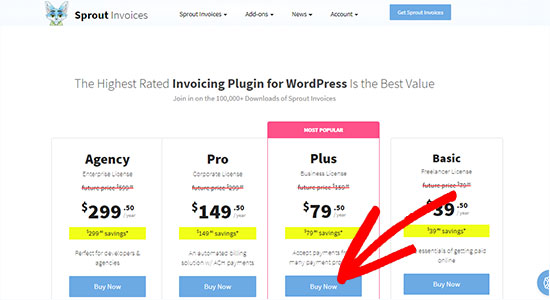
First you need to visit the Sprout Invoices website using our link on WPBeginner and click on the ‘Buy Now’ button on the plan that you want to purchase.
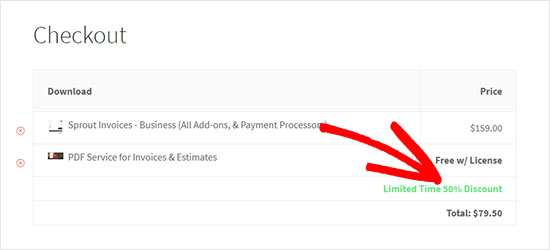
This will take you to the checkout page. You can see the 50% discount is applied automatically.
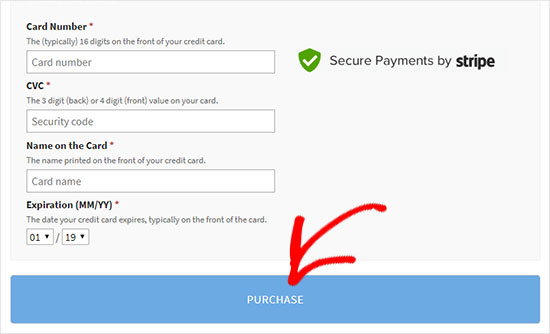
Scroll down to add your account details, select a payment method, and enter the payment information.
Click on the ‘Purchase’ button to complete your purchase.
We hope you found our Sprout Invoices coupon code to be helpful. At WPBeginner, we work hard to negotiate exclusive discounts for our users.
Get 60% OFF SeedProd, the best WordPress theme and website builder! View this Deal »
Disclosure: Our content is reader-supported. This means if you click on some of our links, then we may earn a commission. See how WPBeginner is funded, why it matters, and how you can support us. Here's our editorial process.
The Ultimate WordPress Toolkit
Get FREE access to our toolkit - a collection of WordPress related products and resources that every professional should have!
Used to store interaction and conversion data for campaigns in conjunction with Revenue Attribution.
1 year
_gat_omTracker*
Set, controlled and used by Google Analytics to collect and store data and then send that data to Google Analytics. OptinMonster provides the name if there is no existing tracker found on that page.
-
omCountdown-{id}-{elementId}
Used for countdown elements {elementId} in campaigns {id} to determine when it should complete.
-
om-{id}-closed / omSlideClosed-{id}
Used specifically with slide-in campaigns {id} to determine if it has been closed or not by a visitor.
30 days
om-success-cookie / omSuccessCookie
Used to determine if a visitor has successfully opted in to any campaign on your site to unlock content when using our Content Locking feature.
365 days
om-success-{id} / omSuccess-{id}
Used to determine if a visitor has successfully opted in to a campaign with the ID of {id} on your site.
365 days
omSeen-{id}
Used to determine if a visitor has been shown a campaign by the slug.
30 days
om-{id}
Used to determine if a visitor has interacted with a campaign ID of {id} on your site.
30 days
_omappvs
Used to determine when a new visitor becomes a returning visitor.