


If you’ve ever spent hours staring at spreadsheets trying to match WooCommerce sales to your QuickBooks deposits, you know how painful store accounting can be.
That’s where LedgerPort comes in. It’s an automated connector designed to handle your WooCommerce bookkeeping behind the scenes without forcing you to learn complicated accounting terms.
In this hands-on LedgerPort review, I put the plugin to the test, to see whether it truly delivers on that goal. Here’s everything you need to know.

LedgerPort Review: Why I Chose It (& What You Must Know)
LedgerPort is an online service that syncs your WooCommerce store with QuickBooks Online, using a free WordPress plugin to connect the two. Working as a secure connector, it links your site to LedgerPort servers, which automatically process and send every sale and payment straight to QuickBooks.
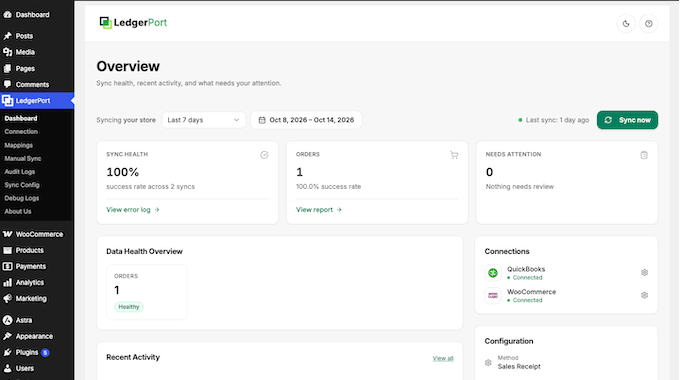
Best of all, LedgerPort is designed for store owners, not accountants. You won’t need to worry about complex accounting jargon like debits and credits. Just configure a few simple settings, and LedgerPort automatically handles your bookkeeping entries for you.
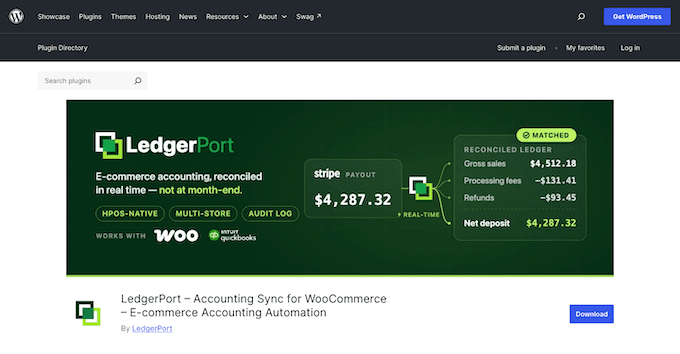
If you’re working to a tight budget, you can download LedgerPort for free from the WordPress.org plugin directory. The free plan works well for a new store with a small number of orders, while paid plans offer higher order limits, faster syncing, and payout matching.
LedgerPort is also an official Silver Intuit App Partner. Once you link your QuickBooks account, you’ll see this partner badge right on the connection screen, confirming your integration is verified by Intuit.
LedgerPort Review: Is It the Right WooCommerce Accounting Plugin for You? (My Honest Experience)
To see how LedgerPort holds up in the real world, I put it to the test on a live WooCommerce store linked to QuickBooks Online. I started with the free plan to see what you get out of the box, then upgraded to the Scale plan to test its higher-volume features.
Here’s a look at how each key feature worked during my hands-on testing.
1. Automatic Order Syncing That Replaces the Monthly Export
LedgerPort sends your WooCommerce orders to QuickBooks Online without manual exports. Your store notifies LedgerPort about each new order through a webhook, which is an automated message your site sends when something changes.
To see this in action, I placed a test order for a hoodie and two beanies, then marked the order as complete. Without me touching a single extra setting, LedgerPort picked up the sale and posted it to QuickBooks during its next scheduled update.
That schedule is an important detail to keep in mind. How frequently LedgerPort updates depends on your plan, which I explain in the pricing section.
But if you ever need an instant sync, you don’t have to wait. Just head over to LedgerPort » Dashboard and click ‘Sync now’.
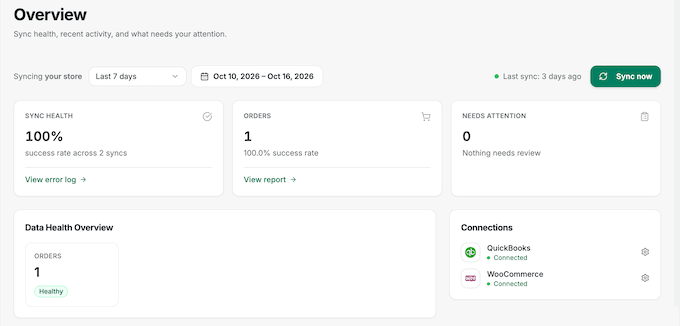
This hands-off approach is easily LedgerPort’s best feature. If you are a small store owner managing your own accounting, it removes a major monthly bookkeeping task from your To Do list.
2. A Guided Setup That Never Asks for Your QuickBooks Password
It’s easy to get started. Simply go to LedgerPort » Connect LedgerPort in your WordPress dashboard and click ‘Connect your store.’
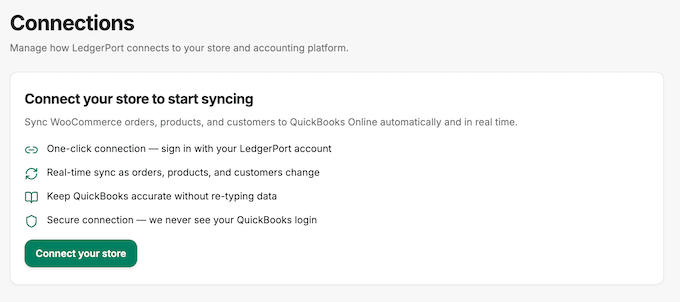
LedgerPort guides you through four brief steps named Login, Account, Business, and Accounting, which took a few minutes on my test store.
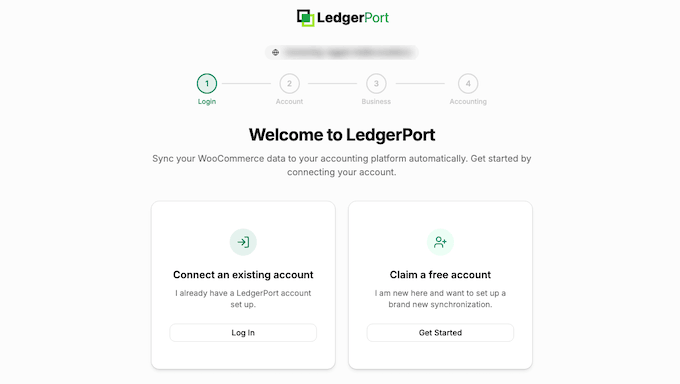
Just be aware that your site must use HTTPS, which is the secure web address protocol.
When I initially tried to connect a test site without HTTPS, the system displayed an error stating the site was not using HTTPS. If that message appears, you must move your site to HTTPS first.
Your QuickBooks account currency must also match your WooCommerce store currency, because LedgerPort does not perform currency conversions. If the currencies differ, the connection will not work.
At the Accounting step, log in using the official Intuit QuickBooks login page, which ensures LedgerPort never receives your password. Returning to WordPress, a consent screen prompts you to approve an API key, which is a secure access token that allows LedgerPort to read store data.
I checked this key on my test store, and WooCommerce assigns it read-only permissions. That means LedgerPort can view orders and products, but it can’t alter them using that key.
Once connected, the LedgerPort Connection screen displays both account links, your current plan, and your monthly order count.
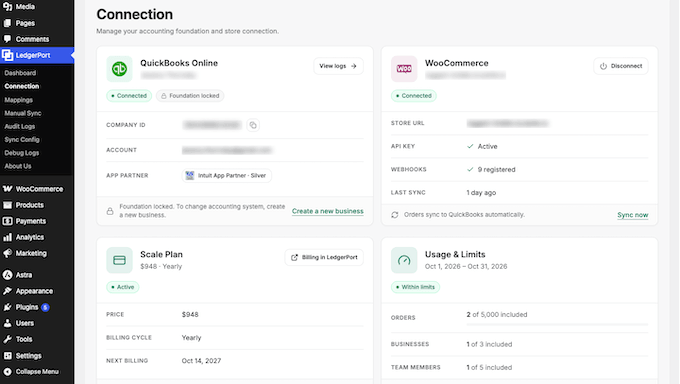
LedgerPort also integrates directly with the built-in WordPress Site Health tool. If the connection between your store and QuickBooks ever breaks, you’ll get an instant warning right in your site’s health status. This makes it easy to catch and fix issues early.
3. Choosing Exactly How Each Sale Appears in QuickBooks
Every bookkeeper has a preferred way of tracking income, so LedgerPort gives you full control over how your WooCommerce sales appear in QuickBooks.
You’ll find these options under LedgerPort » Sync Config on the ‘Orders’ tab.
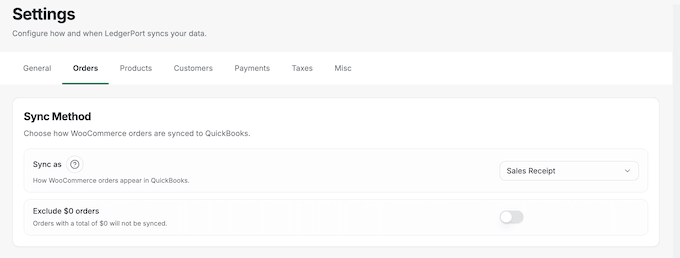
The ‘Sync as’ setting gives you three choices:
- Sales Receipt – For orders that are already paid. This is the default.
- Invoice – For orders where the customer still owes money, which works like the invoices you send a client.
- Estimate – For quotes that haven’t turned into a sale yet.
The same tab lets you choose which order statuses start a sync, skip orders placed before a certain date, and void the QuickBooks record when an order is cancelled.
Other options control whether shipping, discounts, and sales tax appear as separate lines.
On my test store, I left ‘Sync as’ on ‘Sales Receipt’ because every order was paid upfront, and the defaults worked without any changes.
Rather than creating a brand-new QuickBooks customer profile for every single shopper, you can route all sales to a single, generic customer entry instead. This level of flexibility is especially useful for bookkeepers, as it lets you mirror a client’s existing QuickBooks setup without altering their current workflow.
4. Keeping Refunds in Step With Your Books
When you refund an order in WooCommerce, LedgerPort automatically syncs that change to QuickBooks to keep your revenue totals completely accurate. This includes partial refunds, like when a customer returns one item from a larger order.
Refund syncing is switched off by default, so refunds will not appear in QuickBooks until you turn it on. To do this, go to LedgerPort » Sync Config, open the ‘Payments’ tab, click each payment method, and turn on ‘Sync refunds’.
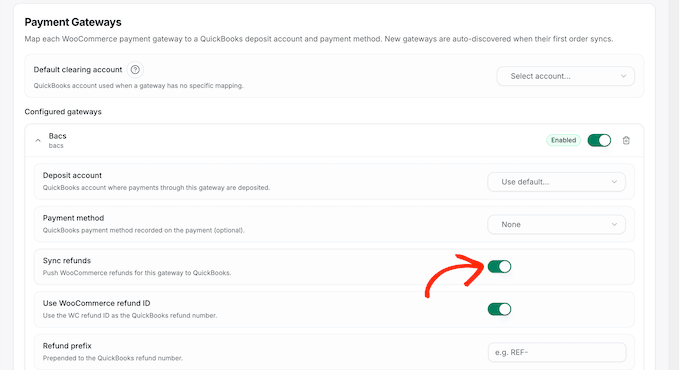
On my test store, this setting was initially turned off for bank transfer payments, so I enabled it before issuing a partial refund for one beanie.
I would like to see refund syncing switched on by default, since almost every store will want it. Until then, this is the first setting I would change after connecting.
To help keep your accounting organized, LedgerPort also lets you add a custom prefix or suffix to refund numbers, making them simple to identify at a glance in QuickBooks.
5. Matching Payments and Payouts to Your Bank Deposits
Payment processors typically group multiple orders into a single payout, after taking their fees. LedgerPort solves this by linking each WooCommerce payment method to the correct account in QuickBooks, so your deposits are easier to match.
You’ll find this under LedgerPort » Sync Config » Payments. On my test store, the bank transfer payment method appeared in this list on its own after my first order synced. I simply had to pick the QuickBooks account it deposits into.
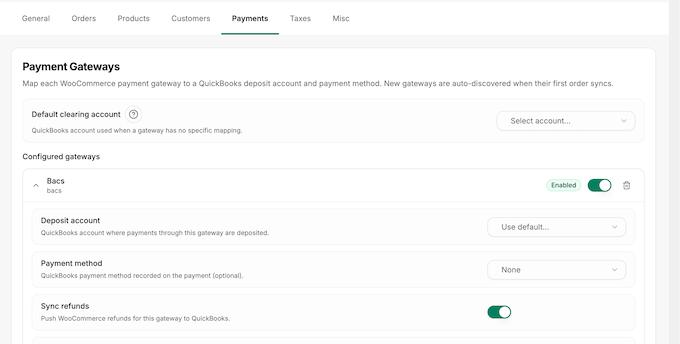
Any payment methods you haven’t explicitly mapped will automatically route to a default clearing account. This is a holding account like Undeposited Funds where money waits before reaching your bank.
On the Scale and Enterprise plans, LedgerPort also splits each Stripe and WooPayments payout into the orders and Stripe fees behind it. That way, the deposit in your bank feed matches your books line by line.
Reconciling payout deposits is usually the most time-consuming part of ecommerce bookkeeping. That makes automated payout matching the single best reason to consider upgrading to a paid LedgerPort plan.
6. An Audit Log That Shows Exactly What Happened to Each Order
LedgerPort keeps a complete record of every background action under LedgerPort » Audit Logs.
If you ever need to track down a specific transaction, you can easily search the log or filter your results by event type, sync status, and date range.
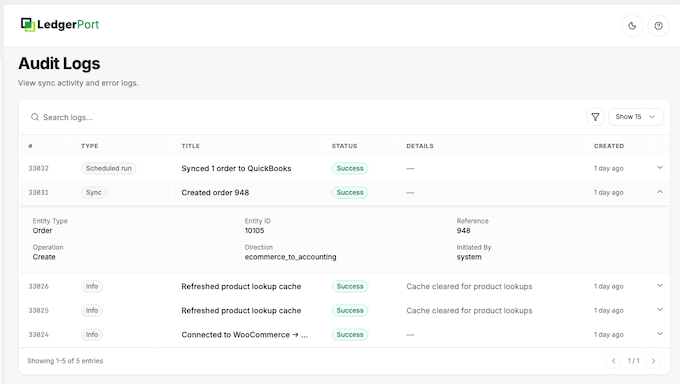
You can click any entry to see the full details about that specific sync.
If an entry ever fails, you’ll also see an Intuit trace ID. This a unique reference code you can share with support so they can locate and resolve the issue straight away.
After my test order synced, I opened its log entry to see a complete breakdown. This included the WooCommerce order number, the matching QuickBooks record, and confirmation that the automatic sync had triggered.
LedgerPort makes troubleshooting straightforward by showing you exactly what happened behind the scenes.
7. Sending Older Orders and Catalog Data on Demand
LedgerPort syncs new activity automatically, but it also gives you the option to send data manually. The Manual Sync screen features a separate tab for each type of data, including products, orders, and customers.
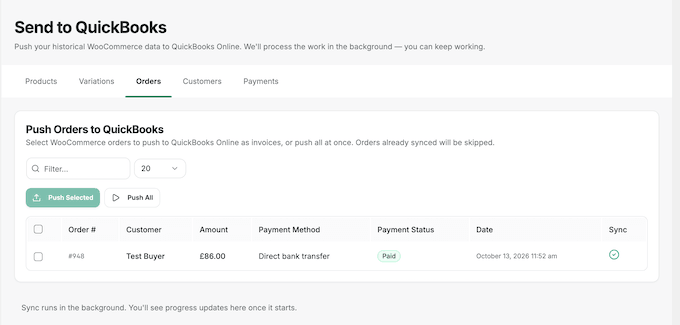
If you need to sync specific items, you can select the individual records and click Push Selected, or click Push All to process everything at once.
LedgerPort automatically skips anything that has already synced, which prevents duplicate entries in QuickBooks.
If you prefer to bring in past orders automatically, the General tab under Sync Config includes a ‘Historical sync’ option. Here, you can set a specific start date to ensure only orders placed from that day forward are transferred over.
On my test store, the Orders tab displayed my completed test order with a clear green check mark, making it easy to spot which sales had already reached QuickBooks.
8. Matching Products, Customers, and Stock Between Both Systems
If your QuickBooks company already has products and customers, the LedgerPort » Mappings screen links them directly to their WooCommerce versions. The Automap button simplifies this process by matching products for you using a field like the SKU, which is the unique product code in your store.
If a product does not have an exact match, you can choose to create it in QuickBooks, post it to a general product, or pause the order until you map it manually. You can set this preference under Sync Config » Products.
This is helpful for new QuickBooks accounts, as LedgerPort can automatically build out your product catalog as orders come in.
LedgerPort can also sync information back from QuickBooks to WooCommerce. On the General tab, individual toggle switches allow you to import stock levels, prices, and costs from QuickBooks directly into your store.
On my test store, these toggles were switched off by default, and I recommend leaving them off until all your products are completely mapped. Turning them on too early could cause QuickBooks to overwrite your active store prices before both platforms confirm which products belong together.
LedgerPort Review: Community and Professional Support
Before choosing an accounting plugin, it is worth checking what help is available, as a sync problem can affect your entire financial record.
LedgerPort provides detailed documentation to walk you through initial setup, account mapping, and troubleshooting. Most of the current guides focus on Shopify stores, so a few steps will look slightly different on WooCommerce.
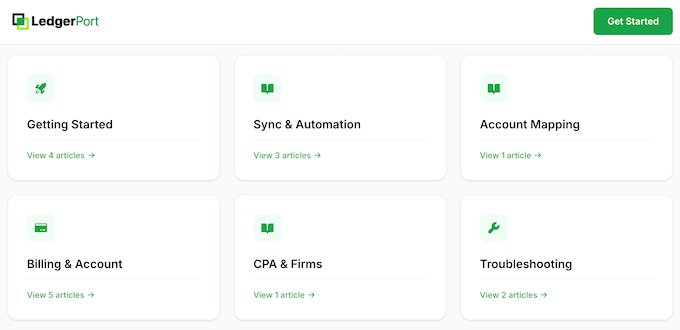
For direct help, the support page features an AI chat assistant called LedgerBot that answers questions 24/7.
You can also email the team or open a ticket directly from your LedgerPort account, with typical response times within 4 business hours.

Free plan users can ask questions in the official LedgerPort support forum on WordPress.org. Because it’s a public community forum, keep in mind that response times may take a bit longer compared to direct support on paid plans.
Whichever support channel you use, including the Intuit trace ID from your audit log entry will help the support team pinpoint and fix any failed syncs much faster.
For more tips, see our guide on how to properly ask for WordPress support.
LedgerPort Review: Pricing and Plans
LedgerPort offers a free plan that covers up to 30 orders a month for one store. On the free plan, you send orders to QuickBooks yourself by clicking ‘Sync now’, which works well for a new store with only a few orders.
Paid plans provide higher monthly order limits, faster syncing intervals, and additional features such as payout matching.
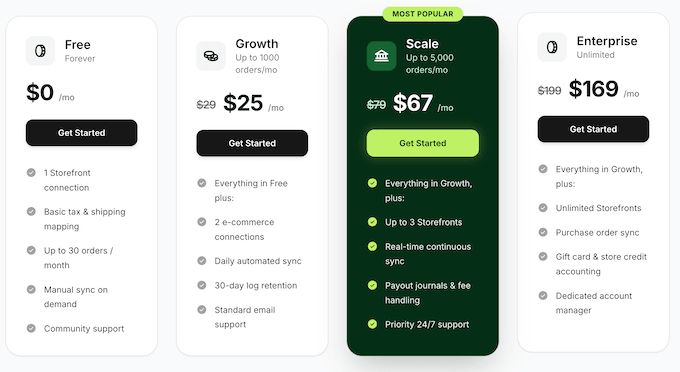
If you are starting an online store, the main question is how many orders you expect each month:
- Growth – At $29 per month, Growth covers up to 1,000 orders a month across 2 e-commerce connections, with a daily automated sync. It’s an ideal upgrade for small businesses that have outgrown the free LedgerPort tier and need higher transaction limits.
- Scale – Priced at $79 per month, the Scale plan covers up to 5,000 monthly orders across up to 3 stores, with support for up to 5 team members. It unlocks real-time syncing, automated payout matching, and priority 24/7 support. This is my top recommendation for growing WooCommerce stores or bookkeepers managing multiple client accounts.
- Enterprise – At $199 per month, the Enterprise plan removes all order and store limits completely. It adds advanced capabilities like purchase order syncing, dedicated gift card and store credit accounting, and a dedicated account manager. This makes Enterprise the ideal solution for high-volume stores and busy accounting firms.
Paying annually saves you up to 15 percent, and every paid plan includes a 14 day money back guarantee. Accounting firms can also apply to the LedgerPort CPA program to access lower pricing per client.
LedgerPort Review: Is It the Right WooCommerce Accounting Plugin for You?
For me, LedgerPort provides a reliable way to transfer WooCommerce sales into QuickBooks Online without manual monthly exports. During my testing, orders synced seamlessly in the background, and the audit log made it easy to track every action step-by-step.
Best of all, LedgerPort gives you full control over your books without making you learn complicated accounting terms.
LedgerPort is a new product, and it doesn’t have any reviews on WordPress.org yet. It also only works with QuickBooks Online, so stores that use Xero or QuickBooks Desktop can’t use it today. However, store owners can easily start with the free plan to see how it works and upgrade as their sales volume grows.
In my opinion, LedgerPort takes the pain out of store bookkeeping so you can focus on growing your business, and is definitely worth trying out.
LedgerPort Frequently Asked Questions
Which versions of QuickBooks does LedgerPort work with?
LedgerPort works with QuickBooks Online on every plan, ranging from Simple Start to Advanced, in every country that QuickBooks Online supports.
It does not support QuickBooks Desktop or QuickBooks Self-Employed, so you will need to migrate to QuickBooks Online to use the plugin.
Will LedgerPort slow down my WooCommerce store?
No. LedgerPort processes sync tasks on its own servers rather than relying on your hosting environment. Your store simply sends a quick, lightweight notification whenever an order updates.
LedgerPort also fully supports high performance order storage, which is the faster database structure that newer WooCommerce stores use by default. This keeps your checkout fast and your server running smoothly.
Can I test LedgerPort on a staging site before using it on my live store?
Yes, you can use LedgerPort on a staging site, as long as it’s accessible over the internet. Because LedgerPort’s servers need to reach your store to read products and orders, it won’t work on a local setup running strictly on your computer or on a site hidden behind password protection.
When I tested LedgerPort on a password-protected site, the Mappings and Manual Sync screens stayed completely blank without showing an error message.
What happens to my QuickBooks records if I stop using LedgerPort?
Your accounting records stay completely safe and intact in QuickBooks Online.
Disconnecting LedgerPort simply removes its API key and webhooks from your store, while leaving all your previously synced data untouched. You can stop using the plugin at any time without having to worry about cleaning up or undoing past entries.
What store data does LedgerPort send to its servers?
LedgerPort sends your order, product, customer, and payout details through its secure servers to keep your QuickBooks records accurate. Nothing is transferred until you finish the initial setup, and all stored connection credentials stay fully encrypted.
Plus, if a customer requests data removal under General Data Protection Regulation (GDPR) or other privacy laws, you can easily clear their info straight from your LedgerPort dashboard using their built-in data deletion tool.
Additional Resources: LedgerPort Review
I hope this LedgerPort review helped you decide whether it’s the right WooCommerce accounting plugin for your online store. These guides cover the rest of running a store, from reports and invoices to taxes:
- Best WooCommerce Plugins for Your Store
- WooCommerce Made Simple: A Step-by-Step Tutorial
- How to Collect Taxes for Stripe Payments in WordPress
If you liked this article, then please subscribe to our YouTube Channel for WordPress video tutorials. You can also find us on Twitter and Facebook.

LedgerPort User Reviews
Please share your LedgerPort review to help others in the community.