


The white screen of death can be a website owner’s worst nightmare. This frustrating WordPress error leaves you staring at a blank page, offering no clues about what went wrong.
To make matters worse, this common WordPress error can sometimes affect specific parts of your website, such as the admin area or individual posts.
For example, we have seen the white screen of death inside the WordPress admin area while everything else was working fine. In other cases, we only saw it when viewing a specific post.
Understanding the root causes of this error is the first step to finding a solution. This guide will cover a few solutions for fixing the white screen of death and provide actionable steps to restore your website’s functionality.
Note: Before you make any changes to your site, make sure you have a backup of your WordPress site. If you don’t have access to the admin area, then see our guide on how to manually create a WordPress database backup.
Why Do You See the White Screen of Death in WordPress?
The majority of the time, when you see a white screen of death when trying to visit your WordPress website, it means that a script on your website exhausted the memory limit.
The unresponsive script either gets killed by your WordPress hosting server or simply times out. This is why no actual error message is generated, and you just see a blank white screen.
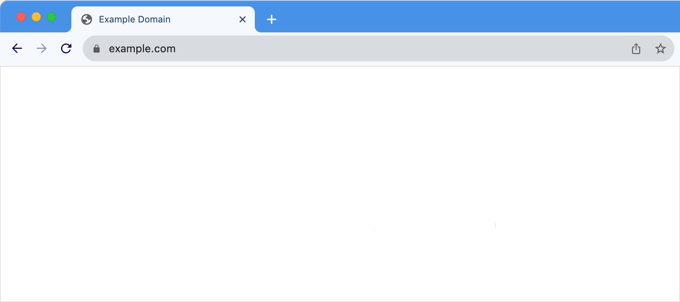
However, sometimes, you may see an error message.
For example, you might see a critical error message instead of a blank page.
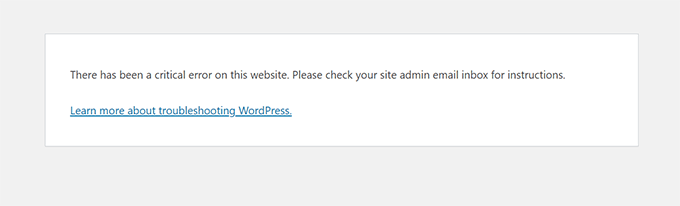
Whether you are seeing a blank screen or the message ‘There has been a critical error on your website’, it’s the same error.
This error can also happen due to a poorly coded theme or plugin installed on your site. Sometimes, it can happen if there is an issue with your web hosting server.
Since the white screen error can be caused by any number of things, it requires methodical troubleshooting to fix it. Here are the steps you should try:
- Check Whether the Problem Happens on Your Other Sites
- Fix the White Screen Error With WordPress Recovery Mode
- Increase the Memory Limit
- Fix the White Screen Error by Disabling All Plugins
- Activate the Default Theme
- Enable Debug Mode to Catch Errors in WordPress
- Clear the WordPress Cache
- Fix the White Screen Error for Longer Articles
Video Tutorial
If you’d prefer written instructions, then just keep reading.
1. Check Whether the Problem Happens on Your Other Sites
If you have other WordPress sites installed on the same hosting account, then you want to start by checking if the problem is happening on other sites as well.
If it is, then that’s a strong indicator that something is wrong with your WordPress hosting service. This could be a temporary issue affecting their service, and you need to reach out to their support for more help.
On the other hand, if the issue is only happening with one website or a specific part of that site, then you know that the problem is with that particular website.
2. Fix the White Screen Error With WordPress Recovery Mode
If the white screen of death error is caused by a WordPress plugin or theme, then WordPress may be able to catch it.
The new fatal error protection feature introduced in WordPress 5.2 can sometimes catch the error, so you may not even see a white screen. Instead, you will see a message that the site is having technical difficulties.

WordPress will also send an email about the problem to your admin email address.
The email will have the subject ‘Your Site is Experiencing a Technical Issue’.
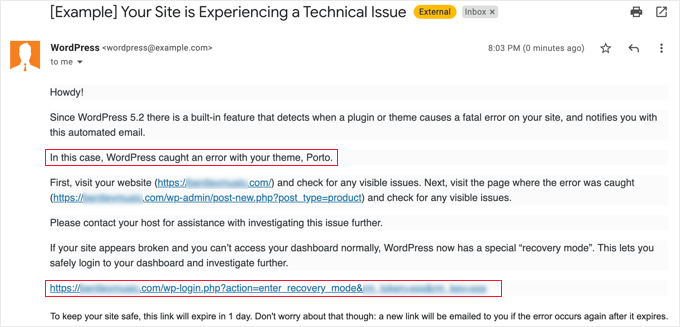
This email message will point out the plugin or theme causing the error, and it will also contain a special link.
This link will allow you to log in to the WordPress recovery mode and deactivate the faulty plugin.
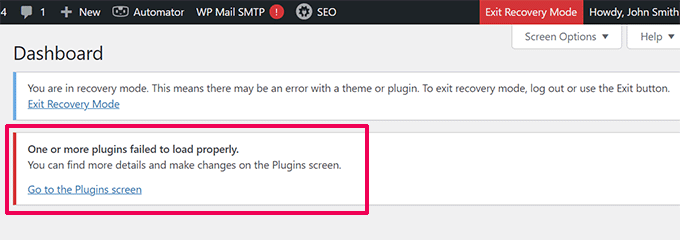
However, if you are seeing the plain white screen of death with no email or recovery mode option, then you need to manually fix the error.
3. Increase the Memory Limit
Usually, this error happens because a script has exhausted your web server’s memory and quit in the middle.
To fix this, you need to increase the PHP memory available to WordPress. This will allow the script to use more memory to finish the job it was supposed to do.
You will need to edit the wp-config.php file on your WordPress site or use a code snippet plugin like WPCode.
You can follow the instructions in our tutorial on how to increase PHP memory in WordPress.
4. Fix the White Screen Error by Disabling All Plugins
If increasing the PHP memory limit did not help, or if you have a high memory limit, like 256M or 512M, then you need to start troubleshooting.
In our experience of troubleshooting this issue, we have always found that the issue is either with a specific plugin or a theme. Let’s go ahead and disable all the plugins.
If you can still access the WordPress admin dashboard, then you can simply go to the Plugins » Installed Plugins page. Select all the installed plugins and then select ‘Deactivate’ under the ‘Bulk actions’ dropdown.
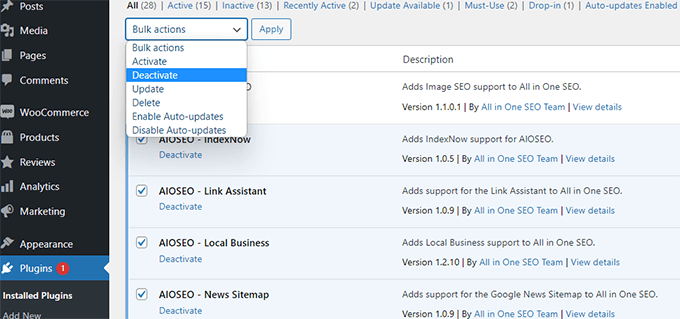
However, if you don’t have access to the WordPress admin area, then you will need to deactivate all plugins via FTP.
First, connect to your WordPress site using an FTP client or your hosting provider’s file manager. Once connected, go to the wp-content folder, where you will see the plugins folder.
Now, you need to right-click on the plugins folder and then select ‘Rename’. You can rename the plugins folder to ‘plugins-deactivated’.
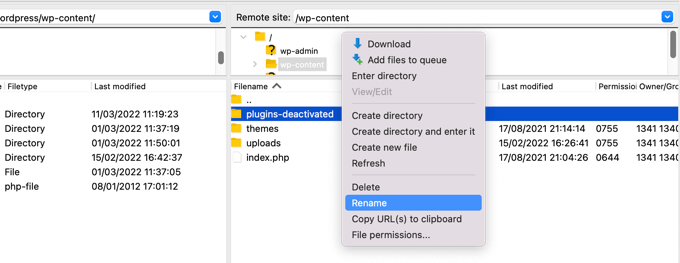
WordPress looks for a folder named plugins to load all plugins. When it cannot find the folder, it simply deactivates all plugins.
If this fixes the issue, then enable one plugin at a time to get to the bottom of the issue. Once you find the plugin causing the issue, you can replace it with an alternative or report the issue to plugin authors.
5. Activate the Default Theme
If the plugin troubleshooting doesn’t fix the issue, then you should try replacing your active theme with a default theme.
First, connect to your website using an FTP client and go to the /wp-content/themes/ folder. It contains all installed themes on your website.
Right-click to select your current WordPress theme and download it to your computer as a backup.
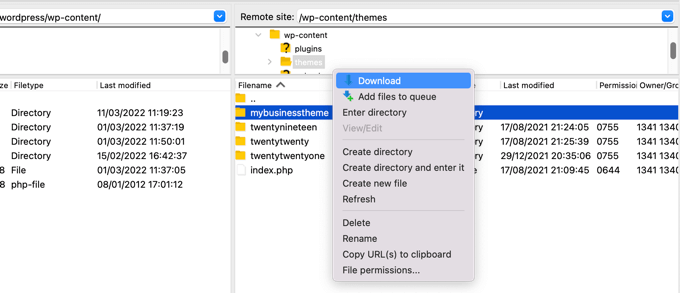
Next, you need to delete your current theme from your website.
Simply right-click on your theme folder and select ‘Delete’. Your FTP client will now delete the theme from your website.
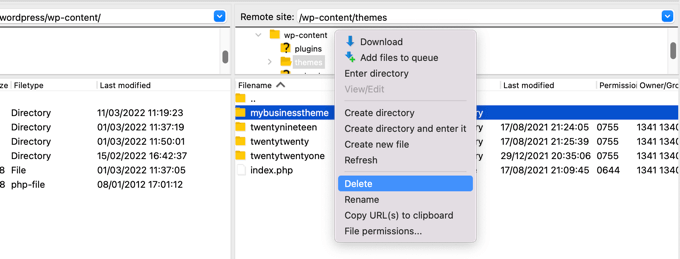
Now, if you have a default WordPress theme like (Twenty Twenty-Two or Twenty Twenty-Three) installed on your website, then WordPress will automatically start using it as the default theme.
However, if you don’t have a default theme installed, then you need to manually install it using FTP.
If this fixes the issue, then you should look at your theme’s functions.php file. If there are extra spaces at the bottom of the file, then you need to remove those, and sometimes that fixes the issue.
If you are using a poorly coded function in your theme’s functions.php file, then it can cause the white screen of death error as well.
Consider downloading a fresh copy of your theme from its source and then installing it manually using FTP.
6. Enable Debug Mode to Catch Errors in WordPress
If nothing has helped so far, then the next step is to turn on debugging in WordPress. This will keep error logs that allow you to see what type of errors are being outputted.
Simply add the following code to your wp-config.php file:
define( 'WP_DEBUG', true);
define( 'WP_DEBUG_LOG', true );
Once you add this, the blank screen will now have errors, warnings, and notices. These may be able to help you determine the root cause.
If you don’t see any errors, then you may still want to check the debug log.
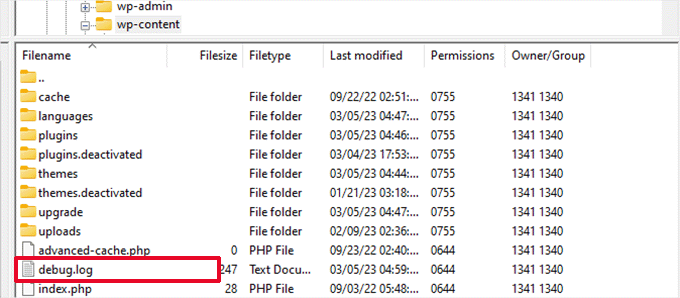
Simply visit the wp-content folder on your website using an FTP client. There, you will find a new debug.log file containing a log of all errors, notices, and warnings.
7. Clear the WordPress Cache
Sometimes, you may have access to the backend, but the front end of the site has the white screen of death.
This can happen because of a caching plugin. In that case, you simply need to empty your WordPress cache.
You can see our guide on how to clear the cache in WordPress for detailed instructions.
8. Fix the White Screen Error for Longer Articles
If you have a white screen of death only on a very long post or page, then this method might work.
This trick basically increases PHP’s text processing capability by increasing the recursion and backtrack limit. You can paste the following code into your wp-config.php file:
/** Trick for long posts */
ini_set('pcre.recursion_limit',20000000);
ini_set('pcre.backtrack_limit',10000000);
We understand that this is a very frustrating error, and we hope that one of the tricks above has fixed the issue for you.
You may also want to see our WordPress troubleshooting guide, which teaches the steps you should take to catch and fix WordPress problems by yourself, or our list of the most common WordPress block editor problems and how to fix them.
If you liked this article, then please subscribe to our YouTube Channel for WordPress video tutorials. You can also find us on Twitter and Facebook.



Robert Thompson
My entire WordPress site is a black screen. I only have three pages on my website and they all are black. But when I go to my editor everything is fine. I’m going to try your advice and deactivate all of my plugins. Hopefully this will work.
WPBeginner Support
We hope that solves the issue for you, if you continue to have trouble you can always feel free to reach out to our support!
Admin
mohadese esmaeeli
I have encountered this page several times, and in most cases, my issue was resolved by changing the PHP version of the hosting. However, sometimes the presence of an incompatible plugin can disrupt everything and result in this frustrating white screen!
WPBeginner Support
Thank you for sharing what worked for you
Admin
Jiří Vaněk
Very often, the issue with a white screen is a compromised website. Many people have their WordPress sites infected, leading to precisely this error. That’s why it’s crucial to have a backup. Additionally, many people suffer from downloading plugins from unverified sources to save money. In the end, it costs more than a paid plugin. Unfortunately, it’s true. Sad, but true.
WPBeginner Support
While it could be a compromised site, there are many possible reasons so only having a white screen of death does not automatically mean that a site was hacked.
Admin
Ralph
Does this method helps with my situation?
Sometimes I update few plugins one by one on 1 side of the screen and do something else on second half. It happens i refresh wordpress admin panel during updating plugin and it gives me this white page where I can’t do anything. My hosting makes backups every 6 hours so i just email them to use the freshest one but I want to move to the cheaper one and will not have this option.
WPBeginner Support
It should be helpful when you run into the white screen, from the sound of it you would want to reach out to your hosting provider to see if you are hitting a resource or memory limit in their system.
Admin
Ralph
I did not think about memory limit, thank you for letting me know. I will contact them to confirm this.
CJB
The memory limit increase fixed it for me. (This issue rarely happens in WordPress, but the client’s hosting company is a smaller brand that may have contributed to the error.)
WPBeginner Support
Glad to hear you could resolve the issue!
Admin
hank
I get the white screen of death when i log in, i don’t get it when logged out though
WPBeginner Support
You may be seeing the cached page when logged out. If you do see the white screen of death, we would recommend going through the troubleshooting steps in this guide.
Admin
pammiechick
After I cleared my cache, it fixed. Why wasn’t this put into the article?
Thinking I was going to have to get into code when it was a simple fix is silly.
Please clear your browser cache first before you try anything else.
WPBeginner Support
It is very rare that your caching would cause that specific issue but we’re glad that clearing the cache worked for you.
Admin
Ana
Same here. Thanks!
Hamza shah
Finally after changing the name of the faulty plugin via FTP i got the access to my wordpress dashboard but not the website… now what do i do to get my website back to normally working?
WPBeginner Support
If you are still having trouble with the site, we would recommend taking a look at our guide below to help find and resolve the issue:
https://www.wpbeginner.com/beginners-guide/beginners-guide-to-troubleshooting-wordpress-errors-step-by-step/
Admin
Akindele Afeez
Hello, please i am currently experiencing a red screen while uploading from local to live server. Kindly help me out.
WPBeginner Support
That would depend on if there is an error message when you see that screen or not. If there are no error messages, you would still want to follow the recommendations in this article.
Admin
Sandi Purinton
You saved my behind twice today. Thanks for your tutorials. They are amazing!
WPBeginner Support
Glad our guides were helpful
Admin
Robin
I suspected a new plug-in was the problem, locking me out of the WordPress dashboard, but it wasn’t. I then searched and found your article. After reading it, I checked my functions.php file and found it had spaces at the end. I deleted the spaces and I was back in. Thank you.
You’ve saved me from a lot of frustration.
WPBeginner Support
Glad our guide could help solve the issue
Admin
Ash
Thank you Robin – Your answer fixed my issue! Had been stressing out all day.
Jay
Your article says deactivate plugins then goes on to talk about FTP – you don’t say what to do after I’ve deactivated the plugins… unless I missed it.
WPBeginner Support
If the error disappears once the plugins are disabled, you would then know that the error is caused by a plugin and you would need to find the specific plugin.
Admin
Matt
Thanks, DEBUG options helped. Error was due to having a blank line space in my functions file.
WPBeginner Support
Glad our recommendation could help
Admin
priya
Hi, I got white screen problem ..and get result from my site is” briefly unavailable for scheduled maintenance.check back in minute.”
WPBeginner Support
For the message you’re receiving, you would want to take a look at our article here: https://www.wpbeginner.com/wp-tutorials/how-to-fix-briefly-unavailable-for-scheduled-maintenance-error-in-wordpress/
Admin
Gerry
I got the white screen. I had just made changes to my child theme functions php, so I knew what the problem was. I followed your steps to my wp-content /themes, Then I did this…and it was easy. Right click on child theme, topen, then functions php file, deleted what I did. Saved changes. Checked if I could enter wp-admin, and all was good. I did not have to hassle with changing themes or plugins on/off. I use your site often, and I hope you test this option, and put it as a simple solution.
Thanks for your helpful site.
Gerry
WPBeginner Support
Thank you for your recommendation to be included in the article, for those editing the code of their site it is a good option to try removing recently added code.
Admin
Rafael
Thanks! It was the plugins.
WPBeginner Support
Glad our recommendations could help
Admin
Teshome
Hello there! My website based on WordPress has been working properly since Marc 2003. It needs maintenance and upgrading professionally. What do you suggestion me?
WPBeginner Support
For updating your site if you wanted to do it yourself you could follow our guide here: https://www.wpbeginner.com/beginners-guide/ultimate-guide-to-upgrade-wordpress-for-beginners-infograph/
Or if you wanted to hire a developer to update your site for you, you can take a look at our recommended list here:
https://www.wpbeginner.com/showcase/best-places-to-hire-wordpress-developers/
Admin
erc
i can’t even logout from my admin panel.
in all condition it is just show only the “WHITE SCREEN” with the error
WPBeginner Support
If you have an error message then it isn’t the white screen of death, to start troubleshooting you may want to take a look at our troubleshooting guide here: https://www.wpbeginner.com/beginners-guide/beginners-guide-to-troubleshooting-wordpress-errors-step-by-step/
Admin
Ron
I had this issue several months ago and found a temp work around. Click next to your url and hit your enter key. It always reloaded for me. The permanent fix is as one of your great suggestions. I increase the php memory and it hasn’t plagued me since.
WPBeginner Support
Thanks for sharing what worked for you
Admin
Jasmine
Your site has been so informative. Sadly though it hasn’t fixed my fatal error. I am unable to open the wp_admin/Dashboard. the below message is displayed. I have tried your plugins and this advice using my PHPAdmin to no luck.
Fatal error: Call to undefined function wp_is_recovery_mode() in /home/huhu5715/public_html/wp-admin/includes/update.php on line 840
WPBeginner Support
You may want to try manually updating your WordPress files using FTP, we have a guide on how to do that here: https://www.wpbeginner.com/beginners-guide/ultimate-guide-to-upgrade-wordpress-for-beginners-infograph/
Admin
Sid
Jasmine, have you tried to replace the WordPress core files?
Rahul sharma
I added my three websites on hostinger Premium plan. today I’m facing this problem. when I log in my admin panel it’s just loading and after that, it shows an error. all my three sites is not working. what should I do?
WPBeginner Support
It would depend on the error but you may first want to reach out to your hosting provider for them to ensure it is not an error on their end.
Admin
MOHAN
There may be a common plugin.
Abhijit
I am facing the the wordpress white screen of death, after login I am facing the issue. And if I open the website in another tab then the options are visible but I am not able to access those options as when I click on the icons agter redirecting again I am facing white screen of death.
WPBeginner Support
You would likely want to enable error reporting in the Other Fixes section to see if it will give you an error message.
Admin
Ibraheem
Hello, I use to have a white screen whenever someone comments on a post on my site. Pls I need help on this.
WPBeginner Support
You may want to enable wp debug to see if there is a specific error that is happening: https://www.wpbeginner.com/wp-tutorials/how-to-set-up-wordpress-error-logs-in-wp-config/
which would give more information on possible reasons for that issue.
Admin
Sam Chung
Hi I got the white screen of death.
Tried to log in with FileZilla but no. Wordpress.com says ID doesn’t exist.
Can’t talk to anyone/chat at Wordpress without being logged in.
So how can I proceed? Please help.
WPBeginner Support
If your site is hosted on WordPress.com we are unable to assist sadly. If your site is not on WordPress.com then you could try the steps in: https://www.wpbeginner.com/beginners-guide/beginners-guide-to-troubleshooting-wordpress-errors-step-by-step/
Admin
Beth
my initial message is “child” theme deleted, but them I can’t install a new theme, because I get “installation failed: could not create directory”…help!
Thank you,
Beth
WPBeginner Support
You may want to check your file/folder permissions using our article here: https://www.wpbeginner.com/beginners-guide/how-to-fix-file-and-folder-permissions-error-in-wordpress/
Admin
Freeman Phiri
i upgraded from ubuntu 16.04 to 18.04 last night now am getting a WSOD if i try to open the admin page i get plain text. tried all the steps you mentioned but nothing happened. i am on localhost
WPBeginner Support
Hi,
Look for updates and package conflicts using the default package manager or Synaptic.
Admin
sanan
work for me after disabling some plugins . Great job
Terry
re-installing wordpress fixed it for me. Might be worth trying this first – could save a lot of hassle
Jeramiah
In my case, the security plugin had temporarily blocked me because I entered the password incorrectly too many times… I forgot I changed it. I was seeing a white screen with the word “error” in the upper left hand corner.
To resolve this, I logged into the database and removed myself from the lockout table.
Meghan
I’ve been trying to access my admin page through an FTP client as recommended and the connection keeps timing out (internet connection is fine, already ran a diagnostic on it) so I’m still locked out and can’t try to solve the WSOD problem. How do I proceed from here?
WPBeginner Support
Hi Meghan,
Please try steps in our WordPress troubleshooting guide, it will help you figure out what’s causing the issue.
Admin
Dingole
Had a client who had deleted their theme and this caused the white screen.. I had to look in the database in wp_options > stylesheet to find the the name of the theme and re download it. This fixed the problem for me
Kai
Thank you for this helpful article. Removing the space at the end of my functions.php did the job !
Muhammadibn
I had the WSOD when I imported content from another site. The homepage would load but the rest of the links were not working. Turns out the problem was with the Permalinks. I sent to Settings > Permalinks and changed it to only post name and everything started working again.
Hope that helps someone.
Miri
We are two administrators, and the white screen of death is only affecting one of us — and not all the time. Any suggestions for this? Thanks.
LIAM
I am having a similar problem where I have had this problem reported by other users, but I do not experience it myself. I am an Administrator, but the people reporting the problem are not. I made a new account set up as Admin for someone who had this issue, and the WSOD did not affect them when using their new account. Because the problem is not universal and seems to be resolvable by changing the profile admin level, it makes me think that it is not the plugins or theme that is causing the issue. Any help would be greatly appreciated.
WPBeginner Support
Hi Liam,
Many themes and plugins and trigger different functions based on user roles. Here is how you can test.
1. Create a new user account with a user account that usually sees the WOD.
2. Disable all your plugins.
3. Visit your website with that user account in a different browser
4. Reactivate your WordPress plugins one by one until the user account is able to see the WOD again.
This way you will be able to figure out exactly which pluhgin is causing the issue. For checking your theme switch to a default theme and see if this solves the issue.
Admin
LIAM
Hi there,
Thanks for the response and the suggestions. It sounds like a good way to start.
Just to clarify, with Step 1. are you saying that I should duplicate an account that currently experiences this problem OR that I should use an account that sees the WSOD to make a new account for testing?
Can’t see why it would be the second option, but I just thought I’d check as the wording was a bit confusing.
WPBeginner Support
Hi Liam,
You should create a new user account with the same user role as the one seeing WOD on your site. For example, if a user account with author user role is seeing the error, then create a new dummy user account with author user role for testing.
shubahm sharma
yesterday I started my new WordPress blog and for the first time today I log in to my WordPress admin account. after that, I click on visit blog. but I continue shows blank and whenever I tried to take a demo of my any theme available in WordPress store, in the demo it is again showing blank. it’s like every time any demo doesn’t show. how to fix it.
Conny Lundberg
Hello there!
I have a wordpress blog and have had my first experience of the famous White Screen of Death or at least I think so since the screen is white with only the WP logo. This started when I tried to approve a comment and the button didn´t respond after which I realized that I couldn´t access my admin controls, my stats or any personal controls.
Since I have no experience what so ever of programming or coding and can´t even access the ordinary support pages without seeing this wsod, I am helpless and would soo appreciate if anyone of you computing wizards could help in any way?
Best
Conny
Spiros
I just update my Wordpress core to the last version via FTP and my website is working again.
Marek
Hi,
I just tried to update the WP to the latest one 4.9. It took a while and got stuck in the maintenance mode. So I deleted the .maintenance file in the htdocs directory and now I can only see the while screen, nothing else.
Please let me know how to fix it.
Thanks!
WPBeginner Support
Hi Marek,
Most likely your WordPress update was interrupted which may have caused some files to be not updated. You can try to manually upgrade WordPress by uploading files via FTP.
Admin
zabyi
i installed an fresh wordpress ver but got blank page after click on submit comment’s button , can anyone guide me how can i solve this issue /?
alex mwailu
very helpful, just go to root folder, plugins and delete the most recent plugin or theme/the one that you have just installed
Janlyn
This is really very helpful. Thank you very much. My blogsite just went blank after I updated some of the plugins. I followed your advised and deactivated all the plugins and activating them one by one. It did fix the issue! Thank you!
Prosper Noah
Hi Wpbeginner,
Thanks for this wonderful post.
Well, I was able to fix mine renaming the wp plugins folder to pluginss
Great tutorial once more.
Do have a nice day!
Denis
SOLVED!
1- Changed to PHP 5.3
Milan
My problem was due to htaccess file. Worked just fine after modifying it. Thanks for the great post.
Frank
Thanks a lot. This helped me at disabling plugins. God bless you!
James
Great guide…. I’ve lost my site for 3 days now. Strange thing is that its only lost on iOS mobile (white screen), desktop works fine. W3 Super Cache caused the issue but i’m struggling to get it back up on mobile now….
John
Thanks for your help on this! Was a dang plug-in causing the issue. Removed it and things worked again
Trilby
I have had the ‘white screen of death’ for for weeks. I’ve had to store all of my what-would-be blog posts as notes in my device until I could find the solution. Nothing worked. I was about to create new blogs elsewhere when something struck me. I always browse in private mode. This never bothered wordpress in the past (years), but it occasionally will be the cause on other websites.
After all this time… I turned off private browsing cleaned cookies for safe measure, and…. logged in just fine.
Akshay Ambarte
I created company website on WordPress the whole web pages are working fine but when I add blog post then I am unable to see that post simply white screen is appearing without any warning.
John
Had the WSOD problem when I updated my website theme. I had no website or admin login tried numerous fixes but to no avail.
The solution that worked for me was to download the latest version of my theme. I renamed previous non functioning theme to themename_old and then uploaded via ftp the replacement theme zip file and extracted the contents and it worked.
The above will work if you have access to cpanel or support at your serverhost can set up and supply you the ftp username, password.
Good luck