


Are you seeing the ‘Error establishing a database connection’ notice in WordPress?
This is a fatal error that makes your site inaccessible to users. It happens when WordPress is unable to make a connection to the database. Since multiple factors can affect this connection, the error can be a bit difficult to troubleshoot for beginners.
In this article, we will show you how to easily fix the ‘Error establishing a database connection’ on your WordPress site, step by step.
What Causes the Error Establishing a Database Connection in WordPress?
A database is software that makes it easy to store, organize, and retrieve data from other software.
As a content management system, WordPress uses a database to store all your content and other website data. It then connects to the database each time someone visits your website.
WordPress needs the following information for connecting to the database:
- Your database name
- Database username and password
- Database server
This information is stored in your WordPress configuration file, which is called wp-config.php.
If any of this information is incorrect, then WordPress will fail to connect to your database server, and you will see the ‘Error establishing a database connection’ error.
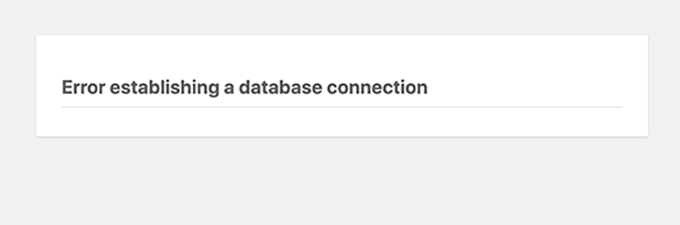
It is one of the most common WordPress errors. Apart from incorrect credentials, this error can also appear if the database server is down or the database files are corrupt.
Having said that, let’s take a look at how to fix the ‘Error establishing database connection’ issue in WordPress with step-by-step troubleshooting.
1. Check Your WordPress Database Credentials
The most common reason for the database connection error is incorrect credentials. If you have recently moved your WordPress site to a new host, then this is likely the problem.
Your WordPress database credentials are stored in the wp-config.php file. It is the WordPress configuration file that contains important settings, including database information.
If you have not edited a wp-config.php file before, then take a look at our beginner’s guide on how to edit the wp-config.php file for more instructions.
You will be looking for the following lines in the wp-config.php file:
// ** MySQL settings - You can get this info from your web host ** //
/** The name of the database for WordPress */
define( 'DB_NAME', 'database_name_here' );
/** MySQL database username */
define( 'DB_USER', 'username_here' );
/** MySQL database password */
define( 'DB_PASSWORD', 'password_here' );
/** MySQL hostname */
define( 'DB_HOST', 'localhost' );
Here, you must make sure that the information for the database name, username, password, and database host is correct.
You can confirm this information from your WordPress hosting account dashboard. For this tutorial, we will be using Bluehost, but the process will be similar for other hosting panels as well.
Upon logging in, click on the ‘Website’ tab in the left column and then switch to the ‘Advanced’ tab. Then, scroll down to the ‘Database’ section and click the ‘Manage’ button next to it.
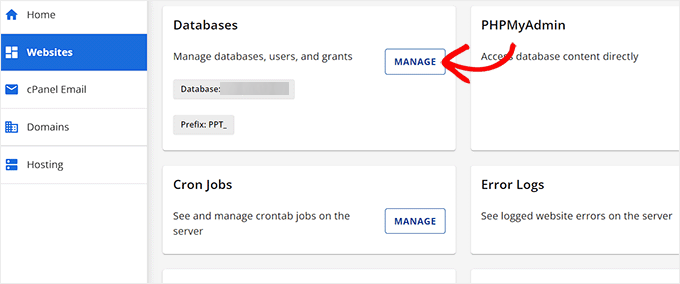
This will open the MySQL Databases page in cPanel in a new window.
Here, you can find your database name and username in the ‘Current Database’ section. Keep in mind to copy and paste these details into a notepad so you can add them to the wp-config file.
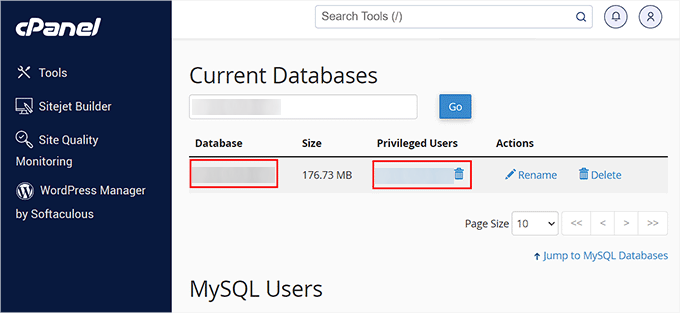
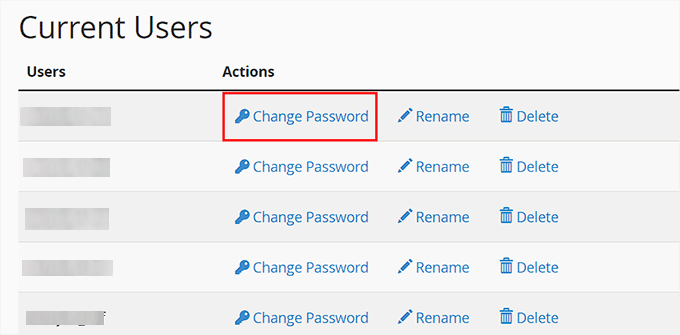
Next, scroll down to the ‘Current Users’ section, where you can click on the ‘Change Password’ link next to your database name.
This will take you to a new screen, where you can change the database password according to your liking.
Once you have confirmed all your database details, you can change that information in your wp-config.php file if needed.
After that, try visiting your website again to see if the database connection error has gone.
If you can still see the error, then this means that something else is wrong.
2. Check Your Database Host Information
If you are confident that your database name, username, and password information are accurate, then you will want to make sure you are using the correct database host information.
Most WordPress hosting companies use localhost as your database host. However, some managed WordPress hosting companies use separate servers to host databases. In that case, your database host information will not be localhost.
This means that you will need to contact your WordPress hosting company to confirm these details.
3. Repair WordPress Database
Now you may be getting a different error in the wp-admin dashboard like ‘One or more database tables are unavailable’ or ‘The database may need to be repaired’. In that case, you need to repair your database.
You can do this by adding the following line in your wp-config.php file. Make sure to add it just before the ‘That’s all, stop editing! Happy blogging’ line:
define('WP_ALLOW_REPAIR', true);
Once you have done that, you can see the settings by visiting this page: http://www.yoursite.com/wp-admin/maint/repair.php. Just make sure to replace yoursite.com with your own domain name.
Here, you must click the ‘Repair Database’ button to start the process.
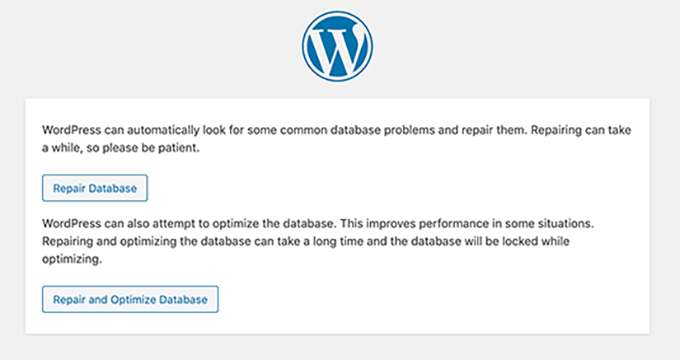
Note: The user does not need to be logged in to access the database repair page. Once you are done repairing and optimizing your database, make sure to remove this line to code from your wp-config.php.
However, if you don’t want to add any code to your site, then you can also repair your database from your hosting account’s cPanel.
Go ahead and visit your hosting account, where you must open the ‘Websites’ page from the left column. Then, switch to the ‘Advanced’ tab and click the ‘Manage’ button in the Database section.
This will open cPanel in a new tab. Here, scroll down to the ‘Modify Databases’ section and choose your database’s name from the ‘Repair Database’ dropdown menu.
Once you do that, simply click the ‘Repair Database’ button to start the process.
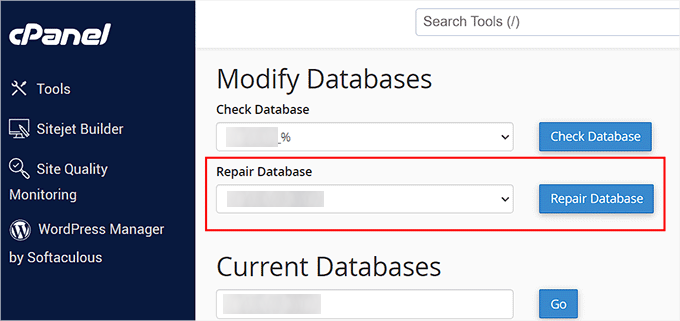
The hosting panel will now automatically repair your database for you.
Once the process is complete, you will also see a success message.
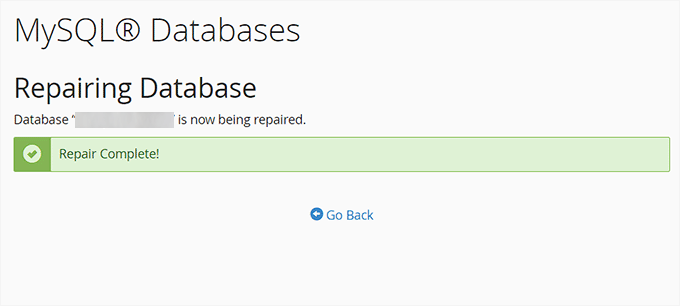
You can now visit your WordPress site to see if the error has been resolved or not.
4. Check If Your Database Server Is Down
If everything seems to be correct, and WordPress still cannot connect to the database, then your database server (MySQL server) may be down.
This could happen due to heavy traffic on a server. Your host server just cannot handle the load (especially when you are on shared hosting).
Due to this, your site will get slow, and may even output the error for some users. In this case, you should get on the phone call or live chat with your hosting provider and ask them if your MySQL server is responsive.
Additionally, if you have other websites running on the same server, then you can check those sites to confirm that your SQL server is down.
If you do not have any other site on the same hosting account, then simply go to your hosting dashboard and switch to the ‘Advanced’ tab.
After that, click the ‘Manage’ button next to the phpMyAdmin section.
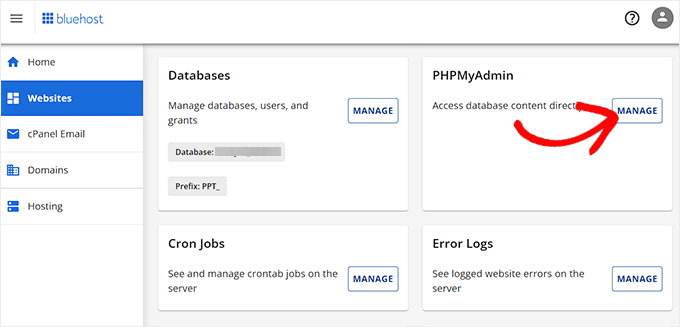
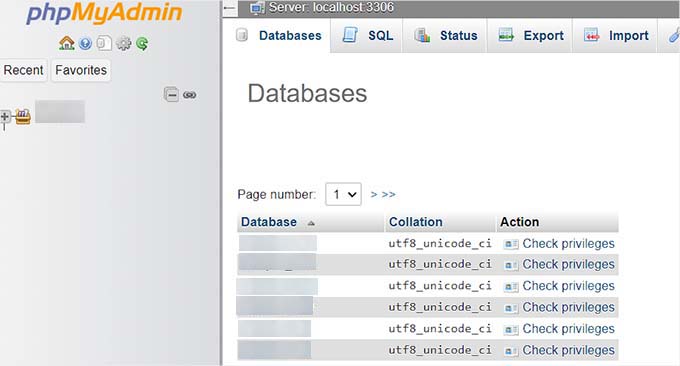
This will open phpMyAdmin in a new window, where you must click the ‘Database’ option at the top.
After that, click on your database’s name to access its settings. If you can do that, then it is time for you to check if your database user has sufficient permissions.
To do this, you need to create a new file called testconnection.php and paste the following code into it:
<?php
$link = mysqli_connect('localhost', 'username', 'password');
if (!$link) {
die('Could not connect: ' . mysqli_error());
}
echo 'Connected successfully';
mysqli_close($link);
?>
Upon pasting the code, make sure to replace the username and password with your own. You can now upload this file to your website and access it via a web browser.
If the script connected successfully, then it means that your user has sufficient permissions, and something else is causing the error.
Now, you must go back to your wp-config file and scan it to ensure that all the details are accurate and without any typos.
Additional Solutions That Have Worked for Users
If the above-mentioned troubleshooting tips fail to fix the database connection error on your website, then you may try these additional steps.
As reported by our users, these steps have helped some of them resolve the database connection error on their websites.
1. Update the WordPress Site URL
You can try updating the WordPress site URL using phpMyAdmin in cPanel.
Simply access phpMyAdmin from your hosting account dashboard and select your WordPress database from the list.
After that switch to the SQL menu on the top and enter the following MySQL query:
UPDATE wp_options SET option_value='YOUR_SITE_URL' WHERE option_name='siteurl'
It should look like this:
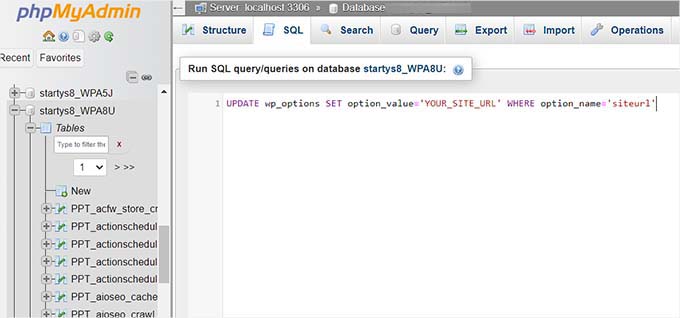
Don’t forget to provide your own site URL and change wp_options to your own table name, as you may have changed the WordPress table prefix.
2. Rebooting Web Server
Users on dedicated servers, local servers, and virtual private servers (VPS) can try rebooting their servers.
This will restart your web and database server, which may fix some temporary glitches causing the error.
3. Ask For Help
If everything else fails, then you may need to contact your web hosting company. All good WordPress hosting companies will help you troubleshoot the problem, point you in the right direction, or even fix it for you.
You can also hire WordPress developers using a service like Seahawk to help you fix this issue for reasonable rates. The best part is that Seahawk has a dedicated team of expert developers, so you know they can be trusted.

Plus, you can use the service for your site maintenance, Figma to WordPress conversion, hacked site repair, speed optimization, website rebuilding, content writing, and so much more.
For details, you can see our complete Seahawk Media review.
We hope this article helped you fix the ‘Error establishing a database connection’ issue in WordPress. You may also want to see our WordPress troubleshooting guide for tips on resolving WordPress issues on your own, or our expert picks of the best tools for WordPress freelancers and developers.
If you liked this article, then please subscribe to our YouTube Channel for WordPress video tutorials. You can also find us on Twitter and Facebook.




Syed Balkhi says
Hey WPBeginner readers,
Did you know you can win exciting prizes by commenting on WPBeginner?
Every month, our top blog commenters will win HUGE rewards, including premium WordPress plugin licenses and cash prizes.
You can get more details about the contest from here.
Start sharing your thoughts below to stand a chance to win!
Hajjalah says
I used to get this error more often when I was logged into my admin dashboard for a longer period but this article helped me solve the issue. I just updated the WordPress Site URL. Thanks for the useful guide.
WPBeginner Support says
You’re welcome, glad our guide was helpful!
Admin
Dennis Muthomi says
I actually encountered this database connection error just recently when working on a staged WordPress site before going live.
I had just moved a WordPress site from local to a vps. The video tutorial at timestamp 2:53; helped me solve the error
WPBeginner Support says
Glad our guide was able to help you
Admin
Jiří Vaněk says
May I ask what the problem is, if I migrate the database to a new one, edit wp-config.php for the new connection, but wordpress does not connect? In the end, I had to delete the old wp-config and create new ones from the installation package. The only thing I found out was that the key stored in wp-config is probably a problem. Am I encrypting somehow connected to the DB and does it have to be removed from the wp-config file during the migration?
WPBeginner Support says
You would want to ensure you have a user on that new database with the correct information that you have in your wp-config for the most common cause for that issue.
Admin
Raquel Lynn says
Thank you!!! Your YouTube video worked perfectly, I repaired my site : )
WPBeginner Support says
Great to hear!
Admin
Anoop says
When i am importing demo Error establishing a database connection message is showing
WPBeginner Support says
The steps in this guide should still be able to assist you and we would recommend reaching out to the support for the demo you are importing and they can look into what could be the root of the problem you are running into.
Admin
Eddy says
Great video, great tutorial, excellent presentation. thanks a lot.
WPBeginner Support says
You’re welcome, glad you liked our content!
Admin
Henrik R. says
I need to change the password for the MySQL database for security reasons.
Isn’t there a way to login to the WP dashboard and tell WP about the new password, instead of having to change the wp-config.php file?
WPBeginner Support says
There is not a simple alternative we would recommend at the moment.
Admin
Nwabufor John says
I changed my WordPress database username and password would it affect my websites SEO?
WPBeginner Support says
No, that should not affect your site’s SEO
Admin
Nwabufor John says
Thank you, I was scared when it happened
varun kamath says
Thank you so much
WPBeginner Support says
Glad our guide was helpful
Admin
LN says
First I would like to say thanks for this guide!
I am having an issue “Error establishing a database connection“ I have checked the wp-config.php and all the database information is correct. I wanted to try step 4 in this guide but I don’t really understand how. I logged in to phpMyAdmin, but not sure what the next step is. Do you have a video for that? I am not a developer just a new WP beginner.
WPBeginner Support says
You would want to go to your hosting provider’s dashboard or reach out to your hosting provider and they should be able to assist.
Admin
IK says
Thanks for this wonderful article. it has really helped me
WPBeginner Support says
Glad our guide was helpful
Admin
Daniel says
I almost have given up after having one issue after the other, till i read this. I had this feeling that “this is it” this is the solution I have been looking for. tried it and it worked perfectly, thanks a lot.
WPBeginner Support says
Glad our guide was helpful
Admin
Paulo says
In my case, as I use digital ocean, I had to restart the DROPLET
WPBeginner Support says
Thanks for sharing what worked for you
Admin
Hrutik vijay kumthekar says
I’m getting this error when entered the URL of my site:
There has been a critical error on your website.
WPBeginner Support says
For that issue, you would want to take a look at our article below:
https://www.wpbeginner.com/wp-tutorials/how-to-fix-the-wordpress-white-screen-of-death/
Admin
Arunya says
Thank you very much This Article really helpful
WPBeginner Support says
Glad you found our guide helpful
Admin
Sal says
running out of space has done this to me a few times!
WPBeginner Support says
Thanks for sharing that should someone else run into this issue
Admin
jennifer mulder says
I am getting this error
Warning: mysqli_real_connect(): (HY000/2002): Connection refused in /home/f5853789/public_html/wp-includes/wp-db.php on line 1635
Connection refused
what do I do
WPBeginner Support says
That is a different error, you would want to reach out to your hosting provider for assistance with that specific error.
Admin
Tejas Misra says
I am a beginner to WordPress, and I am using MAMP to install WordPress but I’m still getting this error. My credentials are correct, and none of the steps shown above appeared to work. The database is repaired too. I don’t know what to do.
WPBeginner Support says
Following our guide on setting up your site on MAMP below, you may want to ensure you added the correct database prefix.
https://www.wpbeginner.com/wp-tutorials/how-to-install-wordpress-locally-on-mac-using-mamp/
Admin
sain says
Hi, I have just moved my WordPress site to a new hosting provider via ftp when this error popped up. Is there anything I’m to update after a migration? Thanks
WPBeginner Support says
For moving to a new host, you would want to take a look at our article below:
https://www.wpbeginner.com/wp-tutorials/how-to-move-wordpress-to-a-new-host-or-server-with-no-downtime/
Admin
KWS Adams says
Adding this line “””define(‘WP_ALLOW_REPAIR’, true);”” helped me get my site back after 14 hours of being down. Thought it was my hosts problem. Thanks for the info.
WPBeginner Support says
You’re welcome, glad the recommendation was helpful
Admin
Maxine says
Thanks! Step 1 worked for me.
WPBeginner Support says
You’re welcome, glad our guide was able to help
Admin
Zubair Rahman says
How to increase the connection limit in the MySQL database? My website is intermittently giving database error as it is exceeding the max connection limit allocated on the server.
WPBeginner Support says
You would need to reach out to your hosting provider for changing that and they would be able to assist.
Admin
Agung Sudomo says
I use google cloud as hosting and encounter this problem. What should I do?
WPBeginner Support says
You should still be able to follow the steps in this article
Admin
Anita says
Thank you so much for this! The solution for me was fixing url in sql. Thank you for the code!
WPBeginner Support says
You’re welcome, glad our guide could be helpful
Admin
Nimra afridi says
I have installed a wordpress . i also make post but sometime it shows me that ”please install wordpress”. Why it showing me that?
Thank you.
WPBeginner Support says
There are a few possible reasons, you may want to reach out to your hosting provider to ensure there are no hiccups on their end.
Admin
alex says
my website is hosted on aws and i accessed the MYSQL folder via filezila but i couldn’t find the file that contains database username , password and hostname. is there any specific name of that file?
WPBeginner Support says
The file with that information would be your wp-config.php file
Admin
Chuck Whelon says
Very helpful thank you.
WPBeginner Support says
You’re welcome
Admin
Deborah N. says
Thanks. Adding the repair code to my wp config file worked. I appreciate the article. It was straight forward and easy to follow.
WPBeginner Support says
You’re welcome, glad our recommendation was helpful
Admin
bloggeryanke says
your article was helpful i had changed my database password so it wasnt connecting to my blog properly but all thanks to your article the issue has been fixed
WPBeginner Support says
Glad our recommendations could help
Admin
Joe Marzi says
Thank you for sharing such a nice blog.
It will help the beginners of WordPress who are facing the problem regarding Error Establishing in the database connection. Apart from that, It gives a step by step solution so, every reader can easily solve the problem.
WPBeginner Support says
You’re welcome, glad our articles can be helpful
Admin
Deepak says
Thanks for such amazing information. I really liked your article.
WPBeginner Support says
You’re welcome, glad you liked our article
Admin
Irwin says
I got this error after forcefully shutting my computer. After trying all these suggested methods and failing, I rebooted my computer and the database error was fixed.
You should give it a try too if things go south.
WPBeginner Support says
Thanks for sharing the solution that worked for you
Admin
Erik says
Awesome! Very easy to follow and took minutes to solve.
WPBeginner Support says
Glad our guide could be helpful
Admin
Bob says
Yet again you guys come to my rescue. Fixed in a couple of minutes. Well done.
WPBeginner Support says
Glad our guide could help
Admin
Nick Aninsley says
Thank you so much for sharing this tutorial. Actually, had installed WordPress, it shows me “Error Establishing A Database Connection” and I don’t know what to do. Then I have searched on Google and I found your this article and really it is
very helpful for me and also many people who have no idea about this things. and my site were facing many other problems and only one of them has been solved. Thank for article.
WPBeginner Support says
Glad our article could help
Admin
Emily says
I can’t back up my site or do any of what you suggest, because I cannot get into the administrative section of my blog. I can view it, as a viewer, but I have no access to anything more. I also cannot find anyway to contact people from wordpress! Help!?!!
WPBeginner Support says
You should be able to create a manual backup using the method here: https://www.wpbeginner.com/beginners-guide/how-to-make-a-wordpress-database-backup-manually/
If you reach out to your hosting provider they should be able to assist with getting you access back to your site
Admin
Waqas Gulzar says
Guys,
I have fixed it now for my website
It was due to insufficient PHP memory
I have updated my php.ini to increase the PHP memory
WPBeginner Support says
Thanks for sharing the solution that worked for you
Admin
pushkar says
Hi WAQAS,
can you please advice how you updated my php.ini to increase the PHP memory. My Site is down with the error “Error Establishing A Database Connection” and i suspect it is also to do with memory.
WPBeginner Support says
We have a guide you can follow here: https://www.wpbeginner.com/wp-tutorials/fix-wordpress-memory-exhausted-error-increase-php-memory/
Admin
ken says
I’m on BlueHost and just upgraded to WP 5.2 and got the dreaded error message:
“Your PHP installation appears to be missing the MySQL extension which is required by WordPress.”
I tried with PHP 5.6, 7.0 & 7.1 – all give the same response. Any ideas what I can try? My site is completely blocked by the error.
WPBeginner Support says
If you reach out to BlueHost they should be able to resolve that issue for you
Admin
ravendra says
hello I need your help please help me my website is showing Error establishing a database connection
how can I solve I don’t know please help me
WPBeginner Support says
You would want to follow the troubleshooting steps in this article for that error.
Admin
Daniel says
I had this very same issue while using Xampp. After using the “testconection.php” file and through some further trouble shooting, I discovered that my user account was set to connect to “Any host” and by changing it to “Localhost” the problem was solved. I suspect this error came about when I updated Xampp and recreated the same named user.
WPBeginner Support says
Thanks for sharing what worked for you
Admin
Della says
For my case the correct response was by Daniel.
…I discovered that my user account was set to connect to “Any host” and by changing it to “Localhost” the problem was solved.
Thanks so much!
jason says
i am getting this error on my localhost
WPBeginner Support says
The methods in this article should be able to help with localhost sites as well as hosted sites.
Admin
Dana Jewel says
Thanks for the article. Hopefully it will help.
WPBeginner Support says
You’re welcome
Admin
Cosme Fulanito says
After succeed the “Check your Web Host (MySQL Server)” test I change the host from 127.0.01 to localhost on the config.php file.
That worked for me.
WPBeginner Support says
Thanks for sharing your solution
Admin
Vinay Mourya says
hi, it is happening to my WordPress site only sometimes and when I reload the page site starts working again please suggest me a solution, for now, I am using Cloudflare as cdn and wp rocket for caching plugin, the theme is newspaper premium.
WPBeginner Support says
If it is intermittent like that, you would want to reach out to your hosting provider and let them know and they should be able to assist.
Admin
Erick says
This solution helped me a lot. Thanks so much.
WPBeginner Support says
You’re welcome
Admin
Gee says
Same exact error i got “Error establishing a database connection” but not all of the sollution you mentíon helped me.
For me the MySql services was disabled: I went to services and start the MySQL to automatic. The other thing was the ” log on ” to user was administrator and changed it to the account i created.
Now my wordpress site is working again.
WPBeginner Support says
Thanks for sharing your solution to this issue for others
Admin
Umar says
I have a weird situation is, that the error establishing a database connection is only happening to one post in my blog while other posts are not showing this issue.
rabda says
I am receiving this error one time on 3 and not always! I do not understand why and how to solve the problem
WPBeginner Support says
You may want to try reaching out to your hosting provider to see if their error logs have information that can help find the root of the issue.
Admin
Ryan says
thanks so much, worked great, really appreciate how fast and to the point the video was, instead of a 7-10min extended one, boom, stright to the point!
Omar says
I fixed it by adding “:3306” to the mysql adress “localhost” in wp-config