


Twitter is extending its functionalities to the wider world wide web. It all started with the official tweet button, then the Twitter Anywhere Platform , and recently the new official twitter follow button. You are probably wondering what the heck is this twitter follow button? What is different in the Twitter follow button, and the smart follow button? Don’t worry, in this article we will cover what is the twitter follow button, and how you can add it in your WordPress site.
What is the Twitter Follow Button
Twitter follow button is a small widget which allows users to easily follow your twitter account (or any twitter account) from any website. The follow button uses the same implementation model as the official tweet button, and it is really simple to integrate. You can see the demo of the follow button on the top left corner of the image below. When you click on the follow button, a window opens with more information about the user.
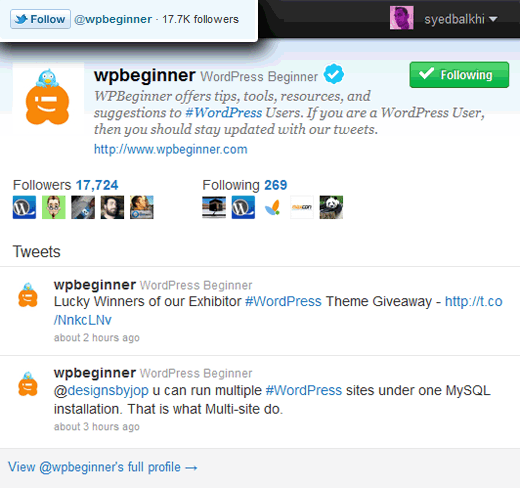
You are probably wondering how it is different from the Smart Follow button below?
Well the smart follow button requires you to do the whole Twitter Anywhere integration. It also doesn’t allow you to show your follower count or do any customization. Whereas the Twitter follow button lets you show the count, and it is very easy to integrate. Check out the live example below (don’t forget to click follow to see what it does):
How to Add the Official Twitter Follow Button in WordPress
You can go to the Follow Button page and generate a code for you. Or you can simply copy the code below:
<a href="http://twitter.com/wpbeginner" class="twitter-follow-button">Follow @wpbeginner</a>
P.S. Make sure to change the username with your own.
If you are using the official tweet button, then you do not need to paste the script twice. So your code will look like this:
<a href="http://twitter.com/wpbeginner" class="twitter-follow-button">Follow @wpbeginner</a>
Now you can paste the code anywhere you like in your WordPress theme. Most folks will put such code in their sidebar.php file. However, if you don’t feel comfortable editing a theme file, then you can utilize WordPress theme widgets as well. All good themes come with widget-ready sidebars. So all you would have to do is go to Appearence » Widgets tab. Then add a text widget to your appropriate sidebar. Lastly, paste the code above, and you are done. Look in the screenshot below for the example:
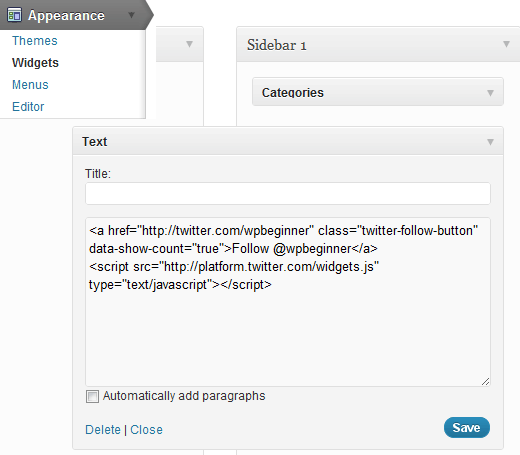
There is really no need to add a plugin to do something as simple as this.
Advanced Customization
This section is for designers and developers who want to customize this button further to match their site’s color scheme etc. Twitter lets you customize the button color, text color, link color, language, widget, and alignment of the plugin.
Available variables in the JavaScript version that we are using:
- data-show-count (true or false)
- data-button (blue or grey)
- data-text-color (hex code)
- data-link-color (hex code)
- data-lang (en, fr, de, es) – uses the two letter ISO-639-1 language code
- data-width – (300px)
- data-align – (right)
If you want to specify it in the a code it would look something like this:
<a href="http://twitter.com/wpbeginner" class="twitter-follow-button">Follow @wpbeginner</a>
Resources:


Biodun
Hi,
I tried to increase the width with the “data-width=300px” option but its not working.
Pj Germain
SWEET! I didn’t wanna install yet another plug-in and this worked like a champ! I know it’s an old post, but hey, you nailed it!!!
Thanks a bunch!
Verity
Hi there, thanks for the info. I’ve added this on to my HTML page but the link is coming up just with text (ie my twitter name) and not the official Twitter button. Any advice? Thanks in advance.
Si Sai
Hi
what if i have multiple authors on my blog and i want individual authors twitter follow button to be displayed for the posts they have submitted ?
Chris Q
This is great! Thanks.
I’ve built my blog from scratch with zero previous knowledge, and resources like yours have proved invaluable along the way.
I have a question though: is there anyway to hide or remove the counter? It’s half obscured by an image so thought I’d just get rid. I tried deleting what I thought was the obvious piece of code but it’s still there.
Nadia
I got the button to post just fine and it links and everything but I don’t know how to change the location its in. I posted it in my header but I want the button to show up right next to my FB icon and right now its being half covered up by another picture in the header. Suggestions??
Nadia
Never mind, GOT IT!!! Woot woot
Nadia
For anyone else having this problem-
I had posted the link provided on this page into my header section. To edit the location, you need to go to the style section. I used this code:
.twitter-follow-button{
display:block;
position:absolute;
top:60px;
right:-170px;
width:32px;
height:32px;
Judy Hochberg
I installed it in a text widget, and it looks fine on my blog, but I don’t understand how it works. When a user clicks on it, what happens? How does WordPress or Twitter know who the would-be subscriber is?
When I try clicking on it I get a pop-up message that says something like “You are now subscribed to @my_twitter_handle.” The message is the same whether or not I’m logged into the website. So how is my identity known?
Punit Bhalodiya
nice post for WP-beginners thanks..!!!!!!
Pritam Patil
You are the real wp rockstart man !! its working ..and lets hope i get more followers
Gemma
Hi,
I followed the instructions and it did work–the button appears and when I tested it, it links to my twitter. However, the widget also shows the html code underneath the follow button on my blog. Is there any way to hide the code and just have the button?
Thanks
Editorial Staff
Sounds like a copy/paste error because the widget shouldn’t show any html code.
Admin
David M. Perkins
Okay, unfortunately that didn’t work. Any other place I can go for help?
Editorial Staff
Which part didn’t work? What error does it show?
Admin
David M. Perkins
The instructions above didn’t help at all–but fortunately I found another way through the plug-ins (after some *hours* I’ll never get back). You have to remember that this is called “WPBeginner”–emphasis on the “Beginner,” and telling someone to post code willy-nilly and not laying out *all* the steps: do this first, then click on that, which will show you this, etc. (some of us “beginners” are complete digital diplodoci, you know), is not helpful.
In any case, I got it done–but *not* by following the instructions above.
Editorial Staff
Hi David,
The reason why we say paste it anywhere in your theme is because we do not know where you want to add it. It could be in the header, sidebar, footer, after each post etc. Those are all different locations. Furthermore, we did mention that you can go to Appearance » Widgets and add it in the text widget. You can put the text widget in the appropriate widget areas (supported by your theme). Some have widget areas in the footer, but most have it in the sidebar.
David M. Perkins
@ Editorial Staff said ~
“The reason why we say paste it anywhere in your theme is because we do not know where you want to add it. It could be in the header, sidebar, footer, after each post etc. Those are all different locations.”
My point was that the directions could have said: “If you want to put it in your sidebar, go *here,* click on *here,* which will show you *this,* and then you paste the text *there.* If you want to have it appear at the bottom of your post, go *here,* click on *here,* which will show you *this,* etc.” I’ve still got the code, which did not make the button appear, pasted *somewhere* on my dashboard page–but the goddesses only know where it is at the moment.
Again–some of us *are* beginners here–and digital diplodoci–and beginners sometimes need a gentle, kind, *guiding* hand to get where we want to go, n’est–ce pas?
Editorial Staff
Hello David,
While we understand exactly what you are saying, it is harder than it sounds. Each WordPress theme is coded differently (general theme, child themes based on various frameworks etc). On top of that, we can’t possibly cover every single spot a human brain can think of displaying the button. This is the reason why we covered the most basic spot (Appearance > Widgets). Depending on the theme, you will have widgets for your the sidebar, header, footer, etc.
We have a detailed overview of widgets in our free videos here: http://videos.wpbeginner.com/
eggtartbox
I tried it and links to my twitter, but as regular text…would that be because I’m on a wordpress.com blog?
Alyssa
I have the same problem. It links it to my twitter but does not show the button. Any ideas on how to fix this?
Gorn
@wpbeginner Actually, neither. It’s a WordPress faciltiiy hosted by CIX at blog.cix.co.uk.
I have now got it to work, but by using the “old-style” twitter buttons at http://twitter.com/about/resources/buttons – couldn’t either the “script” form or the shortcode form to work. Any ideas why that is?
wpbeginner
@Gorn Are you doing this on WordPress.com blog or a self-hosted blog?
Gorn
Thanks for this. It doesn’t work for me, though. When I save the Text widget, the script element gets stripped out, and I end up with just a text link in my sidebar. Any ideas?
TheNerdyNurse
nice addition. Feel my site loads too slow as it is. Worried that will be just one more thing to slow it down. I really need to figure out what it causing the drag in loading.
jasonfox_me
Thanks for the tip. i took the code from Twitter and it it looked good (bad me for not testing) the other day my friend tells me he tried to follow me and got user does not exist. For some reason it left my old handle in the code….just a heads up.
TheFadeMusic
@wpbeginner LUMIX DMC-GF3s http://t.co/8wwbZSR
wpbeginner
@likewpcom which in most cases would not be necessary.
likewpcom
Another way to add twitter button is to install a WordPress plugin like http://goo.gl/EHyex
AlbertAlbs
Yes. I did already. Got too many followers after adding that twitter follow button.