


When we launched our first WordPress blog, slow loading times frustrated our visitors and hurt our search rankings. Discovering how to properly cache our website was a massive turning point for our traffic.
We know that configuring caching settings can feel overwhelming for beginners. The fear that one wrong click might break your site’s layout is completely valid.
That is why we are sharing the exact W3 Total Cache settings we used to slash load times from 8 seconds to under 2. We will break down the entire setup process into simple, safe steps.
Editor’s Note: We no longer use W3 Total Cache on our website and have switched to WP Rocket, a premium caching plugin. W3 Total Cache is still a fine solution that works well.
What Is W3 Total Cache?
W3 Total Cache is one of the best WordPress caching plugins that allows you to easily improve WordPress performance and speed.
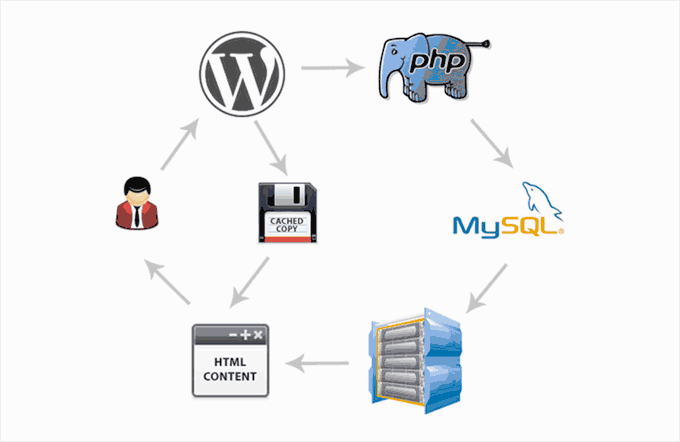
By default, WordPress uses PHP to dynamically generate each page on your website when it is requested by a user.
PHP is a server-side programming language. This means each user request increases the load on your server. This affects your website’s performance, user experience, and SEO.
WordPress caching plugins help you reduce this by skipping PHP and serving a cached copy of your webpage. Think of it like solving a complex math equation (500 x 43). Instead of calculating the answer every single time someone asks, caching lets WordPress calculate it once and simply hand the final answer to the next person.
It also allows you to easily connect your website to a CDN (content delivery network) to further improve your website performance.
Installing W3 Total Cache in WordPress
Before you install the W3 Total Cache plugin in WordPress, you’ll need to make sure that you deactivate any other caching plugin on your website. This will help you save server resources and prevent any plugin conflicts.
After that, you can go ahead and install and activate the W3 Total Cache plugin. For more details, see our step-by-step guide on how to install a WordPress plugin.
Upon activation, W3 Total Cache will add a new menu item labeled Performance to your WordPress admin sidebar. Clicking on it will launch the plugin’s setup wizard.
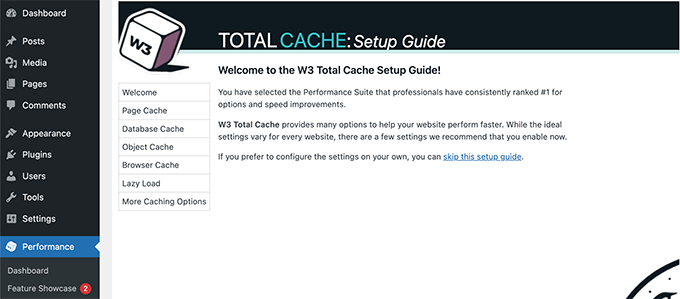
Simply click on the Next button to continue.
First, you will be asked to turn on Page Cache. Click on the Test Page Cache button to continue.
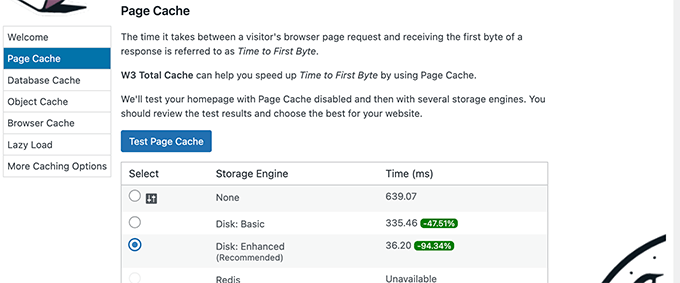
W3 Total Cache will show you different storage engine options. You need to choose one that saves you the most time. Usually, it will be the ‘Disk: Enhanced’ option for most shared hosting platforms.
Click on the Next button to continue.
Now, you will be given the option to Test Database Cache. We recommend choosing None. For most small to medium-sized websites your MySQL server will be able to fetch data more quickly than the Database cache.
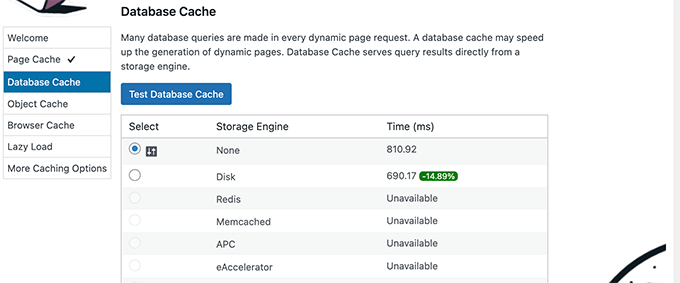
Click on the Next button to move on to the next step.
This will bring you to the Object Cache section. Object Caching allows W3 Total Cache to store database queries for dynamic pages and reuse them to improve performance.
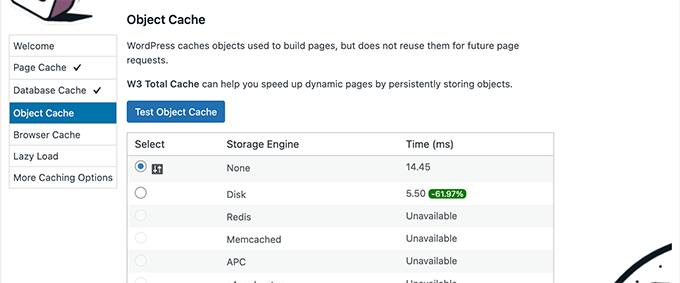
If the test result shows barely a few milliseconds difference, then you can choose None.
Most basic shared hosting plans do not have the specialized server software (like Memcached or Redis) required to make object caching effective. In these cases, turning it on can actually slow your site down, so it is safer to leave it off.
Click on the next button to continue.
After that, click on the Test Browser Cache button and then select the ‘Enabled’ option under the test results.
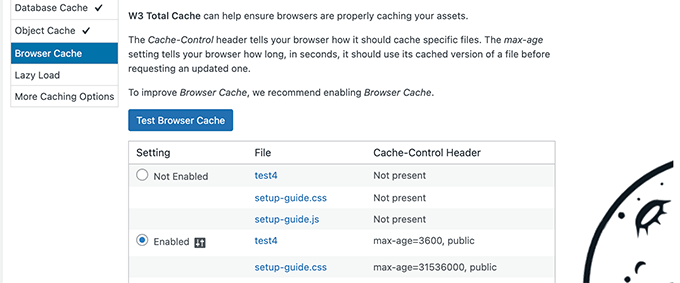
This tells the visitor’s browser to save a temporary copy of your webpages. When they visit again, the page can load from their computer instead of your server, which is much faster.
Click on the next button to move on to the next step.
Lastly, the setup wizard will ask you to enable lazy loading for images.
Now, WordPress comes with built-in lazy loading for images. However, some older browsers may not have support for that feature.
W3 Total Cache uses a JavaScript method for lazy loading. This can help ensure that lazy loading works correctly with all themes and plugins, and across all user browsers.
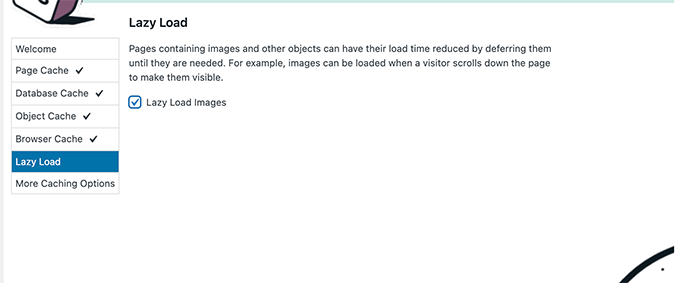
After that, click on the Next button to finish the setup wizard and view W3 Total Cache dashboard.
Advanced Caching Options in W3 Total Cache
The basic settings would work for most websites. However, there are many advanced options that you can configure to further improve performance.
Let’s take a look at the most important ones.
Minifying JavaScript and CSS in W3 Total Cache
Minifying is a quick way to shrink your website’s file sizes. It does this by removing white spaces, lines, and unnecessary characters from the source code.
Note: Minifying JS and CSS files can potentially break your website. If you turn it on and your website’s layout looks broken, simply disable these options, save your settings, and click ‘Purge All Caches’ to restore your site.
W3 Total Cache allows you to easily minify JavaScript, CSS, and HTML source code as well. However, we recommend only minifying JavaScript and CSS files.
Simply head over to Performance » Minify page and scroll down to the JS section.
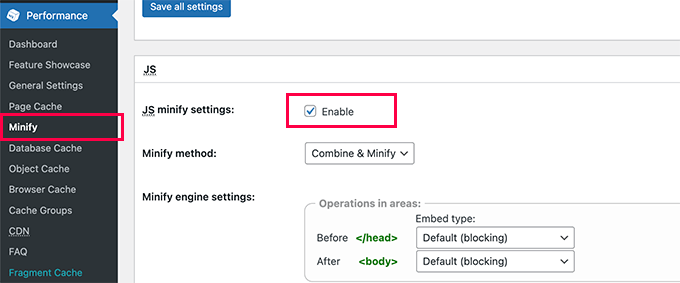
Check the box next to ‘JS minify settings’ to enable it.
Now, scroll down to the CSS section and enable CSS minify settings the same way.
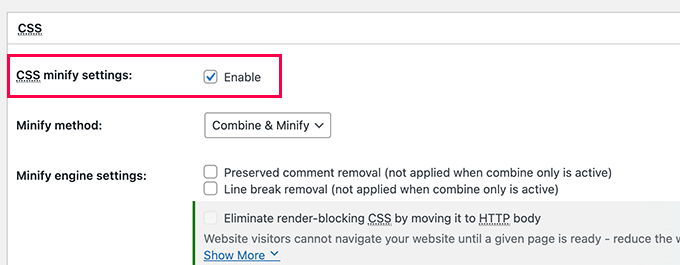
Don’t forget to click the ‘Save all settings’ button to store your changes.
For alternate methods, see our guide on how to minify JavaScript and CSS files in WordPress.
Enabling CDN Support in W3 Total Cache
CDNs or content delivery networks help you further improve your website performance by serving static files like images, CSS, and JavaScript from a global network of servers.
This reduces the load on your WordPress hosting server and improves page load speed.
W3 Total Cache comes with built-in support for various CDN platforms.
We recommend using Bunny.net, which is the best CDN solution on the market. This is what we use for our OptinMonster website.
First, you need to sign up for a Bunny.net account. After signing up, you need to create a Pull Zone for your website.
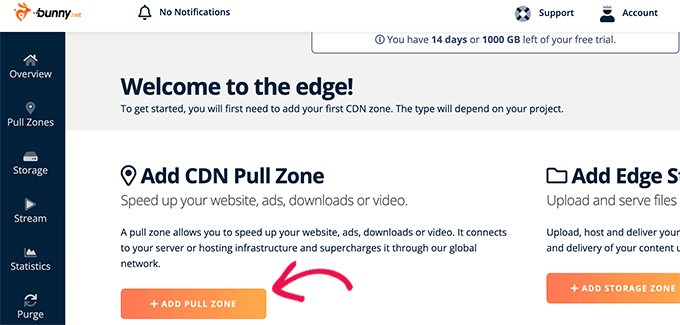
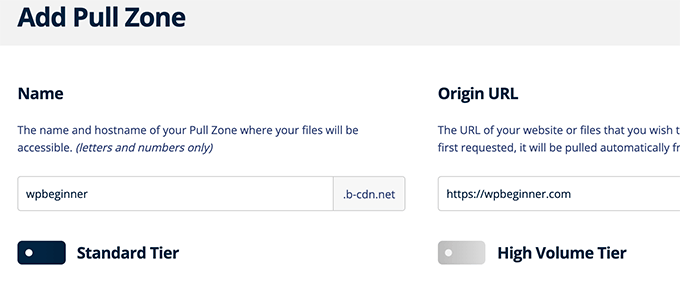
A pull zone adds a hostname to Bunny.net CDN. This hostname is then used to serve static files for your website. Note: Your Bunny.net hostname will usually look something like yourwebsitename.b-cdn.net.
Add a name for your pull zone and then provide your website’s domain name.
After adding the pullzone, you need to visit the Performance » General Settings page.
Then, just scroll down to the CDN section.
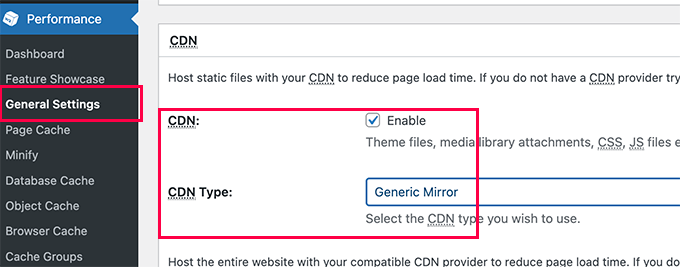
Check the Enable box next to the CDN option and choose Generic Mirror next to the CDN Type option.
Don’t forget to click on the Save All Changes button to store your settings.
Next, you need to visit the Performance » CDN page and scroll down to the Configuration: Objects section.
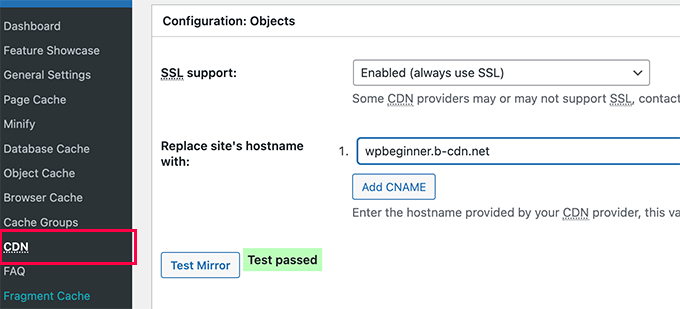
From here, you need to add the hostname you created earlier for your pullzone and click on the test mirror button.
W3 Total Cache will check the availability of your hostname and will show the Test Passed message when it’s successful.
You can now click the ‘Save all settings’ button to store your changes.
W3 Total Cache will now start serving your static files from the CDN.
W3 Total Cache also works well with Cloudflare free CDN. Alternately, you can also use it with Sucuri which is the best website firewall service with built-in CDN service.
Troubleshooting W3 Total Cache Issues
Once you have configured W3 Total Cache properly, it should work seamlessly in the background to improve WordPress speed and boost performance.
Occasionally, you may come across issues where you don’t see changes you made to your website right away, or a plugin may not be working properly.
The most common reason for those issues is that you are probably seeing an old cached version of your website.
This can be easily fixed by clearing the cache in WordPress.
Simply click on the Performance menu at the top and then select Purge All Caches option. W3 Total Cache will clear all cached content on your website.
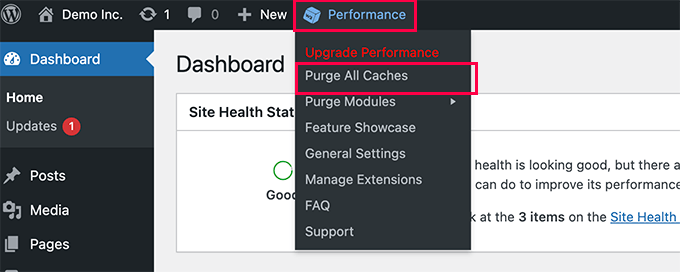
If you are still seeing the old version of your website, then try clearing your browser cache too.
Frequently Asked Questions About W3 Total Cache
1. What is caching and why is it important for WordPress?
By default, WordPress uses PHP to build every page a visitor requests. Caching speeds this up by creating and storing a static HTML version of your pages.
When a user visits your site, WordPress serves the faster, cached version. This reduces server load, improves website speed, and can positively impact your SEO rankings.
2. Is W3 Total Cache a free plugin?
Yes, the core W3 Total Cache plugin found in the WordPress directory is completely free. It also offers a pro version with additional features for advanced users, but the free version has everything most websites need to see a significant speed boost.
3. Can caching plugins like W3 Total Cache break my site?
It is rare for caching to break a website, but some advanced settings like JavaScript and CSS minification can sometimes conflict with your theme or other plugins. This can cause display issues on the front end of your site.
If this happens, you can simply disable the setting that caused the problem. It is also good practice to clear all caches after making major changes to your site.
4. What is the difference between W3 Total Cache and WP Rocket?
Both are excellent caching plugins, but they serve different needs. W3 Total Cache is a free plugin with a vast number of settings, offering deep control for users who want to fine-tune every aspect of caching.
WP Rocket is a premium plugin that focuses on ease of use and powerful results with minimal setup. As mentioned in our editor’s note, we use WP Rocket on WPBeginner because it delivers incredible speed improvements right out of the box.
Additional Resources on WordPress Caching
We hope this article helped you install and set up W3 Total Cache in WordPress. You may like to see some other options for WordPress caching:
- Best WordPress Caching Plugins to Speed Up Your Website
- How to Install and Setup WP Super Cache for Beginners (Easy Way)
- How to Properly Install and Setup WP Rocket in WordPress
- WP Rocket Review
- LiteSpeed Cache vs. WP Rocket – Which One is Better?
- How to Clear Your Cache in WordPress (Step by Step)
If you liked this article, then please subscribe to our YouTube Channel for WordPress video tutorials. You can also find us on Twitter and Facebook.




Rabia
Thanks valuable information.
WPBeginner Support
You’re welcome
Admin
Jiří Vaněk
I would recommend everyone to make a note of the changes you have made, especially. Issues on the website may not manifest immediately. For instance, it happened to me that after a week, WordPress started behaving strangely, and it was happening randomly. It took me quite a while to find the problem in the cache plugin and incorrect settings. If I had documented the changes I made, I would have found the problem more easily. It’s a recommendation for everyone.
Roin
Hello,
I’ve a question:
Does a free version slow the website ? My opinion is that a free version of this plugin makes website slow.. how do you think?
WPBeginner Support
The free version of plugins will not slow down your site, poorly coded plugins can slow down your site.
Admin
Abu Allaah
Thanks for the valuable tips,
I would like to ask if it’s possible to update the article with the latest version of the plugin.
Thanks in advance
WPBeginner Support
We will look into updating the article as soon as we are able
Admin
Balu
I enabled Minify settings in W3 Total cache plugin and also installed cloudflare extension in w3 total cache plugin.
Should I enable minify settings in Cloudflare extension also?
WPBeginner Support
You would want to only use one or the other, if your W3 Total cache minification is working well then stay with that for the moment
Admin
Prajyot Kumbharjuvekar
Do I still need to install a caching plugin if I use CLOUDFLARE CDN
WPBeginner Support
It is not required but it is recommended to use a caching plugin with your CDN
Admin
Duryab
This post is much outdated now, please update this post to the latest W3 total cache plugin.
Thanks.
WPBeginner Support
Thank you for letting us know about this post being outdated, we will update this article as we are able
Admin
Tom Lloyd
Thanks for the great article! I really benefitted from it and have a better performance now 1/4 load time. One thing you should mention is in the Browser Page under Performance tab there is a box at the bottom that says Rewrite URL. Don’t check that it ruined my pages. All links were alterred but I took it off and it’s ok.
Gavin
Thanks for your very easy to follow tutorial (with screenshots) on W3 Total Cache. I noticed an immediate difference in load time of the site.
Bikramjit
Hi, As per your recommendation, I have decided to go for MaxCDN, Is there any new update about CDN? Going to the MaxCDN site, there are different service including Content Delivery Network, Edge Delivery and other. Can your recommend me which service I have to select initially? I have new blog with no affiliate link till now and not planning for the next six month. And I am planning to apply Google adsense in the near future.Presently I installed WP Super Cache.
Do I need to switch W3 Total Cache to configure with MaxCDN? if I can configure MaxCDN with WP Super Cache, do you have any guideline?
HumbleHuman
Hey:)
Thanks for those detailed instructions and I must say that you helped me much in setting up W3TC for my website..
I have a small issue with W3TC.. It is not purging my feed cache even though I have enabled this in the Purge Policy..
Will you help me how to solve this issue?
Thanks in Advance
Brandon
After following this guide, I get the error: “Error: Empty hostname / CNAME list.” I have filled the “Replace site’s hostname with:” with all my cdn.* fields. Has anyone ran into this issue?
Vijay Prajapati
I am Using W3 Total cache plugin for WordPress. My post has one table which updates every minute/hour. But as I do caching, the server does not serves latest version, instead it displays cached copy to the visitor. How can I purge cache every 30 minutes automatically so that it shows latest version of the post at after every 30 minutes?
I have already tried inserting this code in functions.php file but its not purging cache every 1h, instead it dies 2-3h later.
function w3_flush_cache( ) {
$w3_plugin_totalcache->flush_all();
}
// Schedule Cron Job Event
function w3tc_cache_flush() {
if ( ! wp_next_scheduled( ‘w3_flush_cache’ ) ) {
wp_schedule_event( current_time( ‘timestamp’ ), ‘hourly’, ‘w3_flush_cache’ );
}
}
Anna
Thanks for such an easy to follow article. I broke my website yesterday using instructions from another blog. I should have come here first!!
I am a bit surprised by my results though. I did a Pingdom and GT Metrics test before I made all these changes and my page load time was:
Pingdom: 8.91 secs and GT Metrix: 5.3 secs
After I made all the changes I re-ran the tests:
Pingdom: 9.51 secs and GT Metrix: 9.9 secs
I thought my load times were meant to get much better – not worse!!?? What have I done wrong?
WPBeginner Support
Hi Anna,
Allow the plugin to generate cache and recheck your scores. If that doesn’t help try to review your cache settings to make sure everything is setup properly. Alternately, you can try WP Super Cache and see if it helps.
Admin
Roman
Thank you for so great content.
Should I enable “Page cache” option in the process of development of site or only at when I launch it?
For me it is convenient to do this right now, but I think maybe during development it is not good as I visiting thousand times to check the progress.
WPBeginner Support
Hi Roman,
Yes, you are right. You can set up the plugin later once your website is live.
Admin
Jessica Braboy
Hi! Trying to install the W3 Total Cache Plug In, and while it says it is compatible with my version of WordPress, it says that the plug in is unavailable and says “Not allowed on our system due to performance, security or compatibility concerns. Please contact support with any questions.”
First of all… do you know why this is no longer working? And, do you have an alternative cache plug in that you recommend? Thank you!
WPBeginner Support
Hi Jessica,
This means that your WordPress hosting company doesn’t allow the plugin. Most probably because they have their own caching solution integrated into your hosting account which doesn’t work well with W3 total Cache. Please contact your hosting provider for more details.
Admin
Andy Sellers
Hi, I need some help please.
I’ve followed the instructions to serve my static files through CDN (and they’re very clear, thank you) and have found the process straightforward so far- but when I log in to my site the URL still starts with ‘www.’ and not ‘cdn’ so I guess cdn is not operational yet.
One thing I notice is that in the MAXcdn account page there is no option to ‘Update’ the Custom Domain settings as mentioned in the instructions – is this OK? I assume it now updates automatically?
But my main problem is that, assuming I now have to do this, I don’t know how to specify the static files in the custom files list in the custom setting of W3Total Cache. Help please. How should I fill in this Advanced panel – it’s now getting a bit too techie for me? Thank you.
WPBeginner Support
Hi Andy,
You will login to your WordPress site using the normal URL. CDN only serves static files via their network not the whole website.
MaxCDN settings may have changed, but you would still need to setup your domain. Please contact their support and they will be able to guide you.
Admin
sazia kazia
Hi Very helpful and useful article. I set w3 total cache as per above instructions and could see it improved my website speed in good level. I ‘ll use MaxCDN instructions …Thank you so much
Amit Jain
Hello Team! I am following your blog since long now and trust have learnt a lot. Thanks.
I need a little bit of help – Mine is a startup site, but have started with Cloud VPS Server with Data Centre located in Mumbai, India. 2.80*4 CPU and 8GB Ram is the part of Server Configuration. For better Site Security and Performance what should i use – Cloudflare (If cloudflare then free or paid plan) or Sucuri, W3Total Cache, WP Super Cache, Varnish Cache or Some other plugin/software.
Francis
Good and Quality tutorial
thanks Syed Balkhi.
this really helped me
Raj singh
I have an issue with this plugin , when I trying to update this plugin it failed and after fails when I Refresh my wordpress site .
It says under maintenance come back after few hours.
So I leave and came back after few hours but after few hours when I try to open my site .
It’s Totally blank , Nothing is show on my Site.
Only white page comes when I Try to open.
So now what should I do ?
Please help me…
Derek C
Thank you so much! I was about to go pay an extra $15 a month for cloud based hosting because my blog had gotten so slow at times it was unbearable! I had setup W3 Total Cache and just enabled everything.
I didn’t recognize it until going through your guide, but this was the main reason my dashboard and WP console was taking FOREVER to do anything. Sometimes I would wait 20-30 seconds just to create or save a post. Now it is like 2-3 seconds at the max. Also, my site loads even faster with a lot of that junk turned off.
I am on a shared hosting plan, and I guess all of the caching was actually bottlenecking the CPU or something…. Anyhow, thanks for such a useful guide!
Huu
Thanks Bro! ^^
Pronob
thanks a lot for this article.i was searching for this.
Amit
Dear sir,
I use your guide with w3 total cache but facing the issue of rendering CSS file. This is link of my blog How its work
Can I use Cloudfare with subdomain CDN ? Is it speed up loading time?
Rahul Rampal
Hi, I have a problem with My yoast sitemaps not rendering. A blank screen appears when I click it. My question is should I include or exclude Sitemap.xsl file in custom file settings in CDN?
Kindly advice.
Dinuka
What is ‘server response time’? And how to reduce it?
Mody Star
Hello , I’m using w3 Total Cache on multisite wordpress … I want to exclude certain site from being excluded
mysite.com/ms/
mysite.com/ms/2/
mysite.com/ms/3/
mysite.com/ms/4/
mysite.com/ms/5/
mysite.com/ms/6/
I want to exclude the whole mysite.com/ms/4/ site from being cached
and what about exclude caching of certain plugin on mysite.com/ms/5/
Help me Please
Utkarsh
I did the settings of W3 total cache plugin and the favicon of my website stopped appearing. Can you please check it
Jon
I downloaded plugin and now its loading slower.
Each time I test in pingdom the % faster than other sites decreases.
Its only a 1 page site at this time.
Ian Smith
I recently set up W3 Total Cache with the Rackspace Cloud Files CDN. It all works, but I had expected the media files in the wp-content/uploads folder to only be posted in the CDN rather than on the server. Instead, media uploads now go to both the CDN AND the wp-content/uploads folder. Is this what is supposed to happen? It seemed unnecessarily redundant to me.
WPBeginner Support
Yes, but the images on your server are stored so that you can end using CDN service anytime you want, or move to another service, or to create backup using WordPress backup plugins. However, your visitors will be served images from the closest CDN server instead of your site.
Admin
Himanshu Grewal
MAXCDN is free ir not??
WPBeginner Support
No it is a paid service.
Admin
Ian
Hi,
Are you still using maxcdn on this site? I’m trying to decide between maxcdn and keycdn. I noticed this post was from a few years ago and wondered if your thoughts about maxcdn are still the same?
Thanks
WPBeginner Support
Yes, we still use and recommend MaxCDN.
Admin
Bart Percy
Superb site you have here but I was wondering if you knew of any forums that cover the same topics discussed in this article? I’d really like to be a part of group where I can get feedback from other knowledgeable individuals that share the same interest. If you have any suggestions, please let me know. Bless you!
ROSANNA
Hi ! I installed yesterday Super Cache because it seemed easier to configure than W3 Total Cache but this morning my site was very very very slow… So I decided to follow your tutorial step by step and change plugins.
So, the first step was to deactivate the first plugin, so I clicked deactivate Super Cache and my whole site crashed !!! I get this message : 503 SERVICE UNAVAILABLE no server is available to handle this request.
I don’t know what to do. Can you help ?
Anant
Minify via disk is currently disabled
I tried to check the box and when I save after the refresh, it’s disable. enabling it 100 times over still results in an unchecked box, and the message “Minify via disk is currently disabled. Anyone know how to fix that ?
Thank you
Reply
TJ
Thank your this tutorial. I have used it for a couple of my sites.
One thing, which might be a “duh” situation… But, I had my site in “Maintenance Mode” using SeedProd’s Coming Soon Pro. I did not see the CDN in front of the image urls until I turned off maintenance mode. Then, when I turned it back on again, they were gone again.
Just in case someone needs this information
Rahul
hi there, thanks for making this post for wp beginners. i’m also using wp total cache plugin for . could you help me or check my website what is problem in this becasie i’m not getting hits pls help me a humble request to u
thanks
Jewel
Hello,
I appreciate so much, your posts. They have helped me learn a bit about setting up my website. However, this particular post led me to check a bunch of boxes under”Performance » Browser Cache” that took me from faster than 91% down to faster than 71% on speed. I had checked them just as you have in your picture above. I unchecked all your suggested boxes and got back to 84%. (on Pingdom) This was the only change I made. I don’t understand why it made things slower, or why I couldn’t get back to my original speed. If you could explain this I would appreciate it. Thanks.
WPBeginner Support
A lot of reasons can show you conflicting results when you are expecting something different. For example, you may have forgotten to save plugin settings, your server is particularly under heavy traffic at that time. Make sure you enable gzip compression as we have shown above, then test.
Admin
sojib
I am not using this cace plugin anymore. Using now wpfc two of my site. simple and faster then other plugins.
Tea
Thanks for the tutorial…really helpful
However my website is slower then before.
I also have these performance issue “Remove query strings from static resources”.
I haven’t enabled database caching and Minify as per your insutrctions as yet…also don’t have CDN service.
before my website was faster.
Any thoughts?
Thanks
Tea
WPBeginner Support
How are you checking your website speed and performance? We recommend testing with pingdom using different locations. If it is still slow, then try resetting the plugin and follow the setup instructions again.
Admin
Tea
yes using pingdom to test and speed is 2.55s…I think we can do better
All my performance scores are 100 or 95 the lowest, but the “Remove query strings from static resources” is at 12.
Any suggestions?
Many thanks
Tea
Lifa
This has to be one of the best if not the best Wordpress learning sites ever! Detailed and very easy to understand modules. Thank you for all your hard researched work.
Penelope
THANK YOU FOR MAKING THIS! I’m EXTREMELY cautions on the plugins I install from horror stories. I’ve also heard horror stories about this very plug in. Therefore, I research as much as I can: tutorials, forums, reviews, troubleshooting etc. I am going to follow your tutorial exactly. My server says my site is too large, 500kb, and needs to be gzipped. [sigh] Another plugin to search.
Helpful note: You may have a downloadable instructions on your site somewhere & I am not see it. But It would be helpful if I could download to print OR this was print friendly. you have have link but I am not seeing it.
–Penny
Keami
When I check the box for enable for page cache and click save all setting it doesn’t stay checked. Help please?
reza
Please Inform That if Enable Object Cache is checked may cause very slow or accessible admin panel after some times as happened to me and i have to disable object cache and after that i have no problem with this Great plugin
TnX for your tutorial too
deepa tiwari
Thanks for sharing . I tried to install W3 total cache showing Error not Available for you. How to fix it. Please help me
Manu
i always come back for W3 Super Cache settings after messing-up with the plugin and i never back or restore its settings because i know where to look for it.
Thanks Wpbeginner for this awesome tutorial.
tracey sharp
Many thanks for this really detailed step by step guide. I’ve installed google adsense along with a couple of other plug ins and my load time seems to have almost ground to a halt. I’ve installed Total Cache which has helped a little but I’m not sure what to do next. I’ll keep looking!
Hasnain Abid Khanzada
I have one question that as we know that when we open any new website then browser cache it so then why we need any plugin for improving cache performance?
Muhammad Imran
Hello WPB team,
I have connect MAxCDN by following all the guidlines as suggested in the article. But after some days my 99% images de-indexed in Google. Please is there any tutorial to FIX this? Will be very thankful to you for the help.
Thanks
Tristian
Hi,
I do have one question, when static pages are created for example you have 200 pages and just installed and set up W3 cache. So now when static pages will be created for all those 200 sites.
Do you have to load it manually every site by site in your browser ? I understand that this action takes some time so when exactly those sites are created ( static copies on a disk) ?