


When you add tables to your WordPress posts and pages you can organize data and make it easier for readers to understand. WordPress makes this super simple with its default table block.
At WPBeginner, we’ve started using tables in our roundup articles to display the top 5 or 10 plugins. This simple change has helped improve engagement and make information easier to read.
The best part is that the default block includes useful styling options to make your tables look great. In this guide, we will show you how to easily create and manage tables in WordPress.
You will learn the basics of inserting tables plus how to improve them with advanced features like sorting and searching, all without knowing how to code.
💡 Quick Answer: How to Add Tables in WordPress Posts and Pages
You can easily add tables in WordPress using the default Block Editor. Just add the ‘Table’ block, choose your rows and columns, and enter your data.
For advanced features or the classic editor, a plugin like TablePress is a great option.
Why Add Tables in WordPress Posts and Pages?
Adding tables in your WordPress posts and pages can help organize information. They break up content into easily digestible chunks, making it more reader-friendly.
Whether you are showcasing comparison charts, lists, or stats, tables provide a clean, structured way to present your data.
Plus, tables can improve the overall user experience. Instead of scrolling through long paragraphs, your readers can quickly find the info they are looking for.
This gives your content a clean and professional look, while also making it more engaging.
Having said that, let’s take a look at how to easily table in your WordPress posts and pages. We will cover 2 different methods, and here’s a summary of their differences:
| Feature | WordPress Table Block | TablePress Plugin |
|---|---|---|
| Ease of Use | Very simple for basic, static tables directly in the editor. | Simple for basic tables, slightly more steps for advanced features. |
| Advanced Features | No built-in sorting, searching, pagination, or filtering. | Supports sorting, searching, pagination, and filtering for visitors. |
| Reusability | Tables are embedded in specific posts/pages; difficult to reuse. | Uses shortcodes allowing tables to be used across multiple posts, pages, or widgets. |
| Styling/Customization | Basic style options (background/text colors), dependent on theme. | More advanced customization options, including custom CSS and premium extensions. |
| Best For | Simple, static data display within a single post or page. | Complex, dynamic, reusable, or large datasets; when advanced features are needed. |
| Cost | Free (built-in WordPress feature). | Free core plugin, with premium extensions available for additional features. |
Creating Tables in the WordPress Block Editor
WordPress makes it super easy to add tables using the default WordPress block editor.
Simply create a new post or page or edit an existing one. Once inside the content editor, click the ‘+’ symbol to add a new block, then select the Table block.
You can find it under the ‘Text’ section, or you can type ‘Table’ into the search bar.

Next, you will be prompted to choose the number of columns and rows you want for your table. Both figures default to 2.
Don’t worry if you are not 100% sure about the exact number because you can always add/remove table columns and rows later.

Simply enter the number of rows and columns and click the ‘Create Table’ button.
The block will then generate your table and display it on the screen.
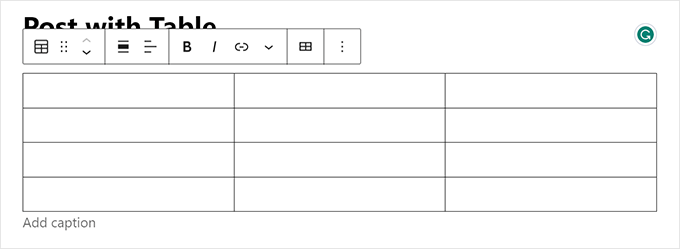
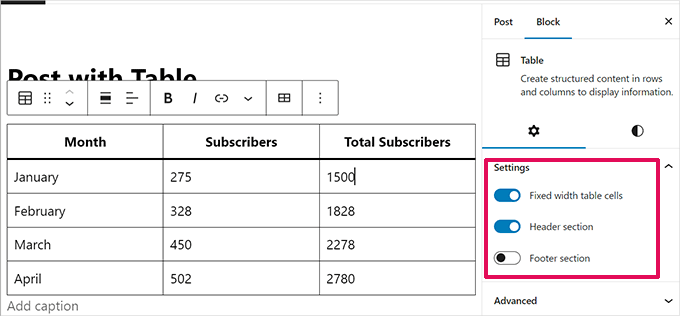
You can type in the table cells, and they will automatically resize based on the amount of content in each one.
You can set this option on the right side if you prefer your cells to be fixed-width. Here, you can also enable the ‘Header section’ and ‘Footer section’ for your table.
Using a table header is highly recommended for accessibility because it helps screen readers interpret the table data correctly for visually impaired users.
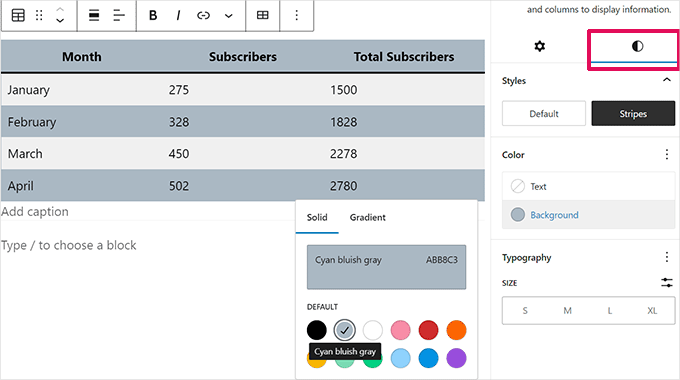
From the settings panel, you can also switch to the Style tab.
Your WordPress theme may offer a variety of styles for the table block, or you can choose the background and text colors.
If you want to add a new row or column, just click on a cell in the table.
In the block toolbar that appears, click the ‘Edit table’ dropdown (it looks like a small table with a pencil icon), then select your desired option to add or remove rows and columns.
This dropdown will then show several options to add or remove rows and columns.
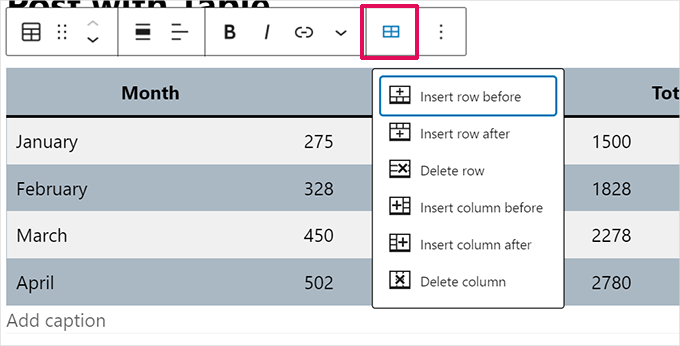
By default, the text in your table’s columns is aligned to the left.
You can change this by clicking inside a column and then clicking the ‘Change Column Alignment’ button:
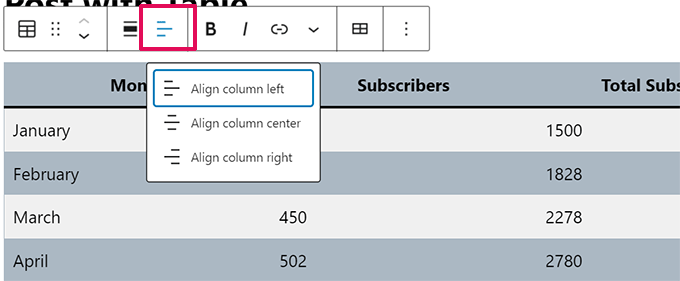
You can also change the alignment of your whole table within the post or page.
Just click the ‘Change alignment’ button and select an option from the list.
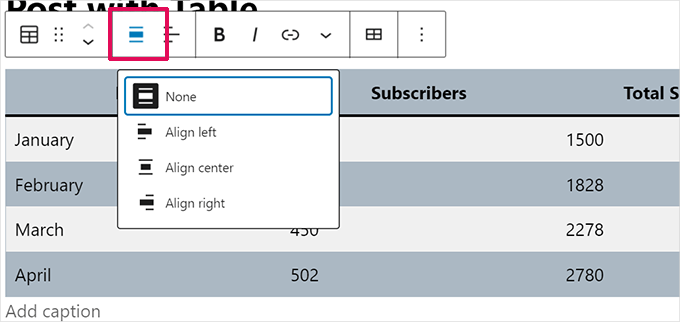
Note that these options can make your table display beyond the normal boundaries of your post area.
Some may look odd on your WordPress website, so please preview your post or page to check how the table will appear.
Here’s our table set to ‘Wide Width’ as it appears on our demo site:
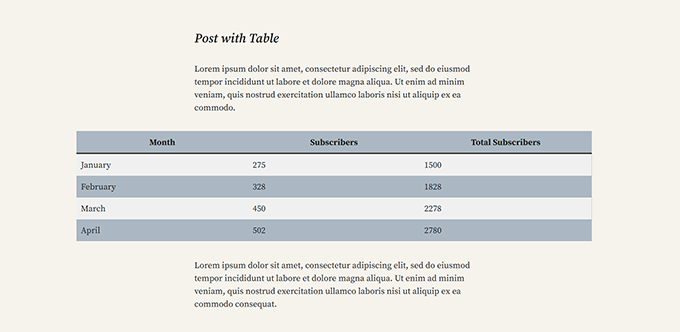
As you can see, it stretches beyond the post area’s left and right margins.
The table tools built into the Gutenberg editor give you much flexibility in displaying your tables. You can use the Table block to show data to readers in an easy-to-understand format.
However, the block doesn’t have advanced features like search filtering, custom sorting, and more.
It also doesn’t let you efficiently use the same table across multiple areas of your WordPress website, such as sidebar widgets or other pages.
To create advanced tables, you will need to use a WordPress table plugin.
Creating Tables Using the TablePress Plugin
TablePress is one of the best WordPress table plugins on the market. The core plugin is 100% free and allows you to create and manage tables easily, with premium extensions available for additional features.
If you are using the older classic WordPress editor, which does not have the table functionality, then TablePress would be the best way to add tables in your posts and pages.
First, you need to install and activate the TablePress plugin. For more details, see our step-by-step guide on how to install a WordPress plugin.
You will then see a TablePress menu item in your WordPress dashboard. Go to TablePress » Add New to create a new table.
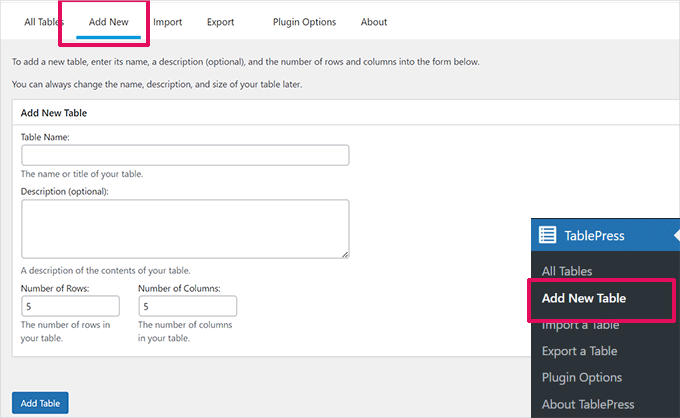
You need to type in a name for your table and decide how many rows and columns you want. You can always add/remove table rows and columns later as well.
Once you have added the table name, rows, and columns, go ahead and click the ‘Add Table’ button to create your table.
Next, you will see a screen with your table’s information and an area where you can add content.
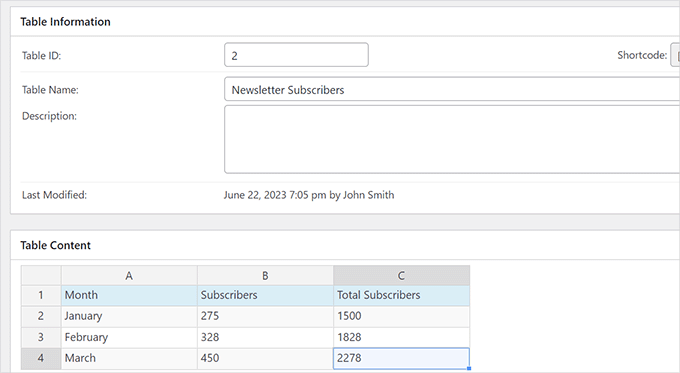
Simply type the data you want into the cells of your table.
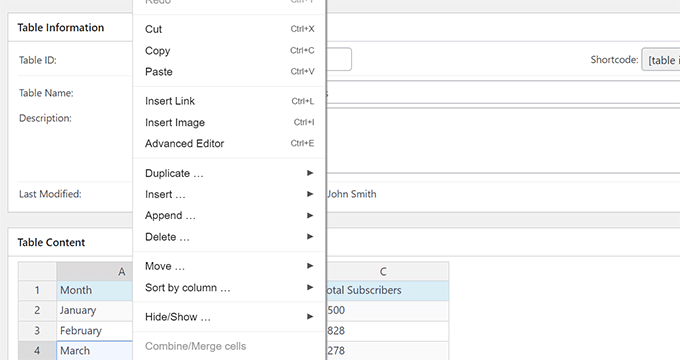
To add or remove rows and columns or perform sorting operations, simply right-click inside the table. This will show an options menu where you can make more changes.
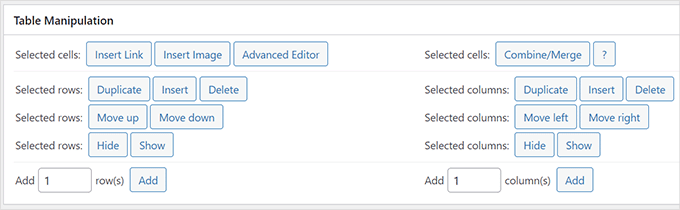
Advanced options, such as’ Table Manipulation, ‘ are below the ‘Table Content’ area.
From here, you can add, remove, and duplicate rows.
In ‘Table Options’, you can add a header and/or footer row, which won’t be sorted in with the data.
You can also decide where to show the table name and description:
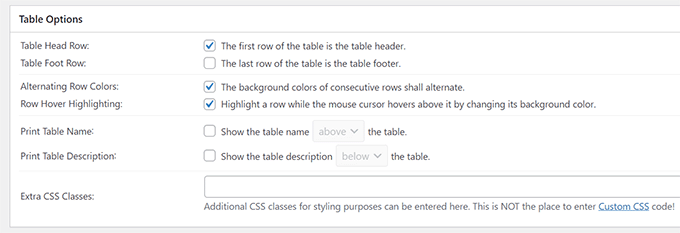
Finally, you can set various options in the ‘Table Features for Site Visitors’ section.
These settings allow you to create responsive tables that can be filtered, searched, and sorted by your readers.
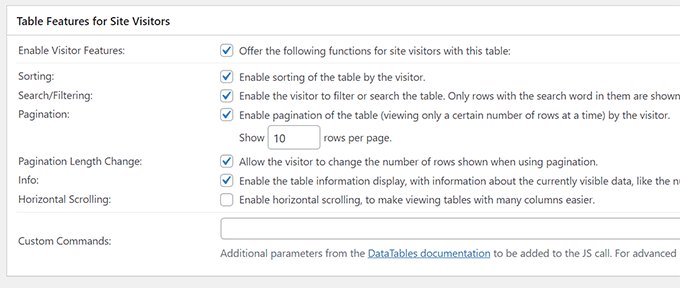
Once you are happy with your table, just click ‘Save Changes’.
After that, copy the Table shortcode. You will need it in the next step.
💡Pro Tip: One of the biggest advantages of using a shortcode is that you can place the same table in multiple posts, pages, or even sidebar widgets.
If you ever need to update the table, you only have to edit it in one place, and the changes will automatically appear everywhere the shortcode is used. This can save you a lot of time!
Now, edit the post or page where you want to display the table and add the Shortcode block to the editor.
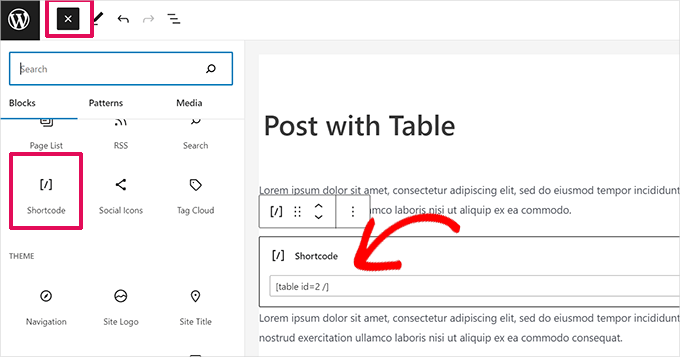
After that, add the shortcode you copied earlier into the Shortcode block.
Don’t forget to update or save your changes.
On the other hand, if you are using the classic editor, then simply add the shortcode straight into your post:
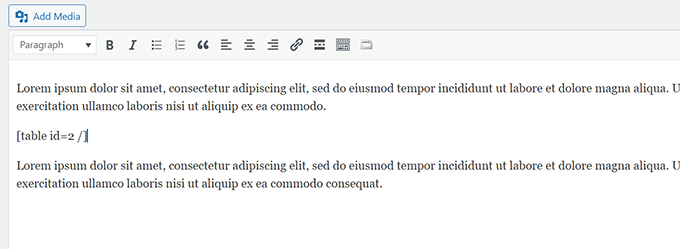
If you want to change your table in the future, you can return to TablePress in your dashboard and make changes. Your table will be automatically updated in any posts and pages you have used it in.
TablePress also allows you to import data from spreadsheets and CSV files. Similarly, you can export TablePress table data to a CSV file, which you can open with any spreadsheet program like Microsoft Excel or Google Sheets.
Video Tutorial
If you don’t prefer written instructions, then just watch our video tutorial:
Frequently Asked Questions About WordPress Tables
Here are some common questions we get asked about adding tables to WordPress websites.
How do I make tables responsive in WordPress?
The default WordPress table block has limited responsive settings. For tables that look great on mobile devices, a plugin like TablePress is the best solution.
It lets you create tables that can scroll horizontally on small screens, which helps keep your site user-friendly.
Can I customize the look of my tables?
Yes. The built-in table block offers basic style options to change background and text colors. Your WordPress theme may also add its own unique styles.
For more advanced design control, a plugin gives you more power to customize your tables with custom CSS.
How do I import data from Excel or Google Sheets into WordPress?
The easiest way to import data from a spreadsheet like Excel or Google Sheets is by using a plugin.
TablePress has a built-in import feature that allows you to upload your CSV file directly. This saves a lot of time compared to manually entering the data.
What is the best way to create a sortable and searchable table?
The default WordPress table block is great for simple data displays but does not support sorting or searching.
To add these interactive features, you will need a plugin. TablePress is an excellent free choice that lets your visitors sort columns and search for specific information within your tables.
We hope this article helped you learn how to add tables to WordPress posts and pages without using HTML. You might also like our guide on how to create a table of contents in WordPress and our tutorial on hiding blocks from specific users in WordPress editor.
If you liked this article, then please subscribe to our YouTube Channel for WordPress video tutorials. You can also find us on Twitter and Facebook.





Dennis
Cannot add table to latest version of WORDPRESS
There is no +
WPBeginner Support
The + is still in the current version of WordPress, if you are using a builder or similar tool instead of the block editor, that is the most common reason why you would not see it.
Admin
Ralph
I use wordpress default tables and while they work great on desktop browser, on the phone everything is messed up. It only allow like 10 characters max and turn nice table into rubbish.
Is there a way to do something with it? Like not squish but scale? Table would be smaller but readable or the same size but we can swipe it?
WPBeginner Support
It heavily depends on how your table is organized, you may want to look into TablePress for more control over the tables.
Admin
Shafi
Is there a way to show html without it being rendered in the front-end ? like i wanna show in the table cell, and i want the output as however, the table is treating it as if there’s an image. How do i solve that
WPBeginner Support
It would depend on the method used but in your toolbar when you have a cell selected you should have the option of setting it as inline code for what you’re wanting to do
Admin
Warren Contreras
The table is exactly what I need, but only if you can input number and display a column sum in the botom row,
WPBeginner Support
For what you are wanting, you would want to use TablePress
Admin
Yemi
Is there a way to break the long table into pages whereby users can click next
WPBeginner Support
To separate the content in your tables into different pages, you want to use TablePress and its pagination options.
Admin
Anita
The background colors don’t work because you need to backspace the quotations and type in your own quotations. I found it by accident. If someone else has already figured that out my apologies but I wasn’t going to go through over 100 comments to check.
WPBeginner Support
Thank you for sharing that should someone run into the background color not working for them
Admin
Andre Victor
Hi. I have an existing table with data of 6 columns and 750 rows. It would be difficult to re-type into blank table in Wordpress page. Please advise how I can either import the entire table (can be Excel or Word) or copy and paste the cells’ contents into blank table.
WPBeginner Support
You would want to take a look at TablePress and the import options available to bring in your table.
Admin
Margaret
Hi! I am wondering if it is possible to simply copy->paste a table from an existing document into WordPress? I have tried this and it doesn’t appear to work, but I am wondering if there is a trick to it that I am missing. Thanks!
WPBeginner Support
It would depend on the document but we would normally recommend recreating the table in WordPress
Admin
Nicole
Hi! I want to learn more about WordPress!!
WPBeginner Support
Our site should be able to help you then
Admin
Jim Gharib
Classic editor does have table functionality and a plugin is not needed when using that editor. Check it out.
WPBeginner Support
You would need to use a plugin to enable the classic editor and normally that would require using HTML
Admin
Matthews Otalike
Oh my word, thanks for the guidance on creating tables on WordPress and other resources you have been availing to us. Kudos to you.
WPBeginner Support
You’re welcome, glad our guide was helpful
Admin
TheFrugalChoice
Helpful post that I can use in my personal finance and financial independence blog.
WPBeginner Support
Thank you
Admin
Monique Robinson
Great article and great plugin. Straight and to the point. Thanks very much.
WPBeginner Support
Glad you liked our article
Admin
Annapurna agrawal
Hi
I have installed the tablepress plugin.
i have issue for user capability. In the user role plugin, i haven’t granted permission to “edit_other_user_tables”. But my contributor user role can still edit other’s table and delete it as well.
How should i avoid access to other’s table?
WPBeginner Support
You would want to reach out to TablePress to see if there is a built-in or recommended method for preventing editing of other tables.
Admin
Nabil Nawaz
Great article.. how can we make parent child in this ? like 1st column’s 1st cell is parent cell and next to it we have information for it’s child info.. like three rows are need to be explained for that 1st cell next to it
sumit kumar gupta
Sir when we click on the TablePress option in Visual editor then only list of table is showing in front of me. No Table creation option is available in Visual Editor. What should I do for create a new table in Post editor?
Wyce Ghiacy
Thanks for the video.
What would you recommend to embed a formatted Excel sheet and collect data from registered WP users? (Like monthly usage reports, and the excel sheet also calculates the quarterly/yearly usage)
Louise Wooding
HI
Thank you for the video. I have created my table and chose Insert Image in one of the cells. It did let me choose the image but it then entered the URL to it rather than the image itself. Have I missed out a step??
Thank you.
Louise
Tom Cullen
Awesome Share, thank you!
Owolabi
This is a nice article boss.
Thanks for sharing.
But I do have a question.
Is there no plugin I can install that can bring the insert table option into the icons on my wordpress post?
Thanks as I await a reply
Ravi Kanani
I want to add a table of specification in which first column is same for all post and second column is different.
How can I add this type of table in post??
Susan Hawthorne
It would be very nice if, in the article about TAblePress it said that you have to upgrade to a business plan to use a plugin!!!!!!!!!!!!
WPBeginner Support
Hi Susan,
You are probably using WordPress.com. Please see our guide on the difference between self hosted WordPress.org vs free WordPress.com blog.
Admin
Barbara
Is there any way to bold some lines of text in the table? Its all plain text, wish there was an easy way to add bold text
Abee
just add an html text at the word
Michael Carter
Actually, you can use CSS if you are ok with it. Use The words you want to emphasize …
banks dada
Thanks a million for this plugin. All i needed was to prepare the list on excel and import it into wordpress.
Sweet and time saving tool.
Bless you guys for this piece
Sadha
Hi, I would like to create links in the table that forward to another page and pass the row number through or any field from the row. How would I do this?
Options I can think of which are not straight forward
1) Use localStorage\sessionStorage
2) Pass the value in the URL but then the next page needs to read this on load – maybe not a bad idea ?
Molly Greger
Wow! such a fantastic tool!! BUT: the colors are so pale I cant see a thing?? How can I change the colors fo rows/columns?
varalakshmi
Thank you……This is helpful to me up to some extent. I satisfied with your post.
Alex Nicholson
Think this only works for users of Wordpress.org. Is there any similar guide for those like me who use Wordpress.com especially where I can use a coloured background to the cells in a table?
Ray
Hello
I was trying to make an interactive table similar to this that would use a query picking data from a database.
I am using wordpress with a mysql/phpmyadmin database.
My query works in phpmyadmin but does not show values in wordpress?
SELECT * FROM `MyTablename` WHERE 1
Do i need to use a list or print command or database name?
Jhon Carl
I am having the same issue with you. Did you find a way to this already?
Carolyn
I would definitely recommend this plugin. A reminder to blogger when moving from one hosting service to another: don’t forget to back up the tables. There’s no way to recover the data. And if you know how can you share the info.
Dimitar
I recently was struggling to figure out how to add good-looking tables so this will be very helpful, thank you for publishing this.
WPBeginner Support
You are welcome
Admin
Omar Khan
How to create tables on tag/category page
Paco Gimenez
Hi guys,
Thank you very much for support.
This tablepress is interesting.
I was looking a system to do something like that:
In i have a table with some information and colums. table1 for example.
I want when i press some region in my map, i can load an url, like /map#section
Can i do something like load same table in another order? by some colum o something? instead of click in a column, click in a region and load the same url but with the “#” of this table in the order required.
Thank you very much for support.
Ben K
Thought about updating the screenshots on this article?
Divine
Thanks WP. You guys are the best! 4.5stars
Arindam
Thanks for the info. I was wondering if the shortcode will have any SEO value. Is it likely that a table displayed with a shortcode will appear in Google Featured Snippet?
Harindu Perera
How to show grid lines in TablePress???
Lorraine
Many thanks. This made things so clear.
Can Erik
Great article. Thank you very much. Easy to install and understand to use. Cheers!
mangi khumakcham
Good table plugin but not mobile friendly.
The table right side get clipped in mobile view.
Sany
Hey
Can someone show me, how I can create dynamic table?
I am new to WordPress. I like to maintain a database of gadgets say phones. I want an interface for me as admin to enter the specs and a picture of the item. For users, they will have the option to filter by brand and also compare 2 or more of these gadgets in a table format. They should also query an item and see all the specs in a table format. Please advice as to how this can be easily managed or maybe you have an article already for this!?
thanks
Stephen Ainsworth
Amazing people don’t know how to use
and have to use a plugin. Sigh.
Noman S Baranian
That is nice thing to learn and gain.. nice blog
Thanks for this! Now, how do I...
Please, other readers, don’t be to harsh with me (especially using the R word). I am very new to all of this and feel successful in creating my first table. Now, how do I change the look and feel of the text in the table? I am using it to link to materials contained further on the page and highlight important pieces.
a guy
You need to use CSS. There’s a bit of a learning curve to all this (in your case, you might want to style the table, rows, table cells, paragraphs in table cells, links, hover effects etc etc), so only start if it’s really important.
Tablepress - warning
I just lost a Table that I created using Tablepress. I don’t know how it was deleted, but I also just found out that there is no way to recover a deleted table. Since I don’t know how the table was deleted, I am worried about relying on Tablepress.
WPBeginner Support
If you have a backup plugin in place then you can recover your table by restoring to an earlier backup.
We don’t think it is a plugin issue.
Admin
Lilli
Great! Great! Just what I was looking for! Thanks a million
David
Is it me or Wordpress is retarded? I mean any WYSIWYG editor can do a table on the fly these days, but the biggest CMS can’t? I must be missing something here, but using a plugin or iframes is so much trouble for a simple table… I’ll code it myself.
Vituz Andersen
David,- I am with you. I dont get it. My first HTML editor back in 1998 had tables…. how come it has become easy to make a CMS based website, but you cant make a table…. Hellooooooo!!
Mayur
Hi David,
I initially wanted to code it in myself, but wordpress kept formatting my table all over the place. Is there a specific was to use HTML in a page?
Many Thanks
Sirje Koop Palmqvist
I copied a table from Word into Wordpress and the code is neat and clean. It works well. Now I want to try the same table with the FooTable plugin to make it responsive, althought it already is responsive in a way. Thought that a webdesigner keeps the material on the local computer anyway and thus can make changes in Word and replace the table in WP. This might be cheating but it works. Sirje
Radu
TablePress is an amazing plugin.
Thank you for this post.
Actually today I downloaded it and already donated some money to their team.
Have a fantastic day everyone.
Emily
Use it with FooTable to make it Responsive. They both support each other. Perfect!
Ernest
Hi,
Is there any way to remove the table lines from showing?
Neal
The problems with plugins like this is that if you ever abandon the plugin the content linked to that plugin is busted across your entire site.
While very slick plugin I try to minimize my database dependency on them as much as possible.
WPBeginner Support
Neal, you are right about that. However, TablePress uses custom post types for tables. This means your tables are stored in the database even if you deactivate the plugin. You can still export the data.
Admin