


Gravatar (Globally Recognized Avatar) is a service that allows you to manage your online avatar and ensure it appears the same across various platforms. It lets you display an avatar image next to your name on WordPress sites.
With years of experience in WordPress, we have seen firsthand the benefits of using Gravatar for both personal and business branding. And in this article, we will discuss what a Gravatar is and why you should start using it right away.
History: Avatar
The term Avatar was borrowed from online gaming communities in the late 90s and early 2000s.
Before that, online forums were mainly text-based communities where users were only identified by their user names.
As these communities grew, it was becoming harder to identify users only by their names.
To solve this, online forums allowed their users to upload an image as their profile photo. They called this an “Avatar” image instead of a profile photo.
The term Avatar refers to an image that represents a person or a user. This image could be their own or any other image they want to use as their profile photo.
As the web and blogging evolved, WordPress blogs faced a similar problem. WordPress comments became the conversation hub for many blogs, and it was harder to identify commenters with just names.
Unlike online forums, where users were required to create an account, WordPress commenters generally didn’t need to make an account to leave a comment.
This is when the Gravatar came in.
Related: See our guide on the History of Blogging.
What Is a Gravatar?
Gravatar stands for Globally Recognized Avatar. It is a popular web service that allows people to create a profile and associate avatar images with their email addresses.

Once you add a Gravatar, it is going to be recognized on all the platforms that come with built-in Gravatar support, including WordPress, Slack, GitHub, Stack Overflow, Atlassian, and more.
This means that when you leave a comment on one of the sites that support Gravatar, it will pull your Globally Recognized Avatar from their servers and showcase it next to your name in the comments and other areas.
For instance, when a user leaves a comment on a WordPress site, their Gravatar is automatically shown next to their comment.
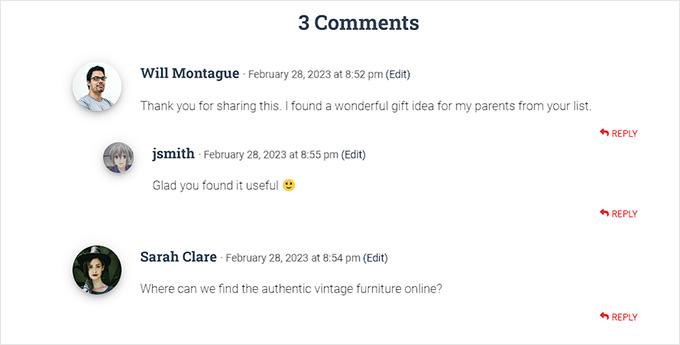
This allows each commenter to have their identity throughout the interwebs.
Why Should I Add Gravatar?
If you are a blogger, non-profit, small business, or anyone wanting to build a brand, you need to start using Gravatar.
A Gravatar allows you to build your identity on the web and build an authoritative voice in your industry.
At first, when you comment on blogs, your Gravatar might not be noticeable immediately.
However, if the same person sees your comment on numerous sites they read, they will probably visit your website.
Some website owners complain that Gravatar slows down their websites, and this is the most cited reason why bloggers choose to disable Gravatar.
Pro tip: See our ultimate guide to speed up WordPress for more performance optimization.
How Can I Get a Gravatar?
You can get a Gravatar by visiting the Gravatar website and signing up for a free account.
It is quite easy to create a Gravatar for your profile.
First, you need to visit the Gravatar website and click on the ‘Get Started Now’ button.
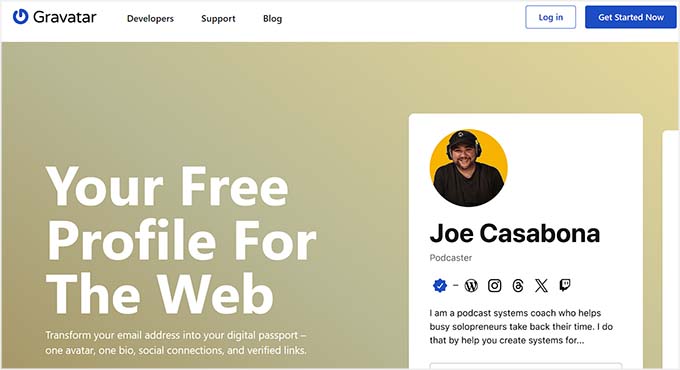
You will now be taken to the signup page.
Here, you must add your email address and click the ‘Continue’ button. Once you do that, you will be sent an email with a verification code. Simply enter that code and click the ‘Continue’ button.
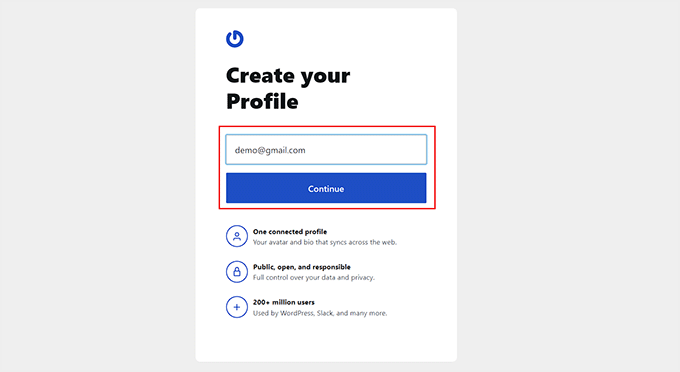
You will now be taken to your Gravatar account dashboard.
Here, click on the ‘Avatars’ tab in the left column to open some new settings.
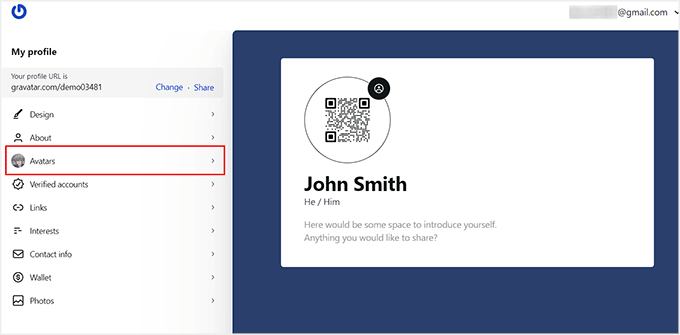
Once you are there, click the ‘Upload Image’ button in the left column to add a Gravatar image from your computer. You can also take your own picture in real-time by clicking the ‘Use Camera’ button.
We recommend choosing a nice profile picture of yourself or your company logo for the Gravatar. However, if you want to remain anonymous, you can use any other image that represents you.
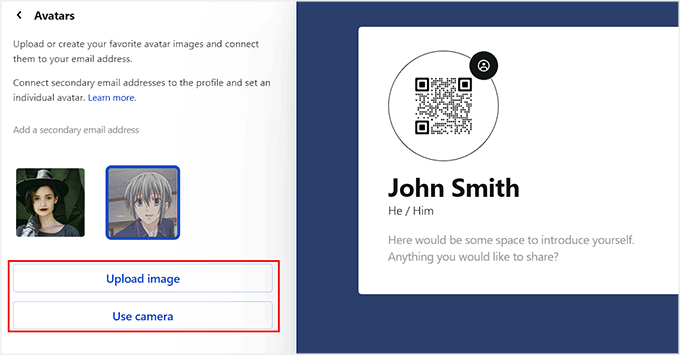
This will open Gravatar’s image editor, from where you can crop, rotate, zoom, and preview your image.
You can also add filters, and configure the brightness, saturation, and contrast for the image according to your liking. Once you are satisfied, just click the ‘Done’ button at the top.
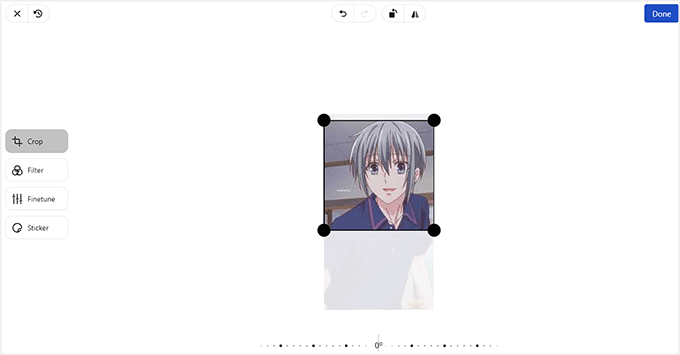
Your Gravatar has now been set up.
To show this Gravatar on your WordPress site, expand the ‘Verified Accounts’ tab from the left column in the dashboard.
This will open a list of platforms where you can activate your Gravatar. From here, select the ‘WordPress’ option.
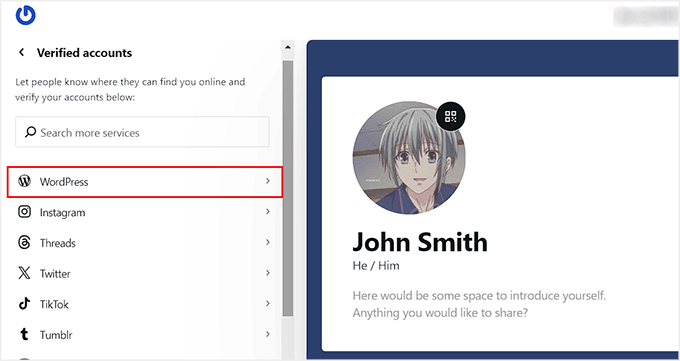
This will open some new settings, where you will need to follow the onscreen instructions in the left column to add a Gravatar to your website.
To do this, copy the embed code given in the sidebar and paste it on a published page or post on your website. Once you do that, add the URL of the page under the ‘WordPress URL’ option.
Then, click the ‘Verify Account’ button.
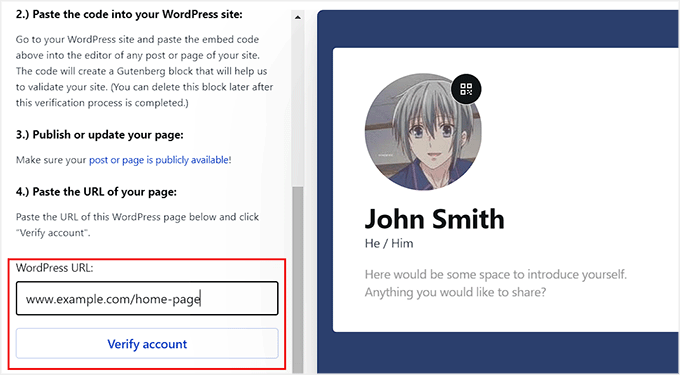
Now, you can try out your Gravatar by leaving a comment on a website or by checking the author profile on your WordPress blog.
This is how our Gravatar looked in the author bio section on a demo site.

Frequently Asked Questions About Gravatars in WordPress
Users often ask us questions about using Gravatar for their own avatar image as well as using Gravatar on their websites.
Following are the answers to the most frequently asked questions about using Gravatar.
1. How do I turn off Gravatar on my WordPress website?
You can turn off Gravatar on your WordPress website by simply visiting the Settings » Discussion page and unchecking the box next to the Avatar Display option.
For more details, see our tutorial on how to disable Gravatar images in WordPress.
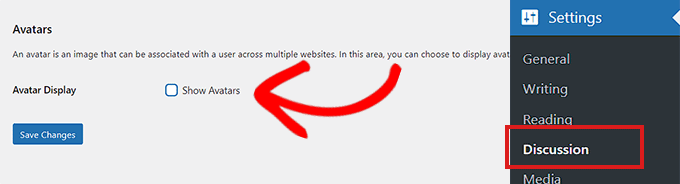
2. What happens when a user does not have a Gravatar image?
By default, WordPress will show the mystery man image next to the comments where the comment author does not have a Gravatar image associated with their email address. This is called the default Gravatar image.
You can change this image by visiting the Settings » Discussion page and scrolling down to the Default Avatar section.
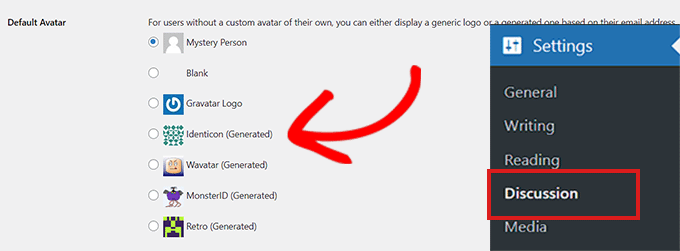
From here, you will see several options. Some of them will automatically attempt to generate a unique image using an algorithm based on the user’s name or email address.
3. Can I add more than one image or email address to my Gravatar account?
Yes, you can add multiple images and email addresses to your Gravatar account. However, you can only use one image as your Gravatar for each email address.
4. Can I disable my Gravatar account?
Yes, you can disable your Gravatar account at any time. Simply log in to your account on the Gravatar website and select the ‘Account Settings’ option from the dropdown menu on the right.
This will open a prompt. You must switch to the ‘Security & data’ tab and click the ‘Disable’ button for your account.
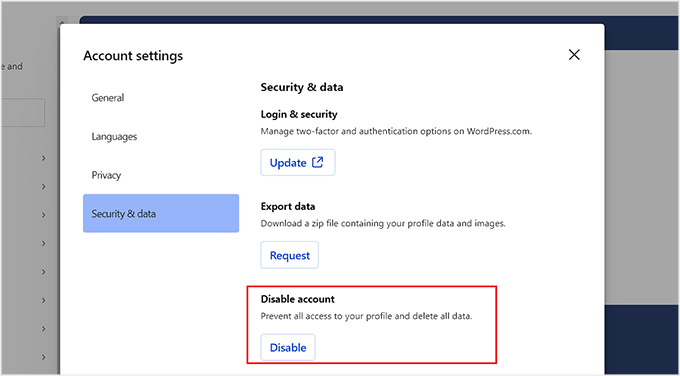
Disabling your Gravatar image will stop processing your images, and any websites where you left comments will stop showing your Gravatar image.
We hope this article helped you learn about what Gravatar is and why you should start using it. You may also want to see our tutorial on how to change the default Gravatar in WordPress and our top picks for the best plugins to improve WordPress comments.
If you liked this article, then please subscribe to our YouTube Channel for WordPress video tutorials. You can also find us on Twitter and Facebook.



Eskindir teklu
Thanks for the tip
ismail yavuz
it is tremendous article!
ercan pekdemir
Nice artice
Benjamin Michael Buescher
I’m strapped up with the Gravatar. My riches await!
Chrisantus M.
Great Tutorial. Keep up the good work. I am a common reader of WpBeginner.com
Darrell
Thanks for your help on this, I’m new to using Gravatar, and hoping that my name and picture shows up above!
Michael
I am new to all of this. I am going through a front end development program and establishing a Gravatar account. It was recommended by the director for the program. I’m eager to see how it works.
Victor
Not sure why it didn’t work for me.
Beth Soloway
Trying to figure out my gravatar!
sara
It works!
afsal ca
hope this works…:)
Elizabeth
Thanks for the article!
bajaartists
someone is using my unique name
Shelby
Curious to know if I have a gravatar
Jeff Jacobsen
I don’t really need it. I don’t have a website, blog, etc. I do notice it shows up on Network Miner. Does this Gravatar.com consume any bandwidth I could be using for other things I actually need on the internet? Or is it just the site pinging me for an avatar that doesn’t exist? The weekends are the pits for bandwidth on DSL. I can’t get Fios where I live. And for the price I pay for internet I don’t want things I dont need or use hogging bandwidth.
JohnSmith
Your gravatar is not stored on your own computer. The Gravatar servers store your image and whenever you sign up for a website with the same email as your gravatar account, if that site uses gravatar it will ask the Gravatar severs (not your computer) if there is an image for that email account.
Alanna
Excellent article. Very helpful!
Katie
Nice article, let’s give it a try
Paul
@Aapje Daapje You don’t need a wordpress account
Andy Mason
Can you add backlinks inside comments using Gravatar?
Stefanie Knox
Thanks for the help. Let’s see if this works!
Liana Bakker
ok I just got gravatar. When I comment on my own site it doesn’t show up! Any idea how make that happen? Hopefully it will at least work here….
Carl Madrid
This article explain all.. Gravatar also let you gather all your website,blogs etc., in 1 place.. Easy to see and people can also see them so easily…
Jason Wong
Thanks to your simple guide, it was easy enough to set up a Gravatar. Looking forward to learning more from your insightful posts!
Russell Leupold
woah
bb
Thanks for this useful posts, you’re indeed a wordpress community beginner developers. Cheers
Aapje Daapje
Really nice. But can one get an avatar without being forced to get a wordpress account as well? I don’t see that option.
A.J. Nichols
Great post!
French Tony
I did this mainly because of articles such as this one! Thanks for tip – search engines also like open profiles
EnlightenmentHow
I could not figure out what it was or what it did, i had only heard that we have to have one! Thanks for explaining!
Pia
Okay I signed up did it work?
Randy Keith
Okay I signed up, did it work?
Ed Leader
How interesting!
randall beggs
Thanks for the info.
Scott McGehee
Thanks for the tips!
Ryan James
Thanks for the tips. This was exactly what I was looking for.
Just set up my Gravatar!
Melodee Vandenbosch
Sounds like something I need to do!
Afraz Ali
Thanks for precise and useful info!
Bowman
Thanks!
Cyrille
Thanks for the good explanation !
Debbie
Hoping to see the video in action
Adam Dayton
I do not want gravitar from automatically choosing my avatar for message boards. I want to be anonymous for some things. What do I do?
Val
This is all so new it’s a bit confusing, I’m not sure what my gravatar is just yet, but this is kinda fun!
cris beiber
why should we sync the social media to gravator..
lauren
Trying to see that gravatar in action.
Vivian
cooool
Teresa
Great Article and very clear!
Larisa Makuch
Great article. Thank you for the clear explanation
Megaera
Hi, I’m hoping you can help me. I’ve been cross-posting my blog posts (self-hosted WordPress) to Facebook, but they always came across on Facebook with a big gray and white square next to them. I was told that the reason for those was because I hadn’t uploaded a gravatar. So I went to Gravatar.com and uploaded a Gravatar and now my blog refuses to cross-post to my Facebook account (It goes to Twitter just fine).
Anyway, this is the error message I get: •Facebook: Meg Justus (Error validating access token: Session has expired on Feb 21, 2014 2:12pm. The current time is Feb 22, 2014 1:00pm.)
I am in the process of changing email addresses, but I have changed my email address on both my WordPress blog and on Facebook, and I know I have on Twitter, so I don’t think that’s the problem.
I do hope someone who’s reading this can help me.
Susan Scott
I am a wordpress.com user. I am unsure what my gravatar is .. I know I should know but …please can you help me … I comment sometimes on Blogger posts and would prefer to use my open ID which then takes me to wp which requests my gravatar.
Many thanks.
Susan
WPBeginner Support
Your avatar is displayed right next to your name in the comment you left here. To modify it you can go to gravatar.com and sign in using the same email address you used here.
Admin
Ryan Martineau
Thanks for the tips!