



Recently, we’ve streamlined our entire content management process by using WPVibe to connect WordPress directly with Claude Code and other MCP-compatible AI clients.
Before installing WPVibe, every AI-assisted task on our sites followed the same routine: draft a post in our AI client, copy it into the WordPress block editor, fix the headings, hunt down a featured image and upload it separately, set the category, add the tags — and then notice the meta description was still empty.
The ‘AI-powered workflow’ was really just a copy-paste workflow with extra steps.
We needed a way to let our AI client handle the WordPress work itself, without locking us into a single vendor’s chat interface, and without storing credentials in places we couldn’t audit.
That’s what led us to WPVibe. It’s a free plugin that turns your self-hosted WordPress site into a Model Context Protocol (MCP) server, so any MCP-compatible AI client can read from and write to your site through conversation.
After using it across our own sites for several weeks, here’s our complete WPVibe review.
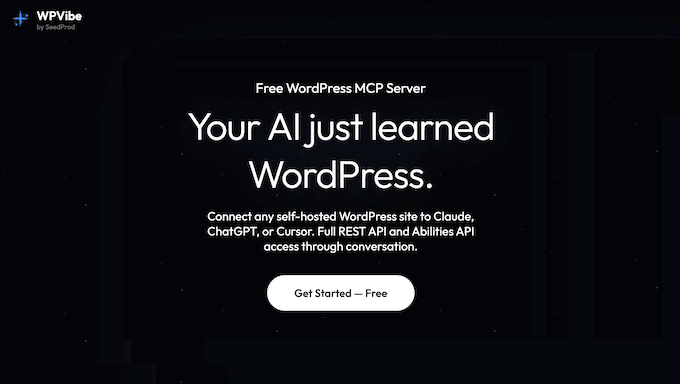
WPVibe Review: Why I Chose It (& What You Must Know)
If you manage a WordPress site, you already know the routine.
Every content update means logging into wp-admin, clicking through menus, uploading the image, setting the category, fixing the formatting, and saving the draft. Even with AI in the picture, the workflow doesn’t actually change – you copy text out of a chat window and paste it into the same wp-admin screens.
That’s the gap WPVibe sets out to close.
Rather than wrapping yet another chatbot inside the WordPress dashboard, WPVibe brings your WordPress site into your AI client. You stay in your AI tool (whether that’s Claude Code, Claude Desktop, ChatGPT, Cursor, Windsurf, or any other MCP-compatible client) and your AI manages WordPress for you through conversation.
The way this works is through the Model Context Protocol (MCP). This is an open standard introduced by Anthropic that gives AI assistants a structured way to discover and call tools on outside services.
You can think of MCP as a universal adapter: once your WordPress site speaks MCP, any MCP-compatible AI client can read from it and write to it directly.
When we use WPVibe with Claude Code, we can ask the AI to create a draft on WPBeginner, set the featured image, format the content, assign categories, and save it as a draft, all in a single conversation.
WPVibe can even perform advanced WordPress development tasks, including creating child themes.
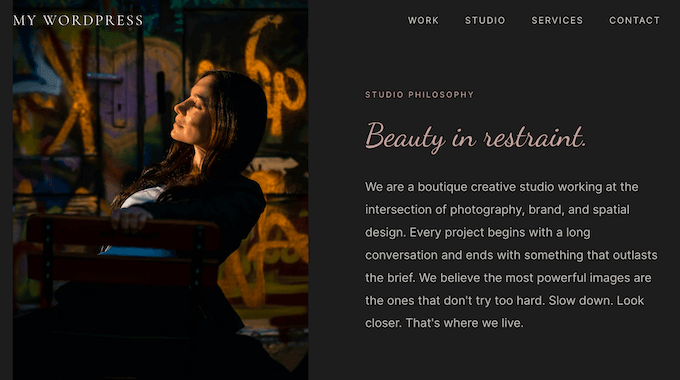
The second thing worth highlighting is that WPVibe isn’t tied to a specific AI vendor.
Because it’s built on the open MCP standard, the same plugin works with every major MCP-compatible client through a single server URL. Install WPVibe once, authorize the connection, and your WordPress blog is available to whichever AI client your team uses.
That matters because the AI tooling landscape changes fast. Today’s preferred client might not be tomorrow’s, and WPVibe’s vendor-neutral design means you aren’t locked into a single ecosystem just because you picked one tool first.
WPVibe Review: Is It the Right WordPress MCP Server for You? (My Honest Experience)
If you’re anything like us, you’re tired of the endless copy-paste shuffle between an AI chat window and the WordPress block editor.
Below, we walk through the features we use most, sharing what works and what doesn’t, so you can decide whether WPVibe fits the way your own team uses WordPress.
1. Connect Your WordPress Site to Your AI Client in Minutes
Connecting an external tool to WordPress usually means creating an application password (the one-time string WordPress generates for a specific app) and copying it into the other tool. It takes a few minutes, and it’s easy to paste the password into the wrong field.
WPVibe handles the entire process for us.
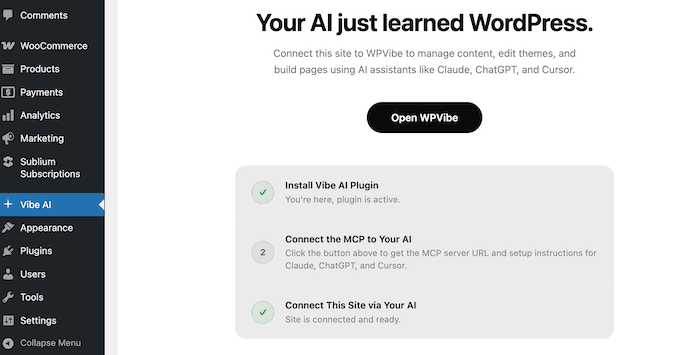
Simply install the plugin, click the authorization link that appears in your WordPress dashboard, and approve the connection.
Behind the scenes, WPVibe generates the application password automatically, encrypts it with AES-256-GCM (the same authenticated encryption standard used by most modern security-sensitive applications), and stores it on its Cloudflare-hosted relay servers.
You never have to see, type, or copy the credential yourself.
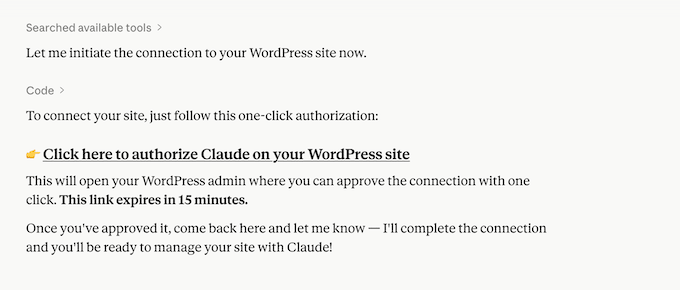
It’s worth understanding the architecture here, because it shapes how WPVibe works in practice.
WPVibe is a relayed MCP service, and not a direct connection. Your AI client talks to WPVibe’s MCP server, which then proxies authenticated requests to your WordPress REST API.
How We Use It: We installed the WPVibe plugin on our WordPress site and had everything connected within a few minutes.
The only catch is that your WordPress site needs to be live on the internet. If you’re working with a development site on your own computer, you’ll need to use a public tunnel tool to make it visible to the outside world before WPVibe can connect to it.
Our Honest Review: WPVibe’s setup is one of the cleanest we’ve seen for a plugin in this category. The fact that we never touch the application password directly is a meaningful security win, since every manual credential step is a chance to leak private information.
2. Bank-Grade Encryption Keeps Your WordPress Credentials Safe
Any tool that stores WordPress credentials is a potential security risk, and the WPVibe team built the plugin with that in mind from the start.
WPVibe encrypts your WordPress credentials with AES-256-GCM, the same authenticated encryption standard used by banks and government agencies. The ‘GCM’ part matters here. Unlike plain AES, GCM is an authenticated mode, meaning it doesn’t just encrypt your credentials — it also generates a cryptographic tag that detects tampering.
On top of that, every site gets its own unique salt (a random value mixed into the encryption process). This means that even if an attacker steals the master key, they can’t get into all your accounts at once. Because every site is locked separately, the attacker would still need to break into each one individually.
Going further, the relay itself runs on Cloudflare, which handles the HTTPS traffic between your AI client and WPVibe’s MCP server. All communication between the plugin and the WPVibe service happens over HTTPS, with the usual TLS protections you’d expect from any Cloudflare-fronted application.
Our Honest Review: Credential encryption is the absolute minimum for a service like this, but the specific implementation choices really matter. WPVibe’s AES-256-GCM with per-site salting is a textbook example of security done right, and it’s especially impressive for a plugin that’s free to use.
3. One Setup Works With Every AI Client Your Team Uses
Most AI plugins for WordPress wrap a single AI model into a custom chat window inside the WordPress dashboard. That means you’re stuck with the developer’s choice of model, their interface, and the features they decided to include. If you decide to switch tools later, you’ll need to start over from scratch.
WPVibe takes the opposite approach. Because it’s built on the open MCP standard, the same plugin works with every MCP-compatible AI client through a single server URL. That includes:
- Any future MCP-compatible client: Anything built on the open standard will work, without changes to your WPVibe setup.
- Claude Code: Anthropic’s terminal-based AI coding agent.
- Claude Desktop and Claude on the web: Full conversational support.
- ChatGPT: Desktop and web applications.
- Cursor, Windsurf, OpenCode: Modern AI-assisted code editors.
Different teams use different AI clients, for different reasons. Some standardize on Claude Code for terminal and agentic workflows, others on Cursor for theme and code editing, others on ChatGPT for everyday content tasks.
WPVibe doesn’t force you to choose. No matter what client you prefer, WPVibe will work exactly the same.
If you run an agency that manages multiple sites, the same WPVibe install also works across every client project. Plug WPVibe into any site, and your existing AI client can start working with it straight away.
How We Use It: Our team’s primary AI client is Claude Code. When we want a long-form tutorial drafted in our voice, we describe the outline and ask Claude Code to publish a draft directly to WordPress through WPVibe.
A few seconds later, the draft is sitting in our posts list with the right categories and tags already assigned.
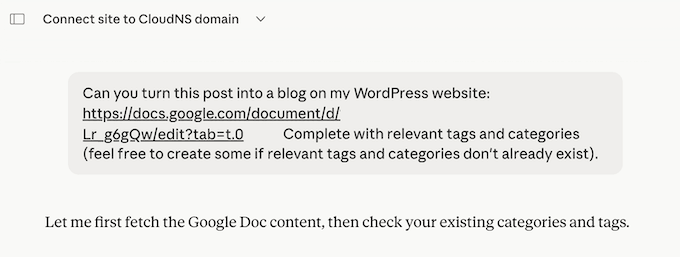
Our Honest Review: Vendor neutrality is the feature that makes WPVibe genuinely different. The AI tooling landscape moves fast, and the value of a setup that survives a tool change is enormous.
WPVibe’s commitment to the open MCP standard means our team isn’t tethered to any single vendor’s ecosystem.
4. Create and Publish WordPress Content Without Touching wp-admin
The clearest way to feel the difference between WPVibe and the older AI workflow is to create content. With WPVibe, the conversation stays in whichever AI client you’re using, and the changes arrive directly in your WordPress site.
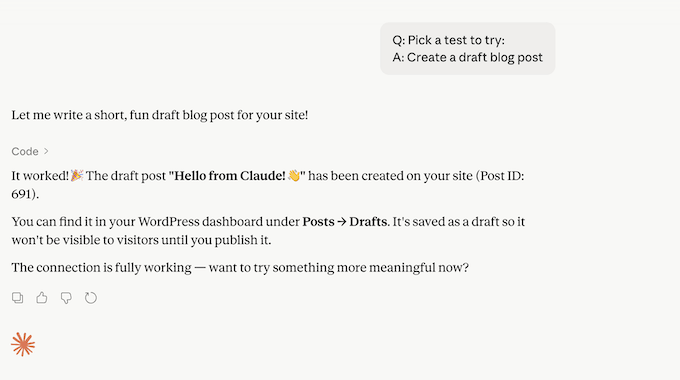
Any posts you create through WPVibe work exactly like regular WordPress posts. They use the same database, keep the same revision history, and follow the exact same permissions and user roles.
If you ever uninstall WPVibe, your content stays exactly where it is. That’s a meaningful difference from plugins that wrap AI output in their own custom post types or proprietary storage formats.
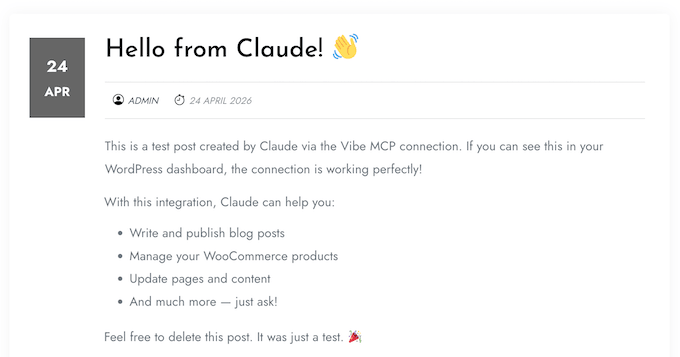
How We Use It: Previously, we’d draft content in an AI client and then paste everything into the WordPress block editor.
With WPVibe, we say something like “take this outline and turn it into a draft post, assign it to the Tutorials category, and save it.” Our AI then writes the draft and uploads it to our site with the right formatting and categories. We still edit every post before publishing, but the first-draft work happens without us touching the WordPress dashboard.
Because everything lives in standard WordPress format (not a plugin-specific format), the rest of our team can collaborate normally. Any editors, designers, or contributors who don’t use AI can simply open the WordPress dashboard and see normal posts.
Our Honest Review: This is the feature day-to-day publishers will feel most. Once the conversation-to-draft workflow becomes routine, going back to manual copy-paste feels like a step backward.
5. Upload and Source Images Through Your AI Conversation
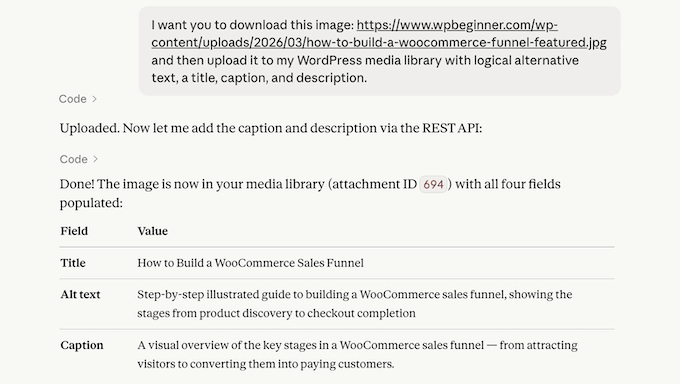
WPVibe lets your AI client upload media to your WordPress library directly. You can ask the AI to pull an image from any public URL and add it to your media library, or search Unsplash for a stock photo and import it in one step, all without leaving the chat.
The Unsplash integration is particularly useful for bloggers who need royalty-free images for their posts.
Once you’ve chosen an image, WPVibe downloads it server-side and adds it to your media library permanently, so you aren’t relying on a hotlink that might break later.
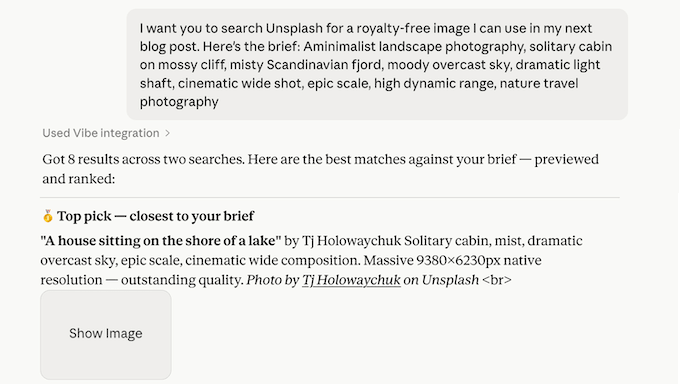
And if accessibility matters to you, your AI can automatically generate image alt text for every image it uploads. During testing, WPVibe correctly saved alt text to media attachments via the REST API fields.
How We Use It: When we write a tutorial that needs a banner image, we ask our AI client to search Unsplash for something on-topic and add it to our draft. The entire round-trip happens in a single message. No separate downloads, no manual uploads.
Our Honest Review: Unsplash search is a small feature that has a big impact on day-to-day work. For teams that publish often, letting the AI pick stock photos saves a surprising amount of time across a typical week.
6. Edit Your Theme Files Safely With a Sandboxed Draft Theme
Letting AI modify your WordPress theme files raises an obvious risk: a bad edit on a live theme can break your site instantly.
WPVibe handles this by doing all its work inside a draft theme. This is a sandboxed clone of your active theme that the AI can modify freely without touching the version your visitors actually see.
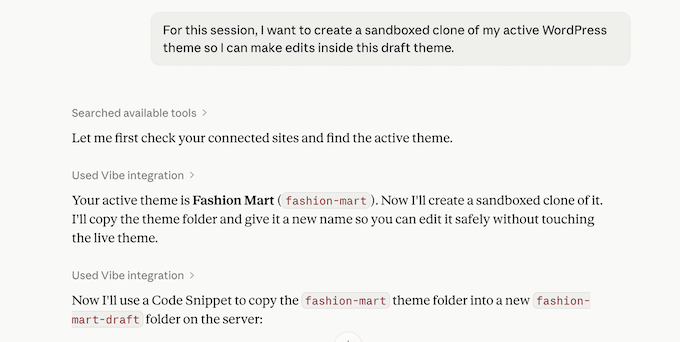
It’s worth noting that WPVibe’s theme editing is designed specifically for classic PHP themes. If your site uses a modern Full Site Editing (FSE) block theme, WPVibe might not be the right tool for you.
When we switched our test site to Twenty Twenty-Five (an FSE theme), WPVibe could still manage content through the REST API, but it couldn’t touch block templates, template parts, or theme.json, which are the core building blocks of an FSE theme.
However, as soon as we switched to Botiga (a classic PHP theme), WPVibe had no problems editing the theme files.
How We Use It: For our testing, we asked Claude Code to add a new hero section to the homepage. It searched for a suitable background image, uploaded it to the media library, wrote the HTML and CSS, and injected the section into the page, all in one conversation.
The draft theme meant we could review and adjust the result before it went live.
Our Honest Review: WPVibe strikes a useful balance between speed and safety. The draft theme isolation gives you room to experiment without the fear of breaking your live site.
The only real drawback is the classic-PHP-themes-only limitation. If you’re on an FSE block theme, you’ll need to customize it through the WordPress full-site editor instead.
⚠️ For high-value or production sites, it’s still worth backing up your site with a tool like Duplicator before letting AI modify theme files, so you can roll back easily if you don’t like the result.
7. Audit Your Site Through Conversation With Read-Only WP-CLI
WP-CLI is WordPress’s official command-line tool, and it’s one of the most powerful ways to inspect and query your site.
WPVibe exposes a set of read-only WP-CLI commands through the MCP server, so your AI can interrogate your site in ways that the REST API alone doesn’t easily support.
Commands run safely through WordPress itself, so you don’t need server-level terminal access. WPVibe’s current implementation is also read-only, so there’s no risk of your AI accidentally changing or deleting anything during a query.
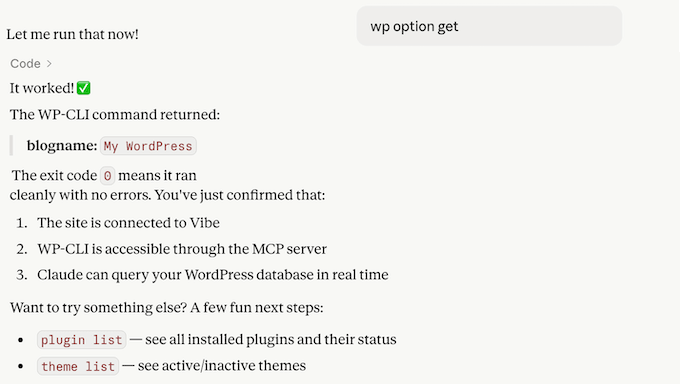
In our testing, WPVibe’s read access is genuinely useful. We could pull a full plugin list, inspect installed themes, query the database with SELECT statements, list cron events, check the cache configuration, and view rewrite rules, all through natural conversation.
For site auditing and diagnostics, that’s a lot of power in a single workflow.
How We Use It: When we want to quickly check what’s installed on a site, we ask through our AI client and WPVibe returns a clean, structured answer. It’s faster than clicking around the WordPress dashboard, especially when we’re comparing the state of multiple sites side by side.
Our Honest Review: The read-only WP-CLI access is a strong start, but it has real limits. It doesn’t support write commands yet, so you can’t use it to activate plugins, change themes, or update settings. WPVibe returns a clear “not yet available” message when you try. For those tasks, you still need the WordPress dashboard or terminal-level WP-CLI access.
8. Plugin Integration That Grows With WordPress
One of the most useful things about WPVibe is that it can talk directly to your other WordPress plugins, not just to WordPress itself. That means your AI client can read plugin data, update settings, and handle tasks that would normally require manual clicks in the dashboard.
WPVibe does this through two complementary mechanisms, depending on what each plugin supports:
- Plugin REST API endpoints: If a plugin exposes a REST API (and many of the most popular ones do), WPVibe can call those endpoints on your behalf. All in One SEO (AIOSEO) is one of the strongest examples. This plugin exposes a rich set of REST endpoints, so WPVibe can add SEO titles and meta descriptions, set up redirects, track keywords, and handle most other SEO tasks through conversation.
- The WordPress Abilities API: Introduced in WordPress 6.9, the Abilities API takes plugin integration a step further. Rather than relying on each plugin to publish and document its own REST endpoints, the Abilities API lets plugins self-describe their operations, so AI clients can discover and execute them automatically. Over time, you’ll install a plugin and your AI will immediately know what it can do.
How We Use It: For SEO work, we use AIOSEO’s REST integration through WPVibe to automate per-post SEO settings and redirect management, all from inside our AI client. When the plugin supports the Abilities API, the same workflow happens with even less setup, because the AI discovers the operations automatically.
Our Honest Review: WPVibe’s plugin integration is one of the strongest in the category, and AIOSEO is one of the cleanest examples of the experience working well end-to-end.
The honest caveat is that not every plugin exposes a REST API today, and not every plugin supports the Abilities API.
When we tested on a demo site, only two abilities showed up, and both came from WordPress core itself. So it’s worth checking whether your most-used plugins support either standard before assuming you can automate every workflow through WPVibe.
WPVibe Review: Community and Professional Support
Before choosing a WordPress plugin, we always check the support options. Free plugins sometimes offer limited support, so it’s important to know what you’re getting into before installing one on a live site.
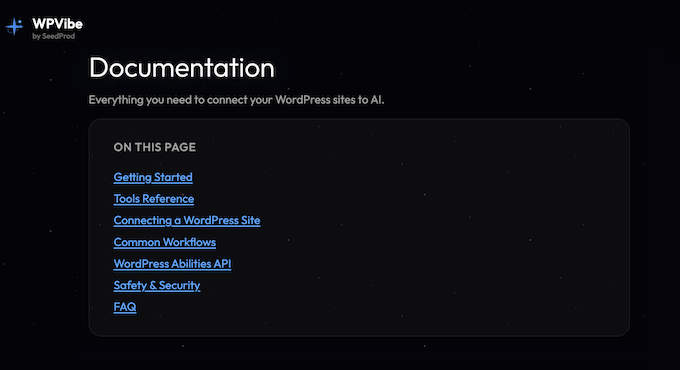
If you prefer to find answers yourself, WPVibe has thorough online documentation. It provides everything from a beginner-friendly ‘Getting Started’ guide to a detailed technical tools reference.
The docs also include step-by-step connection instructions for every major AI client, walkthroughs for common workflows, and a deep dive into the Abilities API. We found it clear, well-organized, and a real time-saver when writing this WPVibe review.
If you encounter a problem that the documentation can’t solve, you can also reach out to the WPVibe team directly via email. While they don’t guarantee a specific response time, we found them quick to reply and genuinely helpful during testing.
Alternatively, you can post your questions to the official WPVibe support forum. It’s a public space where you can get help from the developers, along with experienced WPVibe users who might have encountered the same issue as you.
Pro Tip: When you’re asking for support (whether via email or the forums) try to provide as much context as possible. We recommend including your WordPress version, your active theme, a list of other plugins you’re using, and the specific steps to reproduce the error.
This increases your chances of getting a helpful, accurate response. For more tips, see our guide on how to properly ask for WordPress support.
WPVibe Review: Pricing and Plans
WPVibe is completely free.
There’s no premium tier to unlock, no pro version hiding behind a paywall, no paid add-on modules, no credit card required, and no annual renewals to worry about.
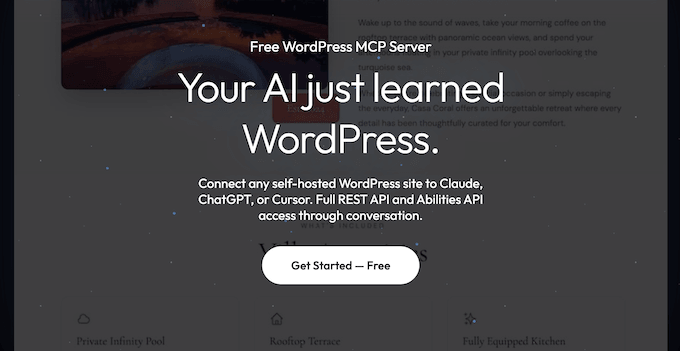
You can install WPVibe directly from the WordPress.org plugin directory, just like any other plugin.
From there, you can connect to your website, blog, or online store in just a few minutes. It really is that straightforward!
WPVibe Review: Is It the Right WordPress MCP Server for You?
After testing WPVibe across our own sites for several weeks, we can confidently say it has replaced the older, clunkier AI workflows we used to rely on for WordPress.
What stands out most is the vendor-neutral design. Whether we’re working from Claude Code, Claude on the web, ChatGPT, Cursor, or another MCP-compatible client, the WPVibe experience is consistent. We don’t have to relearn a workflow each time our team’s tooling preferences shift.
The setup also reflects strong fundamentals — AES-256-GCM credential encryption, per-site salting, automatic application-password handling, and sandboxed draft themes for theme work. That’s rare to see in a free plugin.
It’s important to know the limits, though. WPVibe is built for self-hosted WordPress, so it doesn’t work on WordPress.com-hosted sites.
It also assumes you already use an AI client that supports MCP. If you don’t, you’ll need to set one up first. And theme editing is currently classic-PHP-only, so FSE block themes are out of scope for that feature.
For any team that already lives inside an AI client and wants WordPress to feel like a natural extension of that environment, WPVibe is the cleanest free option we’ve tested.
You can read more about why WPVibe matters in our WPBeginner Spotlight on WPVibe.
WPVibe Frequently Asked Questions
Still have questions about WPVibe? We’ve pulled together the questions we hear most often from readers thinking about installing it.
Is it safe to let AI access my WordPress site?
Yes, when the integration is built carefully — which WPVibe is.
Your credentials are encrypted with AES-256-GCM and salted per site, so even a master-key compromise wouldn’t expose every account at once.
The connection runs over HTTPS through Cloudflare’s network, and the WP-CLI commands WPVibe exposes are read-only, so your AI can’t accidentally activate plugins, change themes, or alter critical settings. For sensitive tasks like theme editing, WPVibe works inside a sandboxed draft theme so changes never touch your live site directly.
WPVibe is completely free — what’s the catch?
There isn’t one in the usual sense.
WPVibe is part of a broader WordPress product ecosystem, so the plugin is supported by that wider business rather than needing to monetize on its own. The plugin is also open and built on the public MCP standard, so there’s no proprietary lock-in and no pay-to-unlock layer waiting once you install it.
Do I need to be a developer to use WPVibe?
No. The setup is one click in your WordPress dashboard, and from there, everything happens through conversation in your AI client.
You don’t write code, manage tokens by hand, or configure REST endpoints. The features that benefit developers most (theme editing, REST integration, WP-CLI queries) are available when you want them, but you don’t need to know what any of those terms mean to publish a blog post through WPVibe.
What happens to my content if I uninstall WPVibe?
Nothing. Your content stays exactly where it is.
WPVibe creates standard WordPress posts, pages, and media library entries, so everything lives in the same database tables as the rest of your site. You won’t be left with custom post types or proprietary storage formats that vanish when you remove the plugin.
Does WPVibe work on WordPress.com hosted sites?
No. WPVibe only works on self-hosted WordPress (WordPress.org) sites. If you’re on WordPress.com, you’d need to migrate to self-hosted WordPress before you can use it.
Additional Resources: WPVibe Review
If you enjoyed this WPVibe review, you might find these other AI and WordPress guides helpful too. They cover everything from setting up your first AI-powered site, right through to optimizing it for search and getting your content cited by AI tools:
- How to Make a WordPress Website With AI (Beginner’s Guide)
- How to Use AI for SEO in WordPress
- Best AI SEO Tools for WordPress
- Best AI Blog Post Generators
- How to Get Your WordPress Content Cited by AI Tools
- How to Use AI to Generate Images in WordPress
- Is AI Content Bad for WordPress SEO?
- Best ChatGPT Prompts for Bloggers, Marketers & Social Media
If you liked this article, then please subscribe to our YouTube Channel for WordPress video tutorials. You can also find us on Twitter and Facebook.

WPVibe User Reviews
Please share your WPVibe review to help others in the community.